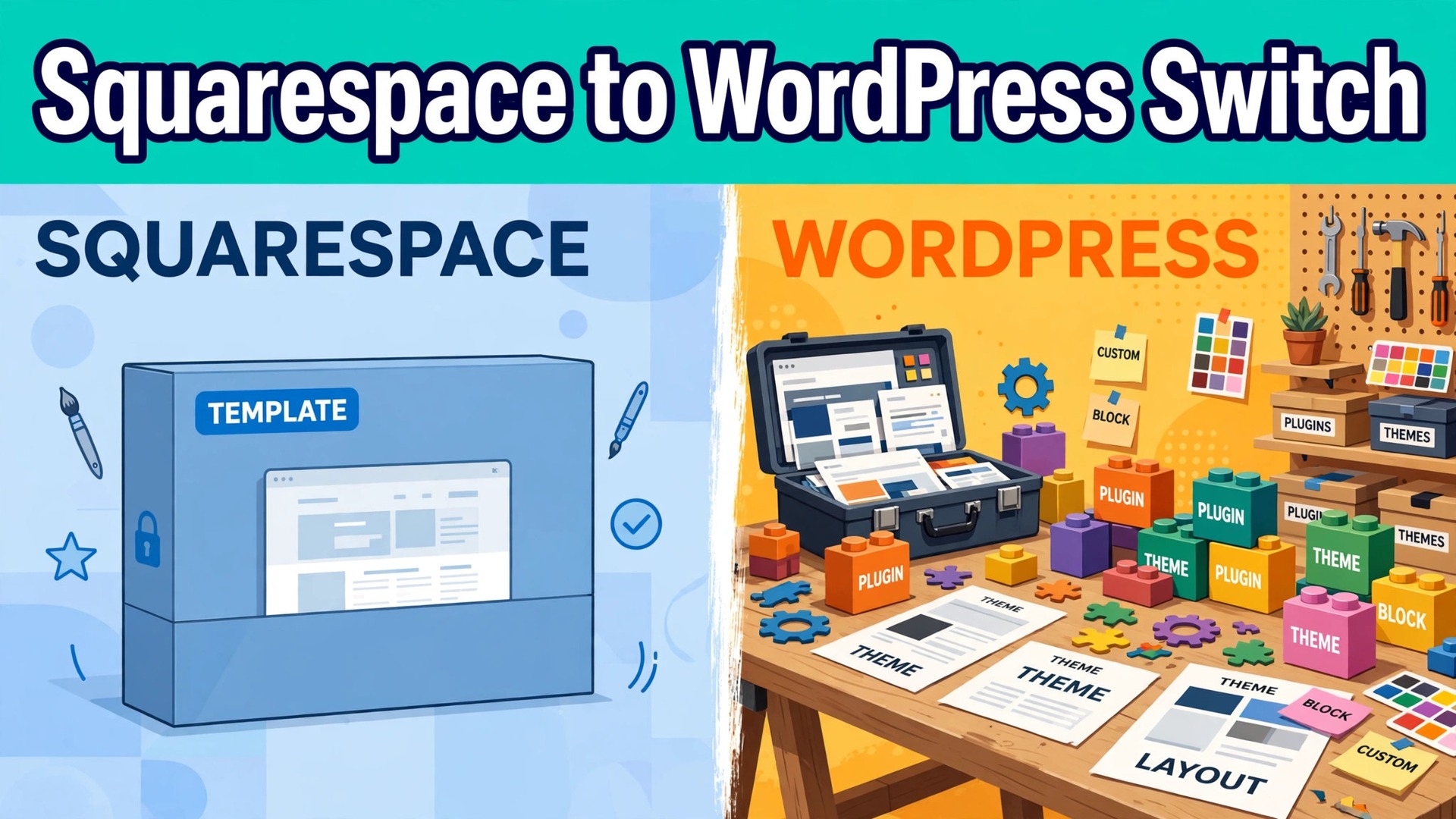
The short verdict is this. Switch if you want control over your site, your costs, and your search ranking for the next five years. Stay if you want a site that just works and you never want to think about hosting, updates, or plugins. That is the whole decision, and the evidence for how to switch from Squarespace to WordPress follows. Squarespace is a closed system that does a good job for a small site. WordPress is an open system that does a better job for a site that will grow, change, and earn money from search traffic. The move takes a weekend, and it is worth doing once, properly, rather than twice, in a hurry.
Squarespace raised its prices in July 2026. The plans are now Basic at 19 dollars a month, Core at 29 dollars, Plus at 49 dollars, and Advanced at 99 dollars, all billed annually. The old names were Personal, Business, Commerce Basic, and Commerce Advanced, and the new names map to those in the same order. Basic adds a 2 percent fee on store sales and a 7 percent fee on digital products.
Core removes the store fee and charges 5 percent on digital products. Plus and Advanced lower those fees further. WordPress itself is free. You pay for hosting, a domain, and any premium theme or plugin you choose, and the total for a small business site is usually lower than the Squarespace plan it replaces, once the store fees are counted.
This guide walks through how to switch from Squarespace to WordPress without losing pages or SEO. You will see why owners move, what each platform does better, the real cost at three sizes, what transfers and what does not, and a seven step workflow that moves content, images, and search rankings safely. The guide assumes self hosted WordPress with WooCommerce for a store, because that is the setup that gives you full control. A hosted WordPress.com plan is a different product, with its own limits, and it is not the same as the open WordPress covered here.
Why Owners Leave Squarespace for WordPress
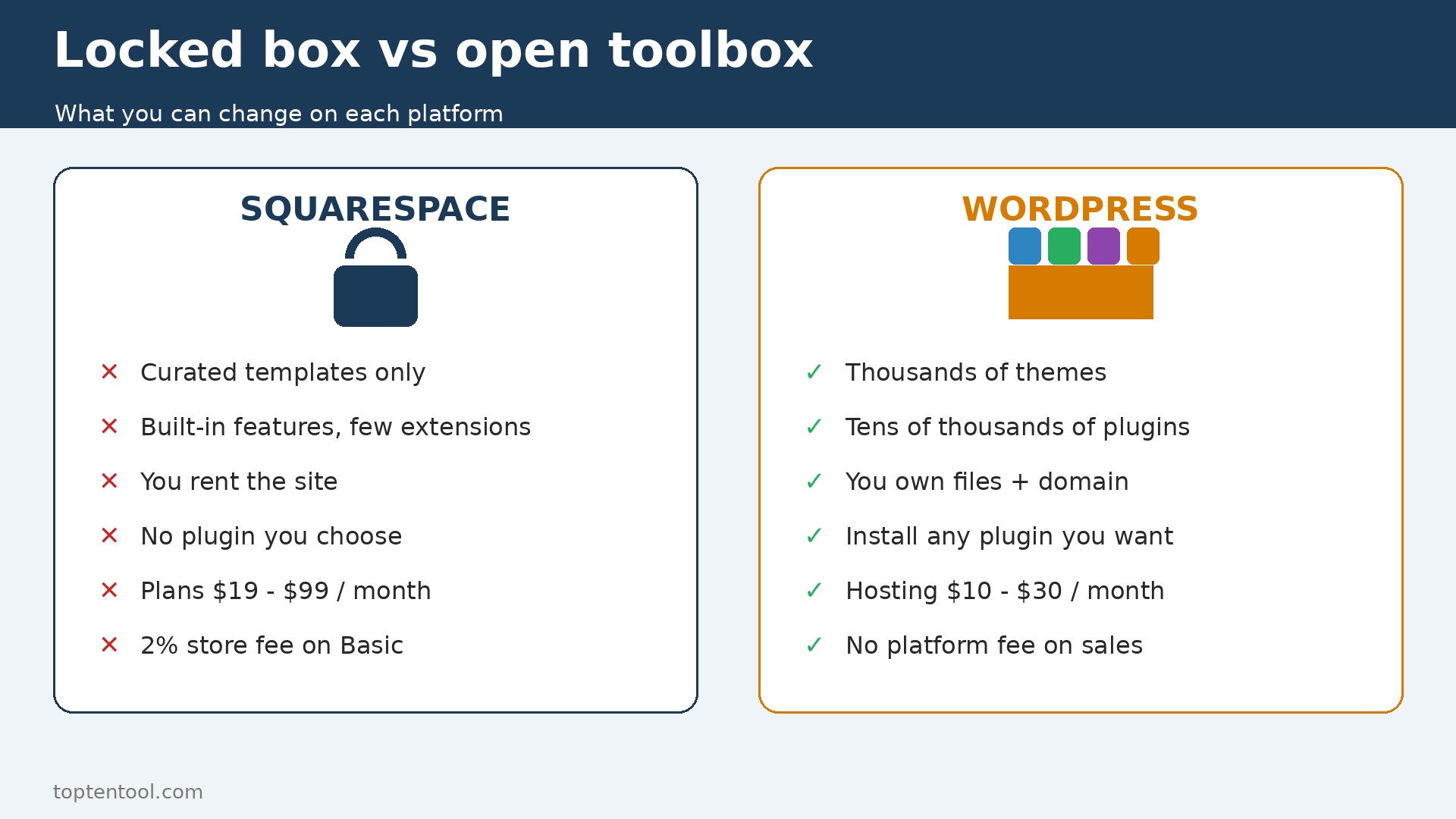
The first reason is ownership. On Squarespace you rent a site inside a system you do not control. You cannot move the site to another host, you cannot install a plugin that Squarespace has not approved, and you cannot change the underlying code in the way you want. On WordPress you own the files, the database, and the domain, and you can move the whole site to a new host in an afternoon. That ownership matters when a platform raises prices, changes a feature, or closes a tool you rely on. A business that depends on its website should own it, and WordPress is the practical way to own it.
The second reason is search. WordPress gives you full control over URLs, redirects, sitemaps, schema, page speed, and SEO plugins, and that control is what lets a site rank for competitive terms. Squarespace has improved its SEO tools, and a small site can rank well on it, but the control is thinner. You cannot install the SEO plugin you want, you cannot optimise the code in the same way, and you cannot fix a speed problem by changing the host. A site that earns traffic from Google will earn more from WordPress, because every ranking factor is in your hands.
The third reason is cost at scale. Squarespace Basic at 19 dollars a month is 228 dollars a year, and the store fee adds 2 percent to every sale. A store that takes 5,000 dollars a month in sales pays 100 dollars a month in store fees on Basic, on top of the plan. WordPress hosting for a small store is commonly in the range of 10 to 30 dollars a month, WooCommerce core is free, and there is no platform fee on sales. Card processing still applies, at about 2.9 percent plus 30 cents, but the platform fee disappears, and that saving grows with every order.
The fourth reason is flexibility. WordPress has tens of thousands of themes and plugins, covering memberships, courses, bookings, directories, multilingual sites, and almost any other job a small business can name. Squarespace covers the common jobs well, and it covers the uncommon jobs poorly or not at all. A business that plans to add a course, a membership, or a booking system in the next year should move before it builds that feature on Squarespace, because rebuilding it later costs twice as much.
There are good reasons to stay on Squarespace. The templates are beautiful, the editor is simple, and the site needs no maintenance. WordPress needs updates, backups, and a host you trust, and a site that is never updated becomes a security risk. If you have a small brochure site, if you never plan to sell online, and if you value simplicity over control, stay on Squarespace. The move costs a weekend, and a site that is already working should not spend it.
Squarespace and WordPress Side by Side
| Area | Squarespace | WordPress with WooCommerce |
|---|---|---|
| Software cost | Basic 19, Core 29, Plus 49, Advanced 99 dollars a month billed annually | WordPress free, WooCommerce core free |
| Hosting cost | Included in the plan | Hosting commonly 10 to 30 dollars a month for a small site |
| Store fee | Basic 2 percent on store sales, digital fees 7 to 0 percent by plan | No platform fee on sales |
| Card processing | About 2.9 percent plus 30 cents | About 2.9 percent plus 30 cents |
| Themes | Curated templates, limited choice | Thousands of themes, free and premium |
| Plugins and apps | Built in features, limited extensions | Tens of thousands of plugins |
| SEO control | Good built in tools, limited depth | Full control with SEO plugins |
| Ownership | Rented inside Squarespace | You own files, database, and domain |
| Maintenance | None, handled by Squarespace | Updates, backups, and security are your job |
| Free trial | 14 day free trial | No trial, hosting often has a money back period |
Read the store fee row first, because it decides the cost for any store. A store on Squarespace Basic that takes 5,000 dollars a month pays 100 dollars a month in store fees, which is more than five times the plan price. The same store on WordPress pays no platform fee, so the saving is 100 dollars a month, or 1,200 dollars a year, before hosting is counted. A store on Core pays no store fee, but Core costs 29 dollars a month, and the digital product fee is still 5 percent. Count the fees at your real sales volume, not at the plan price alone.
Read the maintenance row second, and read it honestly. WordPress needs work. Themes and plugins need updates, backups need to run, and a host needs to be chosen with care. That work is about an hour a month for a small site, and it can be handed to a host that manages updates for you. If that hour is a burden you will not carry, stay on Squarespace. A WordPress site that is never updated is a site that will break, and a broken site costs more than any saving.
How to Switch from Squarespace to WordPress in Seven Steps
Plan how to switch from Squarespace to WordPress over a weekend, with Squarespace kept live for 30 days after cutover. Do not cancel Squarespace until the first month in WordPress has produced real traffic without a missing page.
Step 1. Audit the Squarespace site before you export anything
List every page, every blog post, every product, and every image gallery. Export a list of the URLs that get traffic, using the analytics in Squarespace or a search console report, and mark the ten pages that matter most. Check each of those ten pages for a clear title, a clear heading, and at least one image with a useful file name. Fix the titles now, because a title fixed before the move carries over cleanly, and a title fixed after the move needs to be fixed in two places.
Step 2. Export content from Squarespace the right way
Squarespace exports content to a WordPress format file, which WordPress can import. Go to the settings, choose export, and download the file. The export includes pages, blog posts, and images, but it does not include products in full detail, custom code, or some gallery types. Export the product list separately to a spreadsheet, and download the images at full size where you still have the originals. Open the export file and check that the post count matches the site. If the count is short, the export missed a section, and you will need to copy those pages by hand.
Step 3. Set up WordPress hosting and import in small batches
Choose a host, install WordPress, and pick a theme that is close to your Squarespace design. Install a backup plugin and an SEO plugin before you import anything, because a site without a backup is a site that can lose a weekend of work in a minute. Import the Squarespace file through the WordPress importer, and check the count of pages and posts after the import. Then import products through WooCommerce, in batches of 50, and check the prices and images after each batch. Small batches make errors easy to find.
Step 4. Rebuild the design, the menus, and the homepage
Pick a WordPress theme and rebuild the homepage, the navigation, and the footer to match the brand. Do not try to copy the Squarespace template pixel for pixel. WordPress themes have their own layout, and a theme that fights the platform will slow the site down. Set the logo, the colours, the fonts, and the menus. Test the site on a phone and on a desktop, because a design that looks right on a desktop can crowd on a small screen. Check that every menu link goes to the right page, and that the contact form works.
Step 5. Rebuild the store, the shipping, and the taxes
Products that imported cleanly still need checking. Set the prices, the stock levels, the shipping zones, and the tax settings in WooCommerce. Rebuild discount codes by hand, because they do not transfer as live codes. Test a purchase with a real card for a one dollar product, then refund it, because a store that has never been tested is a store that will fail on the first real order. Check the tax on a test order for every region you sell to, because a tax rate that is wrong by one percent creates a filing problem later.
Step 6. Redirect every old URL and test search
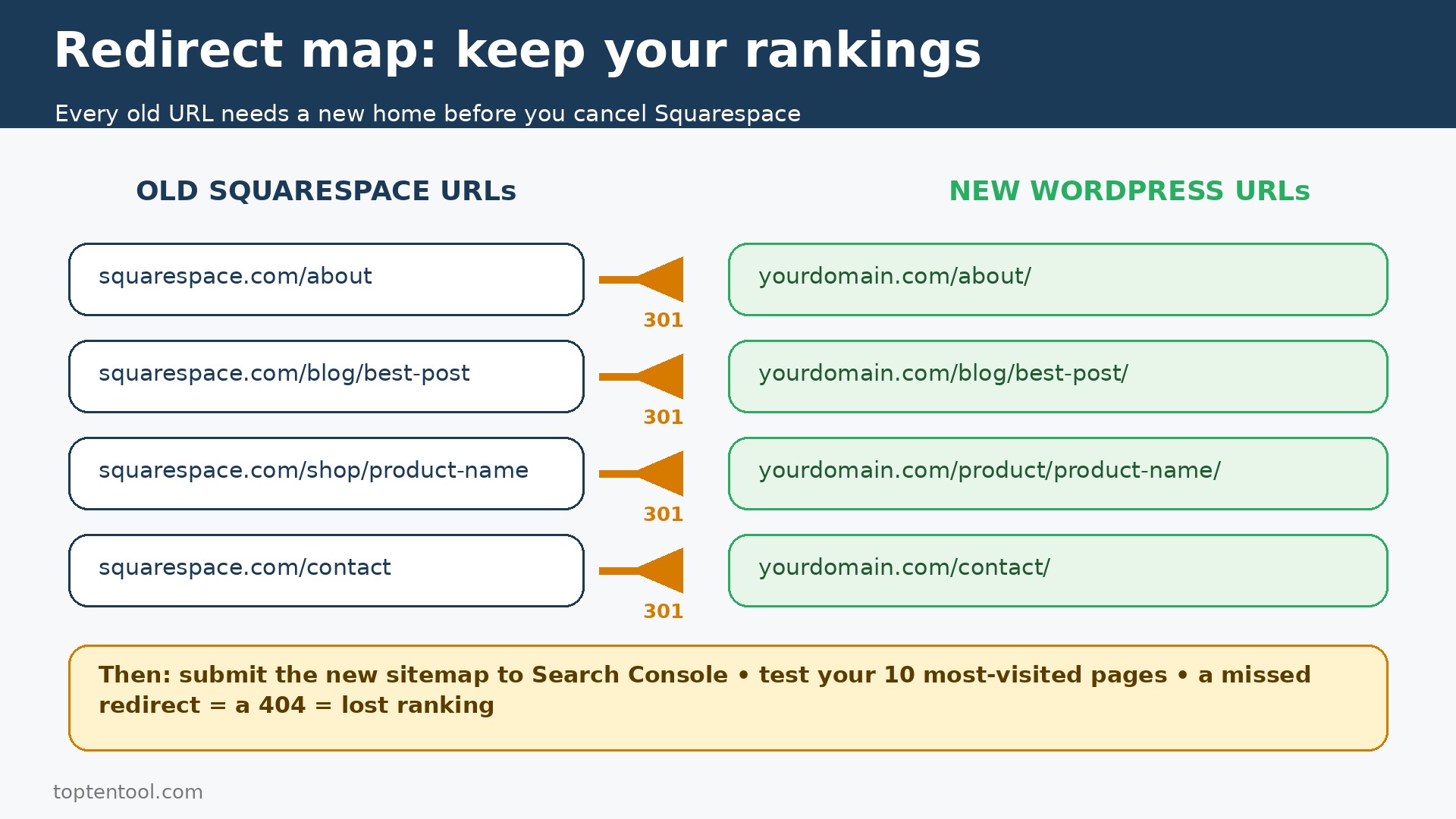
Point the domain to the new host, and set up redirects for every Squarespace URL that ranks in search or that appears in an email or an ad. Squarespace URLs and WordPress URLs follow different patterns, so a redirect map is essential. Test the ten most visited pages, the homepage, and the checkout on a phone and on a desktop. Submit the new sitemap to the search console, and check that the old URLs return a redirect rather than a 404 error. A page that returns a 404 loses its ranking, and the loss takes weeks to recover.
Step 7. Run both sites for 30 days, then close Squarespace
Keep Squarespace live for 30 days after cutover. Send all new traffic to WordPress. Use Squarespace only to check an old page or to download a file you missed. At the end of the 30 days, run the traffic reports in both systems, confirm the page count matches, export a final backup from Squarespace, and only then cancel the subscription. Cancelling early saves one month of fees and risks a lost page you cannot recover.
Pre Switch Checklist
Before You Start
– List every page, blog post, product, and gallery, and confirm the counts before you export. – List the ten pages that get the most traffic, and check each one has a clear title and heading. – Export the Squarespace content file, the product list, and the order history, and store the files outside both tools. – Download the logo and the brand images at full size, with the colour codes written beside them. – Choose a host, a theme, and a backup plugin before you import, and install the SEO plugin first.
Right Before the Move
– List every discount code, shipping zone, and tax setting, with the rates for each region. – Plan a redirect for every URL that ranks in search or that appears in an email or an ad. – Pick a cutover date at a quiet time, and block two hours on the following Monday to check traffic and orders. – Tell repeat customers that the site will look different, and confirm their accounts will carry over where possible. – Keep the Squarespace login active for 30 days after cutover, with a calendar reminder for the cancellation date.
If the page count is over 200, add a day to the plan. A large site takes longer to check, and the checking is the work that prevents a missing page from reaching a visitor.
What You Lose and What You Gain
What you gain is control. You own the site, you choose the host, you install the plugins you want, and you can move the whole site to a new host in an afternoon. That control is worth more than any single feature, because it means the site can grow in any direction without asking permission. A business that adds a course, a membership, or a booking system next year will be glad the site is on WordPress, because those features are a plugin away rather than a platform change away.
What you gain next is search depth. Full control over URLs, redirects, sitemaps, schema, and page speed lets a site rank for terms that Squarespace cannot reach as easily. An SEO plugin gives you a checklist for every page, and a fast host gives you the speed that search engines reward. A site that earns traffic from Google will earn more from WordPress, and the gap grows over time, because every ranking improvement compounds.
What you gain last is cost control at scale. No platform fee on sales means the cost of selling does not rise with revenue. Hosting for a small site is commonly 10 to 30 dollars a month, and the total stays flat while sales grow. A store that takes 5,000 dollars a month saves 100 dollars a month in store fees alone against Squarespace Basic, and a store that takes 20,000 dollars a month saves far more.
What you lose is simplicity. Squarespace needs no maintenance. WordPress needs updates, backups, and a host you trust. That work is about an hour a month for a small site, and it can be handed to a managed host, but it is still work, and a site that is never updated becomes a security risk. If you will not do the hour, or pay a host to do it, stay on Squarespace. The saving is not worth a site that breaks.
What you lose next is the curated template. Squarespace templates are beautiful, and they work out of the box. WordPress themes vary in quality, and a bad theme will slow the site down and look wrong on a phone. Pick a theme from a known maker, check its reviews, and test it on a phone before you commit. A theme that looks right on a desktop and wrong on a phone will cost you visitors every day.
What you lose last is the single support line. Squarespace has one support team for the whole platform. WordPress has a host, a theme maker, and a plugin maker, and a problem can sit between them. Choose a host with good support, keep the plugin count low, and keep a backup, so a problem can be fixed by restoring the site rather than by waiting for three teams to agree.
Data Migration in Detail
Pages and blog posts transfer well. Squarespace exports to a WordPress format file, and WordPress imports it with pages, posts, and images. What does not transfer cleanly is custom code, some gallery types, and the exact layout of a page. A page built with Squarespace blocks will import as text and images, but the layout will need rebuilding in WordPress. Budget time for the ten most visited pages, and rebuild those by hand. The rest can use a simpler layout, because a visitor cares about the content, not about whether the layout matches the old site exactly.
Products transfer with limits. The Squarespace export does not carry full product detail, so export the product list to a spreadsheet as well, with title, price, SKU, stock, and image file names. Import through WooCommerce, in batches of 50, and check the prices after each batch. Variants are the most common source of errors, because a variant with a missing price will fail or land with the wrong price. Check the variant rows in the spreadsheet before you import, and test with ten products first.
Images transfer, but check the quality. Squarespace may have compressed an image on upload, and the export will use the file as stored, not the original. If you still have the original image at full size, upload the original to WordPress instead. Check the images on the ten most visited pages first, because those are the ones visitors see most. An image that is too small will look soft, and a soft image costs trust.
What does not transfer at all is the design, the custom code, the analytics history, and the customer accounts in full. Customer accounts in Squarespace do not move to WordPress as logins, so tell customers they will need to create a new account or reset a password, and test the new account flow before cutover. Analytics history stays in Squarespace, so export the traffic reports for the last year and keep them as a record. The new site starts with a fresh analytics record, and the old record is the baseline you compare against.
Export steps are simple. In Squarespace, go to settings, choose export, and download the content file. Export the product list to a spreadsheet. Download the logo and brand images at full size. In WordPress, install the importer, import the content file, check the counts, then import products through WooCommerce. Set up redirects for every old URL, submit the new sitemap, and check that the old URLs return a redirect rather than a 404. If a page is missing, copy it by hand from the Squarespace export before you cancel.
The Real Cost Comparison
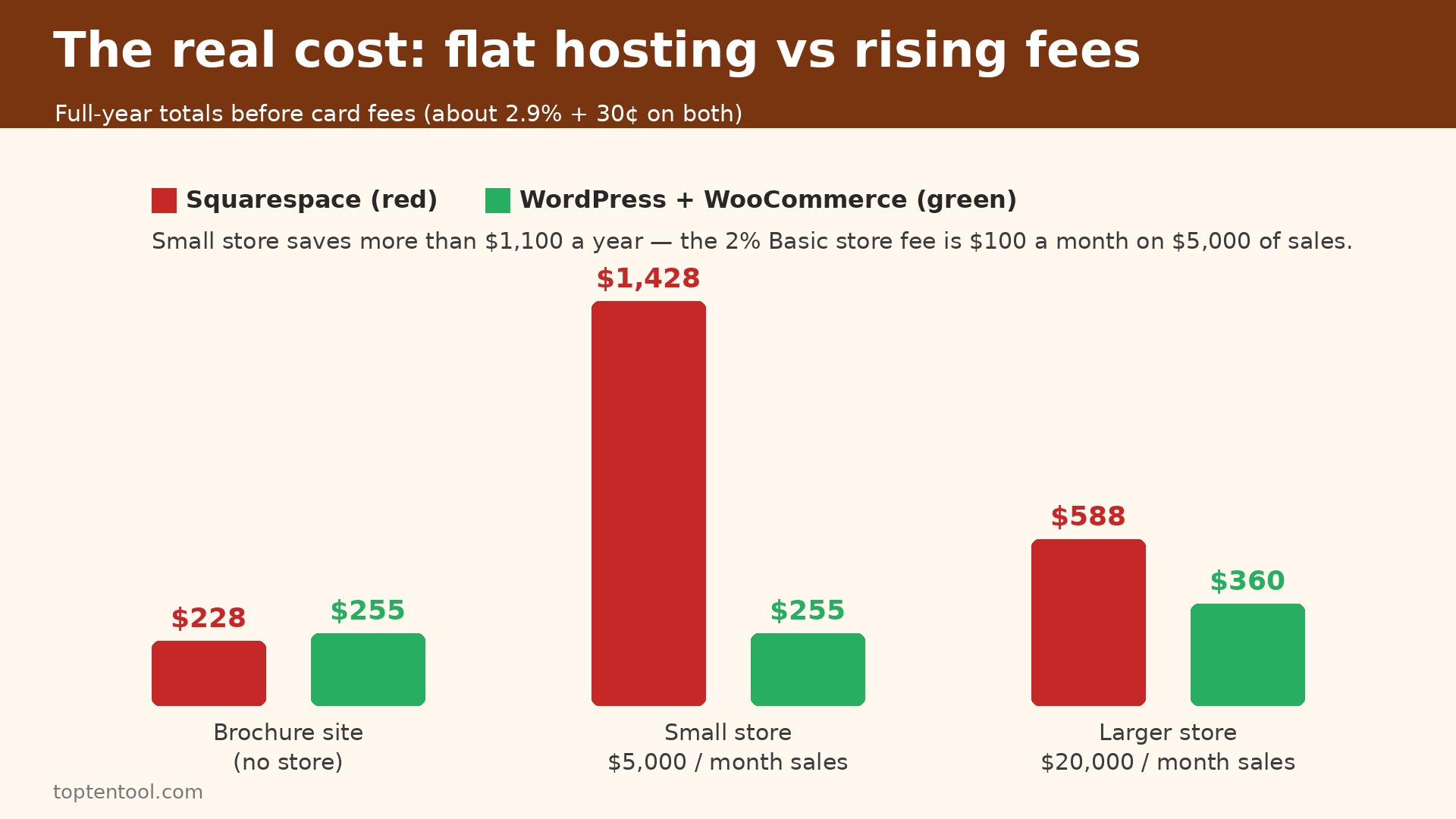
Price how to switch from Squarespace to WordPress at three sizes, on list prices, for a full year, before card fees. Card processing is about 2.9 percent plus 30 cents on both platforms, so it cancels out of the comparison.
A brochure site with no store pays 228 dollars a year on Squarespace Basic, at 19 dollars a month billed annually. The same site on WordPress pays hosting commonly 10 to 20 dollars a month, which is 120 to 240 dollars a year, plus a domain of about 15 dollars a year. The total is close, and the switch is not about price for a brochure site. It is about control, search, and future growth. If none of those matter, stay on Squarespace and save the weekend.
A small store that takes 5,000 dollars a month in sales pays 228 dollars a year on Squarespace Basic, plus 2 percent in store fees, which is 100 dollars a month, or 1,200 dollars a year. The total is 1,428 dollars a year. The same store on WordPress pays hosting of about 20 dollars a month, which is 240 dollars a year, plus a domain, with no platform fee. The total is about 255 dollars a year. When you cost how to switch from Squarespace to WordPress for a store this size, the saving is more than 1,100 dollars a year, and it repeats every year.
A larger store that takes 20,000 dollars a month in sales pays 588 dollars a year on Squarespace Plus, at 49 dollars a month billed annually, with a lower digital fee but still a cost on digital products. The same store on WordPress pays hosting of about 30 dollars a month, which is 360 dollars a year, with no platform fee. The saving is smaller in percentage terms, but the control is larger, because a store at this size needs the shipping, tax, and reporting depth that WooCommerce provides. Price the decision on the total, including the time saved on reporting, not on the plan price alone.
Add the hidden costs to every size. A premium WordPress theme costs 50 to 100 dollars once, and a premium plugin costs 50 to 100 dollars a year. A managed host that handles updates costs more than a basic host, commonly 25 to 50 dollars a month. Add those costs to the WordPress total before you compare, because a comparison that ignores them is not a comparison. Even with those costs added, the store sizes above still save money, because the platform fee on Squarespace grows with sales while the WordPress costs stay flat.
Frequently Asked Questions
Will I lose my pages when I switch?
No, if you export before you cancel. Pages and blog posts move in the Squarespace export file, and WordPress imports them with images. The layout will need rebuilding, because Squarespace blocks do not map exactly to WordPress blocks, so budget time for the ten most visited pages. Keep the Squarespace export file, so a missing page can be copied by hand.
How long does the switch take?
A clean switch for a site with under 50 pages takes one weekend plus one week of checking. A site with 200 pages takes three to four days, because each page needs a look. The 30 day parallel run is not extra work, it is the safety net that catches a missed redirect or a broken link before it costs traffic.
Will my search ranking drop after the switch?
It can, if redirects are missed. Every Squarespace URL that ranks in search needs a redirect to the matching WordPress URL. Set up the redirects before you point the domain, submit the new sitemap, and check the ten most visited pages in the first week. A redirect done right preserves most of the ranking. A redirect missed loses it, and the loss takes weeks to recover.
Can I keep my domain name?
Yes. The domain moves to the new host, and the DNS change takes a few hours to spread. Do the change at a quiet time, and test the site from a phone on mobile data as well as from a desktop. Keep the Squarespace site live until the domain has fully moved, so visitors do not see a broken page.
Is WordPress cheaper than Squarespace for a store?
Yes, for most stores. A store that takes 5,000 dollars a month saves more than 1,100 dollars a year, because Squarespace Basic charges 2 percent on sales and WordPress charges no platform fee. A brochure site with no store costs about the same on both, so the decision for a brochure site turns on control and search, not on price.
Verdict
Switch if you want to own your site, if you earn traffic from search, if you sell online, or if you plan to add a course, a membership, or a booking system in the next year. The control, the search depth, and the cost saving at scale are real, and the seven step workflow in this guide keeps the move safe. Export before you cancel, rebuild the ten most visited pages by hand, set up every redirect, and run both sites for 30 days. That is how to switch from Squarespace to WordPress without losing pages, without losing customers, and without losing the search traffic you already earned.
Stay if you have a small brochure site, if you never plan to sell online, and if you value a site that just works over a site you control. Squarespace is the right choice for that site, and the move costs a weekend that should be spent on the business instead. Revisit the question when the site starts to earn traffic from search, because that is the point where WordPress starts to pay for itself.
For a site in the middle, the test is simple. Set up WordPress on a test domain, import your ten most visited pages, and compare the speed and the search checklist against Squarespace. That test is the practical answer to how to switch from Squarespace to WordPress. If WordPress is faster and the checklist is fuller, switch. If the difference is small and the maintenance feels like a burden, stay on Squarespace and check again in a year.