Slack is the better chat app. Teams is the better deal for a team that already pays for Microsoft 365. That single sentence is the whole comparison, and it is also the reason a small team starts to ask how to switch from Slack to Microsoft Teams. Slack Pro costs 7.25 dollars per user per month billed annually, or 8.75 dollars billed monthly.
Business plus costs 15 dollars per user per month billed annually, or 18 dollars billed monthly. Teams Essentials costs 4 dollars per user per month billed annually. Microsoft 365 Business Basic, which includes Teams, costs 7 dollars per user per month billed annually after the July 2026 price change, and it also includes business email, 1 TB of OneDrive storage per user, and the web versions of the Office apps.
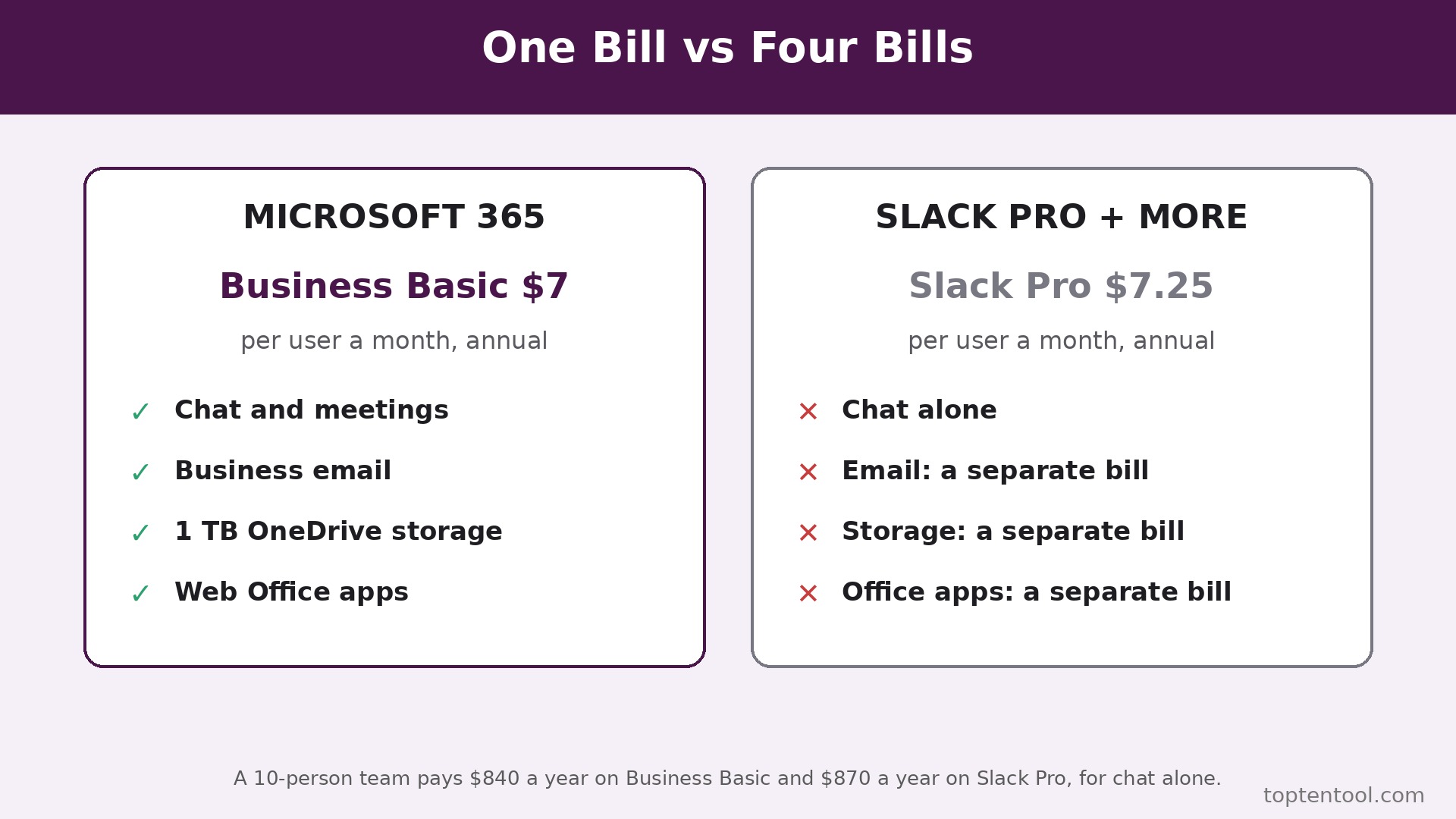
A ten person team on Slack Pro pays 870 dollars a year. The same ten people on Microsoft 365 Business Basic pay 840 dollars a year, and they also get email, storage, and Office apps in that price. A ten person team on Slack Business plus pays 1,800 dollars a year, against 480 dollars on Teams Essentials for chat and meetings alone.
This guide walks through how to switch from Slack to Microsoft Teams in full. You will see why teams switch, a side by side comparison, the real cost at 5, 10, and 25 users, what transfers and what does not, and a seven step workflow that moves channels, files, and people without losing a conversation that matters. Prices are US list prices checked in October 2026. Microsoft raised prices on most Microsoft 365 business plans on July 1, 2026, so confirm the current figure at checkout, because the July change moved Business Basic from 6 dollars to 7 dollars per user per month on annual billing.
Why Teams Move From Slack to Microsoft Teams
The first reason is the bundle. Most small businesses already pay for Microsoft 365 for email and Office apps, and Teams comes inside that bill. A team that pays for Business Basic already pays for Teams, whether it uses it or not, so the cost of switching is zero in new software. A team that pays for Slack as well is paying twice for chat, once inside Microsoft 365 and once to Slack. The switch removes the duplicate bill, and the saving is the full Slack cost, not a small discount.
The second reason is meetings and files in one place. Teams combines chat, video meetings, file storage in SharePoint and OneDrive, and calendar in Outlook, in one login. A meeting in Teams opens with the files attached, the chat continues after the meeting ends, and the recording lands in the same channel. Slack has huddles and video calls, but the meeting and the file live in different places. A team that meets daily will feel the difference in the first week.
The third reason is admin and compliance. Teams comes with the Microsoft 365 admin centre, which covers user management, security, data retention, and compliance in one place. A team that needs to set a retention policy, to control who can share a file externally, or to meet a client requirement for data handling will find those controls in Microsoft 365 without buying another tool. Slack Business plus adds admin controls too, including SAML single sign on and data exports, but it costs 15 dollars per user per month, and the controls sit inside Slack alone rather than across email, files, and chat.
The fourth reason is the free and low cost entry. Teams Free covers chat and meetings for up to 100 participants, with 5 GB of storage per user. Teams Essentials at 4 dollars per user per month adds meetings of up to 30 hours, 300 participants, and 10 GB of storage per user. Slack Free has no seat limit, but its message history is limited to 90 days. A team that needs to search a conversation from six months ago cannot do it on Slack Free.
There are good reasons to stay on Slack. The chat experience is better, the search is faster, the integrations are deeper, and the app is the one most teams actually enjoy using. Slack has thousands of integrations, and its workflow builder, canvases, and lists cover jobs that Teams handles less smoothly. If your team lives in Slack all day, if it uses ten integrations that only exist for Slack, and if the Microsoft 365 suite is not already in the budget, stay on Slack. The switch saves money only when the Microsoft suite is already paid for, or when the team is willing to trade a better chat app for a cheaper bundle.
Slack and Microsoft Teams Side by Side
| Area | Slack | Microsoft Teams |
|---|---|---|
| Free plan | Free, 90 day message history, 10 integrations | Free, 100 participants, 5 GB storage per user |
| Entry paid plan | Pro 7.25 dollars per user a month billed annually | Teams Essentials 4 dollars per user a month billed annually |
| Mid paid plan | Business plus 15 dollars per user a month billed annually | Microsoft 365 Business Basic 7 dollars per user a month billed annually |
| Top paid plan | Enterprise plus 45 dollars per user a month billed annually | Business Premium 22 dollars per user a month billed annually |
| Message history | Unlimited on paid plans | Unlimited on paid plans, with retention controls |
| Video meetings | Huddles on Pro, group huddles included | Meetings up to 300 participants on Essentials, 30 hours |
| File storage | 10 GB per user on Pro, more on higher plans | 10 GB per user on Essentials, 1 TB on Business Basic |
| Office apps | No Office apps included | Web Office on Basic, desktop Office on Standard |
| No email included | Business email included on Business Basic | |
| Admin controls | SAML and exports on Business plus | Admin centre, retention, and compliance in Microsoft 365 |
| AI features | Summaries on Pro, full AI on Business plus | Copilot as a paid add on, Teams Premium add on 10 dollars |
| Integrations | Thousands of apps, deep Slack integrations | Microsoft apps native, plus third party apps |
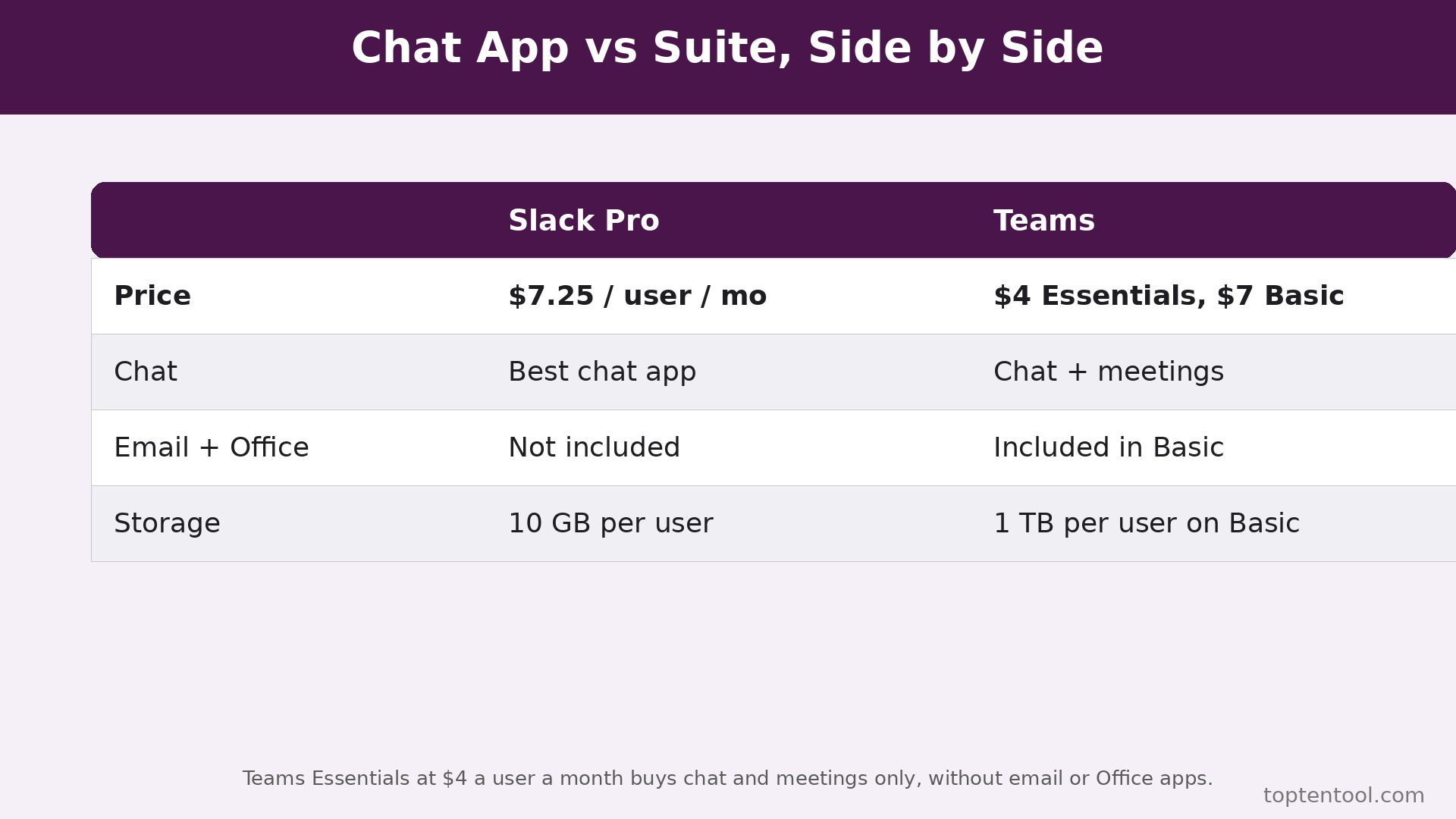
Read the bundle row first, because it decides the cost for most teams. Slack Pro at 7.25 dollars per user per month buys chat alone. Microsoft 365 Business Basic at 7 dollars buys Teams plus email, 1 TB of storage, SharePoint, and web Office apps. The prices are almost identical, and the value is not. A team that needs email and storage as well as chat gets all three for the price of one on Microsoft, and that is the reason the switch is usually a finance decision, not a chat decision.
Read the AI row second, and read it carefully. Slack Business plus includes Slackbot, AI search, recaps, and file summaries for 15 dollars per user per month. Teams Premium is a 10 dollar per user per month add on on top of the base plan, and Copilot is a separate paid add on. A team that wants AI in chat should price the add on, not the base plan, because the add on is where the cost lands. A team that does not use AI should ignore this row, because it does not change the decision.
How to Switch from Slack to Microsoft Teams in Seven Steps
Plan how to switch from Slack to Microsoft Teams over two weeks, with Slack kept live for 30 days after cutover. Do not delete the Slack workspace until the first month in Teams has run without a missing channel.
Step 1. Audit the Slack workspace before you export anything
List every channel, every private channel, every direct message group, and every integration. Mark the channels that are active, the channels that are archived, and the channels that have not had a message in 90 days. Export a list of the members, with their roles and their email addresses. Count the integrations, and mark the three that the team uses daily. Most workspaces hold 50 channels, and only 20 are live. The audit tells you which 20 to rebuild, and it stops you from trying to move 30 dead channels that nobody will open again.
Step 2. Export messages, files, and members the right way
Slack exports depend on the plan. On a paid plan, the workspace owner can export messages and files. On a free plan, the export is limited. Export the message history for the active channels, and download the files that matter, because file links in an export do not always carry the file itself. Save the member list to a spreadsheet, with name, email, and role. Check the export in a folder before you import anything, and look for channels with no messages, files with no name, and members with no email. Fix those rows in the spreadsheet, not in Teams after import.
Step 3. Set up Teams and rebuild the channels first
Create the Microsoft 365 tenant if you do not have one, or use the existing tenant and add Teams licences. Set up a team for the company, and rebuild the 20 active channels as Teams channels, with the same names as Slack, so people find work in the same place. Set the channel tabs for the files, the wiki, and the apps that each channel needs. Invite the members, and give one person the job of checking the first week of messages for the right channel. A channel structure that matches Slack makes the move feel familiar, and a familiar move is a move people accept.
Step 4. Move files to SharePoint and OneDrive
Files in Slack live in the channel. Files in Teams live in SharePoint, with the channel folder as the home. Upload the files from the Slack export to the matching SharePoint folder, and check that the permissions match the channel. Test one file by opening it in Teams, in the web app, and on a phone, because a file that opens in one place and fails in another will cause support tickets. Tell the team that files now live in SharePoint, and that the Files tab in each channel is the place to find them. Do not keep files in both places, because a file in two places is a file that will be edited in the wrong place.
Step 5. Rebuild integrations and meetings
List the three integrations the team uses daily, and check whether each one has a Teams app or a connector. Most common tools, including the major project, CRM, and file tools, have a Teams app. Install the app, connect it to the right channel, and test it with a real message. Rebuild the recurring meetings in Teams, with the same times and the same attendees, and set the meeting chat to the channel where the work happens. Test one meeting with video, screen sharing, and recording, because a meeting that has never been tested is a meeting that will fail on the first real call.
Step 6. Train the team and run a real week in Teams
Make every new conversation happen in Teams for one full week. Do not fall back to Slack because a channel is missing. If a channel is missing, create it, and note the gap. Run the daily standup, the weekly meeting, and the file sharing in Teams, and ask the team to report what feels slower. At the end of the week, list the gaps. If the list is three items or fewer, the switch fits. If the list is ten items, the switch does not fit, and you have learned that before deleting Slack. Check search, check notifications, and check that the mobile app works for the people who work from a phone.
Step 7. Keep Slack for 30 days, then close it
Keep Slack live for 30 days after the cutover week. Use it only to answer a question about an old conversation or to download a file you missed. At the end of the 30 days, export a final backup, confirm the Teams channels hold the working files, and only then delete the Slack workspace. Set a reminder for the renewal date, because Slack renews automatically and a missed cancellation costs a full year on an annual plan.
Pre Switch Checklist
Before You Start
– List every Slack channel, with the members and the last message date, and mark the 20 that are active. – List every integration, and mark the three the team uses daily, with a Teams replacement for each one. – Export the message history for the active channels, and download the files that matter, with the file names checked. – List every recurring meeting, with the time, the attendees, and the channel where the work happens. – Confirm every member has a Microsoft 365 licence, and check that the licence covers Teams, email, and storage.
Right Before the Move
– Set up the Teams channels with the same names as Slack, and set the file tabs for each channel. – Test one meeting with video, screen sharing, and recording, and test one file on a phone and on a desktop. – Tell the team the cutover date, and name one person to check the first week of messages for the right channel. – Keep the Slack workspace live for 30 days after cutover, with a calendar reminder for the cancellation date. – Save a copy of the Slack invoice history, so the finance record shows when the old subscription ended.
If more than three tools have no Teams app, stop and test those tools before you switch. A missing integration for the tool that runs your work is a bigger cost than any plan saving.
What You Lose and What You Gain
What you gain is a single bill for chat, email, storage, and Office apps. A ten person team on Microsoft 365 Business Basic pays 840 dollars a year, and that price covers Teams, business email, 1 TB of OneDrive per user, SharePoint, and the web Office apps. The same team on Slack Pro pays 870 dollars a year for chat alone, and still needs to pay for email and storage separately.
What you gain next is meetings and files in one place. A meeting in Teams opens with the files attached, the chat continues after the meeting ends, and the recording lands in the same channel. A team that meets daily saves time on every meeting, because the file, the chat, and the recording are in one place rather than in three. That time saving is small per meeting and large per month, and it is the gain that teams notice first.
What you gain last is admin control across the suite. The Microsoft 365 admin centre covers user management, security, and retention for email, files, and chat in one place. When you plan how to switch from Slack to Microsoft Teams, that single control point matters for a team whose clients ask about data handling.
What you lose is the chat experience. Slack is faster, its search is better, its integrations are deeper, and its app is the one most teams enjoy using. Teams has improved, and the gap is smaller than it was, but Slack still feels better for a team that lives in chat all day. A team that switches for the bundle should expect the first week to feel slower, and should plan for that week with training and with a clear channel structure that matches Slack.
What you lose next is some integration depth. Slack has thousands of integrations, and many are built by teams that only serve Slack. Teams has a growing app store, and most common tools have a Teams app, but a niche tool that only integrates with Slack will need a manual workaround. List the integrations before you switch, and test the top three in a trial.
What you lose last is the simple per user price for chat alone. Teams Essentials at 4 dollars per user per month is cheaper than Slack Pro, but it buys chat and meetings only, without email or Office apps. A team that does not need Microsoft 365 for anything else should compare Teams Essentials against Slack Pro on chat alone, and the saving there is 3.25 dollars per user per month, or 39 dollars a year per user. That saving is real, but it is smaller than the bundle saving, and it should be weighed against the chat experience gap.
Data Migration in Detail
Channels transfer as a rebuild, not as an import. There is no tool that moves a Slack channel into Teams as a live channel with its full history intact. You rebuild the channel in Teams with the same name, and you import the message history as a file or as a set of posts, depending on the tool you use. That history is useful as a record, but it is not the same as a live channel where a message from six months ago can be searched in place. Tell the team that old history lives in the export file, and that new history starts in Teams on cutover day.
Messages transfer with limits. A paid Slack export includes messages and files, but the export format is not the same as the Teams format, and the import needs a tool or a manual step. Most teams import the last 90 days of messages for the active channels, and keep the full export as a file for older history. Check the export for channels with no messages, and do not import empty channels. A channel with no messages in Teams is a channel that will confuse new members.
Files transfer cleanly, with care. Download the files from Slack, upload them to the matching SharePoint folder, and check that the permissions match the channel. A file from a private Slack channel should not land in a public Teams channel. Check permissions before you upload, and test one file per folder.
Members transfer cleanly. Name, email, and role move in a spreadsheet, and Teams matches on email to avoid duplicates. What does not transfer is the Slack profile, the status, and the notification settings for each person. Each member will need to set their notifications in Teams, and the team should agree on a notification rule for the first week, so a message does not go unanswered because one person turned off alerts.
What does not transfer at all is the Slack workflow builder, the canvases, and the lists. Those features must be rebuilt in Teams, and the rebuild is the longest part of the move for a team that uses them daily. List the workflows that matter, and rebuild the top three before cutover.
Export steps are simple. In Slack, export the message history and download the files that matter. Save the member list to a spreadsheet. In Teams, create the channels, upload the files to SharePoint, install the apps, and rebuild the meetings. Check the counts after each step, and do not delete Slack until the 30 day parallel run is over and the Teams channels hold the working files.
The Real Cost Comparison
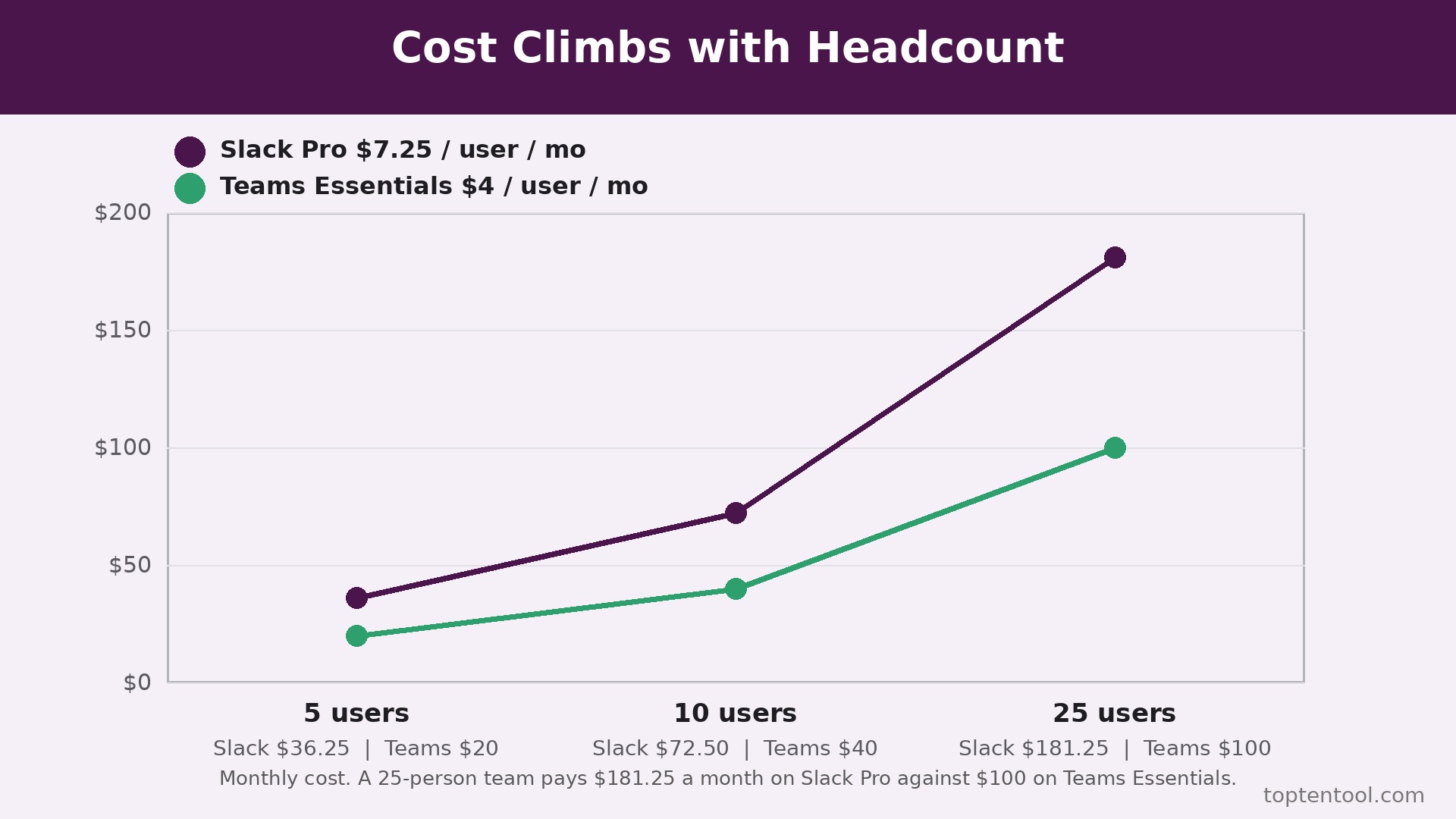
Price how to switch from Slack to Microsoft Teams at 5, 10, and 25 users, on list prices, for a full year, before any add on. Use the plan each team would actually buy. A team that already pays for Microsoft 365 should count the Slack cost as the full saving, because Teams is already paid for.
A five person team on Slack Pro pays 7.25 dollars per user per month billed annually, which is 435 dollars a year. The same team on Teams Essentials pays 4 dollars per user per month, which is 240 dollars a year. The saving is 195 dollars a year. The same team on Microsoft 365 Business Basic pays 7 dollars per user per month, which is 420 dollars a year, and that price also covers email, storage, and Office apps. If the team already pays for email and storage separately, the Business Basic price replaces those bills too, and the total saving is larger than the Slack saving alone.
A ten person team on Slack Pro pays 870 dollars a year. The same team on Teams Essentials pays 480 dollars a year. The saving is 390 dollars a year. The same team on Microsoft 365 Business Basic pays 840 dollars a year, with email and storage included. A team that pays 500 dollars a year for email and storage on top of Slack saves 890 dollars a year by moving to Business Basic, because the Slack bill and the email bill both disappear into one price.
A 25 person team on Slack Pro pays 2,175 dollars a year. The same team on Teams Essentials pays 1,200 dollars a year, a saving of 975 dollars a year. The same team on Slack Business plus pays 4,500 dollars a year. Price the decision on the plan that fits the team, not on the cheapest plan in the table. That is the honest test for how to switch from Slack to Microsoft Teams at this size.
Add the hidden costs to every size. Teams Premium is a 10 dollar per user per month add on, and Copilot is a separate paid add on. Slack Business plus includes AI for 15 dollars per user per month, so a team that wants AI should compare Business plus against Business Basic plus Teams Premium, not against Business Basic alone.
Frequently Asked Questions
Will I lose my Slack messages when I switch?
No, if you export before you delete the workspace. Messages for the active channels export on a paid Slack plan, and the export file keeps the history as a record. The history does not move as a live searchable channel in Teams, so tell the team that old history lives in the export file and new history starts in Teams on cutover day. Keep the Slack workspace live for 30 days, so a question about an old conversation can still be answered there.
How long does the switch take?
A clean switch for a team with under 20 channels takes two weeks, including one week of running real work in Teams. The audit takes a day, the channel rebuild takes a day, the file move takes a day, and the training week takes the rest. A team with 50 channels takes three weeks, because each channel needs a check. Do not rush the training week, because a rushed training week creates bad habits that last for months.
Will my integrations work in Teams?
Most common tools have a Teams app, including the major project, CRM, and file tools. Check the top three integrations before you switch, and test each one in a trial. A niche tool that only integrates with Slack will need a manual workaround, and that workaround should be tested before cutover, not after. List the integrations, and name the replacement for each one.
Can I keep using Slack for some teams and Teams for others?
Yes, for a short time, but not as a long term plan. A team that uses both tools will split conversations, miss messages, and pay for both. Use the 30 day parallel run to move everyone, then close Slack. A split that lasts for months is a split that costs more than either tool alone, because the team pays for two tools and gets the value of one.
Is Teams really cheaper than Slack for a small team?
Yes, if the team already pays for Microsoft 365, because Teams is already paid for and Slack is a duplicate bill. If the team does not pay for Microsoft 365, Teams Essentials at 4 dollars per user per month is still cheaper than Slack Pro at 7.25 dollars, by 3.25 dollars per user per month. The saving is real, but it should be weighed against the chat experience, because Slack is still the better chat app.
Verdict
Switch if you already pay for Microsoft 365, if your team meets daily in video calls, if you need email, storage, and chat in one bill, or if the Slack bill is the line that hurts. The bundle saving is real, the meetings and files in one place save time every day, and the seven step workflow in this guide keeps the move safe. Rebuild the 20 active channels, move the files to SharePoint, run a real week in Teams, and let the week decide. That is how to switch from Slack to Microsoft Teams without losing channels, without losing files, and without losing the conversations that matter.
Stay if your team lives in Slack all day, if it uses ten integrations that only exist for Slack, and if Microsoft 365 is not already in the budget. Slack is the better chat app, and a team that loves it should not trade it for a bundle it does not need. Stay also if the team has never used Microsoft 365, because the learning curve for the whole suite is larger than the learning curve for Teams alone.
For a team in the middle, the test is simple. Run Teams for a week with the real channels, the real meetings, and the real files, and count the minutes per task against Slack. If the minutes match and the bill falls, switch. If the minutes rise and the team misses Slack, stay on Slack and check again when the Microsoft 365 renewal comes up, because that renewal is the moment the bundle saving becomes hardest to ignore.