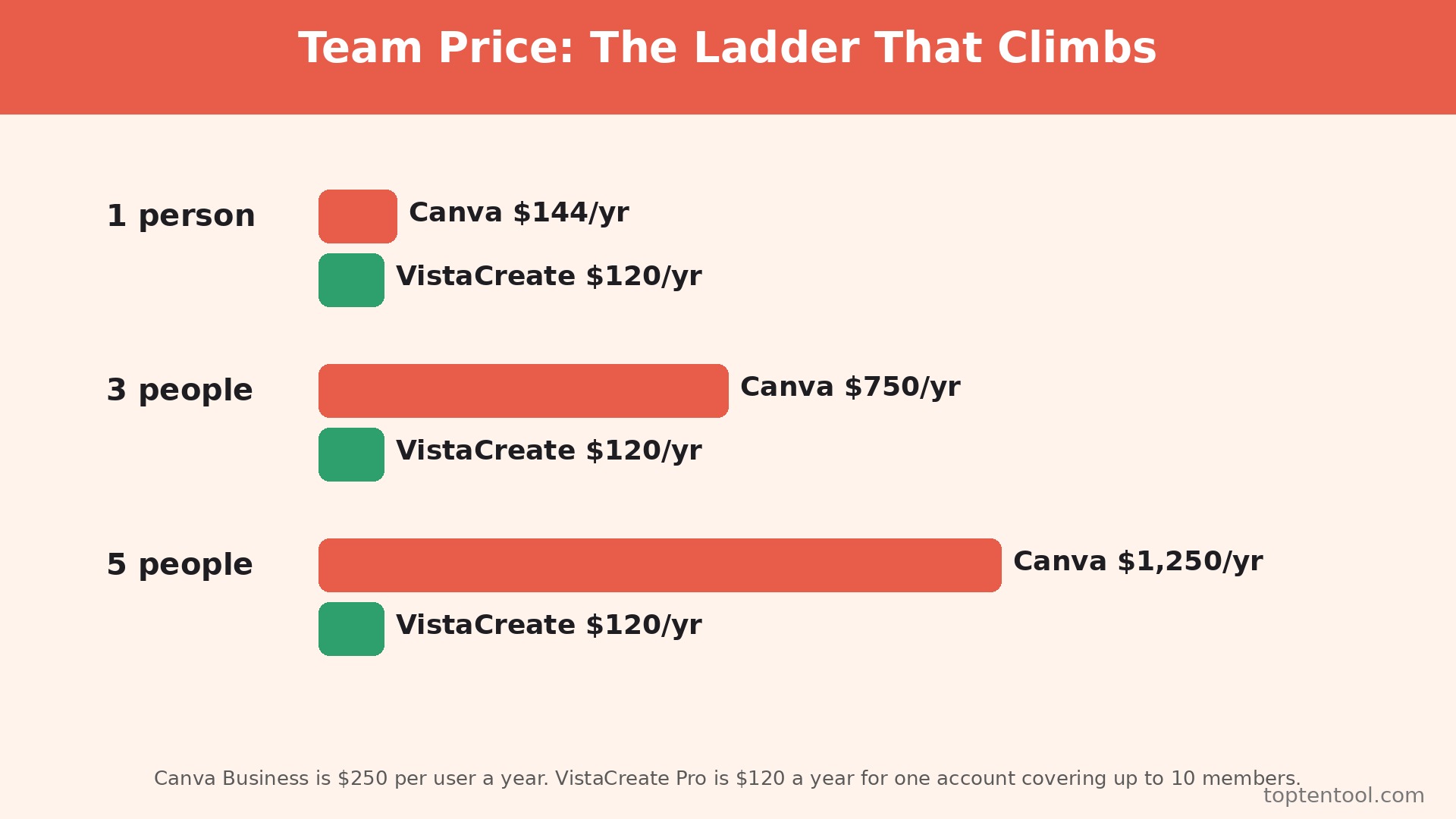
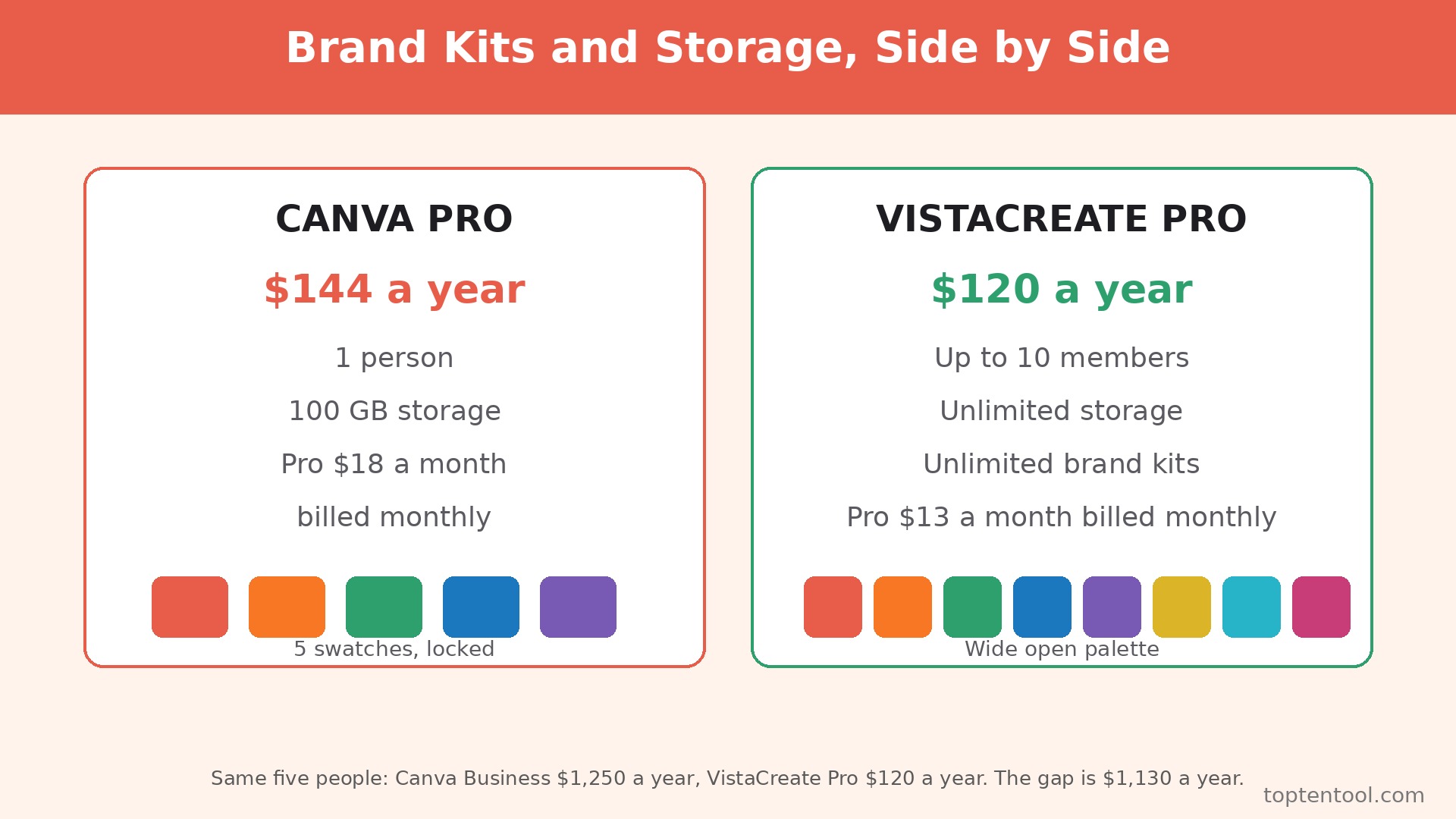
Canva gives you everything. VistaCreate gives you almost everything, for a fraction of the team price. That single sentence is the whole comparison, and it is also the reason a small team starts to ask how to switch from Canva to VistaCreate. Canva Pro costs 144 dollars a year for one person, or 18 dollars a month billed monthly.
Canva Business costs 250 dollars per user per year. A five person team on Canva Business therefore pays 1,250 dollars a year. VistaCreate Pro costs 120 dollars a year for one account, and that one account covers up to 10 team members. The same five people pay 120 dollars. The gap is 1,130 dollars a year, and that gap buys a lot of stock photos.
Price is not the only reason to move, and it should not be the only reason you do move. Canva has the larger template library, the larger stock library, the deeper app ecosystem, and the better known brand. VistaCreate has a template library of more than 200,000 designs on Pro, a large asset library, unlimited brand kits, a resize tool, and a built in animation editor. For a team that makes social posts, flyers, presentations, and simple ads, that is enough. For a team that lives inside Canva Docs, Canva Whiteboards, or a specific Canva app every day, the move will feel like a step down, and the saving will not cover the friction.
This guide compares the two tools honestly, then walks through how to switch from Canva to VistaCreate step by step. You will see the real cost at one, three, and five seats, what transfers and what does not, and how to rebuild your brand kit so the first week in VistaCreate does not feel like starting from zero. Prices are US list prices read in October 2026. VistaCreate Pro is 13 dollars a month billed monthly, or 10 dollars a month billed annually. Its free Starter plan includes more than 100,000 templates and 10 GB of storage for one person.
Why Teams Leave Canva for VistaCreate
The first reason is team pricing. Canva charges per person. VistaCreate charges per account. That difference is small for a solo creator and enormous for a team. A solo creator on Canva Pro pays 144 dollars a year. A solo creator on VistaCreate Pro pays 120 dollars a year. The saving is 24 dollars, which is not a reason to switch.
A three person team on Canva Business pays 750 dollars a year. The same team on VistaCreate Pro pays 120 dollars. A five person team pays 1,250 dollars on Canva Business and 120 dollars on VistaCreate. At that size the question is no longer whether VistaCreate is good enough. The question is whether Canva is 1,130 dollars better, and for most small teams the honest answer is no.
The second reason is brand kits. Canva Pro limits a single user to five brand kits. VistaCreate Pro offers unlimited brand kits. A business with three sub brands, a seasonal campaign, and a client brand to manage will hit the Canva limit fast. VistaCreate removes that ceiling at the lowest paid tier, and that matters more than it sounds. A brand kit is not a luxury. It is the set of colours, fonts, and logos that stops every social post from looking like it came from a different company.
The third reason is simplicity. Canva has grown into a suite. It now covers documents, whiteboards, websites, video, presentations, and a marketplace of apps. That breadth is useful for a team that uses all of it, and it is noise for a team that only makes graphics. VistaCreate stays close to its core job. You open a template, you edit text and images, you resize it, you download it. The editor is familiar to anyone who has used Canva, so the learning curve is days, not weeks.
The fourth reason is animation. VistaCreate was built with animated designs in mind, and its animation editor is a genuine strength. Social posts with subtle motion, animated stories, and short looping graphics are easy to build without leaving the editor. Canva has animation too, but VistaCreate treats it as a first class feature rather than an add on, and teams that post daily notice the difference.
There are also reasons to stay on Canva. The template library is larger, with more than 3.6 million templates on Pro against more than 200,000 on VistaCreate Pro. The stock library is larger too, and the search is better. Canva Magic Studio, the AI tools, and the app marketplace cover jobs VistaCreate does not attempt. If your team uses Canva for documents, websites, or video editing every week, VistaCreate will not replace it. It replaces the graphic design part, not the whole suite.
Canva and VistaCreate Side by Side
| Area | Canva | VistaCreate |
|---|---|---|
| Free plan | Free, with limited templates and 5 GB storage | Starter free, 100,000 plus templates, 10 GB storage |
| Paid plan price | Pro 144 dollars a year for one person, Business 250 per user a year | Pro 120 dollars a year for up to 10 members |
| Monthly billing | Pro 18 dollars a month | Pro 13 dollars a month |
| Templates on paid plan | 3.6 million plus | 200,000 plus |
| Brand kits | 5 on Pro | Unlimited on Pro |
| Team seats on paid plan | 1 on Pro, per user on Business | Up to 10 on one Pro account |
| Resize tool | Pro and above | Pro only |
| Background remover | Pro and above | Pro only |
| Storage | 100 GB on Pro | Unlimited on Pro |
| AI image generation | Included on Pro, per person allowance | 100 generations a month per account on Pro |
| Animation | Available, with limits by plan | Built in animation editor |
| Free trial of paid plan | 30 days on Pro | 14 days on Pro, card required |
Read the seat row first, because it decides the cost for every team larger than one. Canva Business at 250 dollars per user per year means every new hire adds 250 dollars to the design bill. VistaCreate Pro at 120 dollars a year means the first ten hires add nothing. A team that plans to grow from three to eight people over the next year should price the decision on the eight person cost, not the three person cost, because the gap only widens.
Read the template row second, and read it honestly. Canva has far more templates, and for a team that needs a specific template for a niche event, that depth matters. VistaCreate has enough templates for the common jobs, which are social posts, flyers, presentations, invitations, and ads. If your work is mostly those common jobs, the extra three million templates in Canva are a library you pay for and rarely open.
How to Switch from Canva to VistaCreate in Seven Steps
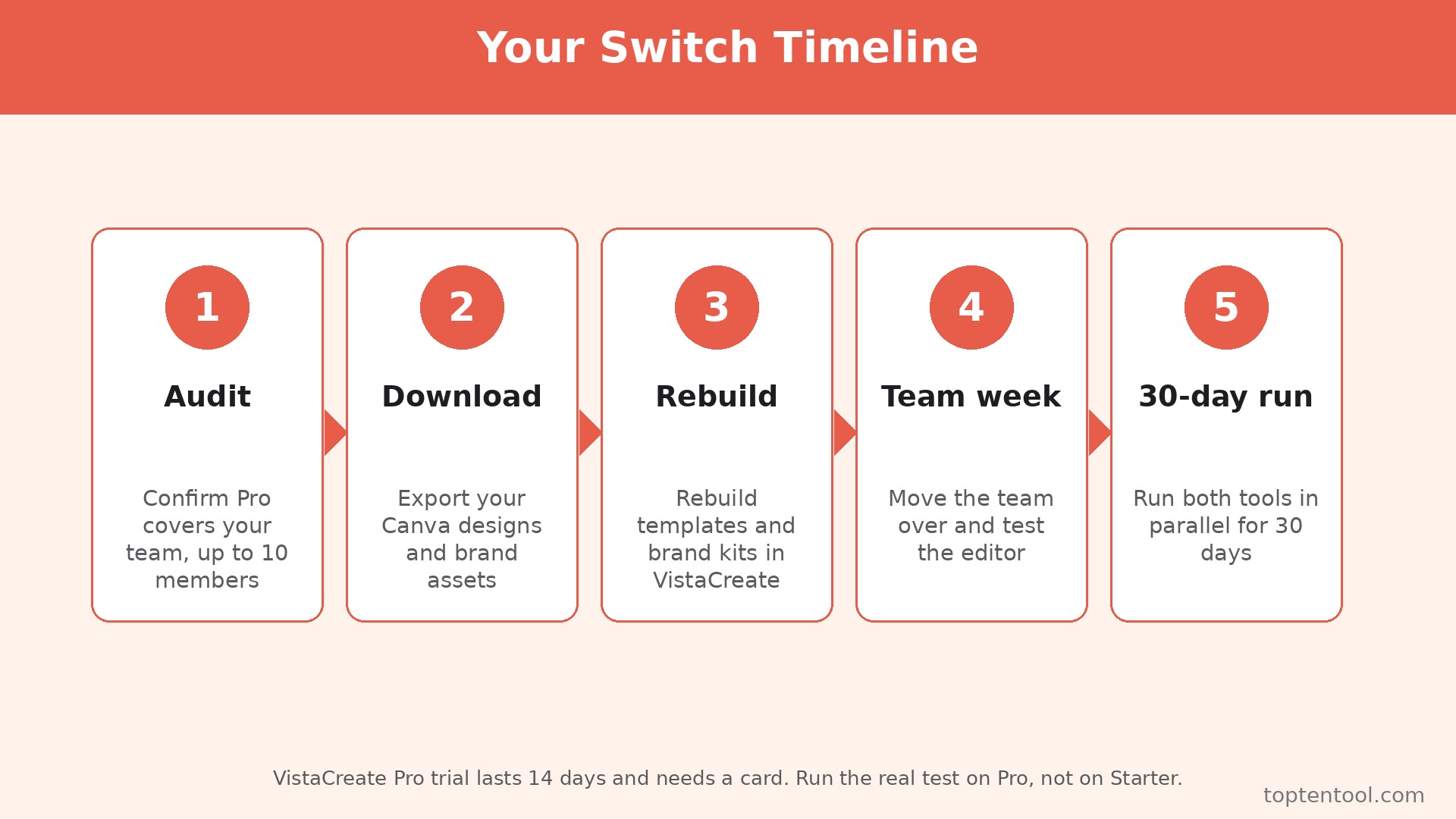
Plan how to switch from Canva to VistaCreate over a weekend, with Canva kept live for 30 days after cutover. Do not cancel Canva until the first month in VistaCreate has produced real work without a missing asset.
Step 1. Audit your Canva account before you touch anything
Open Canva and list every folder, every brand kit, every uploaded font, every uploaded logo, and every design you used in the last 90 days. Export a list of the designs that matter, and mark the ones that are templates you reuse weekly. Most accounts hold hundreds of designs, and only 20 or 30 are live. The audit tells you which 30 to rebuild, and it stops you from trying to move 300 files that nobody will open again.
Step 2. Download the designs that cannot be rebuilt
Canva does not export editable files to VistaCreate. A Canva design downloads as a PNG, JPG, PDF, or MP4, not as an editable VistaCreate file. Download the finished versions of your most used designs as high quality PNG files, and download any design with a complex layout as a PDF as well. Save the source images and logos separately, at full resolution, because a logo pulled from a flattened PNG will look soft on the next poster. This step is the one people skip, and it is the one they regret when a client asks for a small change to last month’s flyer.
Step 3. Rebuild your brand kit in VistaCreate first
Create the VistaCreate Pro account and build the brand kit before you rebuild a single design. Upload the logo in PNG with a transparent background, add the exact colour codes from Canva, and upload the brand fonts. If a font is a Canva only font, pick the closest match in VistaCreate and note the change, because a font swap changes the look of every template that uses it. Set the brand kit as the default, and test it on one social post before you move on. A brand kit built right saves an hour a week. A brand kit built wrong costs an hour a week.
Step 4. Rebuild the top 20 designs, not the whole library
Pick the 20 designs from the audit that you use most, and rebuild each one in VistaCreate from a matching template. Start with the social post templates, then the flyer, then the presentation cover, then the ad sizes you run most. Do not try to copy a Canva design pixel for pixel. Use the VistaCreate template that is closest, drop in your brand kit, and accept small differences in spacing. The goal is a working set of templates, not a perfect replica of the old set. A perfect replica takes three times as long and nobody outside your team will notice the difference.
Step 5. Move the team and set the folders
Invite the team to the VistaCreate account, up to 10 members on one Pro plan. Set up team folders that match the Canva folder names, so people find work in the same place. Give one person the job of checking the first ten designs each team member makes, because the first week is when bad habits form. A short check now prevents a month of off brand posts later. Tell the team the cutover date, and tell them Canva stays live for questions until that date passes.
Step 6. Run a real week of work in VistaCreate
Make every new design in VistaCreate for one full week. Do not fall back to Canva because a template is missing. If a template is missing, rebuild it or pick the closest match, and note the gap. At the end of the week, list the gaps. If the list is three items or fewer, the switch fits. If the list is ten items, the switch does not fit, and you have learned that before cancelling Canva. Check download quality, check the resize tool on one design, and check that the files open correctly in the apps where you post them.
Step 7. Keep Canva for 30 days, then cancel
Keep Canva live for 30 days after the cutover week. Use it only to answer a question about an old design or to download a file you missed. At the end of the 30 days, export any remaining files, confirm the VistaCreate folder holds the working templates, and cancel Canva. Set a reminder for the renewal date, because Canva renews automatically and a missed cancellation costs a full year on an annual plan.
Pre Switch Checklist
Before You Start
– List every Canva brand kit, with colours, fonts, and logos, and confirm you have the logo files at full resolution. – List the 20 designs you used in the last 90 days, and mark which ones are templates you reuse. – Download finished versions of those 20 designs as high quality PNG files, plus PDFs for complex layouts. – Check whether any font you use is a Canva only font, and pick a VistaCreate replacement before you rebuild. – Confirm VistaCreate Pro covers your team size, up to 10 members on one account, and note who the tenth member will be.
Right Before the Move
– Check that your stock photo needs fit inside VistaCreate Pro, and list any premium image you buy separately each month. – Test the VistaCreate resize tool and background remover in the 14 day trial, because both sit on Pro only. – Tell the team the cutover date, and name one person to check the first designs for brand consistency. – Keep the Canva login active for 30 days after cutover, with a calendar reminder for the cancellation date. – Save a copy of the Canva invoice history, so the finance record shows when the old subscription ended.
If you cannot find the logo at full resolution, stop and find it before you switch. A logo rebuilt from a small web image will look soft on every poster you make next year, and that single file is worth more than the whole migration.
What You Lose and What You Gain
What you gain is money, and the amount depends on team size. A solo creator gains 24 dollars a year, which is small. A three person team gains 630 dollars a year against Canva Business. A five person team gains 1,130 dollars a year. Those savings are real, and they repeat every year, which is why the switch is worth a weekend of work for a team. The saving also removes the per person tax on growth. Hiring a new designer no longer adds 250 dollars to the software bill, and that changes how a small business thinks about adding help.
What you gain next is unlimited brand kits and unlimited storage on Pro. Canva Pro caps brand kits at five and storage at 100 GB. VistaCreate Pro removes both caps. A business with several brands, or a team that stores years of images, will feel that difference within a month. Unlimited storage also removes the quiet chore of deleting old files to stay under a limit, which is a chore nobody misses.
What you lose is template depth. Canva offers more than 3.6 million templates on Pro. VistaCreate offers more than 200,000. For common jobs the difference does not matter, because 200,000 templates cover social posts, flyers, and presentations many times over. For a niche job, such as a specific event poster or a specialised industry layout, Canva is more likely to have the exact template, and VistaCreate will ask you to adapt a close match. That adaptation takes ten minutes, and ten minutes times 20 niche jobs a year is a real cost to weigh against the saving.
What you lose next is the wider Canva suite. Canva Docs, Whiteboards, Websites, and the app marketplace do not exist in VistaCreate. If your team writes documents in Canva or builds a simple website there, you will need another tool for that work, and the cost of that tool eats into the saving. List the Canva features beyond graphic design that your team uses weekly, and price a replacement for each one before you decide.
What you lose last is AI depth. Canva Magic Studio covers text, image, and design generation across the suite, with a per person allowance. VistaCreate Pro includes 100 AI image generations a month per account, shared across the whole team. A team of five that generates images daily will burn through 100 generations fast, and the extra generations are not sold. If AI image generation is a daily habit, test the limit in the trial week and count how many generations the team actually uses.
Data Migration in Detail
There is no direct migration from Canva to VistaCreate. No import tool moves an editable Canva design into VistaCreate as an editable file. That fact shapes the whole plan, and any guide that promises a one click transfer is wrong. What moves is files, not designs, and the plan below works with that limit instead of pretending it does not exist.
Brand assets move cleanly. Logos, photos, and illustrations upload to VistaCreate as files, and they work the same way once they are there. Upload the logo as a PNG with a transparent background, at the largest size you have. Upload brand photos at full resolution. Set the colour codes by their hex values, copied from Canva, not by eye, because a colour picked by eye drifts a shade on every screen. Fonts move only if the font exists in VistaCreate. If it does not, pick the closest match and document the change, so the team uses the same replacement every time.
Finished designs move as images. Download each live design as a PNG at the highest quality, and keep a PDF copy for print work. These files are useful as references and as assets you can post again, but you cannot edit the text inside them in VistaCreate. If a client asks for a text change to an old flyer, you will rebuild that flyer in VistaCreate, which takes 15 minutes for a simple design and longer for a complex one. Budget that time for the first month, and tell clients the new version will look the same with small spacing differences.
Templates do not move at all. A Canva template is a Canva file. Rebuild the top 20 templates in VistaCreate, and accept that the rebuild is the real work of the switch. The rebuild is also the chance to fix templates that were already messy. Most teams find three or four templates that nobody liked, and the rebuild is the moment to replace them with a better VistaCreate template instead of copying a bad design.
Stock images and premium assets do not move either. A premium image licensed through Canva stays licensed for the design it was used in, but it does not become a VistaCreate asset. Check the licence terms before you reuse a Canva stock image in a new VistaCreate design. In practice, most teams re-download the same image from a stock library they already pay for, or pick a VistaCreate asset that serves the same purpose.
Export steps are simple. In Canva, open each live design, choose download, pick PNG at the highest quality, and save it to a folder named for the design. For print designs, download a PDF as well. Save the logo files separately, in a folder named brand assets, with the hex codes written in a text file beside them. In VistaCreate, create the brand kit first, upload the assets, then rebuild the templates one by one. Check each rebuilt template by downloading it and opening it on a phone, because a design that looks right on a desktop can crowd on a small screen.
The Real Cost Comparison
Price how to switch from Canva to VistaCreate at one, three, and five seats, on annual billing, for a full year. Use the plan each team would actually buy. A solo creator uses Canva Pro. A team uses Canva Business, because Pro is a single person plan.
A solo creator pays 144 dollars a year on Canva Pro and 120 dollars a year on VistaCreate Pro. The saving is 24 dollars a year, or 2 dollars a month. That saving alone does not justify a weekend of rebuilding templates. A solo creator should switch only if the unlimited brand kits, the animation editor, or the simpler workflow matters to them. If none of those matter, stay on Canva and save the weekend.
A three person team pays 750 dollars a year on Canva Business, at 250 dollars per user, and 120 dollars a year on VistaCreate Pro. The saving is 630 dollars a year. That saving pays for the rebuild weekend many times over, and it repeats every year. When you work out how to switch from Canva to VistaCreate for a team this size, run the trial week first and count the minutes per design. If the count is the same or lower, the saving is real.
A five person team pays 1,250 dollars a year on Canva Business and 120 dollars a year on VistaCreate Pro. The saving is 1,130 dollars a year. At this size the saving is large enough to cover a new stock subscription, a scheduling tool, or a freelance designer for a small project, and still leave money over. The only reason to stay at five seats is a hard dependence on a Canva only feature, such as Canva Docs or a specific app, that VistaCreate cannot replace. Name that feature before you decide to stay, because a vague sense that Canva is better is not a 1,130 dollar reason.
Add the hidden costs. VistaCreate Pro includes 100 AI image generations a month per account, shared across the team. A team that needs more will need another AI tool, and that tool has its own price. Canva Pro includes a larger stock library, so a team that buys stock images separately should add that cost to the VistaCreate side. Neither cost is large, but both belong in the comparison, because a saving that ignores them is not a saving.
Frequently Asked Questions
Can I import my Canva designs into VistaCreate?
No. There is no import that moves an editable Canva design into VistaCreate as an editable file. You download finished designs as PNG or PDF files, and you rebuild the templates you reuse in VistaCreate. Budget time for the top 20 templates, and treat the rebuild as the main work of the switch.
Will my fonts look the same in VistaCreate?
Only if the font exists in VistaCreate. Canva only fonts will not carry over, and you will need to pick the closest match. Check the fonts in your brand kit before you switch, and test the replacement on one design. A font change is visible to clients, so agree on the replacement with the team before the cutover.
Is VistaCreate really cheaper for a team of ten?
Yes, and the gap is at its largest there. Ten people on Canva Business cost 2,500 dollars a year. Ten people on one VistaCreate Pro account cost 120 dollars a year. The saving is 2,380 dollars a year. The limit is ten members on one Pro account, so an eleventh member needs a second account, and the cost doubles to 240 dollars, which is still far below Canva.
What happens to my Canva designs after I cancel?
Canva keeps your designs while the account is active, and access ends when the subscription ends, subject to the current terms. Download the finished files you need before you cancel, and keep a copy of the brand assets outside Canva. Do not cancel until the 30 day parallel run is over and the VistaCreate folder holds the working templates.
Does VistaCreate have a free plan I can test first?
Yes. The Starter plan is free, with more than 100,000 templates and 10 GB of storage for one person. Use it to test the editor and the template range. The Pro trial lasts 14 days and needs a card, and it unlocks the resize tool, the background remover, unlimited brand kits, and the AI tools, so run the real test on Pro, not on Starter.
Verdict
Switch if you are a team of three or more, if your work is social posts, flyers, presentations, and ads, and if the per person price of Canva Business is the line that hurts. The saving at three seats is 630 dollars a year, and at five seats it is 1,130 dollars a year, and the seven step workflow in this guide keeps the move safe. Rebuild the top 20 templates, run a real week in VistaCreate, and let the week decide. That is how to switch from Canva to VistaCreate without losing your brand, without losing your templates, and without discovering the gaps after Canva is already cancelled.
Stay if you are a solo creator who uses Canva Docs, Whiteboards, or a specific Canva app every week, or if your work depends on a niche template Canva has and VistaCreate does not. The 24 dollar solo saving is not worth a weekend of rebuilding, and the wider suite is a real reason to stay. Stay also if AI image generation is a daily habit for the whole team, because the 100 generation monthly cap on VistaCreate Pro will bind fast.
For a small team, the decision is a test, not a debate. Start the Pro trial, rebuild ten designs, make every new post in VistaCreate for a week, and count the minutes. That week is the practical answer to how to switch from Canva to VistaCreate. If the minutes match Canva and the brand looks right, switch and keep the saving every year. If the minutes rise and the templates fight you, stay on Canva and revisit the question when the team grows, because the price gap only gets larger with headcount.