
A text box that looks fine in one browser and vanishes in another is not a mystery, and it is not usually a broken design. It is almost always one of seven things, and the fix takes less than two minutes once you know which one it is. Compare the two most common reports, and the pattern is clear. In the first, the text is there but invisible, because the font color matches the background, or the text sits behind a shape, or the box is too small for the words inside it. This guide to fix Canva text not showing works through all seven causes in order, starting with the ones you can check in under a minute.
In the second, the text cannot be edited at all, because the element is locked, the design is shared view only, or the font is a Pro font your plan cannot use. To fix Canva text not showing, start with the visible checks, because they solve most cases, and work through the permission and browser checks only if the visible checks fail. This guide gives you that order, with a step by step fix for each cause.
To fix Canva text not showing, first establish whether the text is missing, invisible, or locked, because those are three different problems with three different fixes. Missing text means the box is gone from the canvas, and the fix is usually the layers panel or the undo history. Invisible text means the box is there but you cannot see the words, and the fix is usually color, size, or layer order.
Locked text means the box is there and visible but you cannot select it or type in it, and the fix is usually the padlock icon or the sharing settings. Spend 30 seconds deciding which one you have before you change anything, because the wrong fix wastes time and can make the design worse.
Quick Diagnosis Checklist to Fix Canva Text Not Showing
Work through this checklist in order, and stop as soon as the text appears. Most cases resolve in the first three checks.
| What you see | Try this first | Likely cause |
|---|---|---|
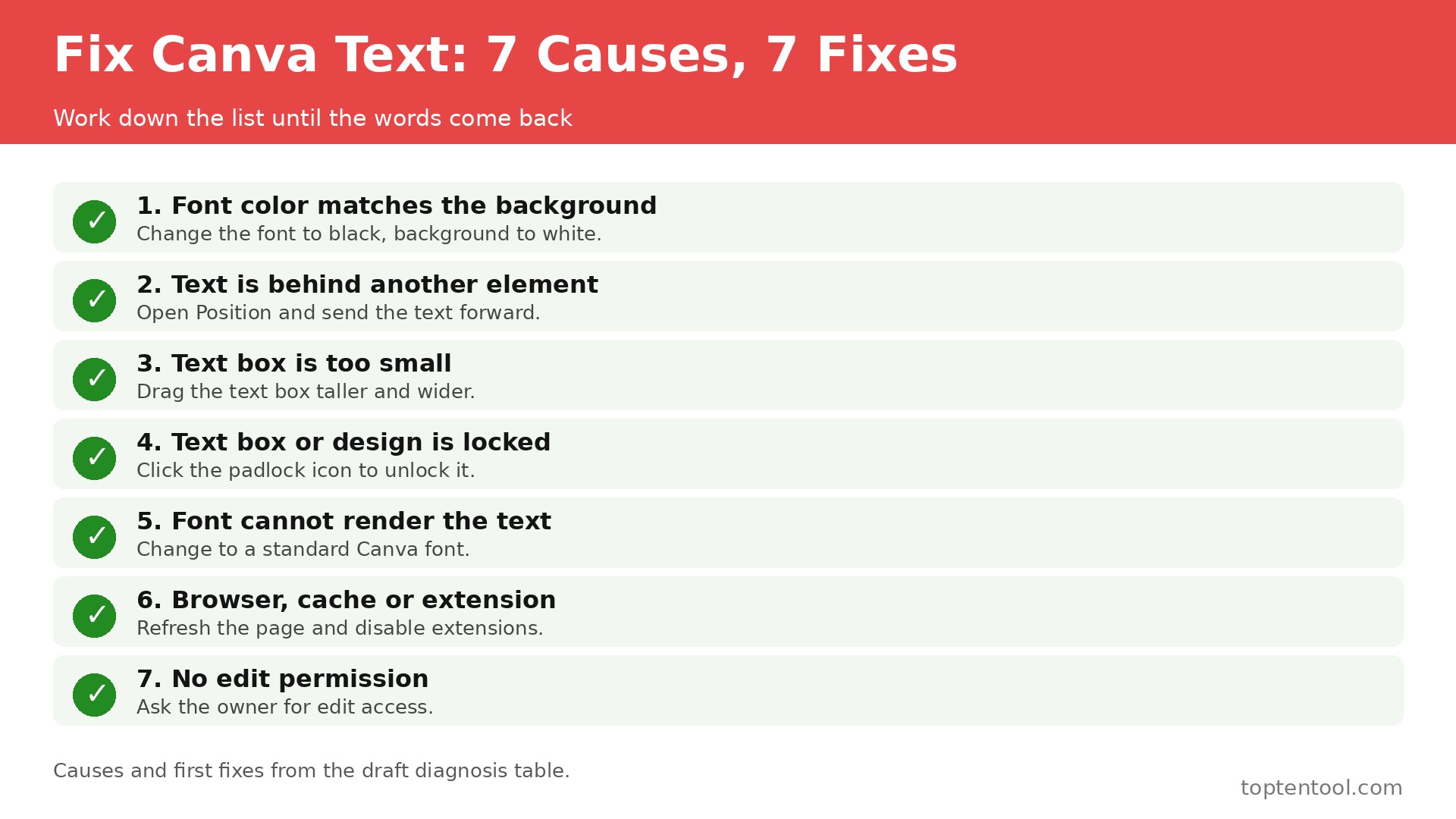
| Text box is visible but the words are not | Change the font color to black and the background to white | Font color matches the background |
| Text was there, now it is gone after adding a shape | Open Position and send the text forward | Text is behind another element |
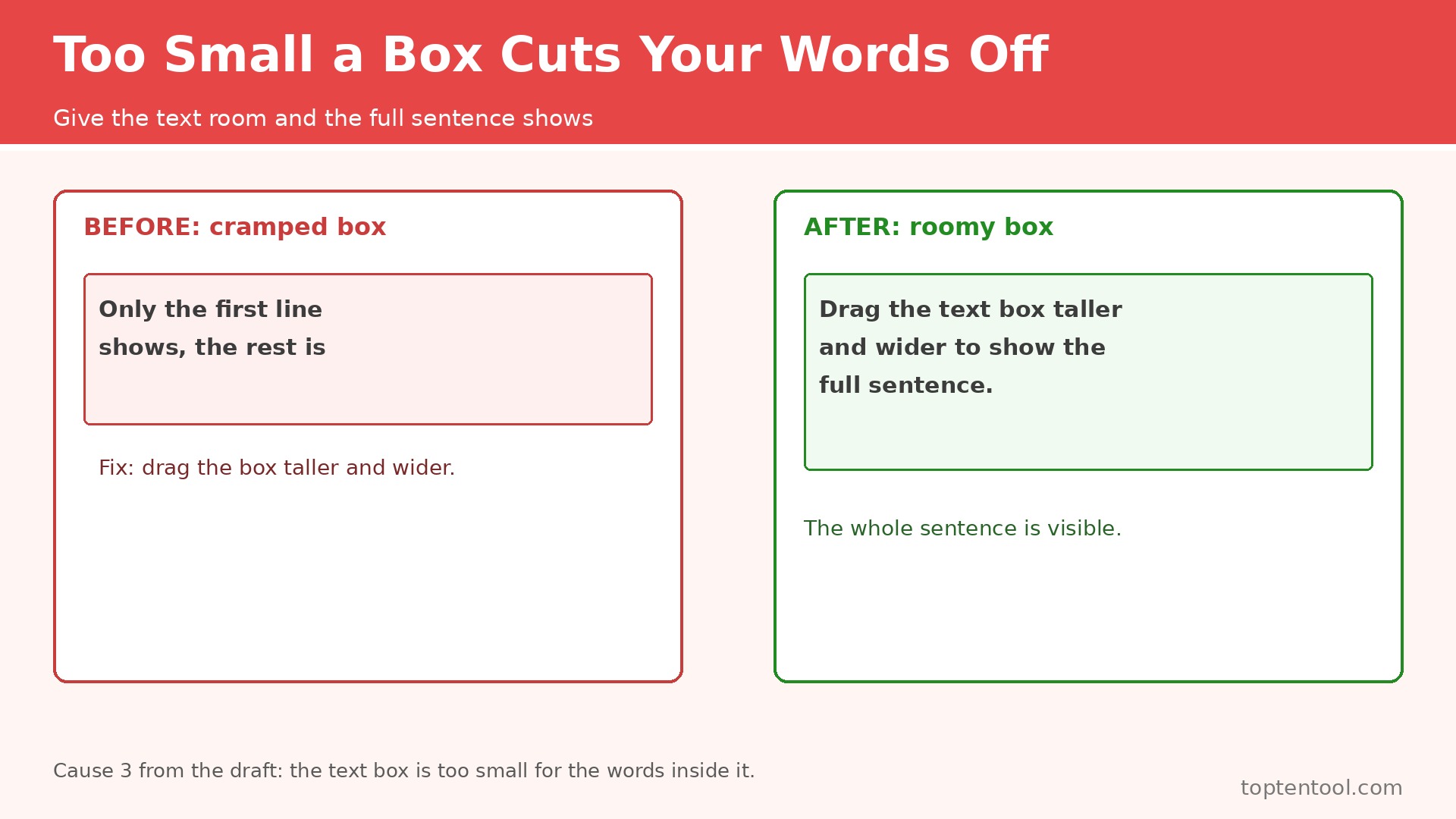
| Only the first line shows, the rest is cut off | Drag the text box taller and wider | Text box too small for the content |
| You cannot click the text at all | Click the padlock icon to unlock the element | Locked element or locked group |
| Text shows as boxes, question marks, or a different font | Change the font to a standard Canva font | Font cannot render the characters |
| Text shows on desktop but not on the phone app | Update the app and clear the cache | Outdated app or corrupt cache |
| You can see the text but you cannot type in it | Ask the owner for edit access | View only sharing permission |
| Nothing loads, the editor is blank or frozen | Refresh the page and disable extensions | Browser cache or extension conflict |
If the text appears after any check to fix Canva text not showing, save a copy of the design before you keep editing, because a design that loses text once can lose it again, and a saved copy is the fastest recovery. If none of the checks work, go to the still not working section at the end of this guide, and work through the account and device steps there.
1. The Font Color Matches the Background
White text on a white background is invisible, and it is the most common cause of text that seems to have vanished. It happens when you copy a text box from a dark slide to a light slide, when you change the background color after writing the text, or when you apply a template whose text color was set for a photo that you later replaced. The text is still there, in the right place, in the right font, and it will print as a blank space unless you change the color.
How to confirm it. Click where the text should be, and watch for the text box outline to appear. If the outline appears and the toolbar shows a font size and a font name, the text exists. Select all the text inside the box with Ctrl and A on Windows or Cmd and A on Mac, and the highlight will show you the words even if the color hides them. If the highlight shows words, the cause is color, and the fix below will solve it.
How to fix it.
- Click the text box once to select it.
- Press Ctrl and A on Windows or Cmd and A on Mac to select all the text inside the box.
- Click the font color button in the top toolbar, which shows a letter A with a colored bar under it.
- Choose black for a light background, or white for a dark background, and watch the words appear.
- If the text sits on a photo, add a solid shape behind the text in a contrasting color, then send the shape backward so the text sits on top of it.
- Check the text again at full zoom, because a color that looks fine at 50 percent zoom can still be hard to read at full size.
Prevention is simple. Set the background first, then write the text, and check the contrast before you move on. A dark text on a light background, or a light text on a dark background, is the only safe combination, and a mid tone text on a mid tone photo is a problem waiting to happen.
2. The Text Is Behind Another Element
Canva stacks elements in layers, and a text box that sits behind a shape, a photo, or a solid background block is hidden, even though it is still in the design. This happens when you add a background shape after writing the text, when you paste an element that lands on top, or when you duplicate a page and the layer order changes. The text is not deleted, and it is not broken. It is underneath something else.
How to confirm it. Open the Position menu in the top toolbar and look at the layer order, or press Tab to cycle through the elements on the page and watch for the text box outline to appear behind the shape. If you can select the text by clicking through the shape, or if the layers panel shows a text element below a shape element, the cause is layer order.
How to fix it.
- Click the shape or photo that covers the text, and press Delete only if you do not need it, or move it aside temporarily.
- Click the text box to select it, or select it from the layers panel.
- Click Position in the top toolbar.
- Choose Forward or Bring to front, and watch the text appear on top of the shape.
- If the text still does not show, choose Backward on the shape itself, or Send to back, to move the covering element behind the text.
- Drag the text box to a clear area of the canvas, confirm it is visible, then drag it back into place.
Check the whole page after you fix Canva text not showing, because moving one layer can hide a different element. A text box that was hidden behind a shape may now cover a logo or a button, and a quick scan of the page at full zoom will catch that before you download the design.
3. The Text Box Is Too Small for the Words Inside It
A text box that is too small cuts off the words that do not fit, and the cut off text is invisible in the editor and in the download. This happens when you paste a long paragraph into a small box, when you increase the font size without enlarging the box, or when you change the font to a wider one. The first line shows, the rest is gone, and the fix is to give the words room.
How to confirm it. Click the text box and look at the handles. If the text touches the edge of the box, or if the box shows a small overflow indicator, or if you can see more words when you click inside the box and scroll, the box is too small. Reduce the font size by two points and watch for more words to appear, which confirms the diagnosis.
How to fix it.
- Click the text box once to select it.
- Drag the bottom middle handle downward to make the box taller, and drag the side handles outward to make it wider.
- If the box is inside a tight layout, reduce the font size in the toolbar until all the words fit inside the box.
- Reduce the line spacing in the toolbar if the lines overlap, and remove extra blank lines at the end of the text.
- Shorten the wording if the box still overflows, because a shorter sentence that fits is better than a longer sentence that is cut off.
- Check the download, not just the editor, because a box that looks fine in the editor can still clip text in a PDF or a PNG export.
A related problem is a text box that is too small in only one direction. A box that is wide enough but not tall enough cuts off the last line. A box that is tall enough but not wide enough wraps the words and pushes the last line out of the box. Resize in both directions, and leave a small margin of empty space inside the box, so the text has room to breathe at every zoom level.
4. The Text Box or the Design Is Locked
A locked element cannot be selected, moved, or edited, and a locked design cannot be changed at all. This happens when you lock an element by accident, when a template locks parts of the layout to keep it neat, or when a team member locks the design before sharing it. The padlock icon in the toolbar is the sign, and the fix is to unlock it, if you have permission to do so.
How to confirm it. Click the text box. If nothing happens, or if a padlock icon appears in the toolbar, the element is locked. If the whole page shows a lock banner, or if every element is unselectable, the design itself is locked. Check the Share menu to see whether you are the owner, an editor, or a viewer, because a viewer cannot unlock anything.
How to fix it.
- Click the text box, or click the element that contains it.
- Click the padlock icon in the editor toolbar to unlock the element.
- If the padlock is not in the toolbar, click the three dots in the toolbar first, then click the padlock.
- If the design is locked, click the padlock at the top of the editor to unlock the whole design.
- If the design is a template with locked parts, duplicate the design first, then unlock the copy, so the original template stays intact.
- If you do not see an unlock option, ask the design owner to unlock it or to give you edit access.
Never force a locked element by deleting it and retyping the text, because the new text will not match the original font, size, and spacing, and the layout will shift. Unlock first, edit second, and lock the element again when you are done, if the lock was there to protect the layout.
5. The Font Cannot Render the Text
A font that cannot render your characters shows boxes, question marks, or a fallback font, and the text can look missing even though the box is full. This happens when the design uses a custom font you do not have access to, when the font does not support the language you typed in, or when a Pro font is used in a design shared with a free account. Canva greys out some fonts on shared designs for exactly this reason, and the text that uses them may not display.
How to confirm it. Change the font to a standard Canva font like Arial, and watch whether the text appears. If it appears in the new font, the old font was the problem. If the text shows as boxes or question marks in the old font and as normal letters in the new font, the cause is confirmed. Check whether the font name has a small crown icon, which marks a Pro font.
How to fix it.
- Select the text box, then select all the text inside it.
- Open the font menu in the toolbar and choose a standard Canva font that supports your language.
- If the design came from a template, replace every Pro font with a free font, or upgrade to Pro if the font is essential to the brand.
- If you uploaded a custom font, check that the font file is installed and that Canva supports it, and re-upload it if the upload was interrupted.
- If the problem is a language mismatch, choose a font that supports that language, and test it with a short sentence before you retype the whole paragraph.
- Save the design and download a test copy, because a font that renders in the editor can still fail in a PDF export if the font is not embedded.
Keep a short list of two or three standard fonts that your brand uses, and use those fonts for every design. A brand that uses one free font everywhere never loses text to a font problem, and a brand that uses a different custom font on every design will lose text regularly.
6. The Browser, the Cache, or an Extension Is Blocking the Editor
Canva runs in the browser, and a browser that is out of date, full of corrupt cache files, or running an extension that blocks scripts can stop text from loading. An ad blocker is the most common culprit, because it can block the scripts Canva uses to render text, and a VPN or a strict privacy extension can do the same. The text is fine in the design, and it is fine on another device, but it does not show on this browser, and that pattern points straight at the browser.
How to confirm it. Open the same design in a different browser, or in a private window, or on your phone. If the text shows there, the design is fine and the browser is the problem. If the text is missing everywhere, go back to the earlier causes, because the browser is not the issue. Check whether Canva itself is having a problem at canva.com/status, because a server incident will affect every browser at once, and no browser fix will help until the incident clears.
How to fix it.
- Refresh the page, and wait for the editor to load fully before you click anything.
- Update the browser to the latest version, because Canva supports the latest versions of Chrome, Firefox, and Safari, and an old browser can fail to render text.
- Clear the browser cache and cookies for Canva, then sign in again and open the design.
- Disable ad blockers and privacy extensions for Canva, or whitelist canva.com in the extension settings, then refresh the page.
- Try a private or incognito window, which runs without extensions, and see whether the text appears there.
- Try the Canva desktop app, or a different device, if the browser still fails, and reinstall the app if the app itself is the problem.
Clearing the cache is safe, and it does not delete your designs, because Canva saves your work automatically to your account. What it deletes is the temporary files that can become corrupt and block the editor. Do it once, refresh, and move on if the text appears. If you clear the cache and the text still does not show, the cause is elsewhere, and repeating the same step will not help.
7. You Do Not Have Edit Permission for the Design
A design shared with view only access lets you see the text, but not select it, edit it, or change it, and a design shared with a team instead of your personal account can behave the same way. This is the most common cause when the text looks fine but you cannot type in it, and it is also the most frustrating, because no setting on your side will fix it. Only the owner can change the permission.
How to confirm it. Open the Share menu and look at your access level. If it says view only, or if it says you can view but not edit, the cause is permission. If the design was shared with a team and you are signed in to a personal account, or the other way round, the access will not match, and the text will not be editable. Check whether you are signed in to the right account, because signing in to a second account by mistake is a common cause of a design that suddenly becomes read only.
How to fix it.
- Check the Share menu to confirm your access level, and confirm which account you are signed in to.
- Sign out and sign in to the account the design was shared with, if you have more than one Canva account.
- Ask the design owner to change your access from view to edit, and to share the design with the right team if it was shared with the wrong one.
- Ask the owner to make a copy for you, or to duplicate the design and share the copy with edit access, if they do not want to change the original.
- If the owner is unavailable, duplicate the design from the Projects page if the sharing settings allow it, and edit the copy.
- Check the design again after the owner changes the permission, and refresh the page, because the new access does not always apply until the editor reloads.
A view only design is not broken, and it is not a bug. It is a permission, and the fix is a conversation with the owner, not a setting on your device. Asking for edit access takes a minute, and it saves an hour of browser troubleshooting that cannot work.
Still Not Working
If you have worked through all seven causes and the text still does not show, this is the point where most people give up on trying to fix Canva text not showing, and the point where a systematic check still pays off. Work through these steps in order, and stop as soon as the text appears. First, check the Canva status page for an active incident, because a server problem affects every user at once, and the only fix is to wait.
Second, try a different device entirely, a phone if you were on a computer, or a computer if you were on a phone, because a device problem will follow the device, and a design problem will follow the design. Third, duplicate the design from the Projects page, and open the copy, because a corrupt design file can sometimes be repaired by duplication, and the copy will tell you whether the original file is the problem.
Fourth, check your internet connection, because a slow or unstable connection can stop Canva from loading fonts and text, and a design that loads halfway will show shapes without words. Switch from Wi-Fi to mobile data, or the other way round, and reload the page. Fifth, check that your Canva account is in good standing, and that your subscription is active if the design uses Pro features, because a lapsed Pro subscription can grey out Pro fonts and elements.
Sixth, contact Canva support through the Help Center, and tell them which design is affected, which browser and device you used, and which of the seven causes you already ruled out, because that list saves the support team time and gets you a useful answer faster.
Do not delete the design to fix Canva text not showing, and do not start over from scratch, until you have tried the duplicate step and the different device step. A design that loses text once is usually repairable, and a new design built from memory will not match the original layout, fonts, and spacing. Save a copy first, then troubleshoot, and keep the copy until the text is back.
Prevention Checklist
Use this checklist before you share or download any design, and text problems will become rare. Set the background color first, then write the text, and check the contrast at full zoom. Keep text on top of shapes by checking the layer order after every new element. Make every text box taller and wider than the words need, with a small margin inside the box.
Lock elements only when the layout is finished, and unlock them before you share the design for editing. Use two or three standard fonts for the whole brand, and avoid Pro fonts on designs you share with free accounts. Keep the browser updated, clear the cache once a month, and whitelist Canva in ad blockers. Share designs with edit access only to people who need to edit, and check the access level before you hand a design to a client.
Frequently Asked Questions
Why is my Canva text not showing?
The most common reason is that the font color matches the background, so white text on a white background is invisible. The next most common reasons are that the text is behind another element, the text box is too small for the words, or the element is locked. Change the font color to black first, then check the layer order, then resize the box, and most cases resolve in those three steps.
Why can I see my Canva text but I cannot edit it?
You probably do not have edit permission, or the element is locked. Check the Share menu to see whether your access is view only, and ask the owner for edit access if it is. If you are the owner, click the padlock icon in the toolbar to unlock the element, or unlock the whole design from the top of the editor.
Why is my Canva text showing as boxes or question marks?
The font cannot render the characters you typed, usually because the font does not support your language, or because it is a custom or Pro font you do not have access to. Change the font to a standard Canva font like Arial, and the text should appear. Choose a font that supports your language for the whole design.
Why does my Canva text show on desktop but not on mobile?
The mobile app is usually out of date, or its cache is corrupt. Update the app from the App Store or Google Play, then clear the app cache, or reinstall the app if the problem continues. Check the design on desktop first, because if the text is missing on desktop too, the cause is in the design, not in the app.
How do I recover Canva text that disappeared?
Click where the text should be and look for the text box outline, then press Ctrl and A or Cmd and A to select the text inside it, and change the color to black. If the box is gone, open the layers panel, or press Ctrl and Z or Cmd and Z to undo the last change. If the design is corrupt, duplicate it from the Projects page and open the copy, because duplication sometimes restores missing elements.
Verdict
To fix Canva text not showing, start with the visible checks, because they solve most cases in under two minutes. Change the font color to black, bring the text to the front, and resize the box so the words fit. If the text is locked, unlock it. If the font shows boxes, change it to a standard font.
If the browser blocks the editor, clear the cache and disable the ad blocker. If you cannot type at all, ask the owner for edit access. Work through the seven causes in order, save a copy before you keep editing, and use the prevention checklist on every design you share. The text is almost always still there, and the fix is almost always simpler than it looks.