

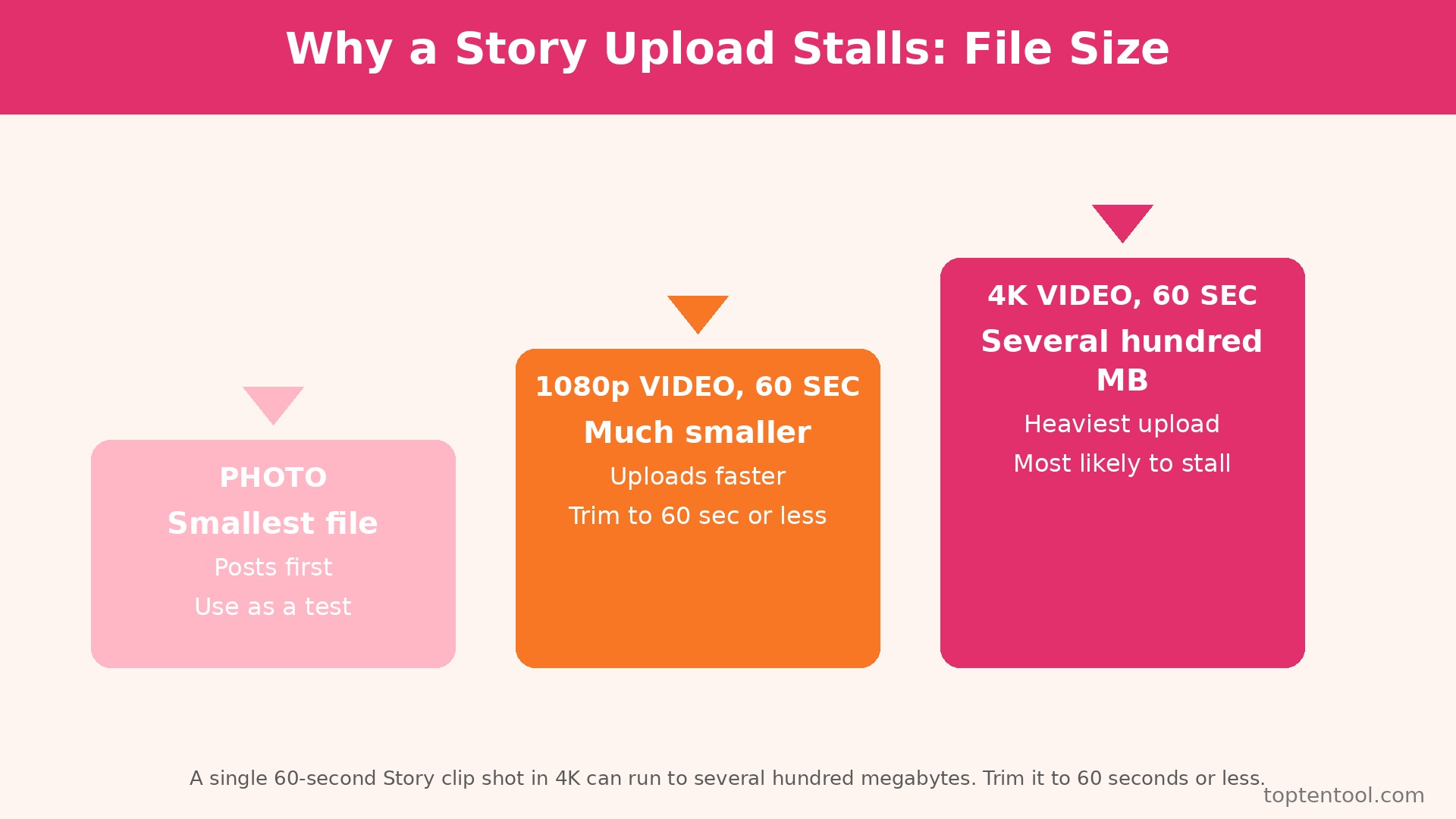
A single 60 second Story clip shot in 4K can run to several hundred megabytes, and Instagram has to upload every one of those megabytes over a connection that may drop the moment you walk out of Wi-Fi range, lock your phone, or switch from Wi-Fi to mobile data halfway through. That size, plus that fragility, is why a Story that will not post is one of the most reported Instagram problems, and why the fix is usually a connection check or a file check, not a reinstall. This guide to fix Instagram story not uploading starts with the fastest checks and works up to the account-level causes.
To fix Instagram story not uploading, start with the test that takes 30 seconds, post a plain photo taken in the camera right now, and let the result tell you whether the problem is the file or the phone. If the photo posts, the original video is the problem. If nothing posts, the connection, the app, or the account is the problem. This guide works through all seven causes in that order, with a step by step fix for each one.
To fix Instagram story not uploading, first distinguish a Story that will not upload from a Story that will not load. A Story that will not load shows a spinning ring or a blank screen when you try to watch someone else’s Story, and that is almost always a connection or cache problem. A Story that will not upload shows a progress bar that freezes, a message that says waiting for connection, or an upload failed message with a tap to retry prompt, and that is the problem this guide solves. The two problems share some fixes, but they are not the same problem, and a fix for one will not always fix the other.
Quick Diagnosis Checklist to Fix Instagram Story Not Uploading
Work through this checklist in order, and stop as soon as the Story posts. Most cases resolve in the first three checks.
| What you see | Try this first | Likely cause |
|---|---|---|
| Progress bar frozen, often near the end | Cancel the stuck Story, force close the app, retry on a different network | Connection dropped mid upload, or the queue is stuck |
| Waiting for connection, even with signal | Switch networks, turn off VPN and Data Saver | Blocked mobile data, VPN, or Data Saver |
| Upload failed, tap to retry, keeps coming back | Post a plain photo as a test, then trim the video | Bad connection, old app, or a damaged file |
| One Story fails, other Stories post fine | Re-export the video in a common format, trim it shorter | File too long, too large, or in an unusual format |
| Nothing posts, and the phone feels slow | Free up storage, clear the cache on Android | Low storage or a bloated cache |
| Story fails only on one Wi-Fi network | Try mobile data, restart the router | Router or network problem |
| Every upload fails, and the app is up to date | Check Downdetector and Instagram Account Status | Instagram outage or account limit |
To fix Instagram story not uploading safely, save a copy of the video to your camera roll before you cancel a stuck upload, because cancelling can delete the only copy of a Story you recorded inside the app. If the save option appears, use it. If it does not, screen record the preview if the content matters, then cancel the upload and start again with the saved file.
1. A Weak or Unstable Connection Dropped the Upload
Stories upload in the background the moment you post them, and they need a steady signal to finish. A weak signal, a congested network, a lift, a basement, or a walk out of Wi-Fi range in the middle of the upload will freeze the progress bar, and switching networks halfway through a transfer is a classic way to strand it. This is the most common cause, and it is also the easiest to confirm, because the fix is to change the network and try again.
How to confirm it. Look at the signal bars before you do anything else. Try loading a web page or watching a Reel, and watch whether it loads quickly or stalls. If other apps are slow too, the connection is the problem. If the Story fails on one Wi-Fi network and posts fine on mobile data, the router is the problem, not the app.
How to fix it.
- Cancel the stuck Story, and save a copy to your camera roll first if the option appears.
- Turn on Airplane Mode for 10 seconds, then turn it off, so the phone reconnects to the network fresh.
- Switch from Wi-Fi to mobile data, or from mobile data to Wi-Fi, and try the upload again on the stronger network.
- Move closer to the router, or step outside, or wait until you are in a place with a strong signal, and do not start the upload in a lift or a basement.
- Run a speed test, and check the upload speed, not just the download speed, because Stories need upload bandwidth, and a connection with fast downloads and slow uploads will still stall.
- Restart the router if the Story fails on one Wi-Fi network but works everywhere else, and check whether other devices on the same network are slow too.
Do not start a Story upload and then lock the phone, walk away, or switch networks, because the upload needs the app open and the connection steady until the progress bar finishes. Post the Story, keep the app open, and wait for the confirmation before you move on.
2. The Upload Queue Is Stuck on a Failed Story
A failed Story can jam the upload queue, so every Story after it waits behind a transfer that will never finish. The progress bar freezes in the same place every time, the app shows posting for hours, and new Stories join the queue behind the stuck one instead of posting on their own. The fix is to clear the queue, not to keep retrying, because retrying the same stuck upload without clearing it first usually ends the same way.
How to confirm it. Open your profile and tap the Story circle at the top left. If it shows a round loading sign that does not finish, and if a Story you posted hours ago still shows as posting, the queue is stuck. If a plain photo posted after the failed video also stalls, the queue is the problem, not the file.
How to fix it.
- Tap the stuck Story circle on your profile, and look for Cancel, Delete, or Discard.
- Save a copy of the media to your camera roll first, if that option appears.
- Tap Delete or Discard to remove the stuck upload from the queue.
- Force close Instagram completely, by swiping it away from the recent apps list, and do not just go back to the home screen.
- Reopen Instagram, wait 30 seconds for the app to settle, and post a plain photo as a test.
- If the photo posts, post the original video again from the camera roll, and keep the app open until it finishes.
Never reinstall the app to fix Instagram story not uploading until you have cancelled the stuck Story first, because reinstalling with a stuck upload in the queue can leave the Story in a half posted state that is harder to clear. Cancel, force close, test with a photo, then repost.
3. The Video File Is Too Long, Too Large, or in an Unusual Format
A clip that is very long, very high resolution, or recorded in an unusual format can fail while smaller, simpler Stories succeed, and that pattern is the strongest sign that the file is at fault. Instagram Stories are built around short clips, and a much longer video, or one recorded in a very high resolution setting, takes more time and a steadier connection to process and upload than a short simple clip. A corrupted file, or a file with a variable frame rate from a screen recorder or a game capture tool, can fail even on a fast connection.
How to confirm it. Post a plain photo taken in the camera right now. If that posts, the original file is the problem. If the original video plays back on your phone from start to finish without stopping, the file is probably complete, and the problem is size or format. If the video stops early, shows a black screen, or will not open, the file is damaged, and no upload setting will fix it.
How to fix it.
- Trim the video to 60 seconds or less, using your phone editing tools, and split a longer clip into two Stories instead of one long upload.
- Re-export the video in a common format, MP4 with H.264 video and AAC audio, at 1080p, because that is the format Instagram handles most reliably.
- Turn off Upload at highest quality in Instagram settings if your network is slow, so a large video uploads faster, and turn it back on later if you want the best quality.
- Remove music stickers, GIF stickers, and filters from the Story, save the plain video to your camera roll, and post the plain version to test whether a sticker was the problem.
- Record a short test clip in the Instagram camera itself, and post it, because a clip recorded in the app uses settings Instagram already accepts.
- If the file is damaged, re-export it from the original project, or re-record it, because a damaged file cannot be repaired by uploading it again.
A 4K video is four times the pixels of a 1080p video, and it takes roughly four times as long to upload on the same connection. Shooting in 1080p for Stories is not a quality sacrifice that anyone will notice on a phone screen, and it is the single easiest way to make Story uploads reliable.
4. The App or the Operating System Is Out of Date
Story upload bugs are sometimes fixed in the very next release, and an outdated build can carry an upload bug that the current version already fixed. The same applies to the phone operating system, because an old OS can block a new app feature, and a phone that has been up for weeks can accumulate background processes that interfere with an upload. Updating the app is a two minute fix, and it should come before any deeper troubleshooting.
How to confirm it. Open the App Store on iPhone or Google Play on Android, search for Instagram, and see whether an Update button appears. If it does, the app is out of date. Check the phone settings for a system update too, and check when the phone was last restarted, because a phone that has not restarted in weeks is a suspect.
How to fix it.
- Update Instagram from the App Store or Google Play, and wait for the update to finish before you open the app.
- Update the phone operating system if an update is available, and restart the phone after the update.
- Restart the phone even if no update is available, because a full restart clears background processes that can quietly interfere with a Story trying to upload.
- Open Instagram after the restart, wait 30 seconds, and post a plain photo as a test before you retry the original video.
- If the app still fails after the update, check the App Store reviews for the latest version, because a bad release can break uploads for many users at once, and the fix in that case is to wait for the next release.
- Do not install Instagram from an unofficial source, because a sideloaded app can carry an old version with known upload bugs, and it will not update automatically.
Keep automatic app updates on, and restart the phone at least once a week. Those two habits prevent more Story failures than any other single change, and they cost nothing.
5. The Phone Is Low on Storage or the Cache Is Bloated
Instagram needs free space on the phone to encode and buffer a video before it uploads, and a nearly full phone struggles to do that work. A bloated cache has the same effect, because old temporary files fill the space the app needs for the new upload. The symptom is a Story that starts uploading and then stalls, or an app that feels slow and crashes when you open the camera, and the fix is to free space.
How to confirm it. Check the phone storage in settings. If less than 1GB is free, storage is a likely cause. If Instagram cache on Android is several hundred megabytes, the cache is a likely cause. If other apps are also slow or crashing, the phone is the problem, not Instagram.
How to fix it.
- Free up at least 1GB of storage by deleting old videos, unused apps, and downloaded files you no longer need.
- On Android, go to Settings, then Apps, then Instagram, then Storage and cache, and tap Clear cache, and do not tap Clear storage or Clear data, because that signs you out and deletes saved settings.
- On iPhone, go to Settings, then General, then iPhone Storage, find Instagram, tap Offload App, then reinstall it, which clears temporary files while keeping your account data.
- Force close Instagram, restart the phone, and post a plain photo as a test.
- Turn off Upload at highest quality temporarily if storage is tight, because a smaller upload needs less buffer space.
- Keep at least 2GB free on the phone at all times, and review storage once a month, because a phone that fills up slowly will fail suddenly, and the failure will look like an Instagram problem.
Clearing the cache does not delete your posts, your messages, or your account. It deletes temporary files, and Instagram rebuilds them as you use the app. Do it once, test, and move on if the Story posts.
6. Data Saver, a VPN, or Battery Saver Is Throttling the Upload
Data Saver, Low Data Mode, Battery Saver, and a VPN can all quietly throttle or block a Story upload, and they do it without showing an error message that names them. Data Saver in Instagram stops big video Stories from uploading on a mobile network. Low Data Mode on the phone does the same at the system level. A VPN routes the upload through a distant server, and a slow or unstable VPN connection will stall a large video. Battery Saver and aggressive battery optimizers on some Android phones stop apps from using the internet in the background when you lock the screen, so a Story that starts uploading stops the moment the screen goes dark.
How to confirm it. Turn off the VPN and try the upload again. If it posts, the VPN was the problem. Turn off Data Saver in Instagram and Low Data Mode on the phone, and try again. If the Story posts on Wi-Fi but fails on mobile data, a data restriction is the likely cause. If the Story fails only when you lock the phone during the upload, a background restriction is the likely cause.
How to fix it.
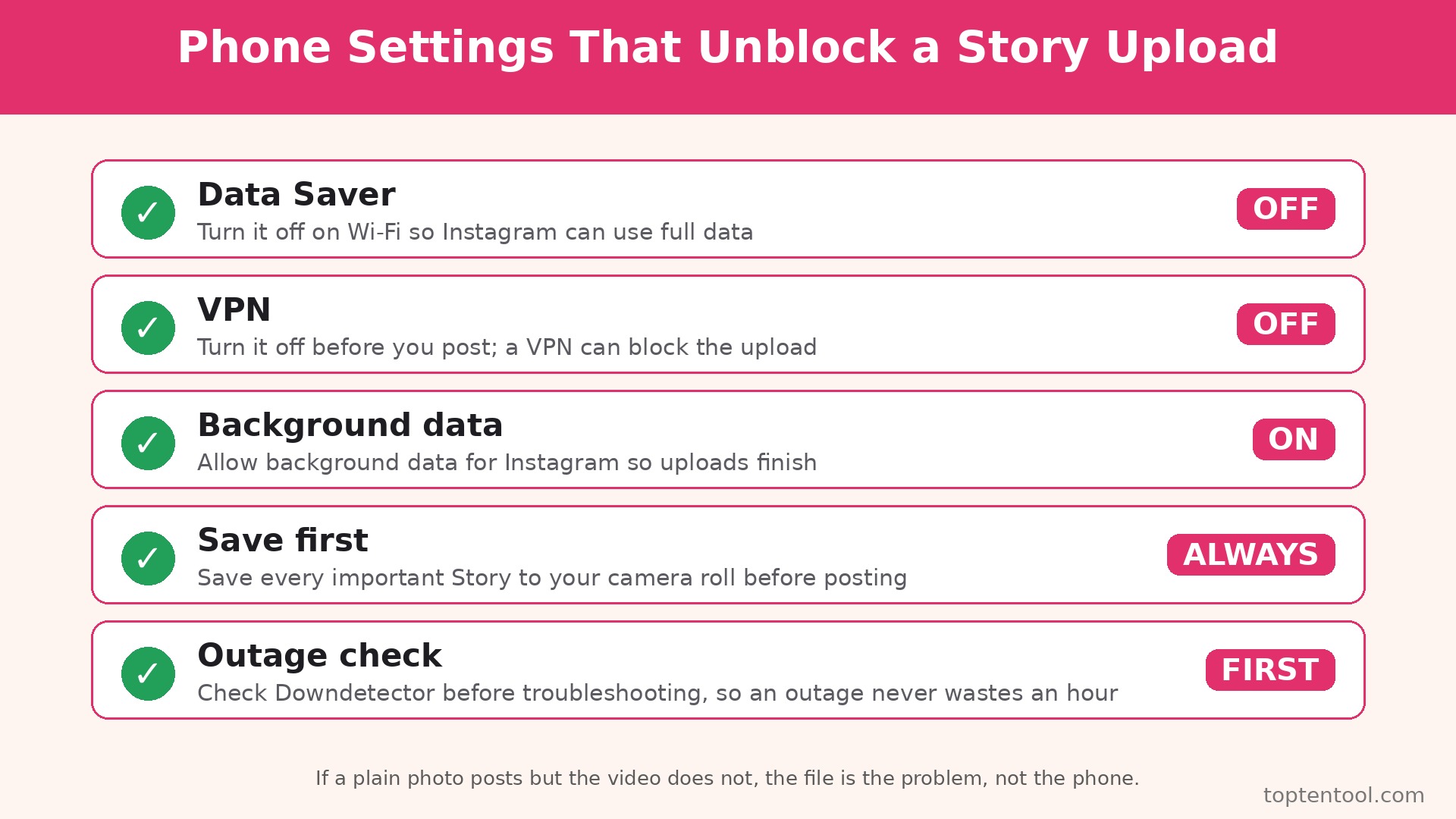
- Disconnect the VPN completely, and try the upload without it, because media uploads are more sensitive to an unstable route than text or photos.
- Open Instagram, go to Settings, then Data usage, and turn off Data Saver, and turn off Upload at highest quality temporarily if your network is slow.
- Turn off Low Data Mode on iPhone in Settings, then Mobile Data, or turn off Data Saver on Android in Settings, then Network, and try the upload again.
- On Android, go to Settings, then Apps, then Instagram, then Mobile data, and turn on Background data and Unrestricted data usage, so the upload continues when you lock the screen.
- Turn off Battery Saver, or add Instagram to the list of apps that are not optimized for battery, so the phone does not kill the upload in the background.
- Keep the app open and the screen on until the Story posts, and do not lock the phone during an upload, because that is the moment a background restriction bites.
Check the date and time on the phone too, because a wrong date and time can block Instagram from reaching its servers, and the app will show waiting for connection even with a strong signal. Set the date and time to automatic in settings, and the problem clears.
7. Instagram Is Down, or the Account Has a Limit
Sometimes the problem is not the phone, the file, or the network. Instagram has outages, and when it does, uploads hang for everyone, and nothing on your phone will fix it. Less often, the account itself has a temporary limit, because Instagram limits accounts that post too much too fast, or that trigger a spam filter, and a limited account cannot post Stories until the limit clears. Both causes look the same from the phone, and the fix is to check the service first, then the account.
How to confirm it. Check Downdetector for a spike in Instagram outage reports, and check whether friends on different networks have the same problem. If everyone is affected, it is an outage. Open Instagram Account Status in settings, and look for a notice about a limit or a violation. If the account shows a limit, and if posts, comments, or follows are also blocked, the account is the problem, not the Story.
How to fix it.
- Check Downdetector and Instagram status pages first, before you change anything on the phone, because reinstalling the app during an outage is the single biggest waste of time in this whole process.
- Wait 30 minutes and try again if an outage is reported, and do not keep retrying every minute, because repeated failed uploads can jam the queue further.
- Open Settings, then Account Status, and read any notice about a limit, and follow the instructions there if one appears.
- If the account is limited, stop posting, liking, and following for 24 hours, and do not try to bypass the limit with a second account, because that can extend it.
- Check whether the Story contains a music sticker or a song that is greyed out, because a licensing restriction can block a Story with music, and removing the music sticker will let the Story post.
- If the outage clears and the account shows no limit, but Stories still fail, cancel the stuck upload, force close the app, and post a plain photo as a test, because a queue jammed during the outage can persist after the service recovers.
An outage is the only cause where doing nothing is the right way to fix Instagram story not uploading. Wait, check the status page again, and try once the reports drop. Everything else in this guide is a fix you can apply yourself, and this is the one cause where patience is the fix.
Still Not Working
To fix Instagram story not uploading when nothing else works, work through these steps in order, and stop as soon as the Story posts. First, save the video to your camera roll, delete Instagram, and reinstall it from the official store, then sign in and post the saved video, because a reinstall clears corrupt app data that a cache clear cannot reach.
Do not reinstall until you have saved the video, because reinstalling deletes any Story saved only inside the app. Second, try posting from a different phone or a different account, because that test separates a phone problem from an account problem in one step. If the Story posts from another phone on the same account, your phone is the problem. If it fails on every phone on the same account, the account is the problem.
Third, report the problem inside Instagram, through Settings, then Help, then Report a problem, and include the time the Story failed, the type of file, and the error message you saw. Fourth, check whether the account has a recent violation, a removed Story, or a warning, because a violation can limit posting without showing a clear error. Fifth, wait 24 hours and try again with a plain photo, because a temporary limit that is not shown in Account Status can still clear overnight. Do not create a new account to bypass a limit, because Instagram links accounts by device and phone number, and a new account can inherit the same limit.
Prevention Checklist
Use this checklist before you post any important Story, and failures will become rare. Record in 1080p, not 4K, for Stories, and trim clips to 60 seconds or less. Post on a strong signal, keep the app open until the Story confirms, and do not lock the phone during the upload. Keep at least 2GB free on the phone, clear the cache on Android once a month, and keep Instagram and the phone system updated.
Turn off the VPN before you post, turn off Data Saver when you are on Wi-Fi, and allow background data for Instagram. Save every important Story to your camera roll before you post it, so a failed upload never loses the only copy. Check Downdetector before you troubleshoot, so an outage never wastes an hour of your time.
Frequently Asked Questions
Why is my Instagram Story stuck on posting?
The upload was interrupted, usually by a weak connection, a network switch mid upload, or a stuck queue. Cancel the stuck Story, save a copy first, force close the app, switch networks, and post a plain photo as a test. If the photo posts, repost the original video from the camera roll. If the photo also stalls, free up storage and clear the cache.
Why does my Instagram Story say waiting for connection?
Instagram cannot reach its servers, even if the phone looks online. The usual reasons are blocked mobile data, a VPN, Data Saver, Low Data Mode, or a wrong date and time. Switch networks, turn off the VPN and Data Saver, check that Instagram can use mobile data, and set the date and time to automatic.
Why will my Instagram Story not upload but my posts will?
Stories upload in the background and need a steady upload connection, while a photo post is a smaller file that can finish on a weaker signal. A large video Story can fail where a photo post succeeds, and a video with a sticker, a filter, or a high resolution setting can fail where a plain photo posts. Trim the video, re-export it at 1080p, and post it again.
How long should I wait before I cancel a stuck Story?
Give it five minutes on a strong connection, and 15 minutes on a slow connection, because a large video can take that long to upload. If the progress bar has not moved at all in five minutes, or if it has been stuck in the same place for more than 15 minutes, cancel it, save a copy, and start again. Waiting for hours will not help, because a stalled upload does not resume on its own.
Can Instagram block me from posting Stories?
Yes, temporarily. Instagram can limit an account that posts too much too fast, or that triggers a spam filter, and a limited account cannot post Stories until the limit clears. Check Account Status in settings, stop posting for 24 hours, and do not try to bypass the limit with a second account. A music licensing restriction can also block a single Story, and removing the music sticker will let it post.
Verdict
To fix Instagram story not uploading, start with the 30 second test, because it tells you whether the file or the phone is the problem. Post a plain photo. If it posts, trim the video, re-export it at 1080p, and post it again. If nothing posts, switch networks, turn off the VPN and Data Saver, cancel the stuck upload, force close the app, and try again.
Update the app, free up storage, and check for an outage before you reinstall anything. Save every important Story to your camera roll before you post it, record in 1080p, and keep the app open until the Story confirms. Most stuck Stories resolve in the first three checks, and the rest resolve with a clear queue, a smaller file, or a little patience.