
A customer who reaches checkout and cannot pay is a sale you have already won and then lost, and that loss is more expensive than any other problem a store can have. Research from the Baymard Institute in 2026 found that 18 percent of shoppers abandon carts specifically because the checkout process had errors or was too complicated, and every one of those shoppers had already chosen a product, entered their details, and decided to buy. This guide to fix Shopify checkout not working works through the seven causes in the order a real store owner should check them.
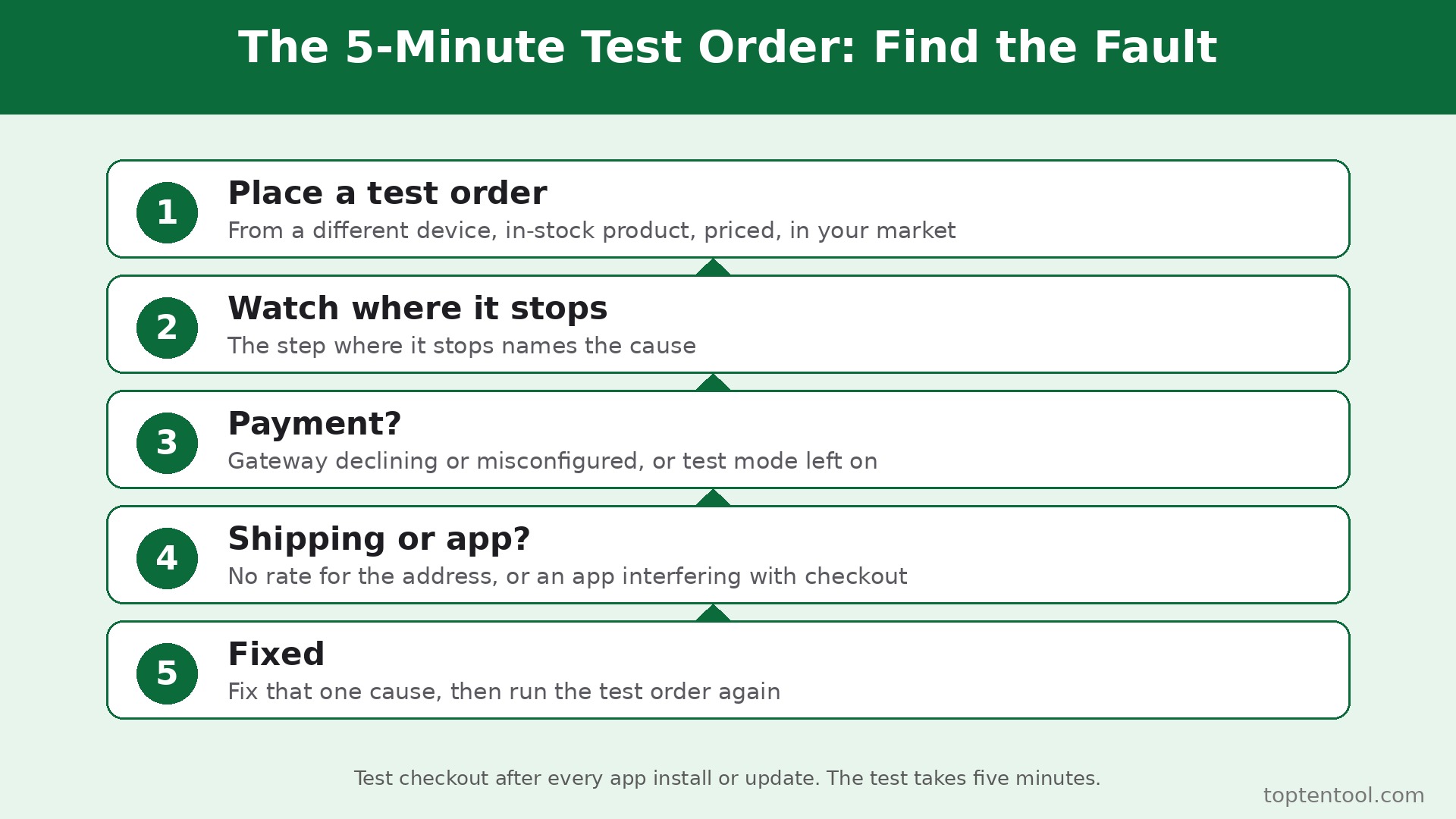
To fix Shopify checkout not working, start with the test that takes five minutes, place a real test order from a different device with a product that is in stock, priced, and set to be available in your market, and watch exactly where it stops. The step where it stops names the cause, and this guide gives you a step by step fix for each of the seven causes that stop it.
Most cases where you fix Shopify checkout not working come down to four causes, and the other three are less common but just as costly when they hit. No shipping rate covers the customer address. The payment gateway is declining or misconfigured. An app is interfering with checkout. Or a tax or inventory setting is blocking the order.
Quick Diagnosis Checklist to Fix Shopify Checkout Not Working
Work through this checklist in order, and stop as soon as a test order completes. Most cases resolve in the first three checks.
| What you see | Try this first | Likely cause |
|---|---|---|
| This store cannot accept payments | Check Settings, then Payments, activate a provider | No payment provider activated |
| Payment declined, or problem processing payment | Check the gateway, test mode, and the card details | Card decline, test mode left on, or gateway on hold |
| No shipping rates, or shipping not available | Add a shipping zone and rate for that country | No shipping rate covers the address |
| Product cannot be added, or checkout button missing | Check markets, product status, and sales channels | Market, draft product, or availability problem |
| Checkout loads but an app popup blocks it | Disable checkout apps one by one, test after each | App or checkout rule interfering |
| Tax looks wrong, or the order will not complete | Check tax settings and inventory tracking | Tax registration, or inventory blocking the order |
| Checkout fails for some customers only | Try another browser, device, and network | Customer browser, extension, or network |
Open Orders, then Abandoned checkouts, in your Shopify admin before you change anything, because the abandoned checkouts show exactly which step customers reach and where they drop off.
1. No Payment Provider Is Activated, or Test Mode Is Still On
A store with no active payment provider gives customers nowhere to pay, and the checkout shows a message that says this store cannot accept payments. A store with test mode left on is worse, because the checkout looks normal, but real credit cards are declined and only test card numbers work. Both problems come from the Payments settings, and both are fixed there, in under five minutes.
How to confirm it. Open Settings, then Payments, in your Shopify admin. If no provider shows as activated, not Shopify Payments, not PayPal, not a third party gateway, the cause is confirmed. If a provider shows as activated but the mode says test, the cause is test mode. If the gateway account shows a notice that it needs business details or verification, the account is on hold, and the fix is to complete the verification.
How to fix it.
- Go to Settings, then Payments, in your Shopify admin, and confirm at least one provider shows as activated.
- If Shopify Payments is available in your country, activate it, and complete the business details and verification it asks for, because an unverified account cannot take real payments.
- If Shopify Payments is not available in your country, activate a third party gateway such as Stripe or PayPal, or a regional provider, and check the Shopify payment gateway guide for region specific setup.
- Turn off test mode, and confirm the gateway is in live mode, not test mode, because test mode declines every real card.
- Check the API keys, secret keys, and merchant IDs for a third party gateway, and re-enter them if any character is wrong, because a single wrong character will fail transactions silently or throw a cryptic error code.
- Place a real test order with a real card for a small amount, refund it immediately, and confirm the payment completes, because a test order is the only proof the gateway works.
A store on a paused plan or a development setup cannot take real checkouts the way a live store can, so confirm the plan is active too. A paused store that looks live in the admin will still block customers at checkout, and the fix is to choose a paid plan.
2. The Card Is Declined, or the Gateway Is on Hold
Not every failed payment is a checkout error on your end. Many declines come from the customer bank or card issuer, and the bank fraud system can flag a transaction for spending habits, account balance, card expiration, or a wrong CVV. The rest come from the gateway itself, when the account is under review, when the credentials are wrong, or when the provider has an outage. The fix depends on which one it is, and the abandoned checkout record will usually tell you.
How to confirm it. Open Orders, then Abandoned checkouts, and look at the payment notes. If the note says insufficient funds, zip code failure, or card expired, the decline is on the customer side. If every payment fails, for every customer, with every card, the gateway is the problem. If the gateway dashboard shows an account hold, a verification request, or an outage notice, the cause is confirmed.
How to fix it.
- Ask the customer to check the card details, especially the CVV, the expiration date, and the billing zip code, because a wrong CVV or zip code is the most common single cause of a decline.
- Ask the customer to try a different card, or a different payment method such as PayPal, because a bank can block one card while accepting another.
- Check the gateway dashboard for an account hold, and complete any verification it asks for, because a gateway that is waiting for business documents will decline payments until the documents arrive.
- Check the gateway status page for an outage, and wait if one is reported, because a provider outage affects every store on that gateway at once.
- Review your fraud settings, and loosen them if they are too strict, because an overzealous fraud filter can block legitimate payments, and the customer sees a message that says payment could not be processed even though the card is fine.
- Confirm that test keys are not being used in production, especially for Stripe, where test keys in a live store will fail every real transaction, and the fix is to replace them with live keys from the Stripe Dashboard, under Developers, then API keys.
Do not tell a customer their card is bad until you have checked the gateway, because a gateway problem that you blame on the customer costs you the sale and the customer.
3. No Shipping Rate Covers the Customer Address
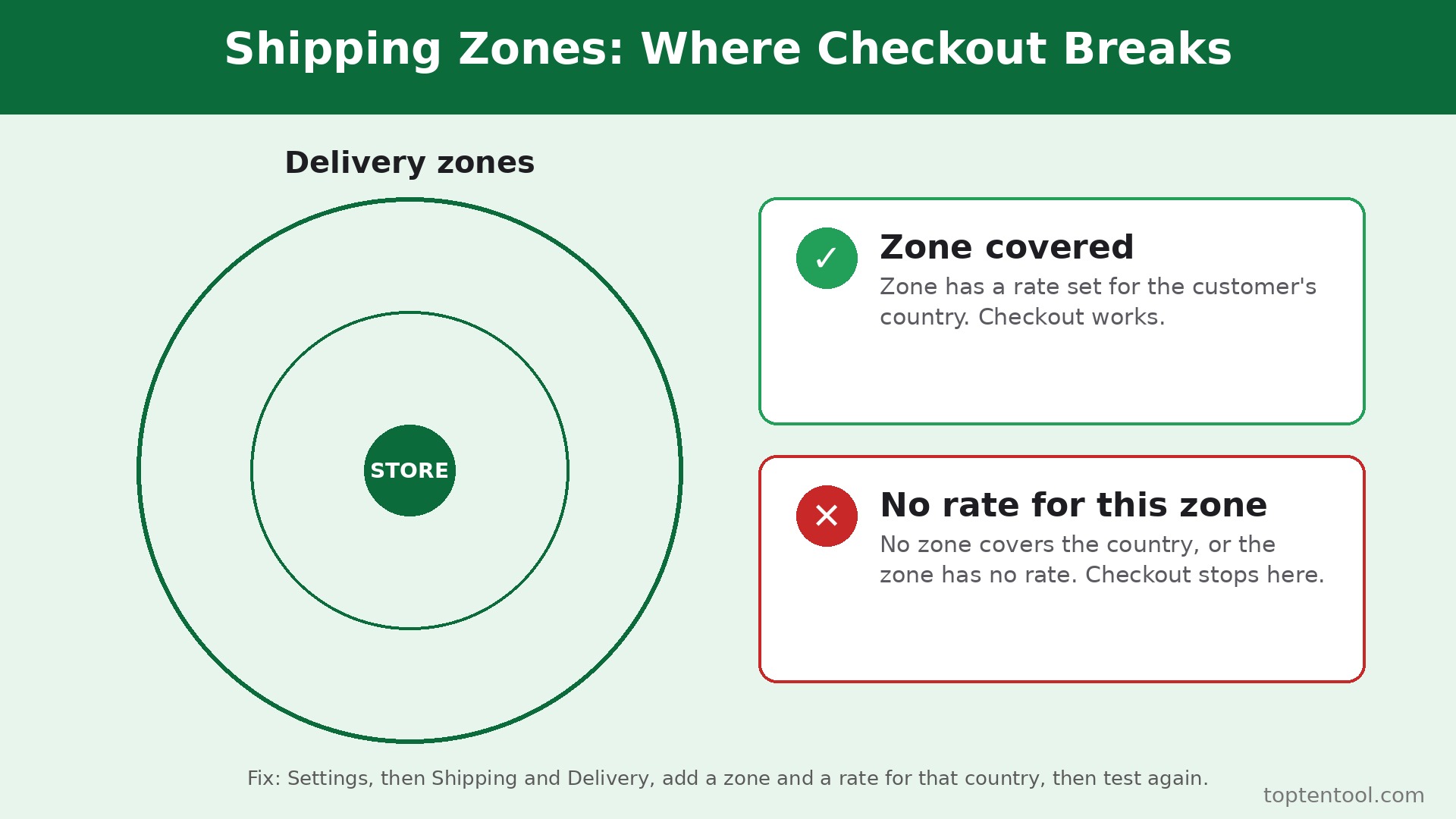
If your shipping settings are incomplete, Shopify may block checkout entirely at the shipping step, or show no shipping options, which prevents the customer from proceeding. Every country or region you sell to needs a shipping zone with at least one shipping rate, and without it, customers in that region hit a dead end at checkout. The error messages are clear, shipping not available for the selected address, your order cannot be shipped to this location, or no shipping rates found for this address, and they all mean the same thing.
How to confirm it. Place a test order using the exact address the customer used, with the exact products they tried to buy. If no shipping rates appear, the cause is confirmed. Check Settings, then Shipping and Delivery, and look for the customer country in your zones. If the country is missing, or if the zone exists but has no rate, or if the rate has a weight or order value condition the order does not meet, the cause is confirmed.
How to fix it.
- Go to Settings, then Shipping and Delivery, and add a shipping zone for every country and region you sell to.
- Add at least one shipping rate to each zone, even if it is a simple flat rate, because a zone with no rate blocks checkout just as surely as a zone that does not exist.
- Create a catch all rate if customers are hitting shipping errors right now, with a flat rate that covers the whole country, and refine it later, because a rough rate that lets customers check out is better than a perfect rate that blocks them.
- Check the weight and dimensions of the products in the order, and confirm the rate covers that weight, because a rate with a weight limit will not appear for an order above the limit.
- Check carrier calculated rates if you use UPS, USPS, FedEx, or DHL, and confirm the carrier account is connected, because a disconnected carrier account will fail to return rates.
- Test the checkout again with the same address and the same products, and confirm a shipping rate appears before you tell the customer to try again.
Shipping zones are the most common cause of a checkout that works for local customers and fails for everyone else, and the fix is usually a zone that was never created for a country you started selling to last month.
4. The Market, the Product, or the Sales Channel Does Not Cover the Customer
A product can be browsed but not bought, and a checkout can work for one customer and fail for another, when the market, the product status, or the sales channel does not cover that customer. A draft product cannot be purchased. A product that is not included in the customer market cannot be purchased by that customer. A product that is not available in the online store channel cannot be purchased online. All three look like a checkout failure, and none of them is a checkout failure.
How to confirm it. Open the product in the admin, and check its status. If it says Draft, the cause is confirmed. Open Settings, then Markets, and confirm the customer country belongs to an active market, and that the product is included in that market. Open the product, then Sales channels, and confirm the online store channel is selected. If any of those three is missing, the cause is confirmed.
How to fix it.
- Change the product status from Draft to Active, and confirm the price is set, the inventory is above zero, and the product is set to be available in your market.
- Go to Settings, then Markets, and confirm the customer country belongs to an active market, and add the country to a market if it is missing.
- Confirm the product is included in that market, and that the price is set for that market, because a product can be active in one market and excluded from another.
- Open the product, then Sales channels, and confirm the online store channel is selected, and that the product is available in the channel.
- Check the inventory setting, and confirm the product is set to continue selling when out of stock if that is what you want, or that the inventory is above zero if it is not.
- Place a test order from a different device, using the same product and the same country, and confirm the checkout completes.
Test the right product, the right way, to fix Shopify checkout not working, because a test order on a different product in a different market proves nothing. Use the exact product, the exact address, and the exact market the customer used, and the test will tell you the truth.
5. An App or a Checkout Rule Is Blocking the Order
Apps and automatic rules can block checkout quietly and politely, which makes them hard to suspect. Age checkers, delivery date tools, order limit apps, fraud filters, and checkout customizations can all refuse an order when their conditions are not met, and the customer sees a polite message that does not name the app. A discount code that is misconfigured can do the same, and a checkout extension on a Plus store can break after a platform update and block every order.
How to confirm it. Disable checkout apps one by one, and test after each one, because the app that fixes the checkout when it is off is the app that was blocking it. Check Settings, then Checkout, for rules and customizations, and look for a rule that limits order value, quantity, or delivery date. If the checkout works in a private window with extensions off, but fails in a normal window, an app or a browser extension is the likely cause.
How to fix it.
- Open Settings, then Apps, and disable checkout apps one by one, starting with the most recently installed or updated, and place a test order after each one.
- Check discount codes, and confirm the code the customer used is active, has not expired, and applies to the products in the order, because a code that does not apply can block checkout.
- Review checkout rules in Settings, then Checkout, and remove or loosen any rule that limits order value, quantity, or delivery date, if the rule is blocking legitimate orders.
- If the store is on Shopify Plus, check custom checkout extensions, and disable any extension that was updated recently, because an extension that broke after a platform update can block every order, and the fix is to update it or remove it.
- Check the app developer changelog for a recent update, and contact the developer if the app broke after an update, because the developer may already have a fix.
- Re-enable the apps one by one after the checkout works, and test after each one, so you know exactly which app was the problem, and you do not leave a useful app disabled by mistake.
Keep a note of which apps touch checkout, and test checkout after every app install or update, because an app that works today can break checkout tomorrow, and the test takes five minutes.
6. A Tax or Inventory Setting Is Blocking the Order
Tax and inventory settings can block an order without showing a clear error, and they are the cause most owners check last, because the settings look unrelated to checkout. A missing tax registration can block an order in a region where tax must be collected. A tax app that overrides Shopify defaults can calculate a wrong tax and refuse the order. An inventory setting that stops selling when stock reaches zero can block an order for a product that shows as available, if the inventory count is wrong. All three stop the customer at the same place, and all three are fixed in settings.
How to confirm it. Open Settings, then Taxes, and confirm the regions you sell to are set up, and that the tax registration is complete for each one. Open the product, and check the inventory count and the setting for selling when out of stock. If the inventory is zero and the product is set to stop selling at zero, the cause is confirmed. If a tax app is installed, disable it temporarily and test the checkout, because a tax app that overrides Shopify defaults is a common cause of a tax error at checkout.
How to fix it.
- Go to Settings, then Taxes, and confirm every region you sell to has a tax setup, and complete any missing tax registration.
- Check the tax rate for the customer region, and confirm it is correct, because a wrong rate can block the order or show a tax total the customer will not accept.
- Disable any tax app temporarily, and test the checkout with Shopify default tax settings, because a tax app that calculates tax differently can refuse an order that Shopify would accept.
- Open the product, check the inventory count, and correct it if it is wrong, because an inventory count that is too low will block orders for a product that is actually in stock.
- Change the inventory setting to continue selling when out of stock if the product is made to order or dropshipped, and you do not want inventory to block checkout.
- Place a test order with the same product and the same address, and confirm the tax total looks right and the order completes.
Tax settings change when you start selling in a new state or country, and inventory counts change every time a sale is made, so both settings deserve a check every time you expand to a new region.
7. The Customer Browser Is Blocking Checkout, or Shopify Is Down
Sometimes the problem is not the store at all. The customer browser, a browser extension, an ad blocker, or the customer network can block the checkout page, and the checkout will fail for some customers and work for others, with no pattern in the store settings. Shopify itself can also have an outage, and when it does, checkout fails for every store at once, and the only fix is to wait. Both causes look the same from the admin, and the fix is to test from the customer side first, then check the platform.
How to confirm it. Place a test order from a different browser, a different device, and a different network. If the checkout works on one combination and fails on another, the browser or the network is the problem. Check the Shopify status page at status.shopify.com, and look at the checkout and payments indicators. If the status page shows an active incident, the cause is confirmed, and your store is fine.
How to fix it.
- Check status.shopify.com first, before you change any setting, because an active incident means thousands of merchants are in the same boat, and the only correct fix is patience.
- Ask the customer to try another browser, another device, and another network, and to disable ad blockers and privacy extensions for your store, because an ad blocker can block the checkout scripts.
- Ask the customer to clear the browser cache and cookies, and to try a private window, because a corrupt cache can block the checkout page.
- Place a test order yourself from a phone on mobile data, and from a computer on Wi-Fi, and compare the results, because a checkout that works on one network and fails on another points at the network, not the store.
- If the store is on Shopify Plus, check custom checkout extensions, and disable any extension that was updated recently, because a Plus extension that broke after an update can block checkout for every customer.
- If the status page is green and the checkout works from your test devices, ask the customer for a screenshot of the error, and the exact steps they took, because the error message and the step where it appears will name the cause.
A checkout that fails for one customer and works for ten others is almost always a customer side problem, and a checkout that fails for every customer is almost always a store side problem.
Still Not Working
If you have worked through all seven causes and the checkout still will not complete, this is the point where most owners give up on trying to fix Shopify checkout not working, and the point where a systematic check still pays off. Work through these steps in order, and stop as soon as a test order succeeds.
First, check the Shopify status page again, because an incident can start after you began troubleshooting, and a green status page an hour ago does not mean a green status page now. Second, open Orders, then Abandoned checkouts, and look at the pattern across the last 20 abandoned checkouts, because a pattern across many customers is more reliable than a single test order. Third, duplicate the problem product, and test the duplicate, because a corrupt product record can block checkout for one product while every other product works.
Fourth, create a fresh test product with a price of one dollar, a simple title, and no apps, no discount, and no special settings, and place a test order for it, because a test product that works proves the store checkout works, and the problem is in the original product or its settings. Fifth, check the store for a recent theme change, a recent app install, or a recent settings change, and undo the most recent change, because a checkout that worked yesterday and fails today broke because of something that changed yesterday.
Sixth, contact Shopify support through the Help Center, and tell them the test order results, the abandoned checkout pattern, and which of the seven causes you already ruled out, because that list saves the support team time and gets you a useful answer faster. Do not change every setting at once, because you will not know which change fixed it, and you may break something else.
Prevention Checklist
Use this checklist every week, and checkout failures will become rare. Place a test order from a different device, with a real address, and confirm it completes. Check Settings, then Payments, to fix Shopify checkout not working, and confirm a provider is activated and in live mode, not test mode. Check Settings, then Shipping and Delivery, and confirm every country you sell to has a zone and a rate. Check Settings, then Markets, and confirm every country you sell to belongs to an active market.
Check the inventory count on your best sellers, and correct any count that is wrong. Test checkout after every app install, every app update, and every theme change. Check the Shopify status page before you troubleshoot, so an outage never wastes an hour of your time. Keep a note of the last change you made to the store, so a checkout that breaks tomorrow can be traced to the change you made today.
Frequently Asked Questions
Why is my Shopify checkout not working?
Most often, shipping rates are not configured for the customer address, the payment gateway has an issue, an app is interfering with the checkout page, or the tax and inventory setup is blocking the order. Check Orders, then Abandoned checkouts, to see exactly where customers get stuck, then reproduce the issue with a test order using a real address.
Why does Shopify say this store cannot accept payments?
That message normally means no payment provider is fully activated, the store plan is not active for selling, or the gateway account still needs business details or verification. Go to Settings, then Payments, activate a provider, complete the verification, and confirm the gateway is in live mode, not test mode.
Why is my Shopify payment being declined?
Most payment failures come down to the customer card or bank, such as a wrong CVV, an expired card, insufficient funds, or a bank fraud flag. If every payment fails for every customer, the gateway is the problem, and the cause is usually test mode left on, wrong API keys, test keys used in production, or a gateway account on hold. Check the gateway dashboard and the abandoned checkout notes.
Why is shipping not available at Shopify checkout?
Shopify could not find a shipping method for the items and address combination, usually because no shipping zone covers the customer country, or because the zone has no rate, or because the rate has a weight or order value condition the order does not meet. Go to Settings, then Shipping and Delivery, add a zone and a rate for that country, and test the checkout again with the same address.
How do I test my Shopify checkout?
Place a real test order from a different device, using a product that is in stock, priced, and set to be available in your market, and a real address in the customer country. Use a real card for a small amount, and refund the order immediately after it completes. A test order that completes proves checkout works, and a test order that fails at a specific step names the cause.
Verdict
To fix Shopify checkout not working, start with a real test order, because the step where it stops names the cause. Check Settings, then Payments, and confirm a provider is activated and in live mode. Check Settings, then Shipping and Delivery, and confirm every country you sell to has a zone and a rate. Check Settings, then Markets, and confirm the product is active, priced, and included in the customer market.
Disable checkout apps one by one, and check tax and inventory settings, if the first three checks pass. Check the Shopify status page before you change anything to fix Shopify checkout not working, and test from a different browser and network if the checkout fails for some customers only. Place a test order every week, and test checkout after every app install and every theme change. A checkout that is tested weekly rarely fails, and a checkout that fails is usually fixed in the first three checks.