
Your video is probably not stuck. That is the verdict, and it is the first thing to understand before you cancel an upload, re-export a file, or delete a video that was about to finish. YouTube processes a new upload in low quality first, so you can finish the upload flow faster, and higher qualities such as 1080p and 4K take longer, sometimes several hours. This guide to fix YouTube video not processing explains what normal processing looks like, when to wait, and when to act.
A 4K video can be watchable in standard definition long before the HD and 4K versions appear, and a video that looks stuck at processing is often just a large file working through a long queue. To fix YouTube video not processing, wait first, check the file second, and re-upload only as a last resort, because cancelling a healthy upload and starting again puts you at the back of the queue. This guide shows you how long to wait, how to tell a slow upload from a broken file, and how to fix each of the seven real causes.
YouTube itself says uploads typically take anywhere from a few minutes to several hours, depending on file size, connection, traffic, and video quality. That range is wide, and it is honest. The page on videos stuck during upload names four things that stretch the time. File type, size, and format. A slow or unstable internet connection. Peak hour traffic. And video quality, because higher quality takes longer.
Quick Diagnosis Checklist to Fix YouTube Video Not Processing
Work through this checklist in order, and stop as soon as the video finishes processing. Most cases resolve in the first three checks.
| What you see | Try this first | Likely cause |
|---|---|---|
| Processing at 0 percent, SD version not ready | Wait, check your upload speed, keep the tab open | Slow connection, or a large file still uploading |
| SD ready, HD and 4K still processing after hours | Wait longer, publish as Unlisted until HD is ready | Normal HD and 4K processing time |
| Processing abandoned, the video could not be processed | Play the file back fully, re-export in H.264, upload again | File cut short, invalid, or in an unusual encoding |
| Upload stuck at 0 percent, 95 percent, or 99 percent | Run a speed test, resume within 24 hours from the same file | Interrupted upload, or a slow connection |
| Daily upload limit reached | Wait 24 hours, verify the account | Unverified account, or the daily limit |
| Upload fails in one browser but works in another | Clear the cache, disable extensions, try another browser | Browser cache, extension, or firewall |
| Every upload fails, and other creators report the same | Check YouTube status and Downdetector | YouTube outage or heavy traffic |
Do not cancel an upload that is still moving, even slowly, because cancelling can make things worse, and a resumed upload is faster than a fresh one. YouTube gives you up to 24 hours to resume an interrupted upload, and the resume uses the same file, so do not re-export a new version first.
1. HD and 4K Processing Takes Hours, and That Is Normal
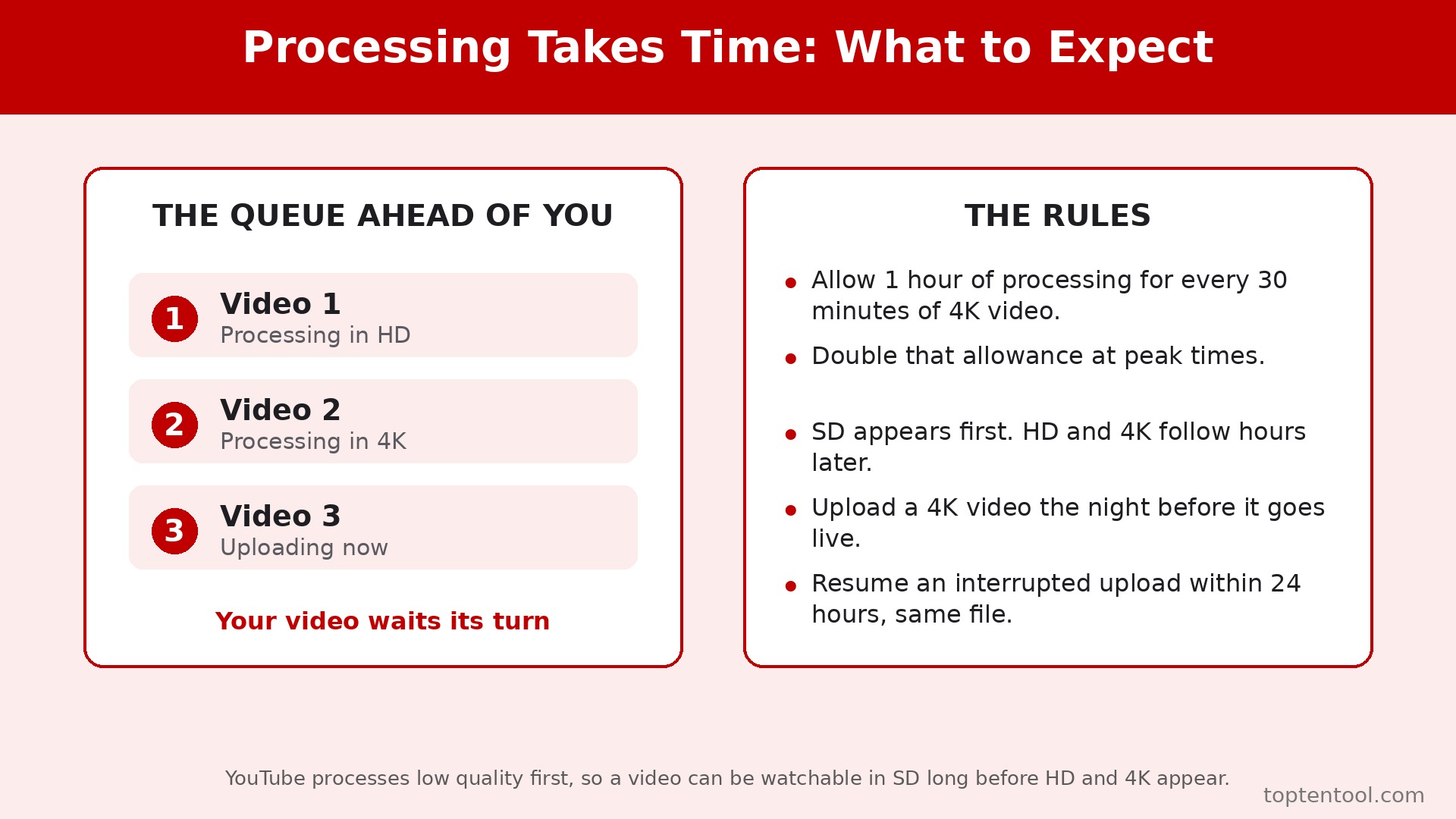
The most common cause of a video that seems stuck is not a fault at all. YouTube processes a video in low quality first, and higher qualities take longer, and the processing time depends on quality, video length, format, and traffic. A 10 minute 1080p video can finish in minutes. A one hour 4K video can take several hours. A video can be published once SD processing is complete, so it can go live before the higher qualities appear, and viewers who open it early will see the low quality version until the HD versions finish.
How to confirm it. Open YouTube Studio, go to Content, and look at the video. If the SD version is ready and the HD and 4K versions show as still processing, the video is working normally. If the video was uploaded less than a few hours ago, and it is long or in 4K, the wait is normal. If the processing time shown in Studio is still counting, the video is still being processed, and the only fix is time.
How to fix it.
- Wait to fix YouTube video not processing, and do not cancel the upload, because a healthy upload that you cancel has to start again from the beginning.
- Keep the upload tab open if the upload is still in progress, and do not close the browser until the upload reaches 100 percent.
- Upload the video as Unlisted first, wait for HD and 4K to finish, then change the visibility to Public, so no viewer ever sees the low quality version.
- Upload during off peak hours if you publish on a schedule, because heavy upload traffic at peak times can slow processing for everyone.
- Verify your YouTube account, because YouTube says verifying your account gives you the best processing time, and an unverified account is limited in other ways too.
- Plan the schedule around the wait, and upload a 4K video the night before it goes live, not an hour before, because a 4K video uploaded an hour before publication will almost always publish in SD first.
A good rule is to allow one hour of processing for every 30 minutes of 4K video, and to double that allowance at peak times.
2. A Slow or Unstable Connection Interrupted the Upload
YouTube names a slow or unstable internet connection as one of the main causes of an upload that looks stuck, and it is the cause that most creators underestimate. Uploading needs steady upload bandwidth, and most home connections offer far less upload speed than download speed. A connection that streams video perfectly can still upload slowly, and a connection that drops for a few seconds in the middle of an upload can freeze the progress bar at 95 percent or 99 percent, where it sits for hours.
How to confirm it. Run a speed test, and look at the upload speed, not just the download speed. If the upload speed is under 5 Mbps, a large video will take a long time. Try loading a web page and watching a video, and see whether they stall. If other apps are slow too, the connection is the problem. If the upload progress has not moved in 30 minutes, and the speed test shows a poor connection, the cause is confirmed.
How to fix it.
- Run a speed test, and note the upload speed before you change anything, so you can compare it after the fix.
- Connect the computer to the router with an ethernet cable if you can, because a wired connection is steadier than Wi-Fi for a large upload.
- Move closer to the router, or restart the router, and close other apps and devices that are using the connection, because a video call or a cloud backup on the same network will compete for upload bandwidth.
- If the upload was interrupted, go to youtube.com/upload within 24 hours, select the same file from your computer, and let the upload carry on from where it stopped, and do not re-export a new version first, because the resume has to use the same file.
- Upload at a quieter time of day if your connection is shared, and avoid peak hours, when your internet provider sees spikes in upload traffic.
- Reduce the file size before you upload, by exporting at 1080p instead of 4K, or by using a lower bitrate, if the connection cannot handle a large file reliably.
3. The File Is in an Unsupported or Unusual Format
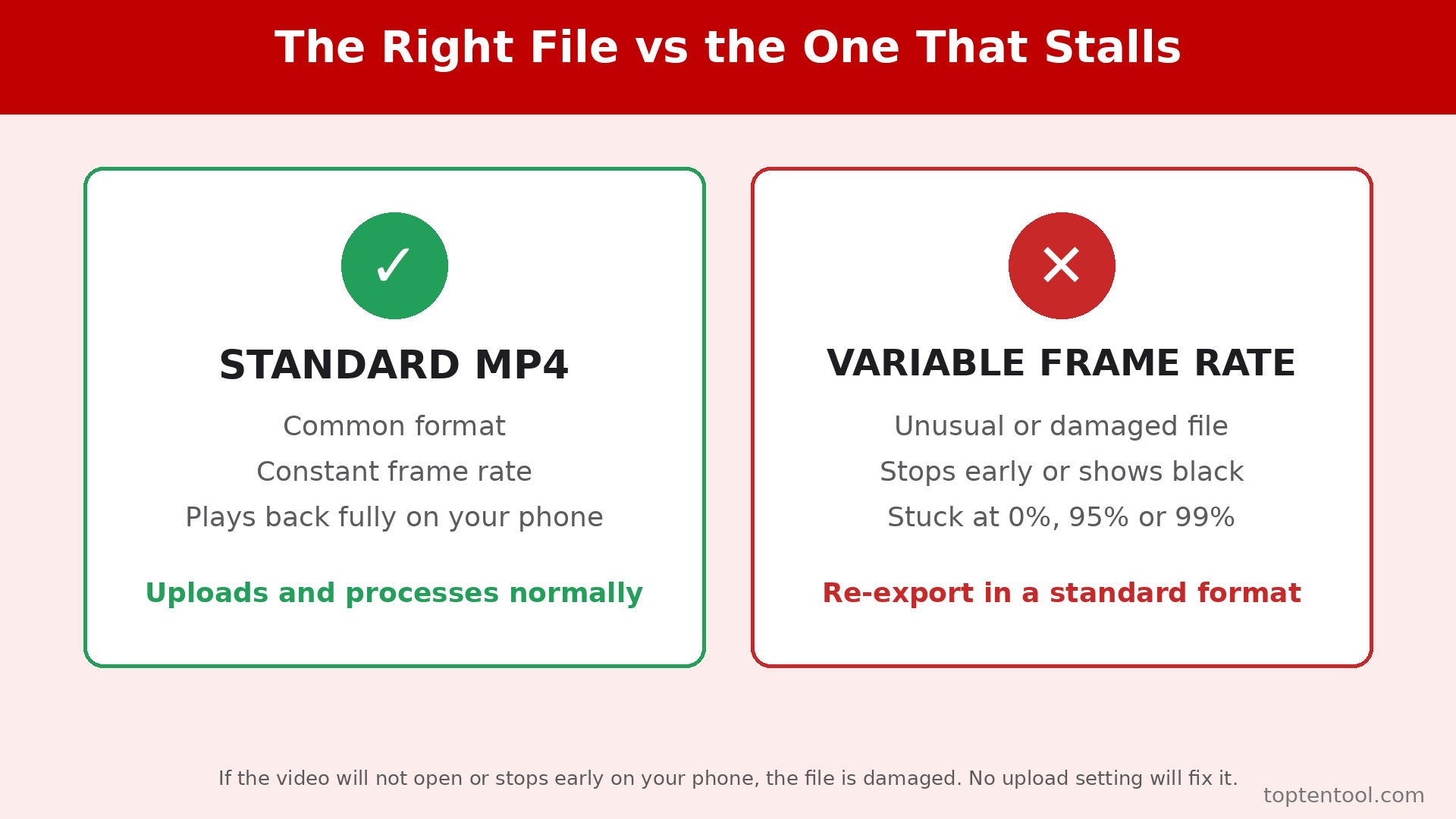
YouTube supports a long list of formats, but its processing is strict about some details that desktop players tolerate. A file that plays perfectly on your computer can still be abandoned by YouTube if it has a variable frame rate from a phone screen recorder, a game capture tool, or a video call, or an unusual pixel format such as 4:2:2 or 4:4:4 color from a camera or an editing intermediate, or an audio codec YouTube does not expect. The upload arrives, and the encoders cannot turn it into a playable video, and the result is a processing abandoned message.
How to confirm it. Play the file back on your own device from start to finish. If it plays, the file is not obviously damaged, and the problem is more likely the encoding. Check the file properties for the frame rate, and look for the word variable, or check whether the file came from a screen recorder, a phone, or a game capture tool, because those sources produce variable frame rate files more often than a camera does. If a re-export in a standard format fixes it, the encoding was the cause.
How to fix it.
- Re-export the video in the most standard format, MP4 with H.264 video and AAC audio, at a constant frame rate, with the pixel format set to yuv420p, which is the format YouTube handles most reliably.
- Set the frame rate to a constant value, 24, 25, or 30 frames per second, and do not use variable frame rate, because YouTube processing is strict about frame timing.
- Use a standard resolution, 1920 by 1080 for HD or 3840 by 2160 for 4K, and a standard bitrate for that resolution, rather than an extreme bitrate from an editing intermediate.
- Move the file index to the beginning of the file when you export, using the faststart option if your editor offers it, because that helps YouTube start processing while the upload is still finishing.
- Keep the export simple, with one video track and one audio track, and remove extra audio tracks, subtitles, or chapters from the file before you upload, because extra tracks can confuse the processing pipeline.
- Upload the new file as a fresh video, because YouTube does not let you replace the file of an existing video, and delete the abandoned video from YouTube Studio first, so the failed entry does not confuse your channel.
Test the re-export on a short clip first to fix YouTube video not processing if the full video is long, because a 30 second test upload will tell you whether the new settings work.
4. The File Is Corrupted, Cut Short, or Incomplete
When YouTube Studio shows processing abandoned and the video could not be processed, the upload itself arrived, but the encoders could not turn it into a playable video. The file may be cut short or invalid, or the upload speed may have dropped during the transfer. The most common damage is a missing index, because MP4 and MOV recordings store a table of every frame, called the moov atom, which the camera, phone, screen recorder, or editor writes when it finishes. If the recording or the export was interrupted by a crash, a full disk, a dead battery, or a removed memory card, that table is missing, and the file will not play properly.
How to confirm it. Play the video back on your own device from start to finish, and check the duration. If it will not open, shows 0:00, stops early, or freezes partway through, the file is damaged. Check the file size against what you expect, because a file that is much smaller than a normal export of the same length is probably incomplete. If the file plays fully on your device, the damage is more subtle, and the re-encode in the next section will usually fix it.
How to fix it.
- Play the file back fully, and note exactly where it stops, freezes, or goes black, because that point is where the damage sits.
- If the file is damaged, re-export it from the original project in your editor, and watch the export finish completely before you touch the file.
- If the original project is gone, re-encode the damaged file to a standard H.264 and AAC MP4, which will often rebuild the missing index and produce a clean file.
- Check that the disk had free space during the export, and that the memory card was not removed early, because those are the two most common causes of a truncated file.
- Delete the abandoned video in YouTube Studio, and upload the new file as a fresh video, because the failed entry cannot be repaired in place.
- Keep a backup of the finished export on a second drive before you upload, so a corrupted upload never means a lost video.
Re-uploading the same file without changing anything usually ends the same way when you fix YouTube video not processing, because the file has not changed.
5. The Account Is Unverified, or the Daily Limit Is Reached
YouTube limits unverified accounts to videos between 15 seconds and 15 minutes long, and it sets a daily upload limit that applies to every account. A video longer than 15 minutes uploaded from an unverified account will not process, and a channel that has already uploaded many videos in 24 hours will hit the daily limit and see the next upload fail. Both limits are account settings, not file problems, and both have a simple fix.
How to confirm it. Check the video length, and check whether the account is verified. If the video is longer than 15 minutes and the account is not verified, the limit is the cause. If you have uploaded several videos in the last 24 hours, and the error message mentions a daily limit, the limit is the cause. YouTube says you can upload more videos in 24 hours, which is its way of telling you the limit is temporary.
How to fix it.
- Verify the account by phone, through YouTube Studio settings, and confirm the verification before you upload a long video.
- Split a video longer than 15 minutes into parts if the account cannot be verified right now, and upload the parts as separate videos.
- Wait 24 hours if the daily limit is reached, and do not keep retrying, because repeated attempts do not reset the limit and can jam the queue.
- Check the channel for strikes, warnings, or restrictions, because a channel with an active strike can have uploads limited, and the restriction will show in YouTube Studio.
- Upload the video as Unlisted first if you are close to the daily limit, so you can confirm it processes before you publish it, and so a failed upload does not cost you a public slot.
- Keep a note of how many videos you upload per day, and spread a batch of uploads across two days if you publish in bulk, because the daily limit is per 24 hours, not per calendar day.
Verification takes a few minutes, and it also gives you the best processing time, according to YouTube, so it is worth doing even if your videos are short. Do it once, and the limit never troubles you again.
6. The Browser, the Cache, or a Firewall Is Blocking the Upload
Too many cached files, cookies, or browser glitches can stop an upload or make it hang during processing, and a firewall or antivirus program can block the upload entirely. An old or faulty browser extension can do the same, and a browser that has been open for days with dozens of tabs can run out of memory and stall a large upload. The video is fine, the connection is fine, and the browser is the problem, and the fix is to clean the browser and try again.
How to confirm it. Try the upload in a different browser, or in a private window, or from the YouTube mobile app. If the upload works there, the browser is the problem. If the upload fails in every browser on the same computer, but works on a different computer on the same network, the computer is the problem. If the upload fails everywhere, go back to the earlier causes, because the browser is not the issue.
How to fix it.
- Clear the browser cache and cookies, then close the browser completely and reopen it, and sign in to YouTube again.
- Disable browser extensions, especially ad blockers and privacy extensions, and try the upload with extensions off, because an extension can block the scripts YouTube uses to upload and process video.
- Update the browser to the latest version, because an old browser can fail to handle a large upload, and YouTube supports the latest versions of Chrome, Firefox, and Safari.
- Try a private or incognito window, which runs without extensions and with a clean cache, and see whether the upload completes there.
- Turn off the firewall or antivirus software temporarily and try again, if you see a security error, and turn it back on after the upload finishes, because a security program that blocks YouTube uploads is usually misconfigured, not protecting you.
- Try the YouTube Studio mobile app, or a different computer, if the browser still fails, and upload the same file from there, because a clean device will tell you whether the problem is the browser or the file.
A clean browser, a clean cache, and a single tab for the upload is the most reliable setup.
7. YouTube Is Down, or the Video Is Held for Review
YouTube can have technical problems or heavy traffic, and when it does, uploads may fail, freeze, or take longer than usual. A video can also be held for review if it triggers a copyright check, a content policy check, or a manual review, and a held video will show as processing for far longer than a normal video. Both causes look the same from the upload page, and both require patience, not a re-export.
How to confirm it. Check Downdetector for a spike in YouTube outage reports, and check whether other creators are reporting the same problem at the same time. If everyone is affected, it is an outage. Open YouTube Studio, go to Content, and look at the video. If it shows a copyright claim, a policy notice, or a checks in progress message, the video is held for review. If the video contains copyrighted music, a long clip from another video, or content that triggers a policy filter, a review hold is likely.
How to fix it.
- Check the YouTube status page and Downdetector first, before you change anything, because an outage affects every creator at once, and no file fix will help until the service recovers.
- Wait 30 minutes and check again if an outage is reported, and do not cancel the upload, because a video that is processing during an outage will usually finish when the service recovers.
- Open YouTube Studio, go to Content, click the video, and read the Checks tab, which shows whether a copyright claim or a policy check is holding the video.
- If a copyright claim appears, replace the claimed music with royalty free music, or trim the claimed segment, and re-upload the clean version as a new video.
- If the video is held for a policy review, wait for the review to finish, and do not re-upload the same video, because a duplicate upload can trigger the same review and reset the waiting time.
- If the outage clears and the video is still stuck after several hours, delete the stuck video, re-export the file in a standard format, and upload it as a fresh video, because a video that was caught in an outage can sometimes be left in a state that never finishes.
An outage is the only cause where doing nothing is the right fix. Wait, check the status page again, and try once the reports drop. A review hold is the only cause where the fix is to change the content, not the file, and a clean re-upload is the fastest path.
Still Not Working
If you have worked through all seven causes and the video still will not process, this is the point where most people give up on trying to fix YouTube video not processing, and the point where a systematic check still pays off. Work through these steps in order, and stop as soon as the video finishes. First, upload a short test video, 30 seconds long, in 1080p, from the same computer and the same browser, because a test video that processes tells you the account and the connection are fine, and the problem is the original file.
Second, upload the original file from a different computer or from the mobile app, because that test separates a computer problem from a file problem in one step. Third, check the file size and the video length against YouTube limits, and confirm the file is not larger than the maximum YouTube accepts for your account type, because an oversized file will fail every time.
Fourth, re-encode the file with a clean, standard H.264 and AAC export, at a constant frame rate, and upload the new file as a fresh video, because a re-encode fixes more processing failures than any other single step. Fifth, check the channel for strikes, warnings, or restrictions in YouTube Studio, because a restriction can block uploads without showing a clear error.
Sixth, contact YouTube support through the Help Center, and tell them the video title, the upload time, the error message, and which of the seven causes you already ruled out, because that list saves the support team time and gets you a useful answer faster. Do not delete the original project file until the video is live, because the project is the only way to re-export a clean version.
Prevention Checklist
Use this checklist before you upload any important video, and processing failures will become rare. Export in MP4 with H.264 video and AAC audio, at a constant frame rate, with the pixel format set to yuv420p. Verify the account by phone, so long videos are allowed and processing is fastest. Play the finished file back from start to finish before you upload it, and check the duration and the file size.
Upload on a wired connection if you can, keep the tab open until the upload reaches 100 percent, and do not close the browser during processing. Upload as Unlisted the night before publication, wait for HD and 4K to finish, then change the visibility to Public. Keep a backup of the finished export on a second drive, and keep the original project file until the video is live. Check the YouTube status page before you troubleshoot to fix YouTube video not processing, so an outage never wastes an hour of your time.
Frequently Asked Questions
How long does YouTube processing take?
YouTube says uploads typically take anywhere from a few minutes to several hours, depending on file size, connection, traffic, and video quality. A short 1080p video can finish in minutes. A long 4K video can take several hours. YouTube processes low quality first, so a video can be watchable in SD long before the HD and 4K versions appear.
Why is my YouTube video stuck at processing 0 percent?
The upload is probably still in progress, or the connection is too slow to move the file. Run a speed test, keep the tab open, and wait. If the upload was interrupted, go to youtube.com/upload within 24 hours, select the same file, and let the upload resume from where it stopped. Do not cancel and start again unless the upload has not moved in 30 minutes.
What does processing abandoned mean on YouTube?
It means YouTube received the upload, but its processing system could not turn it into a playable video. The file may be cut short or invalid, or the upload speed may have dropped. Play the file back fully, check that it is a supported file type, re-export it in a standard H.264 and AAC format, and upload the new file as a fresh video. Re-uploading the same file without changing it usually fails again.
Why is my YouTube video not in HD yet?
YouTube first processes a new upload in low quality, so you can finish the upload flow faster, and higher qualities such as 1080p and 4K take longer. A video can be published once SD processing is complete, so it can go live before the higher qualities appear. Upload as Unlisted, wait for HD to finish, then change the visibility to Public.
Can I upload a video longer than 15 minutes to YouTube?
Yes, if your account is verified. Unverified accounts are limited to videos between 15 seconds and 15 minutes long. Verify the account by phone in YouTube Studio settings, and the limit is lifted. A daily upload limit also applies, and YouTube says you can upload more videos in 24 hours once the limit clears.
Verdict
To fix YouTube video not processing, wait first, because HD and 4K processing takes hours, and a video that looks stuck is often just a large file working through a long queue. Check the connection, and resume an interrupted upload within 24 hours using the same file. Play the file back fully, and re-export it in a standard H.264 and AAC format at a constant frame rate if YouTube says processing abandoned.
Verify the account, clear the browser cache, and check for an outage before you delete anything. Upload as Unlisted the night before publication, wait for HD to finish, then go Public. Most processing failures resolve with time, a smaller file, or a clean re-export, and the rest resolve with a verified account and a stable connection.