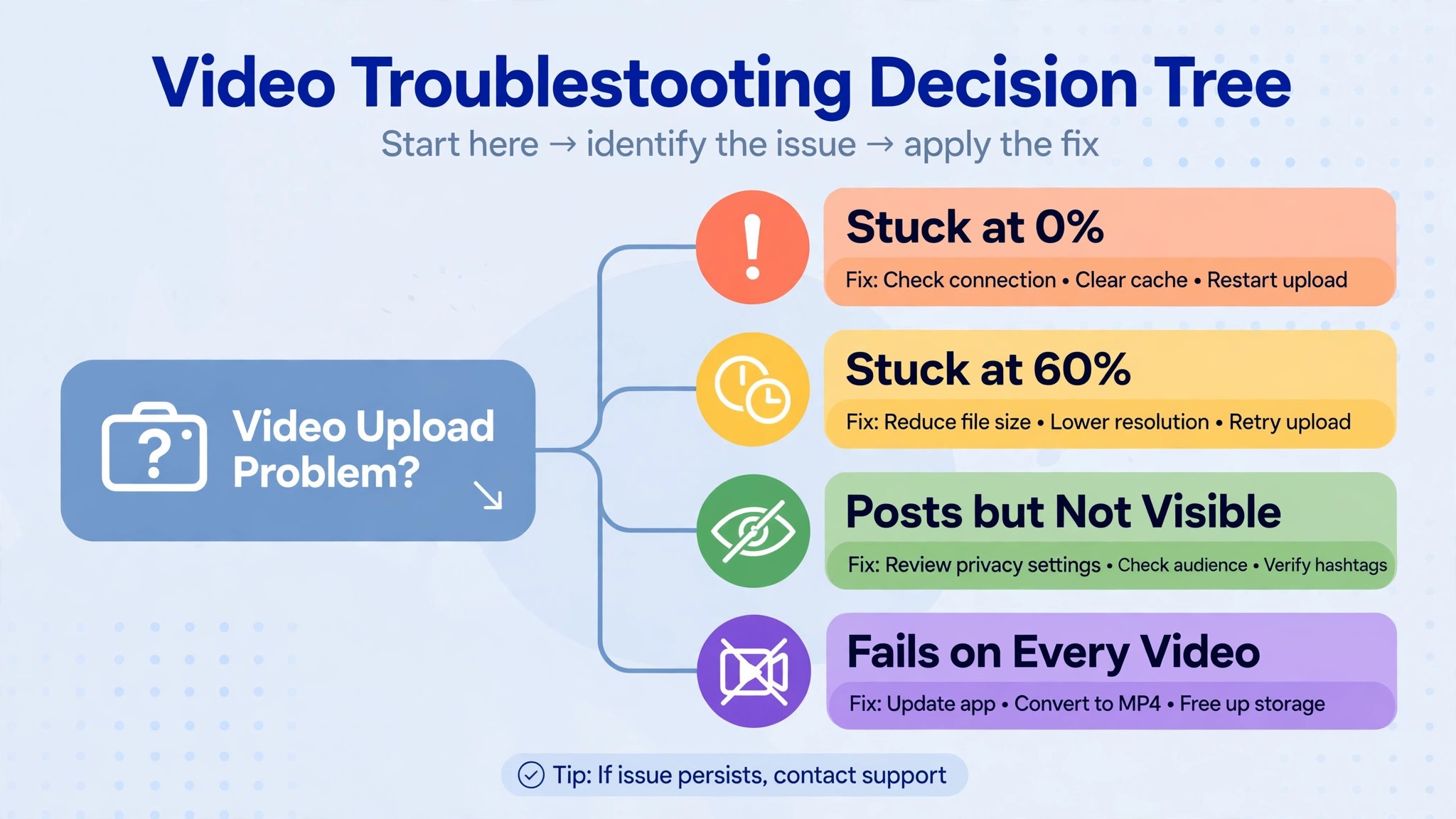
A video that sits at 0 percent for five minutes is not the same fault as a video that reaches 99 percent and fails, and neither is the same as a video that uploads and then sits in processing for hours. Each stall points at a different cause, and the fix that works for one will not work for the other. This guide to fix tiktok video not uploading starts by matching the symptom to the cause, so you do not waste time clearing the cache when the file is too large.
The first thing to do, before any troubleshooting, is to save the video as a draft. TikTok drafts are saved locally on your phone, so you will not lose the edit even if the upload fails several times. Tap Back when the upload fails, and choose Save as Draft when TikTok asks. Once the draft is safe, you can work through the fixes without worrying about losing the video.
To fix tiktok video not uploading, start with the connection, because a weak upload connection is the most common cause, and work through the file, storage and app checks only if the connection is fine. A video stuck at 0 percent is almost always a connection problem.
That split is the first step to fix tiktok video not uploading, because the symptom tells you where to look. A video stuck at 60 percent is usually a processing problem, where the server has the file but cannot finish turning it into the versions TikTok shows to viewers. This guide gives you that order, with a clear fix for each cause.
Quick Diagnosis Checklist to Fix TikTok Video Not Uploading
Work through this checklist in order, and stop as soon as the upload works. Most cases resolve in the first three checks.
| What you see | Try this first | Likely cause |
|---|---|---|
| Upload stuck at 0 percent and will not start | Switch networks and turn off the VPN | Connection or server problem |
| Upload reaches 99 percent then fails | Switch networks and retry from drafts | Connection dropped at confirmation |
| Video stuck in processing for hours | Wait 2 hours, then re-encode and re-upload | Server encoding queue stalled |
| Upload fails at once, every time | Clear the TikTok cache and free up storage | Corrupt cache or full storage |
| Video is too large to upload from the app | Upload from a computer browser instead | File size over the mobile cap |
| Upload fails on one file only | Re-encode the file as MP4 with H.264 | Unsupported format or codec |
| Video posts but is not visible | Wait, then check for a review or a strike | Content review or account restriction |
| App crashes when you tap Post | Update the app, then reinstall it | Outdated or corrupt app |
If the upload works after any check, post the video and check that it plays, because an upload that finishes but will not play is a different fault. If none of the checks work, go to the still not working section at the end of this guide, and work through the account and server steps there.
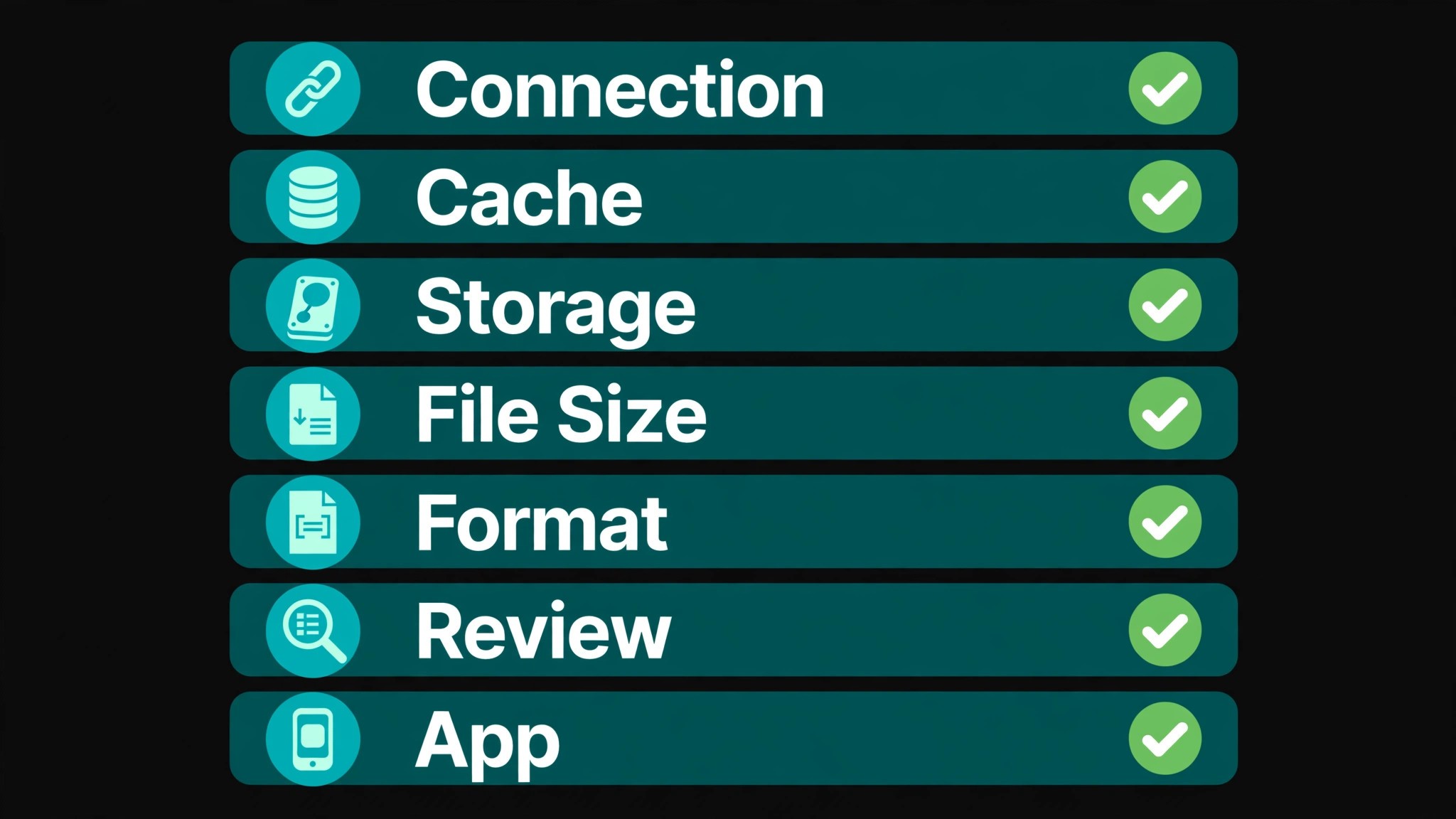
That order is the fastest way to fix tiktok video not uploading, because it rules out the common causes first.
1. The Connection Is Too Weak or Drops Mid Upload — Switch Networks and Turn Off the VPN
TikTok uploads a video in chunks, so it can resume if the connection drops, but a weak connection still stalls the upload, and a dropped connection at the confirmation step fails the whole upload. A video stuck at 0 percent almost always means the first connection to the upload server could not be established, and that is more common on mobile data than on Wi-Fi. A video that reaches 99 percent and fails usually uploaded fine, but the server confirmation step failed when the connection dropped.
How to tell it is this cause. The upload sits at 0 percent for more than a minute, or it climbs slowly and then falls back, or it reaches 99 percent and fails with an upload failed message. Other apps also load slowly, or a speed test shows a low upload speed. TikTok recommends at least 5 Mbps upload for reliable video uploads, and a connection under that will stall on a large file. A VPN makes it worse, because it routes traffic through extra servers and adds latency.
How to fix it.
- Switch networks. If you are on Wi-Fi, switch to mobile data, or the other way round, and try the upload again.
- Turn off any VPN, then try the upload again, because a VPN can add enough latency to fail a large upload.
- Move closer to the router, or restart the router if the Wi-Fi is slow, then try the upload again.
- Test the upload speed at a speed test site, and wait until it shows at least 5 Mbps before you try again.
- Keep the phone screen on during the upload, and do not switch apps, because the upload can pause when the app goes to the background.
- Try uploading during off peak hours, outside 6 pm to 10 pm local time, because TikTok servers are busiest in the evening and uploads slow down for everyone.
Do not keep retrying on the same weak connection, because each failed attempt leaves a corrupt temporary file that can block the next attempt. Fix the connection first, clear the cache if the last attempt failed, then try once on a stable network.
2. The App Cache Is Corrupt — Clear It and Retry From Drafts
TikTok stores temporary upload data in its cache. If a previous failed upload left a corrupt temporary file, the next upload can fail at once, or stall at the same percentage as the last one. The cache is the most common cause of an upload that fails at once, every time, on a connection that works fine for everything else. Clearing it is safe, and it does not delete your drafts or your account.
How to tell it is this cause. The upload fails at once, or it stalls at the same percentage every time, or it worked yesterday and fails today after one failed upload. Other apps load fine, and the connection is fast, but TikTok fails on every video. A video that uploads fine from a computer browser, but fails from the app, also points at the app cache, because the browser does not use the same cache.
How to fix it.
- Save the video as a draft first, by tapping Back and choosing Save as Draft when TikTok asks.
- Force close TikTok completely, from the recent apps screen, so the app stops running.
- On Android, go to Settings, then Apps, then TikTok, then Storage, then Clear Cache. Do not tap Clear Data, because that signs you out.
- On iPhone, TikTok does not offer a direct cache clear, so open the app, tap Profile, then the three lines at the top right, then Settings and Privacy, then Free Up Space, and clear the cached data from there.
- Reopen TikTok, open the draft, and try the upload again.
- If the upload still fails, restart the phone, then try the upload from the draft once more.
Clear the cache once a month, even when uploads work, because the cache grows over time and a large cache slows the app. If clearing the cache does not help, the cause is elsewhere, and repeating the same step will not help.
3. The Phone Storage Is Full — Free Up Space Before You Upload
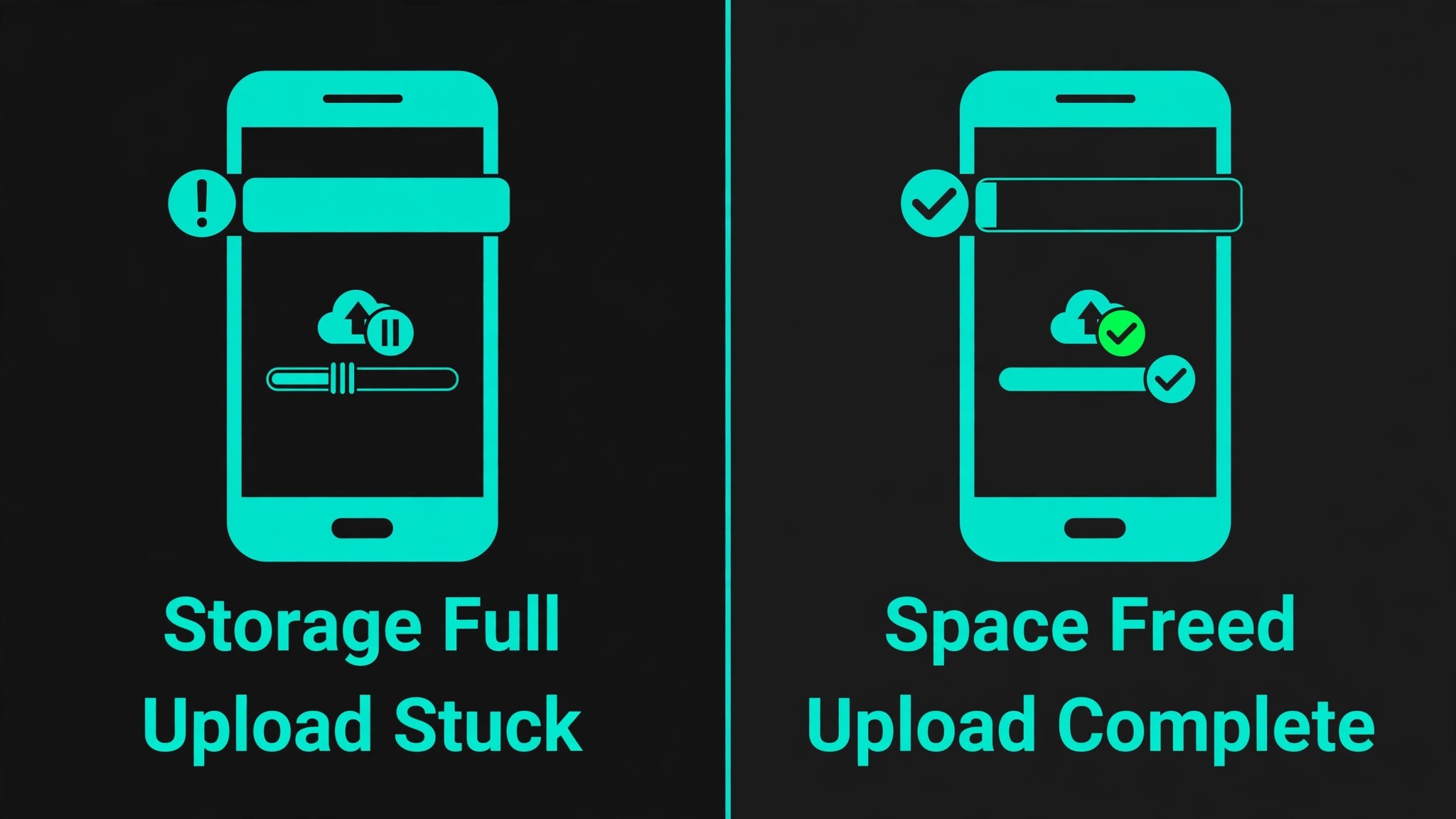
TikTok needs to create a temporary processing file of your video before it uploads it, and that file can be as large as the original video. If your phone has less than 1 to 2 gigabytes of free storage, that processing step fails silently and the upload never starts properly. The upload looks like a connection problem, but the connection is fine, and the phone simply has nowhere to put the temporary file.
How to tell it is this cause. The upload fails at once, or it stalls at the start, and your phone shows a storage full warning, or it has less than 1 gigabyte free. A long video is more likely to fail than a short one, because the temporary file is larger. A phone with many old TikTok drafts is the most common case, because each draft takes storage, and the drafts add up over time.
How to fix it.
- Check your storage. On iPhone, go to Settings, then General, then iPhone Storage. On Android, go to Settings, then Storage.
- Free up at least 2 to 3 gigabytes, by deleting unused apps, old photos and videos, and downloaded music or podcasts.
- Delete old TikTok drafts you do not need, because each draft is a video file that takes storage.
- Clear the TikTok cache, as in the previous fix, because the cache can take several gigabytes on its own.
- Restart the phone, then try the upload again from the draft.
- If the phone is still full, upload the video from a computer browser instead, because the computer does the processing and the phone storage does not matter.
Keep at least 2 gigabytes free on the phone at all times if you post videos regularly, because TikTok needs that space for every upload. A phone that is almost full will fail uploads even when the connection is fast and the app is up to date.
4. The File Is Too Large or Too Long for the App — Upload From a Computer
TikTok does not publish a file size limit for posting from inside the app, and the numbers quoted in size guides disagree, because they mix the app, the developer API and the ad rules. What creators commonly report is about 287 megabytes from an iPhone and 72 megabytes from an Android phone, while the web uploader accepts much larger files, with reported caps from 500 megabytes to 10 gigabytes. TikTok’s own developer documentation caps API posting at 4 gigabytes and 10 minutes, which is the best sourced figure available.
How to tell it is this cause. A short video uploads fine, but a long or high quality video fails every time, or a video over about 250 megabytes fails from the app but uploads from a computer. A video recorded at 4K and 60 frames per second is the most common case, because the file is large even when the video is short. A video over 10 minutes long is also a clue, because 10 minutes is the standard upload limit for most accounts, and longer uploads are only on accounts where TikTok has turned them on.
How to fix it.
- Check the length. If the video is over 10 minutes, trim it to under 10 minutes, or split it into parts.
- Export the video again at 1080 by 1920 pixels, 30 frames per second, and a bitrate of 8 to 12 Mbps, because that is the size TikTok handles best.
- If the file is over about 250 megabytes, upload it from a computer browser at tiktok.com instead of from the app, because the web uploader accepts much larger files.
- Compress the video before you upload it, by lowering the bitrate rather than the resolution, because a lower bitrate keeps the picture sharp.
- Remove extra clips, effects and text overlays that make the file larger, then export again and try the upload.
- If the video is still too large, split it into two parts and post them as a series, because a short video uploads faster and fails less often.
A video at 1080p and 30 frames per second is the right size for TikTok, and 4K is not needed, because TikTok recompresses everything to about 1 to 2 Mbps anyway.
A video at 1080p and 30 frames per second is the right size for TikTok, and 4K is not needed, because TikTok recompresses everything to about 1 to 2 Mbps anyway. A video recorded at 60 frames per second takes twice the processing of a 30 frame video, and the extra frames do not survive the compression, so the viewer sees no benefit.
A video with many effects, stickers and text overlays also takes longer to process, because the phone has to stitch each layer into the file before the upload starts. Remove the effects you do not need, export at 30 frames per second, and the upload will start faster and finish sooner. Export at 1080p, keep the file under 250 megabytes, and the app upload will usually work.
5. The Format or Codec Will Not Process — Re-Encode as MP4 With H.264
TikTok accepts MP4 and MOV on all devices, and the web uploader also accepts WebM, but the codec inside the file matters as much as the extension. A video in AVI, MKV, WMV or FLV can upload to 0 percent or 50 percent and freeze, because TikTok cannot process it. A video in a high frame rate, such as 4K at 60 frames per second, can also stall in processing, because the server has to turn it into several versions for different devices, and a heavy file slows that step down.
How to tell it is this cause. The upload starts, then stalls at 60 percent, which is the point where TikTok moves from uploading the raw file to transcoding it into multiple resolutions. A video from a professional editor or a screen recorder is the most common case, because those tools default to a codec TikTok does not handle well. A video from the phone camera usually works, because the phone records in a format TikTok expects.
How to fix it.
- Save the video as a draft first, so you do not lose the edit.
- Re-encode the video with a free tool such as HandBrake, VLC or Kapwing, using MP4 as the format, H.264 as the video codec, and AAC as the audio codec.
- Set the resolution to 1080 by 1920 pixels, the frame rate to 30 frames per second, and the bitrate to 8 to 12 Mbps.
- Export the re-encoded video, then upload the new file to TikTok, instead of retrying the old file.
- If the video still stalls at 60 percent, trim a few seconds from the start and the end, because a corrupt frame at the edge of a clip can break the transcoding.
- Try uploading the re-encoded file from a computer browser, because the web uploader handles the file more cleanly than the app.
Re-encoding is the fix that works when nothing else does, because it gives TikTok a clean file in the format it expects. Do not keep retrying the same file, because the same file will stall in the same place. Re-encode it, then try once, and the upload will usually finish.
6. The Video Is Under Review or the Account Is Restricted — Wait and Check the Account
A video that uploads fine but then sits in processing for hours, or posts but is not visible, is usually under review, not broken. TikTok checks every video for copyright, for community guideline problems, and for spam, and that check shows as a stall near the end of the upload, even though nothing is frozen. New accounts, and accounts with recent strikes, wait longer in the encoding queue, and can wait 6 hours or more. If the video has been processing for over 12 hours, it will likely be dropped silently.
How to tell it is this cause. The upload reaches 100 percent, then the video sits in processing for hours, or it posts but does not appear on your profile, or it appears but gets no views. Other videos upload fine, and the problem is only with this video. A video with a popular song, a brand logo, or a caption that triggers a filter is the most common case, because the copyright and moderation checks take longer on those videos.
How to fix it.
- Wait 2 to 3 minutes before you force close the app, because the video may still be processing.
- Wait 2 hours, then check whether the video has posted, because a slow encoding queue clears on its own.
- Log in to TikTok from a computer browser, and check whether the video is there, because the browser shows the account state more clearly than the app.
- Remove any copyrighted music, and replace it with a sound from the TikTok library, then re-upload the video.
- Check your account for a strike or a restriction, in Settings and Privacy, then Account, then Account status, and follow the steps there if a strike is shown.
- If the video is still processing after 12 hours, delete the draft, re-encode the video, and post it again, because the original post will likely never finish.
Do not post the same video several times while it is under review, because each copy goes into the same queue and can look like spam. Wait for the review to finish, then post once, and the video will usually go through.
7. The App Is Outdated or Corrupt — Update It, Then Reinstall It
An outdated app can fail to upload, because TikTok changes the upload process and an old app does not speak the same language as the server. A corrupt app can fail too, because a bad update or a corrupt cache file breaks the upload handshake. The app is the most common cause of an upload that fails on every video, on a phone where everything else works, and the fix is to update the app, then reinstall it if the update does not help.
How to tell it is this cause. The app crashes when you tap Post, or it freezes on the upload screen, or it fails on every video, including a short video that worked last week. The app is several versions behind, or it updated recently and uploads broke right after the update. A video that uploads fine from a computer browser, but fails from the app, also points at the app, because the browser does not use the app.
How to fix it.
- Save the video as a draft first, by tapping Back and choosing Save as Draft when TikTok asks.
- Update TikTok from the App Store or Google Play Store, then restart the phone and try the upload again.
- If the update does not help, force close TikTok, then clear the cache, as in the second fix, and try again.
- If the upload still fails, uninstall TikTok completely, restart the phone to clear any leftover data, then reinstall TikTok from the store.
- Sign in again, open the draft, and try the upload once more.
- Check that your phone software is up to date, because an old phone system can also break the app, and update it if a new version is available.
Reinstalling gives TikTok a clean slate, and it fixes most app faults that an update does not. Do not clear data unless you have your login details ready, because clearing data signs you out. Update first, reinstall second, and the upload will usually work after a clean install.
Still Not Working
If you have worked through all seven causes and the video still will not upload, this is the point where a systematic check still pays off. Work through these steps in order, and stop as soon as the upload works. First, check whether TikTok is down, by looking at a status site such as Downdetector, or by asking a friend whether their uploads work. If TikTok is having a widespread problem, wait 30 to 60 minutes and try again, because server problems usually resolve quickly.
Second, try a different device entirely, a computer if you were on a phone, or a phone if you were on a computer, because a device problem will follow the device, and an account problem will follow the account. Third, turn on Airplane Mode for 30 seconds, then turn it off, because that forces the network to drop the stuck upload and lets TikTok move the video to drafts with an upload failed message, so you can retry from there.
Fourth, disable battery optimisation for TikTok, because your phone can kill the app in the background to save battery, and that stops the upload halfway through. On Android, go to Settings, then Apps, then TikTok, then Battery, and choose Unrestricted. On iPhone, go to Settings, then General, then Background App Refresh, find TikTok, and turn it on. Fifth, check your account status for a strike or a restriction, because a restricted account can upload but the video will not post.
Sixth, contact TikTok support through the app, in Settings and Privacy, then Report a problem, and tell them which video is affected, which phone and app version you used, and which of the seven causes you already ruled out, because that list saves the support team time and gets you a useful answer faster.
Before you write to support, try the upload once more from a computer browser, and note the time it failed, because support will ask for both.
A browser upload rules out the app in one step, and the time helps support check whether the upload servers had a problem at that moment. If the browser upload works, the cause is in the app, and you can fix it by updating or reinstalling it.
Do not keep retrying the same failed upload, because each failed attempt leaves a corrupt temporary file that can block the next attempt. Save the draft, clear the cache, fix the connection, then try once, and keep the draft until the video posts.
Prevention Checklist
Use this checklist before you post any video, and upload problems will become rare. Export at 1080 by 1920 pixels, 30 frames per second, MP4 with H.264 video and AAC audio, and keep the file under 250 megabytes for an app upload. Keep the video under 10 minutes, and split a longer video into parts. Keep at least 2 gigabytes free on the phone, and clear the TikTok cache once a month.
Turn off the VPN before you upload, keep the screen on during the upload, and do not switch apps until the upload finishes. Update TikTok when a new version appears, and check your account status if a video goes under review. Save the video as a draft before you tap Post, so a failed upload never loses your work.
Frequently Asked Questions
Why is my TikTok video stuck at 0 percent?
A video stuck at 0 percent almost always means the connection to the upload server could not be established. Check the connection first to fix tiktok video not uploading, because a weak upload connection is the most common cause. Switch networks, turn off the VPN, and test the upload speed, because TikTok recommends at least 5 Mbps upload. If the connection is fast and the video still sits at 0 percent, clear the TikTok cache and free up storage, then try the upload again from drafts.
Why is my TikTok video stuck at 60 percent processing?
The 60 percent mark is where TikTok moves from uploading the raw file to transcoding it into multiple resolutions. A heavy file, a high frame rate, or a busy server can stall that step. Wait 2 hours, then re-encode the video as MP4 with H.264 at 1080p and 30 frames per second, and upload the new file. If the video has been processing for over 12 hours, it will likely be dropped, so delete the draft and post the re-encoded file.
Why does my TikTok video upload but not post?
The video is usually under review for copyright or community guidelines, or the account has a strike that slows the queue. Wait 2 hours, then check the video from a computer browser, and check your account status for a restriction. Remove any copyrighted music, replace it with a sound from the TikTok library, and re-upload the video if the review does not clear.
How large can a TikTok video be?
TikTok does not publish a file size limit for posting from inside the app. Creators commonly report about 287 megabytes from an iPhone and 72 megabytes from an Android phone, while the web uploader accepts much larger files. TikTok’s developer documentation caps API posting at 4 gigabytes and 10 minutes. The practical rule is to keep the file under 250 megabytes for an app upload, and to upload a larger file from a computer browser.
How do I save a TikTok video as a draft when the upload fails?
When the upload fails, tap Back, and choose Save as Draft when TikTok asks. The draft is saved locally on your phone, so you will not lose the edit. Open the draft from your profile, tap the draft video, and try the upload again. If the upload fails again, clear the cache and re-encode the file before you retry, because the same file will fail in the same place.
Verdict
To get a TikTok video up, start with the connection, because a weak upload connection stalls the video at 0 percent, and a dropped connection fails it at 99 percent. That order is the core of how to fix tiktok video not uploading without wasting an hour on the wrong cause. Then clear the cache and free up storage, because a corrupt cache and a full phone stop the upload before it starts. Then check the file, because a video over 250 megabytes or in the wrong format will not process, and re-encode it as MP4 with H.264 at 1080p.
If the video still will not post, wait for the review to finish, update the app, and reinstall it if the update does not help. Work through the seven causes in order, save a draft before you tap Post, and use the prevention checklist on every video you share. In most cases, to fix tiktok video not uploading you only need the first three causes, and the last four are there for the stubborn uploads.
The video is almost always still on your phone, and the upload is almost always simpler to fix tiktok video not uploading than it looks.