
A Short that sits at zero percent for an hour is not a mystery, and it is rarely a broken video. It is almost always one of seven things, and the fix takes a few minutes once you know which one it is. The upload bar, the processing message, and the error text each point at a different cause, and reading them properly saves you from deleting a good video and starting again. This guide to fix youtube shorts not uploading works through all seven causes in order, starting with the ones you can check in under a minute.
The first thing to work out is whether the video is stuck uploading, stuck processing, or rejected outright, because those are three different problems with three different fixes. Uploading means your file is still travelling to YouTube, so the cause is usually your connection or the file itself. Processing means the file arrived and YouTube is preparing it, so the cause is usually a check or a format problem on the platform side. Rejected means YouTube refused the file, and the error message names the reason.
Before you change anything, open YouTube Studio and look at the video status on the Content page. A video that shows as private with a processing spinner is still being worked on, and the right move is to wait. A video that shows an error message has already failed, and the right move is to read the message and match it to the cause below. A video that does not appear in Studio at all never finished uploading, and the right move is to start with your connection and your file.
Quick Checks to Fix YouTube Shorts Not Uploading
Work through this checklist in order, and stop as soon as the upload moves. Most cases resolve in the first three checks.

| What you see | Try this first | Likely cause |
|---|---|---|
| Upload bar stuck at a low percentage for a long time | Switch to stable Wi-Fi and restart the upload | Weak or unstable internet connection |
| Error saying the server rejected the file | Export again as MP4 and upload the new file | Wrong format or corrupt file |
| Video appears as a normal long video, not a Short | Re-export as vertical 9 by 16 and under 3 minutes | Wrong aspect ratio or length |
| App crashes or the upload button does nothing | Update the YouTube app and clear its cache | Outdated app or corrupt cache |
| Processing spinner for hours with no error | Wait, then check Studio for copyright checks | Processing or checks still running |
| Error about commercial use and audio | Remove the Shorts Audio Library music and re-upload | Branded content audio restriction |
| Error saying uploads are not supported for your channel | Check for strikes and the daily upload limit | Account restriction or daily limit |
If the upload starts moving after any check, let it finish without touching the app or closing the tab, because an interrupted upload has to start over or resume from scratch. If none of the checks work, go to the still not uploading section at the end of this guide and work through the account steps there.
1. Your Internet Connection Is Too Weak or Unstable
A Short upload stalls most often because the connection drops, slows down, or switches networks halfway through. YouTube names a slow or unstable connection as one of the main causes of a stuck upload, and the pattern is easy to recognise. The progress bar moves in bursts, freezes for minutes, then jumps again, or it sits at the same percentage while the phone shows full signal bars. Mobile data that switches between towers, public Wi-Fi with a login page, and a home connection shared with a video call all cause the same stall.
How to confirm it. Run a speed test on the same device and the same network, and check the upload speed rather than the download speed, because uploads depend on the upload number. A Short under 60 seconds is a small file, but a 3 minute Short in high quality can be several hundred megabytes, and a slow upload speed will take a long time to move it. If the speed test shows a very low upload speed, or the number jumps around between tests, the connection is the cause.
How to fix it.
- Move closer to your Wi-Fi router, or switch from mobile data to Wi-Fi, and stay on that one network until the upload finishes.
- Pause other uploads, downloads, cloud backups, and video calls on the same network, because they share your upload speed.
- Turn on airplane mode for 10 seconds, turn it off again, and reconnect, which forces the phone to pick the strongest available signal.
- Restart your router if you are on Wi-Fi, wait two minutes for it to reconnect, then start the upload again.
- If the upload keeps failing on Wi-Fi, try mobile data, or the other way round, because the fault is often in one network and not the other.
- Upload from a computer with a wired connection if the phone keeps failing, because a wired connection does not drop the way wireless does.
Do not keep tapping retry on the same weak connection, because every failed attempt restarts the upload from the beginning and wastes more time. Fix the connection first, then upload once. A Short that uploads cleanly on a stable connection was never a broken video, and the file you already made is fine to use.
2. The File Format Is Wrong or the File Is Corrupt
YouTube accepts a short list of video formats, and a file in the wrong format is rejected with an error that says the server has rejected the file. YouTube Help gives the same advice for this error every time, which is to check that you are using a supported file type and upload again. The most common version of this problem is a file exported from an editing app in a format YouTube does not accept, or a file that was cut short when the export was interrupted.
How to confirm it. Play the video back on your device from start to finish. If it stops early, freezes, or shows a black screen partway through, the file itself is damaged, and no upload setting will fix it. Check the file extension too. MP4 and MOV are the formats most editors produce and YouTube accepts, and a file with an unusual extension from a screen recorder or a converter is the usual suspect.
How to fix it.
- Play the video on your device and confirm it runs cleanly from the first frame to the last.
- Export the video again from your editor, choosing MP4 with H.264 video, which is the combination YouTube handles best.
- Keep the file under the limits YouTube sets, and confirm it is larger than 2 kilobytes, because YouTube rejects files smaller than 2 kilobytes outright.
- Remove any extra frames at the start or the end, including black frames, because a file that ends abruptly can trigger the processing abandoned error.
- If the file came from a converter or a download tool, export it again from the original editor instead, because converter output is a common source of corrupt files.
- Upload the new file from a computer browser at youtube.com/upload if the phone app keeps rejecting it, because the desktop uploader gives clearer error messages.
A file that plays fine on your phone but fails on upload is usually a format problem, not a device problem. Re-exporting takes a few minutes and solves it in most cases, and it is faster than troubleshooting the app or the account.
3. The Video Is Not Shaped or Sized Like a Short
YouTube classifies a video as a Short based on its shape and its length, and a video that misses either rule is filed as a regular long video instead. A Short must be square or vertical, and it must be up to 3 minutes long, a limit YouTube extended from 60 seconds for uploads from October 15, 2024. A video exported at 16 by 9, a vertical video with black bars added by the editor, or a video that runs a few seconds past 3 minutes will not appear in the Shorts feed at all.
How to confirm it. Open the video in Studio after uploading and look at where it appears. If it sits in your main uploads list as a regular video, and it never appears in the Shorts feed, the shape or the length is wrong. Check the export settings in your editor too. A project set to 1920 by 1080 is a landscape project, and even a vertical clip inside it will export with black bars on the sides, which breaks the Short classification.
How to fix it.
- Set your editor project to vertical 9 by 16, at 1080 by 1920 pixels, before you export.
- Trim the video to under 3 minutes, and leave a second of margin, because a video at exactly 3 minutes and a few frames can tip over the limit.
- Remove any black bars, borders, or frames the editor added, and check the preview frame by frame.
- Export again and upload the new file, then check in Studio that it appears as a Short.
- If the video is already live as a regular video, you cannot change its classification, so delete it and upload the corrected export instead.
- Add the hashtag Shorts in the title or description if you want an extra signal, but remember the shape and length decide the classification, not the hashtag.
This cause fools a lot of creators, because the upload itself succeeds and the video looks fine. The video is not broken, it is just filed in the wrong place, and nobody watching Shorts will ever see it there. Fix the shape, re-upload, and the problem goes away. That is the simplest way to fix youtube shorts not uploading when the video itself is fine and only the shape is wrong.
4. The YouTube App Is Outdated or Its Cache Is Corrupt
The YouTube app on your phone handles the whole Shorts upload flow, and an outdated app or a corrupt cache can stop an upload before it starts. The signs are an upload button that does nothing, an upload that fails at the same point every time, or a Short that uploads fine from a computer but never from the phone. YouTube community threads report this pattern often, and the fix is the same one support teams give first, which is to update the app and clear the cache.
How to confirm it. Try uploading the same file from a computer browser. If it uploads cleanly there, the file and the account are fine, and the phone app is the problem. Try uploading a different short video from the phone too. If every upload fails on the phone and every upload works on the computer, the cause is confirmed.
How to fix it.
- Open the Play Store or the App Store, search for YouTube, and install any available update, then restart the phone.
- On Android, open Settings, then Apps, then YouTube, then Storage, and tap Clear Cache, which removes temporary files without deleting your account or your videos.
- On iPhone, there is no cache button, so delete the YouTube app and reinstall it from the App Store, which clears the same temporary files.
- Sign in again after reinstalling, and confirm you are signed in to the right channel, because a second account signed in by mistake can look like an upload failure.
- Free up storage space on the phone, because an almost full phone can fail to process an upload, and a Short needs room for a temporary copy.
- Try uploading over Wi-Fi after the reinstall, and keep the app open until the upload finishes.
Clearing the cache is safe, and it does not delete your videos, your channel, or your drafts. What it deletes is temporary files that can become corrupt and block the uploader. Do it once, upload again, and move on if the Short goes through.
5. The Upload Is Still Processing or Stuck in Checks
Processing is the step where YouTube prepares your video after the file arrives, and it takes longer than most creators expect. YouTube first processes a new upload in low quality so you can finish the upload flow faster, and higher qualities take longer, sometimes several hours for long or high resolution videos. Copyright checks run in the background at the same time, and you can publish once standard definition processing is complete, even while the checks are still running.
How to confirm it. Open YouTube Studio, go to Content, and look at the video status. If it says processing, or if the checks column shows a spinner, the video is still being worked on and has not failed. If the video shows a copyright claim, read it carefully, because a Short over 1 minute with an active copyright claim can be blocked worldwide. A Short that is still processing is not broken, and deleting it and re-uploading only restarts the wait.
How to fix it.
- Wait at least an hour for a short video, and several hours for a 3 minute video in high quality, before you call it stuck.
- Check the video in Studio rather than on your channel page, because the public page can lag behind the real status.
- If the checks column shows a claim, read what it covers, and remove or replace the claimed audio if you want the Short to reach a wide audience.
- If processing has run for more than 24 hours with no change, delete the video and upload it again, because a processing job that old has almost certainly stalled.
- Upload the replacement at a lower resolution, such as 1080p instead of 4K, because a smaller file processes faster and is less likely to stall.
- Avoid deleting and reposting the same Short repeatedly, because YouTube treats repeated re-uploads as spammy behaviour, and the Shorts team has warned creators against it.
Patience is the fix for most processing stalls, and it is the hardest one to accept. A Short uploaded minutes ago with no views and a processing spinner is not broken yet. Give it time, check Studio once, and only re-upload when a full day has passed with no movement. Waiting is part of how you fix youtube shorts not uploading when the file is fine and YouTube is still working on it.
6. The Music Breaks the Rules for Commercial Channels
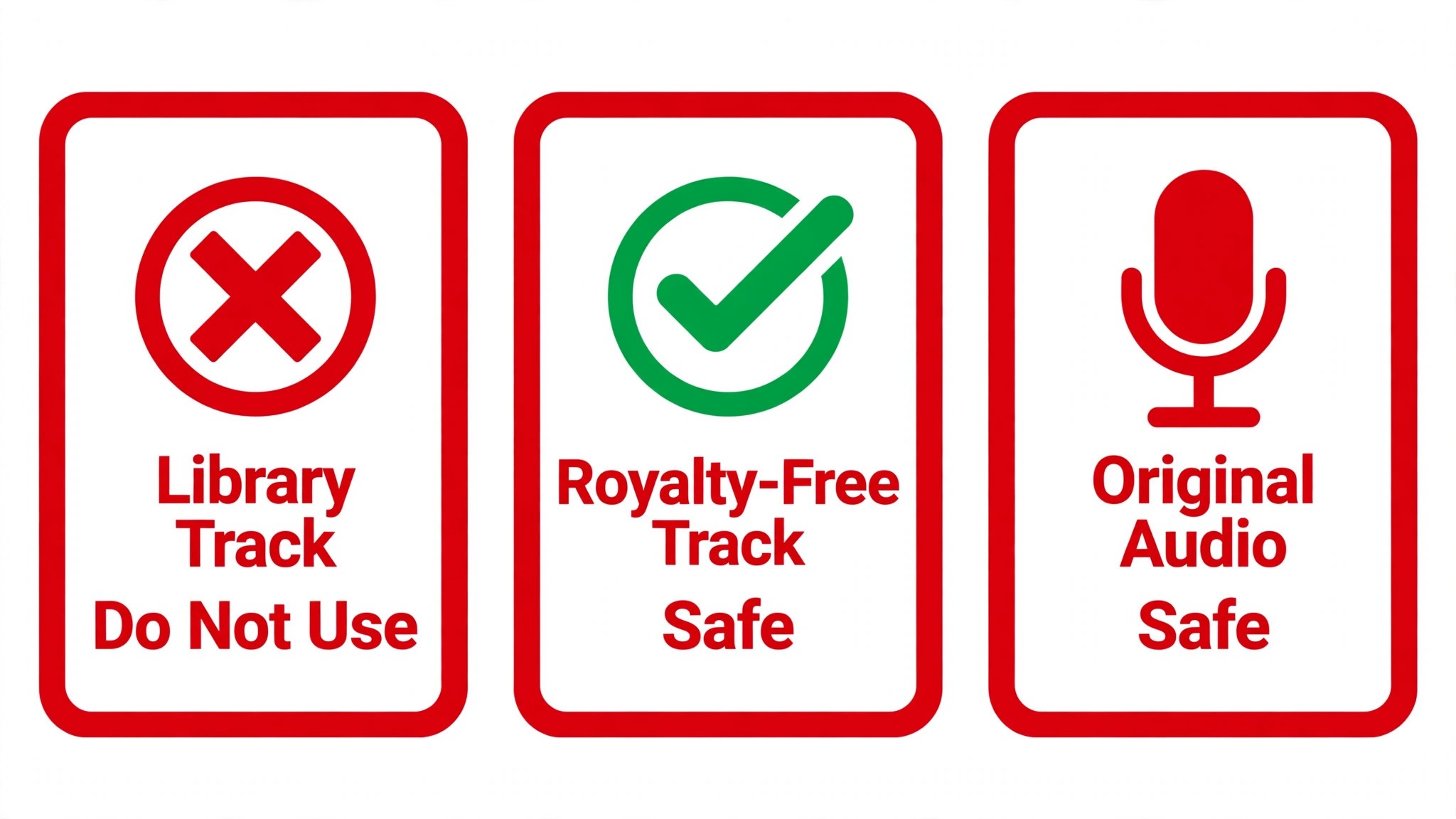
Channels that upload videos for commercial purposes, including Shorts with branded content, can see errors when they use sounds from the Shorts Audio Library. YouTube Help explains the reason plainly. Some music partners limit those sounds to personal, non-commercial use, and a business channel that uses them in a branded Short can get an upload error. The fix YouTube gives is to re-upload the Short and remove the music added from the Shorts Audio Library, or to add music outside of the Shorts creation tools once you have cleared the rights.
How to confirm it. The error appears when you add a sound from the Shorts Audio Library inside the Shorts creation tools, and the same video uploads fine without that sound. If your channel runs ads, promotes a product, or marks videos as branded content, you are in the commercial category YouTube describes, and the audio is the first thing to suspect.
How to fix it.
- Remove the Shorts Audio Library sound from the Short, and export the video with no music at all, then upload it to confirm the audio was the cause.
- Add music outside the Shorts creation tools, using a track you have the rights to, and upload that version.
- Use royalty free music from the YouTube Audio Library, which YouTube marks with green artwork and the YouTube logo, because that music is cleared for use on the platform.
- Check the branded content setting on the upload screen, and confirm it matches the video, because a wrong setting can trigger the same error.
- If a client supplied the music, ask them for written proof of the licence before you use it in a Short.
- Keep a short list of cleared tracks your channel uses, and use only those tracks in commercial Shorts, so the problem never comes back.
This cause is easy to miss, because the video itself is fine and the upload fails only when the music is attached. If your Shorts upload without music and fail with it, the audio is the answer, and no amount of re-exporting the video will help until the track changes.
7. Your Channel Has a Strike, a Restriction, or a Daily Limit
YouTube limits how many videos a channel can upload in a 24 hour period, across desktop, mobile, and the YouTube API, and a channel that hits the limit sees an error saying the daily upload limit was reached. The fix YouTube gives is to try again in 24 hours. Strikes cause a longer block. A first Community Guidelines violation is usually only a warning, a strike means one week without uploads, a second strike within 90 days means two weeks, and three strikes can get the channel removed.
How to confirm it. Open YouTube Studio, go to Settings, then Channel, then Feature eligibility, and read your channel status. If it says your channel status or account settings currently do not support uploads, the account is the problem, not the video. Check the Content page too, because a video removed for a violation, or a strike notice in your inbox, will confirm the cause.
How to fix it.
- Read the exact error message, and match it to the cause, because a daily limit error and a strike error need different responses.
- If the error is the daily upload limit, wait 24 hours and upload again, and spread future uploads across days instead of posting them all at once.
- If you have a strike, wait out the restriction period, and do not try to upload from a second channel to get around it, because that can make the penalty worse.
- If a video was removed for a violation, read the reason YouTube gave, and remove the same element from every other Short before you upload again.
- If the channel is under review, check your email for a message from YouTube, and follow the steps in it rather than guessing.
- If you believe the strike or removal was a mistake, use the appeal link in Studio, and explain what happened in plain words.
Account blocks feel unfair, especially when the video is harmless, but they are the one cause where retrying the upload cannot help. The block has a clock on it, and the only fix is to wait it out, fix the underlying violation, and upload again when the restriction lifts. That wait is part of how you fix youtube shorts not uploading when the account, not the video, is the problem.
Still Not Uploading
If you have worked through all seven causes and the Short still will not upload, this is the point where most creators give up on trying to fix youtube shorts not uploading, and the point where a systematic check still pays off. Work through these steps in order, and stop as soon as the upload moves. First, check whether YouTube itself is having a problem, because a platform outage affects every creator at once, and the only fix is to wait.
Second, try a different device entirely, a computer if you were on a phone, or a phone if you were on a computer, because a device problem will follow the device, and a file problem will follow the file. Third, upload the same file from a different network, because a network block will follow the network. Fourth, check that your YouTube account is in good standing, and that you are signed in to the right channel, because signing in to a second account by mistake is a common cause of a Short that seems to vanish.
Fifth, export the video one more time with basic settings, 1080p, MP4, H.264, under 3 minutes, vertical 9 by 16, and no added music, because a clean export rules out every format and audio variable at once. Sixth, contact YouTube support through the Help Center, and tell them which Short is affected, which device and network you used, and which of the seven causes you already ruled out, because that list saves the support team time and gets you a useful answer faster.
When to Contact YouTube Support
Contact support when the upload fails the same way on two devices and two networks, with a clean export, and no strike or limit on the account, because that pattern points at a platform problem only YouTube can see. Contact support too if a video disappears from Studio after a successful upload, if the same error appears for every video you try, or if a strike or removal looks like a mistake and the appeal link gives no result.
Before you write to support, gather four things. The video file name and its size, the exact error message as it appears on screen, the device and app version you used, and the list of causes you already ruled out. That is the point where outside help is the fastest way to fix youtube shorts not uploading, because the fault sits on the platform side.
A message that says the upload fails at 40 percent on Android and on desktop, with a 1080p MP4, and no strike on the account, gets a faster and better answer than a message that says the upload does not work. Support cannot fix a weak connection or a wrong format from their side, so rule those out first, and only escalate what is left.
Frequently Asked Questions
Why are my YouTube Shorts not uploading?
To fix youtube shorts not uploading, start with the connection. The most common reason is a weak or unstable internet connection, followed by a file in the wrong format and a video that is not shaped like a Short. Play the video back to confirm the file is clean, then confirm it is vertical 9 by 16 and under 3 minutes. Most cases resolve in those three checks, and the file you already made is usually fine to use.
How long should a Short take to process?
A short video in standard definition usually finishes processing within an hour, and a 3 minute video in high quality can take several hours. YouTube processes low quality first so you can finish the upload flow, and higher qualities follow. If processing has run for more than 24 hours with no change, delete the video and upload it again at a lower resolution.
Why does my Short upload as a regular video?
Your video is probably landscape 16 by 9, or it runs longer than 3 minutes, or your editor added black bars that break the vertical shape. YouTube classifies a video as a Short based on shape and length, and a video that misses either rule is filed as a regular video. Re-export at 1080 by 1920, trim it under 3 minutes, and upload the new file.
Can I upload a Short longer than 60 seconds?
Yes. YouTube extended the Shorts length limit to 3 minutes for uploads from October 15, 2024. A Short can now run up to 3 minutes and still appear in the Shorts feed, as long as it is square or vertical. A video over 3 minutes is a regular video, no matter what shape it is.
Why does my Short fail only when I add music?
Your channel may be classed as commercial, and some sounds in the Shorts Audio Library are limited to personal, non-commercial use. YouTube tells commercial channels to re-upload without that music, or to add music outside the Shorts creation tools once the rights are cleared. Royalty free music from the YouTube Audio Library is the safe replacement.
Verdict
To fix youtube shorts not uploading, start with the connection, because it causes most stalls, and it takes a minute to test. Then check the file, because a corrupt export or a wrong format is the next most common cause, and a clean re-export solves it. Then check the shape and the length, because a video that is not vertical and under 3 minutes is not a Short at all.
If the app is the problem, update it and clear the cache. If processing is the problem, wait, and only re-upload after a full day with no movement. If the music is the problem, remove it and use cleared audio. If the account is the problem, wait out the limit or the strike. Work through the seven causes in order, keep the file you already made, and upload once on a stable connection. The Short is almost always still good, and the fix is almost always simpler than it looks.