
A discount code that fails at checkout costs you more than one sale. It costs you the customer who typed it in, waited, tried again, and left feeling tricked by a promotion you sent them yourself. The good news is that a dead code is almost never a platform bug. It is almost always one of seven settings, and the fix takes a few minutes once you know which one it is. This guide to fix shopify discount code not working works through all seven causes in order, starting with the ones you can check in under a minute.
The first step is to reproduce the failure exactly the way your customer saw it, because a code that works for you and fails for them is telling you something specific. Open a private browser window, add the same products the customer had, go to checkout, and type the code exactly as they did, including the capital letters. Read the error message literally. Shopify distinguishes between a code that does not exist, one that is not active yet, and one whose conditions the cart does not meet, and each message points at a different fix.
Before you change anything, open the discount in your Shopify admin and read every setting on the page, because the cause is usually written there in plain sight. Check the active dates, the usage limits, the minimum purchase, the products it covers, the customers it covers, and whether it can combine with other discounts. A code that looks fine at a glance often has one quiet rule that rejects the exact cart your customer built. Work through the causes below in order, and test the code after each fix.
Quick Checks to Fix Shopify Discount Code Not Working
Work through this checklist in order, and stop as soon as the code applies. Most cases resolve in the first three checks.
| What the customer sees | Try this first | Likely cause |
|---|---|---|
| Code rejected, sale has not started or has ended | Check the active dates against your store timezone | Expired or not yet active code |
| Code rejected on a small cart | Lower or remove the minimum purchase | Minimum purchase not met |
| Code worked yesterday, fails today | Check total uses and uses per customer | Usage limit reached |
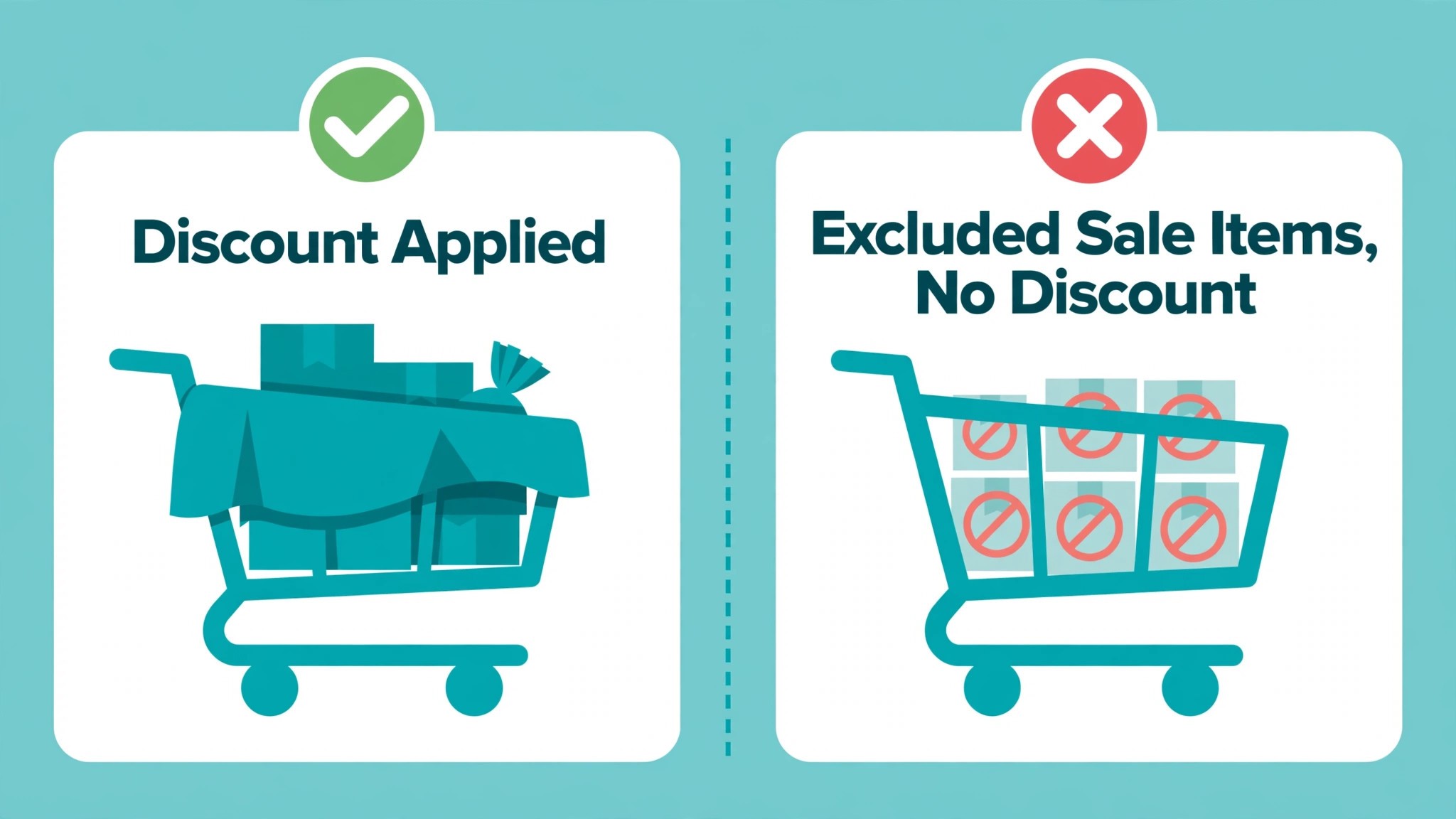
| Code fails only on certain products | Check which products and collections the code covers | Product or collection mismatch |
| Code fails when another offer is already applied | Allow the code to combine, or pause the automatic discount | Combination conflict |
| Code fails for one customer but works for others | Check customer eligibility and tags | Customer does not qualify |
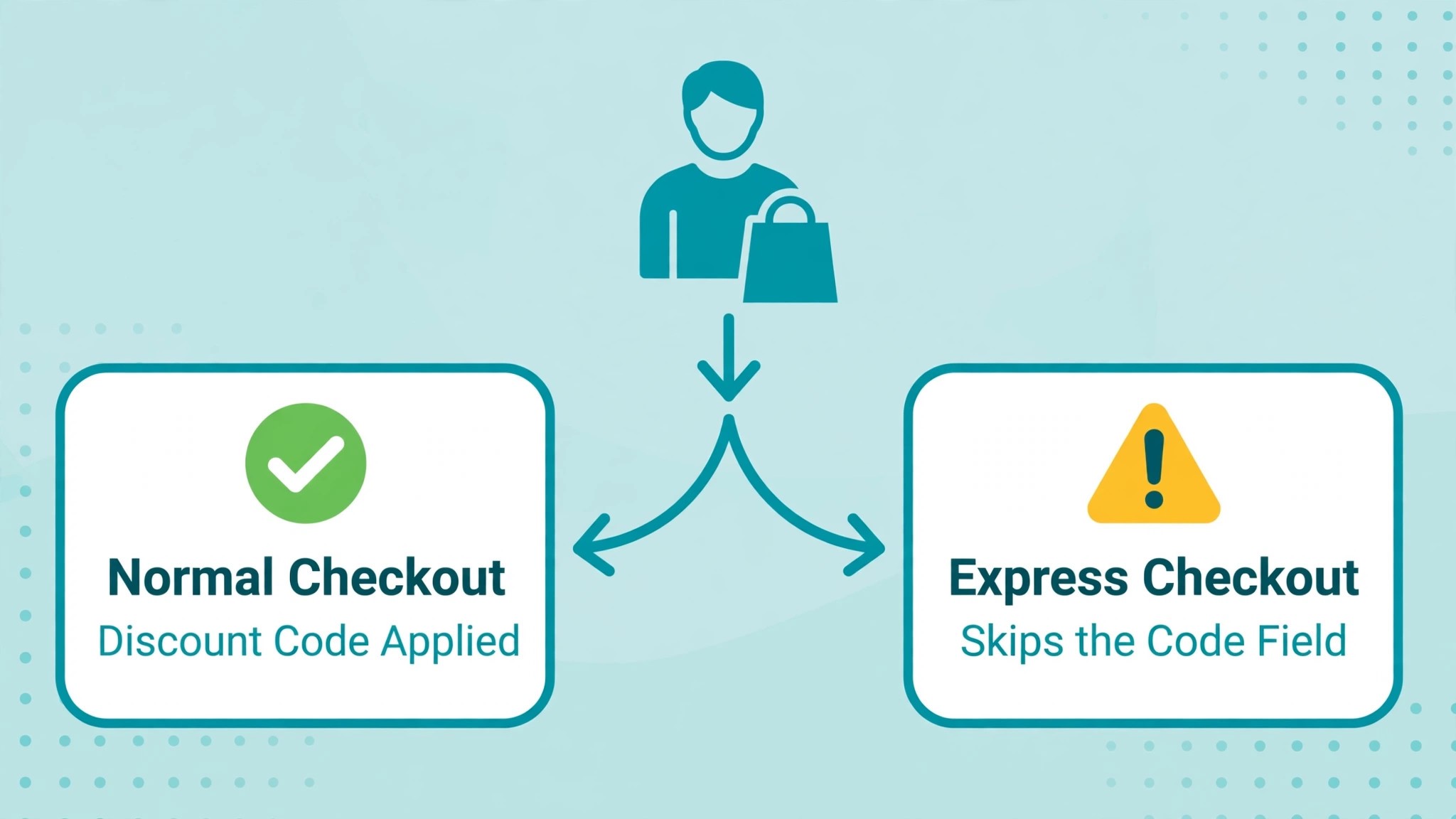
| Code works with the normal checkout button but not with Shop Pay | Test express checkout and check discount apps | Express checkout or app conflict |
If the code applies after any check, test it again the way a customer will use it, as a guest, on mobile, with the exact products in the promotion, and together with any automatic discounts running at the same time. A code that works in your test and fails in a real cart has another rule hiding somewhere, so keep going until the real cart works.
1. The Code Has Expired or Has Not Started Yet
Date windows are the top cause of a dead discount code, and they are the fastest to check. A code created for a sale that begins tomorrow will fail today, and a code left with an old end date will fail forever. The trap is that the code still looks live in your admin, because nothing about it looks broken. It sits in the discount list, it has the right name, and it worked last week. Only the dates have moved past it, and the customer sees nothing but a generic rejection.
How to confirm it. Open the discount in your admin, go to the active dates, and compare them with today, in your store timezone. Store settings decide when a date flips, which matters for midnight launches, so a code set to start at midnight in your timezone may still be inactive for a customer in a different timezone. If today falls outside the start and end dates, the cause is confirmed.
How to fix it.
- Open the discount in your Shopify admin, under Discounts, and read the active dates.
- Set the start date to today if the sale has already begun, or to the correct launch date if the sale is still coming.
- Set the end date to the real end of the promotion, and leave a day of margin, because a sale that ends at midnight can cut off customers in later timezones.
- Check the store timezone in Settings, and confirm it matches the timezone your promotion promised.
- If the code was meant to run without an end date, remove the end date entirely rather than setting it far in the future.
- Save the discount, then test it in a private window with a real cart before you tell the customer it works.
Prevention is simple. Name your codes so the dates are visible, such as a code that carries its end date in the name, and keep a one page list of live codes with their rules where your support team can see it. A code that dies quietly in the middle of a sale is a promotion that stops working while you are still advertising it, and a list prevents that.
2. The Cart Does Not Meet the Minimum Purchase
A minimum purchase requirement is a frequent cause of a code that looks fine and fails anyway, especially when the requirement is a subtotal the customer cart does not meet. The customer sees a code that should work, a cart that looks full, and a rejection that explains nothing. The gap is often small, a cart at 48 dollars against a 50 dollar minimum, and the customer has no way to know they are two dollars short unless the promotion told them.
How to confirm it. Add the exact products the customer had, in the exact quantities, and read the cart subtotal before any discount is applied. Compare it with the minimum purchase set on the discount. Remember that the minimum is usually measured on the subtotal before discounts and before shipping, so a cart that looks big enough after another discount may still fall short before it.
How to fix it.
- Open the discount and read the minimum purchase requirement, including whether it is a subtotal or a quantity.
- Test the code with the exact cart the customer described, and note the subtotal at the point of failure.
- Lower the minimum to match the carts your customers actually build, or remove it entirely for a short promotion.
- If the minimum must stay, put it in the promotion itself, in the same email or banner as the code, so customers know the rule before they reach checkout.
- Check whether sale items or gift cards count toward the minimum, because some stores exclude them, and a cart full of excluded items will never qualify.
- Test the code again with a cart just above the new minimum, and with a cart just below it, to confirm the boundary works as you expect.
A minimum purchase is a fair rule, but a hidden minimum is a trap. Customers who understand the rule will add one more item to reach it. Customers who do not understand it will leave, and they will remember the store that made them feel tricked. That clarity is part of how you fix shopify discount code not working for good, because customers who understand the rule will add one more item instead of leaving.
3. The Usage Limit Has Been Reached
Shopify lets you cap total uses and uses per customer, and both limits fail quietly. A code with a 100 use cap that went out in an email to 5,000 people will die within the hour, and the shoppers who miss out see only a generic error. A code with a one use per customer limit will fail for a loyal customer who used it last month, even though the promotion is still running and the code still looks live.
How to confirm it. Open the discount and read the usage limits, then check how many times it has been used. If the total uses equal the cap, the code is finished, and no customer will be able to use it again. If the total is well under the cap, check the customer. A code that fails for one person and works for everyone else is almost always a per customer limit, and the customer history will confirm it.
How to fix it.
- Open the discount and read both limits, the total uses and the uses per customer.
- Raise the total cap if the promotion is still running and the code ran out early.
- Raise the per customer limit to two or three uses if repeat customers are being blocked.
- If the code is meant for one use only, say so in the promotion, so customers do not expect it to work twice.
- Create a fresh code with a new name if the old one has hit its cap, and send the new code to the customers who missed out.
- Check the usage count again after the fix, and test the code with the customer account that reported the failure.
Usage limits protect your margin, but a cap set too low turns a successful promotion into a complaint. A code that goes viral is a good problem, and the fix is to raise the cap, not to let the promotion die while customers are still trying to use it.
4. The Code Does Not Cover the Products in the Cart
Codes limited to a collection reject carts that contain only items outside it, and sale items are often excluded by a separate setting. Gift cards, bundles built by apps, and draft order items can also sit outside the products a code expects. The reverse case fools just as many people. A code set to apply to specific products will not discount shipping or other lines, which customers read as the code doing nothing when their product was already on sale.
How to confirm it. Open the discount and read the product conditions, then build the exact cart the customer had. If the cart contains only items outside the covered collections, or only sale items that are excluded, the cause is confirmed. Test with one covered product added to the cart too, because a code that applies to the covered item and ignores the rest is working as configured, and the problem is the scope, not the code.
How to fix it.
- Open the discount and read which products, collections, and variants it covers.
- Add the missing products or collections to the code, or change it to apply to the whole order if the promotion was meant to be storewide.
- Check the sale item exclusion setting, and decide whether sale items should be included in this promotion.
- Check whether gift cards are included, because customers often try to use a code on a gift card purchase and fail.
- If the code is meant for one collection only, put the collection name in the promotion, so customers know what it covers before they shop.
- Test the code with the exact cart the customer described, and with a cart of only covered products, to confirm both cases work.
Product scope is the cause that most often survives the first round of checks, because the code works in your test with a covered product and fails in the customer cart with an uncovered one. Test with the customer cart, not with a convenient cart, and the scope problem shows itself at once. Testing with the customer cart is the surest way to fix shopify discount code not working when the scope, not the code, is the problem.
5. Another Discount Is Blocking the Combination
Shopify applies one order level discount and one product level discount per order by default, and automatic discounts can silently consume the slot your code needs. If a code cannot combine with other discounts, any automatic discount running in the store will block it, including a quiet free shipping promotion from an app. The customer sees their code rejected without understanding why, because the automatic discount is already applied and invisible to them.
How to confirm it. Test the code in a private window with a cart that has no other discount applied, then test it again with the automatic discount active. If the code works alone and fails when the automatic discount is running, the combination rule is the cause. Check the discount settings for both the code and the automatic discount, and read whether each one allows combinations.
How to fix it.
- Open the discount code and read its combination settings.
- Open the automatic discount and read its combination settings too, because both sides must allow the combination.
- Allow the code to combine with the automatic discount if the promotion was meant to stack.
- If the discounts should not stack, pause the automatic discount for the promotion period, or set the priority explicitly so the code wins.
- Remember that Shopify keeps the larger saving when two discounts cannot combine, so a customer may see a discount applied and still think their code failed.
- Test the code with the automatic discount running, and with it paused, to confirm the behaviour in both cases.
Combination failures only appear in combination, which is why they survive testing. A code tested alone always works, and a code tested in a real store, with a real automatic discount running, is the only test that matters. Test in the real conditions, and set the combination rules before the promotion goes live.
6. The Customer Does Not Qualify
Shopify lets you limit a code to a customer segment, and a code scoped to first time buyers, a loyalty group, or a B2B catalog will fail for everyone outside that segment. A code for first time buyers fails for a returning customer who has ordered before. A code for a tagged VIP group fails for a customer without the tag. A code that requires a logged in account fails for a guest, and a code tied to an email list fails for a customer who never signed up.
How to confirm it. Open the discount and read the customer eligibility settings, then check the customer who reported the failure. If they have ordered before and the code is first time only, the cause is confirmed. If they are a guest and the code needs an account, the cause is confirmed. A code that works for a new customer and fails for an old one is almost always an eligibility rule.
How to fix it.
- Open the discount and read the customer eligibility settings, including segments, tags, and first time buyer rules.
- Check the reporting customer account, including their order history and their tags.
- Widen the eligibility if the promotion was meant for everyone, or keep it narrow and say so in the promotion.
- If the code is first time only, tell returning customers clearly, and offer them a different code rather than leaving them with a rejection.
- If the code needs a customer tag, add the tag to the customers who should have it, and confirm it applied.
- Test the code with a guest checkout, a new account, and a returning account, to confirm each case behaves as you expect.
Eligibility rules are a fair way to target a promotion, but a hidden eligibility rule is a broken promise. A customer who was sent a code and then told they do not qualify will not trust the next code you send them. Say who the code is for, in the same message as the code, and the complaints stop.
7. An App, a Theme Script, or Express Checkout Bypasses the Code
Discount apps, loyalty apps, and checkout customization apps can all interfere with native codes. If the code is configured correctly in your Shopify admin but still fails, an app is the most common cause of a failure that survives the configuration checklist. Some apps change prices in the theme with JavaScript and apply a discount code at the last moment, and anything that reaches checkout without running that script loses the discount, such as a slow connection, an ad blocker, or a cached page.
How to confirm it. Test the code with the normal checkout button, then test it again with an express button such as Shop Pay, PayPal, or Apple Pay. Express buttons go straight to payment and skip the cart page, and Shopify does not allow codes to be applied before the checkout page, so a code applied on the cart page never gets the chance to run. If the discount works with the normal button and fails with the express buttons, the checkout path is the cause. If the code fails everywhere, disable the discount related apps one at a time and retest.
How to fix it.
- Test the code with the normal checkout button and with each express button, and note which paths fail.
- Hide the dynamic express buttons on the product and cart pages if the discount is code based, so customers reach the checkout page where the code can be applied.
- Disable discount related apps one at a time, retest the code after each one, and keep the app disabled if the code starts working.
- Check for script based discounts from the old Shopify Scripts era, or Functions based discounts that apply automatically, and confirm they are not overriding the code.
- Test with a fresh theme preview if the theme is old or heavily customized, because a script error in the theme can halt the discount flow.
- Ask the app developer for help if one app is the culprit, and tell them the exact checkout path that fails, because that detail points straight at the fault.
App conflicts are the hardest cause to find, because the code is correct and the store looks fine. The test that finds it is the test on the path the customer actually used, and the fix is usually to remove the bypass, not to change the code. Test every path, and keep the one that works.
Still Not Working
If you have worked through all seven causes and the code still fails, this is the point where most store owners give up on trying to fix shopify discount code not working, and the point where a systematic check still pays off. Work through these steps in order, and stop as soon as the code applies. First, create a brand new test code with no rules at all, no minimum, no product limit, no customer limit, and no end date, and test it. If the new code works, the old code has a rule you have not found yet, and you can compare the two side by side.
Second, test the code on a different browser, a different device, and a mobile connection, because a cached page or a browser extension can block the discount flow. Third, check whether the discount is active, not a draft, because a draft discount looks live in the list and does nothing at checkout. Fourth, check the store for a second discount with the same code, because a duplicate can override the one you are editing. Fifth, check your apps for a checkout customization that hides the code field, and sixth, contact Shopify support with the code name, the exact cart, and the exact error message.
When to Contact Shopify Support
Contact support when a brand new code with no rules still fails at checkout, when the code fails the same way on every device and every browser, or when the discount settings look correct and the code still does nothing. Those patterns point at a platform or account problem only Shopify can see. Contact support too if a discount disappears from the admin, if usage counts do not match your orders, or if a checkout customization app has changed something you cannot undo.
Before you write to support, gather four things. The code name exactly as the customer typed it, the exact cart contents and the subtotal, the exact error message as it appears at checkout, and the list of causes you already ruled out. That is the point where outside help is the fastest way to fix shopify discount code not working, because the fault sits on the platform side.
A message that says the code SAVE15 fails on a 60 dollar cart of covered products, with no automatic discount running, and works in a private window but not on mobile, gets a faster and better answer than a message that says the code does not work. Support cannot fix a date window or a product scope from their side, so rule those out first, and only escalate what is left.
Test Every Code Before the Promotion Goes Live
The only way to catch a dead code before your customers do is to test it the way a customer will use it, and to do that test for every code, every time. Run the test for every code, every time, because the fastest way to fix shopify discount code not working is to catch it before a customer does. Build a short checklist and keep it next to your desk, so the test takes five minutes and never gets skipped when a launch is rushed.
Test the code as a guest, because most first time buyers check out as guests, and a code that needs an account will fail for them. Test it on mobile, because most shoppers are on a phone, and a code field that is hard to find on a small screen is a code that will not be used. Test it with the exact products in the promotion, because a code tested with a convenient product tells you nothing about the real cart. Test it with every automatic discount running, because a code tested alone always works, and a code tested in real conditions is the only test that matters.
Write down the result of each test, with the date, the cart, and the device, so the next person who runs a promotion can see what was tested and what passed. A code that passes that test is a code you can trust, and a code that fails it is a problem you can fix before the promotion goes live, while the fix is still cheap and quiet. That five minute test is the difference between a promotion that sells and a promotion that generates complaints, and it is the cheapest insurance a store can buy.
Frequently Asked Questions
Why is my Shopify discount code not working at checkout?
To fix shopify discount code not working at checkout, check the active dates first. The most common reason is that the code has expired or has not started yet, followed by a minimum purchase the cart does not meet and a usage limit that has been reached. Check the dates, then the minimum purchase, then the usage limits, and most cases resolve in those three checks, and the code itself is usually fine.
Why does my discount code work for some customers but not others?
The code is probably limited to a customer segment, a first time buyer rule, or one use per customer. A returning customer cannot use a first time code, and a customer who already used a one use code cannot use it again. Check the customer eligibility settings, and check the reporting customer order history.
Can a Shopify discount code combine with an automatic discount?
Yes, but only if both discounts allow it. Shopify applies one order level discount and one product level discount per order by default, and an automatic discount can silently consume the slot your code needs. Open both discounts, allow the combination on each one, and test the code with the automatic discount running.
Why does my code work with normal checkout but not with Shop Pay?
Express buttons such as Shop Pay, PayPal, and Apple Pay go straight to payment and skip the cart page, and Shopify does not allow codes to be applied before the checkout page. A code applied on the cart page never gets the chance to run. Hide the dynamic express buttons on the product and cart pages, or tell customers to use normal checkout for the code.
How do I test a discount code properly?
Open a private browser window, add the exact products the customer had, and enter the code exactly as they did, including capital letters. Test as a guest, on mobile, with the exact products in the promotion, and together with any automatic discounts running at the same time. A code tested alone always works, and a code tested in real conditions is the only test that matters.
Verdict
To fix shopify discount code not working, start with the dates, because they cause most failures and take a minute to check. Then check the minimum purchase, because a cart a few dollars short is the next most common cause, and the customer cannot see the rule. Then check the usage limits, the product scope, and the combination rules, because those three hide in the settings and reject the exact cart your customer built.
If the customer is the problem, widen the eligibility or say who the code is for. If the checkout path is the problem, test the express buttons and the apps, and remove the bypass. Test every code the way a customer will use it, as a guest, on mobile, with the exact products, and with every automatic discount running. A code that passes that test will work when the promotion goes live, and a code that only passes a test in your admin will fail in front of the customer who matters most.