
You need a flyer for Saturday, you have no designer, and the blank page is winning. That is the exact problem the best ai flyer generators are built to solve. You type a sentence about the event, the tool builds a layout, picks the fonts, places the photo, and hands you something editable in under a minute. The question is not whether the technology works. It does, for a first draft. The question is which tool gives you a flyer you can actually print, which one keeps your text readable, and which one charges a fair price for the privilege.
This guide answers those questions with four real tools, tested against the same job, and with prices checked against vendor pages and independent comparisons from October and November 2026.
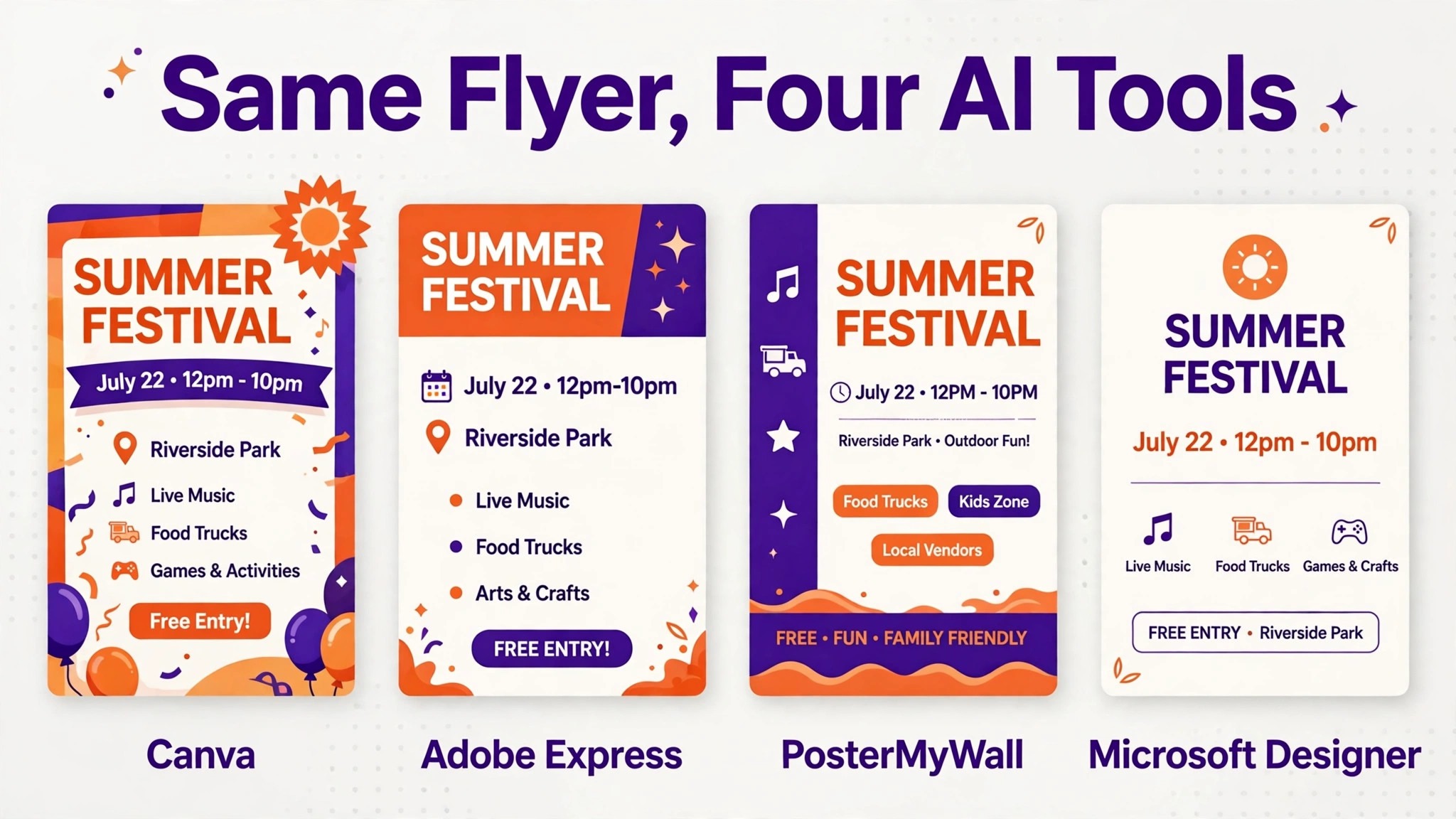
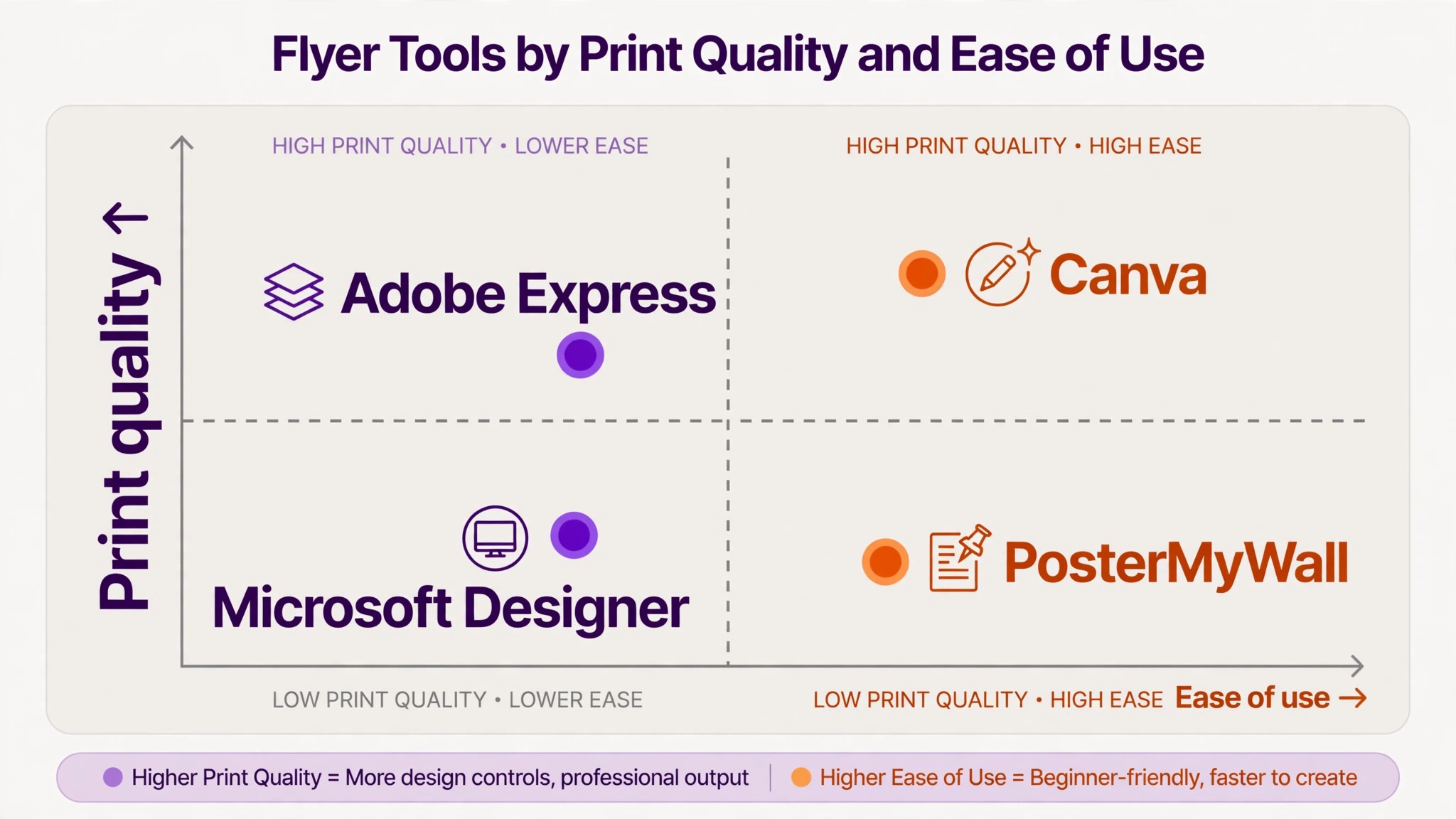
The four tools below are Canva, Adobe Express, PosterMyWall, and Microsoft Designer. They are not the only AI flyer tools in existence, and they are not interchangeable. Canva leads on templates and ease of use. Adobe Express leads on print polish and commercially safe AI images. PosterMyWall leads on event flyers and promotion. Microsoft Designer leads on free, fast, prompt to design work for personal projects. The right pick depends on whether the flyer is going to print or to a phone screen, whether the event is a business promotion or a community gathering, and whether you need the design to match a brand or just to look good once.
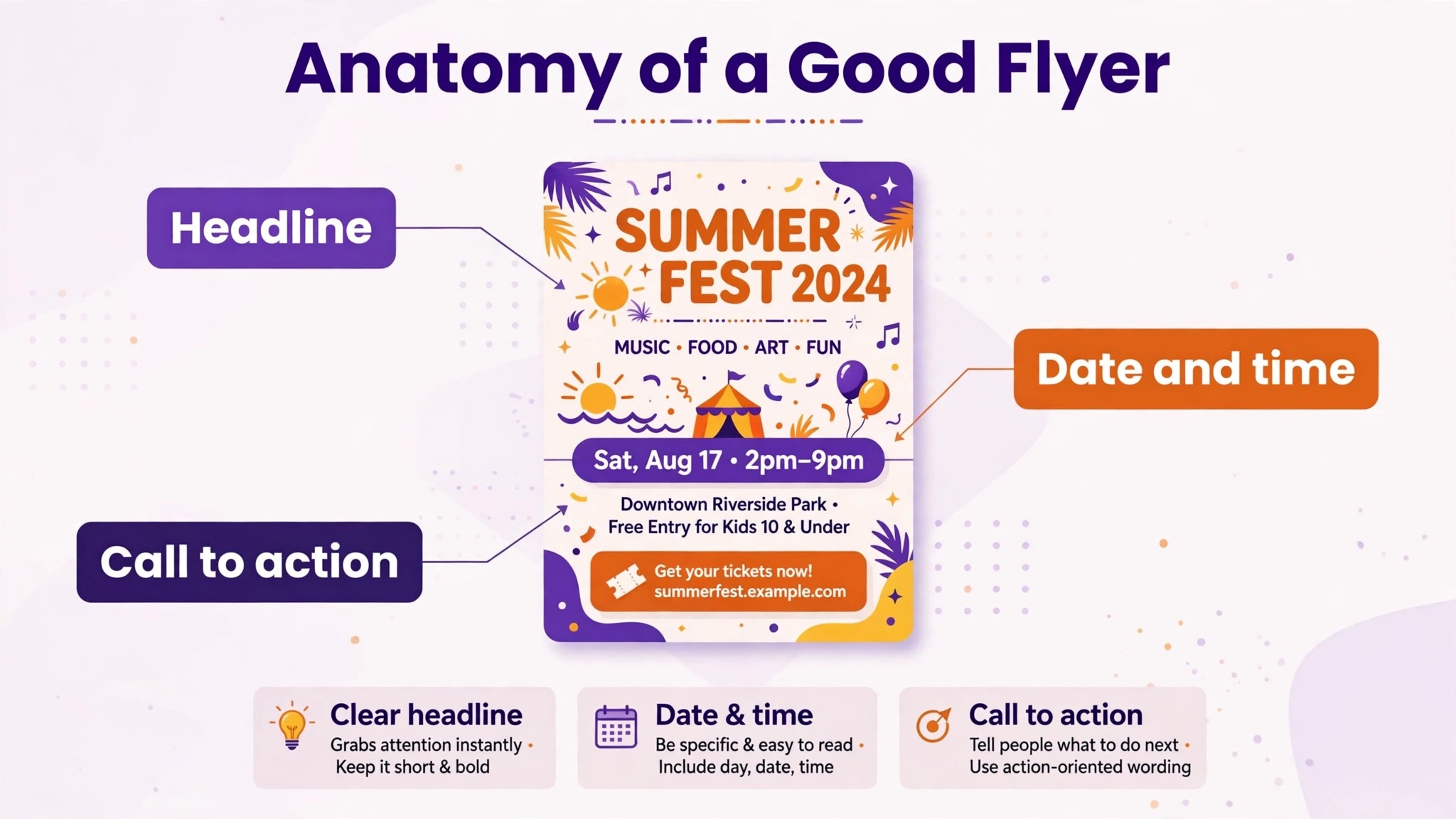
A flyer has a harder job than a social post. It has to carry a date, a place, a price, and a reason to show up, and all of that has to stay readable when the flyer is printed small, pinned to a board, or photographed on a phone. An AI tool that generates a beautiful image with misspelled text or a cropped headline has failed the job, no matter how good the image looks. Judge every tool below on the text first and the picture second, and you will pick well.
What an AI Flyer Generator Actually Does
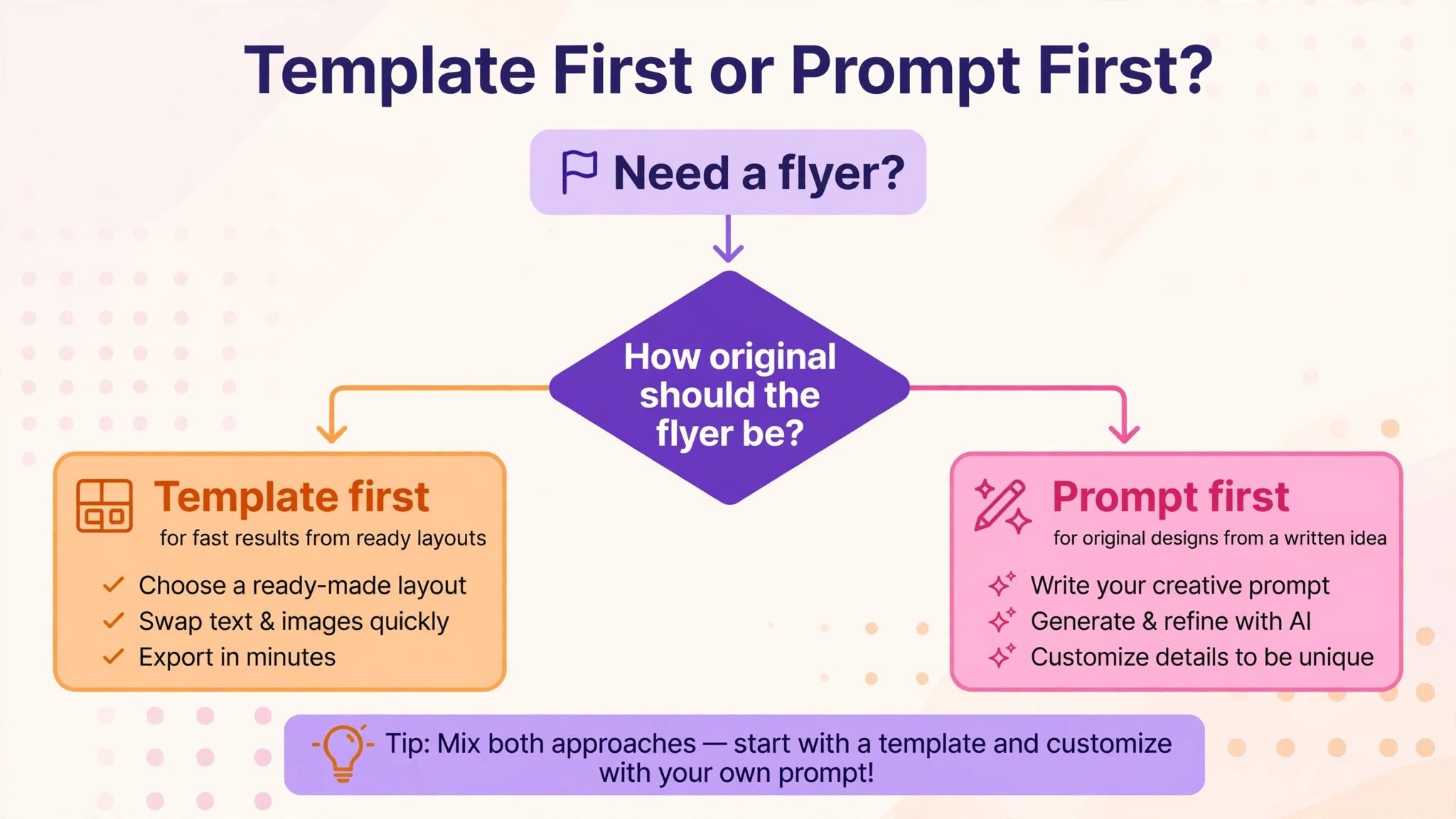
An AI flyer generator turns a text prompt into a finished layout, or turns a template into a customised design. The two approaches feel similar but behave differently. A prompt first tool, such as Microsoft Designer, builds the flyer from your sentence and gives you generated options to choose from. A template first tool, such as Canva or PosterMyWall, starts with a human designed layout and uses AI to write the headline, suggest images, or resize the design. Both approaches save time, but the template first approach gives you more control, while the prompt first approach is faster when you have no idea where to start. That speed is the core promise of the best ai flyer generators.
The AI inside these tools does three jobs. It writes copy, which means headlines, event details, and calls to action. It generates or suggests images, which means a background photo or an illustration that fits the event. And it handles layout, which means placing the text where it can be read, keeping the spacing even, and making sure nothing overlaps. The layout job is the one that matters most, because a flyer with good copy and a good image still fails when the date is hidden behind a photo or the headline runs off the edge.
The limits matter as much as the features. AI generated text can misspell names, invent details, and write headlines that sound confident and say nothing. AI generated images can add extra fingers, warped letters, and logos that look almost right. Every flyer in this guide needs a human check before it goes to print, and the check takes five minutes. Read every word, check every date and price, and look at the image at full size. The tool does the first eighty percent of the work. You do the last twenty percent, and that twenty percent is what makes the flyer trustworthy.
The 4 Best AI Flyer Generators in 2026
The table below gives the short version. Read the row that matches your job, then read that tool’s full section for the details, the limits, and the price you will actually pay.
| Tool | Best for | Free plan | Paid plan from |
|---|---|---|---|
| Canva | Templates and ease of use | Yes | Near 15 dollars a month |
| Adobe Express | Print polish and safe AI images | Yes | 9.99 dollars a month |
| PosterMyWall | Event flyers and promotion | Yes, watermarked | 9.95 dollars a month |
| Microsoft Designer | Free prompt to design | Yes | 9.99 dollars a month |
Canva
Canva is the best AI flyer generator for most people, because it pairs prompt based design with the largest template library in this comparison. The flyer maker combines thousands of flyer templates with AI features that write headlines, suggest layouts, and generate images, and the editor is simple enough that a first time user can finish a flyer in ten minutes. The free plan covers the template, the basic editor, and a set of free photos and fonts, which is enough for a community event, a school fundraiser, or a small business promotion.
The paid plan, Canva Pro, is listed near 15 dollars a month in the United States, with prices that vary by region and different sources listing figures between about 13 and 15 dollars, so check the current price on the site before you pay.
The AI features in Canva work as assistants rather than as a replacement for the designer. Magic Design turns a prompt into a set of layout options, Magic Media generates images from a description, and Magic Write drafts the headline and the body copy. You pick the option closest to what you want, then edit it in the same editor, which means the text stays editable and the layout stays under your control. That matters for a flyer, because the date, the address, and the price are the parts you will change most often, and a tool that bakes them into an image makes every edit a rebuild.
Canva also handles the step after design better than any other tool here. You can export a print ready PDF with bleed on the Pro plan, order the flyer as a printed product through Canva Print, or resize the same design for social media in one click. The trade off is that the most popular templates are easy to recognise, so a flyer built from a top template can look like every other flyer on the noticeboard. Change the photo, the colours, and the headline, and the design becomes yours. Canva is the right pick when you want the widest choice, the easiest editor, and a clear path from screen to print.
Adobe Express
Adobe Express is the best pick when print polish and commercially safe AI images matter more than template count. It comes from Adobe, and that shows in the typography, the colour tools, and the export quality. The free plan includes the flyer templates, a set of fonts, and Firefly image generation with daily limits, while Premium costs 9.99 dollars a month and raises those limits. Firefly is trained on licensed Adobe Stock images and public domain content, which means the images it generates are commercially safer to use than images from a model trained on unlicensed work, and that matters for a business flyer that will be printed and distributed.
The AI in Adobe Express assists rather than replaces. It generates templates from a text prompt, suggests font pairings, picks colour combinations, and creates images that match the layout, but the designer stays in control of every element. That control is the point for a business flyer, where the logo must sit in the right place, the brand colours must match, and the text must be exact. The editor takes slightly longer to learn than Canva, but the results look more considered, especially for service businesses, restaurants, and retailers that need a formal tone.
Adobe Express exports clean PDFs for print, and it connects to the wider Adobe ecosystem, so a flyer started in Express can move to Photoshop or Illustrator when a designer needs to take it further. The weakness is template variety. The library is smaller than Canva, and the free tier limits how many AI generations you get each day, so a heavy user will hit the ceiling. For a business that prints flyers regularly and needs every one to look professional, Adobe Express is the right pick. For a one off community flyer, Canva is faster and cheaper.
PosterMyWall
PosterMyWall is the best pick for event flyers, and it has built its reputation on exactly that job. The tool offers pre built layouts optimised for concerts, parties, classes, sales, and fundraisers, with AI tools that write the event copy, generate images, and resize the design for social media. The free plan lets you design and download with a watermark, while Premium starts at 9.95 dollars a month and removes the watermark, unlocks high resolution PDF export, and adds email marketing and social publishing. A higher Premium Plus tier, listed near 29.99 dollars a month, adds more capacity for teams that publish often.
The strength of PosterMyWall is that it thinks about the whole promotion, not just the flyer. You can design the flyer, turn it into a social post, send it by email, and build an event page from the same design, which saves a small business or an event organiser from juggling three tools. The AI writer is tuned for events, so it drafts headlines that carry a date and a call to action rather than generic marketing copy. The templates are event specific in a way that Canva templates are not, and that shows in the layouts, which leave room for the details that matter at an event.
The trade off is that PosterMyWall is narrower than Canva or Adobe Express. It is an event and promotion tool first, and it does not try to be a general design platform. The free downloads carry a watermark, so the free plan is only useful for testing, and the editor is less flexible than Canva for a design that needs to break the template. For a venue, a church, a school, or a shop that promotes events every week, PosterMyWall is the right pick. For a flyer that is not tied to an event, Canva or Adobe Express fits better.
Microsoft Designer
Microsoft Designer is the best free AI flyer generator on this list, and the best pick for a personal project that needs a good flyer without a subscription. It is free with a Microsoft account, and it turns a plain language prompt into a set of finished designs using image generation. You type a sentence about the event, the tool generates images and layouts, and you pick the one you like and edit the text. The paid path runs through Microsoft 365 Personal, listed at 9.99 dollars a month, which adds more AI generations and the wider Microsoft 365 apps, but the free tier is genuinely usable rather than a trial in disguise.
The strength of Microsoft Designer is speed. A prompt to design flow takes under a minute from sentence to finished options, and the generated images are often the most striking of any tool here, because the tool leans on image generation rather than templates. That makes it a good fit for a party flyer, a school event, or a personal celebration, where the visual impact matters and the text is short. The weakness is control. The tool offers preset social sizes and limited print options, exports are PNG or JPG rather than a print ready PDF with bleed, and the layouts are harder to adjust precisely than in Canva or Adobe Express.
Microsoft Designer also suits anyone already in the Microsoft ecosystem, since it shares the account and the files with the rest of Microsoft 365. It does not suit a business that prints flyers regularly, because the export options and the size control are too limited for professional print. Use it when the flyer is going to a phone screen or a home printer, and use Canva or Adobe Express when the flyer is going to a print shop. For a free, fast, prompt first flyer, Microsoft Designer is the honest pick.
Best Pick by Job
The table below matches each common job to the best ai flyer generators pick for that job. Find your job, take the pick, and skip the rest of the comparison.
| Job | Best pick | Why it fits |
|---|---|---|
| Most people, most flyers | Canva | Largest templates, easiest editor |
| Business flyer, print quality | Adobe Express | Clean type, safe AI images |
| Concert, party, or class | PosterMyWall | Event layouts, promotion tools |
| Free personal flyer | Microsoft Designer | Free prompt to design |
| Flyer plus social posts | Canva | One click resize |
| Flyer plus email campaign | PosterMyWall | Built in email marketing |
If your job does not match a row exactly, pick the closest one. A restaurant promoting a weekly special is closer to an event flyer than to a business flyer, so PosterMyWall fits better than Adobe Express. A real estate agent printing open house flyers is closer to a business flyer, so Adobe Express fits better than Microsoft Designer. The job decides the tool, and the tool decides how much editing the flyer will need.
Template First or Prompt First
The four tools split into two ways of working, and the split matters more than the brand. Template first tools start with a human designed layout and use AI to help you fill it. Prompt first tools start with your sentence and generate the layout from scratch. Neither approach is better in general, but one of them is better for your flyer, and the difference shows up in the editing.
Template first is the safer choice when the flyer carries a lot of information. A layout designed by a human already solves the hard problems, which are where the date goes, how large the headline can be, and how much space the image needs. The AI helps with the copy and the image, but the structure stays sound. Canva, Adobe Express, and PosterMyWall all work this way, and it is why their flyers rarely look broken even when the user has no design experience. The cost is originality, since the layout comes from a library that thousands of other people use.
Prompt first is the faster choice when the flyer carries a short message and a strong image. A generated layout can be striking in a way a template rarely is, because it is built around your specific words and your specific event rather than a generic structure. Microsoft Designer works this way, and it is the reason its outputs look fresh. The cost is control, since a generated layout can place the text in an awkward spot or crop the image badly, and fixing it takes longer than starting from a template would have. Use prompt first when the message is short and the image carries the flyer. Use template first when the details carry the flyer.
Print Sizes and Export Settings
A flyer that looks good on screen can fail in print, and the failure usually comes from the size or the export rather than the design. The standard flyer sizes in the United States are 8.5 by 11 inches for a full page, 5.5 by 8.5 inches for a half page, and 4 by 6 inches for a small handout, with the European A5 size at 148 by 210 millimetres serving a similar role. Pick the size before you design, because a layout built for a full page will not shrink cleanly to a handout, and the text that was readable at full size becomes tiny at half size.
Export settings decide whether the print shop can use your file. A print ready PDF at 300 dots per inch with bleed is the standard, and bleed means the background extends slightly past the edge of the page so the trim does not leave a white line. Canva Pro and Adobe Express both export print ready PDFs with bleed, PosterMyWall exports a high resolution PDF on its paid plan, and Microsoft Designer exports PNG or JPG files for a home printer or a screen. If the flyer is going to a print shop, confirm the file format with the shop before you design, since a JPG at screen resolution will look soft in print.
Check the flyer at full size before you export. Zoom to 100 percent in the editor and read every word, then print one copy on a home printer and look at it from arm’s length, which is how most people will see it on a noticeboard. If any word is hard to read, increase the size or the contrast rather than adding effects. A flyer that is readable at arm’s length will be readable everywhere else, and a flyer that needs a close look to read will be ignored.
How to Write a Prompt That Works
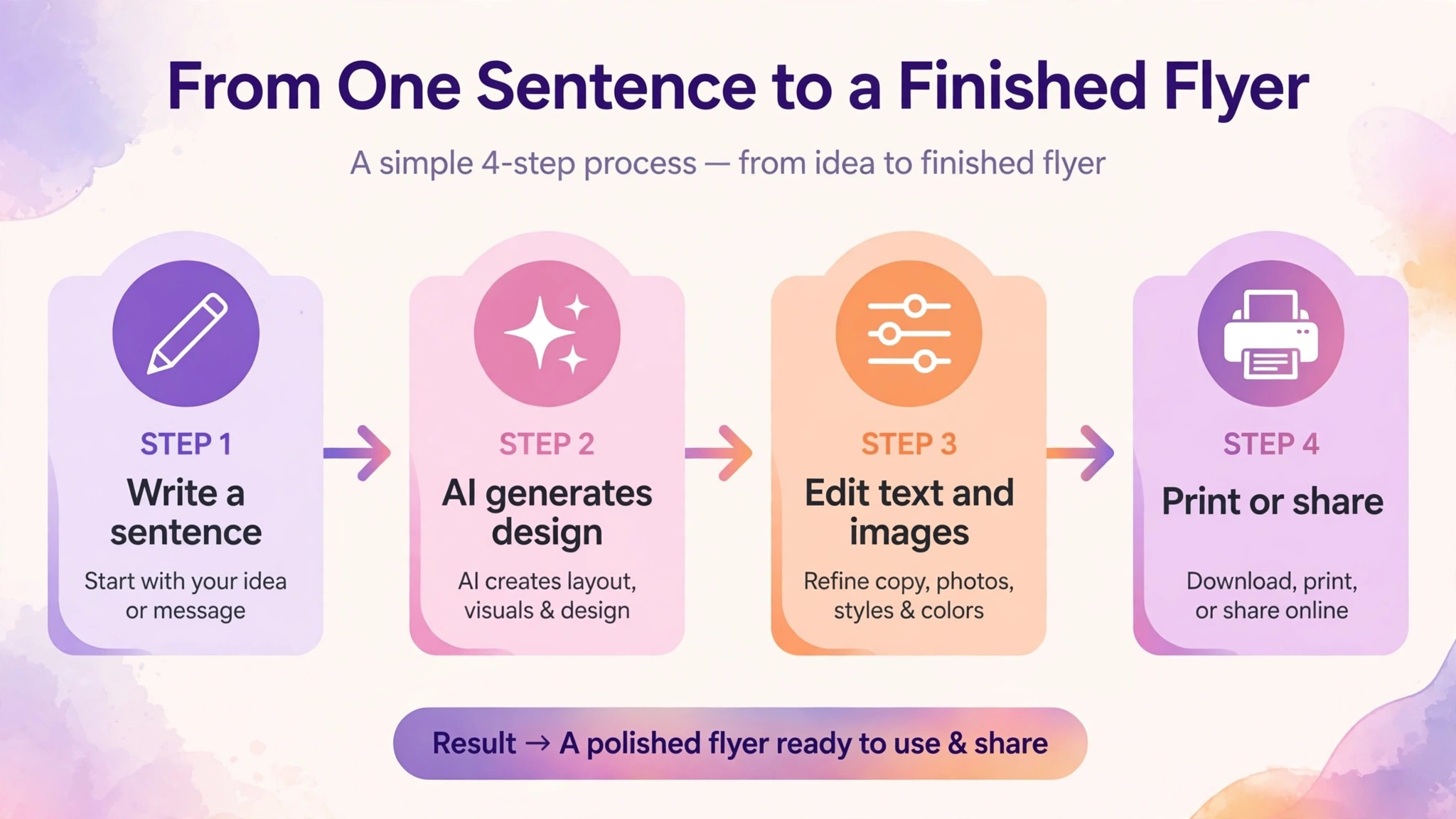
A good prompt is specific about the event, the audience, and the action, and it leaves the design choices to the tool. A vague prompt produces a vague flyer, while a prompt with the facts produces a flyer you can use with light editing. Write the prompt before you open the tool, and include the five facts below in plain language.
- Name the event in one phrase, such as a summer bake sale or a jazz night, so the tool knows the mood.
- Give the date, the time, and the place in the prompt, so the tool puts them on the flyer instead of leaving placeholders.
- State the audience in a few words, such as families with young children or local business owners, so the tone fits the reader.
- State the one action you want, such as book a table or bring a friend, so the call to action is clear.
- Name the style in plain words, such as warm and simple or bold and modern, so the tool picks colours that fit.
After the tool generates the flyer, check the five facts against the design. AI tools sometimes change a date, shorten an address, or invent a detail that was never in the prompt, and those errors are easy to miss when the design looks good. Fix the facts first, then adjust the style. A flyer with correct facts and a plain design beats a beautiful flyer with the wrong date, every time.
What AI Flyers Cost
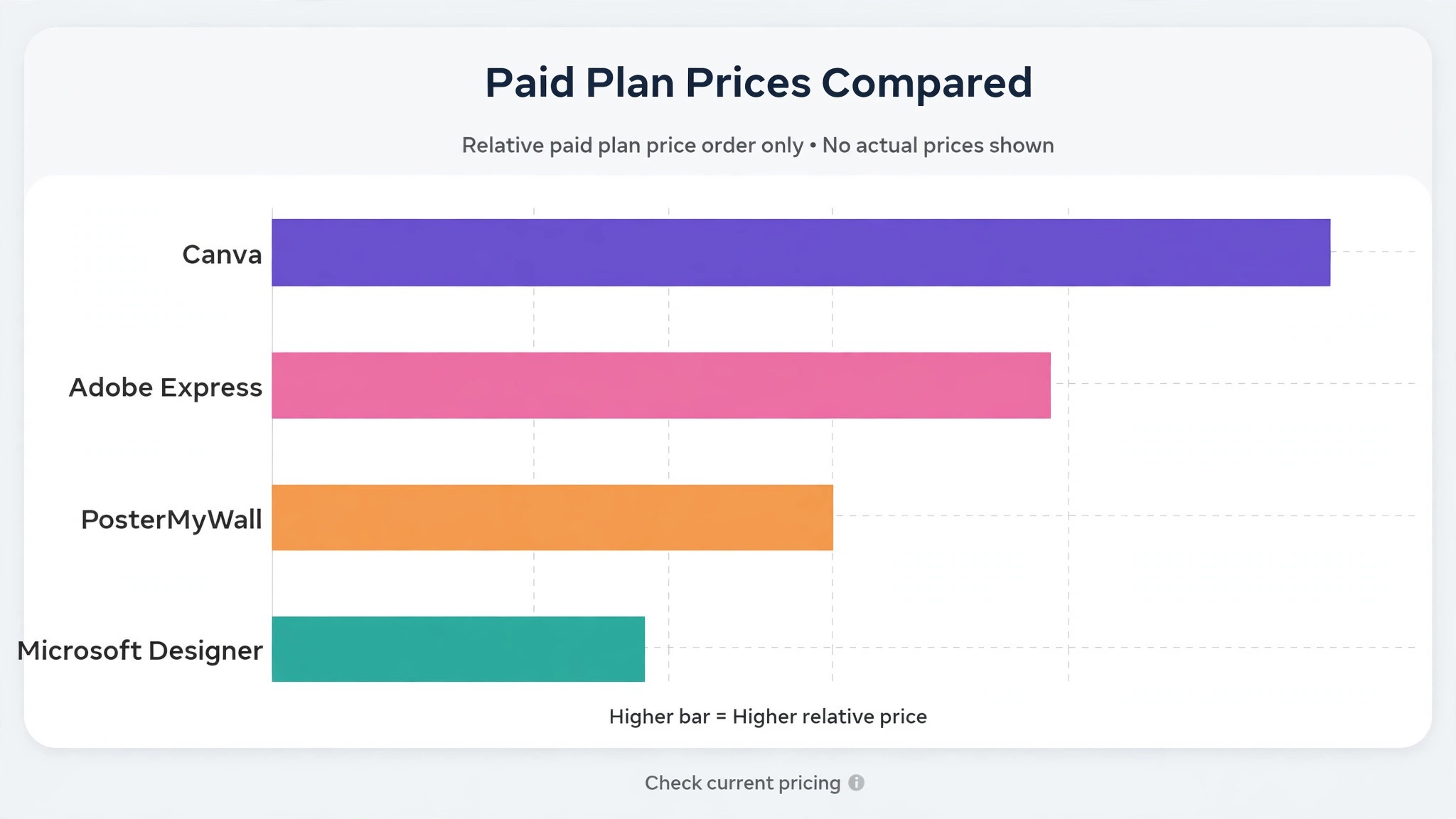
The best ai flyer generators are all free to start, and the paid plans cluster near 10 to 15 dollars a month, which makes the choice about features rather than price. Canva Pro is listed near 15 dollars a month in the United States, with regional variation and different sources listing figures between about 13 and 15 dollars. Adobe Express Premium costs 9.99 dollars a month. PosterMyWall Premium starts at 9.95 dollars a month, with a higher tier near 29.99 dollars a month for teams. Microsoft Designer is free with a Microsoft account, and the paid path through Microsoft 365 Personal costs 9.99 dollars a month.
The free tiers differ more than the paid prices do. Canva free covers templates and basic editing, Adobe Express free covers templates with daily AI limits, PosterMyWall free downloads carry a watermark, and Microsoft Designer free is genuinely usable for personal projects. If you make one flyer, use a free tier and export carefully. If you make flyers every week, a paid plan near 10 dollars a month pays for itself in the time it saves, and the choice comes down to which editor you prefer rather than which is cheapest.
Watch for the costs that do not appear in the monthly price. Printing is the largest of them, since a run of 100 full colour flyers from a local print shop can cost more than a year of any of these subscriptions. Stock photos are another, since premium images in Canva and Adobe Express sit behind the paid plan. The subscription is the small cost. The print run is the large one, and it should be in the budget before the design starts.
Mistakes That Ruin an AI Flyer
The most common mistake is trusting the AI text without reading it. AI copy can misspell a name, change a date, or write a headline that sounds confident and says nothing, and those errors survive because the design looks finished. Read every word on the flyer out loud before you export, and check the date, the time, the address, and the price against your own notes. A flyer with one wrong fact is worse than no flyer, because it sends people to the wrong place at the wrong time.
The second mistake is letting the AI image carry text. AI generated images often contain warped letters, misspelled words, and signs that say nothing, and those errors are hard to spot at small size. Use AI images for backgrounds, illustrations, and photos, and put all the words in the editor as real text, where you can read them, edit them, and export them sharply. A background image with no words in it cannot misspell anything, and the text you add in the editor will always be readable.
The third mistake is designing for the screen and forgetting the print. A flyer that looks good on a phone can fail on paper, because the text is too small, the colours are too pale, or the file resolution is too low. Print one copy before you order a run, look at it from arm’s length, and check the file size and resolution against the print shop requirements. The five minutes a test print takes is cheaper than a box of 500 flyers that nobody can read. Every one of the best ai flyer generators still needs that test print.
Frequently Asked Questions
What is the best AI flyer generator in 2026?
Canva is the best AI flyer generator for most people, because it pairs prompt based design with the largest template library and an editor anyone can learn quickly. Adobe Express is the better pick when print polish and commercially safe AI images matter, PosterMyWall is the better pick for event flyers, and Microsoft Designer is the better pick for a free personal flyer. The best choice depends on whether the flyer is going to print or to a screen, and whether the event is a business promotion or a community gathering.
Can AI flyer generators make print ready flyers?
Yes, with the right tool and the right export. Canva Pro and Adobe Express both export print ready PDFs with bleed at 300 dots per inch, and PosterMyWall exports a high resolution PDF on its paid plan. Microsoft Designer exports PNG or JPG files, which suit a home printer or a screen but not a professional print shop. Always confirm the file format with your print shop before you design, and print one test copy before you order a full run.
Are AI generated flyer images safe to use commercially?
It depends on the tool. Adobe Express uses Firefly, which is trained on licensed Adobe Stock images and public domain content, so its images are commercially safer to use than images from a model trained on unlicensed work. Canva, PosterMyWall, and Microsoft Designer each publish their own terms for AI generated content, and those terms can change, so read the current terms on the tool you use before you print a flyer for a business. When in doubt, use a stock photo or your own photograph instead of a generated image.
How much does an AI flyer generator cost?
All four of the best ai flyer generators are free to start. Canva Pro is listed near 15 dollars a month in the United States, with regional variation. Adobe Express Premium costs 9.99 dollars a month, PosterMyWall Premium starts at 9.95 dollars a month, and Microsoft Designer is free with a Microsoft account, with the paid path through Microsoft 365 Personal at 9.99 dollars a month. The free tiers differ, since PosterMyWall free downloads carry a watermark and Adobe Express free limits daily AI generations, so check the free tier limits before you commit to a tool.
Can I use an AI flyer generator for free?
Yes. Canva, Adobe Express, PosterMyWall, and Microsoft Designer all offer free plans. Microsoft Designer is the most generous free option for personal projects, since it is free with a Microsoft account and produces finished designs from a prompt. Canva free covers templates and basic editing, Adobe Express free covers templates with daily AI limits, and PosterMyWall free downloads carry a watermark. For a one off flyer, a free tier is usually enough.
Why does my AI flyer have misspelled text?
AI image generators often render text badly, producing warped letters and misspelled words inside the image itself. The fix is to use AI images only for backgrounds and illustrations, and to add all words in the editor as real text. Real text stays editable, exports sharply, and cannot be misspelled by the image model. Always read every word on the flyer before you export, and check the date, the time, and the address against your own notes.
The Short Version
The best ai flyer generators turn a sentence into a flyer you can print, and the four tools in this guide cover every job that sentence can describe. Canva leads for most people, Adobe Express leads for print polish and safe AI images, PosterMyWall leads for event flyers, and Microsoft Designer leads for free personal projects. Pick the tool that matches the job, write a prompt with the five facts, and check every word before you export. The AI does the first eighty percent of the work. The last twenty percent is yours, and it is what makes the flyer trustworthy.
A flyer is a promise to the reader, and the promise is only as good as the facts on it. Get the date right, get the place right, get the price right, and the design will do the rest. The tools in this guide make that work faster, but they cannot replace the five minute check that catches the error before the flyer goes to print.