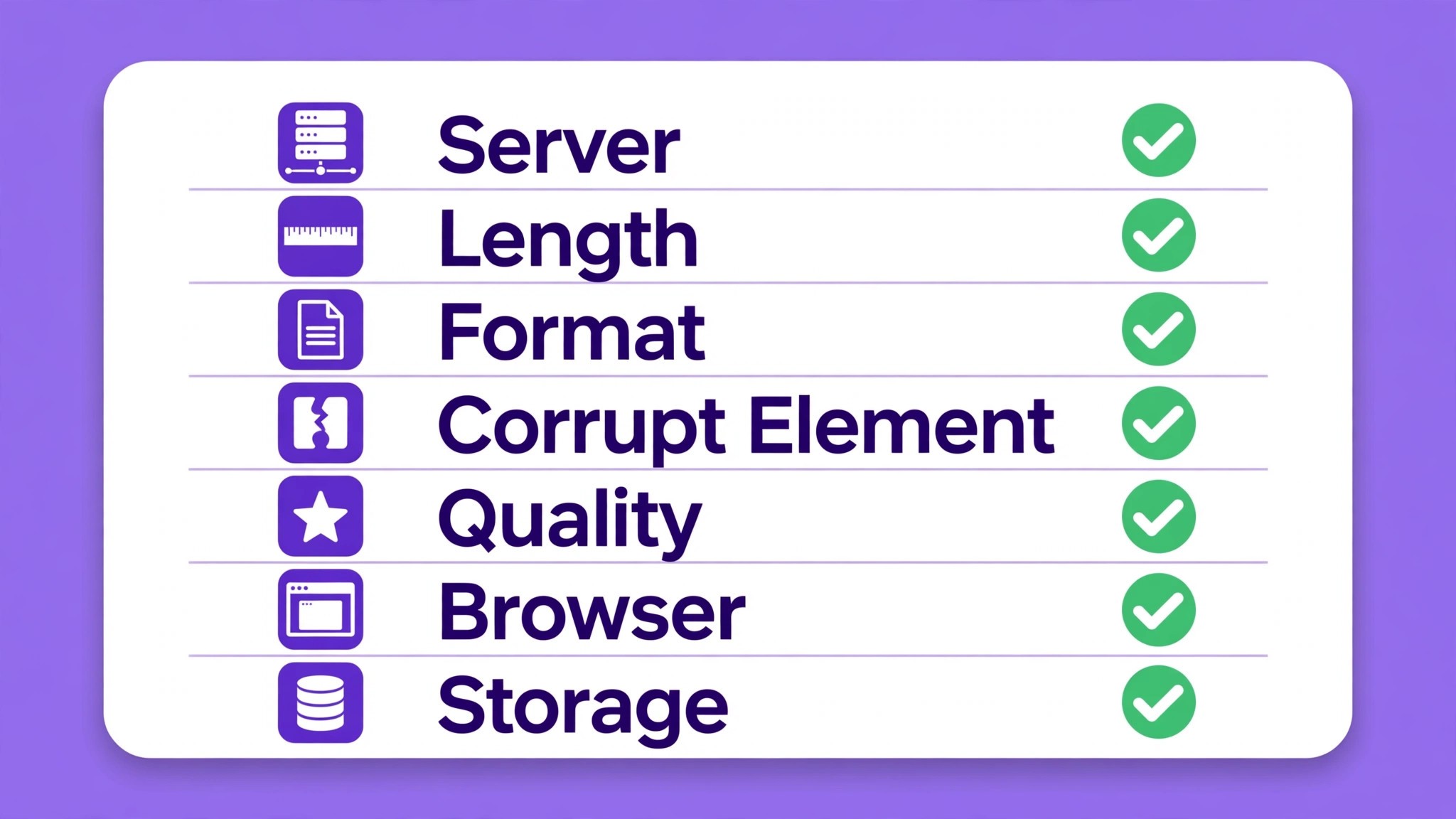
A video that plays fine in the editor and then stalls at 80 percent on export is one of the most frustrating faults in Canva, because the work is done and the file will not come out. The export button spins, the progress bar stops, and the download never starts. The cause is almost always one of seven things, and the fix takes less than ten minutes once you know which one it is. This guide to fix canva video not exporting works through all seven causes in order, starting with the ones you can check in under a minute.
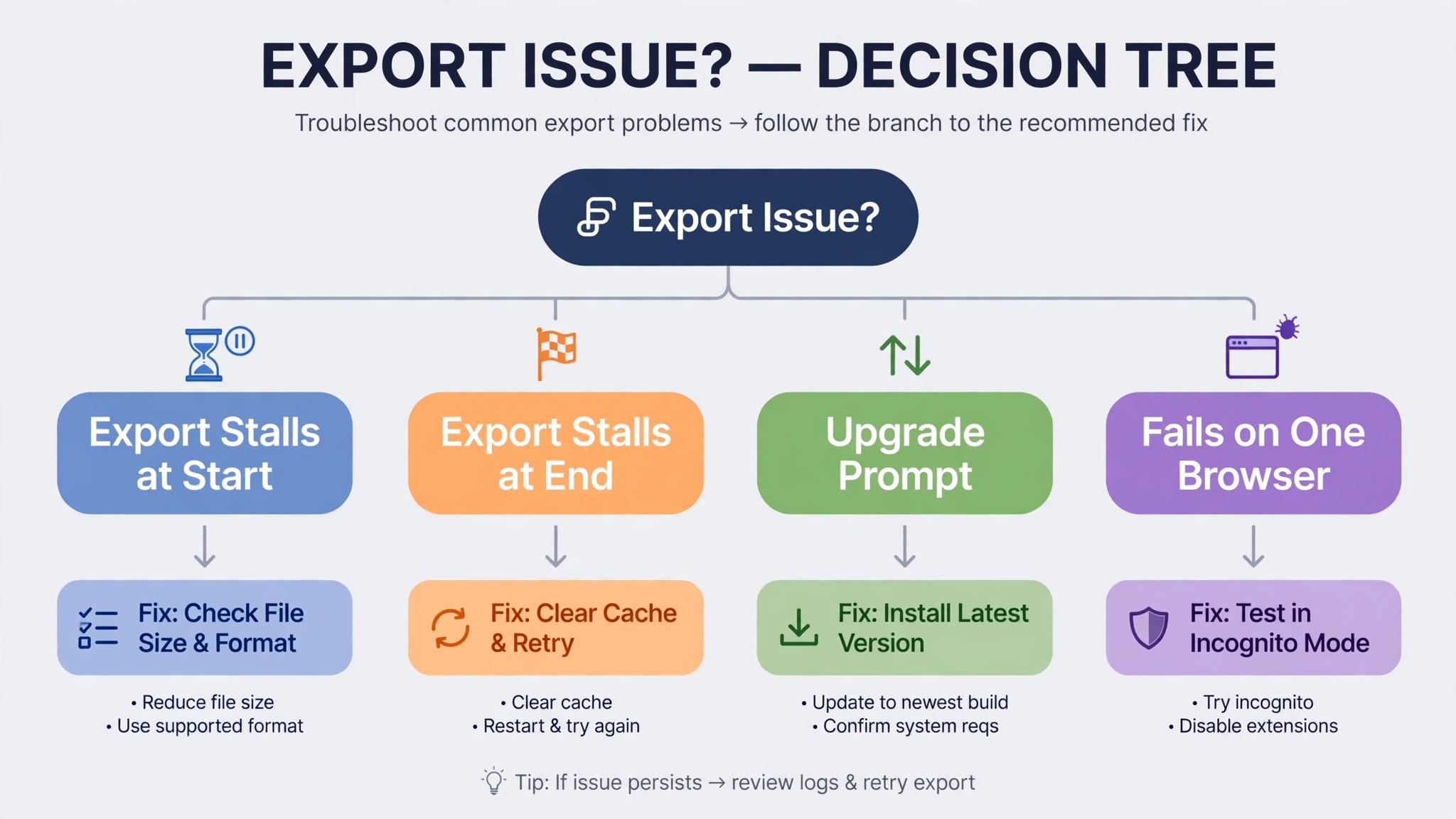
The first thing to work out is where the export fails. A video that fails at the start has a different cause from one that fails near the end, and a video that exports as a still image has a different cause again. If the export fails at the start, the file or the connection is usually at fault.
If the export fails at the start, the file or the connection is usually at fault. That split is the first step to fix canva video not exporting, because the symptom tells you where to look. If it fails near the end, the project is usually too long or too heavy for the export to finish. If it downloads but will not play, the format or the quality setting is usually at fault.
To fix canva video not exporting, start with the visible checks, because they solve most cases, and work through the project and account checks only if the visible checks fail. Check the Canva status page first, because a server problem affects every user at once and no setting on your side will help until it clears. Then check the file size and the length, because those two numbers decide whether the export can finish at all. This guide gives you that order, with a clear fix for each cause.
Quick Diagnosis Checklist to Fix Canva Video Not Exporting
Work through this checklist in order, and stop as soon as the export works. Most cases resolve in the first three checks.
| What you see | Try this first | Likely cause |
|---|---|---|
| Export stalls at the start, or never starts | Check the Canva status page and your connection | Server problem or unstable connection |
| Export stalls near the end, or times out | Split the video into shorter parts | Video too long or too heavy to export |
| Export fails with a file error | Convert the clip to MP4 with H.264 | Unsupported format or codec |
| Export downloads but will not play | Keep the quality at 1080p and export again | Quality setting or Pro feature problem |
| Export shows an upgrade prompt | Keep the quality at 1080p on a free account | 4K or a Pro feature on a free plan |
| Export fails on one browser only | Clear the cache and disable extensions | Browser cache or extension conflict |
| Export fails on every device | Duplicate the design and export the copy | Corrupt element or corrupt design file |
| Export is slow but not stuck | Wait, and keep the tab open | Large file still processing on the server |
If the export works after any check, save a copy of the design before you keep editing, because a project that fails to export once can fail again, and a saved copy is the fastest recovery. If none of the checks work, go to the still not working section at the end of this guide, and work through the account and device steps there.
If none of the checks work, go to the still not working section at the end of this guide, and work through the account and device steps there. That order is the fastest way to fix canva video not exporting, because it rules out the common causes first.
1. Canva Servers Are Down or the Connection Is Unstable — Check Status and Connection First
Canva is a cloud editor, and nearly every action is a network request. When the export pipeline is down, or when your connection drops halfway through the upload, the export stalls and never finishes. This is the most common cause of an export that fails at the start, and it is also the easiest to rule out, because the status page tells you in seconds whether the problem is yours or Canva’s.
How to tell it is this cause. Open the Canva status page at canvastatus.com and look at the Downloading designs and Media uploads components. If either one shows as degraded or under maintenance, the problem is on Canva’s side, and the only fix is to wait. If the status page shows all systems operational, and the export still fails, check your connection by loading a video on another site. If that video also stalls, the connection is the problem, and the export will fail until the connection is stable.
How to fix it.
- Open canvastatus.com and check the Downloading designs component, then wait if it shows a problem.
- Switch from Wi-Fi to mobile data, or the other way round, and try the export again.
- Move closer to the router, or plug in an ethernet cable if you have one, because a weak signal drops the export halfway through.
- Close other apps that use the connection, such as video calls and cloud backups, then try the export again.
- Wait 30 minutes and try again, because a server problem usually clears quickly, and a second attempt after a short wait often works.
Do not keep clicking Download while the server is down, because each failed attempt queues another export and can slow the recovery. Wait for the status page to show green, then try once, and the export should finish.
2. The Video Is Too Long or Too Heavy — Split It Into Shorter Parts
A long video with many pages, animations and clips places a heavy load on the export server, and the export can time out before it finishes. Canva Free allows MP4 exports up to 30 minutes long at up to 1920 by 1080 pixels, while Pro, Teams, Nonprofits and Education allow up to 2 hours at up to 3840 by 2160 pixels. A video near those limits, with many animations, can still fail, because the length is not the only load. The number of pages and the number of effects matter too.
How to tell it is this cause. The export starts, the progress bar moves, and then it stalls near the end, or it fails after several minutes with a generic error. A short test export of one page works, while the full video fails, which points straight at the length or the weight. A video over 10 minutes long with animations on every page is the most common case, because the export has to render every animation before it can encode the file.
How to fix it.
- Duplicate the design, then delete half the pages from the copy and export it, to confirm the length is the problem.
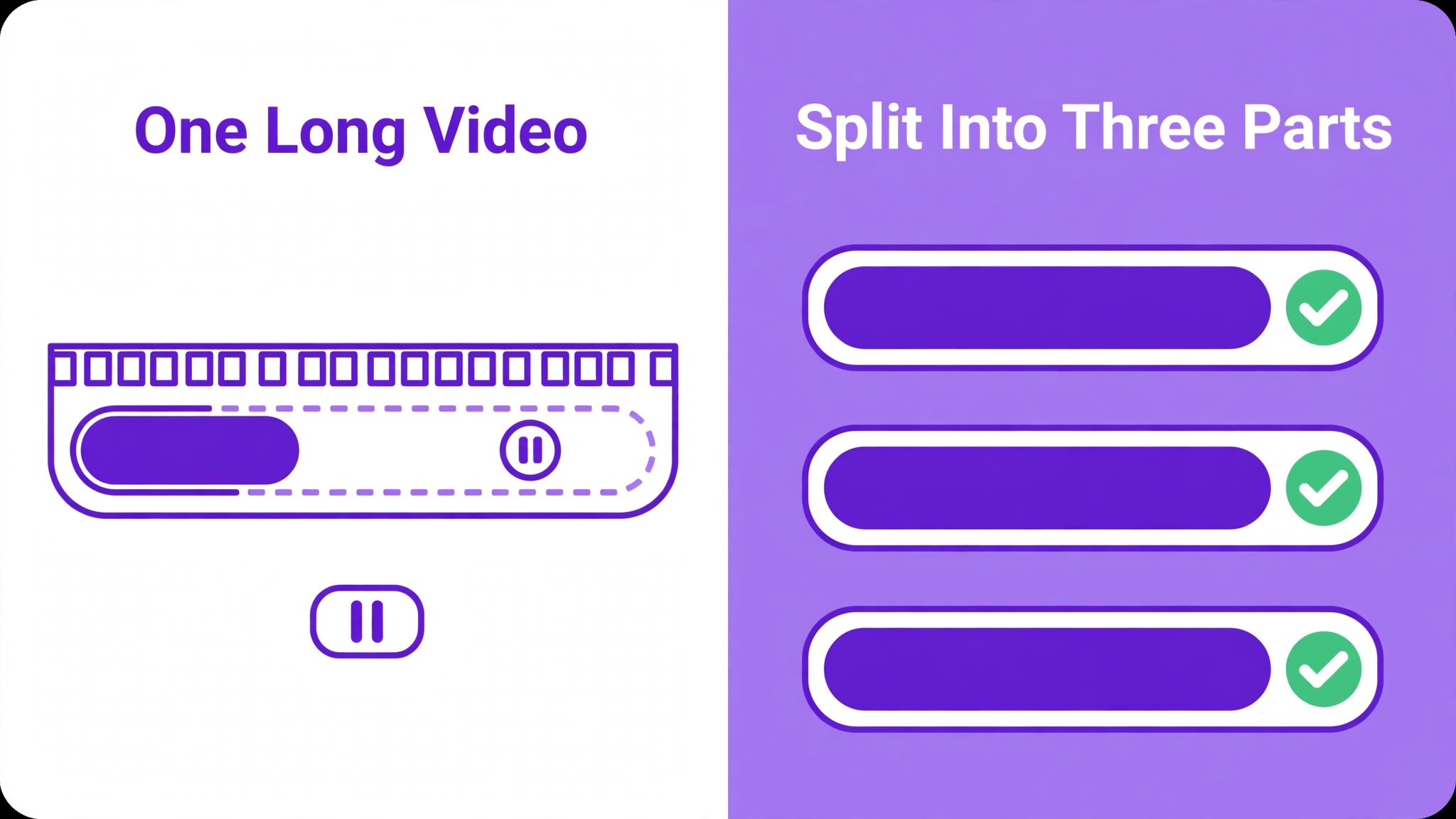
- Split the video into two or three shorter videos, each under 10 minutes, and export each one separately.
- Remove animations from pages that do not need them, because each animation adds rendering time.
- Reduce the number of pages by combining short pages into one, then export again.
- Export at 1080p instead of 4K, because 4K quadruples the rendering work and often tips a long video over the limit.
- Share the video as a watch link instead of a file, if the file itself is not essential, because the link plays without an export.
A video that is split into parts exports faster and fails less often, and the parts can be joined in a video editor if you need a single file. Keep each part under 10 minutes, and the export will usually finish in a few minutes.
3. A Clip Uses an Unsupported Format or Codec — Convert It to MP4
Canva accepts MP4, MOV, MPEG, MKV and WEBM uploads, but the codec inside the file matters as much as the extension. A clip encoded with Apple ProRes, or with H.265, can fail to upload or fail to export, even though the file ends in MP4. Canva’s help centre names Apple ProRes as an example of a format that will not upload, and the fix is to convert the clip to a more common format before you add it to the design.
How to tell it is this cause. One clip shows a broken media icon, or it plays in the editor but the export fails when it reaches that clip, or the upload of that clip failed and you added it anyway. A clip recorded on a professional camera or exported from a professional editor is the most common case, because those tools default to ProRes or H.265. A clip from a phone usually works, because phones record in H.264.
How to fix it.
- Find the clip that fails, by exporting the video without it, then adding it back if the export works.
- Export the clip from your phone or camera app in MP4, or convert it with a free converter, using H.264 video and AAC audio.
- Delete the old clip from the design, then upload the converted clip and add it in the same place.
- Check that the converted clip plays in the editor, then export the video again.
- If the clip still fails, trim a few seconds from the start and the end, because a corrupt frame at the edge of a clip can break the export.
Keep the converted clip under 1 gigabyte, because Canva caps individual video uploads at 1 gigabyte, and a file over that size will fail to upload. A clip in MP4 with H.264 video and AAC audio is the safest format, and it exports cleanly in almost every case.
4. A Corrupt or Unsupported Element Breaks the Render — Remove It and Export Again
A design can look fine in the editor and still fail to export, because one element in it cannot be rendered. The most common culprits are invisible layers, images with broken media icons, audio tracks with broken icons, and embedded YouTube videos, which can fail to export. A clip trimmed to 0.0 seconds will also break the export, because every video track needs at least 0.1 seconds of duration to export.
How to tell it is this cause. The export fails at the same point every time, and the same design fails on every browser and every device. A short test export of one page works, while the full design fails, and the failing page contains an element that looks odd, or an element you cannot select. An embedded YouTube video on the failing page is a strong clue, because embedded players often fail to export.
How to fix it.
- Open Position, then Layers, and look for blank entries or elements with broken icons, then delete them.
- Check every video track and make sure none is trimmed to 0.0 seconds, then extend any short track to at least 0.1 seconds.
- Replace any embedded YouTube video with an MP4 uploaded directly into Canva, because the uploaded file exports more reliably.
- Delete any premium element that shows a watermark on a free account, or upgrade to Pro if the element is essential.
- Duplicate the design and export the copy, because duplication sometimes repairs a corrupt design file.
- Export the design page by page, to find the page that fails, then rebuild that page from scratch if the element cannot be fixed.
Do not delete the whole design to fix one bad element, because the element is the problem and the rest of the design is fine. Remove the suspect element, export again, and add it back only if the export works without it.
5. The Quality Setting Triggers an Upgrade Prompt — Keep It at 1080p
Canva Free can download MP4 videos up to 30 minutes long at up to 1920 by 1080 pixels, which is 1080p. Pro, Teams, Nonprofits and Education can download up to 2 hours at up to 3840 by 2160 pixels, which is 4K, on desktop only. On a free account, changing the MP4 quality from the default 1080p, even to a lower setting such as 480p or 720p, shows an upgrade prompt, and the export will not finish until you pay or change the setting back.
How to tell it is this cause. The export starts, then a prompt appears asking you to upgrade to Pro, or the download button is greyed out, or the export fails after you change the quality setting. A video that exported fine yesterday and fails today, after you changed the quality, is the most common case. A video that uses a premium element, such as premium audio, can also trigger a prompt, because the element cannot be exported on a free account on its own.
How to fix it.
- Open Share, then Download, then choose MP4 Video as the file type.
- Keep the quality at 1080p, which is the default, and do not change it.
- If a prompt appears, close it, set the quality back to 1080p, and download again.
- Remove any premium audio or premium element from the video, or upgrade to Pro if the element is essential.
- If you need 4K, export at 1080p first to confirm the video works, then upgrade and export at 4K on desktop.
1080p is the right size for nearly every social platform, and 4K is only needed for a large screen or a client who asks for it.
1080p is the right size for nearly every social platform, and 4K is only needed for a large screen or a client who asks for it. A premium audio track can trigger the same prompt, because Canva recommends verifying the licence when you download a video that uses premium audio and you plan to post it on social media or a video site. If the audio is not essential, replace it with a free track from the Canva library, then export again. If the audio is essential, keep it and upgrade, because removing it changes the video.
Check the download folder on your computer after the export, because a browser can save the file to a different folder from the one you expect, and the video may have downloaded fine while you were still watching the progress bar. Keep the quality at 1080p, and the export will usually finish without a prompt.
6. The Browser Cache or an Extension Blocks the Export — Clear It and Try Again
Canva runs in the browser, and a browser that is out of date, full of corrupt cache files, or running an extension that blocks scripts can stop an export from finishing. An ad blocker is the most common culprit, because it can block the scripts Canva uses to render and download the video, and a VPN or a strict privacy extension can do the same. The video is fine in the design, and it exports on another device, but it does not export on this browser, and that pattern points straight at the browser.
How to tell it is this cause. The export works in a private window, or on your phone, or in a different browser, but it fails in your usual browser. The editor loads slowly, or the download button does nothing when you click it, or the export stalls at the same point every time on one browser only. If the export fails everywhere, go back to the earlier causes, because the browser is not the issue.
How to fix it.
- Refresh the page, and wait for the editor to load fully before you click Download.
- Update the browser to the latest version, because Canva supports the latest versions of Chrome, Firefox and Safari, and an old browser can fail to render a video.
- Clear the browser cache and cookies for Canva, then sign in again and open the design.
- Disable ad blockers and privacy extensions for Canva, or whitelist canva.com in the extension settings, then refresh the page.
- Try a private or incognito window, which runs without extensions, and see whether the export works there.
- Try the Canva desktop app, or a different device, if the browser still fails, and reinstall the app if the app itself is the problem.
Clearing the cache is safe, and it does not delete your designs, because Canva saves your work automatically to your account. What it deletes is the temporary files that can become corrupt and block the export. Do it once, refresh, and move on if the export works. If you clear the cache and the export still fails, the cause is elsewhere, and repeating the same step will not help.
7. Storage Is Full or an Upload Is Still Processing — Free Space and Wait
Canva caps individual video uploads at 1 gigabyte, and total storage depends on the plan. Free users can upload up to 5 gigabytes of media, while Pro users can upload up to 1 terabyte. A free account that is full cannot upload a new clip, and an export that needs to process a large file can fail if the storage is full. An upload that is still processing can also break an export, because the export tries to render a file that is not ready yet.
How to tell it is this cause. A new clip fails to upload, or the storage meter in your account shows full, or the export fails right after you add a large clip, or a clip shows a spinning icon that never finishes. A video with many large clips is the most common case, because each clip takes storage, and the total adds up quickly. A free account with 5 gigabytes of storage fills with one or two 4K videos.
How to fix it.
- Check your storage in your account settings, and delete old designs or unused uploads to free space.
- Let every image and video finish uploading and processing before you export, and re-upload anything that shows a broken icon.
- Compress a large clip to under 1 gigabyte before you upload it, because a file over that size will fail.
- Remove clips you do not use from the design, because they still take storage and still slow the export.
- Upgrade to Pro if you need more storage, because Pro allows up to 1 terabyte, which covers a large video library.
- Export the video, then delete the large source clips from the account if you do not need them again, to free space for the next project.
Do not export while a clip is still uploading, because the export will try to render a file that is not ready, and it will fail. Wait for the upload to finish, check that the clip plays, then export. A few minutes of waiting saves a failed export and a second attempt.
Still Not Working
If you have worked through all seven causes and the video still will not export, this is the point where a systematic check still pays off. Work through these steps in order, and stop as soon as the export works. First, check the Canva status page for an active incident, because a server problem affects every user at once, and the only fix is to wait.
Second, try a different device entirely, a phone if you were on a computer, or a computer if you were on a phone, because a device problem will follow the device, and a design problem will follow the design. Third, duplicate the design from the Projects page, and open the copy, because a corrupt design file can sometimes be repaired by duplication, and the copy will tell you whether the original file is the problem.
Fourth, check your internet connection, because a slow or unstable connection can stop Canva from loading and exporting a video, and a design that loads halfway will export halfway. Switch from Wi-Fi to mobile data, or the other way round, and reload the page. Fifth, check that your Canva account is in good standing, and that your subscription is active if the design uses Pro features, because a lapsed Pro subscription can block Pro elements and Pro quality settings.
Sixth, contact Canva support through the Help Center, and tell them which design is affected, which browser and device you used, and which of the seven causes you already ruled out, because that list saves the support team time and gets you a useful answer faster.
Sixth, contact Canva support through the Help Center, and tell them which design is affected, which browser and device you used, and which of the seven causes you already ruled out, because that list saves the support team time and gets you a useful answer faster. Before you write to support, try the export once more in a private window with extensions off, and note the time it failed, because support will ask for both.
A private window rules out the browser in one step, and the time helps support check whether the export pipeline had a problem at that moment. If the private window export works, the cause is in your usual browser, and you can fix it by clearing the cache and disabling the extension that blocks the download.
Do not delete the design, and do not start over from scratch, until you have tried the duplicate step and the different device step. A design that fails to export once is usually repairable, and a new design built from memory will not match the original timing, clips and spacing. Save a copy first, then troubleshoot, and keep the copy until the export works.
Prevention Checklist
Use this checklist before you share or download any video, and export problems will become rare. Upload clips in MP4 with H.264 video and AAC audio, and keep each clip under 1 gigabyte. Keep the video under 10 minutes where you can, and split a longer video into parts. Keep the quality at 1080p unless you need 4K, and do not change the quality on a free account.
Check the layers panel for broken elements before you export, and remove any embedded YouTube video. Let every upload finish processing before you export, and check your storage before you add a large clip. Keep the browser updated, clear the cache once a month, and whitelist Canva in ad blockers. Save a copy of the design before you export, so a failed export never loses your work.
Frequently Asked Questions
Why is my Canva video not exporting?
The most common reason is that the video is too long or too heavy, or that a clip uses an unsupported format, or that the connection dropped halfway through.
The most common reason is that the video is too long or too heavy, or that a clip uses an unsupported format, or that the connection dropped halfway through. Check those three first to fix canva video not exporting, because most cases resolve in those three steps. Check the Canva status page first, then split a long video into shorter parts, then convert any ProRes or H.265 clip to MP4 with H.264. Most cases resolve in those three steps.
Why does my Canva video export stall at 80 percent?
The export stalls near the end when the project is too long or too heavy for the server to finish, or when a corrupt element sits near the end of the timeline. Split the video into shorter parts, remove animations from pages that do not need them, and check the layers panel for broken elements. Export at 1080p instead of 4K, because 4K quadruples the rendering work.
Why does Canva ask me to upgrade when I download a video?
On a free account, changing the MP4 quality from the default 1080p triggers an upgrade prompt, even if you change it to a lower setting. Keep the quality at 1080p and download again. A premium element, such as premium audio, can also trigger a prompt, because it cannot be exported on a free account on its own. Remove the premium element, or upgrade to Pro if it is essential.
How long can a Canva video be?
Canva Free allows MP4 exports up to 30 minutes long at up to 1920 by 1080 pixels. Pro, Teams, Nonprofits and Education allow up to 2 hours at up to 3840 by 2160 pixels, on desktop only for 4K. A video near those limits can still fail if it has many animations and pages, so keep each part under 10 minutes where you can.
How do I export a Canva video as MP4?
Open the design, select Share, then Download, and choose MP4 Video as the file type. Keep the quality at 1080p, choose which pages to include, and select Download. If the export fails, check the status page, clear the browser cache, and try again in a private window. If it still fails, duplicate the design and export the copy.
Verdict
To get a Canva video out, start with the status page and the connection, because a server problem or a dropped connection stops the export before it starts.
To get a Canva video out, start with the status page and the connection, because a server problem or a dropped connection stops the export before it starts. That order is the core of how to fix canva video not exporting without wasting an hour on the wrong cause. Then check the length and the weight, because a long video with many animations times out, and split it into parts under 10 minutes. Then check the format, because a ProRes or H.265 clip will not export, and convert it to MP4 with H.264.
If the export still fails, check for a corrupt element, keep the quality at 1080p, clear the browser cache, and free up storage. Work through the seven causes in order, save a copy before you keep editing, and use the prevention checklist on every video you share.
Work through the seven causes in order, save a copy before you keep editing, and use the prevention checklist on every video you share. Most readers will only need the first three causes to fix canva video not exporting, and the rest are there for the stubborn cases. The video is almost always still there, and the export is almost always simpler to fix canva video not exporting than it looks. The video is almost always still there, and the export is almost always simpler to fix than it looks.