If you buy one video maker this year, buy Canva Pro, because it covers templates, brand kits, and quick social video in one tool your whole team can learn in an afternoon. That verdict holds for most small businesses, yet it is not the whole story, because the best video makers for small business split into very different jobs, and the right buy depends on which job eats your week. A shop that needs daily social clips needs a different tool from a firm that needs training videos, and both need a different tool from a business that films long webinars and wants short clips from them.
This guide compares twelve makers that real small businesses use in 2026, from template editors to AI presenters to text based editors. Every price below was checked against vendor pages and October 2026 roundups, and every price is quoted before tax, because vendors change plans without notice. You will find a scored comparison, a pick for each common job, a full review of each tool, a buying guide, a one week workflow, and answers to the questions buyers ask most.
How We Tested the Best Video Makers for Small Business
We judged each tool on the work a small business actually does, not on a feature list. First we asked what kind of video it makes fastest. Template tools win for promos and social clips, avatar tools win for training and explainers without a camera, text editors win for talking head video, and clip tools win for turning long recordings into short posts. A tool that is fast at the wrong job is still the wrong buy, so each review names the job it wins and the job it loses.
Second we tested how much skill it demands. A small business rarely has a video editor on staff, so a tool that needs timeline skill, keyframes, or color grading loses points even when its output looks better in expert hands. We favored tools a shop owner can learn in an afternoon, with templates, guided flows, and one click exports, and we flag the tools that need a learning week before they pay off.
Third we checked honest cost, including the limits that hide behind a low headline price. Credit plans, per seat pricing, watermarked free exports, and 720p caps on free plans all change the real price, so we recorded free plan limits and the first paid tier for each tool. We also noted where a vendor publishes no clear price, so you can check before you budget.
Fourth we checked export and publishing. A maker that exports vertical, square, and horizontal video covers a small business week without a second tool. We also checked stock libraries, caption tools, and brand kits, because those three features decide whether your videos look consistent.
The Verdict at a Glance
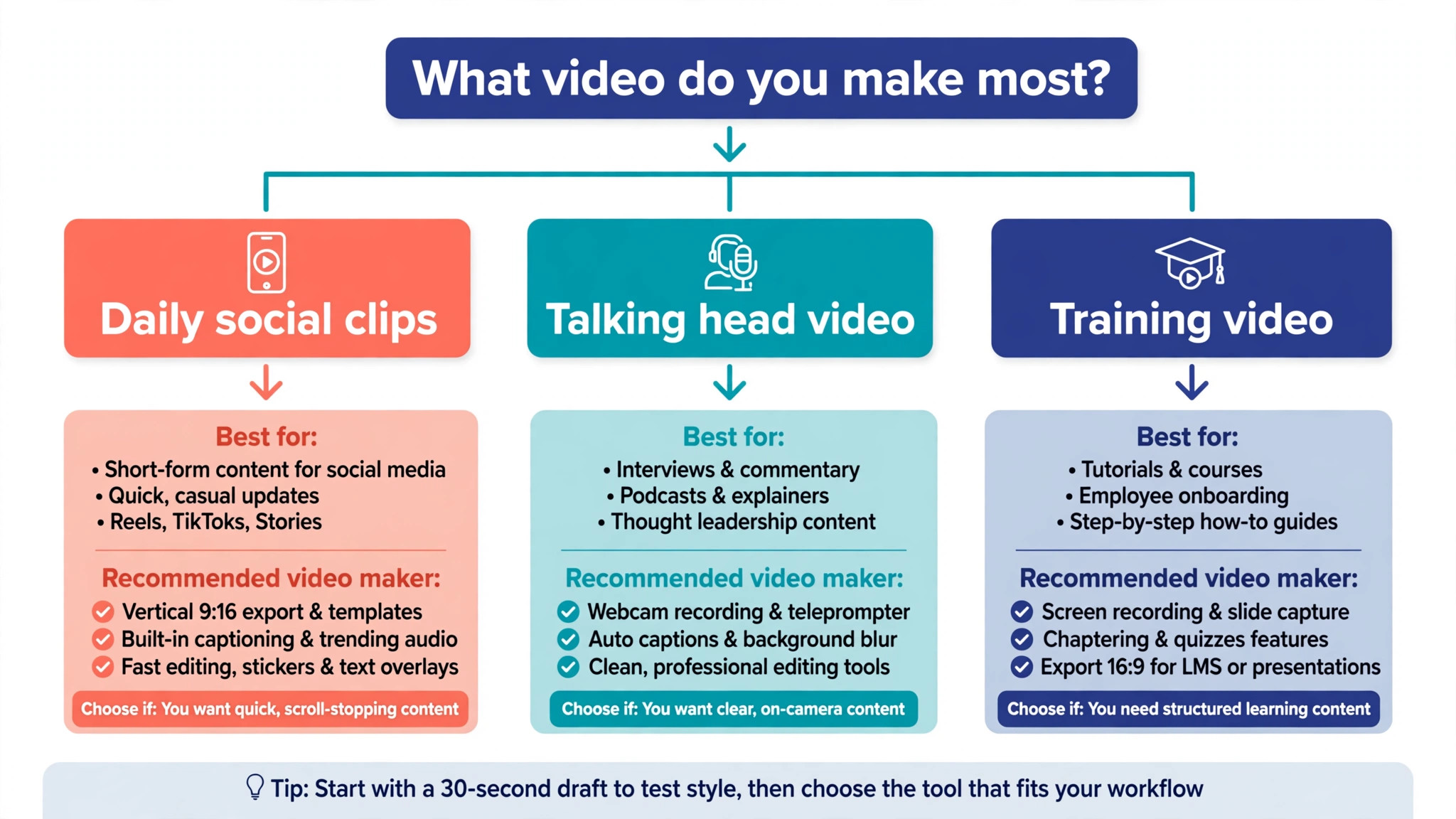
Buy Canva Pro if you want one tool for social video, promos, and brand consistency, and you want your team to learn it fast. Buy Descript if your main video is you talking to camera, because editing by transcript is the fastest way to cut a talking head video. Buy HeyGen if you need presenter videos without filming yourself, and buy Synthesia if those presenter videos are training or explainers that must stay consistent across a team.
Buy OpusClip if you already record long video, such as webinars or podcasts, and you want short clips with captions for social feeds. Buy InVideo or Pictory if you want finished social videos from a prompt or a blog post without filming anything. Buy CapCut if you edit on your phone and you want the strongest free editor available. The twelve reviews below give you the price, the limits, and the job for each tool, so you can match the buy to your week instead of buying on a demo.
The 12 Tools Compared
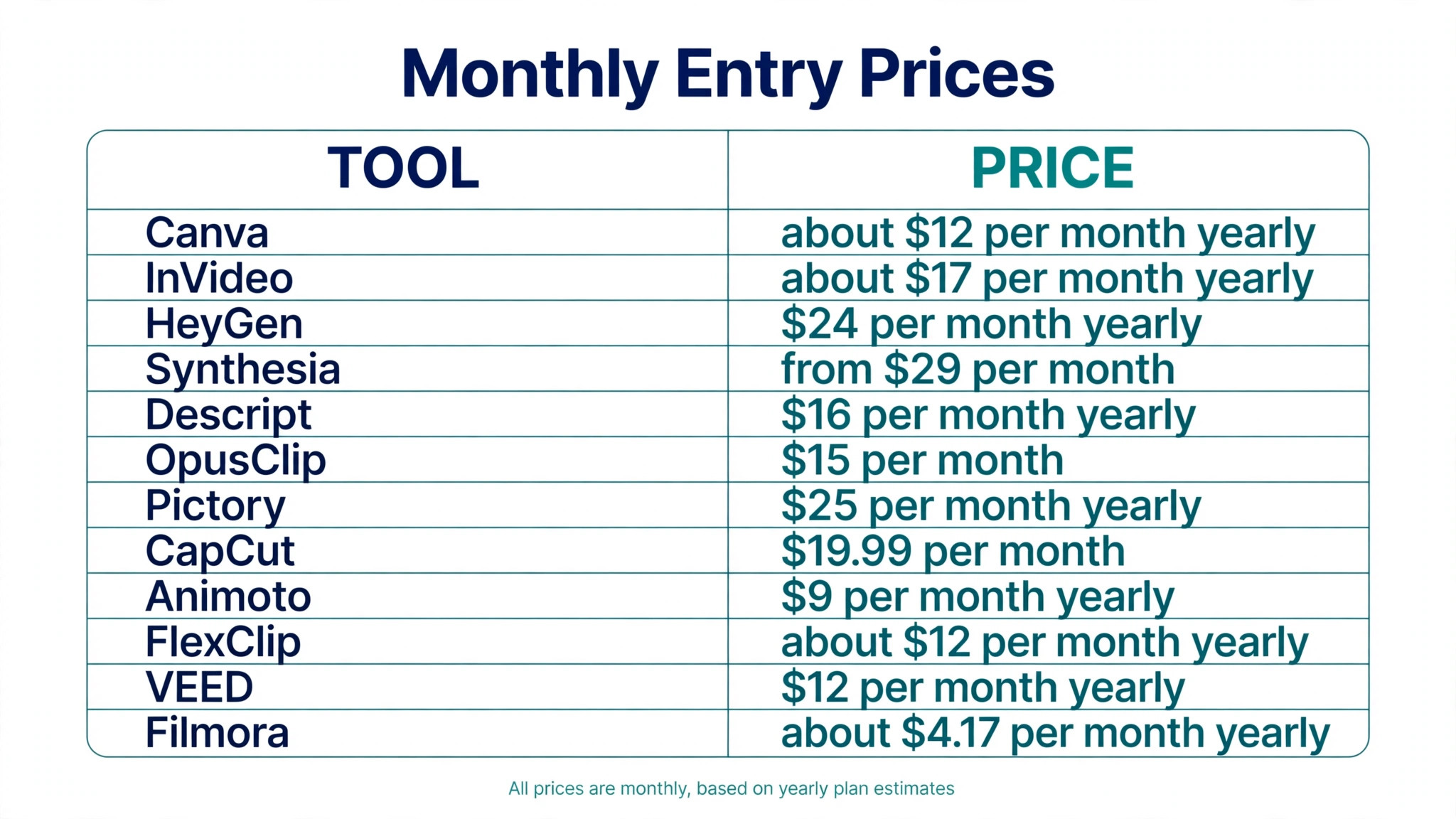
The tables below compare the twelve tools on the facts that decide most purchases, what each one is best at, whether you can try it free, and what the entry paid plan costs. Prices are published prices before tax, and vendors change them without warning, so check the pricing page before you pay.
| Tool | Best for | Free option | Paid entry |
|---|---|---|---|
| Canva | Templates and brand video | Free plan | $144 a year, Pro |
| InVideo | Social video from a prompt | Free plan | About $17 a month, yearly |
| HeyGen | Avatar presenter video | Free plan, 3 videos a month | $24 a month, yearly |
| Synthesia | Training and explainer video | Free plan | From $29 a month |
| Descript | Edit video by transcript | Free plan | $16 a month, yearly |
| OpusClip | Short clips from long video | Free plan | $15 a month |
| Tool | Best for | Free option | Paid entry |
| — | — | — | — |
| Pictory | Blog posts and slides to video | Free trial | $25 a month, yearly |
| CapCut | Phone editing, free start | Free plan | $19.99 a month, Pro |
| Animoto | Slideshow and promo video | Free plan, watermark | $9 a month, yearly |
| FlexClip | Template promo and social video | Free plan | $143.88 a year, Plus |
| VEED | Browser editing and subtitles | Free plan | $12 a month, yearly |
| Filmora | Desktop editing for beginners | Free version, watermark | $49.99 a year, Basic |
Best Pick by Job
Use this table to match the best video makers for small business to your job before you read the full reviews. A tool that wins for daily social clips can lose for training video, because the two jobs need different strengths, and the table below keeps those jobs separate.
| Job | Pick | Why it wins |
|---|---|---|
| Daily social clips and promos | Canva | Templates, brand kits, fast learning |
| Talking head video editing | Descript | Edit by transcript, fastest cuts |
| Presenter video, no camera | HeyGen | Avatars, voice clone, many languages |
| Training and explainers | Synthesia | Consistent presenters, team scale |
| Long video into short clips | OpusClip | Auto clips, captions, reframing |
| Phone editing, free start | CapCut | Strongest free editor on mobile |
1. Canva
Canva is the default video maker for a small business that needs social video every week without hiring an editor. Its video templates cover promos, product launches, sales, testimonials, and stories, and the drag and drop editor means a shop owner can finish a clip in the same time it takes to write the caption. Brand kits hold your colors, fonts, and logo in one place, so the tenth video looks like the first, and Magic Studio tools resize one design for feed, story, and reel formats without rebuilding it. That consistency is the feature most small businesses actually need, because a feed of mismatched videos looks unplanned even when each clip is good.
Pro costs 144 dollars a year for one person, and the free plan is genuinely useful for testing, with thousands of templates and limited AI use. The limit is depth. Canva edits short social video well and long video poorly, and it cannot match Descript for transcript editing or HeyGen for presenter video. For a small business, Canva is the strongest of the best video makers for small business when the job is everyday social video, and it pairs well with a dedicated editor when the job grows beyond templates.
2. InVideo
InVideo builds finished social videos from a prompt, a script, or a product link, which suits a business that wants volume without filming. Type what the video should say, pick a style, and InVideo assembles stock footage, text, music, and voiceover into a draft you can edit. Its template library is built for ads, promos, testimonials, and product explainers, so a shop can produce a week of social video in one sitting, and its stock library removes the need to film product footage yourself.
Paid plans start at about 17 dollars a month on yearly billing, with a free plan for testing. The credit limits are the thing to watch, because the entry plan is tight for a business that publishes daily video, and the plan most small businesses land on costs far more than the headline price. The output also needs editing, because AI assembled footage can feel generic if you accept the first draft. Buy InVideo when your bottleneck is volume, many finished videos from text, and skip it when your bottleneck is a single polished brand film.
3. HeyGen
HeyGen makes presenter videos with an AI avatar, so a business can publish a talking head video without filming anyone. You can build an avatar from your own face and voice, or pick a stock avatar, type a script, and receive a video in more than 30 languages. That matters for a small business with no camera confidence, no quiet filming room, or customers in more than one language, because the presenter is consistent every time and never needs a reshoot for a changed price.
The free plan gives three watermarked videos a month at 720p, with each video capped at one minute, which is enough to test the workflow honestly. Creator costs 24 dollars a month on yearly billing, and the price is credit based, so heavy users pay more than the headline figure. The limit is warmth. An avatar video informs well and persuades less well than a real person on camera, so use HeyGen for explainers, updates, and training, and film yourself for the videos that need trust, such as testimonials and apologies.
4. Synthesia
Synthesia is the training and explainer specialist in this set, and it is the tool to buy when your videos must teach the same lesson the same way every time. Pick an avatar presenter, type or paste a script, and Synthesia produces a clean studio style video in minutes, with consistent pronunciation, pacing, and branding across a whole course. A small business can turn onboarding, product training, and FAQ answers into video without booking a studio or training a presenter.
The free Basic plan lets you test the workflow, and Starter starts from 29 dollars a month on monthly billing. The price is the main objection, because 29 dollars a month is dear for a business that needs two videos a quarter, and the value only appears when you publish training regularly. The output looks corporate by design, so it suits onboarding and explainers and suits social entertainment poorly.
5. Descript
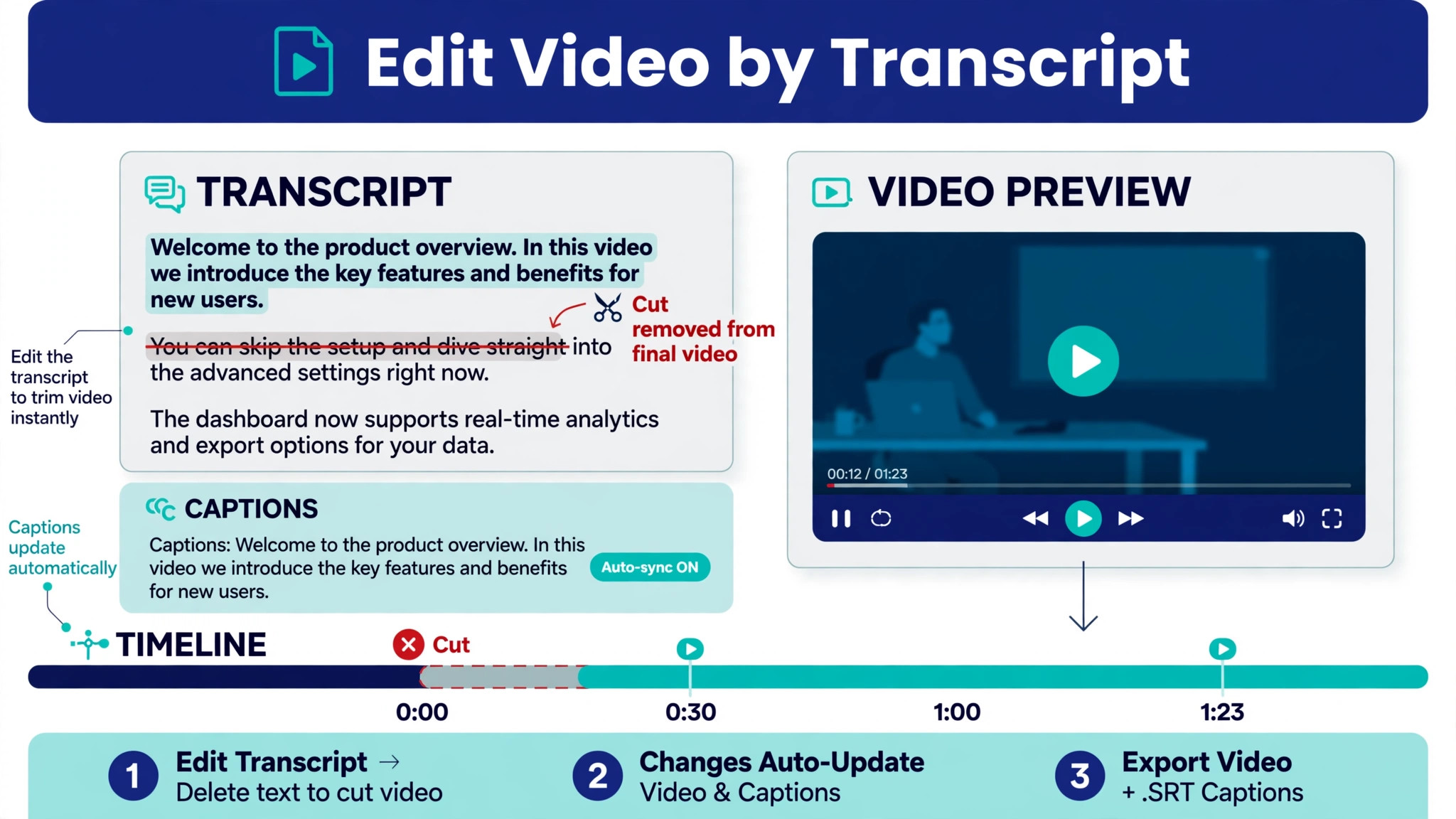
Descript edits video the way you edit a document, and for talking head video that single idea saves more time than any template library. Record yourself, and Descript transcribes the video into text. Delete a sentence in the transcript and the video cuts itself. Remove filler words with one click, fix a flub by typing the correct word, and add captions without a second tool. A small business owner who films weekly updates, tutorials, or podcast video can cut an hour of editing down to twenty minutes.
The free plan gives 60 media minutes a month and 100 one time AI credits, which is enough to test the workflow on real videos. Hobbyist costs 16 dollars per person a month on yearly billing, or 24 dollars on monthly billing. The limit is scope. Descript is weak for template promos and animation, and its editor can lag on complex projects with many layers. Buy Descript when your video is mostly you talking, and pair it with Canva when you also need polished promos.
6. OpusClip
OpusClip turns long video into short clips, and it is the highest return tool here for a business that already records webinars, podcasts, or live sessions. Upload a long recording and OpusClip finds the moments worth clipping, cuts them into vertical shorts, adds captions, reframes the speaker, and scores each clip for viral potential. A single one hour webinar can become ten social posts without a day of manual editing, which is why creators and small teams call it the category default for repurposing.
Starter costs 15 dollars a month, with a free plan that gives 60 credits a month for testing. The clip scores are a guide, not a promise, and the best scoring clip is not always the clip your customers need, so review every clip before you publish and pick for your audience, not for the score. The tool also needs good source material, because a dull hour of video produces dull clips no matter how clever the cutting. Buy OpusClip when you already record long video weekly, and skip it when you have no long video to cut.
7. Pictory
Pictory turns blog posts, scripts, and slides into video, which suits a business that already writes well and wants that writing to reach video audiences. Paste a blog post and Pictory picks the key sentences, matches them with stock footage, adds captions and voiceover, and returns a finished video. A firm with a library of articles can repurpose a year of writing into a video channel without filming a single scene, and the same workflow turns a slide deck into a training video.
Starter costs from 25 dollars a month on yearly billing, with a free trial for testing. The stock footage is the strength and the weakness, because it looks professional and can also look generic when every competitor uses the same clips. Edit the footage choices for your best videos, and keep the script short, because Pictory works best on tight posts and struggles with long, meandering articles. Buy Pictory when you own written content worth reusing, and skip it when you need original filmed footage.
8. CapCut
CapCut is the strongest free video editor in this set, and it is the tool to buy, or rather to start with, when you edit on your phone. The free plan covers core editing, templates, effects, captions, and music, and the mobile app is fast enough to cut a Reel or TikTok between customers. A shop owner can film a product on a phone, trim it, add captions and trending audio, and publish in fifteen minutes, which is a workflow no desktop tool in this set can match for speed.
Pro costs 19.99 dollars a month, or 179.99 dollars a year, and it removes the limits that matter for daily publishing, including premium effects, templates, and cloud storage. The limit is ownership and depth. CapCut is owned by the same company as TikTok, which worries some businesses, and its desktop editing is lighter than Filmora or Descript for long projects. Buy CapCut when your video is short, vertical, and edited on a phone, and keep a desktop editor for the longer pieces.
9. Animoto
Animoto is the simplest tool here for slideshow and promo video, and it fits a business that wants a finished video from photos and text without learning an editor. Pick a template, drop in your photos or clips, add text and music, and Animoto times the cuts to the beat. Photographers, real estate agents, restaurants, and retailers use it for property tours, menu highlights, and seasonal promos, because the output looks polished with almost no editing skill.
The free plan exports at 720p with a watermark, which is enough to test templates honestly. Basic costs 9 dollars a month on yearly billing, or 19 dollars on monthly billing, which makes it one of the cheapest paid plans in this set. The limit is flexibility. Animoto templates shape your video more than you shape them, and a business that wants precise control over timing, text placement, or branding will outgrow it fast. Buy Animoto when you need quick slideshow video from photos, and skip it when you need precise editing.
10. FlexClip
FlexClip is a browser based template maker for promo and social video, and it is the pick for a small business that wants a desktop style editor without installing software. Its templates cover product promos, sales, real estate, education, and social posts, with a stock library, text animations, and one click exports for every major network. The editor loads fast, the templates are organized by use case, and a first video takes under an hour even for a beginner.
The free plan lets you test the workflow, and Plus costs 143.88 dollars a year, which is about 12 dollars a month. That price is fair for the template range, though the refund terms are strict, with a seven day money back window, so test on the free plan before you pay for a year. The limit is originality. Template video can look alike across businesses, so change the opening three seconds, use your own photos where it matters, and keep the text in your voice. Buy FlexClip when you want browser editing with strong templates at a low yearly price.
11. VEED
VEED is a browser editor built around subtitles, recording, and team review, and it is the pick for a business that publishes talking head video and cares that viewers can follow it with the sound off. Its subtitle tool is fast and accurate, its screen recorder captures tutorials without extra software, and its browser workflow means nothing to install and nothing to update. A team can record, caption, review, and publish from the same tool, which removes the file passing that slows small teams down.
The free plan covers basic editing for testing, and Creator costs 12 dollars per user a month on yearly billing, which is one of the lowest paid entries in this set. The limit is power. VEED edits short and medium video well and struggles with long, layered projects, and its template range is thinner than Canva or FlexClip. Buy VEED when subtitles, recording, and browser simplicity matter most, and pair it with a template tool when you need polished promos.
12. Filmora
Filmora is the desktop editor for a beginner who wants more control than a template tool without the learning curve of professional software. It runs on Windows and Mac, with a guided flow, effects, transitions, titles, and audio tools that a first time editor can learn in a weekend. A small business that films product demos, event recaps, or YouTube videos will find its balance of power and simplicity hard to beat at the price.
Basic costs 49.99 dollars a year, with a one time license at 79.99 dollars, and a free version that exports with a watermark. The 30 day money back guarantee makes it safe to test on a real project. The limit is that it is a desktop editor, so it needs a capable computer and it cannot match the phone speed of CapCut or the browser convenience of VEED. Buy Filmora when you edit on a computer, you want to own your tool, and your videos run longer than a social clip.
How to Choose
Start with the video you make most often, because the best video makers for small business are the ones that make your common video fast, not the ones that make a rare video beautifully. Count last month, how many social clips, how many talking head videos, how many training videos, how many slideshow promos, and buy for the top two categories. A tool that wins your top category and loses your fifth category is a better buy than a tool that is average at all five.
Next, test the export that matters to you. Film a one minute test on your phone, edit it in each finalist, and export it vertical, square, and horizontal. Check the result on a phone, and check the captions with the sound off, because most social video is watched muted. The tool whose export looks right on the first try is the tool you will use weekly.
Finally, add up the real monthly cost before you commit. Credit plans, per seat pricing, and per user pricing all hide the true number, so calculate for your team size and your monthly volume, not for one user making one video. Pay monthly for the first month even when yearly billing is cheaper, and switch to yearly only after a month of real videos proves the fit. A tool that saves an hour a week is worth 30 dollars a month. A tool that saves nothing is dear at any price.
Mistakes to Avoid
The first mistake is buying the tool with the longest feature list. A long list usually means a long learning curve, and a small business that needs video this week cannot spend a week learning keyframes. Buy the tool you can learn in an afternoon, and add a second tool later if a specific job demands it.
The second mistake is ignoring the free plan limits. A watermarked export, a 720p cap, or a one minute cap can make a free plan useless for real publishing, so test the free plan on the exact video you need to publish, not on a throwaway clip. If the free export cannot go live, the free plan told you nothing.
The third mistake is filming without a plan. A generator can assemble footage, but it cannot invent a message, so a video made from a vague brief will sound vague. Write one sentence before you open any tool, what the viewer should do after watching, and cut every second that does not serve that sentence.
The fourth mistake is publishing without captions. Most social video plays muted, so a video without captions loses most of its audience in the first three seconds. Use the caption tool in your maker, check the spelling of product names and prices, and keep captions on screen long enough to read.
The fifth mistake is judging a tool on its best template. Templates are designed to impress in a demo, and your business will live in the average template, not the best one. Test each finalist on your dullest real job, a price update or a stock announcement, and buy the tool that makes even that video look decent.
A One Week Workflow
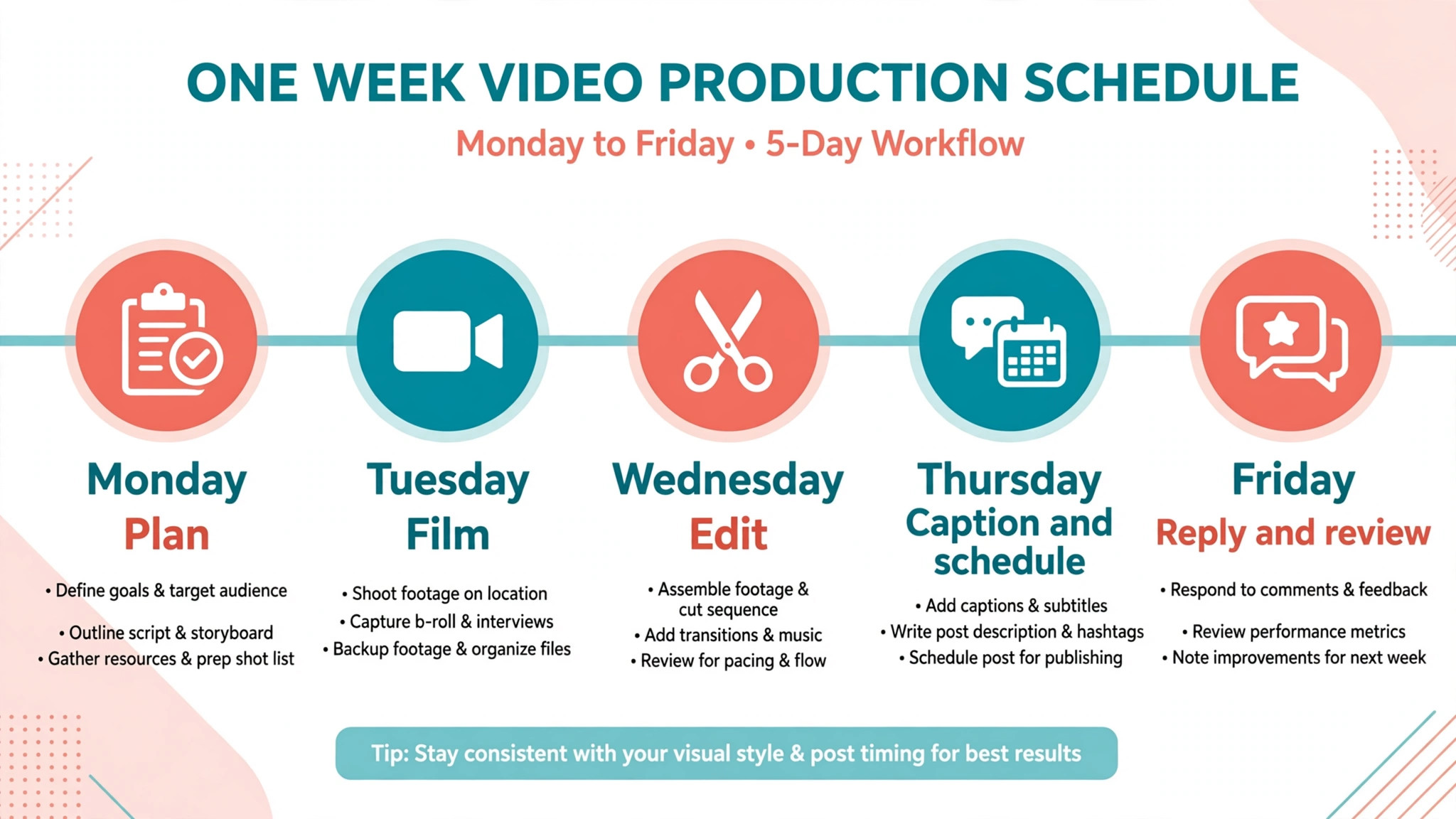
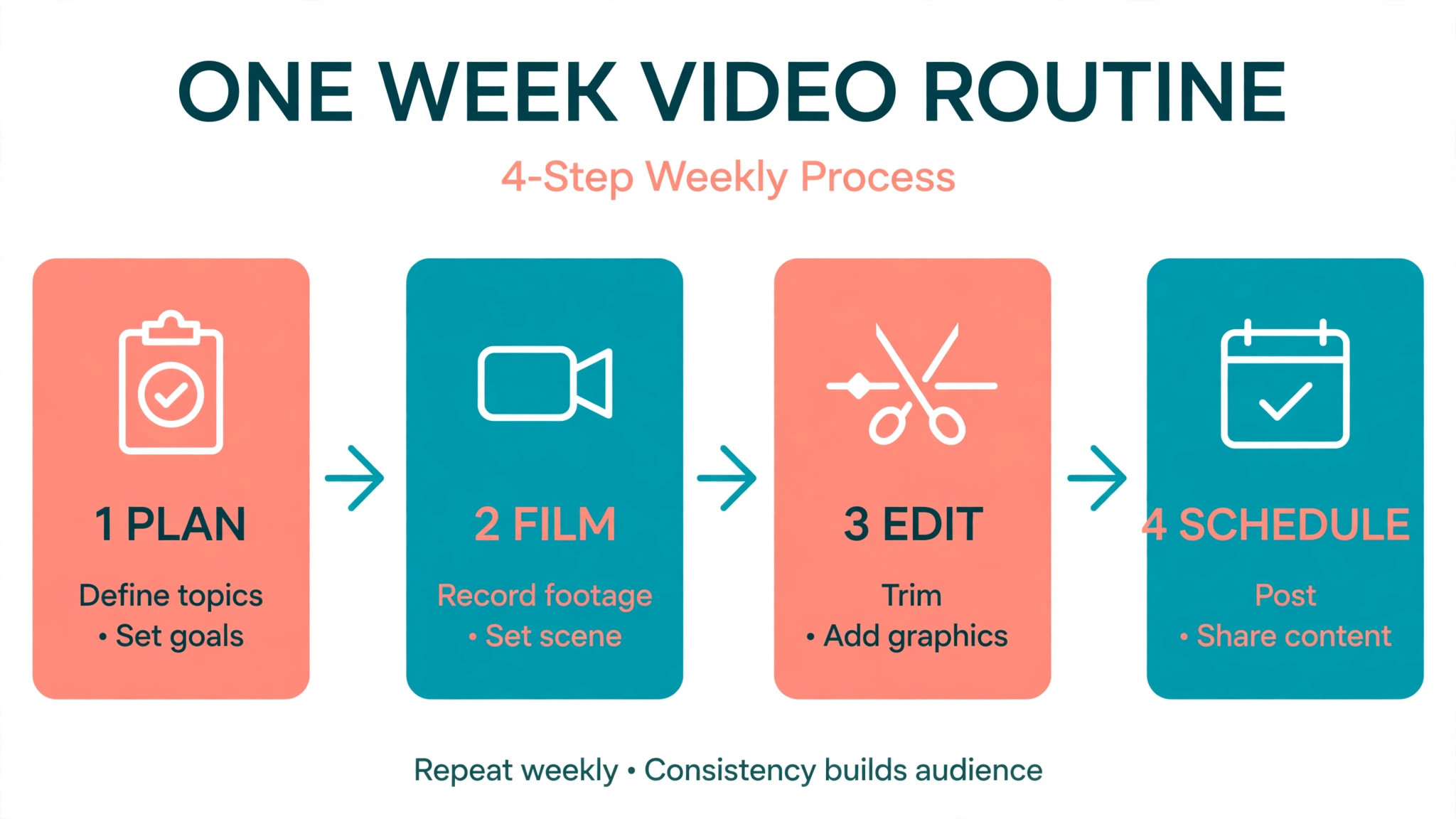
A workable video week for a small business takes about four hours once the system is running, and it produces eight finished videos across your networks. The workflow below assumes one person, one phone, and one brand, and you can scale it by adding a second filming day.
- Monday, plan in one sitting. List the videos for the week, write one sentence for each one that states what the viewer should do, and pick the format, social clip, talking head, or slideshow. A week planned on Monday never depends on inspiration on Thursday.
- Tuesday, film in one batch. Shoot all talking head video in one session, in the same spot, with the same light, and film product clips while you are already working. Batch filming saves the setup time that makes daily filming feel impossible.
- Wednesday, edit in one session. Cut talking head video in Descript or VEED, build promos in Canva or FlexClip, and cut clips from long video in OpusClip. Edit in batches, because switching between tools five times a day wastes more time than the editing saves.
- Thursday, caption and schedule. Add captions to every video, check each export on a phone, and schedule the posts for their best times. A video that looks right on a computer and wrong on a phone is a video your audience will scroll past.
- Friday, reply and review. Answer comments in two short windows, note which videos earned saves and shares, and save the best performing format as a template for next week. The review takes twenty minutes and it is the step that makes next week better than this one.
Frequently Asked Questions
Which video maker is best for a complete beginner?
Canva Pro is the best first buy for a complete beginner, because its templates, brand kits, and guided editor need no video skill, and a first video takes under an hour. Animoto is simpler still for slideshow video from photos, and CapCut is the best free start for phone editing. The best video makers for small business beginners are the ones you can learn in an afternoon, so test two finalists on the same real video and buy the one that felt easier.
How much should a small business spend on video tools?
Budget 15 to 45 dollars a month for one person, which covers a single tool such as Descript at 16 dollars, OpusClip at 15 dollars, or Canva Pro at about 12 dollars a month on yearly billing. A three tool stack of Canva plus Descript plus OpusClip costs about 45 dollars a month combined and covers a full video week. Start with one tool and add a second only when a specific job demands it.
Do I need to appear on camera?
No, and two tools in this set exist for that exact reason. HeyGen builds presenter videos with an avatar from a typed script, and Synthesia does the same for training and explainers. InVideo and Pictory build videos from text, stock footage, and voiceover without any filming. Appear on camera for the videos that need trust, such as testimonials and apologies, and use avatars or stock footage for the rest.
What is the cheapest way to make social video?
CapCut has the strongest free plan, with core editing, templates, effects, and captions at no cost, and Animoto Basic costs 9 dollars a month on yearly billing. Canva free plan also makes real social video, though its AI use is limited. The cheapest path is a free editor plus a phone, and the first paid upgrade should be the tool that removes your biggest time cost, usually captions or templates.
Should I use AI avatars for customer facing video?
Use avatars for explainers, updates, and training, where clarity matters more than warmth, and use a real person for testimonials, apologies, and sales videos, where trust matters most. Customers accept an avatar that teaches, and they distrust an avatar that sells, so keep the line clear. Always check the avatar tool terms for commercial use before you publish a customer facing video.
Can one tool do everything?
No single tool in this set does everything well. Canva comes closest for social video, Descript wins for editing, HeyGen and Synthesia win for presenters, and OpusClip wins for repurposing. Most small businesses end up with two tools, one for making video and one for editing or repurposing, and that pair costs less than one hour of freelance editing a week.
The Bottom Line
Start with the job, not the tool, and buy the maker that makes your most common video fast. If you need daily social video, start with Canva Pro. If you film yourself talking, start with Descript. If you already record long video, start with OpusClip.
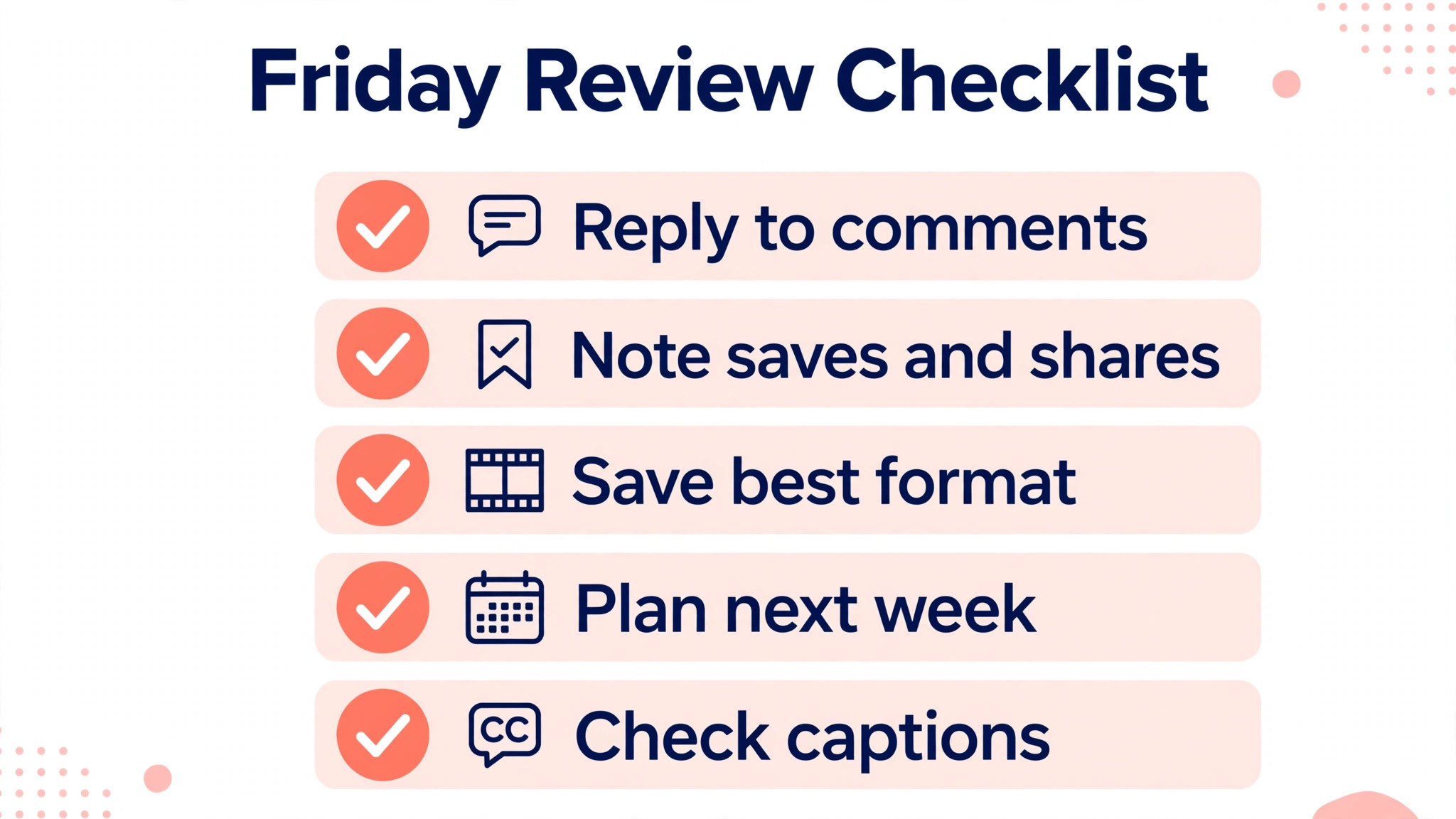
Run the one week workflow, caption every video, and review what earned saves on Friday. The best video makers for small business are the ones that survive a month of real videos, and the price that matters is the price of the plan you actually need, not the price on the homepage.