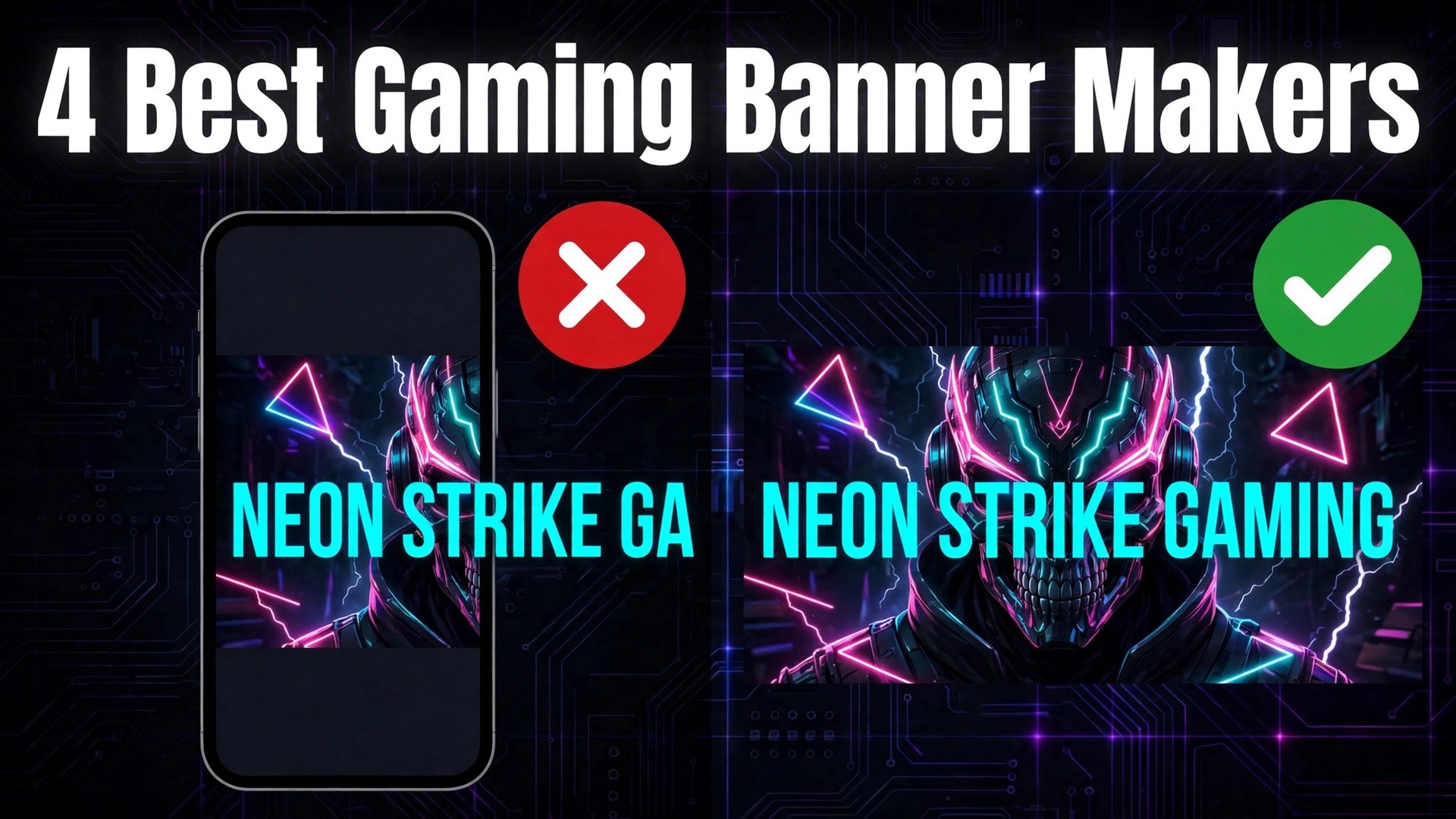
Most gaming banners fail in the same place, and it is not the art. The channel name sits outside the safe area, so it vanishes on phones. The game art is gorgeous on a TV and a blurry smear on a laptop. The text is unreadable at the size most viewers actually see it. The best YouTube banner makers for gaming channels are the tools that stop those three failures before they happen.
A banner is the first thing a new viewer judges, and a banner that crops wrong tells them the channel is careless before a single video plays. The right tools stop those failures with the right canvas size built in, a visible safe area guide, and gaming templates that look like the genre instead of a generic gradient.
What Makes a Gaming Banner Work
A gaming banner has one job, and it is not decoration. It must tell a stranger what the channel plays, how often it uploads, and why it is worth subscribing to, in the two seconds before they scroll on. The channel name must be readable at the smallest size YouTube shows it, which means bold type, high contrast, and no thin fonts over busy art. The game or genre must be visible at a glance, through art, a character, or a colour scheme that fans recognise instantly. A banner for a horror channel and a banner for a cosy farming game should not look alike, and a viewer should know which one they are looking at without reading a word.
The second job is consistency. The banner, the avatar, and the thumbnails should look like they belong to the same channel, with the same colours, the same font, and the same tone. A neon cyberpunk banner above pastel thumbnails tells the viewer that nobody is in charge of the look. A consistent look tells them the channel is a real project with a plan.
The third job is practical. The banner should carry the upload schedule or the main series name when there is room inside the safe area, so a returning viewer knows when to come back. A banner that only shows a game logo is a poster. A banner that shows the name, the genre, and the schedule is a signpost.
The fourth job is restraint. The most common error in gaming banners is filling every pixel, with characters, logos, social icons, and effects competing for attention. A banner viewed on a phone shows only the central strip, so everything outside that strip is decoration and everything inside it must earn its place. One strong image, one readable name, and one line of supporting text will beat a crowded collage every time. The tools in this guide are judged on how easily they help a non designer reach that restraint, not on how many effects they offer.
The Sizes You Cannot Ignore
YouTube publishes one set of banner numbers, and every tool in this guide builds its canvas around them. The recommended upload is 2,560 by 1,440 pixels, the minimum accepted is 2,048 by 1,152 pixels, and the file must be 6 MB or smaller. Accepted formats are JPG, PNG, GIF without animation, and BMP. The shape is 16 by 9, the same as a TV screen, which is why a banner designed as a 16 by 9 image uploads cleanly and a banner designed at any other shape is rejected or distorted.
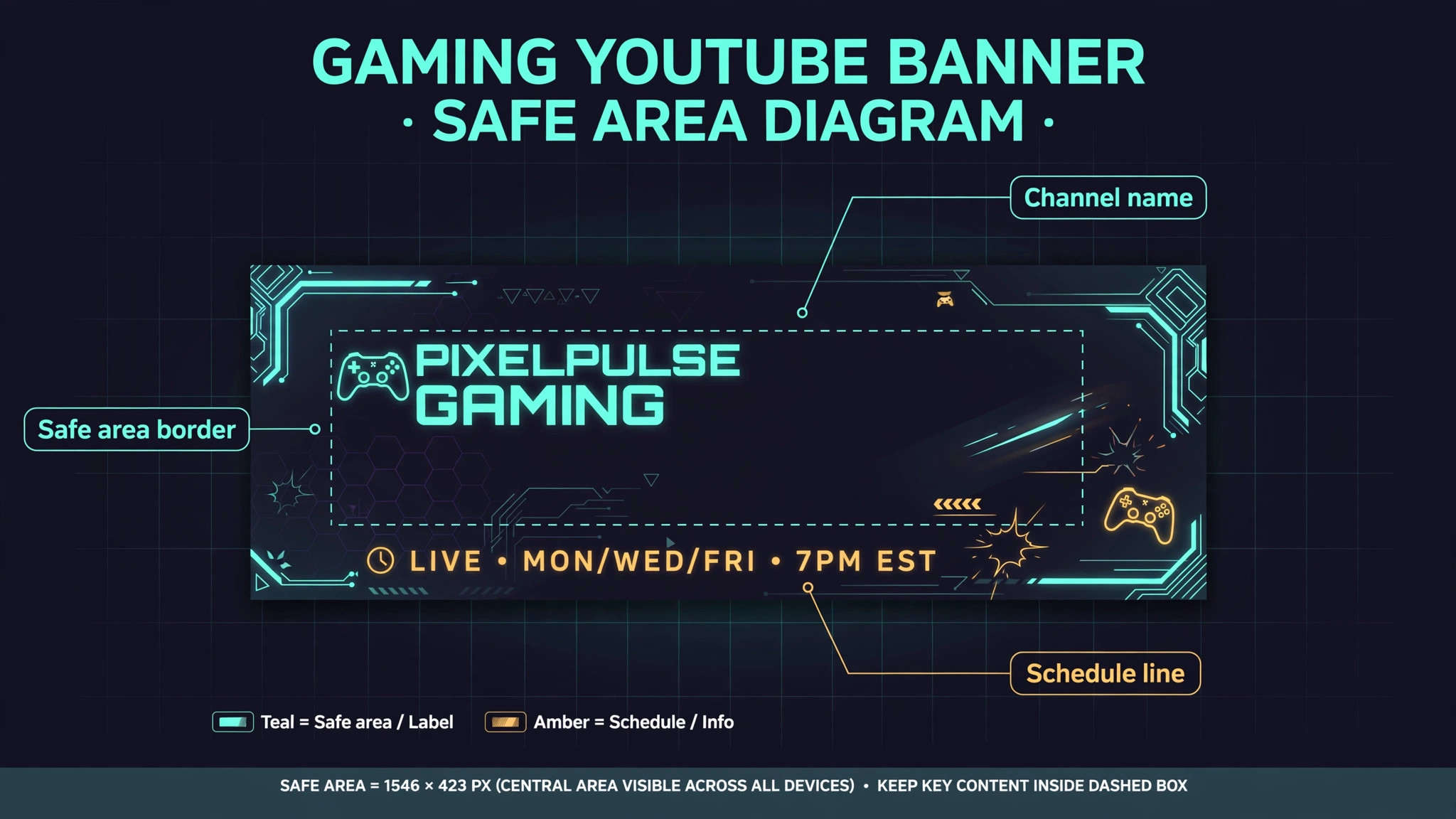
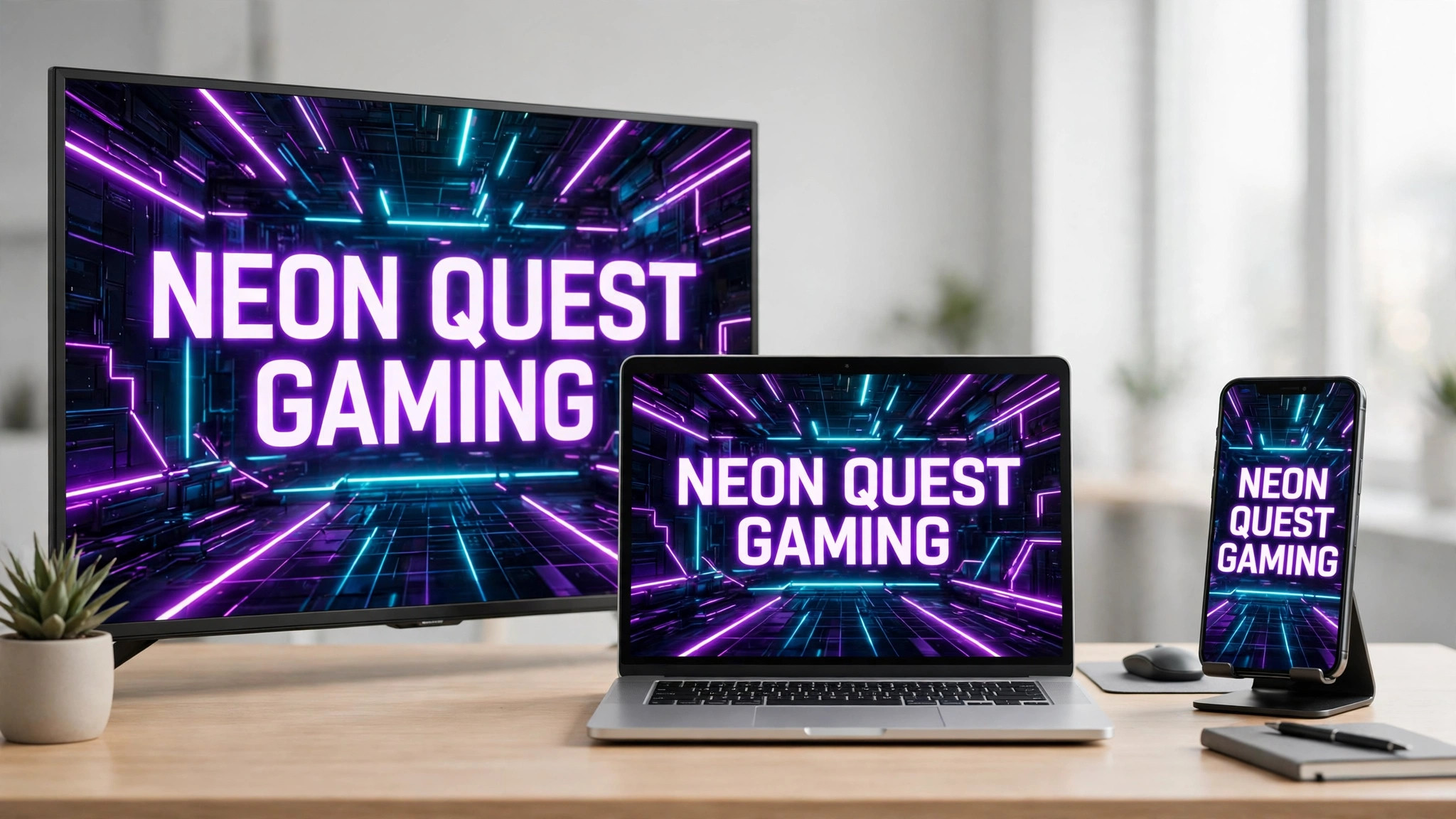
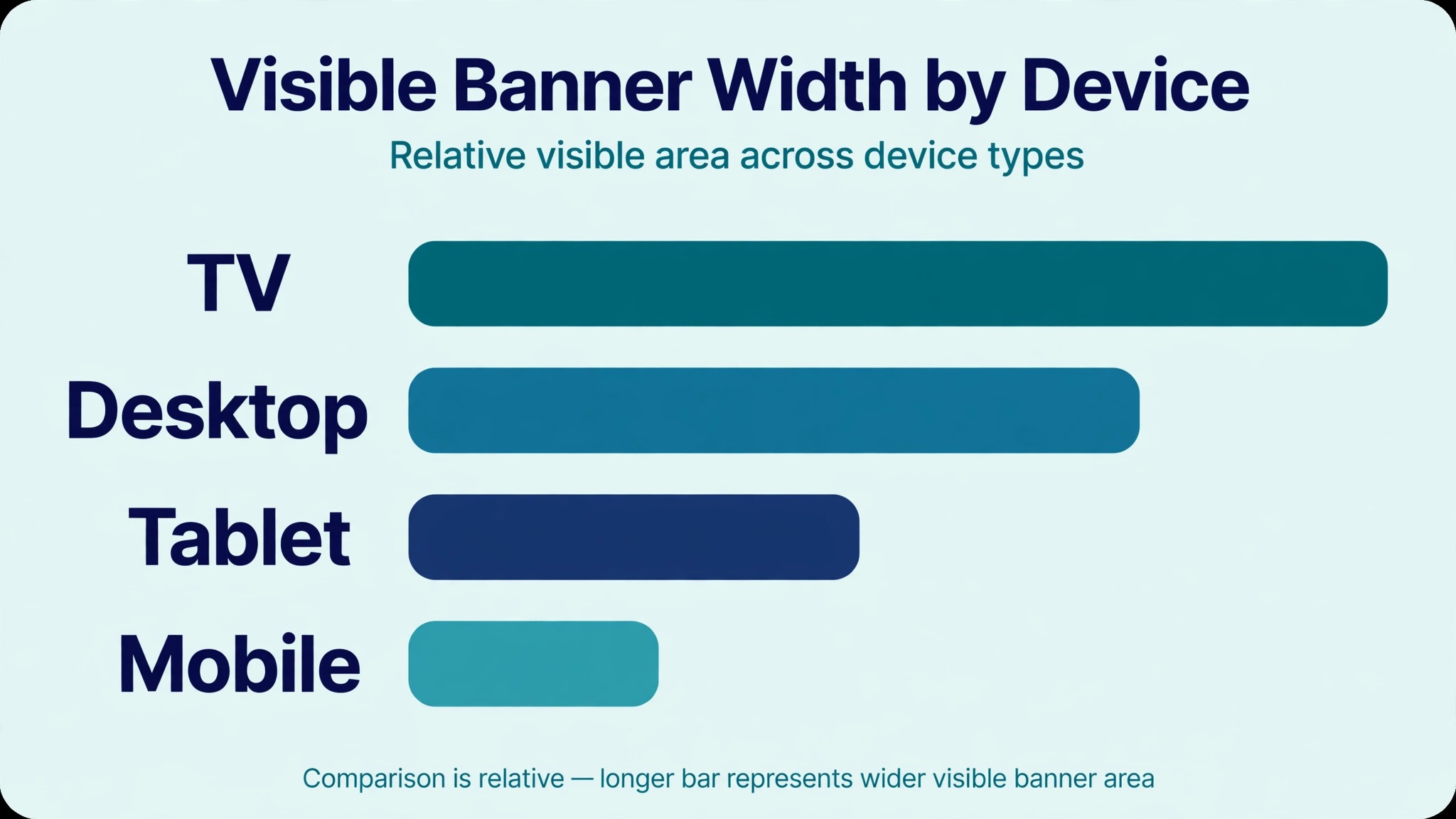
The number that actually decides whether a banner works is the safe area. Only the central 1,546 by 423 pixels of a 2,560 by 1,440 file is visible on every device, and that central strip is about 18 percent of what you upload. On a TV the whole image shows. On a desktop the banner shows as a wide strip across the middle. On a tablet the visible area narrows, and on a phone only the central strip survives. At the minimum upload size of 2,048 by 1,152 pixels, the same region measures 1,235 by 338 pixels. Everything outside the safe area is decoration, and everything that matters must sit inside it.
| Spec | Value |
|---|---|
| Recommended upload | 2,560 by 1,440 pixels |
| Minimum upload | 2,048 by 1,152 pixels |
| Safe area at recommended size | 1,546 by 423 pixels, centred |
| Safe area at minimum size | 1,235 by 338 pixels, centred |
| Maximum file size | 6 MB |
| Accepted formats | JPG, PNG, GIF, BMP |
| Aspect ratio | 16 by 9 |
The practical consequence is that a banner must be designed backwards, from the safe area outward. Start by placing the channel name, the logo, and any text inside the central 1,546 by 423 pixel rectangle, then fill the rest of the canvas with art that can be cropped without loss. A tool that shows the safe area as a guide while you design is worth more than a tool with a thousand extra templates, because the guide is what keeps the name visible on a phone. Every tool below is scored on whether it shows that guide, and the winner shows it by default.
The 4 Best YouTube Banner Makers for Gaming Channels, Scored
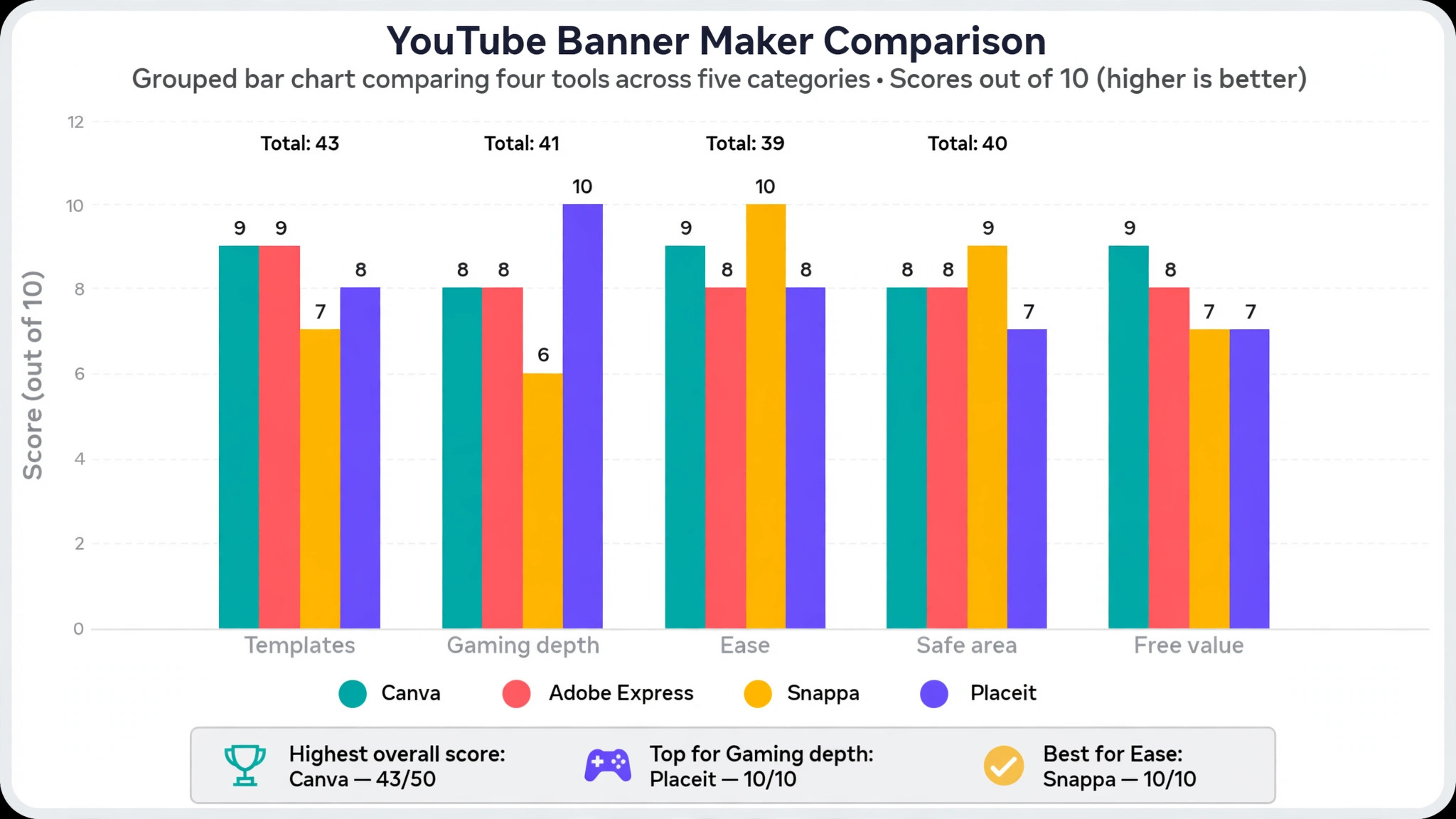
The table below scores the four tools on the five things that decide a gaming banner. Template quality covers how many gaming templates exist and how good they look. Gaming depth covers whether the templates, fonts, and art match gaming culture rather than generic design. Ease covers how fast a beginner reaches a finished banner. Safe area covers whether the tool shows the guide while designing. Free value covers what the free plan genuinely lets you export. Each score is out of 10, and the total is out of 50.
| Tool | Templates | Gaming depth | Ease | Safe area | Free value | Total |
|---|---|---|---|---|---|---|
| Canva | 9 | 8 | 9 | 8 | 9 | 43 |
| Adobe Express | 9 | 8 | 8 | 8 | 8 | 41 |
| Snappa | 7 | 6 | 10 | 9 | 7 | 39 |
| Placeit | 8 | 10 | 8 | 7 | 7 | 40 |
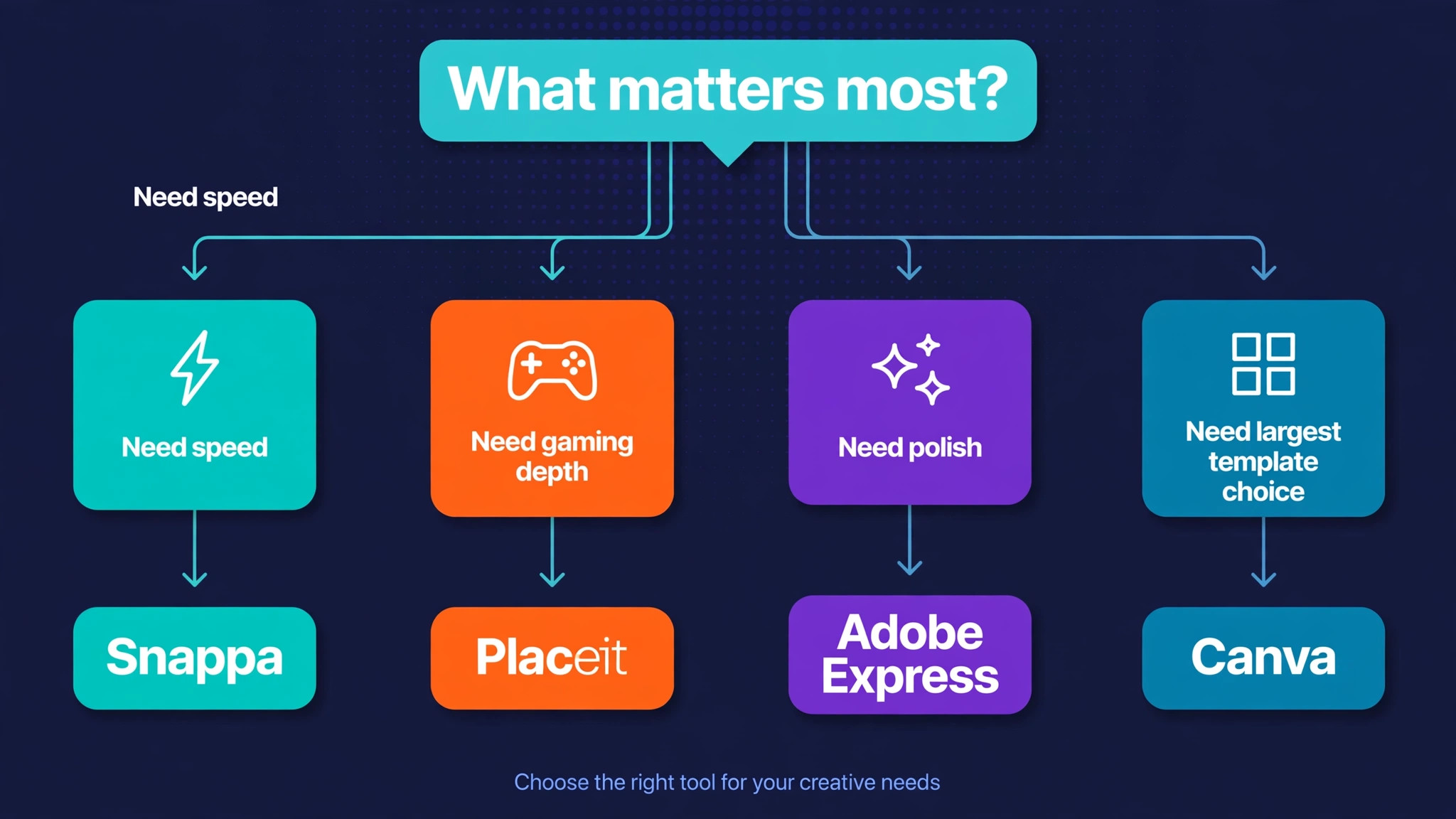
Canva wins on breadth, with the largest template library and the strongest free plan. Placeit wins on gaming depth, with templates built specifically for gaming channels rather than adapted from general design. Snappa wins on speed, with the fastest route from a blank canvas to a finished banner. Adobe Express wins on polish, with Adobe fonts and stock assets that make text heavy banners look expensive. The scores are close because all four tools are good at the basic job. The choice comes down to which strength matters most for your channel, and the sections below make that choice concrete.
The Four Tools in Detail
The sections below take the tools one by one, in score order, with the real price, the gaming strengths, and the catch that the homepage leaves out. The best YouTube banner makers for gaming channels are not the ones with the most templates in total, but the ones with the most templates that look right for a gaming audience, so each section names the gaming content specifically rather than praising the library in general.
Canva
Canva is the best overall pick for most gaming channels, and it wins on the size of the library and the strength of the free plan. Its free plan includes thousands of YouTube banner templates, a drag and drop editor that a complete beginner can learn in minutes, and free exports at the full 2,560 by 1,440 resolution. The gaming templates cover the main genres, from neon esports to retro pixel art to dark horror, and the text tools make it easy to build a bold channel name that stays readable at small size.
Pro costs 18 dollars a month or 144 dollars a year in the United States according to an October 2026 check, and it adds brand kits, premium stock, and background removal.
The catch is that the best gaming templates sit behind Pro, and the free library, while large, includes many generic designs that need heavy editing to look like gaming. Canva is also a general design tool, so its gaming art is broad rather than deep, and a channel with a very specific aesthetic may find the templates feel familiar. Pick Canva when you want the largest choice, the easiest editor, and a free plan that exports at full resolution. It is the safest default, and it is the tool most gaming creators already know.
Adobe Express
Adobe Express is the best pick for a polished, professional banner, and it brings Adobe design quality to a beginner friendly editor. Its free plan offers thousands of templates, more than 50,000 royalty free photos, and a font library that makes text heavy banners look genuinely premium. Firefly generative AI can create background art in a specific style, which helps a channel that wants a unique look without hiring an artist. Premium costs 9.99 dollars a month, or 99.99 dollars a year, and adds more templates, fonts, stock assets, and generative credits.
The catch is that Express is a general design tool with gaming templates, not a gaming tool, so the gaming depth is thinner than Placeit. The free plan is generous, but the background remover and some AI features sit behind Premium, and the editor, while friendly, has more options than Snappa, so the first banner takes a little longer. Pick Adobe Express when the banner must look expensive, when typography matters more than game art, or when you already use Adobe products and the fonts and assets are familiar.
Snappa
Snappa is the best pick for speed, and it is built for creators who would rather be recording than designing. The editor is stripped back to the essentials, with preset YouTube banner dimensions, a collection of ready to edit templates, and a library of stock photos and graphics. A banner can be finished in under five minutes, and the safe area guide is shown while you edit, which is the feature that matters most for this job. The free Starter plan covers the template library with a small monthly download allowance, and Pro costs 15 dollars a month, or 10 dollars a month billed annually, for unlimited downloads.
The catch is depth. Snappa has fewer gaming templates than Canva or Placeit, no AI generation, and a smaller font and effects library, so a channel that wants a very distinctive look will outgrow it. The free download allowance is also small, with published checks showing three downloads a month on one page and five on another, so confirm the current limit before planning around it. Pick Snappa when speed matters more than anything else, and when the banner is a clean name plus art rather than a complex illustration.
Placeit
Placeit by Envato is the best pick for gaming depth, and it is the only tool in this list built around gaming templates first. Its library is full of layouts designed specifically for gaming channels, with esports, streamer, retro, horror, and fantasy styles that look like the genre from the first click. The editor is template driven, so you pick a gaming layout, change the channel name, swap the art, and export, with far less blank canvas work than Canva or Express. Free templates are available, and the Unlimited plan starts from 7.47 dollars a month, which covers mockups and templates across the Envato library.
The catch is that Placeit is a template tool, not a full editor, so a banner that needs custom illustration or unusual layouts will hit its limits quickly. The safe area guidance is weaker than Snappa, so you must check the central strip yourself before exporting. Pick Placeit when the gaming look matters most, when you want a banner that reads as gaming instantly, and when you are happy to work inside a template. For a channel whose identity is the game it plays, the best YouTube banner makers for gaming channels are the ones with the deepest gaming library, and Placeit leads that measure by a clear margin.
The 20 Minute Banner Workflow
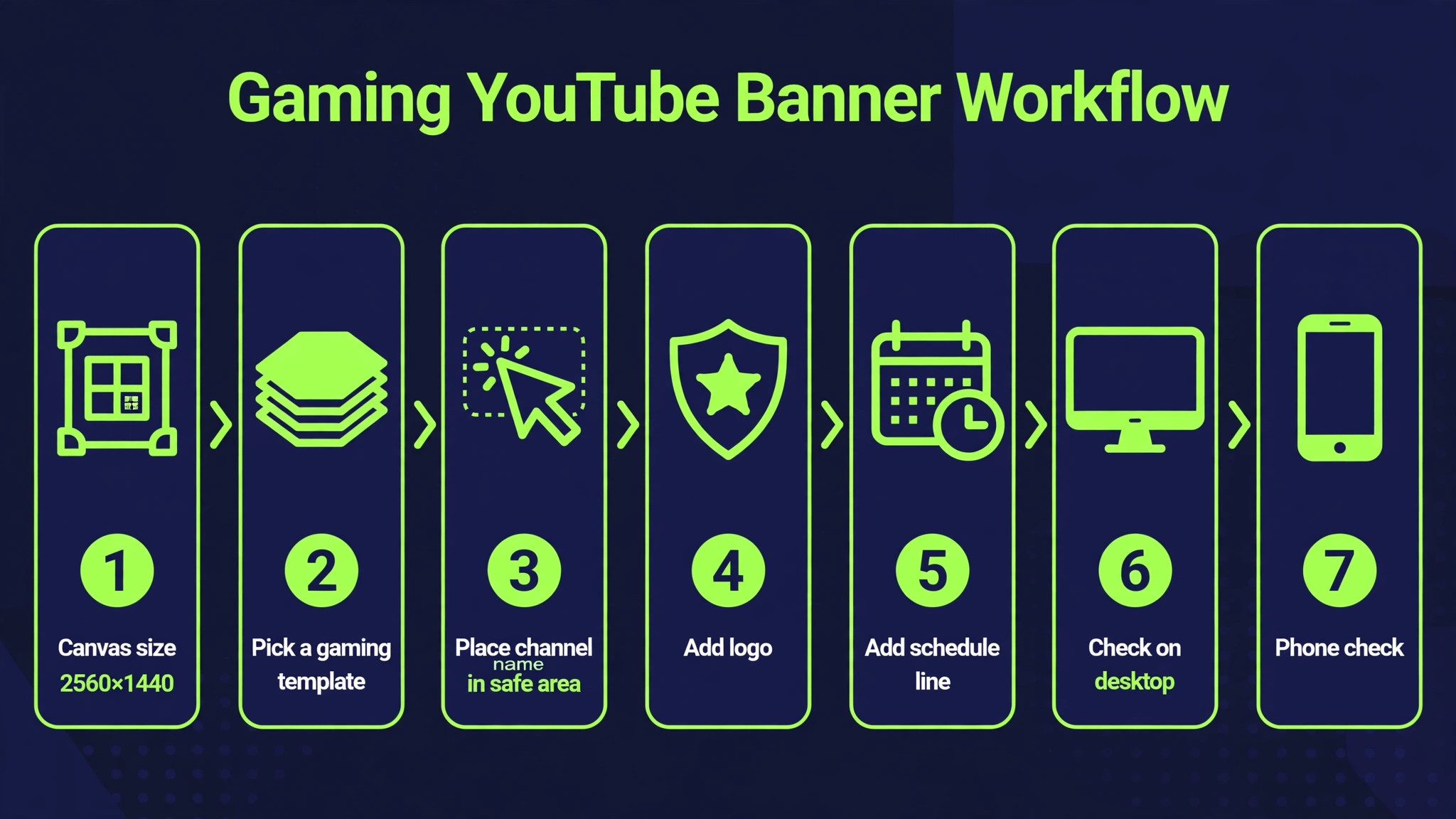
The workflow below produces a finished banner in about twenty minutes, and it works with any of the four tools above. The order matters, because each step protects the next one from rework. Design the safe area first, then the art, then the text, and check the result on a phone before you upload.
- Open the tool and start from the YouTube banner size, not from a blank canvas. Confirm the canvas reads 2,560 by 1,440 pixels before you add anything, because a banner built at the wrong size will be rejected or distorted on upload.
- Draw the safe area guide first. Mark the central 1,546 by 423 pixel rectangle and treat it as the only space that matters. Everything you place outside it is decoration, and everything inside it must earn its place.
- Choose a gaming template that matches your genre, not the one that looks flashiest. A horror channel needs dark art and sharp type. A cosy channel needs soft colours and round type. The template should look like your channel before you change a word.
- Place the channel name inside the safe area in bold type at a size that stays readable on a phone. Test it by zooming out until the banner is the width of a phone screen. If the name is hard to read at that size, make it bigger, bolder, or simpler.
- Add one line of supporting text, such as the upload schedule or the main series name, and only if there is room inside the safe area. If the line crowds the name, remove it. A banner with a clear name beats a banner with a name plus a cramped schedule.
- Fill the space outside the safe area with art that can be cropped without loss. A character, a game scene, or a colour wash works. Text, logos, and faces do not belong there, because half the viewers will never see them.
- Export as a JPG or PNG under 6 MB, upload it to YouTube, and check the channel on a phone, a laptop, and a TV if you have one. The phone check is the one that matters most, because it shows the narrowest crop. If anything is cut off, move it inside the safe area and export again.
That sequence is the whole job, and the tools that make it fastest are the ones that show the safe area guide by default and offer a gaming template for your genre. The best YouTube banner makers for gaming channels are the ones that keep you inside the safe area without thinking about it, and the workflow above is what makes the check a habit rather than a hope.
Gaming Banner Mistakes
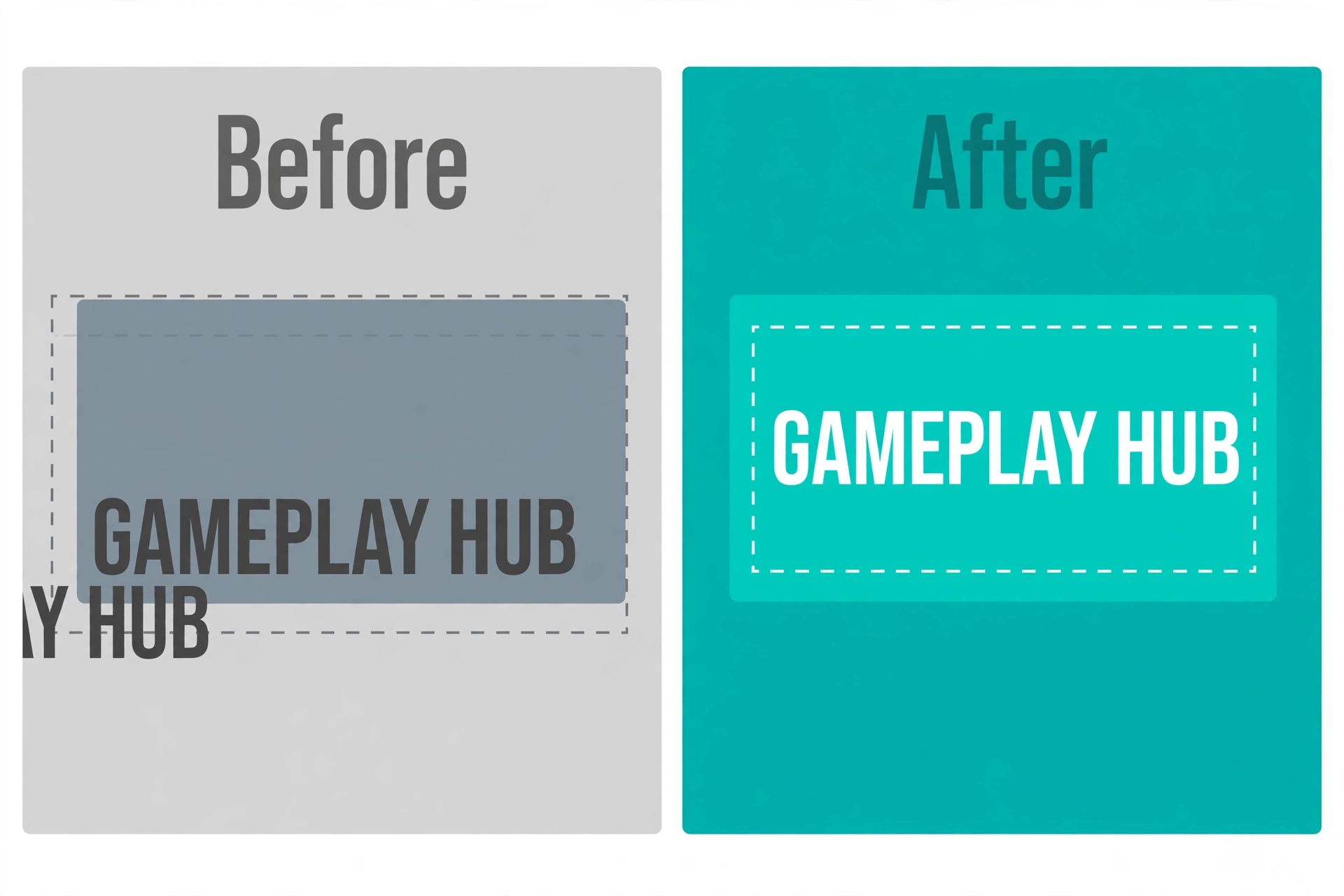
The most common mistake is putting text outside the safe area. A schedule, a social handle, or a second line of text placed near the edge of the canvas looks fine in the editor and vanishes on a phone. Keep every word inside the central strip, and treat the rest of the canvas as art only. The second mistake is using a low resolution image. A banner built from a 1,920 by 1,080 file will be upscaled on upload and look soft on a TV, while a banner built at 2,560 by 1,440 stays sharp everywhere. Start at the full size, every time, even if the source art is small.
The third mistake is a busy background behind thin text. Game art is detailed by nature, and white or thin type disappears into it. Put the text on a solid panel, a dark gradient, or a blurred section of the art, and test it at phone size before you export.
The fourth mistake is a banner that does not match the thumbnails. A neon banner above pastel thumbnails tells the viewer that nobody is in charge of the look, and it costs subscriptions from people who otherwise liked the videos. Pick one palette, one font, and one tone, and use them everywhere. The fifth mistake is never updating the banner. A channel that changed games, changed schedule, or passed a subscriber milestone with an old banner is telling new viewers that the channel is out of date. Revisit the banner every six months, or whenever the main series changes.
The sixth mistake is uploading the wrong file type. A banner saved as a low quality JPG with heavy compression will show banding in gradients and soft edges on text, especially in dark gaming art. Export as a PNG when the banner has sharp text and flat colours, or as a high quality JPG when it is mostly photographic art, and keep the file under the 6 MB limit. The format is a small choice, but it is the difference between crisp type and type that looks out of focus.
Free vs Paid, and What the Free Plan Really Gives You
All four tools offer a free plan, and the free plan is enough for a first banner on every one of them. Canva free exports at full 2,560 by 1,440 resolution with thousands of templates, which is the most generous free offer in this list. Adobe Express free offers thousands of templates and more than 50,000 stock photos, with the premium assets and some AI features behind the 9.99 dollar a month plan. Snappa free covers the template library with a small monthly download allowance, and Placeit free offers a selection of templates with the full library behind the Unlimited plan from 7.47 dollars a month.
The paid plan is worth it when the free limits start to cost time. A creator who makes a new banner every month, or who manages several channels, will hit the Snappa download cap quickly and will benefit from Pro at 10 dollars a month billed annually. A creator who wants brand kits, premium stock, and background removal will benefit from Canva Pro at 18 dollars a month or 144 dollars a year, or from Adobe Express Premium at 9.99 dollars a month.
A creator who wants the deepest gaming template library will benefit from Placeit Unlimited. The rule is simple. Use the free plan until it slows you down, then pay for the plan that removes the specific limit you hit, not the plan with the longest feature list.
Matching the Tool to Your Channel
A solo streamer who records daily should pick Snappa for speed, because the banner changes often and the five minute workflow matters more than template depth. An esports team with a brand to protect should pick Canva Pro or Adobe Express, because brand kits and consistent fonts matter more than speed. A retro or indie channel should pick Placeit, because its gaming templates match niche aesthetics that general tools miss. A variety channel that plays a different game every week should pick Canva, because the largest library covers the widest range of genres.
The best YouTube banner makers for gaming channels are the ones that match the channel, not the ones with the highest total score, so match the strength to the channel. Budget is the second filter. A channel earning nothing yet should stay on the free plan of Canva or Adobe Express, which both export at full resolution. A channel earning a little should pay for the tool that removes the limit it hits first, whether that is downloads, premium templates, or brand kits. A channel earning enough to treat the banner as marketing should pay for Pro and treat the 10 to 18 dollars a month as a business cost, not a hobby expense.
Frequently Asked Questions
What size should a YouTube banner be for a gaming channel?
Upload at 2,560 by 1,440 pixels, which is the size YouTube recommends, and never below the 2,048 by 1,152 pixel minimum. Keep the file under 6 MB in JPG, PNG, GIF, or BMP format. Keep the channel name, logo, and any text inside the central 1,546 by 423 pixel safe area, because that strip is the only part visible on every device. Design the safe area first, then fill the rest of the canvas with art.
Which banner maker is best for gaming channels?
Canva is the best overall pick for most gaming channels, with the largest template library, the strongest free plan, and full resolution exports. Placeit is the best pick for gaming depth, with templates built specifically for gaming channels. Snappa is the best pick for speed, with a banner finished in under five minutes. Adobe Express is the best pick for polish, with Adobe fonts and stock assets. The best YouTube banner makers for gaming channels are the ones with a visible safe area guide and gaming templates for your genre, so test the free plan of two tools on the same banner idea and keep the one that felt faster.
Can I make a gaming banner for free?
Yes. Canva free exports at full resolution with thousands of templates, Adobe Express free offers thousands of templates and stock photos, Snappa free covers the template library with a small download allowance, and Placeit offers free templates. A free banner can look professional, provided it is built at 2,560 by 1,440 pixels and the text sits inside the safe area. The free plans do limit the premium templates and the number of downloads, so a creator who changes banners often will feel the cap within a month or two. The paid plans add premium templates, brand kits, and AI features, but they are not needed for a first banner.
Why does my banner look cropped on mobile?
YouTube shows only the central 1,546 by 423 pixel strip on a phone, out of the full 2,560 by 1,440 image. Anything outside that strip is hidden on mobile, even though it shows on a TV or a desktop. The fix is to move the channel name, logo, and any text inside the central strip, and to treat everything outside it as decoration. Check the channel on a phone after every upload, because the phone shows the narrowest crop.
What should a gaming banner include?
The channel name in bold readable type, the game or genre shown through art or colour, and one line of supporting text such as the upload schedule or the main series name, all inside the safe area. Social handles and extra text belong in the channel description, not on the banner, where they crowd the name and vanish on mobile. One strong image, one readable name, and one line of text will beat a crowded collage every time.
Do I need Photoshop to make a good gaming banner?
No. All four tools in this guide are built for non designers, with templates, drag and drop editing, and preset banner sizes. Photoshop gives more control for custom illustration, but it is slower and harder to learn, and a beginner will reach a good banner faster in Canva, Snappa, Placeit, or Adobe Express. Use Photoshop only when the banner needs custom art that no template can provide.
How often should I update my gaming banner?
Revisit the banner every six months, or whenever the main series changes, the schedule changes, or the channel passes a milestone worth showing. A banner that still names a game the channel no longer plays tells new viewers the channel is out of date. Updating the banner is also a good moment to check that the avatar and thumbnails still match, since a consistent look across all three is what makes a channel feel like a real project.
The Final Frame
A gaming banner is a signpost, not a poster, and the tools that make a good one are the tools that keep the signpost readable on the smallest screen. Canva is the best overall pick, Placeit is the best for gaming depth, Snappa is the fastest, and Adobe Express is the most polished. Start from the 2,560 by 1,440 canvas, design inside the 1,546 by 423 safe area, keep the name bold and the art simple, and check the result on a phone before you call it done.
That twenty minute workflow, repeated every six months, will do more for the channel than any amount of extra effects. The best YouTube banner makers for gaming channels are the ones that make that workflow easy, and the banner that follows it will still be working long after the trends that inspired it have faded.