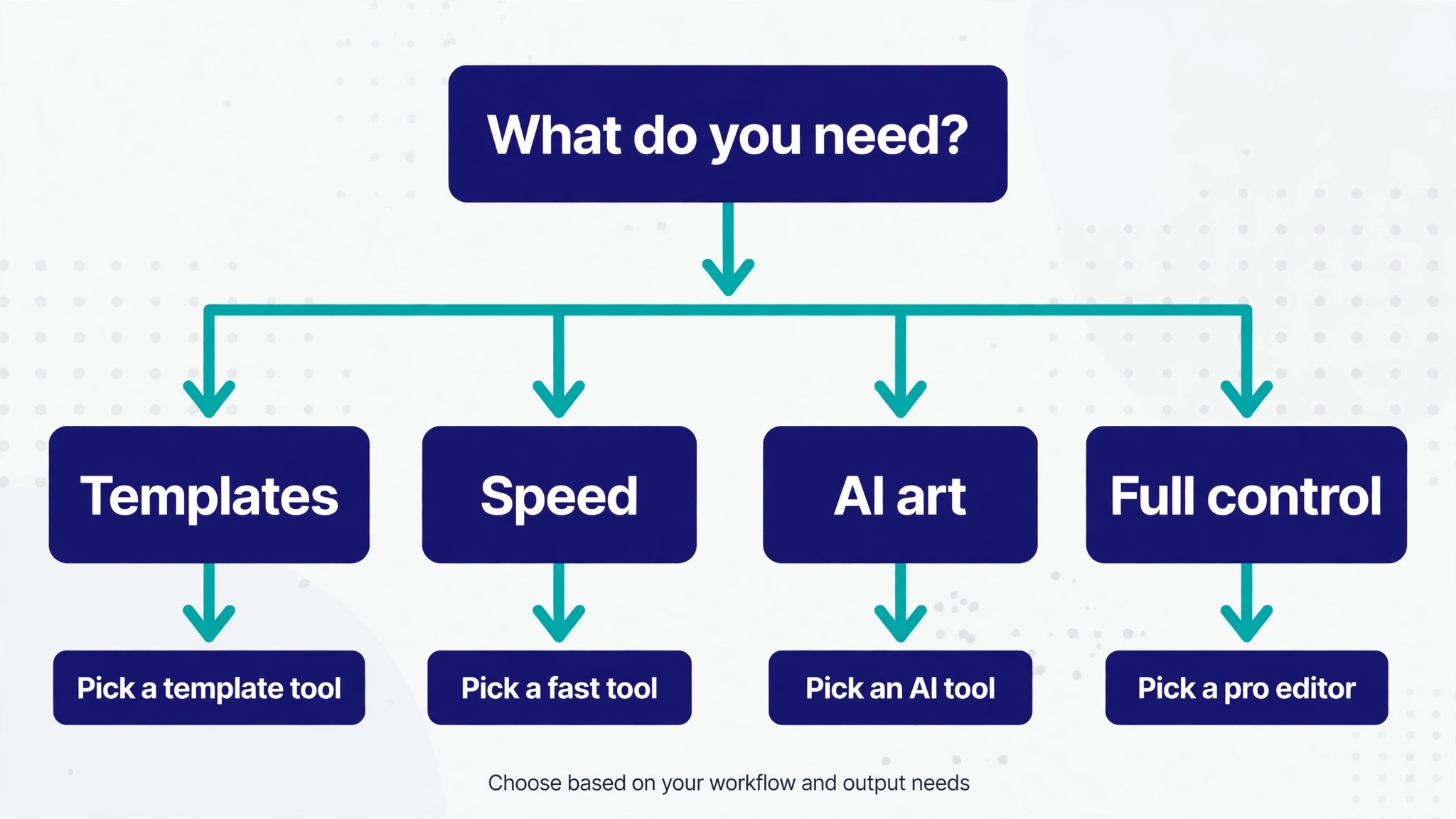
Canva gives you thousands of templates. Snappa gives you a finished banner in five minutes. Fotor gives you AI generated art when you have no photo of your own. Photopea gives you Photoshop style control for free, and Placeit gives you finished designs built around your niche. No single tool wins on every measure, which is why the choice feels harder than it should. This guide compares the best YouTube banner makers on the things that decide the choice, which are template quality, the true size of the free plan, export resolution, and price. Pick the tool that fits your channel, not the one with the longest feature list.
Picking Your Banner Maker
Canva is the best YouTube banner maker for most creators in 2026. Its free plan includes thousands of channel art templates, a drag and drop editor a beginner can learn in minutes, and full resolution 2560 by 1440 exports with no watermark. Adobe Express is the closest runner up, with stronger fonts and a cleaner feel. Fotor is the best pick if you want AI generated banner art. Snappa is the best pick if speed matters more than anything else. The other seven tools on this list win narrower contests, and the comparison table below shows exactly where each one wins, so you can skip to the tool that fits your situation.
YouTube Banner Sizes You Must Know
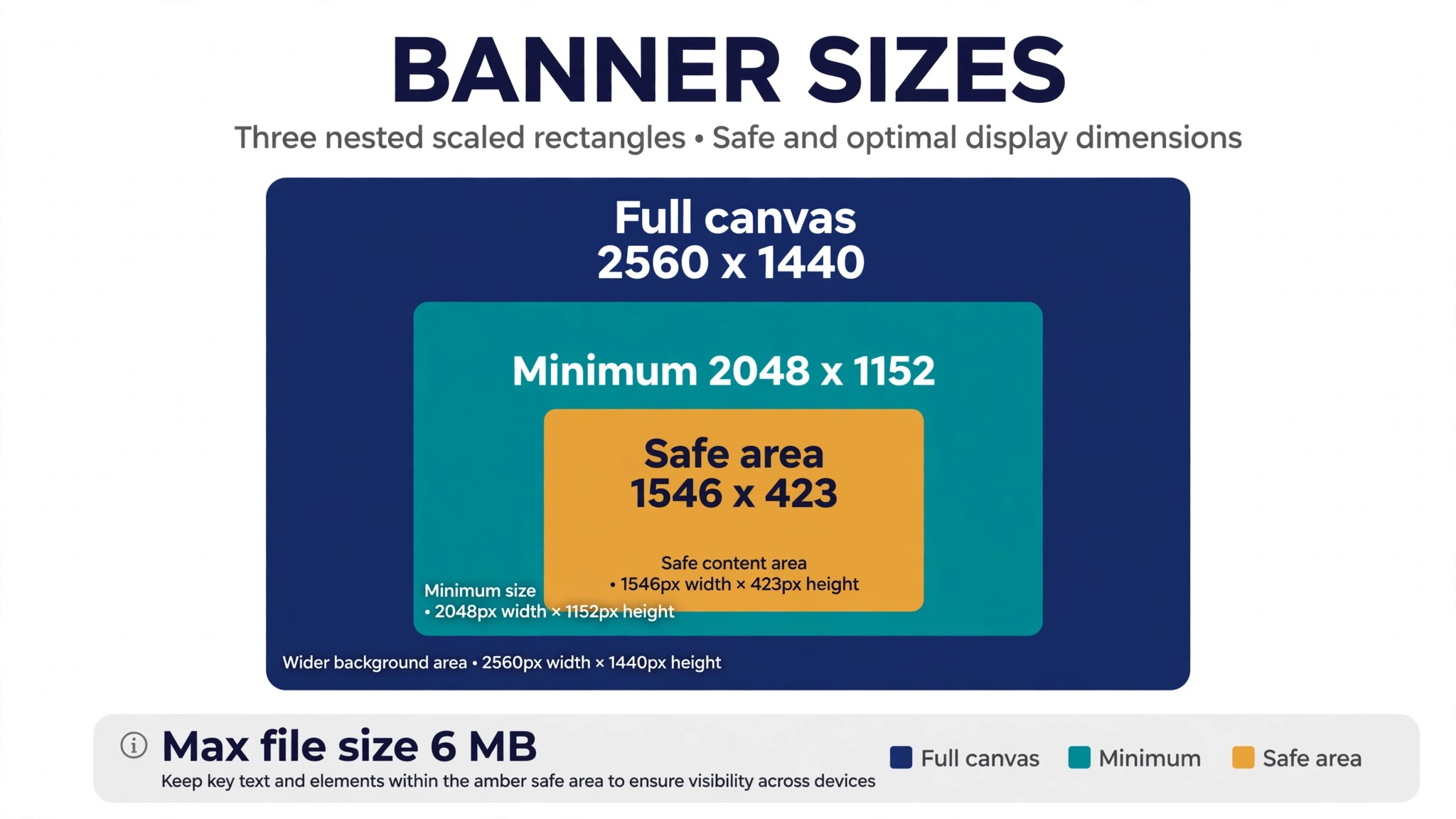
A banner that ignores the size rules will be cropped, stretched, or soft, no matter how good the design is. YouTube recommends uploading channel art at 2560 by 1440 pixels, and it will not accept anything smaller than 2048 by 1152. The file must be a JPG, PNG, or GIF, and the maximum file size is 6 MB. Design at 2560 by 1440 and you satisfy the requirement with room to spare.
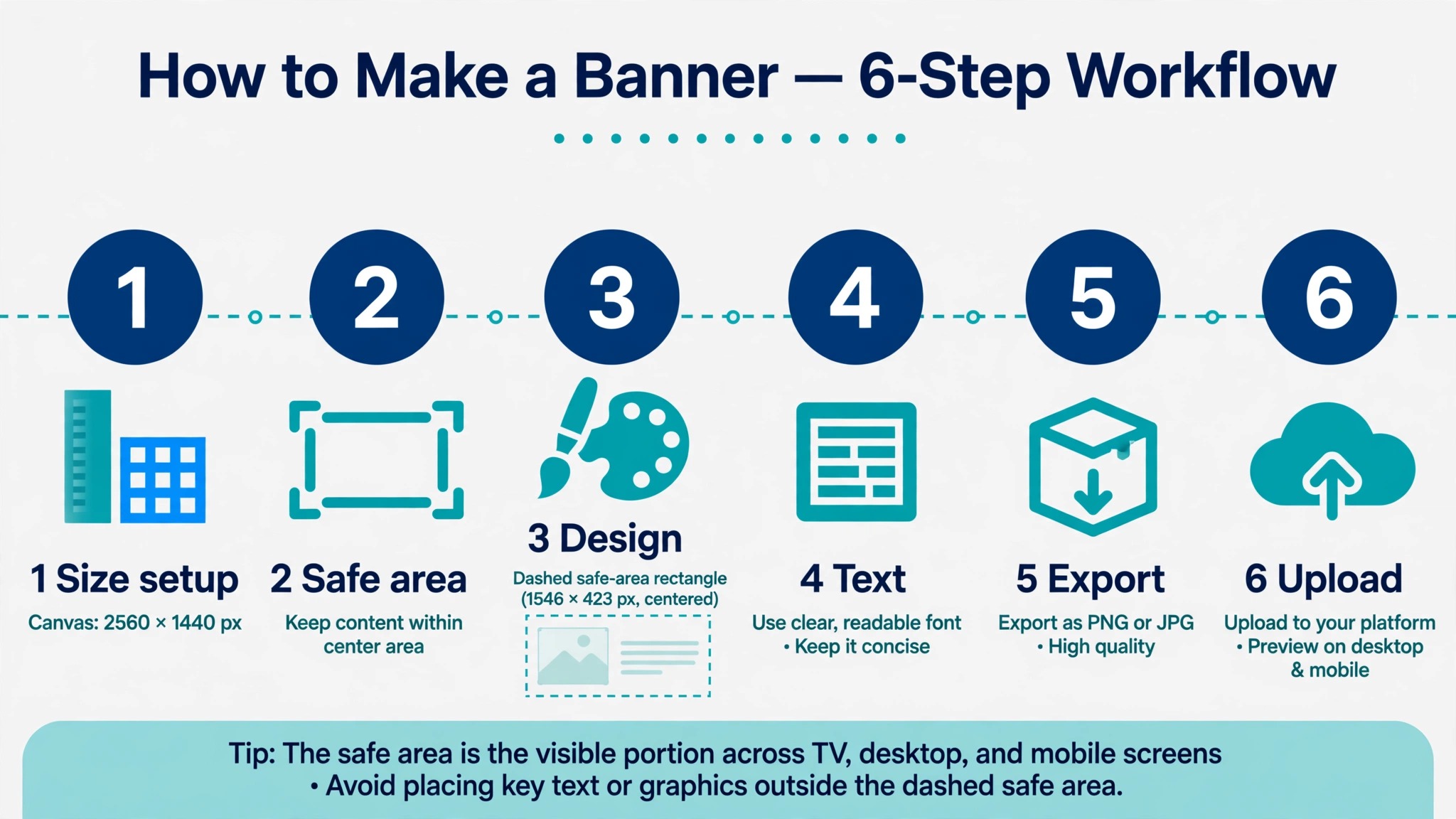
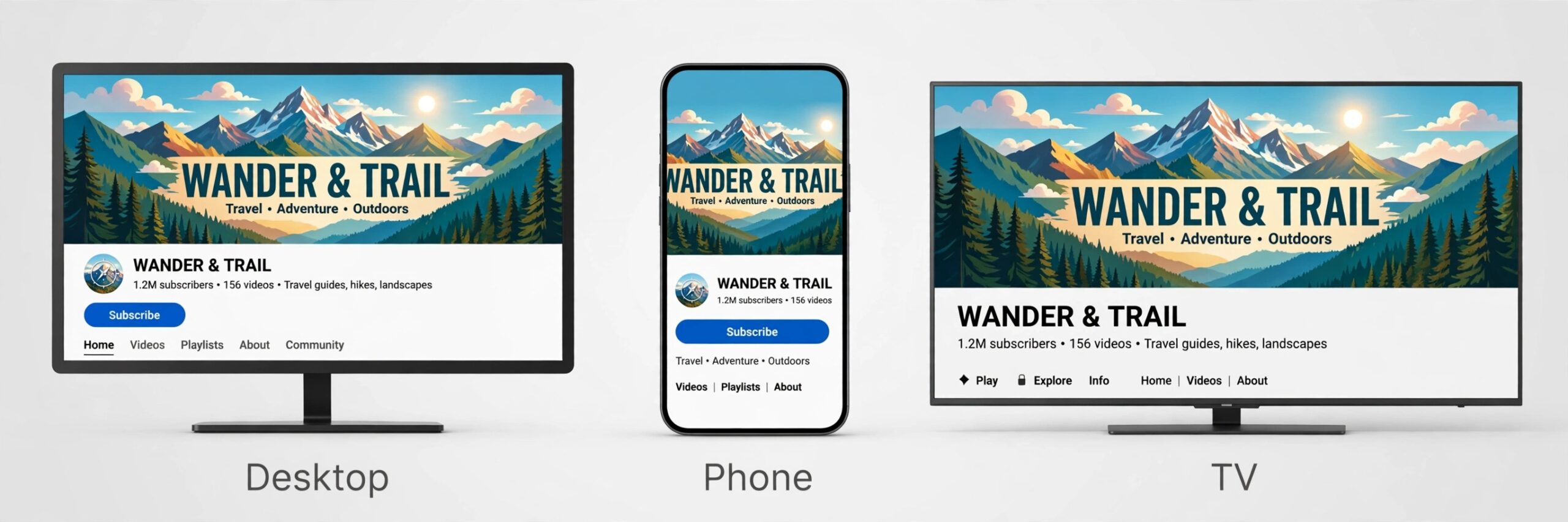
The size that actually decides the design is the safe area. Only the center 1546 by 423 pixels is guaranteed visible on every screen, from a TV to a phone. Everything outside that rectangle gets cropped on some device, so your channel name, your tagline, and any important visual element must sit inside the safe area. The rest of the canvas is background, and it should be background that can lose its edges without damage.
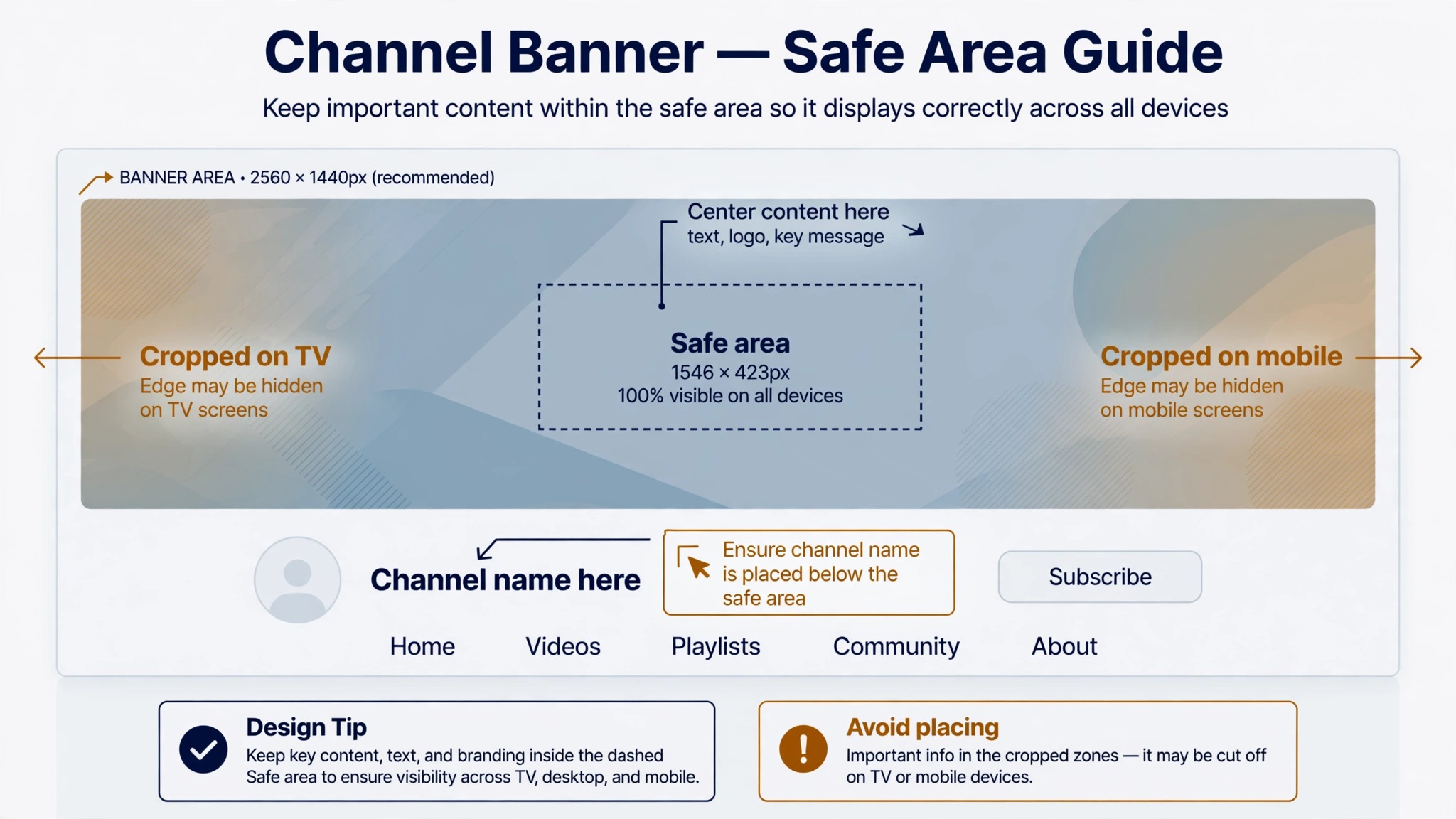
The practical consequence is simple. Design the banner in two layers. The safe area holds the message, and the full canvas holds the mood. A photo that fills the whole banner with the subject in the center works. A photo with the subject at the edge does not, because the edge disappears on a phone. The tools below are ranked with that safe area in mind, because the best YouTube banner makers make it hard to place text where a phone will crop it.
The 11 Best YouTube Banner Makers Compared
| Tool | Best for | Free plan | Paid from | Safe area guide |
|---|---|---|---|---|
| Canva | Most creators | Yes, thousands of templates | $144/yr | Yes |
| Adobe Express | Professional look | Yes, thousands of templates | $9.99/mo | Yes |
| Fotor | AI assisted design | Yes, AI tools included | $8.99/mo | Yes |
| Snappa | Speed | Yes, 3 downloads a month | $10/mo annual | Yes |
| VistaCreate | Small teams | Yes, Starter plan | $10/mo annual | Yes |
| Placeit | Finished niche designs | Limited | Check price | Yes |
| Photopea | Full control, free | Yes, no account needed | Check price | No |
| Kapwing | Video and banner together | Yes, watermarked | Check price | Yes |
| BeFunky | Photo heavy banners | Yes | Check price | Yes |
| DocHipo | Quick branded banners | Yes | Check price | Yes |
| Visme | Data and brand visuals | Yes | Check price | Yes |
Prices change often, so treat the paid column as a guide and check the pricing page before you commit. The free column matters more than the paid one for most creators, because a banner is a single static image and several tools export it at full size without a watermark. The best YouTube banner makers for your channel depend on whether you need templates, speed, or control, and the rest of this guide goes tool by tool, so you can see what each one actually gives you.
The 11 Tools in Detail
Each tool below gets the same treatment, which is what it does best, what the free plan really includes, what the paid plan costs, and where it falls short. Every tool name sits in its own heading, so you can jump to the one you are considering.
1. Canva
Canva is the default answer for a reason. Its free plan includes thousands of YouTube banner templates, a drag and drop editor that a complete beginner can figure out in minutes, and free exports at the full 2560 by 1440 resolution with no watermark. Review roundups list more than 5,000 YouTube templates, covering every niche from gaming to cooking, and the Pro brand kit stores your colors, fonts, and logo. Pro is listed at 144 dollars a year in recent pricing guides, so check the current page. The weakness is familiarity. Canva templates are everywhere, so a popular template can look like a dozen other channels. Change the photo, the fonts, and the colors, and the template disappears.
2. Adobe Express
Adobe Express brings Adobe design quality to a beginner friendly editor, and it is the closest runner up to Canva. Its free plan offers thousands of templates, more than 50,000 royalty free photos, and fonts that make text heavy banners look premium. The editor feels cleaner than Canva, with less clutter and better type controls, and quick actions for background removal and resizing save real time. Premium costs 9.99 dollars a month and adds more fonts, templates, and brand controls. Express makes most sense if you already use Adobe tools, because colors, fonts, and logos can be shared from Creative Cloud libraries. The template library is smaller than Canva, so you may need to adapt a general design.
3. Fotor
Fotor started as a photo editor and grew into a full design platform with strong AI features for channel art. Its banner maker lets you pick a preset design, drop in your text, and use AI to generate backgrounds or enhance photos, which suits creators with no good photo. The free plan includes AI tools and layers, with full size exports. Pro costs 8.99 dollars a month, or 39.99 dollars a year, and adds batch editing and templates. Fotor is the best pick for AI assisted banner design, and the built in photo editing means a dull press photo can be fixed before it goes on the banner. The editor is busier than Canva, with a slightly steeper learning curve.
4. Snappa
Snappa is built for one thing, which is getting a decent graphic done fast. It offers thousands of templates, millions of stock images, and an editor with almost no learning curve. You can finish a banner in under five minutes, which is perfect if you want the channel looking good so you can get back to filming. The free Starter plan allows three downloads a month, which is enough for one banner and a couple of retries. Pro costs 15 dollars a month, or 10 dollars a month billed annually, and removes the download cap while adding custom fonts and background removal. Snappa suits creators who value speed over control, not creators who want fine typography or layered effects.
5. VistaCreate
VistaCreate is a Canva style editor with a large template library and a free Starter plan with standard quality downloads and 10 GB of storage. Its YouTube banner templates are easy to adapt, and the editor supports animation for a moving version of the banner. Pro costs 13 dollars a month, or 10 dollars a month billed annually, and covers up to 10 people on one account, which suits a small team sharing one login. Template quality is strong, though the library is smaller than Canva, and the free plan caps download quality. For a team on a tight budget, the 10 person Pro plan is the cheapest paid route on this list.
6. Placeit
Placeit takes a different approach from the editors above. Instead of a blank canvas, it offers finished YouTube banner templates built around niches, from gaming to beauty to tech, and you customize the text and the image in your browser. The templates already know the banner dimensions and the safe area, so sizing is never a question. Placeit also covers mockups, logos, and social graphics, making it a one stop shop for a new channel. It runs on a subscription for unlimited downloads, so check the current price. Placeit makes sense if you design banners, mockups, and thumbnails every month, and less sense for a single banner, because a subscription for one image is hard to justify.
7. Photopea
Photopea is a free browser based photo editor that works much like Photoshop, with layers, masks, and precise control over every pixel. There is no template library and no YouTube preset, so you set the 2560 by 1440 canvas yourself, mark the safe area, and build the banner from scratch. That is the point. If you already work in Photoshop style tools, Photopea gives you the same control without an install or a subscription, and it opens PSD files. It is the best pick when you want a banner nobody else has, and the worst pick when you want a finished design in ten minutes. A paid account removes the ads, and the free version handles the whole job.
8. Kapwing
Kapwing is a video editor first and a banner maker second, which is why it belongs here. If you already edit videos in Kapwing, you can build the banner in the same workspace, reuse the same assets, and keep the channel art consistent with the video style. The banner tools include templates at the right size, a safe area guide, and controls that feel familiar to video editors. The free plan watermarks exports, and the paid Pro plan removes the watermark and raises resolution, so check the current price. Kapwing suits creators who think in video and want one tool for both jobs. It does not suit creators who want the deepest template library, because its banner templates are fewer.
9. BeFunky
BeFunky is a photo editor with a design tool built in, and it shines on photo heavy banners. Its one click enhancers fix lighting and color in a photo, the background remover cuts out a subject in seconds, and the banner templates are easy to adapt. The free plan covers the basics, and the paid Plus plan adds more templates, batch editing, and higher resolution exports, so check the current price. BeFunky suits channels built around a face or a place, such as travel, food, and lifestyle, where the photo carries the banner and the design around it should stay simple. It does not suit text heavy banners, because the typography controls are thinner than Canva or Adobe Express.
10. DocHipo
DocHipo is a smaller design tool with a clear pitch, quick, branded, and professional banners without a learning curve. Its YouTube banner templates are customizable, the editor is simple, and designs export without a watermark on the free plan. DocHipo also covers thumbnails, social posts, and documents, so a small channel can run its whole visual identity from one tool. The paid plan adds more templates and brand controls, so check the current price. The library is smaller than the big tools, and the brand is less known, which means fewer tutorials and community templates. For a creator who wants a clean banner fast and does not want to learn a big platform, DocHipo is a solid pick.
11. Visme
Visme is a design tool built for data and brand visuals, and it brings that strength to YouTube banners. Its templates handle charts, diagrams, and infographics well, which suits education, finance, and business channels that need a banner with more than a photo and a name. The free plan covers basic designs, and the paid Starter plan adds more templates and brand controls, so check the current price. The editor is more structured than Canva, with better control over alignment and spacing, and it exports at full size. Visme suits channels that present information, and it is less suited to gaming or lifestyle channels that want a bold photographic look, because the template style leans corporate.
Best Pick by Job
| Job | Pick | Why it fits |
|---|---|---|
| Most creators | Canva | Biggest library, free full size exports |
| Professional look | Adobe Express | Best fonts and photos, free |
| AI generated art | Fotor | AI backgrounds and photo fixes |
| Fastest banner | Snappa | Done in five minutes |
| Small team | VistaCreate | Pro covers 10 people |
| Niche design | Placeit | Finished niche templates |
| Full control, free | Photopea | Photoshop style editing |
| Video and banner together | Kapwing | Same workspace as video |
| Photo heavy banner | BeFunky | Photo fixes and background removal |
| Quick branded banner | DocHipo | Simple editor, clean free exports |
| Education and business | Visme | Data visuals, structured layouts |
The table above answers the only question that matters, which is which tool fits your situation. Match the tool to the job, not to the longest feature list. The best YouTube banner makers win different jobs, and a banner is a single static image, so the free plan of the right tool usually covers the whole job, and the paid plan only makes sense when you design often or need commercial use rights.
Free vs Paid: What the Free Plan Really Gives You
A free plan covers a YouTube banner completely on most tools on this list, because a banner is a single static image and the export is the whole product. Canva, Adobe Express, Fotor, and DocHipo all export at full size with no watermark on their free plans, which means the paid plan buys convenience, not quality. That is the practical difference the best YouTube banner makers are judged on, because a clean free export beats a paid plan you never use. The paid plan adds brand kits, more templates, background removal, and higher resolution, and those features matter when you design every week. For one banner, they do not.
The exceptions are the tools that watermark free exports. Kapwing watermarks free video and design exports, and Snappa caps free downloads at three a month. A watermark on a channel banner looks unprofessional, so budget for the entry paid tier on those tools, or pick a tool whose free plan exports clean. The honest test is simple. Export the banner on the free plan, open the file, and look for a watermark, a resolution cap, or a missing feature. If the export is clean at 2560 by 1440, the free plan is enough, and the money is better spent on the photo or the thumbnail that sits next to the banner.
What to Look for in a Banner Maker
Four features decide whether a banner maker is worth your time, and they matter more than the size of the template library. The first is the safe area guide. A tool that marks the 1546 by 423 safe area on the canvas stops you from placing text where a phone will crop it, and a tool without one leaves you guessing. The second is the export resolution. A tool that exports at 2560 by 1440 for free is worth more than a tool with twice the templates that caps free exports at a lower size.
The third is template quality, not template count. Five thousand templates mean little if four thousand are variations on the same layout, and a hundred strong templates in your niche mean more than a thousand generic ones. Open the templates for your niche before you commit, and judge them by whether you would use one. The fourth is the font library. A banner is mostly type, and a tool with a deep font library makes your channel name look intentional, while a tool with ten fonts makes it look like a default. The best YouTube banner makers score well on all four, and the right one scores best on the feature you care about most.
How to Design a Banner That Gets Clicks
A banner does not get clicks directly, because it is not a button. It gets subscribers, and it does that by answering three questions in two seconds. What is this channel about. Who is it for. Why should I subscribe. A gaming channel answers with a game screenshot and a bold name. A cooking channel answers with a food photo and a promise, such as new recipes every week. A finance channel answers with a clean layout and a clear topic. If a visitor cannot answer those three questions from the banner alone, the design has failed, no matter how good it looks.
The channel name should be the largest text on the banner, and it should sit in the safe area in a bold weight. A tagline of five words or fewer can sit under it, and a posting schedule can sit under that, but only if the schedule is real. A banner that promises weekly videos on a channel that posts monthly is worse than no promise at all. Use the same colors and fonts as the thumbnails, because consistency makes the channel recognizable in a feed, and a recognizable channel gets more clicks on every video, not just on the banner.
Test the banner the way a visitor sees it. Open the channel on a phone, look at the banner for two seconds, and ask what the channel is about. If you cannot answer, simplify. Remove one element, enlarge the name, and test again. The best banners survive that test on the first viewing, because they say one thing clearly instead of five things at once.
6 Mistakes That Ruin a YouTube Banner
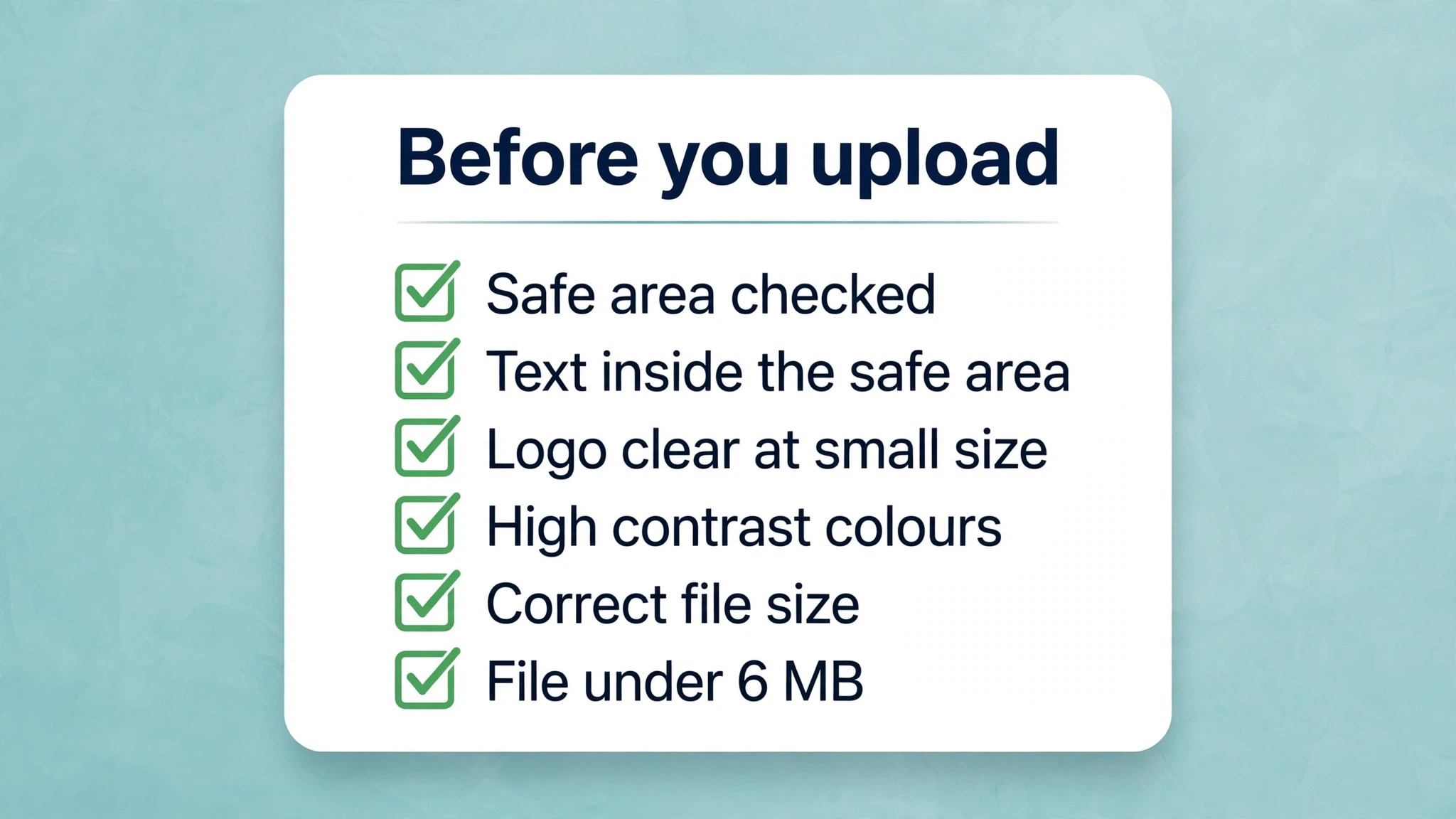
Most bad banners fail in the same six ways, and all six are avoidable. Read the list before you export, because fixing a banner after upload takes longer than preventing the mistake.
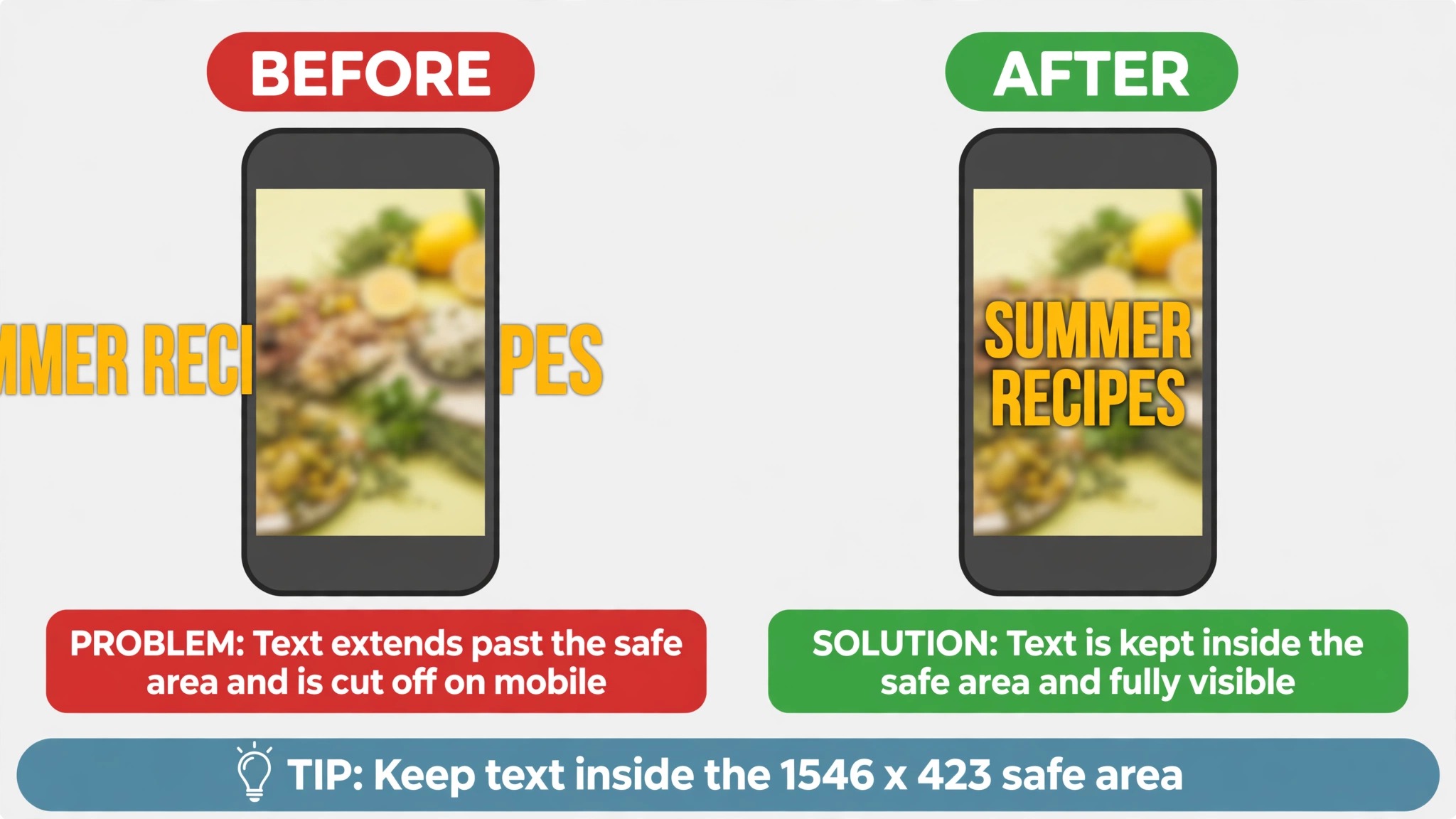
- Putting text outside the safe area. Only the center 1546 by 423 pixels is guaranteed visible on every screen. A channel name or a tagline near the edge disappears on a phone, and the banner reads as a blank image.
- Using a low resolution image. A small photo stretched to 2560 pixels wide turns soft and noisy. Start from the largest original you have, and if the only copy is small, choose a graphic or color led design instead of a photo.
- Crowding the banner with text. A channel name, a tagline, and a posting schedule are enough. A paragraph of text, five social handles, and a list of video topics turn the banner into a poster nobody reads.
- Choosing a font that is too thin. Thin fonts look elegant on a desktop and vanish on a phone. Use a medium or bold weight for the channel name, and test it at phone width before you export.
- Ignoring the file size limit. YouTube caps channel art at 6 MB, and a PNG with large flat areas can pass it. Export early, check the size, and switch to JPG if the PNG is too heavy.
- Reusing a banner from another platform. Each platform crops differently, and a banner that fits Twitter will lose its edges on YouTube. Design for the 2560 by 1440 canvas and the 1546 by 423 safe area, and make a separate version for each platform.
How to Upload Your Banner
Uploading takes less than a minute once the file is ready. Open YouTube Studio, go to Customization, then Branding, and upload the image in the banner section. YouTube shows a preview on desktop, TV, and mobile, so check all three before you save. The mobile preview is the one that matters most, because most viewers find a channel on a phone, and the crop is tightest there.
If the preview hides something important, move that element toward the center and export again. One round of fixes is normal. If you are updating an old banner, remember that the new image replaces the old one everywhere at once, so finish the design and the checks before you upload. Keep a copy of the finished file and the editable project, because the next rebrand or the next series launch will need a fresh version and starting from the old project saves an hour.
A banner is part of the channel brand, so it should match the thumbnails and the profile picture. Use the same colors, the same fonts, and the same photo treatment across all three, and the channel starts to look like one deliberate package. When the banner, the thumbnails, and the avatar agree, a new visitor trusts the channel faster, and trust is what turns a view into a subscription. Refresh the banner when the channel changes direction, and keep it stable between changes, because a banner that changes weekly never becomes familiar.
Frequently Asked Questions About YouTube Banner Makers
What is the best free YouTube banner maker?
Canva is the best free YouTube banner maker for most creators. Its free plan includes thousands of templates, a drag and drop editor, and full resolution 2560 by 1440 exports with no watermark. Adobe Express is the closest alternative, with stronger fonts and a large stock photo library. Fotor is the best free pick if you want AI generated art, and Snappa is the best free pick if speed matters most.
What size should a YouTube banner be?
A YouTube banner should be 2560 by 1440 pixels, in JPG, PNG, or GIF format, and under 6 MB. YouTube will not accept anything smaller than 2048 by 1152. Keep your channel name, tagline, and any important visual element inside the center 1546 by 423 pixel safe area, because only that rectangle is guaranteed visible on every screen.
Do I need to pay for a YouTube banner maker?
No, for a single banner. Canva, Adobe Express, Fotor, and DocHipo all export a full size banner with no watermark on their free plans. Paying makes sense when you design often, because Pro plans add brand kits, more templates, and background removal. The tools that watermark free exports, such as Kapwing, need a paid plan for a clean banner, so check the export before you commit to a tool.
Can I use Canva for a YouTube banner?
Yes. Canva is the most popular choice for YouTube banners, with thousands of templates at the right size, a safe area guide on the canvas, and free full resolution exports. Pick a template, swap in your photo and your channel name, check the safe area, and export as a JPG or PNG. Pro adds brand kits and background removal, which matter if you make banners and thumbnails every week.
Why does my YouTube banner look blurry?
Blur usually comes from a source image that is too small, or an export at a lower resolution than the banner size. Start from the largest original you have, export at the full 2560 by 1440 size, and check the file at full size before upload. A JPG exported below quality 70 can also soften fine detail, so keep quality at 80 or above. The best YouTube banner makers export at full size on their free plans, so a blurry banner usually means the source image was too small, not the tool.
How often should I change my YouTube banner?
Change it when the channel changes, such as a rebrand, a new series, or a shift in niche. A banner that matches the current videos tells a new visitor what the channel is about, and a banner from two years ago tells them the channel is stale. Changing it weekly makes the channel feel unstable, while leaving the same banner for years makes it look abandoned. A new banner with each major series launch is the right rhythm for most creators.
Can I use the same banner on YouTube and Twitch?
No, not without changes. A YouTube banner is 2560 by 1440 with a 1546 by 423 safe area, while a Twitch banner is 1200 by 480. A design built for one will crop badly on the other. Build the banner once at the YouTube size, then adapt the layout for Twitch, moving the text into the center and resizing the image. Most tools on this list have presets for both sizes, so the second version takes minutes.