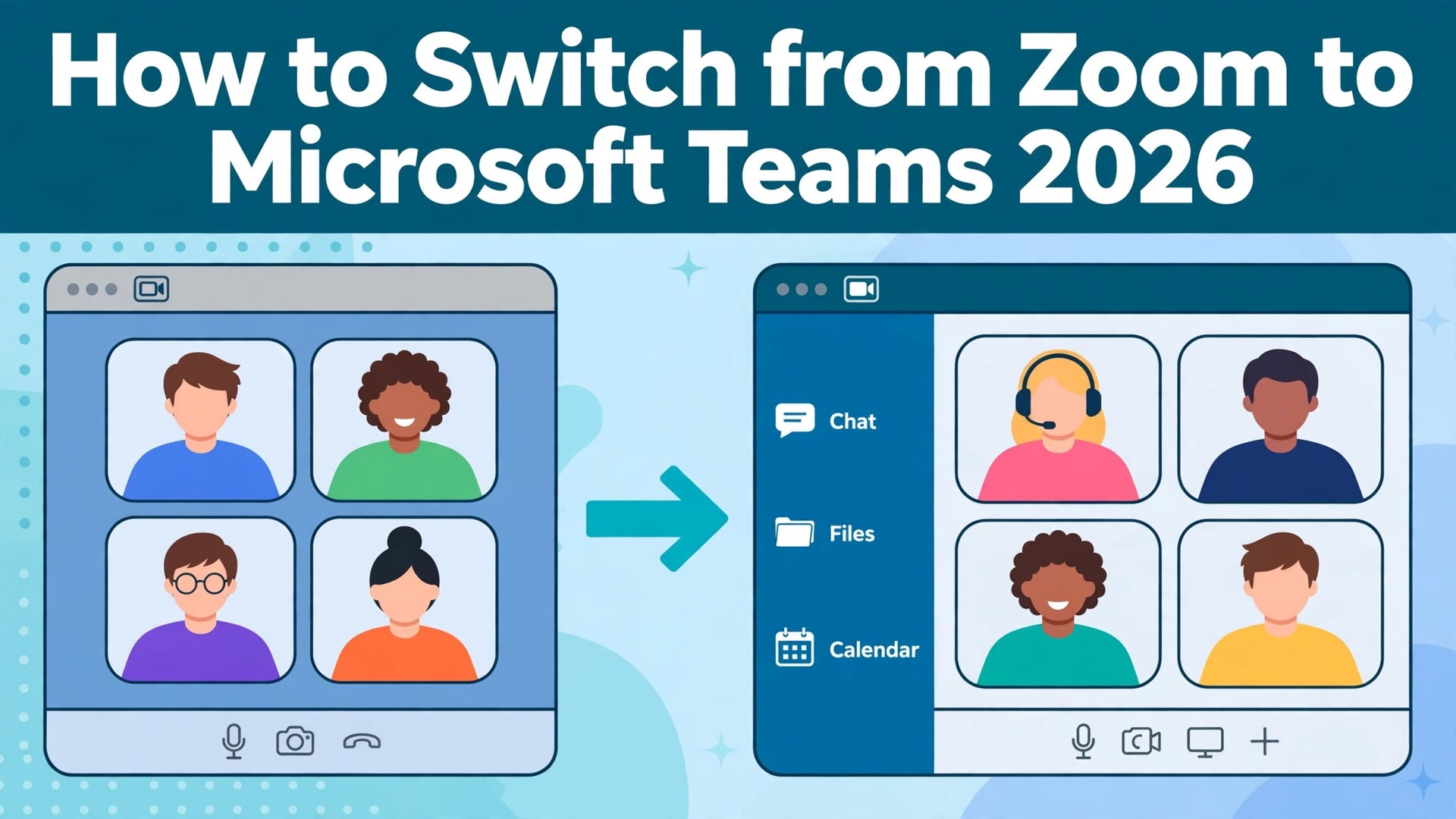
The renewal lands, the quote is 14.16 dollars per user per month, and the team only uses video meetings and chat. That is the moment most teams start asking how to switch from Zoom to Microsoft Teams, and it is a fair question.
Zoom is a meeting tool that charges per host for conferencing alone. Teams is a meeting tool bundled inside a full office suite, and the cheapest paid plan costs 4 dollars per user per month. A team of twenty that pays for Zoom Pro spends about 283 dollars a month. The same team on Teams Essentials spends about 80 dollars a month, and on Microsoft 365 Business Basic it spends about 140 dollars a month with business email, OneDrive and web Office apps included.
The switch is not about which tool is better in general. It is about which price and which bundle match the way the team actually works. Zoom charges per host and sells webinars, phone and rooms as add ons. Teams charges per user and bundles chat, files, calendar and meetings into one login, with 300 participant meetings on every business plan. For a team that already pays for Microsoft 365, Teams costs nothing extra. For a team that runs large webinars or lives on Zoom Phone, Teams can feel like a step sideways, and this guide says so plainly.
This guide walks through how to switch from Zoom to Microsoft Teams in seven steps, with a checklist, a cost comparison, and a clear account of what transfers, what does not, and what to test before cancelling Zoom. Follow the steps in order, run both tools side by side for two weeks, and the move will be boring in the best way. Skip the steps, cancel early, and cloud recordings, recurring meeting links and webinar registrations can vanish without a trace.
Why the Bill Drops So Fast
Cost is the reason most teams switch, and the numbers explain why. Zoom Basic is free, with 40 minute meetings for up to 100 participants. Pro costs 14.16 dollars per user per month on annual billing, or 16.99 dollars monthly, and lifts meetings to 30 hours with 100 participants and 10 GB of cloud recording. Business costs 18.33 dollars per user per month on annual billing, or 21.99 dollars monthly, and lifts meetings to 300 participants with branding and managed domains. Webinars, Zoom Phone and large meeting add ons cost extra on top of those plans.
Teams Essentials costs 4 dollars per user per month on annual billing, and lifts meetings to 30 hours with 300 participants and 10 GB of cloud storage, without the rest of the Office apps. Microsoft 365 Business Basic costs 7 dollars per user per month with Teams included, and adds business email, 1 TB of OneDrive storage per user, SharePoint and web and mobile Office apps. Business Standard costs 14 dollars per user per month after its July 2026 price rise, and adds desktop Office apps, webinars and meeting recording. Teams Premium costs 10 dollars per user per month and adds intelligent recap, advanced meeting protection and town halls.
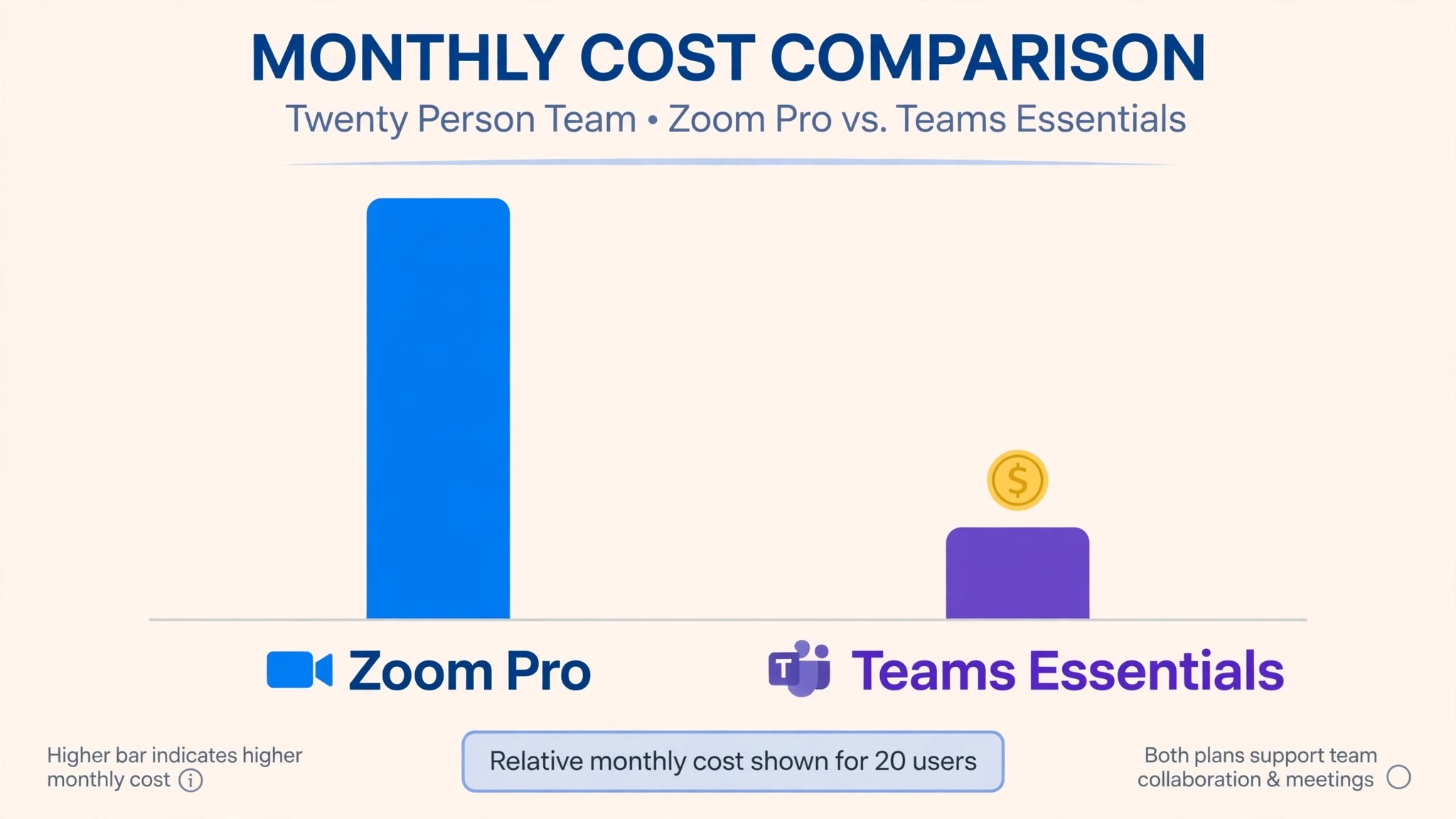
A twenty person team on Zoom Pro pays about 283 dollars a month on annual billing. The same team on Teams Essentials pays about 80 dollars a month, a saving of about 203 dollars a month or about 2,436 dollars a year. The same team on Business Basic pays about 140 dollars a month, a saving of about 143 dollars a month, and gets email, storage and Office apps that Zoom never includes. The gap holds at almost every team size, because Teams Essentials costs less than a third of Zoom Pro per seat.
The free plans tell the same story. Zoom Basic caps group meetings at 40 minutes, which forces a paid plan on any team that meets for an hour. Teams free allows 60 minute group meetings for up to 100 participants, so a small team can run real meetings without paying anything. A team that wants to test Teams with real calls can do it free, which makes the trial cheap and the decision easy.
Zoom vs Microsoft Teams at a Glance
| Feature | Zoom | Microsoft Teams |
|---|---|---|
| Pricing model | Per host, meetings only | Per user, bundled with Office |
| Free plan | 40 minute group meetings, 100 people | 60 minute group meetings, 100 people |
| Entry paid plan | Pro 14.16 dollars a user a month annual | Essentials 4 dollars a user a month annual |
| Business plan | Business 18.33 dollars a user a month annual | Business Basic 7 dollars a user a month annual |
| Meeting size | 100 on Pro, 300 on Business | 300 on all business plans, 1,000 on enterprise |
| Meeting length | 30 hours on paid plans | 30 hours on paid plans |
| Cloud recording | 10 GB on Pro | OneDrive and SharePoint storage |
| Chat and files | Team Chat, basic file sharing | Full chat, channels, SharePoint files |
| Webinars | Paid add on | Included on Business Standard |
| AI summaries | AI Companion included on paid plans | Intelligent recap on Premium, Copilot on higher plans |
Teams wins on the bundle, and that bundle is the point of the switch. Chat, channels, files, calendar and meetings all live in one login, so a team stops paying for a separate chat tool and a separate file store. Zoom wins on pure meeting polish, with a simpler join flow and a reputation for working on weak connections, and that polish is worth real money to a team that meets clients all day. Check which side of that trade your team sits on before you move.
The Honest Trade, Stated Plainly
A switch guide that only lists the savings is not honest, so this section states the trade plainly. Zoom is a meeting tool. Teams is a collaboration suite with meetings inside it, and the difference shows in the daily work. A team that opens Zoom, joins a call and closes it will find Teams busier, with channels, tabs, files and apps competing for attention. The first week in Teams feels slower, even when the bill is lower, and a team that hates setup will feel that friction daily.
A team that already lives in Outlook, OneDrive and SharePoint will not miss the simplicity, because Teams replaces three tools at once and the calendar, the files and the meetings finally live together. The question is not which tool is better. The question is whether the team wants one sharp meeting tool or one connected workspace, and learning how to switch from Zoom to Microsoft Teams starts with answering that question honestly.
The webinar gap deserves a second look, because it decides the saving for teams that run events. Zoom sells webinars as a paid add on, with registration, practice sessions and reports that event teams rely on. Teams includes webinars on Business Standard and town halls on Premium, but the feature set differs, and a team that runs paid events with strict registration rules should test the Teams flow before moving. A team that only runs internal meetings will never notice the difference.
The AI gap also changes the bill. Zoom includes unlimited AI Companion summaries on paid plans, so meeting notes and action items cost nothing extra. Teams puts intelligent recap behind Premium at 10 dollars a user a month, or behind Copilot on higher plans, so a twenty person team that wants AI summaries everywhere pays 200 dollars a month extra, which eats most of the saving against Zoom Pro. A team that does not need AI summaries saves the full amount. A team that does should price Premium into the comparison before moving.
How to Switch from Zoom to Microsoft Teams in 7 Steps
Step 1. Audit the Zoom account before touching anything
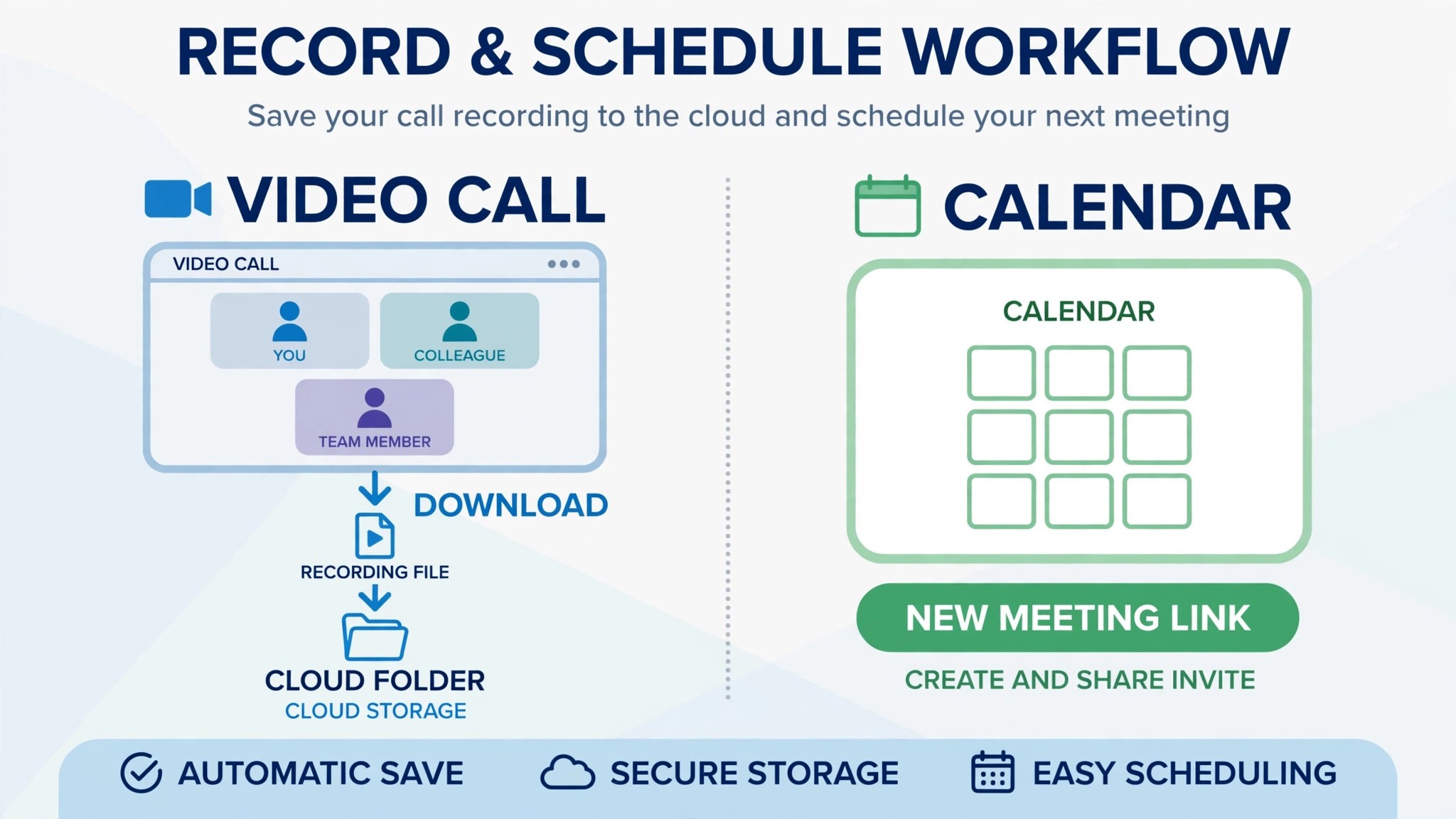
Open Zoom and list every licensed host, every recurring meeting, every webinar, every cloud recording, every scheduled meeting link shared with clients, and every integration. Download the cloud recordings that matter, because they do not transfer to Teams and they vanish when the account closes. Note the renewal date and the contract terms, because cancelling mid contract can carry a fee. This audit takes an hour and prevents the most common switch failure, which is discovering a client meeting link only after it stopped working.
Step 2. Set up Teams and choose the right plan
Create the Microsoft 365 tenant or open the existing one, and choose the plan that matches the team. Teams Essentials at 4 dollars a user a month suits a team that only needs meetings. Business Basic at 7 dollars a user a month suits a team that also needs business email and OneDrive. Business Standard at 14 dollars a user a month suits a team that needs webinars and recording. Assign licenses to the people who host meetings first, and confirm each person can sign in and see the Teams app. Do not cancel Zoom yet. The two tools will run side by side for the next two weeks.
Step 3. Rebuild the recurring meetings in Teams
Recreate the recurring meetings in Teams from the audit in step 1, using Outlook or the Teams calendar. Set the same days, times and participants, and send the new invites early so clients and colleagues have the new links before the old ones die. Zoom meeting links do not carry over, and a client who clicks an old Zoom link after cancellation lands on a dead page. Update the links in email signatures, booking pages, calendar invites and any website that lists a meeting link. This is the largest single task in the switch, so budget an afternoon for a normal meeting load.
Step 4. Move the recordings and the files
Download the Zoom cloud recordings that the team needs to keep, and upload them to OneDrive or SharePoint, where Teams recordings live. Teams saves new recordings to OneDrive for one to one calls and to SharePoint for channel meetings, so the team should agree on where recordings go before the first Teams call. Move shared files from Zoom Team Chat into Teams channels, and check the storage limits on the chosen plan, because Essentials includes only 10 GB of cloud storage while Business Basic includes 1 TB per user. A tidy file move now saves a search later.
Step 5. Move the team and set the meeting habits
Invite the team to Teams and set the meeting policies. Decide who can record, who can present, who can admit guests from the lobby, and whether external guests can join without an account. Run a short training session on the habits that differ from Zoom, like joining from the calendar, using the lobby, sharing a window instead of a screen, and finding the recording after the call. A teammate who cannot find the mute button or the recording will fall back to Zoom, and the switch will stall.
Step 6. Run both tools side by side for two weeks
Meet on Teams for two weeks while Zoom stays licensed and the old recurring meetings finish. Watch the call quality daily, check that recordings land in OneDrive, and confirm that external guests can join without friction. Compare the Teams experience with the Zoom habits from step 1, checking audio, screen sharing, breakout rooms and chat. Fix the problems while Zoom is still available as a fallback, not after it is cancelled. Two quiet weeks of parallel running cost nothing and catch every problem early.
Step 7. Cancel Zoom and confirm the data is safe
Once two weeks of Teams meetings look clean, download any remaining recordings and export the final meeting reports from Zoom, then cancel the subscription before the renewal date. Confirm the cancellation email arrives, and check that no auto renewal is set. Keep the downloaded recordings for six months, because they do not live in Teams and the old Zoom account is the only copy. The switch is done when Teams has run cleanly for two weeks and Zoom is cancelled without a surprise charge.
What Transfers and What Does Not
The people transfer, because the team is the same and the accounts are new. Contacts, calendars and files move through Outlook, OneDrive and SharePoint, which are part of the Microsoft 365 bundle. Meeting habits transfer too, once the team learns the new buttons, because a video call is a video call in either tool. What the team keeps is the audience itself, because clients and colleagues join by link, and the new Teams links replace the old Zoom links once they are sent out.
What does not transfer is specific, and the team should name it before starting. Cloud recordings do not transfer automatically. Zoom recordings must be downloaded as files and uploaded to OneDrive or SharePoint by hand, and any recording left in Zoom when the account closes is lost. Recurring meeting links do not transfer, so every link in every invite, signature and booking page must be replaced. Webinar registrations, practice sessions and reports do not transfer, so export the registration lists and rebuild the events in Teams. Chat history from Zoom Team Chat does not move into Teams channels, so copy the messages that matter and leave the rest behind.
Zoom Phone numbers, room systems and hardware do not transfer either. A team that uses Zoom Phone must port numbers or buy Microsoft Teams Phone licenses, which is a separate project with its own timeline. Zoom Rooms hardware needs a Teams Rooms license to keep working. The only things lost are the Zoom specific records, which are the recordings, the links, the webinar data and the chat history. Export them all before cancelling, and the switch loses nothing that matters.
That is the full picture of how to switch from Zoom to Microsoft Teams without losing the work that matters.
The Go-Live Checklist
Use this checklist before starting step 1, and do not skip a line.
– List every Zoom licensed host, recurring meeting, webinar and cloud recording. – Download the cloud recordings that matter and save the files. – Note the Zoom renewal date and any contract term. – Confirm every external guest can join Teams without an account. – Choose the Teams plan by meeting needs, email needs and webinar needs. – Decide where recordings live, OneDrive or SharePoint. – List the Zoom features the team actually uses, including webinars and Phone. – Plan a replacement for any Zoom feature Teams lacks. – Set a switch date in a quiet week, not during a client launch. – Tell the team and the regular clients the switch date before step 1.
What the Switch Saves in Real Money
The saving depends on team size and plan, because the two tools charge in different units for different bundles. A ten person team on Zoom Pro pays about 142 dollars a month on annual billing. The same team on Teams Essentials pays about 40 dollars a month, a saving of about 102 dollars a month or about 1,224 dollars a year. The same team on Business Basic pays about 70 dollars a month, a saving of about 72 dollars a month, and gets business email, 1 TB of OneDrive per user and web Office apps that Zoom never includes.
A twenty person team on Zoom Pro pays about 283 dollars a month on annual billing. The same team on Teams Essentials pays about 80 dollars a month, a saving of about 203 dollars a month or about 2,436 dollars a year. The same team on Business Basic pays about 140 dollars a month, a saving of about 143 dollars a month or about 1,716 dollars a year. Those figures use annual billing on both tools, and monthly billing widens the gap further, since Zoom Pro costs 16.99 dollars a month on monthly billing while Teams Essentials is only sold on annual billing at 4 dollars.
The saving shrinks when the team adds Premium or Phone. Teams Premium at 10 dollars a user a month adds 200 dollars a month for a twenty person team, which eats most of the saving against Zoom Pro, where AI summaries are included. Teams Phone licenses add their own cost on top. Count the AI users and the Phone users, run the two totals, and the answer will be clear. For most teams that only need meetings, chat and files, Teams saves hundreds of dollars a month.
Run the same math for your own team before you commit to how to switch from Zoom to Microsoft Teams, because the totals decide the plan.
Your First Two Weeks in Teams
The parallel run only helps if the team tests the right things, so set the tests before the first Teams call goes out. Hold meetings across every type the team uses, including one internal call, one client call with an external guest, one screen share, and one call with a recording, and confirm each one starts on time with the right people in the room.
Then compare the Teams experience with the Zoom habits from step 1, checking audio quality, video quality and join time. That test plan is the part of how to switch from Zoom to Microsoft Teams that most teams skip, and it is the part that catches the problems while Zoom is still available as a fallback.
Test the recording and the guest join next, because those are the workflows that break quietly. Record a call and confirm the file lands in OneDrive or SharePoint where the team expects it, invite an external guest and confirm they can join without an account or a download, and test a breakout room if the team uses them.
Also test a meeting that needs a lobby, since admission settings differ between the two tools and trip up teams that meet clients. A test that covers calls, recordings, guests and breakouts in the first week leaves the second week for fixing what failed, which is exactly how a quiet switch is supposed to work.
Five Mistakes That Stall the Move
The first mistake is cancelling Zoom before the Teams meetings are built. A team that cancels on day one loses the recordings, the recurring links and the webinar data in one move, and the rebuild takes days instead of hours. Keep Zoom until step 7, and the switch stays boring. The second mistake is forgetting to replace the meeting links. A client who clicks an old Zoom link after cancellation lands on a dead page, and the team learns about it from an angry email, not from a dashboard.
The third mistake is forgetting the recordings. A team that relies on Zoom cloud recordings will lose its training library and its client call history if it cancels before downloading. Download first, upload to OneDrive, and check the files play. The fourth mistake is skipping the two week parallel run. A team that switches overnight discovers the guest join problems during a live client call, when fixing them costs the most. Two quiet weeks of parallel running cost nothing and catch every problem early.
The fifth mistake is underestimating the habit change. Teams is a suite, not just a meeting button, and a team that budgets an hour for training will run out of time. Budget an afternoon, teach the calendar join, the lobby, the recording location and the chat, and leave the advanced features for later. The switch is a good time to set clean meeting habits, not a reason to copy every Zoom habit into the new tool.
Life After the Switch
The first month after the move is when the new meeting habits form. Agree on a recording rule on day one, which meetings get recorded and where the files live, because Teams saves recordings to OneDrive and SharePoint and a team without a rule loses them in personal folders. Set the lobby and admission defaults per meeting type, so client calls wait for admission while internal standups join directly. The work of how to switch from Zoom to Microsoft Teams does not end on cancel day. It ends when the team stops sending Zoom links out of habit, and that usually takes a full month.
Revisit the plan choice after 90 days. A team that started on Essentials may find it needs Business Standard for webinars, and a team that started on Business Basic may find it never opens the Office apps and can drop a tier. Count the licenses again too, because Teams bills per user and a host who left the company should come off the plan. The switch saves money once. The habits save it every month after.
Frequently Asked Questions
How long does it take to switch from Zoom to Microsoft Teams?
Most small teams finish the switch in one to two weeks. The setup takes an afternoon, the manual rebuild of recurring meetings takes another afternoon, and the two week parallel run catches the problems while Zoom is still available. A team with many recurring meetings, webinars or Phone numbers should budget three weeks. Do not promise a one day switch, because the manual rebuild and the parallel run are what make the move safe.
Will I lose my Zoom recordings when I switch to Microsoft Teams?
Cloud recordings do not transfer automatically, so download them from Zoom before cancelling and upload them to OneDrive or SharePoint, where Teams recordings live. That is the largest task in the switch after rebuilding the meeting links, and it takes an afternoon for a normal recording library. Keep Zoom running until the downloads are checked, and no recording will be lost.
Is Microsoft Teams really cheaper than Zoom?
For most teams, yes, by a wide margin. Teams Essentials costs 4 dollars per user a month on annual billing against 14.16 dollars for Zoom Pro, so a twenty person team saves about 203 dollars a month. The only common cases where Teams costs more are a team that adds Premium at 10 dollars a user a month for AI summaries, or a team that needs Teams Phone licenses, where Zoom includes AI summaries on paid plans. Count the AI and Phone users before deciding.
Does Teams have webinars like Zoom?
Teams includes webinars on Business Standard and town halls on Premium, but the feature set differs from Zoom Webinars, which is a paid add on with its own registration, practice sessions and reports. A team that runs paid events with strict registration rules should test the Teams webinar flow before moving, and export the Zoom registration lists first. A team that only runs internal meetings will not notice the difference.
Can external guests join Teams meetings without an account?
Yes, external guests can join Teams meetings from a link without a Microsoft account, using the web app or the Teams app. Test the guest join in the first week, because lobby settings and meeting policies decide whether a guest waits for admission or joins directly, and those settings differ from Zoom. A team that meets clients daily should confirm the guest flow before the switch date, not after.
The Call
Switch to Teams if the team is small, the work is mostly internal meetings and chat, the team already pays for Microsoft 365, and the bill is the problem. A team of ten to twenty people will save hundreds of dollars a month, get email, storage and Office apps in the same subscription, and lose nothing it actually uses, as long as the recordings are downloaded and the meeting links are replaced first. For those teams, learning how to switch from Zoom to Microsoft Teams is worth an afternoon, and the saving repeats every month.
Stay on Zoom if the team runs large webinars with strict registration, relies on Zoom Phone or Zoom Rooms hardware, or meets clients all day and values the simplest join flow in the business. A team that lives on AI meeting summaries will also find them included on Zoom Pro and paid extra on Teams Premium, which changes the math. Stay also if the contract renewal is close and the team is mid launch. A switch during a launch costs more in chaos than it saves in subscription fees.
The decision rule is simple. Count the hosts, count the Phone and Premium users, list the features the team actually opens every week, and run the two totals. If Teams covers the weekly workflow and costs less, switch in a quiet week and follow the seven steps. If Zoom covers a weekly workflow that Teams cannot, stay and renegotiate the Zoom plan instead. The right tool is the one that matches the work, not the one with the lower headline price.