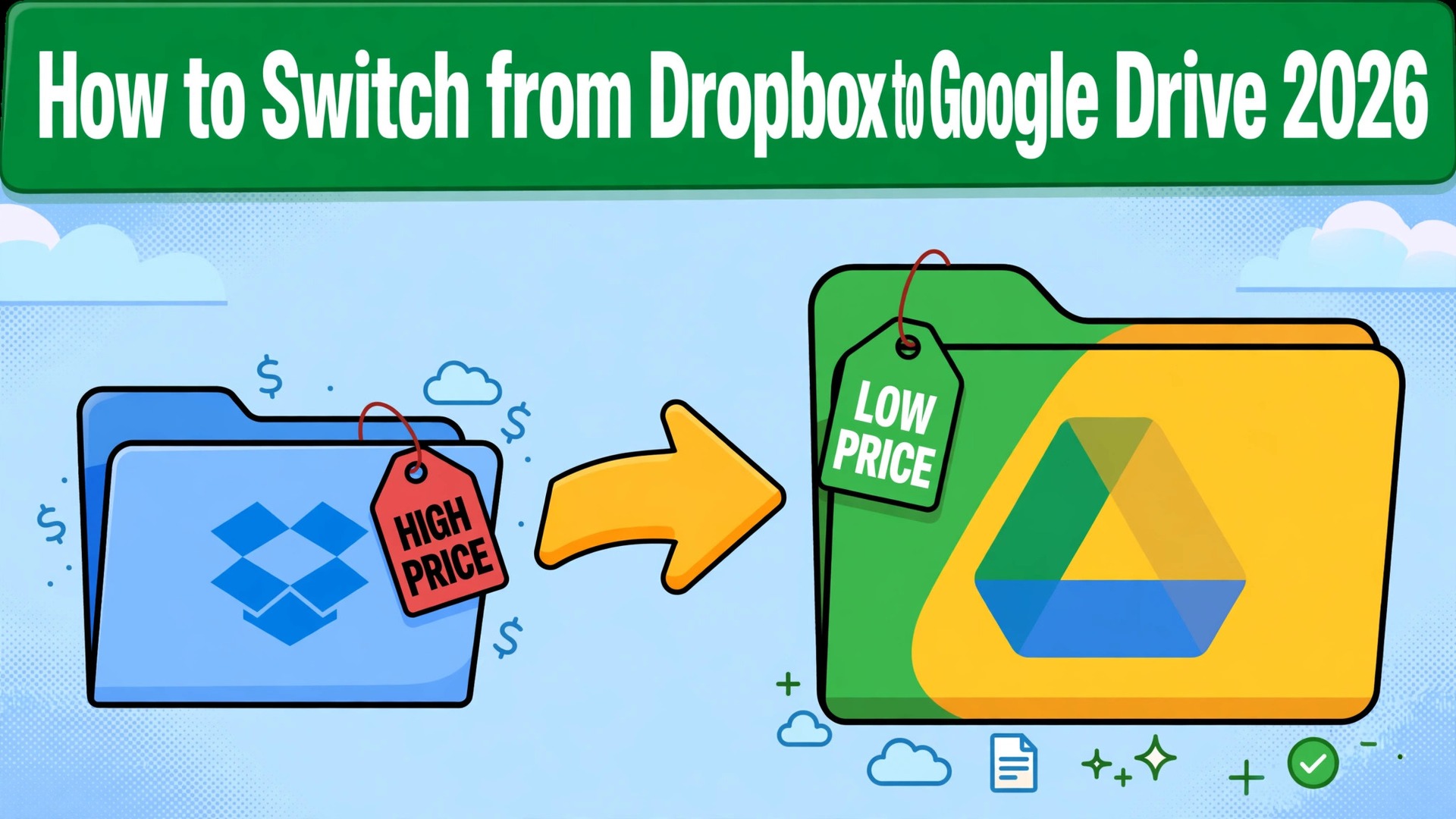
Dropbox gives 2 GB free. Google Drive gives 15 GB free, shared across Drive, Gmail and Photos. That 13 GB gap is the whole story for most people, and it is why so many start asking how to switch from Dropbox to Google Drive the week their free Dropbox fills up.
Dropbox is the better sync engine. Its desktop app is faster, its file handling is steadier on large folders, and its sharing controls are simpler for client delivery. Google Drive is the better deal. A 100 GB plan costs 1.99 dollars a month, a 200 GB plan costs 2.99 dollars, and 2 TB costs 9.99 dollars a month, against 9.99 dollars for Dropbox Plus at the same 2 TB on annual billing and 11.99 dollars on monthly billing. A household that only needs a little more than free space pays coffee money on Google and a full subscription on Dropbox.
The switch is not about which sync engine is faster. It is about how much space the files need and what the files are for. Dropbox charges a high floor, because there is no plan between 2 GB free and 2 TB paid. Google charges a ladder, because every step from 100 GB to 2 TB has its own price. A person with 40 GB of files pays 1.99 dollars a month on Google and 9.99 dollars on Dropbox, and that gap repeats every month for years.
This guide walks through how to switch from Dropbox to Google Drive in seven steps, with a cost comparison, a clear account of what transfers, what must be rebuilt, and what to test before cancelling Dropbox. Follow the steps in order, run both tools side by side for two weeks, and the move will be quiet. Skip the steps, cancel early, and shared links, version history and Paper docs can vanish without warning.
The Price Gap That Starts the Conversation
Cost is the reason most people switch, and the numbers explain why. Dropbox Basic is free, with 2 GB of storage and a three device limit. Plus costs 9.99 dollars a month on annual billing, or 11.99 dollars on monthly billing, and gives 2 TB, unlimited devices and 30 day file recovery.
Professional costs 16.58 dollars a month on annual billing and gives 3 TB, with advanced sharing controls. Family costs 19.99 dollars a month and shares 2 TB across up to six people. Standard, the team plan, costs 15 dollars per person a month on annual billing and starts at 3 TB for the team. Advanced costs 24 dollars per person a month and starts at 15 TB.
Google Drive free gives 15 GB shared across Drive, Gmail and Photos. Google One Basic costs 1.99 dollars a month for 100 GB, shareable with up to five other people. Standard costs 2.99 dollars a month for 200 GB. Premium costs 9.99 dollars a month, or 99.99 dollars a year, for 2 TB. Google AI Pro costs 19.99 dollars a month for 5 TB with Gemini features. For work accounts, Google Workspace Business Starter costs 7 dollars per person a month with 30 GB pooled per person, Standard costs 14 dollars with 2 TB, and Plus costs 22 dollars with 5 TB.
A person with 50 GB of files pays 1.99 dollars a month on Google One Basic against 9.99 dollars on Dropbox Plus, a saving of 8 dollars a month or 96 dollars a year. A person with 500 GB pays 2.99 dollars a month on Google One Standard against 9.99 dollars on Dropbox Plus, a saving of 7 dollars a month or 84 dollars a year. A person with 2 TB pays 9.99 dollars on either tool on annual billing, so there is no saving at that size, and the choice turns on features instead of price.
A team of five on Dropbox Standard pays about 75 dollars a month on annual billing. The same five on Google Workspace Standard pay about 70 dollars a month, a saving of about 5 dollars a month or 60 dollars a year, with 2 TB per person against a 3 TB shared pool on Dropbox. A team of five on Google Workspace Starter pays about 35 dollars a month, less than half the Dropbox Standard bill, with 30 GB pooled per person, which fits a team that stores documents rather than video. Count the storage the team actually uses before choosing, because the saving lives in the small plans.
Dropbox vs Google Drive at a Glance
| Feature | Dropbox | Google Drive |
|---|---|---|
| Pricing basis | Per person, storage tiers | Per person, storage ladder |
| Free storage | 2 GB, three devices | 15 GB, shared with Gmail and Photos |
| Cheapest paid plan | Plus 9.99 dollars a month annual, 2 TB | Google One Basic 1.99 dollars a month, 100 GB |
| 2 TB plan | Plus 9.99 dollars a month annual | Google One Premium 9.99 dollars a month |
| 3 TB plan | Professional 16.58 dollars a month annual | No consumer 3 TB tier |
| Team entry plan | Standard 15 dollars a person a month annual | Workspace Starter 7 dollars a person a month |
| File size limit | No published per-file cap on paid plans | 5 TB per file, 750 GB upload a day |
| File recovery | 30 days on Plus, 180 days on Standard | 30 days in Trash, longer on Workspace |
| Docs | Dropbox Paper | Google Docs, Sheets and Slides built in |
| Offline access | Smart Sync on paid plans | Drive for desktop, mirror or stream |
Google wins on the free tier and on the small paid plans. Dropbox wins on sync speed and on the simple jump to 2 TB for a single user. Check how much storage the files actually need before moving, because the ladder only saves money below 2 TB.
The Trade-Offs Nobody Mentions First
A switch guide that only lists the saving is not honest, so this section states the trade plainly. Dropbox syncs faster. Its block level sync uploads only the changed part of a file, so a large video edit syncs in seconds where Google uploads the whole file again. A team that edits large design files or video all day will feel that difference every hour, and the 8 dollars a month saved on storage will not cover the time lost waiting for uploads.
Google wins on the apps around the storage. Docs, Sheets and Slides are built into Drive, so a team edits a document, a spreadsheet and a presentation without opening another app or paying for another subscription. Dropbox Paper exists, but it is a thinner tool, and a team that lives in documents will find Google the better workspace. The question is not which storage is better. The question is whether the files are large media that need fast sync, or documents that need editing, and learning how to switch from Dropbox to Google Drive starts with answering that question honestly.
The sharing story also changes. Dropbox shared links are simple, stable and familiar to clients, and a folder shared from Dropbox keeps working for years. Google Drive shared links work just as well, but every link must be recreated after the move, because a Dropbox link points at Dropbox and cannot be redirected. A freelancer with fifty client links will spend an afternoon sending new ones, and a link missed in that afternoon is a client who cannot reach their files. Count the shared links before deciding, and the work will make the choice.
How to Switch from Dropbox to Google Drive in 7 Steps
Step 1. Audit the Dropbox account before touching anything
Open Dropbox and list every folder, every shared folder, every shared link, every Paper doc and every file count, with the total storage used. Export the sharing list and note the renewal date and the billing cycle, because cancelling mid cycle does not refund the month. Pay special attention to shared folders with outside collaborators, links printed on invoices or websites, and Paper docs that hold live project notes, because those are the pieces that do not move cleanly. This audit takes an hour and prevents the most common switch failure, which is discovering a client link only after it stopped working.
Step 2. Set up Google Drive and choose the plan
Create the Google account or the Workspace organization, choose the plan that matches the storage the audit found, and install Drive for desktop. Decide the folder structure before moving anything, because Drive folders and Dropbox folders look the same but behave differently around sharing. Set the sharing defaults to private, and decide who can share outside the organization if this is a work account. Do not move files yet. A clean structure decided on paper saves a week of reorganizing later.
Step 3. Copy the files in batches
Copy the files from Dropbox to Google Drive in batches, starting with the smallest folder, not the whole account. Use Drive for desktop to drag folders across, or download from Dropbox and upload to Drive, and check the file counts after each batch. Watch the 750 GB daily upload limit on Google Drive, because a large library will take more than one day to move. Check a few files in each batch to confirm they open, and fix the folder mapping before the big copy. A pilot copy that takes an afternoon prevents an account wide mess.
Step 4. Recreate the shared folders and links
Shared folders do not transfer, so recreate each one in Google Drive and invite the same collaborators with the same access level. Shared links do not transfer either, so create a new link for every file or folder that had one, and send the new links to every client who had the old ones. Update the links printed on invoices, on the website and in email templates. This is the largest single task in the switch, so budget a full afternoon for a normal account and do not promise a one hour migration.
Step 5. Move the docs and the Paper files
Dropbox Paper docs do not transfer to Google Docs automatically, so open each Paper doc, copy the text into a new Google Doc, and check the formatting, the images and the tables by hand. Move any Dropbox files that live only as Paper exports the same way. Set the sharing on each new Doc to match the old Paper doc, and tell the collaborators where the new version lives. A team that skips this step will find its project notes still sitting in a Dropbox account it meant to close.
Step 6. Run both tools side by side for two weeks
Work from Google Drive for two weeks while Dropbox stays open and the old files finish syncing. Watch the file counts daily, check that shared folders update for collaborators, and confirm the Docs, Sheets and Slides open and save correctly. Compare a Drive folder with the Dropbox export from step 1 to spot any gap in the copy. Fix the problems while Dropbox is still available as a fallback, not after it is cancelled. Two quiet weeks of parallel running cost nothing and catch every problem early.
Step 7. Cancel Dropbox and confirm the data is safe
Once two weeks of Drive work look clean, export the final sharing list and any remaining Paper docs from Dropbox, then cancel the subscription before the renewal date. Confirm the cancellation email arrives, and check that no auto renewal is set. Keep a local backup of the files for six months, because version history does not transfer and the old versions are the only record of what changed. The switch is done when Drive has run cleanly for two weeks and Dropbox is cancelled without a surprise charge.
What Moves Across and What You Rebuild
Files and folders move well. Copy them in batches, check the counts after each batch, and the library lands intact, with names, dates and folder structure preserved. The storage itself moves as a decision, not as a file, and each person must be assigned the right Google One or Workspace plan by hand. The file data, the folder counts and the sharing lists move as exports, and the user should save them before cancelling.
What does not transfer is specific, and the user should name it before starting. Shared links do not transfer, so every link must be recreated and resent. Version history does not transfer, so a file that was edited ten times in Dropbox arrives in Drive as one current version. File comments do not transfer, so any decision recorded in a Dropbox comment should be copied into the file or a Doc before the move.
Dropbox Paper docs do not transfer, so each one must be copied into a Google Doc by hand. Smart Sync settings do not transfer, so the offline and streaming choices must be set again in Drive for desktop. Dropbox Transfer links do not transfer, and a Transfer link that was sent to a client will stop working when the account closes. The only things lost are the Dropbox specific records, which are the links, the versions, the comments and the Paper docs. Export them all before cancelling, and the switch loses nothing that matters.
That is the full picture of how to switch from Dropbox to Google Drive without losing the files that matter.
The Go-Live Checklist
Use this checklist before starting step 1, and do not skip a line.
- List every Dropbox folder, shared folder, shared link and Paper doc. – Record the total storage used and the file counts. – Note the Dropbox renewal date and any contract term. – Flag shared folders with outside collaborators and links on invoices or websites. – Choose the Google One or Workspace plan by the storage the audit found. – Decide the Drive folder structure before moving anything.
- List the Paper docs and file comments the team actually needs. – Confirm the Drive sharing defaults are private. – Plan a replacement for any Dropbox feature Drive lacks. – Set a switch date in a quiet week, not during a launch. – Tell the team the switch date and the new links before step 1.
What the Switch Saves in Real Money
The saving depends on storage used, because the two tools charge different rates for different sizes. A person with 50 GB of files pays 1.99 dollars a month on Google One Basic against 9.99 dollars on Dropbox Plus, a saving of 8 dollars a month or 96 dollars a year. A person with 150 GB pays 2.99 dollars a month on Google One Standard against 9.99 dollars on Dropbox Plus, a saving of 7 dollars a month or 84 dollars a year. A person with 2 TB pays 9.99 dollars on either tool on annual billing, so the saving is zero and the choice turns on features.
A family of four sharing 2 TB pays 19.99 dollars a month on Dropbox Family against 9.99 dollars on Google One Premium, a saving of 10 dollars a month or 120 dollars a year, and the Google plan shares with up to five other people.
A team of five on Dropbox Standard pays about 75 dollars a month against about 35 dollars on Google Workspace Starter, a saving of about 40 dollars a month or 480 dollars a year, as long as 30 GB pooled per person is enough. Those figures use annual billing where the vendor publishes one, and monthly billing widens the gap further, since Dropbox Plus costs 11.99 dollars a month on monthly billing against 9.99 dollars for Google One Premium.
The saving shrinks when the files pass 2 TB. A person with 3 TB pays 16.58 dollars a month on Dropbox Professional, and Google has no consumer 3 TB tier, so the choice becomes Google AI Pro at 19.99 dollars for 5 TB or Dropbox Professional for 3 TB. Count the storage the files actually use and run the two totals, because the ladder only saves money below 2 TB.
Run the same math for your own files before you commit to how to switch from Dropbox to Google Drive, because the totals decide the plan.
Your First Two Weeks on Google Drive
The parallel run only helps if the user tests the right things, so set the tests before the first Drive folder is shared. Upload one large file and time the sync, open one shared folder from a collaborator account, and edit one Google Doc with a teammate at the same time. Then compare the Drive file counts against the Dropbox export from step 1, checking totals by folder and by owner. That test plan is the part of how to switch from Dropbox to Google Drive that most people skip, and it is the part that catches the problems while Dropbox is still available as a fallback.
Test the links and the offline access next, because those are the pieces that break quietly. Open one new shared link from a browser with no Google login and confirm the file loads, turn on offline access in Drive for desktop and confirm a file opens with no internet, and have a second person confirm they see the same shared folders. Also test one file restore from Trash, since version history does not transfer and the restore path is the safety net. A test that covers sync, sharing, Docs and offline access in the first week leaves the second week for fixing what failed, which is exactly how a quiet switch is supposed to work.
Five Mistakes That Stall the Move
The first mistake is cancelling Dropbox before the Drive copy is checked. A person who cancels on day one loses the shared links, the version history and the Paper docs in one move, and the rebuild takes days instead of hours. Keep Dropbox until step 7, and the switch stays boring. The second mistake is copying the whole library at once without a pilot. A folder mapping error repeats across every folder, and fixing it after the fact costs more than the pilot ever did.
The third mistake is forgetting the shared links. A freelancer who shared fifty Dropbox links will see clients hit dead pages for weeks after the switch, and every dead link costs a little trust. Recreate every link before the switch date, and send the new links twice. The fourth mistake is skipping the two week parallel run. A team that switches overnight discovers the sync gaps during a live project, when fixing them costs the most. Two quiet weeks of parallel running cost nothing and catch every problem early.
The fifth mistake is underestimating the Paper rebuild. Paper docs do not transfer, and a team that budgets an hour for the copy will run out of time. Budget an afternoon, copy the live project notes first, and leave the long tail of old docs behind. The switch is a good time to clean the docs library, not a reason to move every old note into the new tool.
Life After the Switch
The first month after the move is when the saving becomes real, and it is also when the new habits form. Set a weekly review in Drive, one hour where the user checks the storage used, clears the Trash and updates the shared folders, because a cheaper tool still needs a steady rhythm to earn its keep. Tune the sharing settings after two weeks, not on day one, because the first fortnight shows which folders get shared and which never open. The work of how to switch from Dropbox to Google Drive does not end on cancel day. It ends when the user stops opening the old tool out of habit, and that usually takes a full month.
Revisit the plan choice after 90 days. A person who started on Google One Basic may find they need Standard for 200 GB, and a person who started on Premium may find they can drop to Standard once the old files are cleaned out. Count the storage again too, because Google One bills the storage the account holds, and a folder of old video that nobody opens should be archived or deleted. The switch saves money once. The habits save it every month after.
Frequently Asked Questions
How long does it take to switch from Dropbox to Google Drive?
Most people finish the switch in one to two weeks. The setup takes an afternoon, the file copy in batches and the link rebuild take another afternoon, and the two week parallel run catches the problems while Dropbox is still available. An account with terabytes of files should budget three weeks, because Google Drive limits uploads to 750 GB a day. Do not promise a one day switch, because the batch copy and the parallel run are what make the move safe.
Will I lose my files when I switch from Dropbox to Google Drive?
Files and folders transfer through a batch copy, so copy one folder first and check the counts before moving the rest. Shared links, version history, file comments and Paper docs do not transfer, so flag them in the audit and rebuild them by hand. Keep Dropbox running until the Drive copy is checked, and no file will be lost.
Is Google Drive really cheaper than Dropbox?
For storage below 2 TB, yes, by a wide margin. Google One Basic costs 1.99 dollars a month for 100 GB against 9.99 dollars for Dropbox Plus, and Standard costs 2.99 dollars for 200 GB. At exactly 2 TB both tools cost 9.99 dollars a month on annual billing, so there is no saving at that size. Above 2 TB the comparison turns on the plan, because Google has no consumer 3 TB tier. Count the storage before deciding.
Does Google Drive sync as fast as Dropbox?
No, Dropbox syncs faster on large files, because its block level sync uploads only the changed part of a file. Google Drive uploads the whole file again after an edit, so a large video edit takes longer to sync. For documents, photos and normal office files the difference is small, and most users never notice it. A team that edits large media all day should test the sync speed before moving.
Can I keep my Dropbox shared links when I switch?
No, shared links do not transfer between platforms. Every Dropbox link must be recreated in Google Drive and sent to the people who had the old one, and every link printed on an invoice, a website or an email template must be updated. Export the sharing list before cancelling, and recreate the links for the files clients actually open first.
The Call
Switch to Google Drive if the files fit below 2 TB, if the free 15 GB is already most of what is needed, or if the team lives in Docs, Sheets and Slides and wants them built into the storage. A person with 50 to 500 GB of files will save 84 to 96 dollars a year, get a storage ladder that grows with the files, and lose nothing it actually uses, as long as the audit flags the shared links and the Paper docs first. For those people, learning how to switch from Dropbox to Google Drive is worth an afternoon, and the saving repeats every month.
Stay on Dropbox if the files pass 2 TB and the team edits large media all day, if the sync speed is the job, or if fifty client links already work and nobody wants to resend them. A team that values fast sync over price will feel Drive as a step down, and a freelancer with a large link library can find the saving smaller than the headline suggests. Stay also if the renewal is close and the team is mid project. A switch during a project costs more in chaos than it saves in subscription fees.
The decision rule is simple. Count the gigabytes, count the shared links, list the features the user actually opens every week, and run the two totals with the right storage tier. If Drive covers the weekly workflow and costs less, switch in a quiet week and follow the seven steps. If Dropbox covers a weekly workflow that Drive cannot match, stay and renegotiate the Dropbox plan instead. The right tool is the one that matches the work, not the one with the lower headline price.