A camera that worked yesterday and shows a black screen five minutes before a meeting is one of the most stressful faults on Zoom, because the meeting will not wait and the fix has to work now. The cause is almost always one of seven things, and the fix takes less than ten minutes once you know which one it is. This guide to fix zoom video not working works through all seven causes in order, starting with the ones you can check in under a minute.
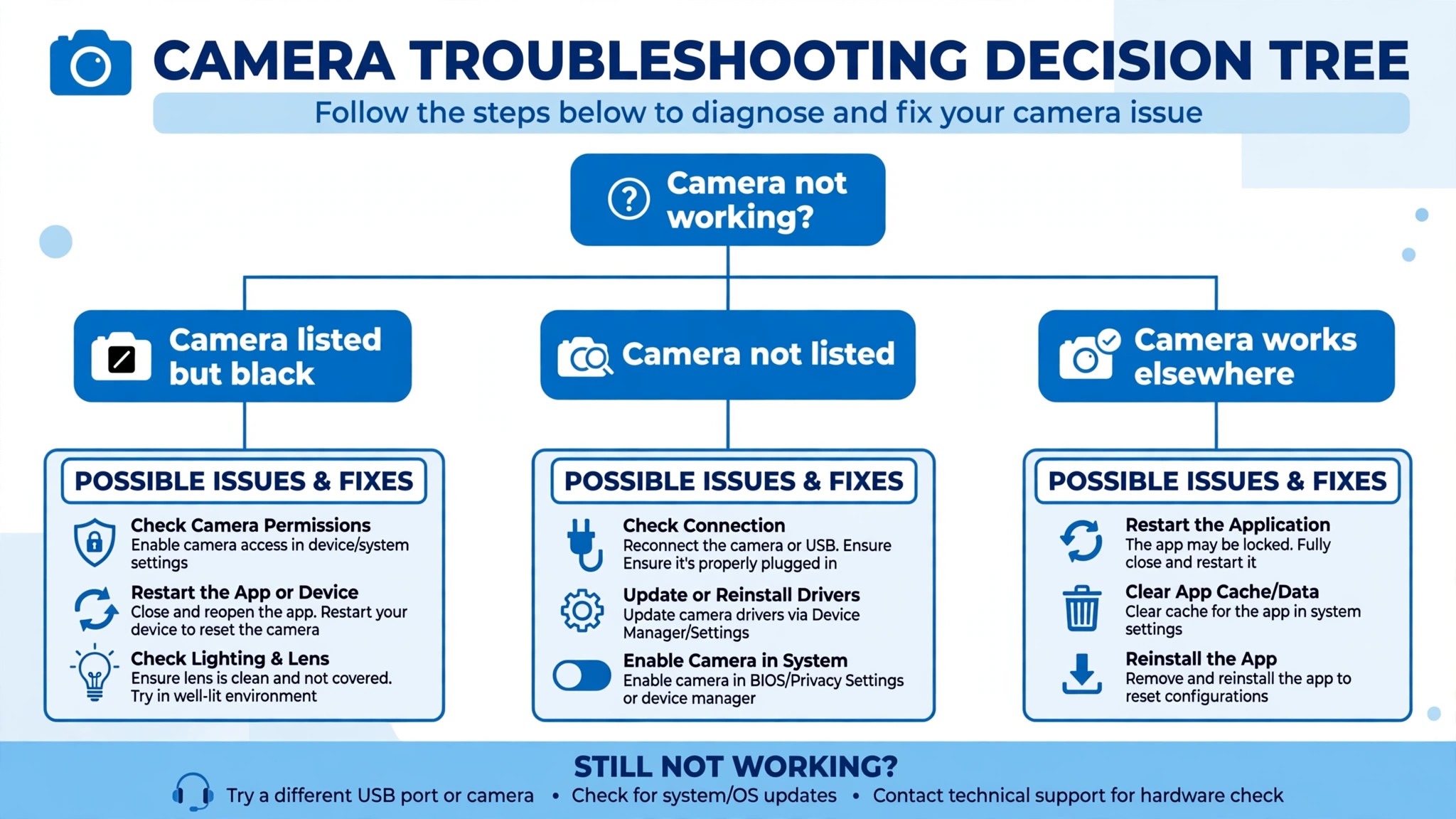
The first thing to work out is what Zoom sees. A camera that is listed but black has a different cause from a camera that is not listed at all, and a camera that works in another app but not in Zoom has a different cause again. If the camera is listed but black, another app or a driver is usually at fault. If the camera is not listed, the system cannot see the hardware at all. If the camera works elsewhere but not in Zoom, a permission is usually at fault. That split is the first step to fix zoom video not working, because the symptom tells you where to look.
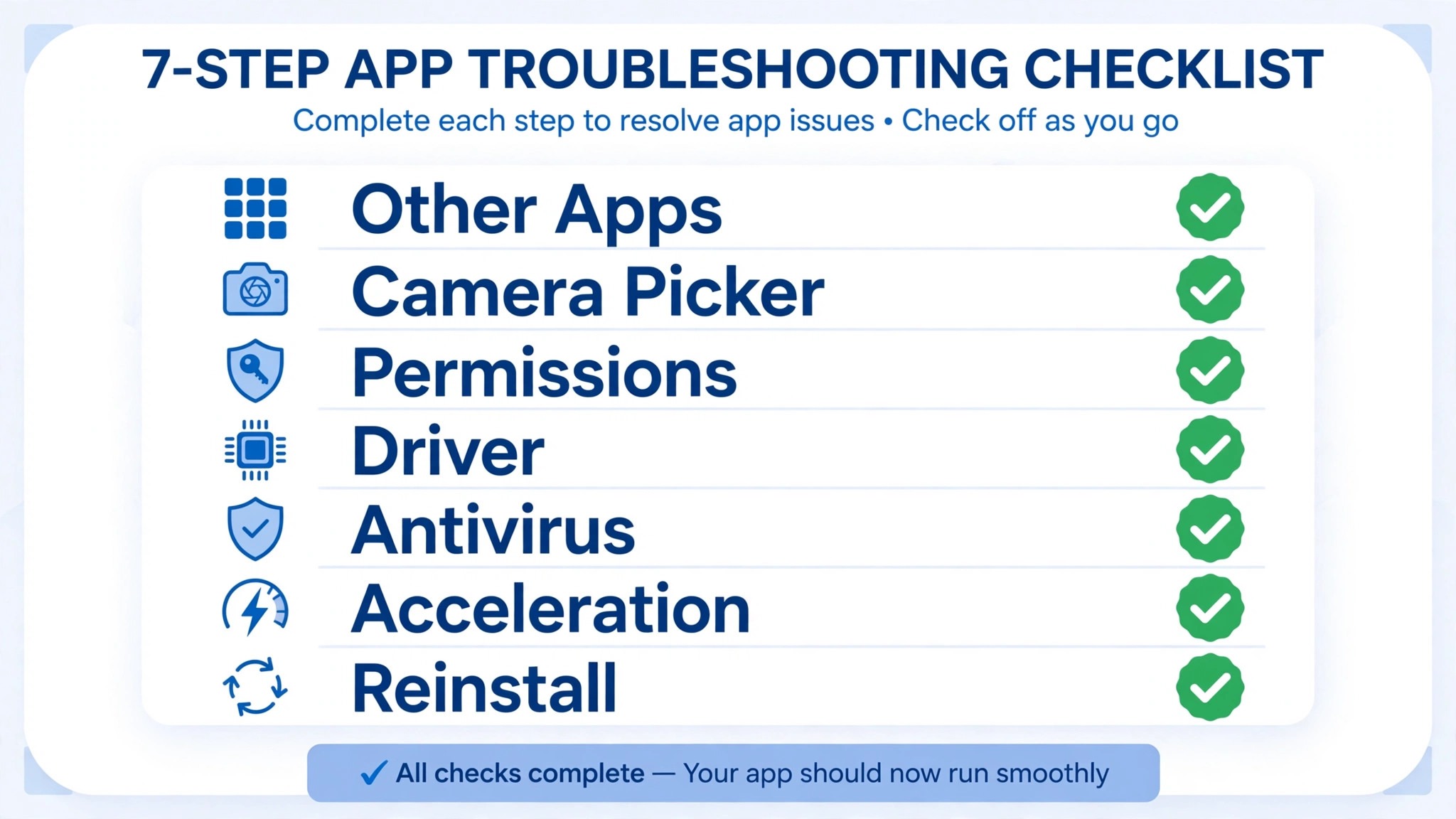
To fix zoom video not working, start with the visible checks, because they solve most cases, and work through the permission, driver, and app checks only if the visible checks fail. Open Zoom Settings and look at the Video preview first, because that preview tells you in seconds whether Zoom can access the camera at all. Then check the camera picker, because Zoom may be pointing at a device that no longer exists. This guide gives you that order, with a clear fix for each cause.
Quick Diagnosis Checklist to Fix Zoom Video Not Working
Work through this checklist in order, and stop as soon as the video works. Most cases resolve in the first three checks.
| What you see | Try this first | Likely cause |
|---|---|---|
| Camera listed but black screen | Close other video apps, restart Zoom | Another app holds the camera |
| Camera not listed at all | Check Device Manager, reinstall driver | Driver missing or corrupt |
| Camera works in other apps, not Zoom | Check system camera permissions | Permission blocked after update |
| Video frozen, then resumes | Close other apps, check bandwidth | Low bandwidth or CPU load |
| Video blurry or grainy | Turn off HD, improve lighting | HD on a slow connection |
| Black screen during screen share | Turn off hardware acceleration | GPU driver conflict |
| Video fails after a Zoom update | Clean reinstall of Zoom | Update broke the camera link |
| Video fails in browser only | Check browser camera permission | Browser blocks the camera |
If the video works after any check, join a test meeting before the real one, because a camera that works in Settings can still fail in a meeting. If none of the checks work, go to the still not working section at the end of this guide, and work through the account and device steps there.
1. Another App Holds the Camera, So Close Every Other Video App
Most webcams and built in laptop cameras allow only one application to use them at a time. When another app holds the camera open, Zoom receives the Camera is being used by another application error and shows a black screen. Browser tabs are the most common culprit, because a Google Meet tab left open earlier can still hold the camera even after the call ended, and Chrome may still have the camera until the browser is closed entirely.
How to tell it is this cause. Zoom shows a black screen where your video should be, or the camera dropdown shows the camera but the preview is black, and the camera works in no app until the other app is closed. A meeting that worked yesterday and fails today, after a Meet call or a Teams call, is the most common case, because the earlier app never released the camera.
How to fix it.
- Close Microsoft Teams, Skype, Discord, Google Meet, OBS Studio, the Windows Camera app, and any other application that might be accessing the camera.
- Close the browser entirely, not just the tab, because a browser tab can hold the camera after the call ends.
- Restart Zoom completely, exit the app, then reopen it, and check the Video preview again.
- Check the system tray for a video app running in the background, and quit it fully rather than minimizing it.
- Check for a virtual camera from OBS or a similar tool, and switch back to the physical webcam in the Zoom camera dropdown if a virtual camera is selected.
Do not just minimize the other app, because a minimized app can still hold the camera. Close it fully, restart Zoom, and the preview should return.
2. The Wrong Camera Is Selected in Zoom, So Pick the Right One
Zoom may be pointing at a device that no longer exists, and that causes a black screen or no video. If you have recently connected or disconnected an external webcam, Zoom may still point at the old device, and the camera dropdown will show a name that no longer matches the hardware on the desk. A virtual camera can cause the same fault, because Zoom may receive that feed instead of the physical webcam.
How to tell it is this cause. The camera dropdown in Zoom is empty or greyed out, or it lists a camera you no longer own, or the preview is black while the camera works in the Windows Camera app. A desk that changed recently, with a new webcam or a dock, is the most common case, because Zoom remembers the old device and does not switch on its own.
How to fix it.
- Open the Zoom app, click the gear icon in the top right corner, and select Video, because a preview of your camera should appear immediately.
- Click the arrow next to the video icon in a meeting, and confirm the right device is selected in the camera dropdown.
- Unplug and replug any external USB webcam, then check the dropdown again, because a loose connection can hide the device.
- Switch back to the built in camera if the external one fails, to confirm whether the fault is the device or the app.
- On Windows 11, check Settings, then Bluetooth and devices, then Cameras, and confirm the camera appears there before you blame Zoom.
If the preview is black, blank, or shows an error message, Zoom cannot access the camera in its current configuration, and the next causes will show you why. If the preview works, join a test meeting to confirm the video works in a call as well as in Settings.
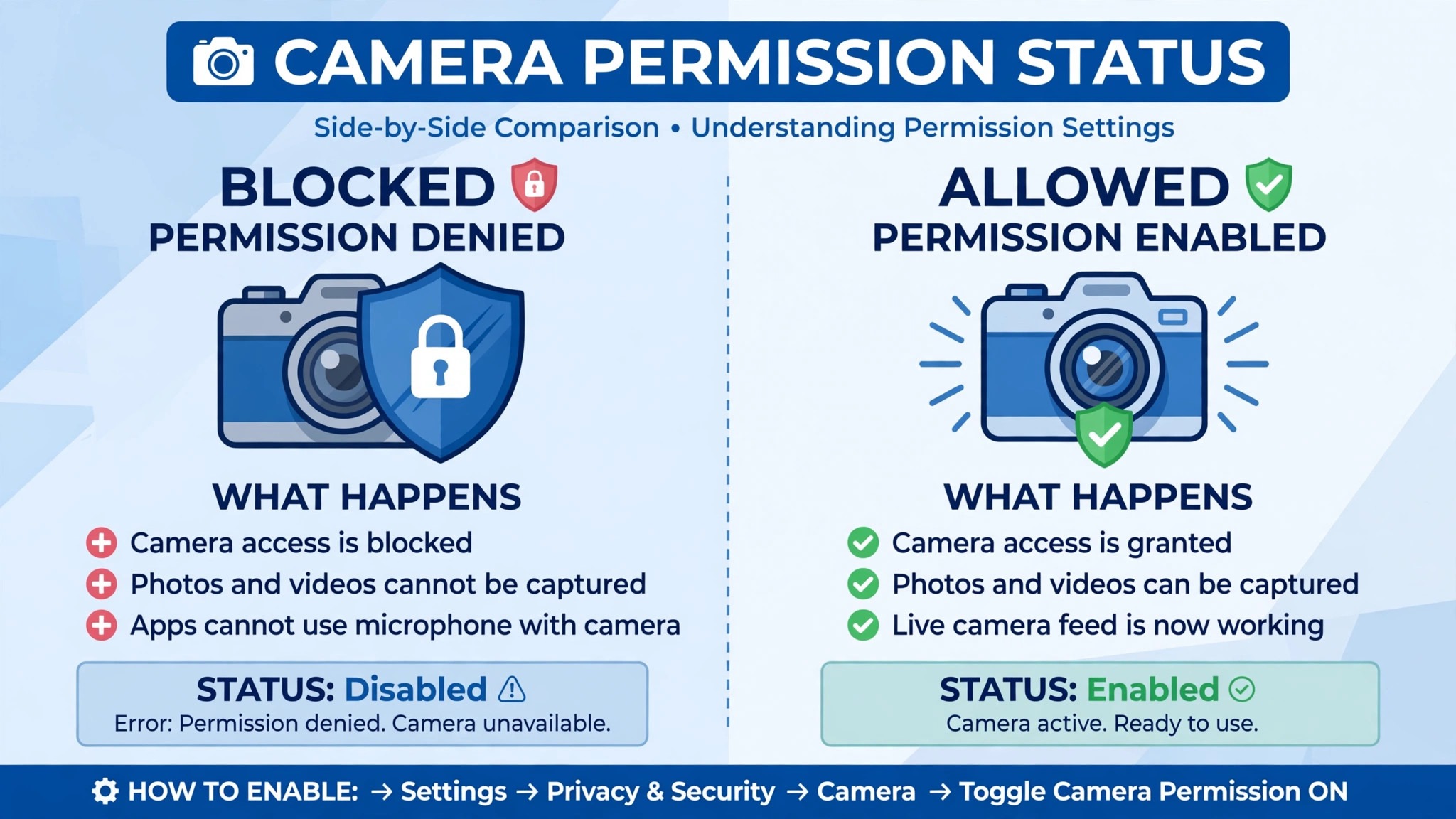
3. System Camera Permissions Block Zoom, So Check Privacy Settings
Windows 10 and 11 require explicit permission for each application to access the camera. A Windows Update, a privacy tool, or an antivirus camera protection feature can revoke Zoom camera access without any visible notification, causing Zoom to show a black screen. On macOS, the symptom is often a black preview or a frozen frame while other apps keep working, because the permission was reset for Zoom alone.
How to tell it is this cause. The camera works in one app but not in Zoom, and the fault started after a system update. Permission problems often look like device problems because Zoom simply receives no usable video feed, and the camera itself is fine. If the camera works in the Windows Camera app but not in Zoom, that points away from hardware failure and toward access control.
How to fix it.
- On Windows, press Windows and I to open Settings, go to Privacy and Security, then Camera, and confirm that Camera access is toggled On at the top of the page.
- Scroll down and confirm Let desktop apps access your camera is also set to On, because Zoom is a desktop app and needs that switch.
- On Mac, open System Settings, then Privacy and Security, then Camera, and confirm Zoom is listed and enabled.
- For browser based Zoom calls on a Mac, check the browser privacy settings, and confirm the browser can access the camera and Zoom is not on the blocked sites list.
- Restart Zoom after any permission change, because Zoom reads the permission when it starts and will not pick up a change mid session.
If the camera still fails after the permission is on, the fault is elsewhere, and repeating the same step will not help. Move to the driver check next.
4. The Webcam Driver Is Outdated or Corrupt, So Reset It
Camera drivers occasionally become corrupt after Windows Updates, and a driver that became incompatible after an update can stop Zoom from detecting the camera even when it works in other apps. The Windows Camera Frame Server service manages camera access for all applications on Windows 10 and 11, and when that service stops running, every camera application shows a black screen simultaneously, even though the camera hardware is physically working.
How to tell it is this cause. The camera does not appear in Device Manager, or it appears with a yellow warning icon, or the camera fails in every app at once. A Windows Update last night is the most common case, because the update can replace a working driver with one that does not match the hardware.
How to fix it.
- Open Device Manager, go to Cameras, right click your camera, and select Update driver, then let Windows search for a new driver.
- If the camera is listed but black, right click it, select Disable device, wait 10 seconds, then select Enable again, because that forces a driver reset without a full reinstall.
- If the camera does not appear in Device Manager at all, download and reinstall the webcam driver directly from your laptop manufacturer support page, because Dell, HP, Lenovo, and Asus all have dedicated driver download sections.
- Press Windows and R, type services.msc, and press Enter, then scroll to Windows Camera Frame Server, and if its status is not Running, right click it and select Start, or Restart it if it is already running.
- Restart the computer after any driver change, because the driver loads at startup and a restart is the only way to confirm it works.
On Mac, the corresponding sequence is simpler. Restart first, then check whether the camera works in another app. If it does, reinstall Zoom. If it does not, the issue is not specific to Zoom, and the fault is outside the app.
5. Antivirus Camera Protection Blocks Zoom, So Whitelist It
Security software with webcam protection blocks all unauthorized camera access, and if Zoom is not on the software trusted list, every Zoom video session is silently blocked at the driver level. Bitdefender, Kaspersky, ESET, and Norton all include a webcam protection feature, and a recent update to the security software can turn that protection on without telling the user.
How to tell it is this cause. The camera works when the antivirus is turned off, and fails when it is turned on, or the fault started after a security software update. The camera works in the Windows Camera app but not in Zoom, because the security software trusts the system app and not Zoom. A managed corporate laptop is a special case, because an IT policy may restrict which apps can access the camera, and that is an IT ticket, not something you can fix yourself.
How to fix it.
- Open your security software settings and look for webcam protection, camera shield, or privacy protection.
- Add Zoom to the trusted or allowed list, and confirm the change is saved.
- Turn the camera protection off temporarily as a test, check the Zoom preview, and turn it back on once you know it is the cause.
- Check for a second security tool, because a laptop can run both a vendor antivirus and a corporate tool, and either one can block the camera.
- Restart Zoom after any change to the security settings, because Zoom reads the access when it starts.
Do not leave the camera protection off permanently, because it protects against real threats. Whitelist Zoom, keep the protection on, and the camera should work.
6. Hardware Acceleration Breaks Screen Share Video, So Turn It Off
If you are sharing a specific window and it appears black, disable GPU acceleration in Zoom. This is a known conflict between Zoom hardware acceleration and certain GPU drivers, and it affects both Windows and Mac. The camera may work fine while the shared screen is black, because the two use different rendering paths, and the GPU path is the one that fails.
How to tell it is this cause. The camera preview works, the meeting video works, and only the shared screen is black, or the shared window is black while other windows share fine. A laptop with a recent GPU driver update is the most common case, because the driver change breaks the acceleration path Zoom was using.
How to fix it.
- Go to Zoom Settings, then General, then Advanced, and look for the hardware acceleration options.
- Uncheck the options that reference hardware acceleration for video rendering or compositing.
- Restart Zoom, because the change only takes effect on a fresh start.
- Share the window again, and check whether the other participants can see it.
- Update the GPU driver from the manufacturer site if the problem returns, because a newer driver can fix the conflict properly.
This fix resolves the black screen during screen share in most cases, and it is the fastest way to get a presentation back on screen. If the camera itself is black, this cause is not the one to chase, and the earlier causes are the ones to work through.
7. A Zoom Update Broke the Camera Link, So Reinstall Cleanly
If your camera worked before a Zoom update and broke immediately after, the update changed how Zoom interfaces with your camera driver. Do not just update again, because the same update will not fix a link that is already broken. A clean reinstall removes the old files and the old settings that the update left behind, and it gives Zoom a fresh start with the camera.
How to tell it is this cause. The camera worked yesterday, a Zoom update ran overnight, and the camera fails today in Zoom but works in every other app. The timing is the clue, because a fault that starts at the exact moment of an update is almost always caused by the update. A camera that fails in every app is not this cause, because that points at the driver or the hardware.
How to fix it.
- Uninstall Zoom from the computer, and delete the Zoom folder in the user settings if the uninstaller leaves it behind.
- Restart the computer, because a restart clears the camera service and the old Zoom processes together.
- Download the latest Zoom installer from the Zoom site, and install it fresh.
- Open Zoom Settings, then Video, and check the preview before you join a meeting.
- Test the camera in another app first, because if it fails there too, the issue is hardware or system level, not Zoom.
On Mac, Zoom recommends restarting the computer first, then checking whether the camera works in another app. If it does, reinstall Zoom. If it does not, the fault is outside Zoom, and a reinstall will not help. A clean reinstall is fast, and it is the right last step before you contact support.
Still Not Working
If you have worked through all seven causes and the video still will not work, this is the point where a systematic check still pays off. Work through these steps in order, and stop as soon as the video works. First, test the camera in another app, because if it fails there too, the issue is hardware or system level, not Zoom.
Second, try a different camera entirely, a USB webcam if you were using the built in one, or the built in camera if you were using a USB one, because a camera problem will follow the camera, and a Zoom problem will follow the app. Third, check the bandwidth, because a slow connection can freeze video even when the camera works, and a wired connection or a closer router can fix a freeze that looks like a camera fault.
Fourth, check that your Zoom account is in good standing, and that no admin policy blocks video, because a managed account can disable video for a user without any message on the screen. Fifth, contact Zoom support through the Help Center, and tell them which camera you use, which operating system, which Zoom version, and which of the seven causes you already ruled out, because that list saves the support team time and gets you a useful answer faster.
Do not buy a new webcam until you have tried the driver reset and the clean reinstall, because a new camera will fail the same way if the driver or the permission is the problem. Save the test results, then decide, and keep the old camera until the new one works.
Prevention Checklist
Use this checklist before any important meeting, and video problems will become rare. Join a test meeting ten minutes early, and check the Video preview in Settings before you join. Close Teams, Meet, OBS, and any other video app before you open Zoom, and close the browser entirely if a Meet tab was open. Keep Zoom and the webcam driver updated, and check the camera permission after every system update.
Keep the lighting in front of you, not behind you, and turn off HD video if the connection is slow, because HD on a weak connection freezes more often than standard video. Keep a USB webcam as a spare if meetings matter, and test it once a month, so a spare that works is ready when the built in camera fails. Save the driver download link for your laptop, so a reinstall is fast when it is needed.
What to Do in the Ten Minutes Before a Meeting
The ten minutes before a meeting are the minutes that decide whether the video works, and the order matters more than the speed. Start by opening Zoom Settings and looking at the Video preview, because that preview tells you in seconds whether Zoom can access the camera at all, and it is the fastest way to fix zoom video not working before a meeting starts.
Next, close every other video app, including Teams, Meet, and the browser, because a camera held by another app is the most common cause of a black screen, and a closed app releases the camera at once. Restart Zoom after you close them, because Zoom reads the camera when it starts, and a restart is the only way to confirm the release worked. Join a test meeting from the Zoom site, because a camera that works in Settings can still fail in a call if the bandwidth is low.
Next, check the light and the background, because a camera that works in a dark room will still look bad, and a window behind you will turn your face into a silhouette. Move the light in front of you, close the curtain behind you, and clean the lens with a soft cloth, because those three steps take a minute and they change how professional the video looks.
Next, check the audio, because a meeting with video and no sound is worse than a meeting with sound and no video. Speak a sentence in the test meeting and watch the microphone meter move, because a meter that does not move means the microphone is muted or the wrong one is selected. Plug in headphones if the room echoes, because an echo will distract every person on the call.
Finally, keep a spare ready, because a USB webcam that costs 30 dollars and sits in a drawer will save a meeting when the built in camera fails. Plug it in once a month and test it, so a spare that works is ready when it is needed, and a spare that was never tested will fail at the worst moment. That ten minute routine is the cheapest insurance against a black screen in front of a client, and it turns a stressful morning into a meeting that starts on time.
Frequently Asked Questions
Why is my Zoom video not working?
The most common reason is that another app holds the camera, or that the system permission blocks Zoom, or that the driver is corrupt after an update. Check those three first to fix zoom video not working, because most cases resolve in those three steps. Close every other video app, check the camera permission in system settings, and reset the driver in Device Manager.
Why does Zoom show a black screen for my camera?
Zoom has detected your camera but cannot display its output, and the two most common causes are another app holding the camera lock or a driver that needs resetting. Close all other video apps completely, then open Device Manager, go to Cameras, right click your camera, select Disable device, wait 10 seconds, and select Enable again. That forces a driver reset without a full reinstall, and the preview should return.
Why does my camera work in other apps but not Zoom?
The camera works elsewhere but not in Zoom when a permission blocks Zoom alone, or when Zoom points at the wrong camera, or when antivirus blocks Zoom specifically. Check the system camera permission, check the camera dropdown in Zoom Settings, and whitelist Zoom in your antivirus camera protection. If the camera works in the Windows Camera app but not in Zoom, the fault is access control, not hardware.
How do I test my camera before a Zoom meeting?
Open Zoom, click the gear icon, select Video, and look at the preview. If the preview shows your face, the camera works. Join a test meeting from the Zoom site to confirm the video works in a call as well as in Settings, because a camera that works in Settings can still fail in a meeting if the bandwidth is low. Test ten minutes before the real meeting, not one minute before.
Why is my Zoom video blurry or grainy?
Blurry video usually means HD is on over a slow connection, or the lighting is poor, or the lens is dirty. Turn off HD in Zoom Settings, then Video, and improve the light in front of you. Clean the lens with a soft cloth, and move closer to the router or plug in an ethernet cable if the connection is weak. If the phone has under 3 gigabytes of RAM, disable HD video in Settings, because HD needs more memory than a low end phone can spare.
Verdict
To get video back on Zoom, start with the other apps and the camera picker, because a camera held by another app is the most common cause and the fastest fix. That order is the core of how to fix zoom video not working without wasting an hour on the wrong cause. Then check the system permission, because a permission reset after an update looks exactly like a broken camera, and it takes a minute to fix.
If the video still fails, reset the driver, whitelist Zoom in the antivirus, turn off hardware acceleration for screen share, and reinstall Zoom cleanly. Work through the seven causes in order, test the camera before the real meeting, and use the prevention checklist on every important call. Most readers will only need the first three causes to fix zoom video not working, and the rest are there for the stubborn cases. The camera is almost always still there, and the video is almost always simpler to restore than it looks.