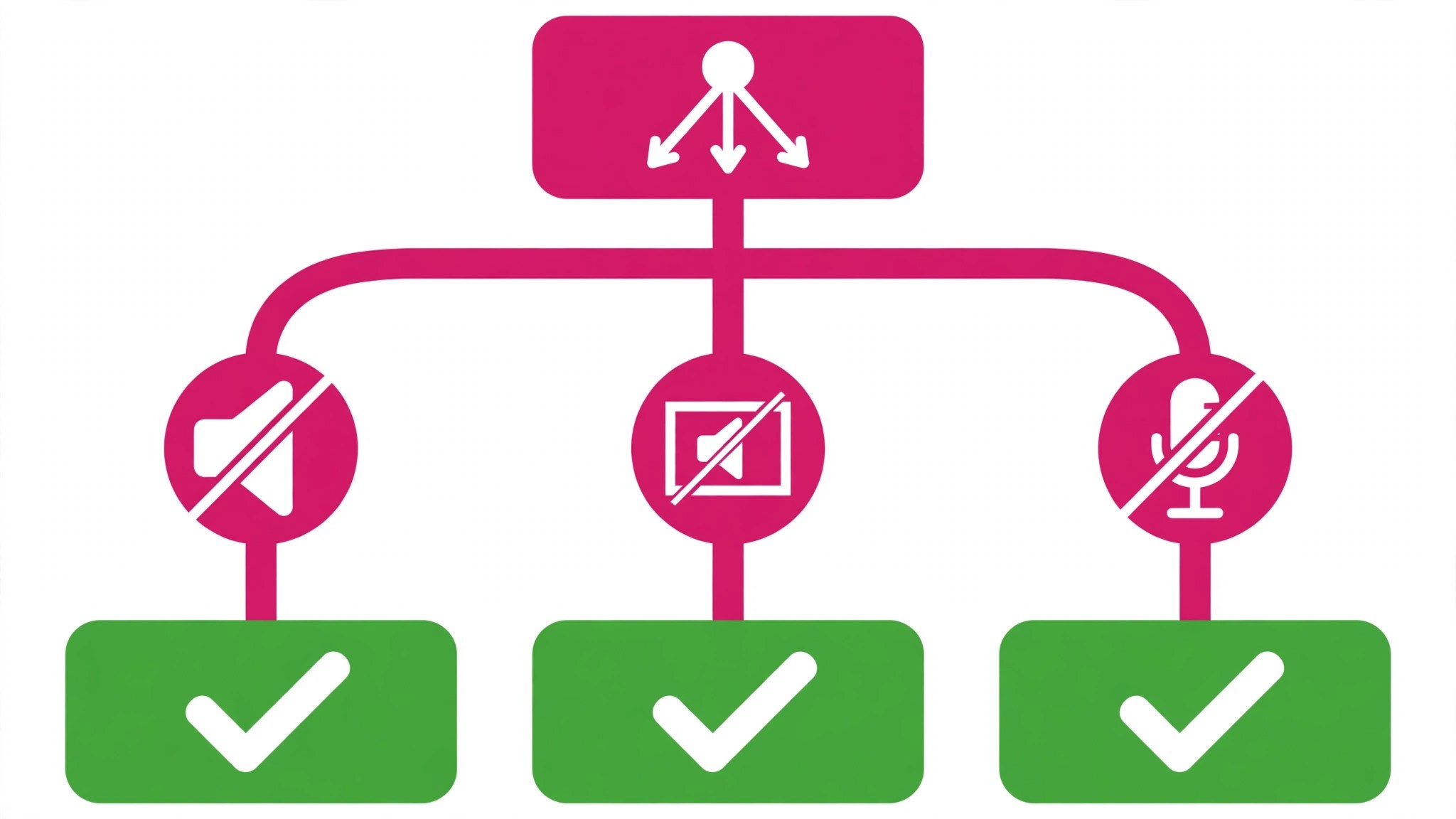
You open a video, the picture plays, and there is no sound. Or you record a video, play it back, and your voice is missing. Or you post a video and TikTok mutes it, with a notice that the sound was removed. Three different faults, one silent screen, and each one has a different fix. This guide to fix tiktok sound not working works through all seven causes in order, starting with the checks that take under a minute.
TikTok sound can fail at four points. The phone can send the audio to the wrong place. The app can be muted by its own settings. The recording can fail to capture audio at all. Or TikTok can remove the sound after the video is posted, because of copyright or community rules. The symptom tells you which point to check first, and guessing the wrong one is why so many readers clear the cache three times and still hear nothing.
The first thing to work out is the scope of the silence. Every video silent points at the phone or the app. One video silent points at that video, or at a sound TikTok removed. Your own recordings silent points at the microphone. A favourite sound missing from the list points at the video length or the account type. That split is the fastest way to find the cause, and it saves an hour of checking the wrong setting.
Quick Diagnosis Checklist to Fix TikTok Sound Not Working
Work through this checklist in order, and stop as soon as sound returns. To fix tiktok sound not working, start with the phone, because the phone decides where audio goes, and work through the app and account checks only if the phone checks fail. Most cases resolve in the first three checks.
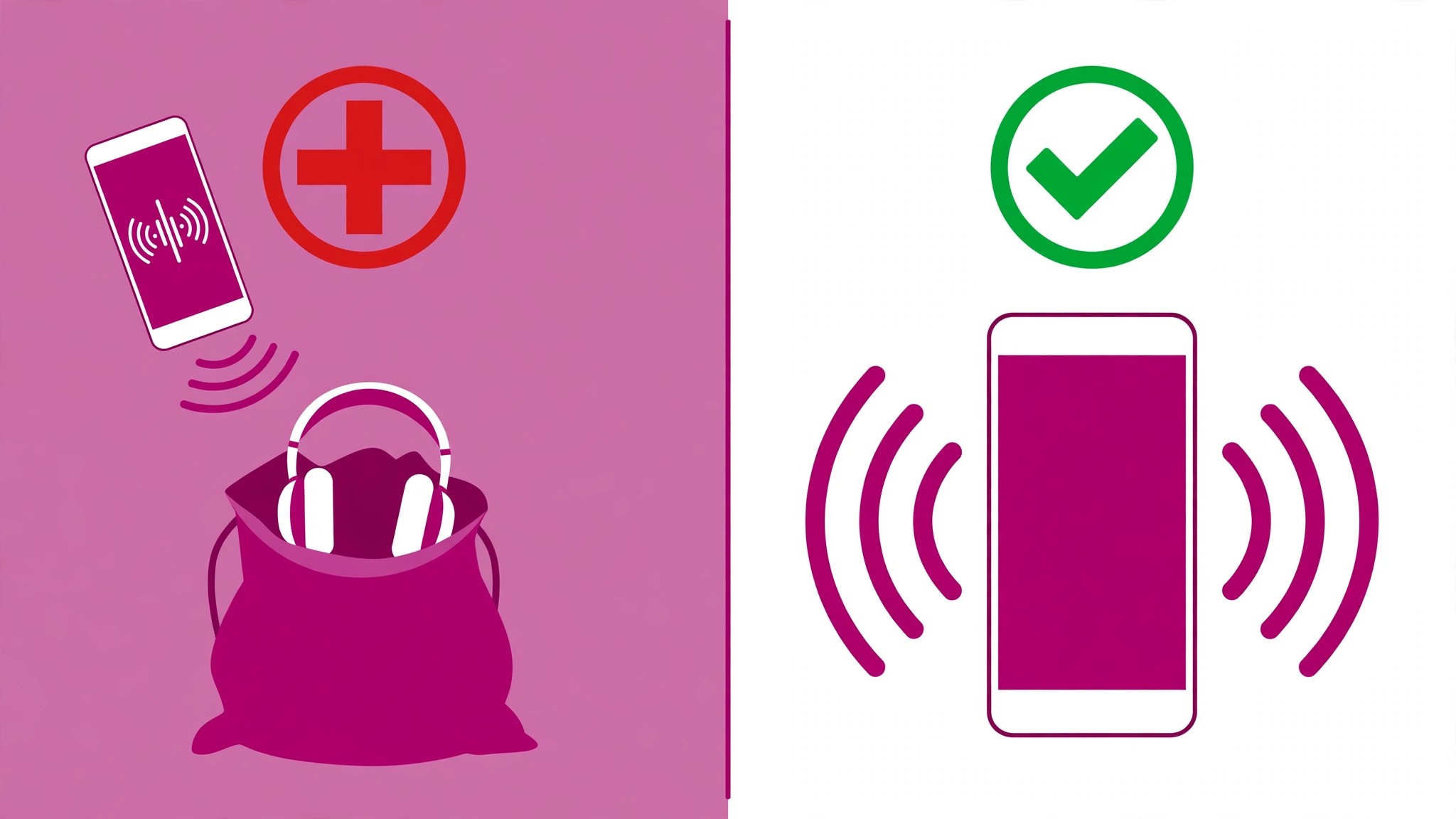
| What you see | Try this first | Likely cause |
|---|---|---|
| Every video is silent | Raise media volume, turn silent mode off | Phone muted or volume down |
| Sound plays through the wrong device | Disconnect Bluetooth headphones or speakers | Audio routed to Bluetooth |
| Only your recordings are silent | Check microphone permission for TikTok | Microphone not allowed |
| One video is silent, the rest play | Look for a muted sound notice on that video | Sound removed by TikTok |
| Favourite sound missing from the list | Set the video length to 15 seconds or 60 seconds | Sound not available for long videos |
| Sound missing on a Business account | Pick a track licensed for commercial use | Music not licensed for business use |
| Sound fails after an update | Update TikTok, clear the cache, restart the phone | Outdated or corrupt app |
| Uploaded video has no sound | Check the original file plays with sound | File lost its audio track |
If sound returns after any check, play three different videos before you call it fixed, because a single video can carry its own fault. If none of the checks work, go to the still not working section at the end of this guide, and work through the account and device steps there.
1. The Phone Is on Silent, or the Media Volume Is Down
The most common cause is also the most embarrassing, and it is the first check for a reason. A phone on silent mode, a media volume turned down, or a Do Not Disturb setting that mutes media will silence every TikTok video while every other app looks fine, because TikTok follows the phone’s media volume, not the ring volume. The fix takes seconds, and it is worth doing even when you are sure the phone is not muted, because the silent switch is easy to knock without noticing.
How to tell it is this cause. Every video is silent, other apps are silent too, or the problem started after the phone was in a pocket or a bag. A phone that was on silent overnight is the most common case, because the switch stays where it was left.
How to fix it.
- Turn the silent switch off on an iPhone, or turn off Do Not Disturb on Android, and play a video again.
- Start a video playing, then press the volume up button, and watch the media volume bar, not the ring volume bar.
- Open the phone settings, open Sound, and confirm the media volume is up, not just the ring volume.
- Turn off any focus mode that mutes media, and test again.
- Play a video in another app, because sound that fails everywhere is a phone fault, not a TikTok fault.
Do not assume the volume is up because the phone rang this morning. Ring volume and media volume are separate, and TikTok uses media volume. Raise it while a video is playing, so you can see the right bar move.
2. The Audio Is Playing Through Bluetooth, or the Wrong Output
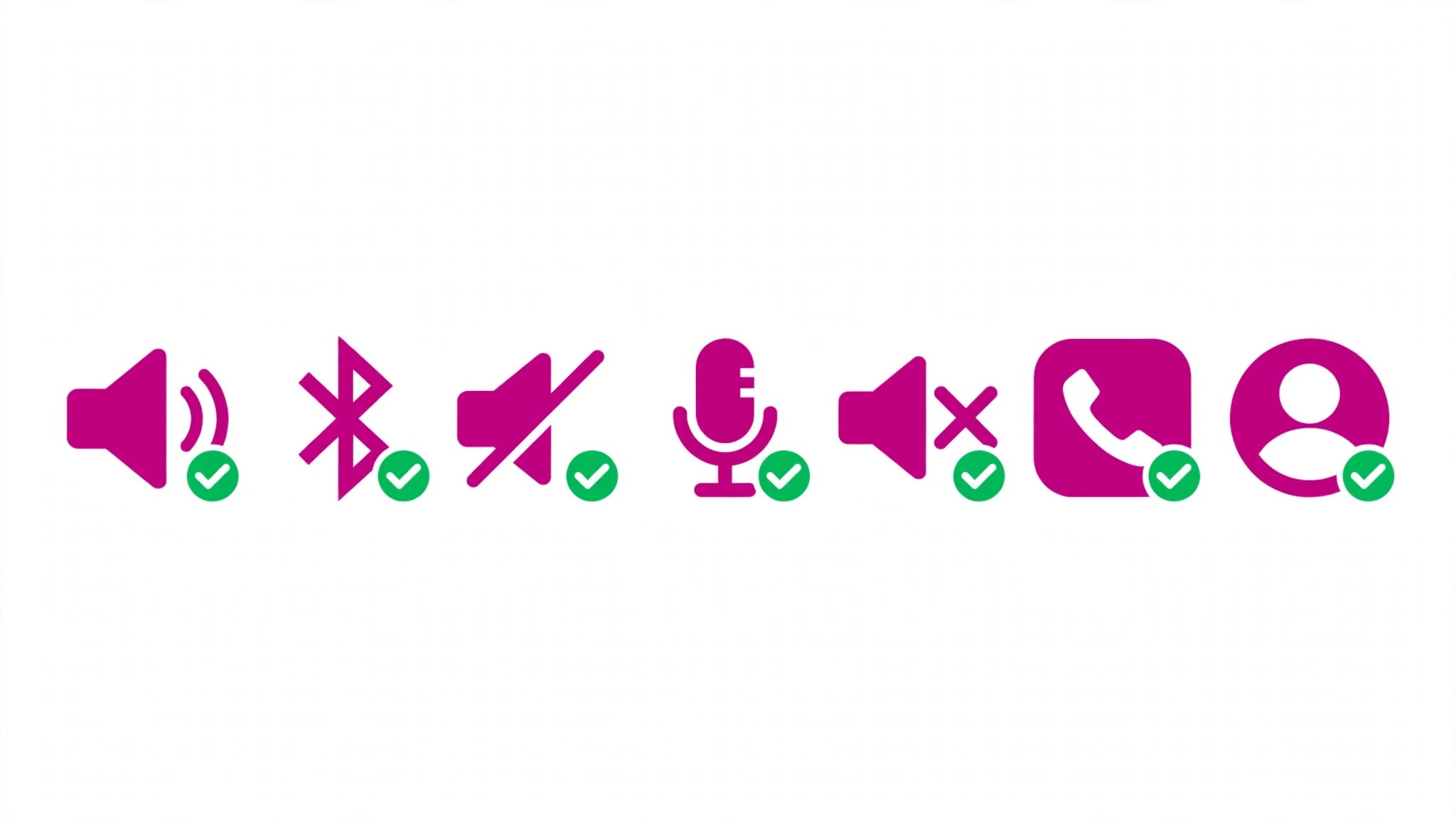
TikTok can be playing sound perfectly, and you can still hear nothing, because the audio is going to a pair of headphones in a bag, a car stereo, or a speaker in another room. Bluetooth stays connected longer than most people expect, and the phone will keep sending audio to the last connected device even when that device is out of reach. The fix is to find where the audio is going, not to turn the volume up, because the volume is already up on a device you cannot hear.
How to tell it is this cause. The video shows the sound playing, the volume bar moves, and other apps are silent too, or the problem started after you used headphones or the car. A pair of earbuds left in a pocket is the most common case, because the phone connects to them the moment they wake up.
How to fix it.
- Open the phone’s Bluetooth settings and disconnect every audio device.
- Play a TikTok video and confirm the sound comes from the phone speaker.
- Turn Bluetooth off completely for a test, then turn it back on after the test.
- Check the audio output menu while a video plays, and choose the phone speaker if another device is selected.
- Forget a device that keeps reconnecting on its own, and pair it again only when you need it.
Keep Bluetooth off while you test, because a device that reconnects mid-test will hide the result. A video that plays sound from the phone speaker after Bluetooth is off was a routing problem, and that test alone settles the cause.
3. TikTok Itself Is Muted, or the In-App Volume Is Down
TikTok has its own volume controls, and they can mute the app even when the phone is loud. A playback setting that opens TikTok muted, a video that was muted by the creator, or an in-app volume slider left at zero will silence videos while the phone plays other apps normally. The fix sits inside TikTok, not in the phone settings, and it takes seconds once you know where to look.
How to tell it is this cause. Other apps play sound, TikTok does not, and the problem started after a setting was changed or the app was updated. A video that shows a muted speaker icon is the most common case, because the creator muted the video itself, and no phone setting will unmute it.
How to fix it.
- Tap the speaker icon on a playing video, and confirm it shows sound on, not muted.
- Open TikTok settings and look for a playback setting that opens the app muted, and turn it off.
- Check the volume slider inside the video player, if the app shows one, and raise it.
- Play three different videos, because one muted video does not mean the app is muted.
- Restart the app after changing the setting, so the new setting applies to every video.
Do not clear the cache before you check the speaker icon, because a muted video is a content choice, not an app fault. Tap the icon first, and the answer is on the screen.
4. The Microphone Permission Is Off, So Recordings Have No Voice
Microphone permission is not needed to hear a video, but it is needed to record one. A TikTok that cannot use the microphone will record a video with no voice, no background sound, and no voiceover, while every video you watch plays normally. The fault is invisible until you play the recording back, which is why it survives for days before anyone notices. To fix tiktok sound not working on recordings, the microphone permission is the first place to look, because it is the only setting that affects recording and not playback.
How to tell it is this cause. Videos you watch play sound, videos you record do not, and the problem started after an update, a reinstall, or a prompt you dismissed. A permission denied by accident is the most common case, because the prompt appears once and the answer sticks.
How to fix it.
- Open the phone settings, open Apps, then TikTok, then Permissions, and check the microphone.
- Set the microphone permission to Allow, not Ask every time, so the app can record when you need it.
- Test with the phone’s own camera app first, because a recording that is silent there is a phone fault, not a TikTok fault.
- Record a short TikTok, play it back, and confirm your voice is there before you record the real one.
- Check that no other app is using the microphone at the same time, because one app can hold it and block the other.
Do not reinstall the app before you check the permission, because a reinstall asks the same question again, and the same answer will give the same result. Allow the microphone once, and the recordings will have sound.
5. TikTok Removed the Sound, So the Video Is Muted After Posting
TikTok removes sounds that break copyright rules or community guidelines, and when it does, every video using that sound is muted. The video stays up, the picture plays, and a notice at the bottom says the sound was removed. No phone setting, cache clear, or reinstall will bring it back, because the sound was removed on TikTok’s side, not on yours. The fix is to replace the sound, or to appeal if the removal was a mistake.
How to tell it is this cause. One video is silent while the rest play, the video shows a notice about a removed sound, and the problem started after the video was posted, not while you recorded it. A popular song used without a licence is the most common case, because the rights holder can claim it at any time.
How to fix it.
- Open the muted video and tap View details at the bottom to see the reason.
- Read whether it was a copyright claim, a community guidelines violation, or both.
- Tap Change sound, pick a new sound, trim it, set the volume, and save the change.
- Submit an appeal from the notice if the removal was a mistake, and wait for the review.
- Use original audio or a licensed track next time, because a claimed song can be claimed again.
Do not re-upload the same video with the same sound, because the same claim will mute it again. Change the sound, and the video will play with audio. A muted video with a notice is a rights problem, not a settings problem, and that notice is the answer.
6. The App Is Outdated, the Cache Is Corrupt, or the File Lost Its Audio
An outdated app can carry a bug that the current version fixed, a corrupt cache can break playback, and an imported video can lose its audio track before TikTok ever sees it. All three faults look the same from the outside. The video plays, the sound does not, and restarting the app changes nothing, because the fault lives in the app’s files or in the video file itself. Updating, clearing the cache, and checking the original file will separate the three.
How to tell it is this cause. Sound fails on some videos and not others, or the problem started after an update, or an uploaded video is silent while a recorded video plays sound. An imported video from another app is the most common case, because the export can drop the audio track without any warning.
How to fix it.
- Update TikTok from the App Store or Google Play, then restart the phone.
- Clear the TikTok cache from the app settings, and on Android, from the app info page in the phone settings.
- Play the original video file outside TikTok, and confirm it has sound there before you upload it again.
- Re-export the video from the editing app with the audio track included, and upload the new file.
- Uninstall and reinstall TikTok if the update and the cache clear both fail, then sign in again.
Do not reinstall before you check the original file, because a file with no audio will be silent in a fresh install too. Check the file first, and the app second.
7. The Sound Is Not Available for Your Video Length or Account Type
Some sounds are not available for long videos, and some music is not licensed for business accounts. TikTok hides sounds that do not fit the video length you chose, so a favourite sound can vanish from the list when the video is set to ten minutes, and return when the length is set to 15 seconds or 60 seconds. A Business account can only use music licensed for commercial use, so a popular song can be missing from the list for a business account while it plays fine on a personal one. Both faults look like a missing sound, and both have a simple fix.
How to tell it is this cause. The sound is missing from the favourites list, or the video length is set to a long duration, or the account is a Business account. A favourite that vanished after switching to a Business account is the most common case, because the licence filter applies the moment the account type changes.
How to fix it.
- Set the video length to 15 seconds or 60 seconds on the recording screen, and check the favourites list again.
- Switch the account back to Personal if the music matters more than the business tools, or keep the Business account and use the commercial library.
- Search for the sound by name, because a sound that is missing from favourites may still be available by search.
- Pick a similar track from the commercial library if the original is not licensed for business use.
- Report the missing sound from the help section if none of the above fits, and include screenshots of the recording screen and the favourites list.
Do not assume the sound was deleted. A sound that returns when the video is shortened was hidden by the length filter, not removed, and that test alone settles the cause.
What Healthy TikTok Sound Looks Like
Healthy TikTok sound is simple. You open a video, the speaker icon shows sound on, and the audio plays from the phone speaker at the media volume you set. A recording captures your voice, a voiceover records cleanly, and a posted video keeps its sound unless a rights claim removes it. That normal behaviour is the baseline, and any video that breaks it is worth one minute of diagnosis before any fix is tried.
The sound has three stages, and each one can fail on its own. First, the phone produces the audio and sends it to the right output. Second, the app plays the audio at its own volume. Third, the video file or the sound track carries the audio in the first place. A muted phone stalls the first stage. A muted app stalls the second. A removed sound or a file with no audio stalls the third. Knowing the stages helps you read the symptom, because every video silent points at the first two stages, and one video silent points at the third.
Timing is a useful clue too. A sound that vanished the moment a video was posted is a removal, not a setting. A sound that vanished after an update is an app fault. A sound that never worked on recordings is a permission. The habit that protects you is simple. After any update, play three videos and record a short test, and confirm both work before you record the real one. A reader who builds that habit will rarely need to fix tiktok sound not working again, because the fault will be caught while the fix is still a single setting.
The Upload Check Most People Skip
A video that plays with sound on your phone can still upload silent, and the reason is the file, not the app. When a video is edited in another app, exported, and then uploaded to TikTok, the export can drop the audio track without any warning. The editor shows sound, the phone plays sound, and the exported file has none, because the export settings muted the track or the app crashed partway through the render. The fix is to play the exported file outside TikTok before you upload it, because a file with no audio will be silent in TikTok too, and no app setting will put the sound back.
The check takes a minute. Open the exported video in the phone’s gallery or files app, play it, and listen. If the gallery version has sound, the file is fine and the fault sits in TikTok. If the gallery version is silent, the file is the problem, and the fix is to re-export it from the editing app with the audio track turned on. Check the export settings too, because some editors mute the original audio when music is added, and the mute survives the export.
The format matters as well. A video in an unusual codec can lose its audio when TikTok converts it, while a standard MP4 with AAC audio uploads cleanly. If a video from a screen recorder or a drone app keeps losing sound, convert it to MP4 with AAC audio in a free converter, then upload the converted file. A file that uploads with sound after conversion was a codec problem, not a TikTok problem, and that test alone settles the cause.
Still Not Working
If you have worked through all seven causes and sound still fails, this is the point where a systematic check still pays off. First, try a different device entirely, because a device problem will follow the device, and an account problem will follow the account. Second, test the phone speaker with another app, because a speaker that fails everywhere is a hardware fault, not a TikTok fault. Third, check whether the problem follows your account to a second phone, because an account fault will travel with the login.
Fourth, check the TikTok status and the app store reviews, because an outage or a bad update can affect every user at once. Fifth, try the web version of TikTok in a browser, because sound that works there proves the account and the videos are fine and the app is the problem. Sixth, write down the exact symptom, the device, and the app version, then report it from the help section in the app, because support will ask for all three. Do not factory reset the phone for a sound problem limited to TikTok, because the fault is almost never that deep.
Prevention Checklist
Use this checklist after every update, and sound faults will become rare. Keep TikTok updated, and restart the phone after an update. Keep the microphone permission allowed, and check it after any reinstall. Keep Bluetooth devices disconnected when you are not using them, so audio does not route to a bag or a car. Check the speaker icon on the first video you open, and raise the media volume while it plays.
Record a short test before a long recording, and play it back before you post. Use original audio or licensed tracks, and check the video length before you pick a sound. Keep the cache cleared once a month, and keep the phone software updated. Keep a note of which setting fixed the last fault, because the same fault will return the same way.
Frequently Asked Questions
Why is there no sound on TikTok videos?
The most common reason is the phone on silent or the media volume down, followed by audio routed to a Bluetooth device, or TikTok itself muted. Turn silent mode off, raise the media volume while a video plays, disconnect Bluetooth, and tap the speaker icon on the video. Most cases resolve in those steps, because the phone decides where audio goes, and TikTok follows the phone.
Why does my TikTok video have no sound after I record it?
The microphone permission is the usual cause, because TikTok needs it to record voice and background sound. Open the phone settings, open Apps, then TikTok, then Permissions, and set the microphone to Allow. Then record a short test and play it back. A recording that is silent in the phone’s own camera app is a phone fault, not a TikTok fault, so test there first.
Why was the sound removed from my TikTok video?
TikTok removes sounds that break copyright rules or community guidelines, and every video using that sound is muted. Open the video, tap View details, and read the reason. If it was a copyright claim, tap Change sound and pick a new track. If it was a mistake, submit an appeal from the notice. A sound that was removed on TikTok’s side cannot be restored by any phone setting, and that notice is the answer. That step alone can fix tiktok sound not working on a posted video, because it replaces the sound instead of chasing a setting.
Why is my favourite sound missing on TikTok?
The most common reasons are the video length and the account type. TikTok hides sounds that are not available for long videos, so set the length to 15 seconds or 60 seconds on the recording screen and check again. A Business account can only use music licensed for commercial use, so a popular song can be missing there while it plays on a personal account. Search for the sound by name, because a sound missing from favourites may still be available by search.
How do I clear the TikTok cache?
On Android, open the phone settings, open Apps, then TikTok, then Storage, and tap Clear cache. On an iPhone, there is no cache button, so delete the app and reinstall it from the App Store, then sign in again. Clearing the cache removes temporary playback data, and it fixes sound faults caused by a corrupt cache. It does not delete your videos, your drafts, or your account, but it will sign you out on some devices, so keep the login details handy.
Verdict
To rescue silent TikTok videos, start with the phone, because the silent switch, the media volume, and the Bluetooth output decide whether any sound can be heard at all. That order is the core of how to fix tiktok sound not working without wasting an hour on the wrong setting. Then check the app, because a muted speaker icon and a missing microphone permission are the next most common causes, and both take seconds to check.
If sound still fails, read the notice on the video, because a removed sound is a rights problem, not a settings problem, and the fix is to change the sound. Work through the seven causes in order, test with three videos before you call it fixed, and use the prevention checklist after every update. Most readers will only need the first three causes to fix tiktok sound not working, and the rest are there for the stubborn cases. The sound is almost always still there, in the phone, in the app, or in the file, and the fault is almost always simpler to resolve than it looks, so a careful pass through the seven causes will bring it back.