A Reel that played fine in the preview and goes silent after posting is one of the most confusing faults on Instagram, because the video is there, the views are counting, and the sound is gone. The cause is almost always one of seven things, and the fix takes less than ten minutes once you know which one it is. This guide to fix instagram reels no sound works through all seven causes in order, starting with the ones you can check in under a minute.
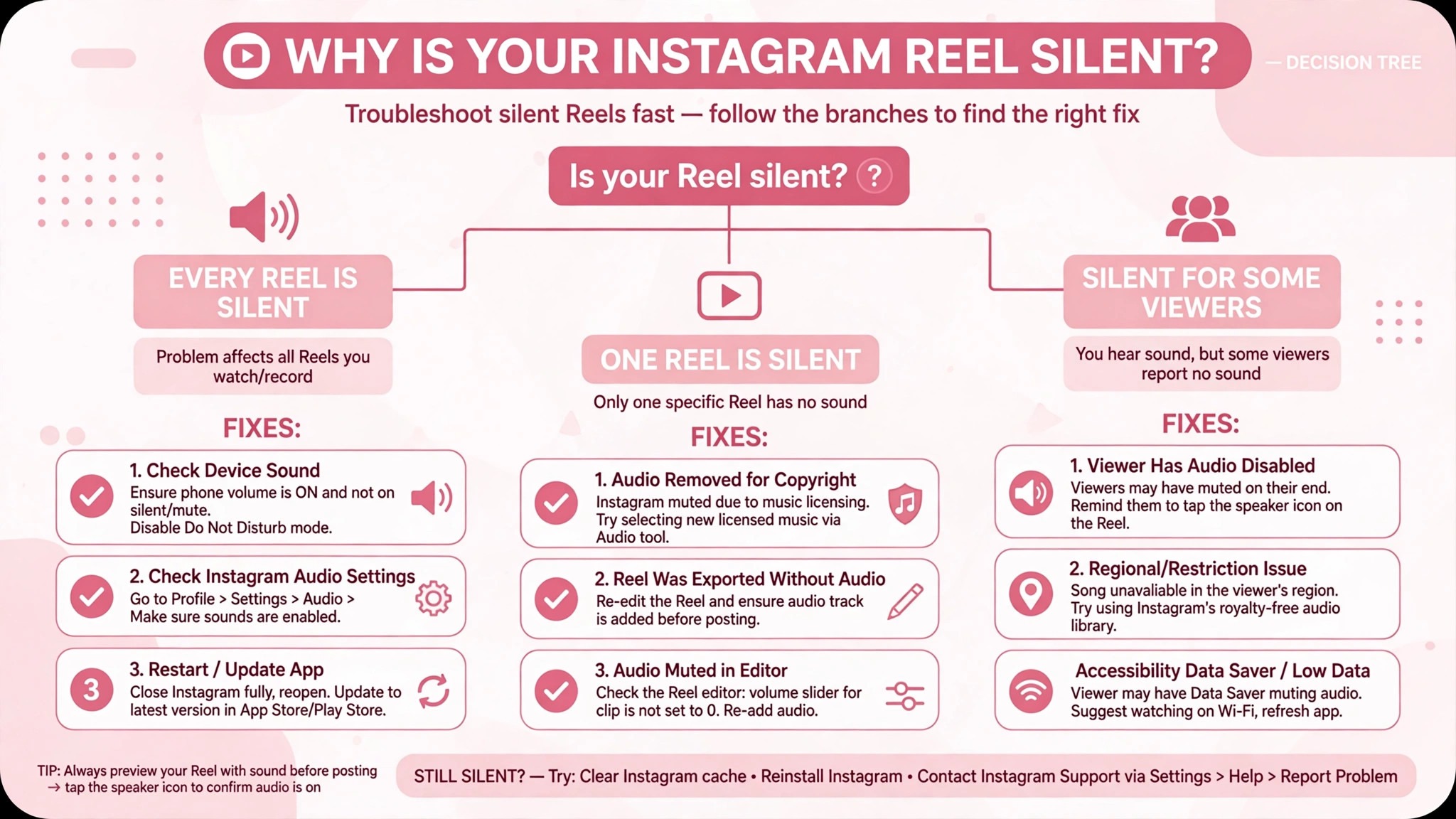
The first thing to work out is who cannot hear it. A Reel that is silent for everyone has a different cause from a Reel that is silent for viewers in one country, and a Reel that is silent on your phone only has a different cause again. If every Reel is silent, the phone or the app is usually at fault. If one Reel is silent, the audio on that Reel is usually at fault. If the Reel is silent for some viewers and fine for others, music licensing is usually at fault. That split is the first step to fix instagram reels no sound, because the symptom tells you where to look.
To fix instagram reels no sound, start with the visible checks, because they solve most cases, and work through the audio, account, and file checks only if the visible checks fail. Tap the video to turn sound on first, because Instagram mutes Reels by default in the feed and the speaker icon is easy to miss. Then check the phone volume and the silent switch, because those two catch more people than any app fault. This guide gives you that order, with a clear fix for each cause.
Quick Diagnosis Checklist to Fix Instagram Reels No Sound
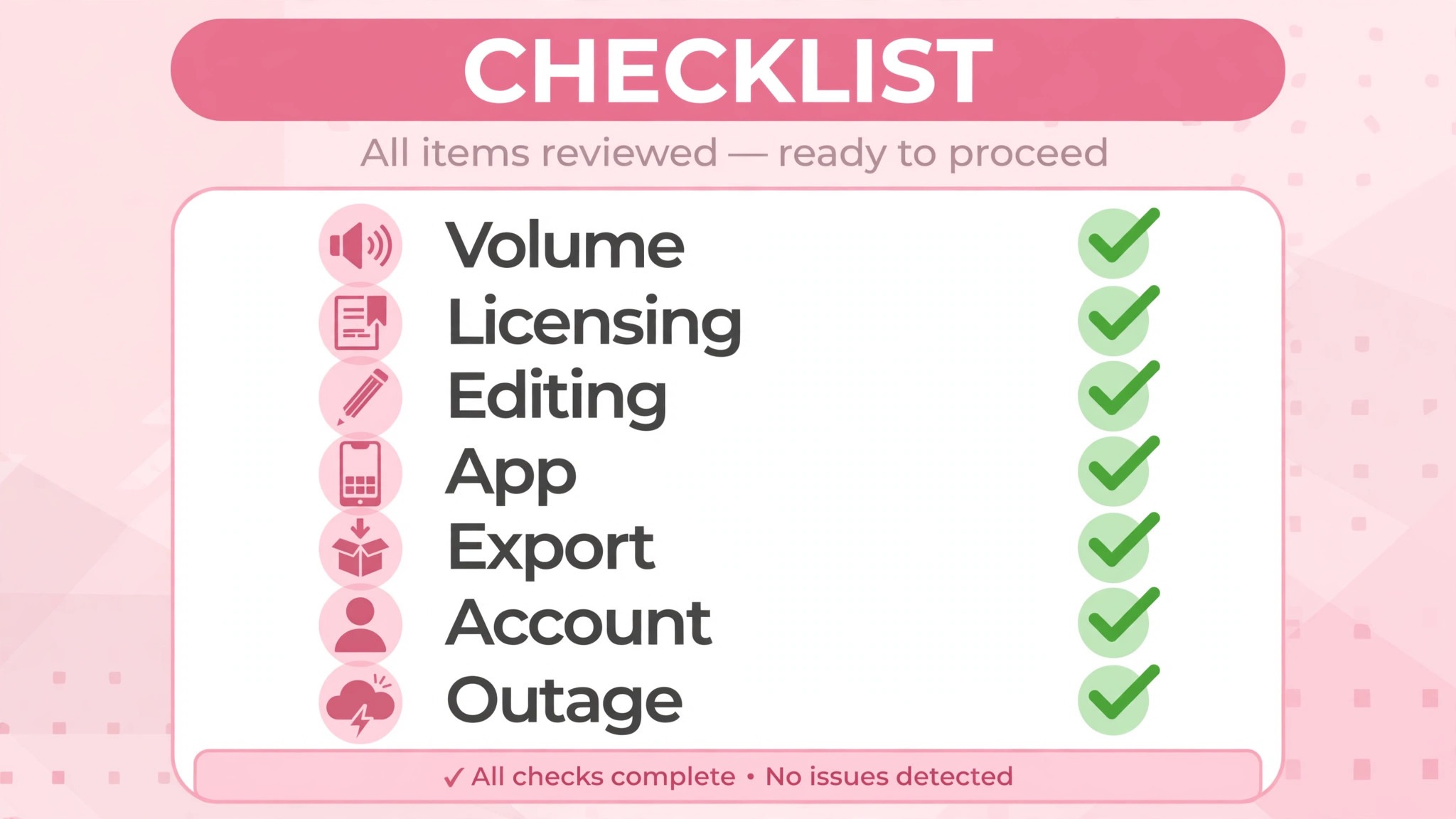
Work through this checklist in order, and stop as soon as the sound works. Most cases resolve in the first three checks.
| What you see | Try this first | Likely cause |
|---|---|---|
| Every Reel is silent | Tap the video, raise media volume | Sound off, phone muted, or silent switch |
| One Reel is silent for everyone | Check for Audio unavailable notice | Music licensing or rights holder mute |
| One Reel is silent after posting | Tap Audio unavailable, then Replace audio | Licensed track muted after posting |
| Reel silent on your phone only | Force close and reopen the app | App cache glitch |
| Reel silent after editing in another app | Re-export with audio included | Audio track stripped in export |
| Reel silent on a business account | Check account type and music access | Business account lacks licensed music |
| Sound works in other apps, not Instagram | Update the app, clear cache | Outdated app or corrupt cache |
| Reel silent for viewers abroad only | Use original audio next time | Track not licensed in their country |
If the sound works after any check, keep the Reel up and do not delete it, because a Reel that is fixed in place keeps its views and its reach. If none of the checks work, go to the still not working section at the end of this guide, and work through the account and device steps there.
1. Sound Is Off in the Player or on the Phone, So Turn It On First
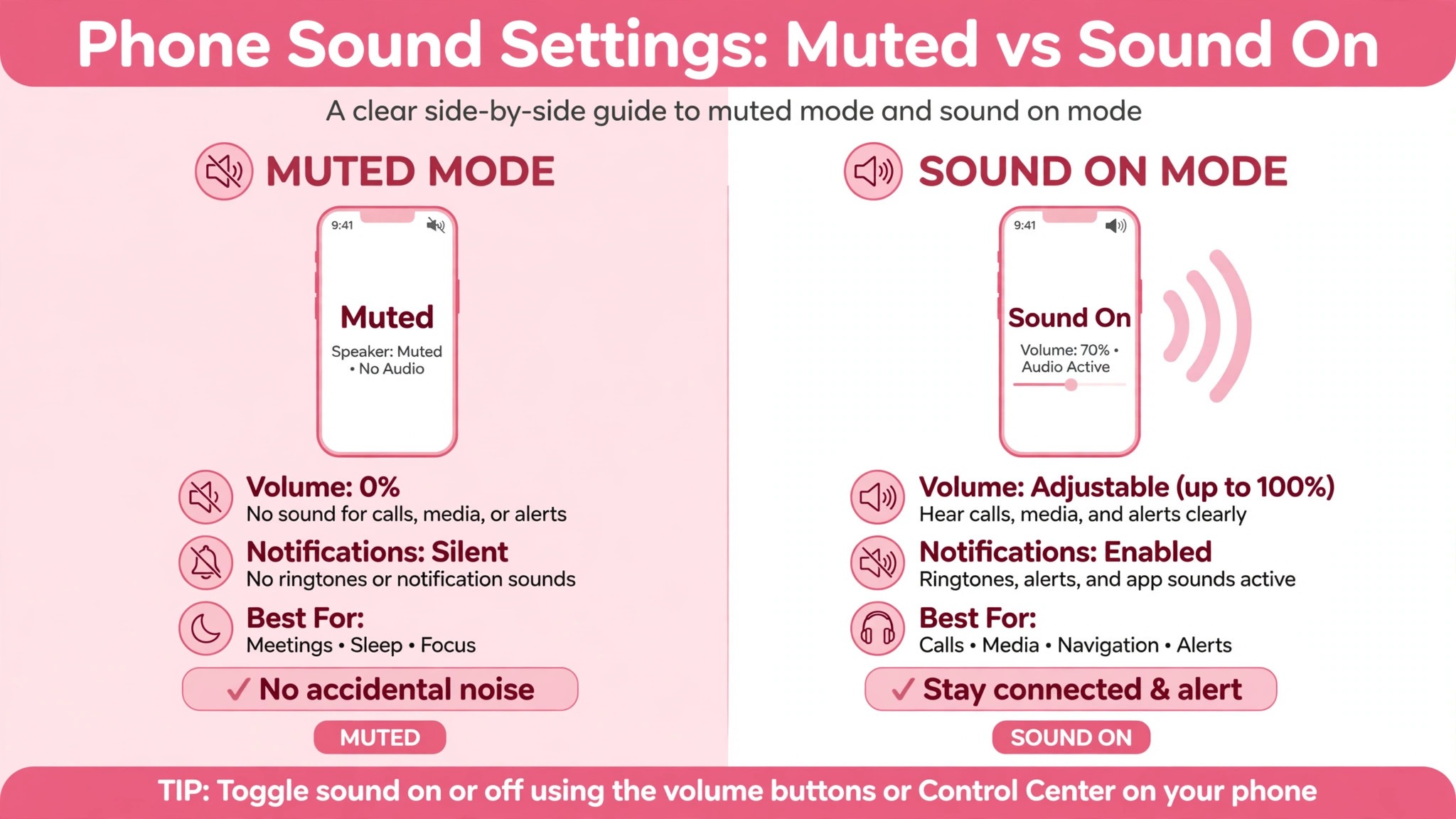
Instagram mutes Reels by default in the feed, and the sound icon is the switch. When you watch Reels from the feed, there is a sound icon you tap to turn sound on or off. If you have tapped a Reel to open it, tap anywhere on the Reel while it is playing to switch the sound on or off. Instagram also says you can turn sound on by pressing the volume buttons on your phone while a video is playing, and once the sound is on, those buttons adjust the volume.
How to tell it is this cause. Every Reel is silent, and sound works in other apps, or the speaker icon in the corner shows a line through it. On iPhone, the physical side switch silences in app sounds separately from the ringtone volume, so the phone can ring and the Reel can still be silent. That switch catches more people than any other single cause, and it takes two seconds to check.
How to fix it.
- Tap the Reel once while it plays, and watch for the speaker icon to change to sound on.
- Press the volume up button while the Reel plays, because the media volume is separate from the ringtone volume.
- Flip the iPhone silent switch off, then tap the Reel again, because the switch mutes in app sound even when the volume is up.
- Check Bluetooth, because sound can route to headphones or a car speaker that is not in your ears.
- Play a video in another app, because if that video is also silent, the phone volume is the problem, not Instagram.
Do not reinstall the app before you check the switch and the volume, because a reinstall will not fix a muted phone. Turn the sound on, raise the volume, and the Reel should play.
2. The Licensed Track Was Muted, So Replace the Audio in Place
The most common reason a Reel loses sound after posting is licensed music getting muted in certain countries, an app caching glitch, or the video file itself losing its audio track during export. Nine times out of ten it is not your fault and not your phone breaking.
It is Instagram music licensing system or a simple upload hiccup, and both have specific fixes. If you used a trending song from the Instagram music library, there is a real chance the sound was always going to get muted for some viewers, because Instagram has different music licensing deals in different countries. A track that plays fine for your followers in London might be silent for someone watching the same Reel in Berlin, because the label has not licensed that song for that territory.
How to tell it is this cause. The Reel shows a small speaker icon with a line through it, or a notice that says Audio unavailable, and the preview had sound before posting. The sound is gone for some viewers and fine for others, and you will have no idea it is happening because it plays perfectly fine on your own phone. That pattern points straight at licensing, not at your file.
How to fix it.
- Open the Reel and tap the three dots, then check if there is a small speaker icon with a line through it in the corner.
- Tap Audio unavailable on your own Reel, then tap Replace audio, then tap Replace audio again.
- Pick a track from the Instagram audio library, or try the same one again, and choose the part you want.
- Tap Done in the top right, then Done again, and wait for the Reel to update.
- Do not delete and repost the same file, because that often mutes again and resets reach, while Replace audio keeps the views.
You can only replace a muted track one time, so choose the new song carefully. Pick something popular and clearly available in the library, or use audio from the Sound Collection, because if you rush and pick a track that also gets muted later, you are stuck. The one time rule is the big one, and the views stay on the same Reel when you use it.
3. The Original Audio Was Muted During Editing, So Check the Mix
If you recorded audio directly in app rather than uploading a pre edited file, check whether you accidentally tapped the mute original audio toggle during editing. It sits right next to the volume slider and is easy to hit by accident. The Reel will look finished, the music will play, and your voice will be gone, because the original audio layer was silenced and nobody noticed until after posting.
How to tell it is this cause. The music plays but your voice does not, or the Reel is silent in the parts where you speak and fine where the music runs. The preview had the same fault, but it was missed because the music covered it. A Reel edited in a hurry is the most common case, because the toggle is small and the volume slider sits beside it.
How to fix it.
- Open the Reel in the editor before posting, and play it back with headphones to hear each audio layer separately.
- Check the original audio toggle and the volume slider for each clip, and raise the original audio to full.
- Keep your own voice as a separate, non music audio layer rather than baking everything into one track, so even if the licensed song gets muted somewhere, your narration survives.
- Re-export the video from your editing app with the voice track included, if the Reel was edited outside Instagram.
- Post a test Reel to a close friends list first when the audio matters, and check the sound on another phone before it goes public.
A separate voice layer is the best insurance against a licensing mute, because original audio has no territory restrictions. A Reel with its own voice will keep talking even when the song is silenced.
4. The App Cache or an Old Version Breaks Sound, So Update and Clear It
A corrupt cache can hide the music sticker or the audio tab, and an outdated Instagram build can break audio features. When every Reel is silent, not just one, the cause may be your phone, so check the app before you blame the Reel. A temporary bug can also drop audio on published Reels for many users at once, and those bugs usually resolve within a few hours to a day.
How to tell it is this cause. Every video is silent, sound works in other apps, and the problem started after an app update or after the phone ran low on storage. A Reel that played yesterday and is silent today, with no change to the Reel itself, points at the app. A widespread outage points the same way, and a quick check of Downdetector will show whether others are reporting the same fault.
How to fix it.
- Force close the Instagram app completely and reopen it, because a surprising number of silent Reel complaints clear with a restart.
- Update the app to the latest version in the app store, because outdated builds break audio features.
- Clear the cache on Android in Settings, then Apps, then Instagram, then Storage, and tap Clear cache, because a corrupt cache can block sound.
- Restart the phone, because a restart clears the audio service and the app state together.
- Reinstall the app as a last step, because a fresh install clears a corrupt install that a cache clear cannot fix.
Do not reinstall before you try a force close and an update, because a reinstall logs you out and takes longer. Start with the restart, then the update, and move to the cache only if the sound is still gone.
5. The Export Stripped the Audio Track, So Re-Export With Audio Included
If you exported the video from another app like CapCut first, re-export making sure include audio is ticked, since roughly a third of silent Reel complaints trace back to a stripped audio track from a third party editing export, not Instagram. The video looks perfect, the timeline shows the audio, and the exported file has no sound at all, because the export setting dropped it.
How to tell it is this cause. The Reel is silent from the first second, the original file on your phone is also silent, and the project in the editing app still has sound. A Reel edited in CapCut, Premiere, or a similar tool is the most common case, because the export dialog has an audio checkbox that is easy to miss. A Reel recorded inside Instagram is not this cause, because Instagram never strips its own audio on export.
How to fix it.
- Open the exported file on your phone and play it outside Instagram, because if it is silent there, the export is the problem.
- Open the project in the editing app, check that the audio track is enabled and not muted, and re-export with include audio ticked.
- Export as MP4 with AAC audio, because that is the format Instagram handles most reliably.
- Check the exported file again before you upload, and listen to the first five seconds and the last five seconds.
- Upload the corrected file as a new Reel only if the old Reel cannot be fixed with Replace audio, because a new upload resets the views.
Keep the project file after export, because you will need it again if the export fails. A file that is checked before upload never surprises you after posting.
6. The Account Type Blocks Licensed Music, So Check the Account
Business accounts often lose access to popular tracks, and a Reel that uses a licensed song can go silent when the account type changes. Instagram says you may not be able to reach certain music if the Licensed Music Library is not available for your account type, or in your country or region. A creator account keeps wider music access than a business account, and that difference is the reason many small businesses switch.
How to tell it is this cause. The Reel was fine on a personal or creator account and went silent after a switch to business, or the music library shows fewer songs than it used to, or a track that plays for others is greyed out for you. The account type is the test, because the same Reel with the same song will play on a creator account and mute on a business account.
How to fix it.
- Go to Settings, then Account, and check the account type and the region, because a VPN or travel setting can confuse which music library the app pulls from.
- Switch from business to creator if you need licensed music, because creator accounts keep broader access, and the switch is reversible.
- Use the Sound Collection for safe tracks, because those tracks are cleared for business use and will not mute later.
- Record your own voice or use original audio, because original audio has no territory or account restrictions.
- Check the region setting after travel, because a region change can pull a different music library and mute tracks that were fine at home.
Do not keep posting licensed tracks on a business account and hoping they stay up, because the licensing gap will mute them again. Use original audio or the Sound Collection, and the Reel will keep its sound.
7. A Platform Bug or Outage Muted the Reel, So Wait and Report It
Many Audio unavailable issues on Instagram Reels are not caused by your account or device. They are temporary platform bugs affecting many users simultaneously, and most of those bugs resolve themselves within a few hours to one or two days. A Reel that was fine yesterday and silent today, with no change to the audio, the account, or the phone, is often a platform bug, and waiting is the correct fix.
How to tell it is this cause. Many Reels go silent at once, friends report the same fault, and Downdetector shows a spike in Instagram audio reports. The sound is gone on every device, and Replace audio does not help, because the platform itself is failing to serve the audio. A bug that affects many users at once will not be fixed by reinstalling your app.
How to fix it.
- Check Downdetector Instagram status to see if others are experiencing outages.
- Search for Instagram audio down on social media for real time confirmation from other users.
- Wait a few hours, then check the Reel again, because most platform bugs clear within a day.
- Report the problem in the Instagram app through Help, then Report a Problem, because that helps Instagram prioritize the fix.
- Use Replace audio only after the outage clears, because a replacement made during an outage can fail the same way.
Do not delete and repost during an outage, because the new upload can mute the same way and you will lose the views for nothing. Wait, check again, and use Replace audio once the platform is healthy.
Still Not Working
If you have worked through all seven causes and the Reel is still silent, this is the point where a systematic check still pays off. Work through these steps in order, and stop as soon as the sound works. First, check whether the Reel is silent for everyone or only for you, because a Reel that is silent for everyone is an audio problem, and a Reel that is silent only for you is a phone problem.
Second, try the Reel on a different phone and a different account, because a phone problem will follow the phone, and an account problem will follow the account. Third, check the original file on your computer, because a file that is silent outside Instagram was never going to have sound inside it.
Fourth, check the Instagram Help Center article on audio, because it lists the reasons you cannot hear audio on someone else content, including that the audio is not available in your country, that the track was muted because the creator did not have access to the source, that the track was taken down, and that licensing agreements changed. None of those can be fixed by you, and restarting your phone will not change them.
Fifth, contact Instagram support through the Help Center if your own Reel is muted and Replace audio does not work, and tell them the Reel link, the track name, and the date it went silent, because that list saves time and gets you a useful answer faster.
Do not delete the Reel until you have tried Replace audio and waited a day for a platform bug to clear. A Reel that is silent once is usually repairable, and a new upload built from memory will not match the original timing and reach. Save the original file, keep the Reel up, and fix the audio in place.
Prevention Checklist
Use this checklist before you post any Reel, and silent Reels will become rare. Play the exported file outside Instagram before you upload, and listen to the first and last five seconds. Keep your voice as a separate audio layer, so a licensed song mute does not silence your narration. Use the Sound Collection or original audio on a business account, and check the account type before you pick a trending song.
Update the app, clear the cache once a month, and post a test Reel to close friends when the audio matters. Check the Reel on another phone after posting, and use Replace audio at once if a notice appears, because the one time replacement is easier the sooner it is used. Save the original file, so a re-export is always possible.
What to Do in the First Hour After a Reel Goes Silent
The first hour after a Reel goes silent is the hour that decides whether the Reel recovers, and the order matters more than the speed. Start by watching the Reel on a second phone, because a Reel that is silent on your phone and fine on a friend phone is a phone problem, and a Reel that is silent on both is an audio problem. That one test will save you from reinstalling an app that was never broken, and it is the fastest way to fix instagram reels no sound without guessing.
Next, look for the Audio unavailable notice on the live Reel, because that notice is Instagram telling you the track was muted and offering the replacement. Tap it, pick a new track, and tap Done twice, because the replacement keeps the views and the comments, and a new upload would reset both. Do this within the hour, because a Reel that sits silent for a day will lose the viewers who would have shared it, and the replacement is easier the sooner it is used.
Next, play the original file on your phone outside Instagram, and listen to the first five seconds and the last five seconds. A file that is silent outside Instagram was never going to have sound inside it, and the fix is a re-export with audio included, not a change to the app. A file that plays fine outside Instagram points back at the app or the license, and the next step is a force close and an update.
Next, check whether other Reels are silent too, because every Reel silent points at the phone, and one Reel silent points at that Reel audio. Force close the app, update it, and restart the phone if every Reel is silent, because those three steps clear most app faults in a few minutes. If only one Reel is silent, do not touch the app, because the app is fine and the Reel is the problem.
Finally, write down what you found, because a Reel that goes silent twice for the same reason is a pattern, and a pattern has a permanent fix. A Reel that mutes twice for licensing needs original audio next time. A Reel that loses sound twice after an export needs a different export setting. A Reel that goes silent twice on the same phone needs an app update or a reinstall. That note is the cheapest insurance against the third failure, and it turns a frustrating hour into a fix that lasts.
Frequently Asked Questions
Why do my Instagram Reels have no sound?
The most common reason is that sound is off in the player or on the phone, or that a licensed track was muted after posting, or that the export stripped the audio. Check those three first to fix instagram reels no sound, because most cases resolve in those three steps. Tap the video, raise the media volume, check for an Audio unavailable notice, and play the original file outside Instagram.
Why is my Reel silent after posting but fine in the preview?
The preview plays the local file, and the posted Reel plays the uploaded file after Instagram checks the music license. A track that was cleared in the preview can be muted after posting when the license check runs, or when a rights holder blocks it. Use Replace audio on the live Reel to pick a new licensed track, and the views stay. Do not delete and repost, because the same track can mute again.
How do I replace muted audio on a Reel?
Open the published Reel, tap Audio unavailable, tap Replace audio, then tap Replace audio again, pick a track from the Instagram audio library, choose the part you want, and tap Done twice. You can only replace a muted track one time, so choose the new song carefully. Pick something popular and clearly available in the library, or use audio from the Sound Collection.
Why can I hear sound in other apps but not Instagram?
The Instagram app is usually at fault, or the phone silent switch is on, or the app cache is corrupt. Force close the app, update it to the latest version, clear the cache, and restart the phone. If sound works in other apps and not in Instagram, the problem is inside Instagram, and a reinstall is the last step after the update and the cache clear.
Why is one Reel silent and the others fine?
One silent Reel points at that Reel audio, not at your phone. The track may not be licensed in a viewer country, the rights holder may have blocked it, or the original audio toggle was muted during editing. Check for an Audio unavailable notice, use Replace audio if it appears, and check the original file to see whether the voice track was silenced during editing.
Verdict
To get sound back on a Reel, start with the player and the phone, because a muted Reel in the feed is the most common cause and the fastest fix. That order is the core of how to fix instagram reels no sound without wasting an hour on the wrong cause. Then check the audio notice, because a licensed track that was muted after posting can be replaced in place, and the views stay.
If the Reel is still silent, check the editing mix, update the app, re-export with audio included, check the account type, and wait out a platform bug. Work through the seven causes in order, keep the Reel up while you fix it, and use the prevention checklist on every Reel you post. Most readers will only need the first three causes to fix instagram reels no sound, and the rest are there for the stubborn cases. The video is almost always still there, and the sound is almost always simpler to restore than it looks.