What should a flyer do in the three seconds before someone bins it? It should say what is happening, when it is happening, and where, in type large enough to read at arm’s length. Most flyers fail that test. They carry five fonts, three photos, and a paragraph nobody reads, and they end up on the floor of the venue they were meant to fill. The best flyer makers are the ones that make the simple version easy, with templates that put the headline first and print ordering that delivers a stack you can hand out with pride.
This guide compares 7 tools for both jobs, print and digital, with prices checked against vendor pages and recent 2026 reviews. It covers the templates, the print quality, the export formats, and the real cost of each tool, so you can pick the one that matches the flyer you actually need to make.
The Short Answer on the Best Flyer Makers
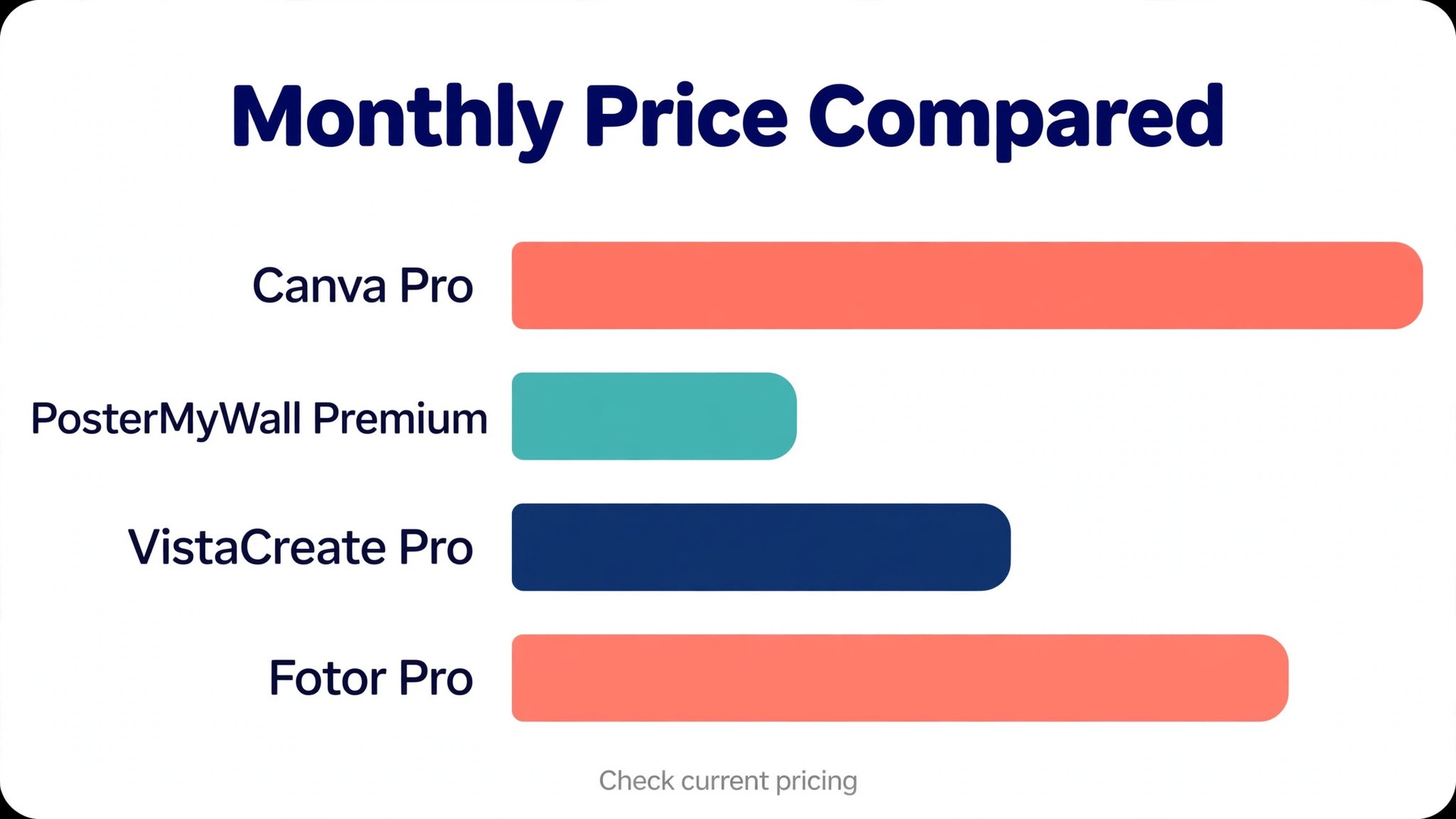
If you want one answer, start with Canva. It has the largest template library, the easiest editor, and print ordering built in, and the free plan covers most flyers. Canva Pro at 18 dollars a month or 144 dollars a year adds premium templates, the Brand Kit, and print ready PDF export with bleed and crop marks. For a small business that makes flyers every week, it is the safest all round choice.
If the flyer is for an event, PosterMyWall is the sharper pick. It started with posters and flyers as its core job, and the template library is organised the way a local business thinks, with grand openings, live music nights, school fundraisers, and holiday sales. Premium costs 13 dollars a month or 109 dollars a year, and the free plan covers occasional flyers with a watermark on downloads.
If the budget is the deciding factor, VistaCreate is the cheapest paid route. Pro costs 10 dollars a month on annual billing, or 13 dollars a month billed monthly, and it covers up to 10 team members on one price. That makes it the best value for a small team that shares one account.
Best Pick by Job
| Job | Pick | Why it wins |
|---|---|---|
| All round flyers | Canva | Biggest library, print ordering built in |
| Event flyers | PosterMyWall | Templates organised by event type |
| Cheapest team plan | VistaCreate | Pro covers 10 members for 10 dollars a month |
| Data heavy flyers | Visme | Charts and infographics built in |
| Photo heavy flyers | Fotor | Real photo editing inside the editor |
| Fast social flyers | Snappa | Quickest path from idea to post |
| Free quick graphics | Adobe Express | Best free starting point |
Print or Digital First
A flyer has two lives now, and the tool you pick should handle both. The print version is a physical object, usually US Letter at 8.5 by 11 inches or A4, printed at 300 dots per inch with a bleed of an eighth of an inch on each edge. The digital version is a screen image, usually shared on social media, in email, or on a website, and it needs to read on a phone held at arm’s length. A tool that only does one of these jobs will cost you a second tool later.
The design rules change between the two. Print rewards rich colour and a paper stock that feels solid, and it forgives small text because the reader holds the page close. Digital rewards large type and one strong image, because the reader scrolls past in a second. The best flyer makers handle both by offering print ready PDF export with bleed and crop marks for the print version, and a one click resize for the digital version. Canva, VistaCreate, and PosterMyWall all do this well, and it is the first feature to check before you commit to a tool.
Cost splits the same way. A printed flyer costs money per copy, so the design tool matters less than the print price once the design is done. A digital flyer costs nothing to send, so the design tool is the whole cost. If you print, compare the print ordering price as well as the subscription, because a cheap subscription with expensive printing can cost more than a dear subscription with cheap printing over a year of weekly flyers.
Price at a Glance
| Tool | Free plan | Paid from | Model |
|---|---|---|---|
| Canva | Yes | 18 dollars a month | Pro, or 144 dollars a year |
| Adobe Express | Yes | 9 dollars and 99 cents a month | Premium |
| PosterMyWall | Yes | 13 dollars a month | Premium, or 109 dollars a year |
| VistaCreate | Yes | 10 dollars a month | Pro, annual billing |
| Visme | Yes | 12 dollars and 25 cents a month | Starter, per user, annual |
| Fotor | Yes | 8 dollars and 99 cents a month | Pro, or 39 dollars and 99 cents a year |
| Snappa | Yes | 15 dollars a month | Pro, or 120 dollars a year |
Every figure above is in US dollars. Free plans differ sharply on exports, stock assets, and watermarks, so test the exact export you need before paying for any tool on this list.
How the Best Flyer Makers Compare on Templates
Template count is the number vendors quote most, and it is the least useful number on the page. A library of 200,000 templates is worthless if the ten templates for your event are all dated, and a library of 1,000 good templates beats a library of 100,000 mediocre ones. What matters is whether the library has strong options for the flyer you need this week, and whether those templates are easy to change without breaking the layout.
Canva has the largest library, with more than a million templates across its plans, and the flyer section is deep enough for most local businesses. PosterMyWall has a smaller library, but it is organised by event type, so finding a grand opening or a fundraiser flyer takes seconds. VistaCreate offers more than 200,000 templates on Pro, with a free Starter plan that includes more than 100,000. Visme is the pick when the flyer carries data, because its charts and infographics are built into the editor rather than pasted in as images.
The test to run is simple. Open each tool, search for your event type, and count how many templates you would actually use. If the answer is fewer than five, the library is too thin for your work, whatever the headline number says. If the answer is more than twenty, the tool will serve you for a year without repeating a design.
The 7 Tools Reviewed
1. Canva
Canva is the default flyer maker for a reason. The template library is the largest here, the editor is drag and drop, and the Brand Kit keeps your colours, fonts, and logo consistent across every flyer you make. The free plan covers most flyers, with more than a million templates and a Brand Kit limited to three colours. Canva Pro costs 18 dollars a month or 144 dollars a year in the US, and it adds premium templates, the full stock library, background removal, Magic Resize, transparent exports, and five Brand Kits.
Print ordering is built in, so the flyer goes from screen to post without exporting files or talking to a printer. The print quality is solid and consistent, and the paper options cover the standard range. The weakness is the one that applies to every big library. The most popular templates are used by thousands of businesses, so a Canva flyer can look familiar even when it is well made. Change the photo, change the headline, and change one colour, and the template stops looking like a template.
Price. Free, or Pro at 18 dollars a month. Best for. Weekly flyers from one workspace.
2. Adobe Express
Adobe Express is the best free starting point on this list, and it is the closest free alternative to Canva for quick flyers. The free plan covers flyer templates, stock photos, and the editor, and Premium costs 9 dollars and 99 cents a month for the full stock library, background removal, and premium templates. The editor is fast, the templates are clean, and the connection to Adobe Fonts gives the type more range than most free tools.
The trade off is depth. Adobe Express has fewer flyer templates than Canva, and its print ordering is limited in some regions, so many owners export a print ready PDF and send it to a local printer instead. That extra step is worth it if you already use Adobe Express for social graphics, because the flyer stays in the same workspace as the posts that promote the same event. For a quick flyer with no budget, it is the first tool to try.
Price. Free, or Premium at 9 dollars and 99 cents a month. Best for. Free flyers with no subscription.
3. PosterMyWall
PosterMyWall is the only tool here that started with posters and flyers as its core job, and it shows in every part of the product. The template library is organised the way a local business thinks, with grand openings, live music nights, school fundraisers, holiday sales, and church events, so a restaurant manager can pick a taco Tuesday flyer, change the date and the price, and have something printable within the hour. The editor is simple, the social scheduling tools are built in, and the email marketing features let you send the flyer to a list as well as print it.
Premium costs 13 dollars a month or 109 dollars a year, and the free plan covers occasional flyers with a watermark on downloads. The watermark is the main limit, because a flyer with a watermark looks unfinished when it is printed. Pay for one month when the event matters, and use the free plan for drafts. For event flyers, PosterMyWall is the most focused tool on this list.
Price. Premium at 13 dollars a month or 109 dollars a year. Best for. Event flyers for local businesses.
4. VistaCreate
VistaCreate, formerly Crello, is the closest thing to Canva at a lower price, and it is the best value for a small team. The editor will feel instantly familiar, with a drag and drop canvas, a template panel on the left, and one click background removal on paid plans. The free Starter plan includes more than 100,000 templates and a starter Brand Kit, while Pro adds more than 200,000 templates, a much larger stock library, AI tools, and unlimited Brand Kits.
Pro costs 13 dollars a month billed monthly, or 10 dollars a month when billed annually at 120 dollars a year, and one Pro price covers up to 10 team members, which is rare at this price. The AI tools sit on Pro, including the image generator, the AI writer, and the background remover, with 100 image generations a month shared across the account. For a team of three or more making flyers together, VistaCreate is the cheapest honest option here.
Price. Pro at 10 dollars a month on annual billing. Best for. Small teams sharing one account.
5. Visme
Visme fits a different job from the social first tools above. It is built for presentations, infographics, reports, and documents, and that shows in its flyer tools. Charts and data widgets update from your numbers, maps and diagrams style to match your brand, and the editor handles multi page documents that a social tool would struggle with. A flyer that carries a price list, a schedule, or a comparison table belongs in Visme, because the data stays editable instead of becoming a flat image.
The free Basic plan works for learning the editor, but it adds a watermark and limits export formats, so Visme is best judged on a paid plan. Starter costs 12 dollars and 25 cents per user per month on annual billing, and Pro adds brand kits, privacy controls, analytics, and PPTX, HTML5, and video exports. For a flyer that is really a one page report, Visme is the only tool here that treats it that way.
Price. Starter at 12 dollars and 25 cents per user per month, annual billing. Best for. Flyers that carry data, prices, or schedules.
6. Fotor
Fotor suits photo heavy flyers that need real editing built in. It is a photo editor first and a design tool second, so a flyer built around a photograph, such as a property listing, a menu special, or a portrait for an event, starts from a stronger image than a template tool can offer. The editor handles cropping, colour correction, background removal, and retouching, and the template library covers the standard flyer sizes.
Pro costs 8 dollars and 99 cents a month, or 39 dollars and 99 cents a year, which makes it one of the cheapest paid plans on this list. The free Basic plan covers the essentials, with ads and limits on the premium features. The weakness is the template range, which is narrower than Canva or VistaCreate, so Fotor suits owners who start from a photo rather than from a template. For a flyer where the photo does the selling, it is the right tool.
Price. Pro at 8 dollars and 99 cents a month, or 39 dollars and 99 cents a year. Best for. Flyers built around a strong photo.
7. Snappa
Snappa is the fastest path from an idea to a finished flyer, and it is built for owners who make social graphics every day. The editor is simpler than Canva, the templates are clean, and the scheduling tools let you post the flyer to social media without leaving the tool. A flyer that will live on Facebook and Instagram rather than on a noticeboard is a good fit for Snappa, because the resize tool adapts the design to each platform in one click.
The free Starter plan covers occasional flyers, and Pro costs 15 dollars a month, or 120 dollars a year, with a Team plan at 20 dollars a month for shared workspaces. The template library is smaller than Canva, and there is no print ordering, so export the design and send it to a printer for the paper version. For a digital first flyer made in ten minutes, Snappa is the quickest tool here.
Price. Pro at 15 dollars a month, or 120 dollars a year. Best for. Fast digital flyers for social media.
Design Rules That Make a Flyer Work
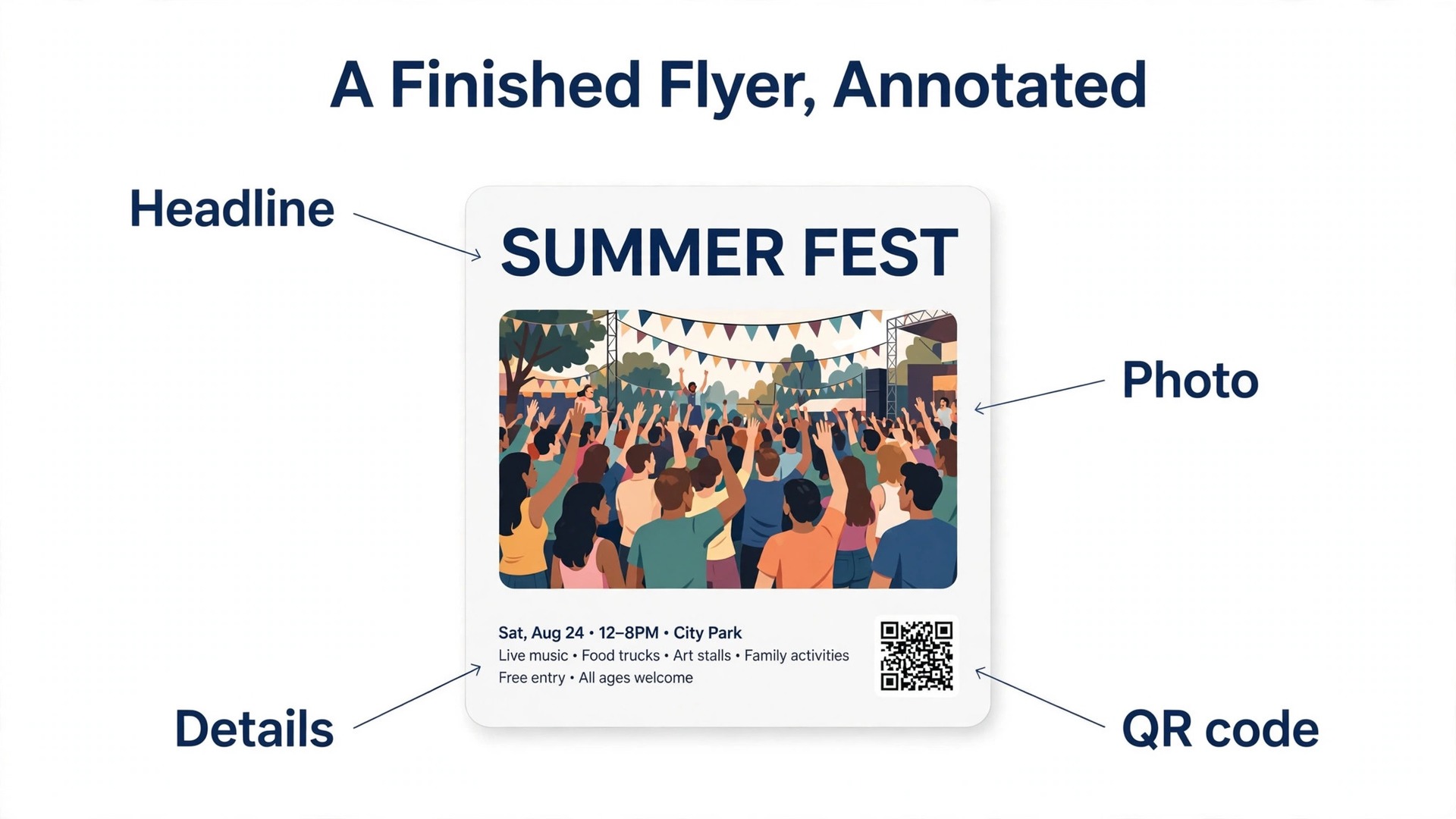
A flyer has one job, and the design either serves it or fights it. The headline should be the largest thing on the page, and it should say what is happening in five words or fewer. A headline like Summer Fete, Saturday 12 July works. A headline like Come and Join Us for a Wonderful Day of Fun and Activities for All the Family does not, because nobody reads it before the flyer hits the bin. Put the headline at the top, in the largest type on the page, and let everything else support it.
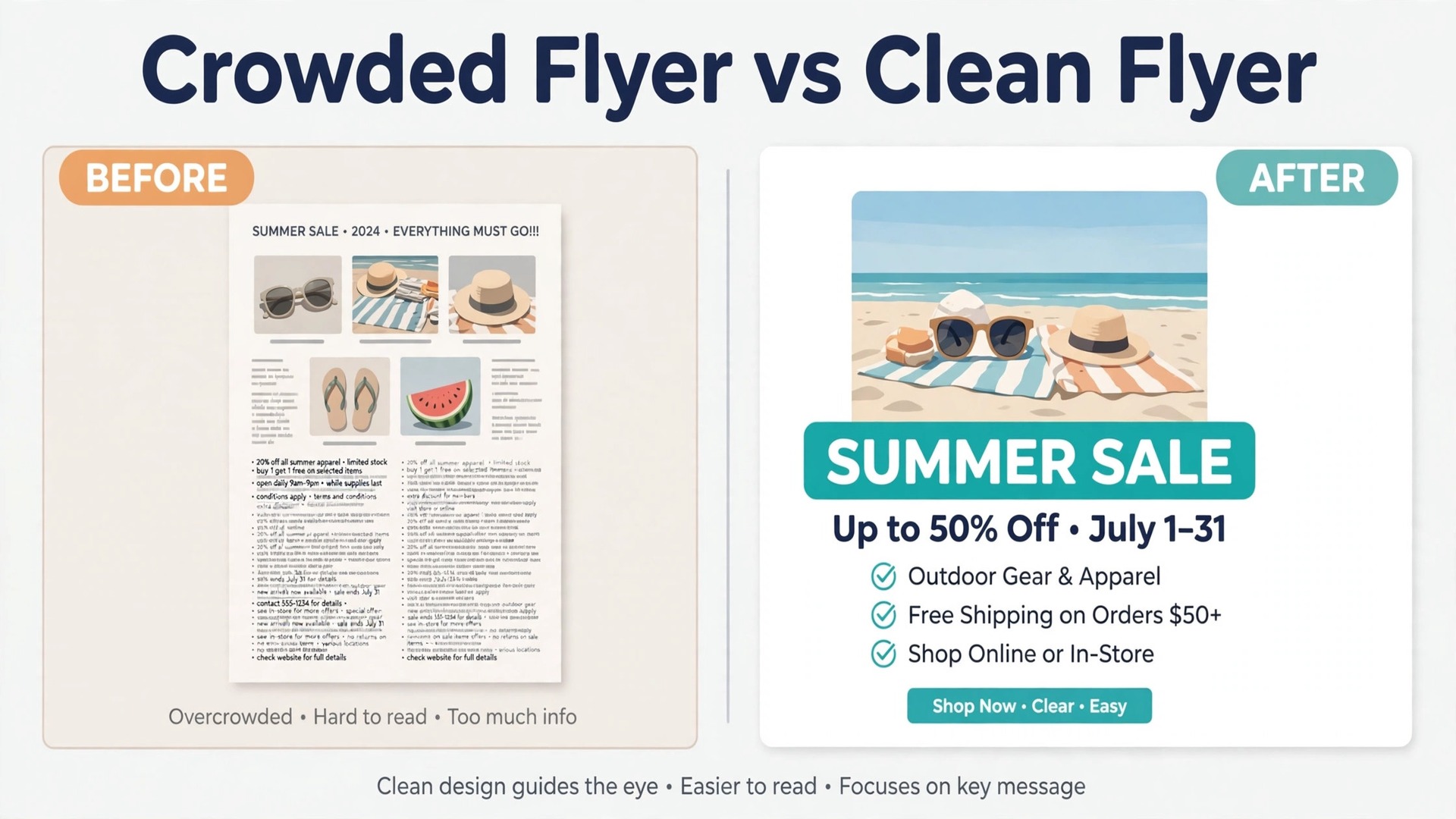
The second rule is one photo, not five. A flyer with one strong image looks confident. A flyer with five small images looks like a collage, and the eye does not know where to land. Pick the best photo, make it large, and cut the rest. The third rule is three details and no more. The date, the time, and the place are the details that matter. A phone number or a website belongs at the bottom in small type, and a QR code belongs in the corner, not in the middle. The best flyer makers make these rules easy by putting the headline first in every template, but the rules are yours to enforce, not the template’s.
White space is the fourth rule, and it is the one most beginners break. A flyer that fills every inch looks desperate, and a flyer with space around the headline looks professional. Leave a margin of at least a centimetre on every edge, and leave space between the headline, the photo, and the details. The space is not wasted. It is what makes the important lines readable from across the room.
Sizes and Print Specs
The standard flyer size in the United States is US Letter, 8.5 by 11 inches, and the standard size in much of the rest of the world is A4. A half page flyer at 5.5 by 8.5 inches suits handouts and counter displays, because it costs half the paper and fits in a pocket, while a large flyer at 11 by 17 inches suits a noticeboard, where it needs to stand out from a wall of smaller sheets. Pick the size that matches the place the flyer will be seen, not the size that is easiest to design.
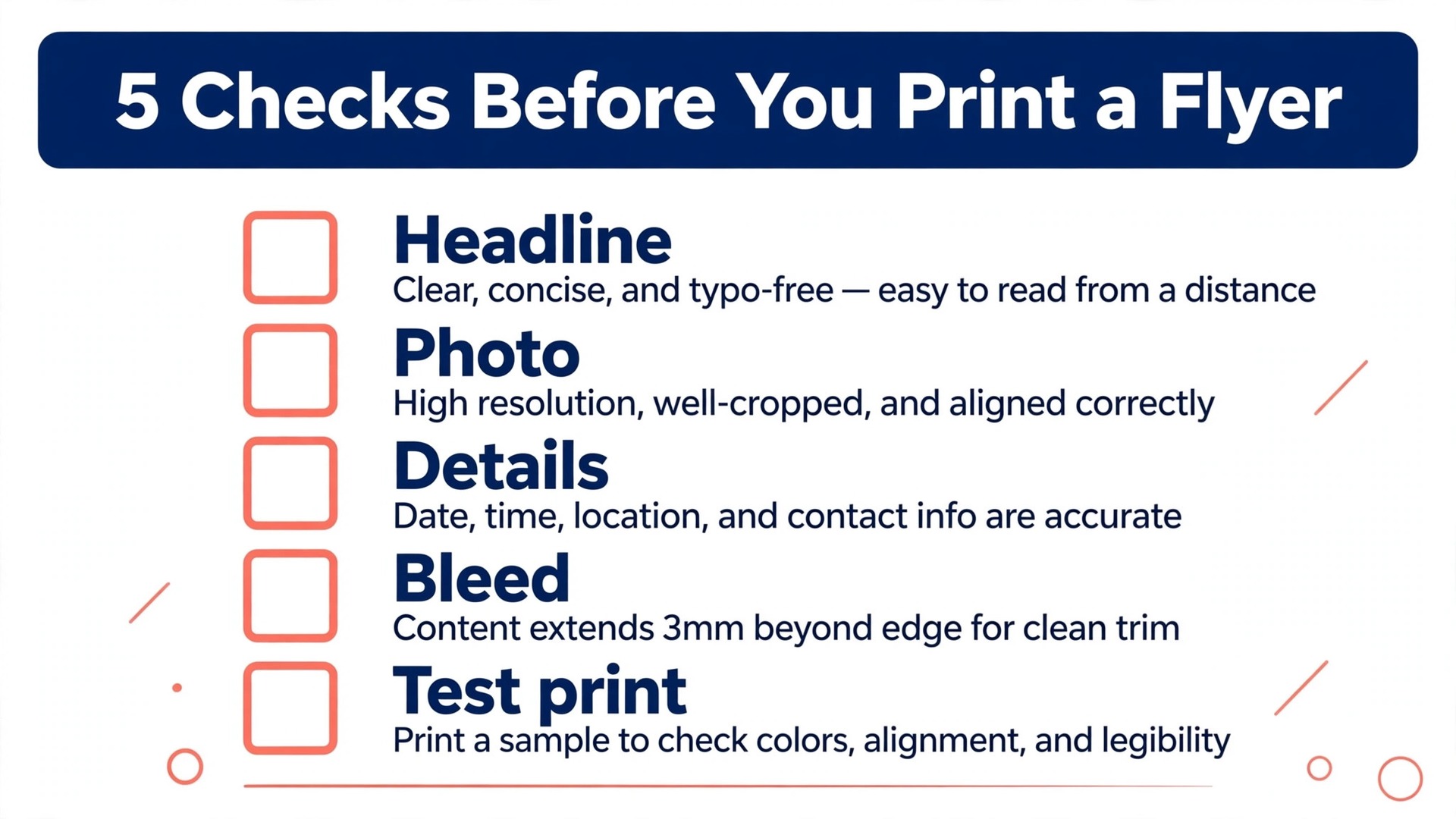
Print specs are the part that trips up first time flyer makers. Set the file to 300 dots per inch, because anything lower looks soft when printed, and add a bleed of an eighth of an inch on each edge, so the colour runs to the edge of the page without a white border. Export as a print ready PDF with crop marks, and check the file on screen at full size before you send it to the printer. A flyer that looks right at full size on screen will look right on paper, and a flyer that only looks right shrunk to a thumbnail will not.
Colour deserves a line of its own. Screens show colour in RGB, and printers print in CMYK, so a bright screen colour can come out duller on paper. The tools on this list handle the conversion when you export a print ready PDF, but the shift is real, and the only way to be sure is to print one copy first. A test print costs less than a reprint of five hundred flyers, and it is the cheapest quality check in this guide.
Print Ordering and Paper
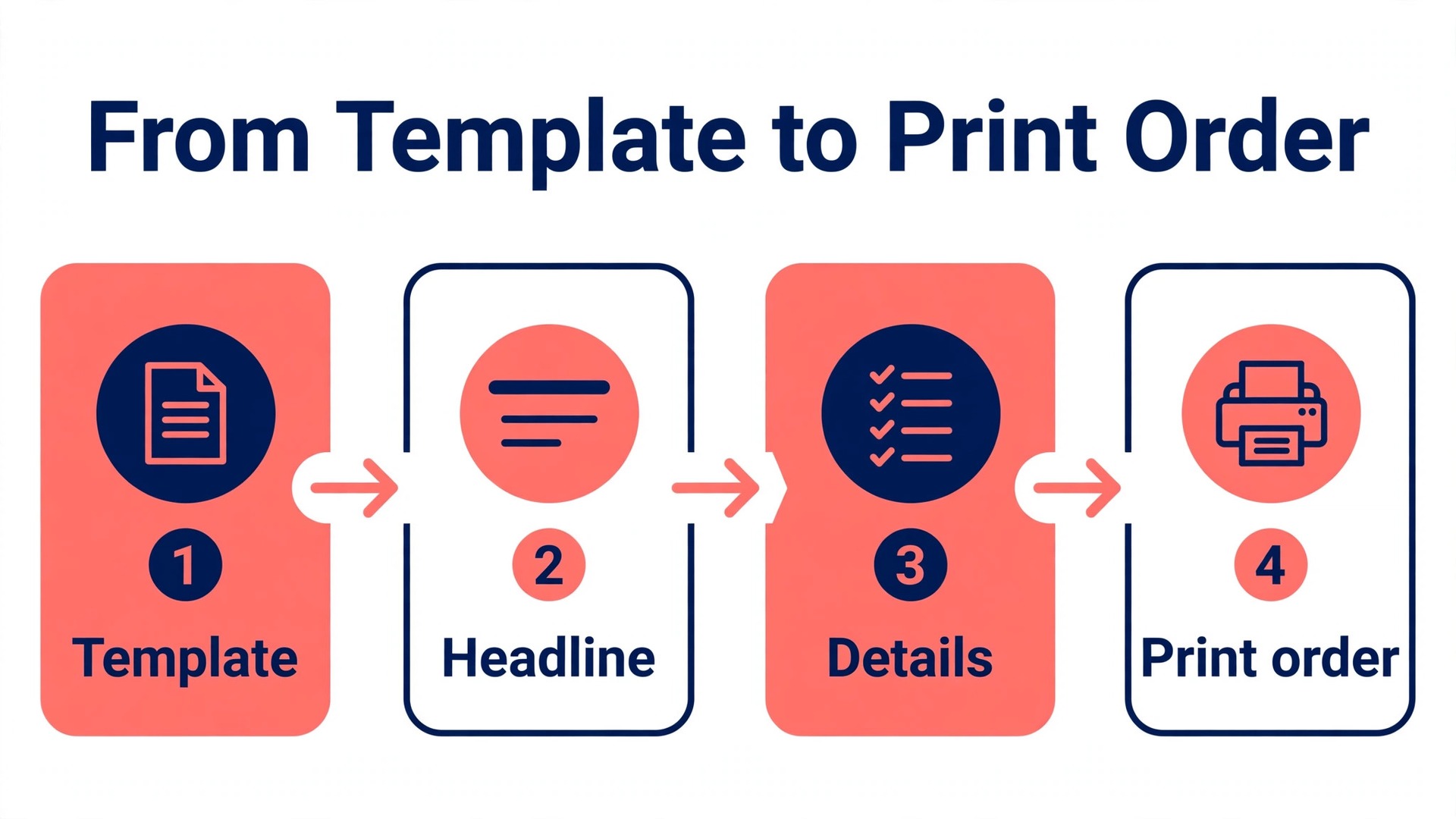
Three of the tools here print the flyer for you, and four leave the printing to someone else. Canva, PosterMyWall, and VistaCreate all offer print ordering, with delivery to your door, and the quality is solid for standard flyers. Adobe Express, Visme, Fotor, and Snappa expect you to export a print ready PDF and send it to a local printer or an online printer such as Vistaprint. Neither route is better in itself. The built in route is simpler, and the export route gives you more paper choices and a local printer you can talk to.
Paper weight matters more than most owners expect. A standard 80 gram paper feels thin in the hand, and a flyer on thin paper reads as a handout. A 150 to 200 gram paper feels solid, and a flyer on solid paper reads as an invitation. Glossy paper makes photos pop, and matte paper is easier to read under bright light. If the flyer will be handed out outdoors, a heavier stock survives the rain and the pocket better than a light one. Order a small test batch first, hold it in your hand, and then order the full run.
Mistakes That Fill the Bin
The most common mistake is too much text. A flyer is not a letter, and a paragraph on a flyer is a paragraph nobody reads. Cut the text to the headline, three details, and a contact line, and put the rest on the website the QR code points to. The second mistake is a headline that says nothing. Join Us, You Are Invited, and Don’t Miss Out all say nothing about the event, and a headline that says nothing gets binned. Name the event, the date, and the place in the headline itself.
The third mistake is a photo that does not match the event. A stock photo of a generic crowd on a flyer for a local bake sale tells the reader nothing, and a real photo of the actual cakes tells them everything. Use a real photo whenever you can, and use a stock photo only when the real one does not exist yet. The fourth mistake is printing before checking. A wrong date on five hundred flyers is a five hundred flyer mistake, and it happens more often than anyone admits. Read the flyer once, then ask someone else to read it, and only then send it to print.
How to Choose in Ten Minutes
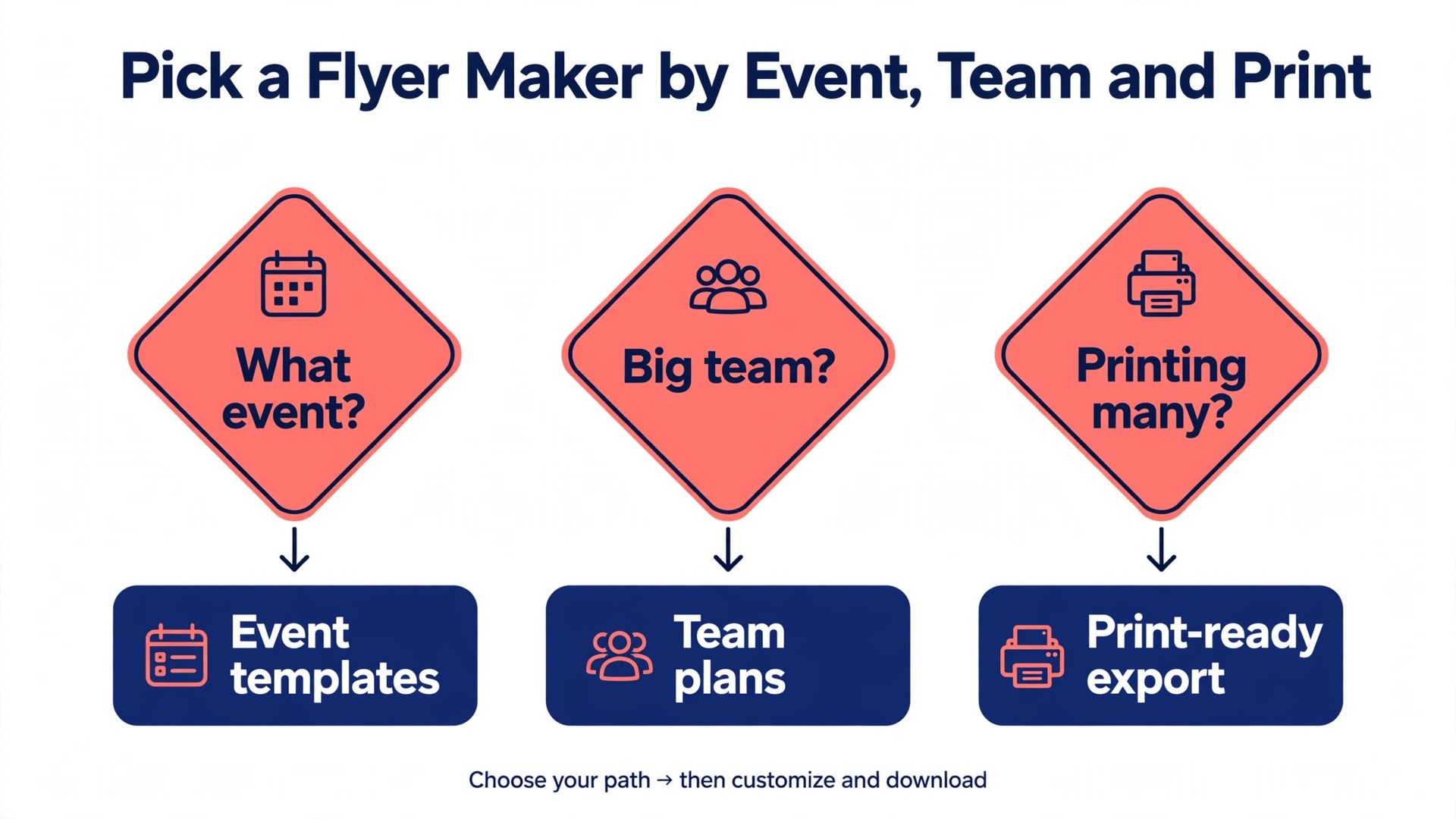
Start with the use. If the flyer is for an event, PosterMyWall finds the template fastest. If the flyer carries data or a price list, Visme handles it best. If the flyer is built around a photo, Fotor edits it best. If the flyer goes to social media, Snappa is fastest. If the flyer is one of many marketing jobs each week, Canva covers them all. Among the best flyer makers, the right pick is the one that matches the flyer you make most often, not the one with the longest feature list.
Then check the total cost. Add the subscription and the print ordering together, and compare the same job across two tools. A free plan with a watermark is not free if the watermark forces you to pay for the month anyway, and a cheap subscription with expensive printing can cost more than a dear subscription with cheap printing over a year of weekly flyers. Test the export you need before you pay, and order a small test batch before the big run.
Frequently Asked Questions
What size should a flyer be?
The standard flyer size in the United States is US Letter, 8.5 by 11 inches, and the standard size in much of the rest of the world is A4. A half page flyer at 5.5 by 8.5 inches suits handouts and counter displays, while a large flyer at 11 by 17 inches suits a noticeboard. For digital flyers, export at 1080 by 1350 pixels for a feed post or 1080 by 1920 pixels for a story, so the design reads on a phone.
Can I make a flyer for free?
Yes. Canva, Adobe Express, PosterMyWall, VistaCreate, Visme, Fotor, and Snappa all offer free plans that cover flyer design. The limits are usually a watermark on downloads, fewer templates, and no print ready PDF export on some plans, so test the exact export you need before you rely on a free plan for a real event. The best flyer makers all let you design for free and pay only when the flyer needs to look finished.
What is the best flyer maker for printing?
Canva is the safest all round choice, with print ordering built in and print ready PDF export on Pro. PosterMyWall is the sharpest pick for event flyers, with templates organised by event type and print ordering included. If you prefer a local printer, export a print ready PDF at 300 dots per inch with bleed from any tool on this list and send the file to the printer yourself.
How do I make a flyer that people actually read?
Put the headline first, in the largest type on the page, and say what is happening in five words or fewer. Use one strong photo, three details at most, and a QR code in the corner for the rest. Leave white space around the headline, and read the flyer at arm’s length before you print it. If the headline is not readable at that distance, it is too small.
Do I need a paid plan to make a good flyer?
No, for an occasional flyer. The free plans on this list cover the design, and the paid plans add premium templates, the Brand Kit, and print ready exports. A paid plan earns its cost when you make flyers every week, when you need the Brand Kit to keep colours consistent, or when the free plan puts a watermark on the download. For one flyer a month, the free plan is enough.
What file format should I export a flyer in?
Export a print ready PDF with bleed and crop marks for printing, at 300 dots per inch. Export a PNG or JPG for digital sharing, at 1080 by 1350 pixels for a feed post or 1080 by 1920 pixels for a story. The PDF is the print file, and the image is the screen file, and a good flyer needs both.
The Verdict
Use Canva for weekly flyers from one workspace, PosterMyWall for event flyers, VistaCreate for a small team sharing one account, and Fotor when the photo does the selling. Keep the headline to five words, use one photo, and test the print before the big run. That is how the best flyer makers earn their place, and it is how a flyer survives the three seconds before the bin.