

A web designer loses the week in the gap between the approved mockup and the live site, not in the first concept. The right software closes that gap, and the best ai tools for web designers do it by turning a design into a working site without a long build. This guide compares eight tools on published prices, the web job each one does best and the catch that only shows up after the trial ends.
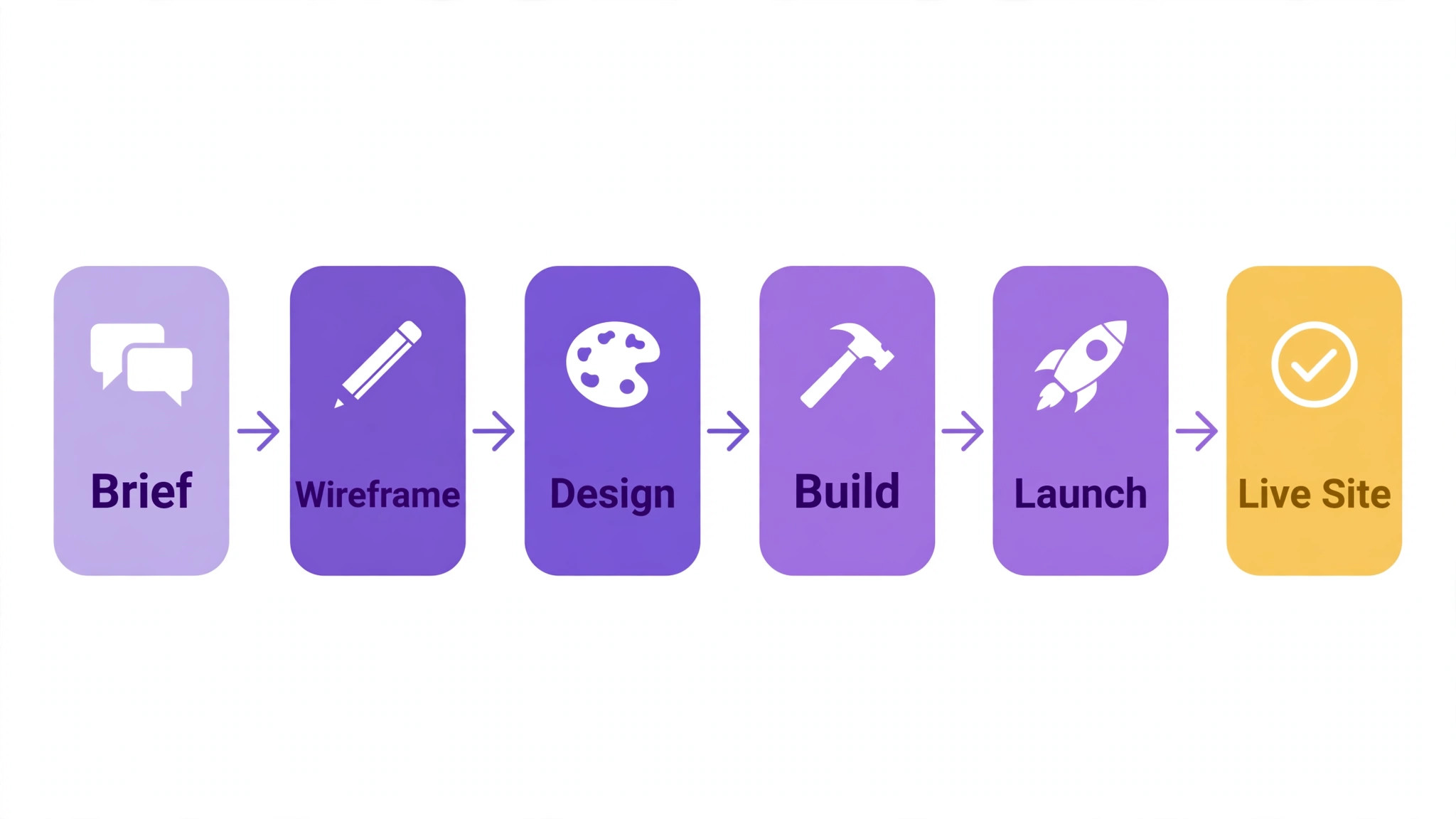
Web projects work across brief, wireframe, visual design, build, content and launch, and no single product covers all six well. A builder ships the site, a canvas tool designs it, a template tool starts it, and a wireframe tool plans it. The sensible first buy is the tool that clears the slowest part of a build week, and the second comes only after a named limit appears.
All prices below are the published starting rates as of late 2026, and pricing on request is marked wherever a vendor does not publish a rate. Start with the shortlist, then read the reviews that match the web work you do most, and trial two tools side by side before you pay for either.
The Shortlist at a Glance
Use this table to narrow the best ai tools for web designers to two or three candidates before you read the full reviews. Monthly list prices apply unless noted, and annual billing usually beats monthly billing for a small web studio.
| Job | Best tool | Why it wins |
|---|---|---|
| Visual builds that ship as real sites | Webflow | Design and live site in the same tool |
| Fast sites with AI setup for small clients | Wix | A client site live in a day |
| Clean portfolios and stores with little fuss | Squarespace | Beautiful sites with almost no setup |
| Flexible sites with a huge plugin shelf | WordPress.com | The flexible option with endless plugins |
| Designing the site before a line of code | Figma | The design canvas before the build |
| Drag-and-drop WordPress design with depth | Elementor | WordPress design without code |
| Launching a designed site in a day | Framer | Designed sites launched in a day |
| Sitemaps and wireframes from a prompt | Relume | Sitemaps and wireframes from a prompt |
How We Chose the Best AI Tools For Web Designers
The best ai tools for web designers were judged on five things that decide whether a studio keeps paying after the first year. We started with the job each tool does, since a single-purpose builder usually beats a platform that tries to cover five jobs at once. Next came published pricing and how it scales, since per-site charges decide the real bill as a client list grows.
Output quality came third, because a site that loads slowly or breaks on mobile costs more to fix than a month of subscription. Fourth, fit with the systems a studio already runs, because a tool that cannot reach the domain, the analytics or the store forces double entry on every launch. Fifth, the catch, from free plans that cap pages to builders that lock the site inside their own platform.
| Check before you buy | What to ask | Why it matters |
|---|---|---|
| Published price | Is the rate on the pricing page | A hidden price is a hidden bill |
| Free plan limits | Usage caps, pages or seats | A capped free plan cannot run the real job |
| Integration | Does it connect to your domain and analytics | Double entry eats the time it saves |
| Site ownership | Can you export the site and content | A locked site costs more to leave than to join |
| Trial access | Can you test it on a real client site | A demo is not a trial |
| Contract terms | Monthly or annual, and what year two costs | Annual billing locks the price but not the need |
The Tools, One by One
1. Webflow
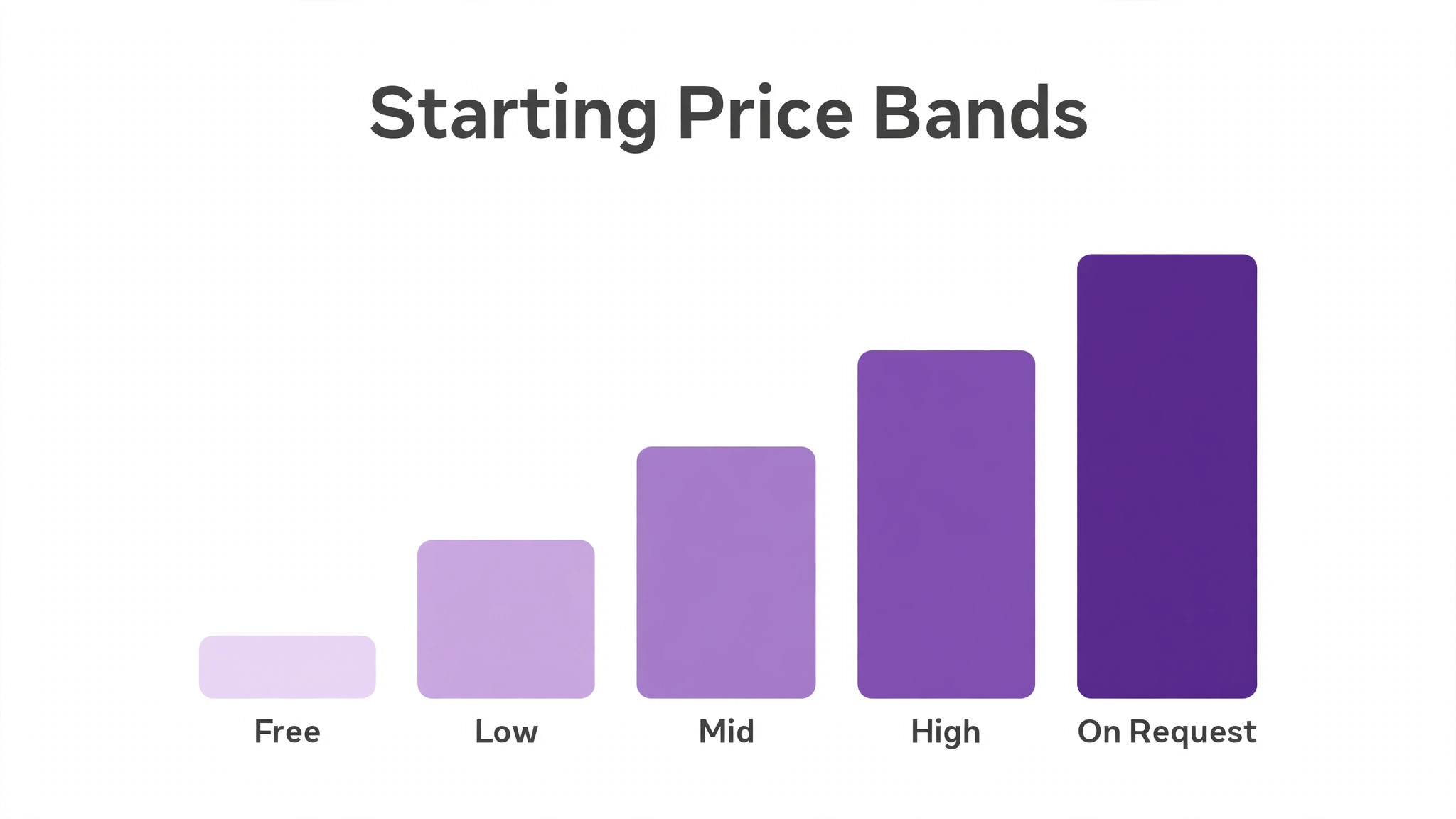
Starting price From $14 a month. Best for Visual builds that ship as real sites. Watch out CMS and ecommerce add cost.
Webflow lets a designer lay out a site visually and publish it as a real, hosted website with clean code, animations and a content system underneath. A client site can go from mockup to live URL without a developer in the middle, and the designer keeps control of the layout, the breakpoints and the interactions.
The free plan covers a staging site on a Webflow subdomain, while the Basic plan adds a custom domain and more pages. The CMS and ecommerce features sit on higher tiers, so a content-heavy or selling site will cost more than the headline suggests. Webflow earns its place as the main builder in the best ai tools for web designers when the design and the shipped site are one job.
2. Wix
Starting price From $17 a month. Best for Fast sites with AI setup for small clients. Watch out Templates limit deep custom work.
Wix builds a site from a short chat with its AI, then lets the designer reshape the result in a visual editor with templates, apps and booking tools. A small business site with pages, a contact form and a store can go live in a day, and the client can edit the text themselves afterwards.
The Light plan covers a custom domain and a small site, while higher tiers add more storage, ecommerce and the full app shelf. Templates limit deep custom work, so a designer who needs a truly bespoke layout will hit the ceiling fast. Wix is the pick when speed and a low price matter more than custom code.
3. Squarespace
Starting price From $16 a month. Best for Clean portfolios and stores with little fuss. Watch out The editor fights custom layouts.
Squarespace ships clean templates for portfolios, blogs and stores, with hosting, domains, analytics and email built into the same bill. A designer can launch a polished site for a photographer or a cafe in a weekend, and the client gets an editor they can actually use without training.
The Personal plan covers a simple site, while the Business plan adds ecommerce and the full template set. The editor fights custom layouts, so a designer who needs pixel control will feel boxed in. Squarespace is the pick when the client wants a beautiful site and no maintenance headaches.
4. WordPress.com
Starting price From $4 a month. Best for Flexible sites with a huge plugin shelf. Watch out Real power needs the pricier plans.
WordPress.com runs a site on the WordPress platform with hosting, themes and a plugin shelf that covers shops, bookings, courses and memberships. A designer can start simple and grow the site for years without moving platforms, and the content tools are the strongest on this list.
The free plan covers a subdomain site, while the Starter plan adds a custom domain. Real power, including plugins and themes, needs the Business plan, so the headline price is only the start. WordPress.com is the pick when the site will grow in ways nobody can predict yet.
5. Figma
Starting price It starts at $15 a month for each editor. Best for Designing the site before a line of code. Watch out It designs, it does not host.
Figma holds the site design in one file, with components, variables and auto layout that keep the system consistent across dozens of pages. A designer can prototype the whole site, test it with users and hand a developer a spec with measurements and assets already attached, before any building starts.
The free Starter plan covers three files and unlimited personal drafts, which is enough for a solo designer to try the canvas on a real project. The Professional plan adds unlimited files and shared libraries, and the bill grows with each editor. Figma designs, it does not host, so pair it with a builder for the live site.
6. Elementor
Starting price From $59.88 a year. Best for Drag-and-drop WordPress design with depth. Watch out Heavy pages can load slowly.
Elementor turns WordPress into a visual builder, with drag-and-drop sections, theme building, popups and a template shelf that covers most client sites. A designer can build a custom WordPress site without code, and the client keeps the WordPress dashboard they already know.
The free plugin covers the core builder, while the Pro plan adds the theme builder, forms and the full template kit for a yearly fee. Heavy pages with many widgets can load slowly, so keep the design lean and test the speed before launch. Elementor is the pick when the client insists on WordPress.
7. Framer
Starting price It costs from $5 a month per site. Best for Launching a designed site in a day. Watch out Blogging and CMS are basic.
Framer lets a designer lay out a page on the canvas and publish it as a live site with animations and responsive breakpoints, all without writing code. A portfolio, a landing page or a marketing site can go from sketch to URL in a day, and the built-in analytics show whether visitors stay on the page.
The free plan covers a Framer subdomain site, while the Basic plan adds a custom domain and extra pages. The blogging and CMS features are basic, so a content-heavy site will outgrow it. Framer is the pick when the design is the product and the site must ship fast.
8. Relume
Starting price From $32 a month. Best for Sitemaps and wireframes from a prompt. Watch out Output still needs a designer eye.
Relume turns a short brief into a sitemap and a set of wireframes with real copy, which a designer can then open in Figma or Webflow and finish. A project that used to start with a blank page now starts with a structure a client can approve in the first meeting.
The free plan covers a small number of projects, while the paid plans add more sitemaps, wireframes and team features. The output still needs a designer eye, because the copy and the hierarchy need a human pass before a client sees them. Relume is the pick when the planning stage is the bottleneck.
Side by Side on Price and Fit
The table below puts the best ai tools for web designers side by side on price, best job and free plan, so you can compare the published prices against the yearly plans at a glance. Read it by job first, since a designer pays more for a cheap tool that fails than for a pricier one that does the work first time.
Use the table by matching the slowest part of a build week to a row first, then checking what that row costs before anything else. A tool that fails on the first site launch costs another hour of rework, and one that needs constant fixing never pays, however cheap the headline price looks.
| Tool | Starting price | Best for | Free plan |
|---|---|---|---|
| Webflow | From $14 a month | Visual builds that ship as real sites | Yes |
| Wix | From $17 a month | Fast sites with AI setup for small clients | Trial |
| Squarespace | From $16 a month | Clean portfolios and stores with little fuss | Trial |
| WordPress.com | From $4 a month | Flexible sites with a huge plugin shelf | Yes |
| Figma | From $15 an editor a month | Designing the site before a line of code | Yes |
| Elementor | From $59.88 a year | Drag-and-drop WordPress design with depth | Yes |
| Framer | From $5 a site a month | Launching a designed site in a day | Yes |
| Relume | From $32 a month | Sitemaps and wireframes from a prompt | Yes |
Picking Without Overbuying
Start from the slowest part of the web week, not from the vendor homepage. The best ai tools for web designers are the ones that clear the pile that actually slows you down, whether that pile is design, build or client changes. Whatever fixes the slowest bottleneck in a build week pays for itself first, and everything else can wait.
Add up the full website work stack instead of the headline price. The table below prices year one for a solo designer and for a small team on the common combinations, using published starting prices. Ask for per-site charges in writing before signing, since those lines surprise small studios, and annual billing usually cuts about twenty percent off the monthly rate.
| Stack | Monthly cost | What it covers |
|---|---|---|
| Webflow plus Figma | Mid-range | Builder plus design canvas |
| Wix plus Relume | Lowest starting price | Fast sites plus planning |
| WordPress.com plus Elementor | Lowest starting price | Flexible sites plus visual design |
| Framer plus Squarespace | Lowest starting price | Launch fast plus client stores |
Reading the Pricing Page Like a Buyer
Per-site pricing is where a studio budget quietly doubles, so read the pricing page for the site count before you read anything else. A builder that lists $14 a month per site costs $140 a month for ten client sites, and the add-ons for CMS, ecommerce or extra bandwidth sit on top of that. Get the full quote in writing, including the price of the second year, since the first-year discount hides the real rate on the page.
The free tier counts as a real test only when it covers the build job you do most. A free builder that caps pages at a handful cannot hold a real client site, and a free design canvas that caps files at three cannot hold a working system. Trial the free tier on a live client site and count what it actually lets you do, then compare that count with the paid tier that removes the limit.
Annual billing usually cuts about twenty percent off the monthly rate, but it also locks the studio into a tool the designers may outgrow. Pay monthly for the first quarter, even at the higher rate, and switch to annual only when the tool has survived a real month of launches. That saving is real, but only when the tool is still in the build stack a year later.
The renewal price is the number that matters, not the first-year price. A builder that lists $14 a month for year one may renew at $20, and a yearly plan bought on a discount renews at the full rate. Ask for the renewal rate in writing before you pay, and set a calendar reminder for the renewal date so the charge never surprises the studio.
Best Pick by Job
Pick from the table below by the web job you do most each week. The best ai tools for web designers are not ranked by features alone; they are ranked by which job each one actually finishes, so the pick that matches your week is the pick that will still be in your stack a year from now.
| Your job | Best pick | Why it wins |
|---|---|---|
| Visual builds that ship as real sites | Webflow | Design and live site in the same tool |
| Fast sites with AI setup for small clients | Wix | A client site live in a day |
| Clean portfolios and stores with little fuss | Squarespace | Beautiful sites with almost no setup |
| Flexible sites with a huge plugin shelf | WordPress.com | The flexible option with endless plugins |
| Designing the site before a line of code | Figma | The design canvas before the build |
| Drag-and-drop WordPress design with depth | Elementor | WordPress design without code |
| Launching a designed site in a day | Framer | Designed sites launched in a day |
| Sitemaps and wireframes from a prompt | Relume | Sitemaps and wireframes from a prompt |
A Five-Day Trial That Tells the Truth
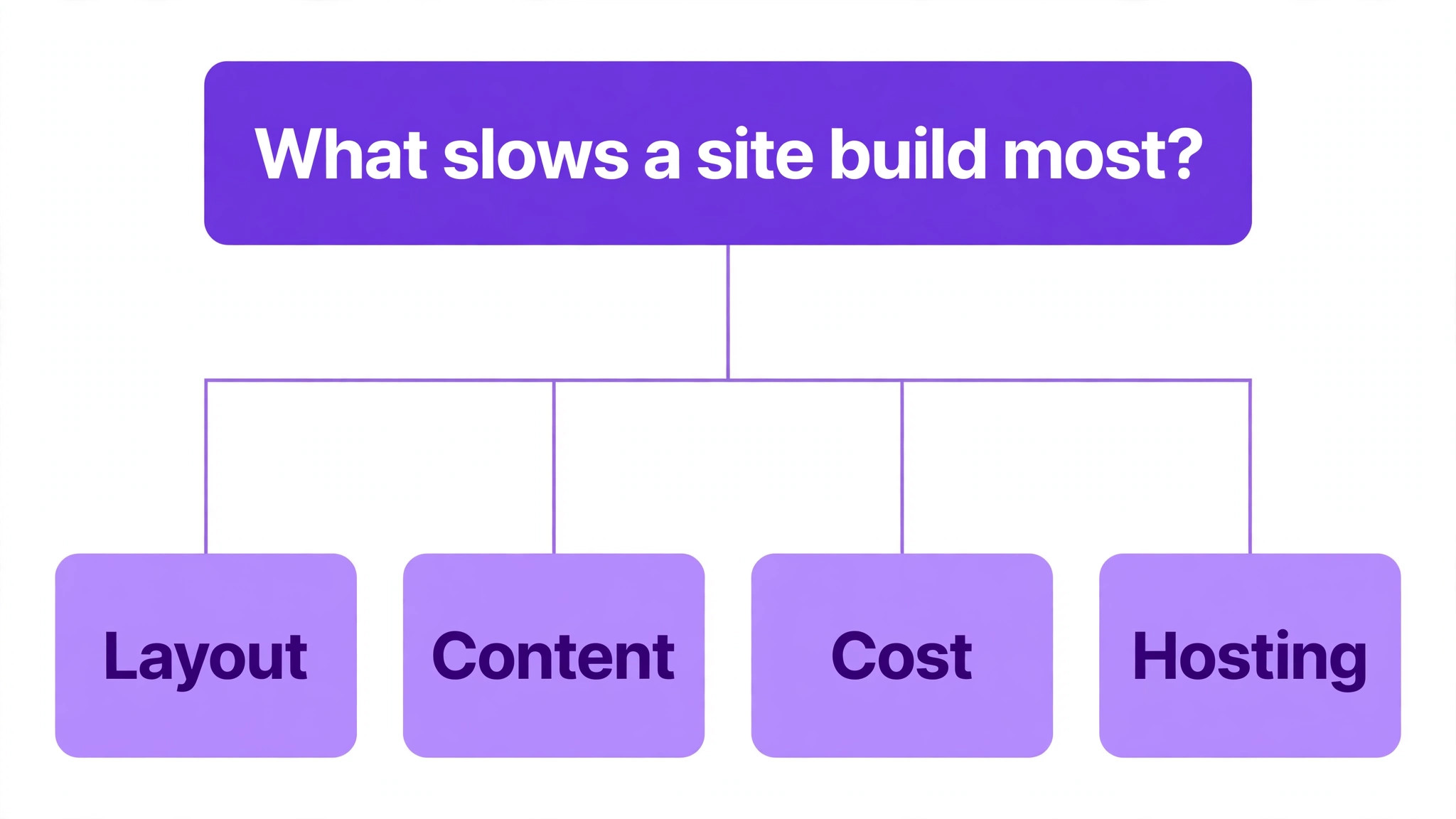
A trial tells a studio more in five working days than a month of reading reviews, but only when the trial runs on a real client site. Pick the two tools that look closest after the shortlist, run them side by side on the same core jobs, and score them on time saved, edits needed and how the output reads to a visitor.
Never trial on a demo file, because a demo hides the rough edges that real build work exposes. Run the trial on live briefs, live builds and live launches, and keep a simple log of minutes saved and errors found. When the week ends, the log of real site builds is what decides, not the sales call.
| Day | What to test | What good looks like |
|---|---|---|
| Day 1 | Setup and first real page | Working in under an hour, no IT ticket |
| Day 2 | The hardest site you build | Output needs light edits, not a rewrite |
| Day 3 | Launch to a custom domain | Site goes live without double entry |
| Day 4 | A colleague tries it cold | They finish a page without asking for help |
| Day 5 | Count the time and the cost | Hours saved beat the monthly price |
Setting Up in Week One
Week one should start with one real client site, not with the settings page. Import the content, the images and the brand styles first, then build the homepage from them so the tool proves itself on work that matters. A tool that starts empty stays empty, because nobody opens software that holds nothing a studio needs.
Pick one person to own the setup and one real site to run through it end to end. That person designs the pages, builds the layout, connects the domain and launches it, then writes down every step that felt slow. That list of slow steps becomes the setup checklist for the rest of the studio.
By the end of the week the whole studio should be working from the same builder, with the old templates retired rather than kept alongside. Two systems running together mean every job entered twice, and the new tool gets blamed for the old habit. Retire the old templates on Friday, and the team will use the tool on Monday.
Move one client site completely before you move the rest. A full migration shows the real export quality, the real load speed and the real support response, while a partial move hides all three. When the first site runs clean for a week, move the next two, and keep the old builder live until the last site is checked.
Mistakes Web Designers Keep Making
Mistake one is the cheapest plan, when the feature the web studio needs sits two tiers up. Read every tier on the pricing page and buy the tier that covers the daily build job, not the tier that looks cheapest on the page. Mistake two is rolling the tool out to the whole studio before one designer has tried it for a week, since a favourite of one and a burden to five is a cost, not a system.
The third mistake is skipping the ownership and export check. Ask for the export formats, read the retention policy and check who owns the site and the content before the first real client site goes through the tool, because fixing ownership after the fact costs far more than checking it first. The fourth mistake is judging the tool on its best day, so trial it on the hardest site itself and let the hard job decide.
The Questions That Save You Later
Ask the vendor how many sites the entry plan actually covers, because a site cap is the limit a studio hits first. A builder that looks cheap at fourteen dollars a month per site turns expensive when the client list grows past the cap and the next tier doubles the bill. Get the cap in writing, with the price of the next tier up, before the trial even starts.
Ask who answers support and how quickly, since the first problem usually arrives in the very first week. A tool with live chat and a same-day answer gets adopted by the studio, while one with email-only support and a two-day wait gets abandoned, and the subscription keeps billing either way. Ask for the support hours in your own time zone, rather than the hours of the vendor home office.
Ask how the site leaves the tool, because a site that cannot be exported is a site held hostage. Check the export format, the content included and whether the design and the pages come out with the data. A clean export is what separates a tool you can leave from one you are stuck with for good.
Questions Web Designers Ask First
Which tool gives a solo designer the cheapest good start
WordPress.com is the cheapest credible start on this list at free, then from $4 a month, with Framer close behind at free tier, then from $5 a site a month. Start with the job you do most each week, trial the free tier on real sites, and add a specialist only when the general tool cannot do a job you are paid to do. That is the cheapest route to a working build stack, with no payment for features never used.
Can a designer keep AI output from looking generic
It will look generic when a designer ships the generated site unchanged. These tools draft a usable first version, but the layout, the copy and the judgement still come from the designer doing the work. An output that goes out unedited reads generic, and clients notice generic sites fast. Use the tool to beat the blank page, then change the layout, the copy and the details, so the finished page sounds like you, not the software.
For a small studio, which option wins
Webflow is the pick for a small studio, starting at from $14 a month with design and hosting in one login, while Figma at from $15 an editor a month is the strongest design-only option. The best ai tools for web designers were ranked by the job each one finishes, not by the size of the feature list, so a small studio should buy the tool that fixes its slowest weekly job first and add a second tool only when a specific limit starts costing time.
How much will a small studio spend in year one
Plan on 20 to 50 dollars a month in year one for a general tool such as Webflow, rising to 60 to 150 dollars a month with a specialist such as Figma or Elementor added. Multiply the headline price by headcount when the studio pays per editor, since those charges surprise buyers. Price the whole stack and trial each tool on real sites before signing an annual contract.
Does a designer need a specialist tool as well as a general one
Not always. Most designers get by with one general tool for months, and a separate specialist only earns its place when a specific daily build task runs every week and the general tool cannot do it well. Time a week of site revisions before you spend anything. If a build task takes hours and a specialist cuts it to minutes, buy it, and if the task already takes minutes, the specialist is a cost.
Do these tools offer a trial before payment
Most tools on this list offer a free plan or a free trial, and Webflow, WordPress.com, Figma, Elementor, Framer and Relume all let a designer test on real work before paying. Use the trial on the build job itself the studio does most, not on a demo, and count the time saved and the edits each output needs. A trial that covers a real week tells a designer more than a sales call, and a tool with no trial at all is one to be careful about.
The Short Answer
If you buy one tool this quarter, pick Webflow for building and Figma for designing. Webflow is the strongest all-round builder at $14 a month, and Figma is the best design canvas at $15 an editor a month. The best ai tools for web designers earn their keep by giving you back the day between mockup and launch, and both of these do that from the first week.
Whatever you pick, trial it on a real week of client sites, count the pages it ships and the fixes each one needs, and keep a human eye on every AI layout before it goes live. Every tool here can build a site worth launching. The difference is whether the builder matches the sites you actually ship, and whether you measure the return in hours saved and sites launched rather than in features used.