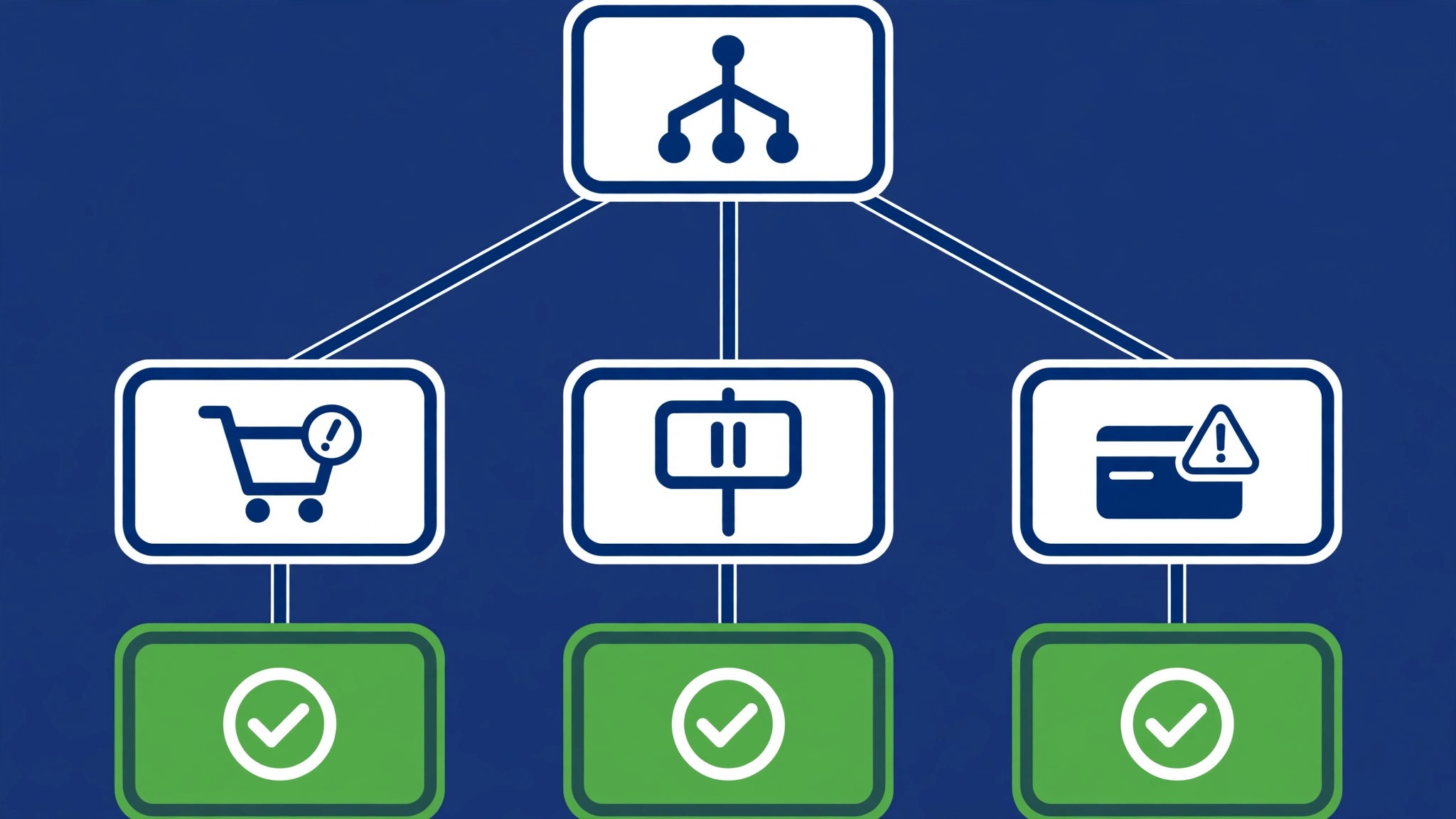
The order came through, the customer was charged, and the money never arrived. Or the customer tried to pay and the checkout failed, and the sale was lost. Or a banner in the admin says payouts are on hold, and the dashboard shows money that the bank does not. Few faults hurt a store more than this one, because every hour it lasts is an hour of sales that cannot be collected. This guide to fix shopify payments not working works through all seven causes in order, starting with the checks that take under a minute.
Shopify Payments is the built-in processor that lets a store take cards without a third-party gateway, and it pays out to the bank account on file, usually within two to three business days in the United States. When it stops, the cause is almost always one of seven things. A verification hold, a failed payout, a bank change pause, a reserve, a checkout setting, a theme or app fault, or a product the processor will not support. The symptom tells you which group to check first, and the banner in the admin usually names it.
The first thing to work out is whether customers can pay, or whether you cannot get paid. A checkout that fails is a different fault from a payout that never arrives, and the two faults have different fixes. If customers can pay and the money is stuck, the fault sits in verification, the bank, or a hold. If customers cannot pay at all, the fault sits in the checkout settings, the gateway, or the theme. That split is the fastest way to find the cause, and it saves a day of checking the wrong end of the problem.
Quick Diagnosis Checklist to Fix Shopify Payments Not Working
Work through this checklist in order, and stop as soon as payments flow again. To fix shopify payments not working, start with the banner, because it usually names the cause, and work through the bank and checkout checks only if the banner is silent. Most cases resolve in the first three checks.
| What you see | Try this first | Likely cause |
|---|---|---|
| Payouts on hold banner | Read the notice as the store owner | Verification or information hold |
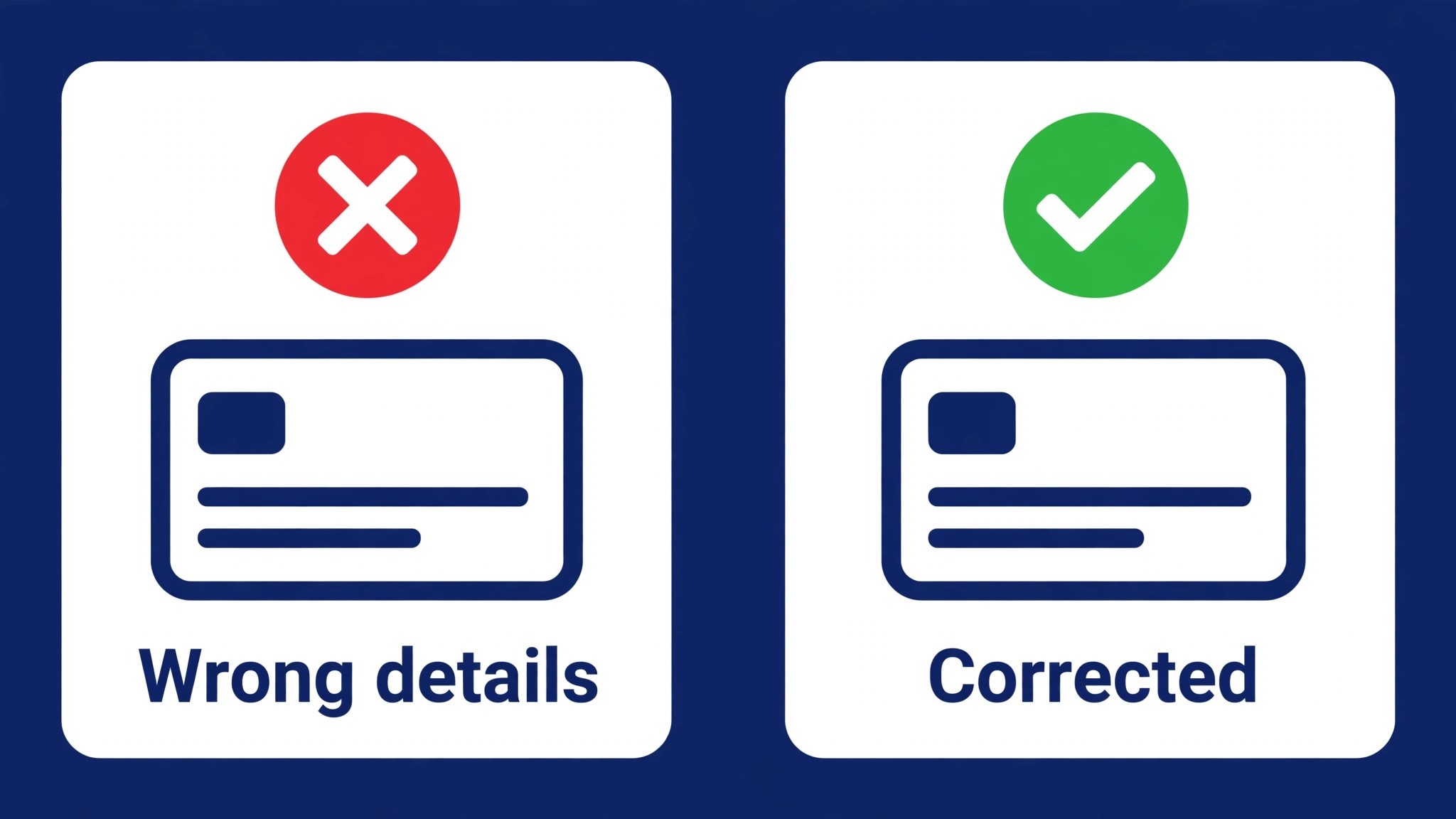
| Payout failed message | Check bank details match the bank exactly | Wrong bank account or currency mismatch |
| No payout after a bank change | Wait 3 to 5 business days | Bank change verification pause |
| Balance held back, not zero | Open Finance, then Payouts, then Reserve | Reserve on part of the balance |
| Customers cannot pay at checkout | Test checkout with a test card | Gateway off, test mode on, or theme fault |
| Payments work, one card type fails | Check the card types enabled in settings | Card type not enabled |
| New store, first payout missing | Check verification status in settings | Verification not complete |
| Payouts stop after a sales spike | Read the notice, reply with the documents asked | Review after unusual volume |
If payments start flowing after any check, keep the store running and watch the next payout land before you call it fixed, because a payout that was scheduled before the fix may still go to the old bank. If none of the checks work, go to the still not working section at the end of this guide, and work through the support steps there.
1. Verification Is Incomplete, So the Account Is on Hold
Shopify must verify who stands behind a store before it pays out sales, and until that verification completes, payouts can be held. The store usually keeps taking orders, which makes the fault easy to miss, because sales look normal while the money quietly piles up in a balance that cannot be paid out. The notice arrives as a banner in the admin and an email to the store owner, and only the store owner can resolve it, because only the owner can see the account details.
How to tell it is this cause. A banner says information is needed or verification is incomplete, or an email to the store owner asks for a document, or the first payout never arrived on a new store. A store that has been trading for a month without a payout is the most common case, because verification can sit unnoticed while orders keep coming in.
How to fix it.
- Sign in as the store owner, because staff accounts cannot see the payment account details.
- Open the banner in the admin, or the email sent to the store owner, and read exactly what is asked.
- Check the legal business name against the tax record for the business, character for character, because a mismatch fails the check.
- Upload the document asked for, photographed in colour rather than scanned, through the banner in the admin.
- Wait up to 24 hours for the review, and do not upload the same document twice, because a second upload can restart the wait.
Do not follow a link in an email without checking it first, because payout panic is exactly what phishing emails are written for. Open the admin directly, find the banner there, and work from the banner, not from the email.
2. The Bank Details Are Wrong, So the Payout Failed
A payout fails when the bank details on file do not match the bank, and Shopify will not keep sending money to an account that rejected a payment. The usual causes are a mistyped account number, a closed account, or a currency mismatch, where the payout currency does not match the bank account currency. Future payouts may not arrive until the failed payout is resolved, so the fix is to correct the details and follow the instructions in the failed payout message.
How to tell it is this cause. The payout page shows a failed payout, or a message says the bank rejected the payment, or the payout stopped right after the bank details were changed. A store that changed banks last week is the most common case, because the new account number is the first thing to check.
How to fix it.
- Open Settings, then Payments, and open the payout bank account details.
- Compare the account number and routing number against a bank statement, digit by digit.
- Confirm the account is open and can receive deposits, and that the currency matches the payout currency.
- Correct the details, save them, and follow the instructions in the failed payout message to release the payout.
- Keep the old bank account open until the next payout lands, because payouts already scheduled still go to it.
Do not change the bank account twice in one week, because each change can pause payouts while the new account is verified. Change it once, check it twice, and wait for the payout to land.
3. A Bank Change Paused Payouts for 3 to 5 Business Days
Changing the payout destination to a new bank account pauses payouts while Shopify verifies the account, and the pause lasts 3 to 5 business days. The store keeps taking orders during the pause, and the money keeps accumulating, but nothing is paid out until the verification finishes. This is not a fault, and no fix speeds it up, but it looks exactly like one, because the bank stays empty for a week after a change that took a minute to make.
How to tell it is this cause. Payouts stopped the day after a bank change, no banner asks for documents, and the payout page shows the next payout scheduled days later than usual. A store that switched banks to a new account is the most common case, because the pause is triggered by the change itself.
How to fix it.
- Confirm the bank change in the admin, and note the date it was made.
- Count 3 to 5 business days from that date, skipping weekends and bank holidays.
- Check the payout page for the scheduled date, and confirm it matches that window.
- Do not change the bank again during the window, because a second change restarts the verification.
- Contact support only if the payout has not arrived five business days after the change, and tell them the change date.
Plan bank changes for a quiet week, and warn the bookkeeper that the payout will be late. A pause that is expected is a cash flow problem, not a crisis, and a pause that is unexpected is a fault. Knowing the difference is the whole point of this check.
4. A Reserve Is Holding Back Part of the Balance
A reserve is different from a hold. Shopify can hold back part, and sometimes all, of a store’s money for a set period to cover chargebacks and refunds, and the total balance on the dashboard overstates what is actually coming, because the total is the payout balance plus the reserved funds. The store can keep trading, and payouts continue for the money that is not reserved, but the reserved part stays put until the reserve period ends. To fix shopify payments not working when the balance looks right and the bank looks wrong, the reserve page is the first place to look, because it explains the gap in one line.
How to tell it is this cause. The payout page shows a reserve balance separate from the pending balance, or payouts arrive but are smaller than expected, or the shortfall started after a run of refunds or chargebacks. A store that had a sudden sales spike is the most common case, because unusual volume is what triggers a review and a reserve.
How to fix it.
- Open Finance, then Payouts, and click Reserve to see each reserve transaction.
- Export the reserve transactions to a file, so the bookkeeper has a record of what is held and when it releases.
- Read the notice that set the reserve, and reply with the records it asks for, such as tracking numbers and proof of delivery.
- Reduce refunds and chargebacks by shipping with tracking and answering customer messages fast, because the reserve is a risk decision.
- Wait for the reserve period to end, because a reserve cannot be removed by changing the bank or the settings.
Do not treat a reserve as a theft or a mistake. It is a temporary hold on a portion of the money, and the release date is on the reserve page. Plan cash flow around the payout balance, not the total balance, while the reserve is in place.
5. Checkout Settings, Test Mode, or the Theme Is Blocking Payment
When customers cannot pay at all, the fault usually sits in the checkout, not in the payout. Test mode left on after a trial, the gateway switched off, a card type not enabled, or a theme change that broke the checkout button can each stop every sale. The store looks fine, the products load, and the payment step fails, which makes the fault easy to blame on the processor when the settings are the real cause.
How to tell it is this cause. Every customer fails at the same step, or the failure started after a theme change or an app install, or a test order succeeds with a test card but a real card fails. A theme updated last night is the most common case, because a checkout button that moved or broke will fail every real payment.
How to fix it.
- Place a test order with a test card, and note the exact step where it fails.
- Open Settings, then Payments, and confirm Shopify Payments is active and test mode is off.
- Check that the card types the customers use are enabled, and that the payout currency matches the store currency.
- Switch to a clean, unmodified theme for a test, because a theme fault will vanish on the clean theme.
- Disable recently installed checkout apps one at a time, and test after each one, until the fault clears.
Keep a note of which change fixed it, because a checkout fault that returns after the next theme update is the same fault, not a new one. A test order that passes on a clean theme proves the theme was the problem, and that test alone settles the cause.
6. The Product or Business Type Is Not Supported
Shopify Payments does not support every product or every business type, and a store that sells a restricted product can have payments stopped even when everything else is correct. The list includes certain regulated goods, and the review can arrive weeks after the store starts trading, when a manual check flags the catalogue. The fix is to read the notice, remove the product if it is restricted, or move to a third-party gateway that supports it.
How to tell it is this cause. The notice names product eligibility or business type, or payouts stopped the week a new product range was added, or the store sells a product in a regulated category. A store that added a new range last month is the most common case, because the review follows the catalogue change.
How to fix it.
- Read the notice in full, and note the exact product or business type it names.
- Remove the named product from the store, or move it to a separate store on a gateway that supports it.
- Check the supported product list in the help centre before adding a new range.
- Apply for a third-party gateway if the product is core to the business and Shopify Payments will not support it.
- Keep the rest of the store trading on Shopify Payments while the restricted product moves, so one product does not stop every sale.
Do not relist the product under a different name, because the review will flag it again and the account can be closed. A product the processor will not support needs a different processor, not a different label.
7. A Review After Unusual Volume Needs Documents and Time
Shopify reviews accounts when trading changes suddenly, and a sales spike, a new market, or a run of high-value orders can trigger a review that holds payouts until it completes. The store keeps trading, the money keeps accumulating, and the payout waits for the review. The fix is to reply with the records asked for, and to wait, because a review cannot be hurried by changing settings, and a second change during the review can extend it.
How to tell it is this cause. Payouts stopped after a sales spike, a viral post, or a new advertising campaign, and the notice asks for order records, tracking numbers, or supplier invoices. A store that went viral last week is the most common case, because a sudden jump in volume is the trigger the review is built to catch.
How to fix it.
- Read the notice as the store owner, and note the exact records it asks for.
- Pull the records for the orders named, including receipts, carrier names, tracking numbers, delivery status, and customer messages.
- Reply to the email directly, because Shopify calls that the fastest way to resolve a hold.
- Complete any high-value goods review in the admin before the date it names.
- Do not change the bank, the business details, or the product range during the review, because a change can restart it.
Keep trading while the review runs, and keep the records for every order, because the review is a risk check, not an accusation. A store that can show where every order went will clear the review faster than a store that has to hunt for the records.
What a Healthy Payout Looks Like
A working Shopify Payments account is quiet. Orders come in, the payout page shows a pending balance, and the money lands in the bank two to three business days later, minus the processing fee. There is no banner, no failed payout, and no reserve balance sitting apart from the pending balance. That quiet landing is the only proof that matters, and it is worth learning to look for it, because the dashboard total will happily show money that is held, reserved, or scheduled, and the bank is the only number that counts.
The payout has three stages, and each one can fail on its own. First, the customer pays and the sale is captured. Second, the money moves into the payout balance, minus fees and any reserve. Third, the payout is sent to the bank on the scheduled date. A checkout fault stalls the first stage. A verification hold stalls the second. A bank fault stalls the third. Knowing the stages helps you read the symptom, because a sale that never completes points at the first stage, a balance that never moves points at the second, and a payout that never lands points at the third.
Timing is a useful clue too. A payout scheduled for Monday should land by Wednesday in most cases, and a payout after a bank holiday will be a day late. A payout that is a week late is not a delay, it is a fault, and the payout page will usually say why.
The habit that protects a store is simple. Check the payout page every Monday, confirm the last payout landed, and read any banner the day it appears. Those three glances take minutes, and they are the difference between a hold caught on day one and a hold found a month later. A store owner who builds that habit will rarely need to fix shopify payments not working again, because the fault will be caught while the money is still easy to trace.
Still Not Working
If you have worked through all seven causes and payments still fail, this is the point where a systematic check still pays off. First, check the Shopify status page, because a processor outage affects every store at once, and no settings change will help until it clears. Second, try a different browser and a different device, because a browser fault can hide the banner that names the cause. Third, confirm the store owner is the one reading the notices, because staff accounts cannot see the payment details, and a hold can sit unread for weeks.
Fourth, export the payout history and the order history, and compare them, because a gap between the two shows exactly where the money stopped. Fifth, check that the store currency, the payout currency, and the bank currency all match, because a mismatch can fail a payout that looks correct.
Sixth, write down the exact message, the date it started, and the last payout that landed, then contact Shopify support through the Help Center with that list, because support will ask for all three. Do not change the bank, the gateway, or the theme while you wait for support, because a change during the investigation can hide the cause. Keep a written log of every payout date, every banner, and every reply, because a support case with dates moves faster than one without them, and the log is the record the store will need if the hold lasts more than a week.
Prevention Checklist
Use this checklist once a month, and payment faults will become rare. Read every banner the day it appears, and reply to the store owner email the same day. Keep the legal business name, the tax record, and the bank details in one file, and check them against each other twice a year. Keep the old bank account open for a month after a change, and plan changes for a quiet week.
Test the checkout with a real card once a month, and after every theme change. Keep tracking numbers for every order, and answer customer messages fast, because chargebacks are what trigger reserves. Keep the product range inside the supported list, and check the list before adding a new range. Keep a record of every payout date, so a late payout is noticed in days, not in weeks.
Frequently Asked Questions
Why is my Shopify payout on hold?
The most common reason is a verification hold that asks for information or documents, followed by a bank change pause and a reserve. Read the banner in the admin as the store owner, because only the owner can see the payment account details, and the banner names the cause. Reply with the records asked for, and do not change the bank during the hold. A hold that is answered the same day clears faster than a hold found a month later.
Why did my Shopify payout fail?
A payout fails when the bank details do not match the bank, or when the payout currency does not match the bank account currency. Check the account number and routing number against a bank statement, digit by digit, and confirm the account is open and can receive deposits. Correct the details, save them, and follow the instructions in the failed payout message. A payout that failed once will not retry on its own until the details are fixed, so the message is the checklist. That check alone can fix shopify payments not working for a store whose bank changed last week.
How long do Shopify payouts take?
In the United States, payouts usually arrive two to three business days after the sale, and the payout page shows the scheduled date. A bank change pauses payouts for 3 to 5 business days, and a reserve holds part of the balance until its release date. A payout that is a week late is not a delay, it is a fault, and the payout page or the banner will usually say why. Check the scheduled date first, then the banner, then the bank.
Why can customers not pay at checkout?
The most common reasons are test mode left on, the gateway switched off, a card type not enabled, or a theme change that broke the checkout button. Place a test order, open Settings, then Payments, and confirm Shopify Payments is active and test mode is off. Then test on a clean theme, because a fault that vanishes on the clean theme is a theme fault. A checkout that fails for every customer is a settings fault, not a customer fault.
Can I get paid while Shopify Payments is on hold?
No, payouts stay on hold until the reason is resolved, although the store usually keeps taking orders. The money accumulates in the payout balance, and it is paid out once the hold clears, unless the account is in Europe or the United Kingdom and verification is not complete within 90 days of the first order, in which case payments can be refunded to customers. Answer the notice the day it arrives, because the clock on a hold starts when the notice is sent, not when it is read.
Verdict
To rescue a store that cannot get paid, start with the banner and the payout page, because the banner usually names the cause and the payout page shows exactly where the money stopped. That order is the core of how to fix shopify payments not working without wasting a day on the wrong cause. Then check the bank details, because a mistyped account number fails every payout until it is corrected, and the fix takes minutes once the statement is in hand.
If payments still fail, work through the reserve, the checkout, the product list, and the review. Keep the store trading, keep the records for every order, and read every banner the day it appears. Most readers will only need the first three causes to fix shopify payments not working, and the rest are there for the stubborn cases. The money is almost always still there in the payout balance, and the fault is almost always simpler to resolve than it looks, so a careful pass through the seven causes will get the store paid again.