You drop a file into the Drive folder, wait, and nothing uploads. The file sits on your computer, the web version shows the old copy, and the sync icon spins or shows an error. Or the reverse happens. A file you added on your phone never appears on your laptop, and the folder looks different on every device. Few faults waste more time than this one, because the whole point of Drive is that every device shows the same files. This guide to fix google drive sync not working works through all seven causes in order, starting with the checks that take under a minute.
Google Drive gives every free account 15 GB shared across Drive, Gmail, and Photos, and the desktop app, Drive for desktop, keeps a local folder in step with the cloud. When sync works, a change on one device appears on the others within seconds. When it stops, the cause is almost always one of seven things. A paused app, a folder that was never selected, a full storage allowance, a file the service will not accept, a network block, an outdated app, or an account problem. The symptom tells you which group to check first.
The first thing to work out is the direction of the failure. Files that will not upload point at storage, file size, or the desktop app. Files that will not download point at the account, the network, or a paused sync. Files that appear on one device and not another point at folder selection, because the app only syncs the folders you told it to sync. That split is the fastest way to find the cause, and it saves an hour of checking the wrong end of the problem.
Quick Diagnosis Checklist to Fix Google Drive Sync Not Working
Work through this checklist in order, and stop as soon as files start moving. Most cases resolve in the first three checks.
| What you see | Try this first | Likely cause |
|---|---|---|
| Sync icon shows paused | Click the Drive icon and resume syncing | Sync paused by hand or by the app |
| New files never upload | Check storage in Drive settings | 15 GB allowance full |
| Files missing on one device | Check which folders Drive for desktop syncs | Folder never selected |
| One file stuck, the rest sync | Check the file size and name | File too large or name too long |
| Sync fails only at work | Turn the VPN off, try a home network | Firewall or VPN blocking Drive |
| App crashes or will not open | Update Drive for desktop, restart the computer | Outdated or corrupt app |
| Wrong files appear | Check which Google account is signed in | Signed in to the wrong account |
| All devices stop at once | Check the Google Workspace status page | Outage on Google’s side |
If files start syncing after any check, let the app finish the whole queue before you close the laptop, because a half finished sync can leave the same file in two different states. If none of the checks work, go to the still not working section at the end of this guide, and work through the account and device steps there.
1. Sync Is Paused, So Resume It from the Drive Icon
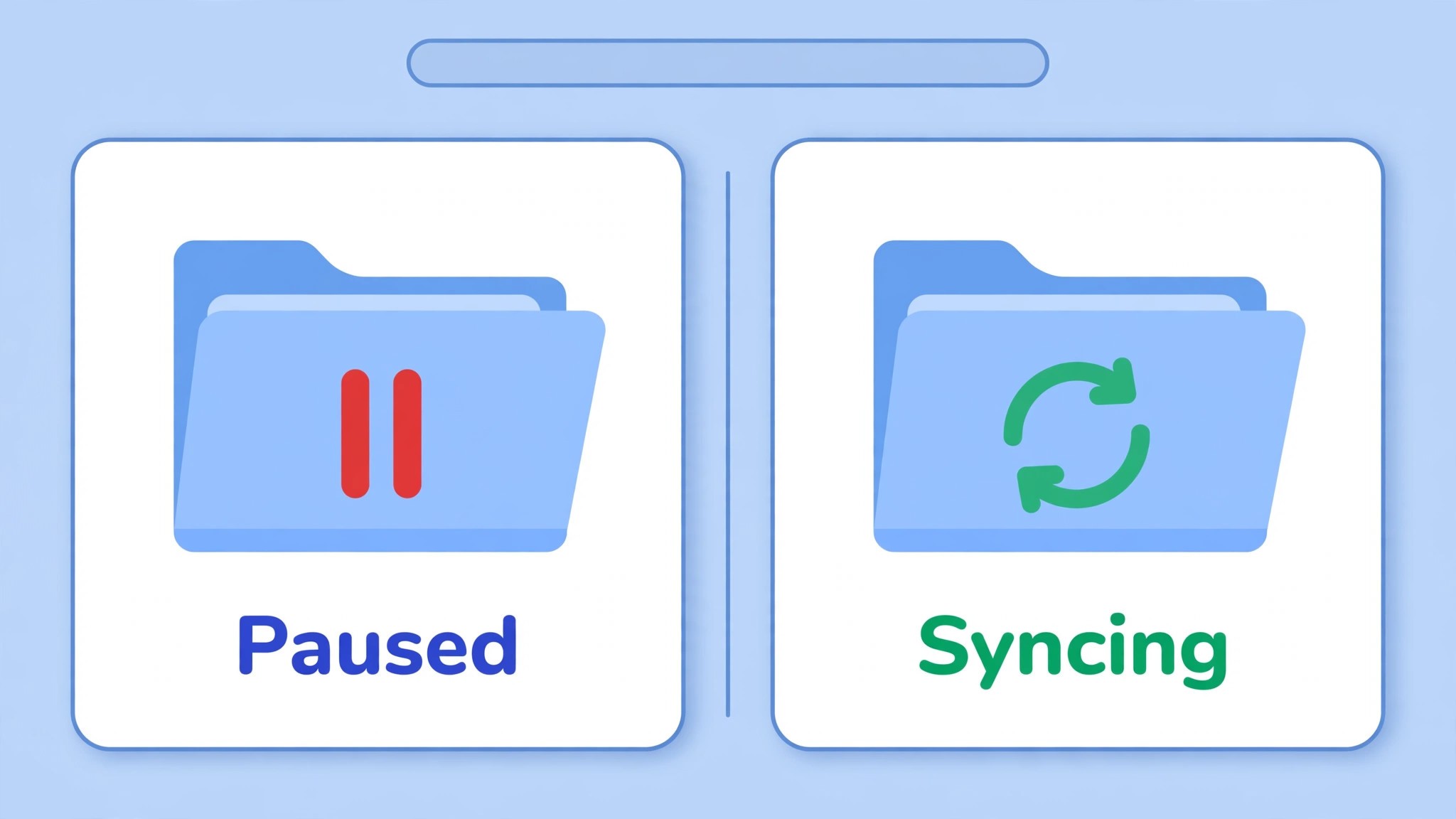
Drive for desktop can be paused by hand, by a setting, or by the app itself when it hits an error, and a paused app looks exactly like a broken one. The folder sits still, nothing uploads, nothing downloads, and no error explains why. The most likely fix is to resume syncing, because the pause is often the whole fault, and the app picks up the queue the moment it resumes.
How to tell it is this cause. The Drive icon in the menu bar or system tray shows a pause symbol, or the app says syncing is paused when you click it, or the failure started right after you clicked something in the app menu. A laptop that was closed mid-sync is the most common case, because the app sometimes stays paused when the machine wakes up.
How to fix it.
- Click the Drive for desktop icon in the menu bar on a Mac or the system tray on Windows.
- Look for the pause symbol and click Resume, then wait for the icon to change to a spinning sync symbol.
- Check the app settings to confirm that syncing is set to start automatically when the computer starts.
- Restart the computer if the resume button does nothing, because a stuck app process can hold the pause in place.
- Open Drive on the web and confirm the files are there, so you know what the app should be downloading.
Do not delete files from the local folder while sync is paused, because the app may treat the deletion as the change to sync when it resumes. Resume first, let the queue finish, and only then tidy the folder.
2. The Folder Was Never Selected, So Check What Drive for Desktop Syncs
Drive for desktop only syncs the folders you told it to sync, and a folder that was never selected will sit on your computer forever without ever reaching the cloud. The same applies in reverse. A folder that exists on the web will not appear on your computer unless the app is set to mirror it or stream it. This cause is easy to miss, because the folder looks like a Drive folder, and nothing about it says it is not syncing.
How to tell it is this cause. New files in one folder sync fine while files in another folder never move, or a folder appears on the web but never on the laptop, or the problem started after a fresh install of the app. A new computer is the most common case, because the app installs with default folders selected and the rest of the library stays on the web only.
How to fix it.
- Open Drive for desktop preferences, then Google Drive, and look at the list of folders set to sync.
- Tick the missing folder, and choose whether to mirror it locally or stream it from the cloud.
- Check the My Computer section too, because folders backed up from the computer sync under a different list.
- Wait for the first sync to finish, because a large folder can take an hour on a slow connection.
- Confirm the folder appears on the web after the sync, and on a second device, before you call it fixed.
Keep the folder list small if the connection is slow, because every folder you add is another queue the app must work through. Sync the folders you use daily first, and add the archive folders later.
3. Storage Is Full, So Free Space Before the Next Upload
Every free Google account shares 15 GB across Drive, Gmail, and Photos, and when that allowance fills, Drive stops uploading. The app does not always say the storage is full. It may show a vague sync error, or the upload may simply stall, and the file looks fine until you check the web and find it never arrived. Checking storage is a two minute job, and it explains a fault that no amount of restarting will fix. To fix google drive sync not working on an account that has been in use for years, the storage meter is the first place to look, because Gmail attachments and phone backups fill the same 15 GB.
How to tell it is this cause. Uploads stall while downloads still work, the failure started after a run of large uploads, and the account has been in use for years without a cleanup. A phone backup that quietly grew is the most common case, because photos and videos fill the shared allowance without any warning in Drive itself.
How to fix it.
- Open Drive on the web, open settings, and check the storage meter to see how much of the 15 GB is used.
- Open the storage manager and sort by size, then delete the largest files you no longer need.
- Empty the Drive trash, because files in the trash still count against the allowance until they are deleted for good.
- Check Gmail for large attachments and Photos for backed up videos, because both share the same allowance.
- Buy a Google storage plan if the work genuinely needs more than 15 GB, because the 100 GB plan costs a few dollars a month and removes the cap.
Do not delete the file you are trying to upload. Clean the old files first, wait for the meter to drop, and then watch the stalled file start moving on its own.
4. The File Is Too Large, Has a Bad Name, or Uses a Blocked Type
Drive refuses some files outright, and one refused file can block the whole queue behind it. A file larger than the limit, a name with characters Drive will not accept, or a file type on the blocked list will sit in the folder with an error, and every file after it waits. The fix is to deal with that one file, because the queue behind it usually clears the moment it is gone.
How to tell it is this cause. One file is stuck while the rest sync, the error names a specific file, or the failure started the moment a particular file was added. A video file over a few gigabytes is the most common case, because large files take long enough that a single network drop can fail the whole upload.
How to fix it.
- Find the stuck file in the Drive app, read the error, and note the exact reason it gives.
- Split a very large file into smaller parts, or compress it, then upload the smaller version.
- Rename the file to remove characters such as question marks, asterisks, and colons, and shorten a very long name.
- Check the file type against Google’s blocked list, and zip the file if its type is blocked.
- Move the problem file out of the sync folder, wait for the rest of the queue to clear, and then deal with it on its own.
Keep file names short and plain, because a path that is fine on your computer can be too long once the folder names are added. A file that syncs cleanly on its own after the queue clears was a queue problem, not a file problem.
5. A Firewall, VPN, or Antivirus Is Blocking the Drive App
Drive for desktop talks to Google’s servers constantly, and some VPNs, firewalls, and antivirus tools treat that traffic as suspicious and quietly block it. The web version still works in the browser, because the browser uses a different connection, while the desktop app stalls, which makes the fault look like an app problem when it is really a network problem. The fix is to remove the block, not to reinstall the app, because a blocked connection fails the same way every time.
How to tell it is this cause. Sync fails on one network but works on another, or it fails on the desktop app while the web version works, or it started the day a new VPN, firewall, or security tool was installed. A work or school network is the most common case, because corporate firewalls often block the sync traffic that Drive depends on.
How to fix it.
- Turn the VPN off, restart the Drive app, and watch whether the queue starts moving.
- Add Drive for desktop to the firewall’s allowed list, on Windows and on the Mac.
- Pause the antivirus web shield for a test, and add Google’s domains to its allowed list if sync starts working.
- Try a home network or a mobile hotspot, because a sync that works there proves the work network was the problem.
- Ask the network administrator to allow Drive traffic if the problem only happens at work or school.
Keep a note of which change fixed it, because the block will return the next time the VPN or security tool updates. A sync that works on a hotspot and fails at work is a network problem, and that test alone settles the cause.
6. The App Is Outdated or Its Cache Is Corrupt
An outdated version of Drive for desktop can carry a bug that the current version fixed months ago, and a corrupt local cache can leave the app convinced that a file is already synced when it is not. Both faults look the same from the outside. The icon spins, the queue never clears, and restarting the app changes nothing, because the fault lives in the app’s own files. Updating and clearing the cache gives the app a clean start, and it fixes more sync faults than most people expect.
How to tell it is this cause. Sync worked last month in the same setup, nothing about the network changed, and the app feels sluggish or shows the same error after every restart. A computer that has not updated the app in months is the most common case, because the app does not always update itself on a metered connection.
How to fix it.
- Quit Drive for desktop completely, then reopen it, and wait for it to load fully before you judge it.
- Check for an update in the app, install it, and restart the computer after the update.
- Clear the app cache from the app settings, or remove the local cache folder after quitting the app.
- Sign out of the app and sign back in, because a fresh session reloads the account from the server.
- Reinstall the app from Google’s site if the update and the cache clear both fail, and set up the folders again after the reinstall.
Do not delete the local Drive folder during a reinstall, because the app needs it to compare against the cloud. Keep the folder, reinstall the app, point it at the same folder, and let it reconcile the two copies.
7. The Wrong Account Is Signed In, or Google Has an Outage
A sync that looks broken is sometimes a sync that works perfectly for the wrong account. Two Google accounts on one computer, a work account and a personal account, can each sync their own Drive, and the files you expect may live in the other one. An outage on Google’s side does the same thing to every user at once, and no local fix will help until the service recovers. Both causes are quick to check, and both are worth checking before you rebuild a folder, because the fix for each one is to switch accounts or to wait.
How to tell it is this cause. Files appear when you sign in on the web with a different account, or every device stops at the same time, or friends and colleagues report the same fault, or the Google Workspace status page shows an incident. A second account added last week is the most common case, because the app can quietly switch its default account after an update.
How to fix it.
- Open the Drive app and check which Google account is signed in, then compare it with the account you use on the web.
- Sign out of the extra account, or add the missing account to the app, so the right Drive is the one syncing.
- Open the Google Workspace status page and check whether Drive shows an active incident.
- Confirm the account subscription is active if the files use a paid storage plan, because a lapsed plan can block uploads.
- Contact Google support through the Help Center if the status page is green and a fresh sign-in still fails, and tell them the account, the device, and the exact error.
Do not move files between accounts by hand while the app is confused about which account it serves, because a file moved into the wrong Drive is harder to find than a file that never synced. Sort the account first, then let the app sync.
What a Healthy Sync Looks Like
A working Drive sync is quiet. You save a file, and within seconds the icon shows a tick, and the same file appears on the web and on your phone. There is no spinning icon that never settles, no error badge, and no folder that looks different on two devices. That quiet tick is the only proof that matters, and it is worth learning to look for it, because the app will happily let you keep working long after the sync has stopped, and the first sign of trouble is often a file that exists in only one place.
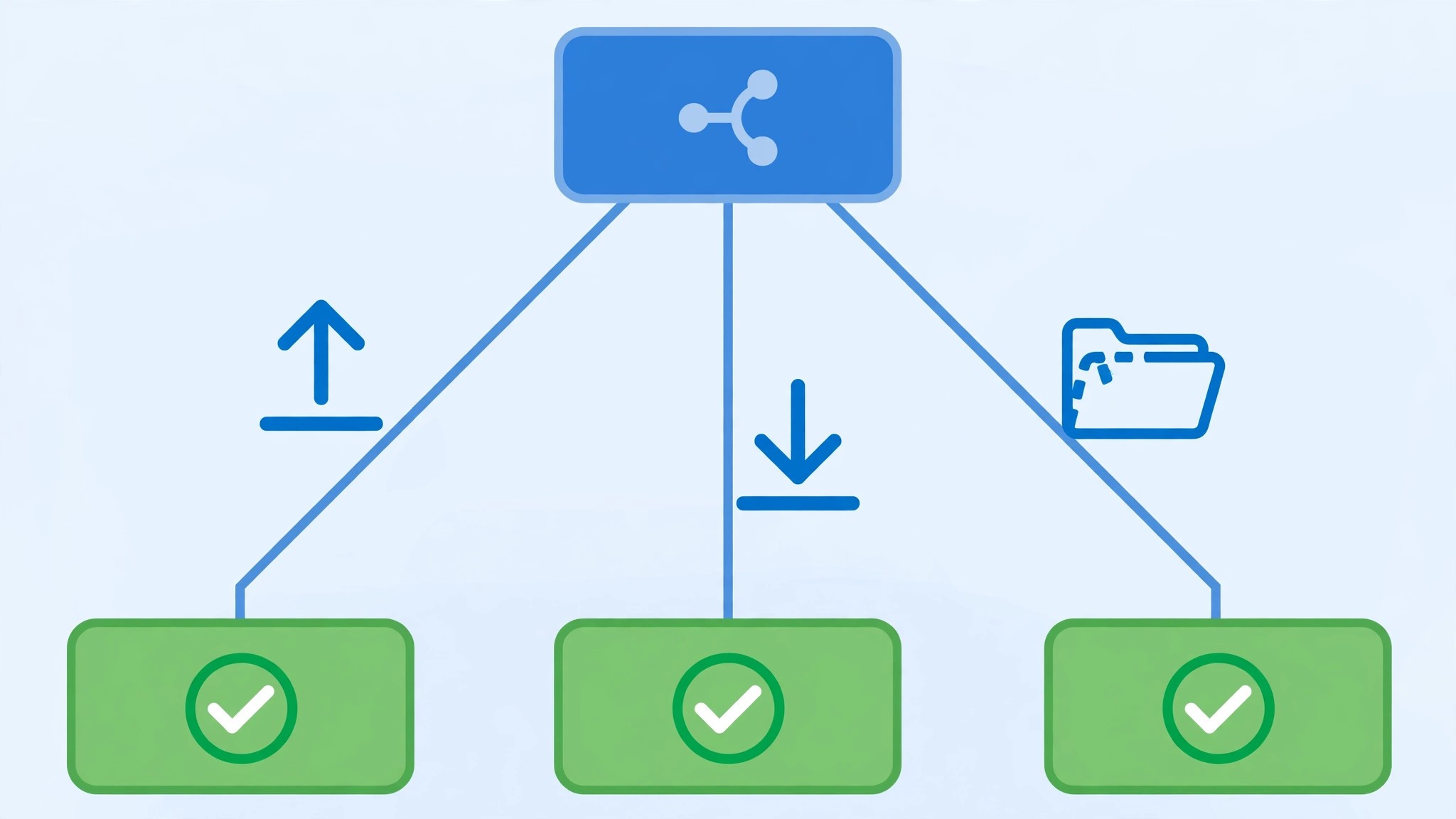
The sync has three stages, and each one can fail on its own. First, the app notices the change on your computer. Second, it uploads the change to Google’s servers. Third, the other devices download the change. A paused app stalls the first stage. A full storage allowance stalls the second. A network block stalls the second too, but from the other side. Knowing the stages helps you read the symptom, because a file that never leaves the computer points at the first two stages, and a file that leaves but never arrives points at the third.
Timing is a useful clue too. A small document should sync in seconds. A one gigabyte video can take an hour on a slow connection, and that is normal, not a fault. A small document that has not synced after an hour is broken, and no amount of waiting will fix it. The size of the file sets the expectation, and a small file that will not move is a fault. A reader who builds the habit of checking the tick after an important save will rarely need to fix google drive sync not working again, because the fault will be caught while the file is still on the computer and the work is still recoverable.
Still Not Working
If you have worked through all seven causes and sync still fails, this is the point where a systematic check still pays off. First, try a different device entirely, a phone if you were on a computer, or a computer if you were on a phone, because a device problem will follow the device, and an account problem will follow the account. Second, upload the file through the web version of Drive, because a web upload that works proves the account and the file are fine and the desktop app is the problem.
Third, check the file on the web after the upload, and download it again, because a file that uploads and downloads cleanly is healthy, and the fault was in the queue. Fourth, create a new test folder, add a small text file, and watch whether it syncs, because a test folder separates a folder fault from an app fault. Fifth, check the computer’s disk space, because a full hard drive leaves the app nowhere to put downloaded files.
Sixth, write down the exact error, the time it failed, and the device you used, then contact Google support with that list, because support will ask for all three. Before you write to support, try the sync once more after a restart with the VPN off, and note whether the queue moves. Do not delete the local folder, and do not start over from scratch, until you have tried the web upload and the test folder. A sync that fails once is usually repairable, and a library rebuilt from memory will not match the original folders.
Prevention Checklist
Use this checklist once a month, and sync faults will become rare. Check the storage meter, and clean old files before the 15 GB allowance fills. Keep Drive for desktop updated, and restart the computer after an update. Keep the VPN off while you sync, or add Drive to its allowed list. Watch the tick after every important save, and do not close the laptop until the queue is clear.
Keep file names short and plain, and split very large files before you upload them. Keep the folder list small, and add archive folders only when the daily folders are syncing cleanly. Sign in to one account on the app, and check the account after any update. Keep a local backup of the files that matter most, so a failed sync never loses the only copy.
Frequently Asked Questions
Why is Google Drive not syncing?
The most common reason is a paused app, a full 15 GB storage allowance, or a folder that was never selected for sync. Click the Drive icon and check whether syncing is paused, then check the storage meter in Drive settings, then check the folder list in the app preferences. Most cases resolve in those three steps, because the app itself is rarely the problem, and the fault is usually a setting or a limit.
Why are my files not uploading to Google Drive?
Uploads stop when storage is full, when one file in the queue is too large or has a blocked name, or when a VPN or firewall blocks the app. Check the storage meter first, then find the stuck file in the app and read its error, then turn the VPN off for a test. A file that uploads through the web version proves the account is fine, and the fault sits in the desktop app. That test alone can fix google drive sync not working for uploads, because it separates an account fault from an app fault.
Why do my files show on one device but not another?
The folder was probably never selected on the missing device, or the app on that device is signed in to a different Google account. Open the app preferences on the missing device, check the folder list, and check which account is signed in. Then open Drive on the web with the same account and confirm the files are there. A folder that appears on the web but not on the laptop is a selection problem, not a sync problem.
How do I force Google Drive to sync?
Click the Drive icon, check that syncing is not paused, and click Resume if it is. Then restart the app, and if the queue still does not move, restart the computer. There is no force sync button, because the app syncs continuously when it is running and connected. A queue that does not move after a resume and a restart has a cause in the seven in this guide, and the checklist at the top will point to it, because that is the fastest way to fix google drive sync not working for a stuck queue.
Can I recover files lost in a sync failure?
Often, yes, if the file still exists on one device or on the web. First, check the web version of Drive, because the cloud copy is the safest one. Then check the Drive trash on the web, and the trash on the computer, because a file deleted by a confused sync often sits in one of them. On a paid plan, check the version history of the file, because earlier versions may hold the lost content. A file that exists in only one place should be copied to a safe folder before you restart the app.
Verdict
To rescue a sync that has stopped, start with the pause button and the storage meter, because a paused app and a full allowance are the most common causes, and both take under a minute to check. That order is the core of how to fix google drive sync not working without wasting an hour on the wrong cause. Then check the folder list, because a folder that was never selected will never sync, no matter how many times you restart the app.
If sync still fails, deal with the stuck file, remove the network block, update the app, and check the account. Work through the seven causes in order, let the queue finish before you close the laptop, and use the prevention checklist once a month. Most readers will only need the first three causes to fix google drive sync not working, and the rest are there for the stubborn cases. The files are almost always still there on one device, and the sync is almost always simpler to restore than it looks, so a careful pass through the seven causes will bring every device back to the same set of files.