A campaign that shows as sent and never arrives is one of the most worrying faults in Mailchimp, because the audience never sees it and the sender has no error to chase. The cause is almost always one of seven things, and the fix takes less than ten minutes once you know which one it is. This guide to fix mailchimp emails not sending works through all seven causes in order, starting with the ones you can check in under a minute.
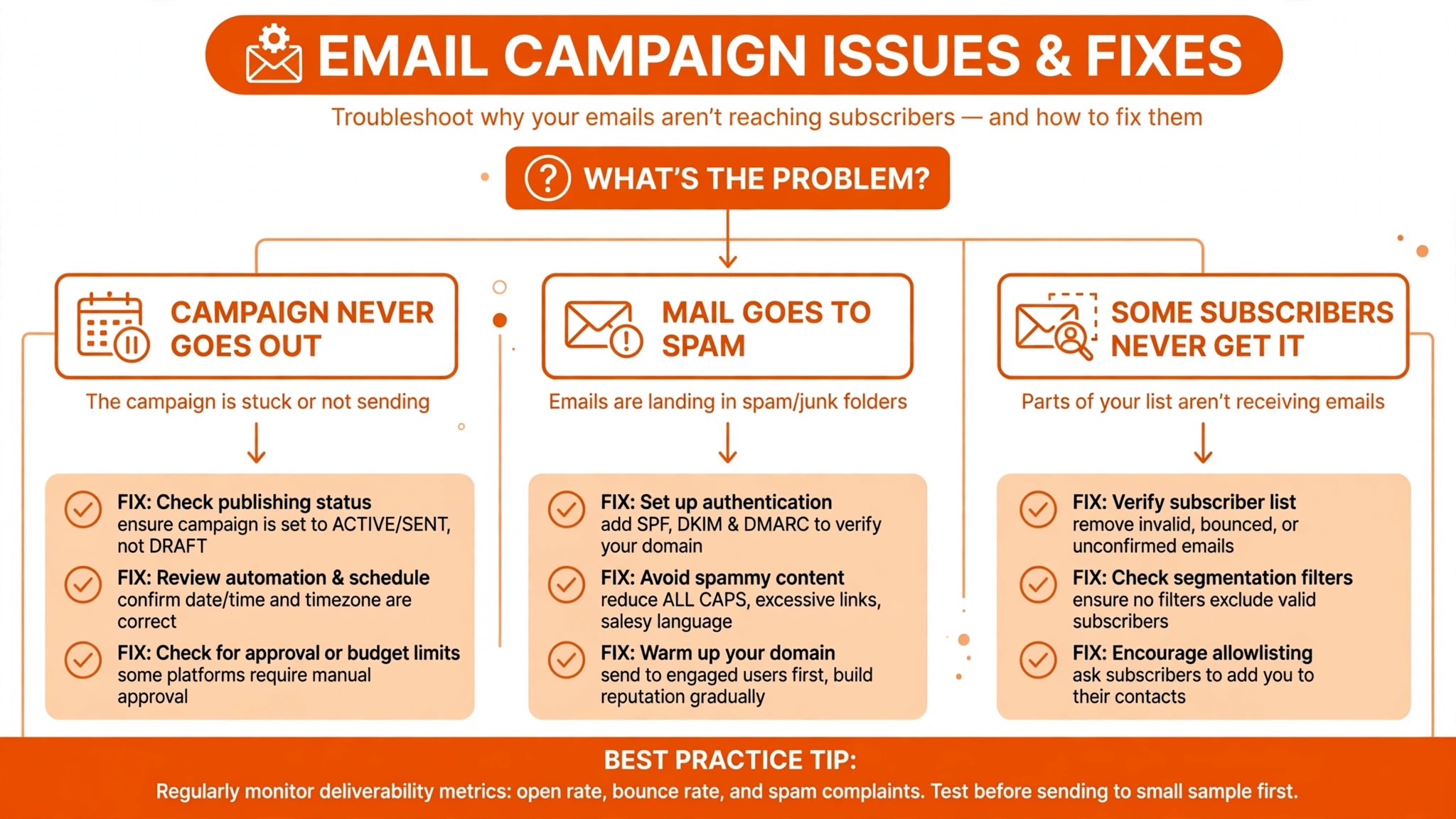
The first thing to work out is whether the mail was ever released. A campaign that never goes out has a different cause from a campaign that went out and landed in spam, and a campaign that went to some subscribers and not others has a different cause again. If a campaign never goes out, that is a sending problem, not a placement problem, and no authentication change will help until the sending block is cleared. If it went out and landed in spam, the domain and the content are usually at fault. That split is the first step to fix mailchimp emails not sending, because the symptom tells you where to look.
To fix mailchimp emails not sending, start with the account page, because Mailchimp can disable sending while an account is under Compliance review, and the reason appears there. Then check the campaign checklist, because a missing subject line, a missing recipient list, or an unverified sender will block the send before it starts. This guide gives you that order, with a clear fix for each cause.
Quick Diagnosis Checklist to Fix Mailchimp Emails Not Sending
Work through this checklist in order, and stop as soon as the mail sends. Most cases resolve in the first three checks.
| What you see | Try this first | Likely cause |
|---|---|---|
| Campaign never goes out | Check Account page and Compliance messages | Account paused or under review |
| Campaign stuck in draft | Check campaign checklist, subject and list | Campaign not ready to send |
| Automation not sending | Check automation status, paused emails | Email paused, or store disconnected |
| Mail goes to spam only | Check domain authentication, SPF and DKIM | Domain not authenticated |
| Some subscribers never get it | Check subscriber status, bounces | Unsubscribed, cleaned, or bounced |
| Test email never arrives | Verify sending domain, check spam folder | Unverified domain blocks test mail |
| Welcome email never sends | Check double opt in and automation | No automation triggers the welcome |
| Mail sends late, hours later | Check schedule and send time settings | Send time set for later, or day limits |
If the mail sends after any check, send a test to yourself first before you send to the full list, because a test that arrives proves the fix worked. If none of the checks work, go to the still not working section at the end of this guide, and work through the account and support steps there.
1. The Account Is Paused or Under Compliance Review, So Check the Account Page
Mailchimp can disable sending, importing, and other features while an account is under Compliance review, and the reason and any Compliance messages appear on the Account page and in Account History. Mailchimp also emails the primary account contact, so the inbox is the second place to check. Reviews run during business hours, so a review that starts on a Friday evening may not clear until Monday.
How to tell it is this cause. Every campaign fails to send, the send button is greyed out, or a message says sending is disabled. A recent campaign with a very high unsubscribe rate is the most common trigger, because Mailchimp automated system and Compliance team review negative campaign results, such as a very high unsubscribe rate, and sometimes disable sending until they understand what happened. A sudden import of a large list can trigger the same review.
How to fix it.
- Open the Account page and read the Compliance messages, because they state the reason and what Mailchimp needs from you.
- Open Account History and look for the date sending was disabled, because that date points at the campaign that triggered it.
- Reply to the Mailchimp email to the primary account contact, and answer the Compliance questions honestly and in full.
- Do not try to send from a second account to work around the review, because that can extend the review and risk both accounts.
- Wait for business hours if the review started at the weekend, because reviews run during business hours and a weekend wait is normal.
Do not keep clicking send while the account is paused, because each failed attempt adds to the history and can slow the review. Read the message, answer it, and wait for Mailchimp to clear the account.
2. The Campaign Is Not Ready to Send, So Check the Checklist
The error message Bad Request your campaign is not ready to send means there is an issue with your campaign that prevents it from being sent. This could be due to incomplete setup, missing information, or configuration errors, and the campaign builder will often highlight the sections that need attention before you can send. A missing subject line, a missing recipient list, or an unverified sender will block the send before it starts, and the fix is to complete the checklist, not to retry the send.
How to tell it is this cause. The campaign sits in draft, the send button shows an error, or the builder highlights a section in red. A campaign built in a hurry is the most common case, because the content is finished and the settings were never completed. A campaign copied from an old one is the next case, because the old list or the old sender no longer exists.
How to fix it.
- Check the campaign details and ensure all required fields are filled out, including the campaign name, subject line, from email address, and content.
- Review the content and make sure it is complete, with no placeholder text and no missing images, and no content that violates the Terms of Use.
- Verify the recipient list, because if the list is empty or flagged for high bounce rates, the send will be blocked.
- Verify the sender information, because Mailchimp requires that the from email address is verified to prevent spam.
- Look for alerts in the campaign builder, because the builder highlights sections that need attention before you can send.
A campaign that passes the checklist will send, and a campaign that fails it will keep showing the same error. Complete the checklist once, then send, and the error should clear.
3. An Automation Email Is Paused, So Check the Automation Status
In a classic automation, check whether individual emails are paused. Some Paused means the automation is sending, but at least one email is held. When you pause a single email in an activity based automation, other emails in the automation continue to send as expected, and Mailchimp will hold contacts in the paused email queue. When you resume the email, those contacts will continue through the automation, so a paused email is not lost, it is waiting.
How to tell it is this cause. The automation shows Draft, Sending, Paused, Some Paused, or Not Connected, and the contacts stop at one step. A date based automation is especially tricky, because those emails have to go out on specific days, and if you limit what days of the week your emails can be delivered, you could skip contacts whose next email should arrive on a day you opted not to send. A store that disconnected is the next cause, because the automation cannot trigger without the store.
How to fix it.
- Open the automation and read the status, because Draft means it has not started, Paused means all emails are paused, and Some Paused means at least one email is paused.
- Click Edit, then Resume All Emails to resume a paused automation, or resume the single email that should not be paused.
- Review the segment for the email, because a contact may not receive it if they do not fit the segmenting conditions, and check the subscriber profile page to verify they meet the right conditions.
- Review the schedule, because if you made changes to the scheduling settings, people may not receive emails at the times you expected, and date based automations are the most sensitive to that change.
- Check the store connection, because Not Connected means the automation is not sending because your store is not connected, and the ecommerce integration settings need fixing first.
Subscribed contacts will only trigger and receive the emails in a classic automation once, with the exception of date based automations and abandoned cart emails, so a contact who already received an email will not receive it again if you resume it. That rule is normal, and it is not a fault.
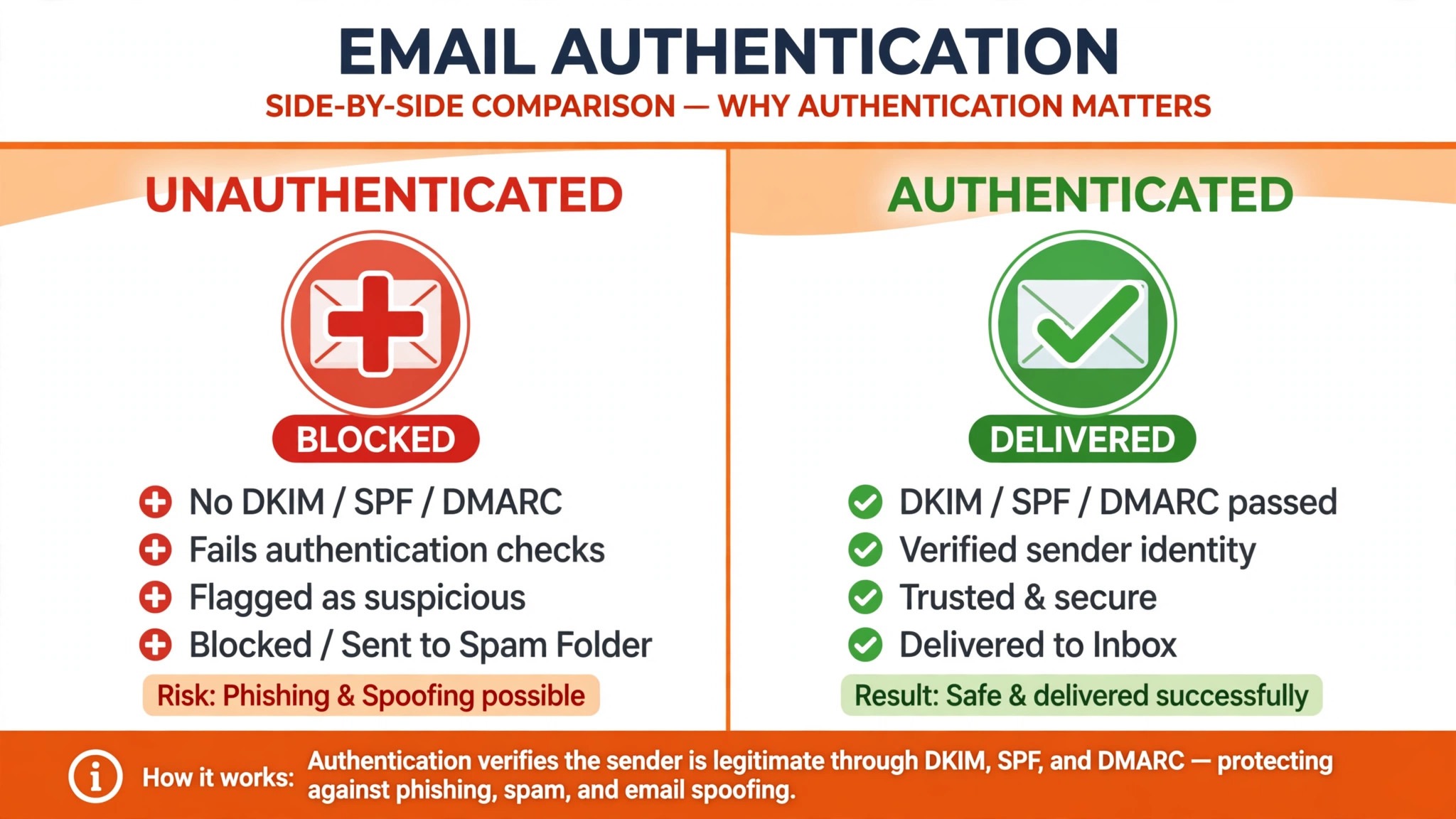
4. The Sending Domain Is Not Authenticated, So Set Up SPF, DKIM, and DMARC
Unverified sending domains block test emails in Mailchimp to enforce deliverability standards. Mailchimp requires full domain authentication before allowing sends from custom domains, and without it, even test emails queue indefinitely or fail silently. Domain verification confirms your email origin, and Mailchimp says validation can take up to 48 hours even when the records are correct, so a domain that was set up yesterday may still be waiting.
How to tell it is this cause. Test emails never arrive, the campaign goes to spam for every subscriber, or Mailchimp shows the domain as unverified. A business that sends from a free Gmail address is the most common case, because free email providers do not let customers authenticate their sending domain, and Mailchimp own limitations page says so plainly. A business that changed its DNS recently is the next case, because the records may not have propagated yet.
How to fix it.
- Log into Mailchimp and go to Account and Billing, then Domains, and click Add and Verify Domain, then enter your domain and verify it through the email Mailchimp sends.
- Click Authenticate to generate the SPF, DKIM, and DMARC records, and add all three to your DNS exactly as Mailchimp shows them.
- Wait 24 hours, then check the status in Mailchimp, and wait up to 48 hours before you troubleshoot further, because most records update within a few minutes but validation can take up to 48 hours.
- Send from a custom domain you own, not from a free Gmail or Yahoo address, because a custom domain is the only address that can be authenticated.
- Ask subscribers to add the send from address to their contacts, because a trusted sender is less likely to land in spam while the authentication settles.
Verify domains through SPF, DKIM, and DMARC to fix most test email blocks, and do not skip DMARC, because mailbox providers now treat it as a requirement, not an option. A domain that is authenticated will send, and a domain that is not will keep failing silently.
5. Subscribers Are Unsubscribed, Bounced, or Pending, So Check the List
A reader may not receive a campaign because they are not subscribed to the list, or they have not confirmed their subscription, or their address bounced. Mailchimp allows 7 soft bounces for an address with no subscriber activity and up to 15 soft bounces for contacts with previous subscriber activity before it converts a soft bounce into a hard bounce, so a subscriber who bounces repeatedly will be cleaned from the list and will never receive another mail.
How to tell it is this cause. Some subscribers get the mail and others do not, and the ones who do not are the same people every time. A new subscriber is the most common case, because they sit as Pending Confirmation until they click the confirmation email, and the campaign will not go to a pending address. A subscriber with a full mailbox is the next case, because the mail soft bounces and Mailchimp retries it before cleaning the address.
How to fix it.
- Open the subscriber profile page and check the status, because Subscribed, Unsubscribed, Cleaned, and Pending Confirmation each mean a different thing.
- Ask a pending subscriber to search their inbox for the confirmation email, and to click it, because the subscription is not active until they do.
- Check the bounce reason in the campaign report, because a hard bounce means the address is dead and should not be mailed again.
- Ask subscribers to check their spam folder and their Promotions or Social tabs in Gmail, because the mail may have arrived and been filed away from the inbox.
- Remove cleaned addresses from the list rather than re-adding them, because re-adding a cleaned address will bounce again and can trigger a Compliance review.
Do not mail a list that was bought or scraped, because those addresses will bounce and complain, and the complaints will pause the account. A clean list of people who asked to hear from you will send, and a dirty list will keep failing.
6. The Welcome Email Never Triggers, So Check Double Opt In and Automation
API forms not sending final welcome emails stem from disabled double opt in without proper automation workflows, or incorrect subscriber status settings. Mailchimp API version 3 removed direct send welcome parameters, relying on list settings and automations instead. The final welcome email only triggers with double opt in enabled or through custom workflows when using single opt in, so a subscriber who joins through an API form with status subscribed and double opt in off will receive no welcome at all unless an automation is built for it.
How to tell it is this cause. New subscribers join the list, the list grows, and no welcome email ever arrives. The form works, the list works, and the welcome is the only mail that never sends. A business that switched from double opt in to single opt in is the most common case, because the switch turns off the automatic welcome and nobody builds the automation to replace it.
How to fix it.
- Enable the Final Welcome Email in Audience, then Settings, then Welcome email, and confirm it is on.
- Turn double opt in back on if you want the automatic welcome, because the welcome only triggers automatically with double opt in enabled.
- Build a welcome automation if you use single opt in, because an automation is mandatory when double opt in is off, and the automation should trigger on signup.
- Check the subscriber status after signup, because a subscriber who joins with status subscribed and double opt in off will not trigger a welcome without an automation.
- Test the signup yourself with a temporary Gmail address, and check whether the welcome arrives at the delay time set in the automation builder.
Use temporary Gmail addresses for testing, because a test with your own work address can hide a problem that only affects new subscribers. A welcome that works in a test will work for real subscribers.
7. The Plan Downgrade or a Conflict Pauses Sending, So Resolve the Plan
If a downgrade leaves conflicts on the account, sending is paused until they are resolved. A plan that no longer includes a feature the account still uses, such as a higher contact limit or a premium automation, will block sending until the conflict is fixed. A business that downgrades to save money and then discovers the send is blocked has traded a lower bill for no mail at all, and the fix is to resolve the conflict, not to retry the send.
How to tell it is this cause. Sending stopped on the day the plan changed, the account page shows a conflict warning, or a feature that was working yesterday is now greyed out. A downgrade is the most common case, because the new plan has a lower contact limit than the list size, and Mailchimp will not send to a list larger than the plan allows.
How to fix it.
- Open the Account page and read the plan conflict warning, because it states which feature or limit is in conflict.
- Upgrade the plan back to the tier that covers the list size, or archive contacts to bring the list under the new limit.
- Remove premium automations that the new plan does not include, or upgrade to a plan that includes them.
- Check the billing date, because a failed payment can also pause sending, and a card that expired will block the account the same way a downgrade does.
- Contact Mailchimp support with the campaign name and send time if the conflict is not clear, because paid plans get priority chat and support can read the account history.
Do not archive contacts in a hurry, because archived contacts lose their history and cannot be mailed until they are unarchived. Count the list, compare it to the plan limit, and decide whether an upgrade or an archive is the right fix.
Still Not Working
If you have worked through all seven causes and the mail still will not send, this is the point where a systematic check still pays off. Work through these steps in order, and stop as soon as the mail sends. First, check the Account page and Account History again, because a Compliance review can start after you checked the first time, and the reason will appear there.
Second, send a test email to a different address, because a test that arrives at a Gmail address and not at a work address points at the work firewall, not at Mailchimp. Third, check the campaign send time, because a scheduled send set for later in the day will not go out until that time, and a post published after the scheduled send time will miss the send entirely.
Fourth, clear the browser cache or switch browsers and update to the latest Mailchimp builder, because a stale builder can show a campaign as ready when it is not. Fifth, contact Mailchimp support with the campaign ID and screenshots, because paid plans get priority chat, and support can read the send logs that you cannot see.
Do not delete the campaign and start again until you have tried the test email and the schedule check, because a campaign that fails to send once is usually repairable, and a new campaign built from memory will not match the original list and content. Save a copy of the content, then troubleshoot, and keep the copy until the mail sends.
Prevention Checklist
Use this checklist before you send any campaign, and sending problems will become rare. Authenticate the domain with SPF, DKIM, and DMARC, and wait 48 hours after any DNS change before you send. Verify the sender address, complete the campaign checklist, and send a test to yourself and to a Gmail address before you send to the full list.
Keep the list clean, remove bounced addresses, and never mail a bought list. Check the automation status before a launch, and confirm no email in the automation is paused. Keep the plan above the list size, and check the billing card before it expires. Save a copy of every campaign, so a failed send never loses your work.
What to Do in the First Hour After a Campaign Fails
The first hour after a campaign fails is the hour that decides whether the audience ever sees it, and the order matters more than the speed. Start by opening the Account page, because a paused account will block every campaign, and no content fix will help until the review clears. Read the Compliance messages in full, because they state the reason and what Mailchimp needs from you, and that message is the fastest way to fix mailchimp emails not sending without guessing.
Next, open the campaign and read the checklist, because a missing subject line, a missing recipient list, or an unverified sender will block the send before it starts. Complete every highlighted section, then send a test to yourself and to a Gmail address, because a test that arrives proves the fix worked, and a test that fails tells you the problem is still there. Do not send to the full list until the test arrives, because a full send that fails will waste the list and the timing.
Next, check the domain authentication, because a domain that was set up yesterday may still be waiting for validation, and Mailchimp says validation can take up to 48 hours even when the records are correct. Open Account and Billing, then Domains, and check the status, because a domain that shows as unverified is the reason the test never arrived. Wait for the validation before you troubleshoot further, because a domain that is still validating will send once it clears.
Next, check the list, because a campaign that goes to some subscribers and not others is a list problem, not a sending problem. Open the subscriber profile page for a person who did not receive it, and check whether they are Subscribed, Pending Confirmation, Unsubscribed, or Cleaned, because each status needs a different fix. A pending subscriber needs to click the confirmation email, and a cleaned address should not be mailed again.
Finally, write down what you found, because a campaign that fails twice for the same reason is a pattern, and a pattern has a permanent fix. A campaign that fails twice for authentication needs the domain fixed once and for all. A campaign that fails twice for a paused account needs the list cleaned. A campaign that fails twice for a checklist needs a pre-send routine. That note is the cheapest insurance against the third failure, and it turns a frustrating hour into a fix that lasts.
Frequently Asked Questions
Why is Mailchimp not sending my emails?
The most common reason is that the account is paused or under Compliance review, or that the campaign is not ready to send, or that the sending domain is not authenticated. Check those three first to fix mailchimp emails not sending, because most cases resolve in those three steps. Open the Account page, complete the campaign checklist, and verify the domain with SPF, DKIM, and DMARC.
Why did my Mailchimp test email not arrive?
Test emails fail to send primarily due to unverified sending domains or authentication issues like missing DKIM, SPF, and DMARC records. Without authentication, even test emails queue indefinitely or fail silently. Verify the domain, wait up to 48 hours for validation, and check the spam folder, because a test that arrives in spam proves the send worked and the placement failed.
Why is my Mailchimp automation not sending?
An automation may not send because an email inside it is paused, or the store is disconnected, or the contacts do not fit the segment, or the schedule limits the days it can send. Check the automation status, resume any paused emails, check the segment conditions on the subscriber profile page, and check the store connection. Subscribed contacts only trigger an automation once, so a contact who already received it will not receive it again.
Why do my Mailchimp emails go to spam?
Mail that goes to spam usually means the domain is not authenticated, or the content triggers a filter, or the list is dirty. Authenticate the domain, ask subscribers to add the sender to their contacts, and remove bounced and unsubscribed addresses. A campaign that lands in spam for every subscriber is a domain problem, and a campaign that lands in spam for one subscriber is a content or a list problem.
How long does Mailchimp take to send a campaign?
Most campaigns go out within a few minutes, but large lists can take longer, and a scheduled send will not go out until the scheduled time. If a campaign has not arrived after an hour, check the Account page, the campaign report, and the spam folder, because a campaign that is still sending will show as Sending in the report, and a campaign that failed will show an error.
Verdict
To get mail sending again in Mailchimp, start with the Account page, because a paused account will block every campaign and no content fix will help until the review clears. That order is the core of how to fix mailchimp emails not sending without wasting an hour on the wrong cause. Then check the campaign checklist, because a missing subject line or an unverified sender will block the send before it starts.
If the mail still fails, check the automation status, authenticate the domain, clean the list, fix the welcome automation, and resolve any plan conflict. Work through the seven causes in order, send a test before you send to the full list, and use the prevention checklist on every campaign you send. Most readers will only need the first three causes to fix mailchimp emails not sending, and the rest are there for the stubborn cases. The mail is almost always still there, and the send is almost always simpler to restore than it looks.