
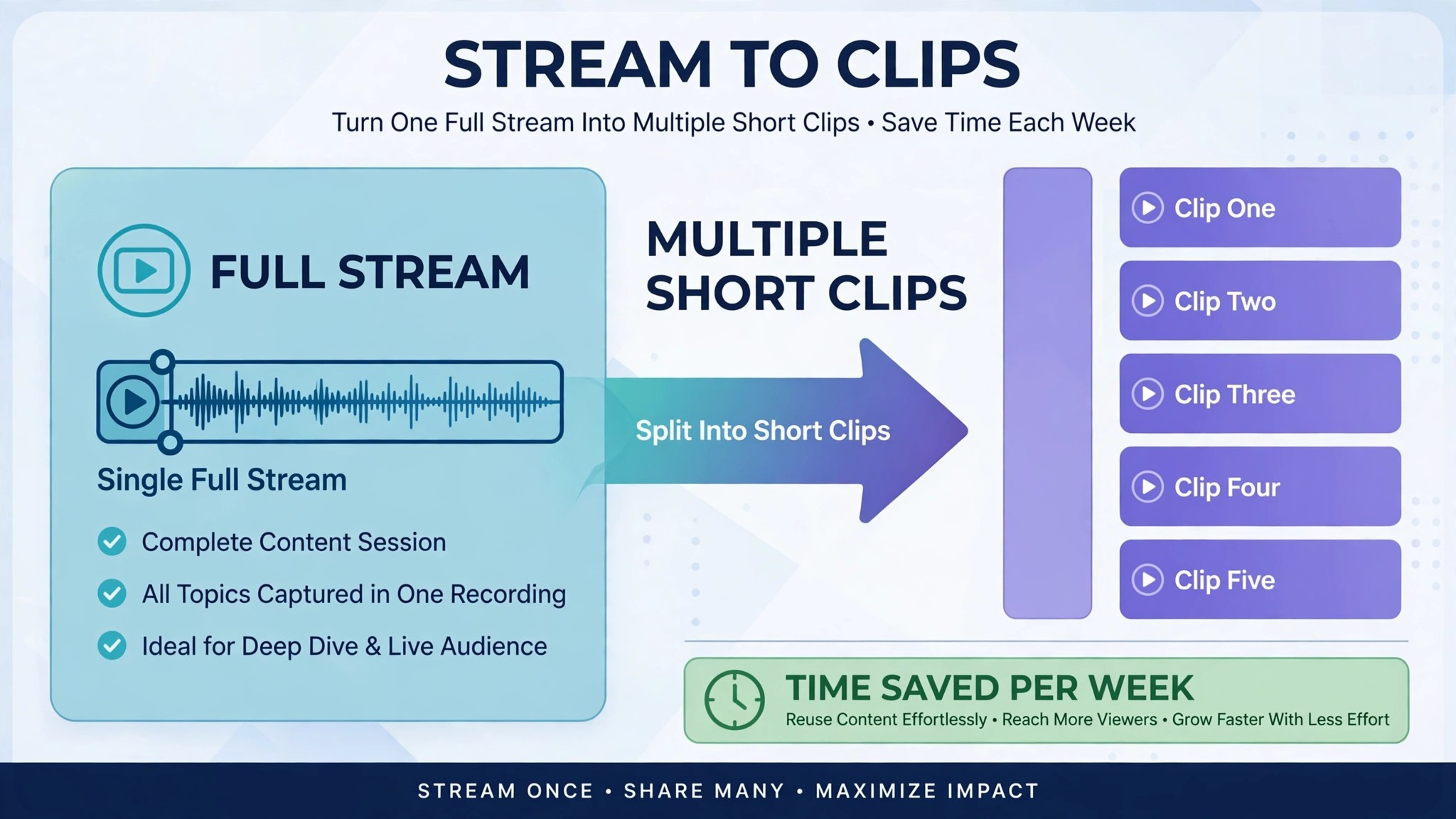
A three hour stream can hold five great moments, and most of them disappear the night they happen. The chat saw them, the clips channel never did, and by morning the best play of the night is buried under three hours of footage nobody will rewatch. That gap between going live and getting discovered is exactly where the best ai tools for streamers earn their place. They watch the stream with you, pull out the moments worth sharing, tidy the chat, and turn one long broadcast into a week of short videos.
This guide looks at five tools that do different jobs for a streamer. One finds the clips, one runs the whole broadcast, one handles overlays and tips, one keeps chat moving, and one turns a single highlight into a vertical video in minutes. The best ai tools for streamers are not the ones with the longest feature list. They are the ones that save hours every week without adding a second job on top of streaming. Prices below come from vendor pricing pages and roundups checked in November 2026, and where a vendor sells by quote or keeps a feature behind a higher tier, this guide says so.
The Quick Shortlist
Use this table to match your biggest time sink to the right tool before you read the full reviews. If editing eats your evenings, start with the clippers. If chat moderation eats your attention mid stream, start with the bots. Every tool here has a free way to try it, so test one on a real stream before you pay for anything. The best ai tools for streamers in the table below are ranked by the job they do best, not by price, so a free tool can sit above a paid one when the free tool does that job better.
| Job | Best tool | Why it wins |
|---|---|---|
| Turning long streams into viral clips | OpusClip | Finds the strongest moments and captions them, from 15 dollars a month |
| Automatic highlights from Twitch and Kick | Eklipse | Connects to your channel and clips every stream, from 24 dollars 99 a month |
| Running the whole broadcast in one app | Streamlabs | Overlays, alerts, tips and multistreaming from free, Ultra from 27 dollars a month |
| Overlays, tips and chat in one free stack | StreamElements | A full overlay and bot kit that starts free, Pro from 5 dollars a month |
| Free chat moderation and commands | Nightbot | The most used free chat bot on Twitch, free |
How We Judged the Best AI Tools for Streamers
A tool earned a place here only if it does a real streaming job in 2026, not if it added an AI label to an old feature. We judged each one on five things that decide whether a streamer keeps paying after the first month. The best ai tools for streamers share one trait that the rest do not, and it is the simplest one to test. They save time on a real stream in the first week, without a long setup and without a tutorial video open on a second screen.
First, the job it does, from finding clips to moderating chat to running the broadcast, because a tool that does one job well beats a platform that does five jobs poorly. Second, the starting price a small streamer can actually afford, including whether a free plan exists and what the paid plan really unlocks.
Third, how it fits the streaming workflow, because a tool that watches your channel automatically saves more time than one that needs you to upload a file after every stream. Fourth, the quality of its output, from captions that read correctly to clips that start and end at the right second. Fifth, the catch, from credit limits that run out mid month to free plans that watermark every export.
| Check before you buy | What to ask | Why it matters |
|---|---|---|
| Credit model | What burns credits, and do they reset monthly | Stops a 15 dollar plan running dry after two streams |
| Free plan limits | Can you export, and is there a watermark | A free plan you cannot export from is only a preview |
| Platform support | Twitch, YouTube Live, Kick, or all three | A Twitch only tool is useless if you stream on Kick |
| Clip quality | Who checks the clip before it posts | A bad auto post can embarrass you in front of new viewers |
| Chat safety | Does the bot catch spam and links | Unmoderated chat drives new viewers away fast |
| Contract terms | Monthly billing, or annual only | Annual billing locks you in before you know the tool works |
The 5 Tools, Reviewed One by One
1. OpusClip
Starting price 15 dollars a month for Starter. Best for Turning long streams into viral clips. Watch out Credits are counted per minute of source video, so long streams burn through a plan fast.
OpusClip takes a long video or a stream link and finds the moments most likely to work as short vertical video. It scores each candidate, adds animated captions, reframes the shot for a phone screen, and hands you a set of clips ready to post. The Starter plan at 15 dollars a month includes 150 credits, and one credit covers one minute of source video. That is enough for a couple of short streams a month, but a streamer going live four nights a week will outgrow it quickly.
The strength is the range of sources it accepts. YouTube links work on every plan, and Twitch links open up on the Pro plan at 29 dollars a month with 300 credits. The gameplay layout puts the speaker across the top and the game below, which suits streamers far better than a generic talking head crop. Clips can auto post to TikTok, Shorts and Reels, or you can download them and post by hand.
The catch is the meter. A three hour stream costs 180 credits before a single clip is cut, which is more than the whole Starter allowance. OpusClip suits a streamer who records edited videos or shorter streams, or one who is happy to pay for Pro and treat clipping as a real line in the budget. For pure clip quality from a long VOD, it is still the strongest editor on this list, and the free plan with 60 credits a month is enough to test it on a real stream before you commit.
2. Eklipse
Starting price 24 dollars 99 a month for Premium on the web. Best for Automatic highlights from Twitch and Kick. Watch out The free plan is now a preview, and you cannot export clips without paying.
Eklipse works differently from OpusClip, because you connect your channel once and it watches every stream for you. It pulls in Twitch, YouTube, Kick and Facebook streams, finds game moments and funny reactions, and builds clips without you uploading anything. Premium costs 24 dollars 99 a month on the web, or 179 dollars 99 a year, which works out to about 14 dollars 99 a month. Each stream can run up to six hours, and clips export at up to 1080p and 60 frames per second with no watermark.
The strength is the flat price. There is no per minute meter, so a streamer who goes live five nights a week pays the same as one who streams twice a month. Clips publish to TikTok, Shorts, Reels and Facebook, and scheduling is included on Premium. For a gaming streamer whose best moments are kills, wins and reactions, the game aware detection finds more usable clips than a general purpose editor.
The catch is the free plan. Since August 2026, free users can see the highlights Eklipse finds but cannot download or export them, so the free tier is a preview rather than a usable tool. Clips are also stored for only 14 days on monthly plans, so you need to export what you want to keep. Eklipse is the best pick for a regular gaming streamer who wants clipping to happen on its own, and the annual price makes it the cheapest flat rate clipper here for a heavy schedule.
3. Streamlabs
Starting price Free, with Ultra at 27 dollars a month or 189 dollars a year. Best for Running the whole broadcast in one app. Watch out The headline Ultra price varies across Streamlabs pages, so confirm the figure on the checkout page before you pay.
Streamlabs is the broadcast suite built on the OBS engine, and it is the tool most new streamers meet first. The free tier covers live streaming software with widgets, alerts, overlay themes and a tip page, plus Cloudbot for chat moderation. Nothing here costs money to start, and a first stream can be live the same evening you install it. Ultra at 27 dollars a month, or 189 dollars a year, adds multistreaming, the full library of thousands of overlay themes, higher limits on AI production features, and six Pro tools on one bill.
The strength is how much sits in one subscription. Talk Studio Pro brings remote guests into the stream from a browser link. Cross Clip Pro turns Twitch and Kick clips into vertical video. Video Editor Pro and Podcast Editor Pro handle transcription and filler word removal. Console Pro streams from Xbox. Buying those tools one by one would cost far more than the Ultra bundle, so a streamer who uses three or more of them gets real value.
The catch is that the free tier is deliberately limited. Multistreaming needs Ultra, the best themes need Ultra, and the Pro tools only run in their free tiers without it. The Ultra price itself is shown differently on different Streamlabs pages, with some pages showing 15 dollars 75 a month as a starting figure tied to annual billing, so read the checkout total rather than the headline. Streamlabs is still the best single home for a streamer who wants the broadcast, the alerts, the tips and the clips under one login, and the free tier is genuinely usable while you grow.
4. StreamElements
Starting price Free, with Pro from 5 dollars a month. Best for Overlays, tips and chat in one free stack. Watch out The sponsorship marketplace and some advanced features suit larger channels more than new ones.
StreamElements gives a streamer overlays, a chat bot, a tip page, loyalty points and merch tools in one free account, and it does it without the heavy upsell that follows most free streaming tools. The overlay editor runs in the browser, the bot handles commands, timers and moderation, and the tip page takes no cut from the streamer, though payment processors still charge their own fees. Pro starts at 5 dollars a month and adds extra features for channels that want more.
The strength is the combination at zero cost. A new streamer can set up professional looking alerts, a working tip page and a bot that greets new followers and answers common questions, all before spending a dollar. The sponsorship marketplace connects channels with brands for sponsored streams, which is a real path to income once the audience grows. Because the tools live in the cloud rather than in a desktop app, the setup survives a change of computer.
The catch is that StreamElements is a toolkit, not a broadcast app. You still need OBS Studio or a similar app to actually go live, and the overlay setup takes longer to learn than the ready made themes in Streamlabs. The sponsorship offers also favour channels with a real audience, so a brand new streamer should treat that feature as a later reward rather than a starting income. For a streamer on a tight budget who wants a professional setup for free, StreamElements is the best value on this list by a clear margin.
5. Nightbot
Starting price Free. Best for Free chat moderation and commands. Watch out It moderates chat, it does not edit video or run your broadcast.
Nightbot is the chat bot that has run on Twitch longer than almost any other tool here, and it is still free. It sits in your chat, deletes spam and unwanted links, times out repeat offenders, runs custom commands, plays song requests, and greets new followers while you focus on the game. Setup takes minutes, it works on Twitch and YouTube, and it needs no subscription, no credit card and no desktop app running in the background.
The strength is reliability at zero cost. A streamer with ten viewers gets the same moderation as a streamer with ten thousand, and the command system answers the questions every chat asks, like your schedule, your specs and your social links, without you repeating yourself mid game. Regulars can trigger sound effects and loyalty commands, which makes a small chat feel alive even on a quiet night. Nightbot also works alongside other tools here, so you can run it with Streamlabs, StreamElements or OBS Studio without any conflict.
The catch is scope, and it is a narrow one by design. Nightbot does not find clips, does not design overlays and does not stream anything. It is a chat tool, and it only pays off if you actually stream regularly enough for chat to need moderating. Used on its own it changes nothing about discovery, but paired with a clipper like Eklipse or OpusClip it covers the two jobs that eat a small streamer’s week, chat and clips, for the price of the clipper alone. Every streamer should install it on day one.
Side by Side Comparison
The table below puts the five tools next to each other on the facts that matter at decision time. The best ai tools for streamers look very different once price, free plan and platform support sit in the same row, so use this table to check the two or three finalists you picked from the shortlist before you pay for any of them.
| Tool | Starting price | Best for | Free plan |
|---|---|---|---|
| OpusClip | 15 dollars a month | Turning long streams into viral clips | Yes, 60 credits a month |
| Eklipse | 24 dollars 99 a month | Automatic highlights from Twitch and Kick | Preview only, no exports |
| Streamlabs | Free, Ultra 27 dollars a month | Running the whole broadcast in one app | Yes |
| StreamElements | Free, Pro from 5 dollars a month | Overlays, tips and chat in one free stack | Yes |
| Nightbot | Free | Free chat moderation and commands | Yes |
How to Pick Among the Best AI Tools for Streamers
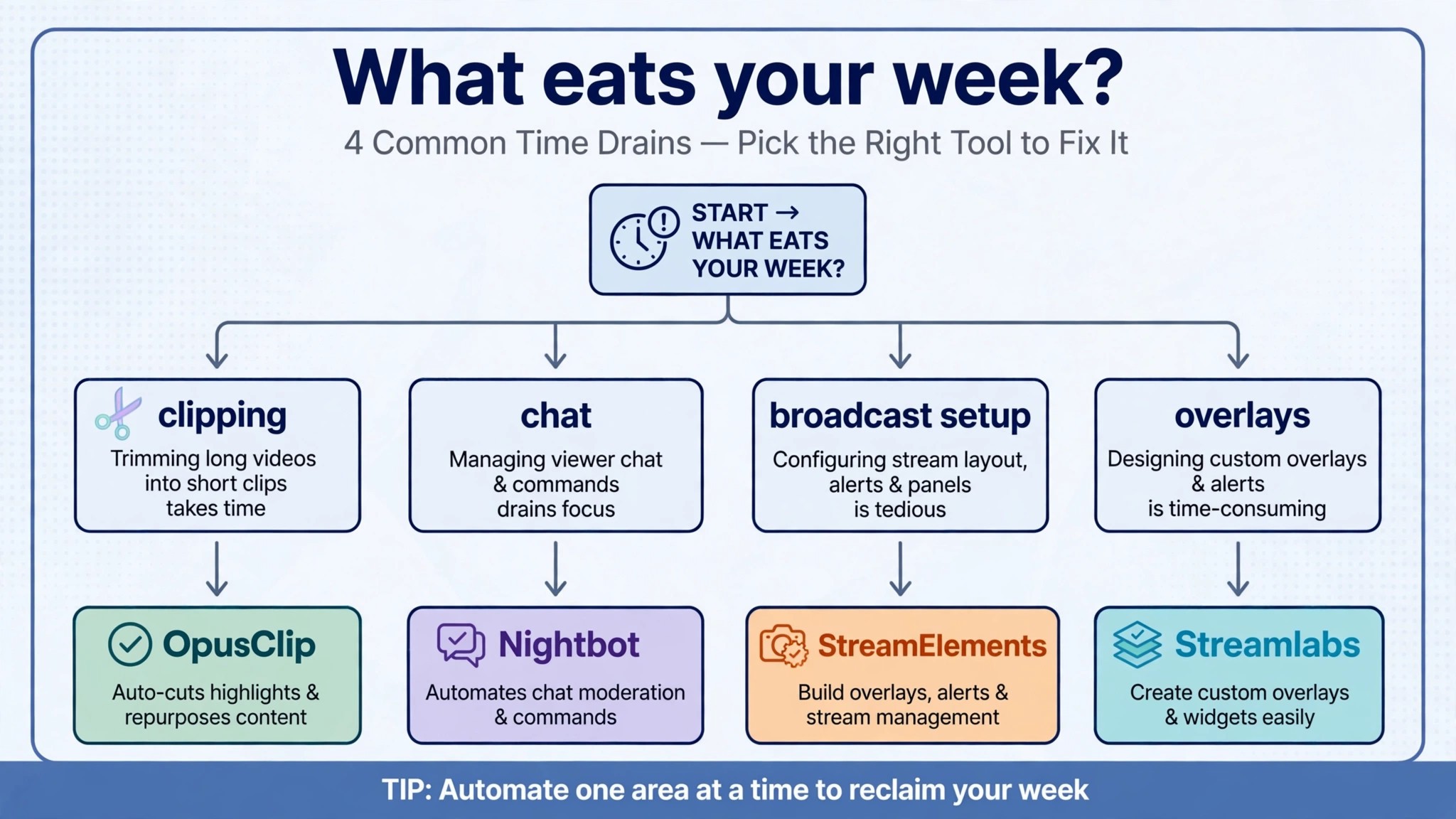
The right pick depends on what eats your week, not on which tool has the most features. A streamer who finishes every broadcast with three hours of footage and no clips should buy a clipper first. A streamer whose chat is full of spam and repeated questions should install Nightbot today, because it costs nothing and works from the first stream. A streamer starting from zero should build the broadcast on Streamlabs free or StreamElements free, then add a clipper once the audience is big enough to notice the clips. The best ai tools for streamers are the ones that fit the problem you already have, not the problem you might have next year.
Budget the full stack, not the headline price of one tool. The table below shows what common streamer setups actually cost each month, using starting prices and annual billing where it is cheaper. Credit based clippers are the line that surprises buyers, so check how many minutes you stream each month before you pick a metered plan.
A metered plan deserves a quick calculation before you pay. Take your streaming hours in a typical month and multiply by sixty. That is the number of credits a per minute clipper will burn just to scan your streams, before it cuts a single clip. If the answer is bigger than the plan allowance, the plan will run dry halfway through the month and you will either pay for more credits or stop clipping. A flat rate plan has no such maths, which is why heavy streamers usually end up there even when the monthly price looks higher at first glance.
Platform choice matters as much as price. A streamer who only broadcasts on Twitch can use any tool on this list, but a streamer who splits time between Twitch and Kick should check platform support first. Eklipse and Streamlabs cover the widest spread of platforms, while OpusClip is strongest for YouTube based creators. Nightbot works wherever chat lives, so it is the one tool that fits every setup without a compromise.
| Setup | Monthly cost | What it covers |
|---|---|---|
| Nightbot plus StreamElements, free | 0 dollars | Chat moderation, overlays, tips, commands |
| Nightbot plus OpusClip Starter | 15 dollars | Free chat plus 150 clip minutes a month |
| Nightbot plus Eklipse Premium, annual | About 14 dollars 99 | Free chat plus unlimited flat rate clipping |
| Streamlabs Ultra, monthly | 27 dollars | Broadcast, multistreaming, themes, six Pro tools |
| Nightbot plus Eklipse plus Streamlabs Ultra | About 41 dollars 99 | Chat, unlimited clipping and the full broadcast suite |
What a Good Streaming Week Looks Like With These Tools
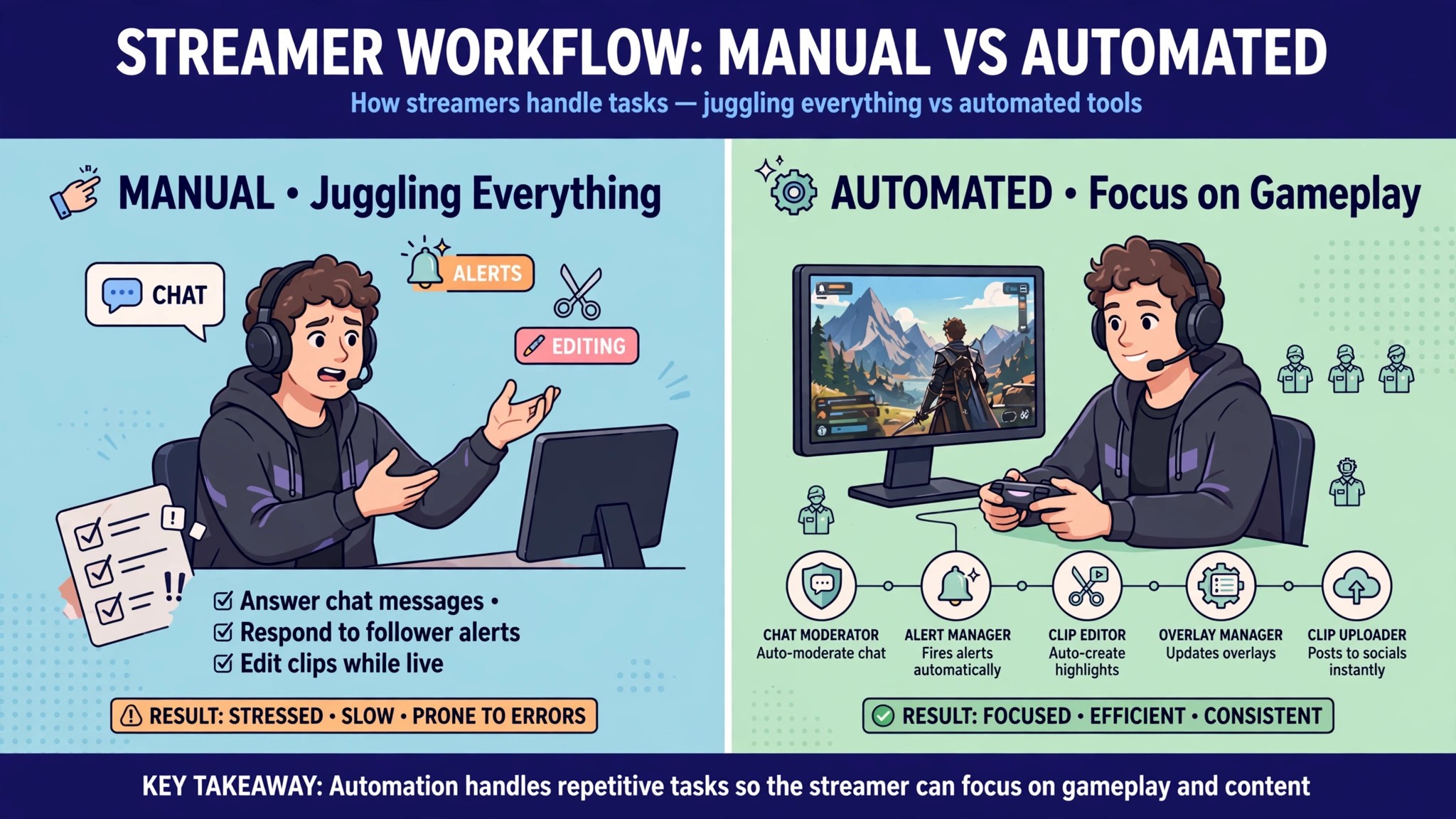
Picture a streamer who goes live four nights a week for three hours at a time. Without any help, the week ends with twelve hours of footage, a chat full of unanswered questions, and no clips posted anywhere. The stream was good, and almost nobody outside the live audience will ever know. That is the normal outcome for a small channel, and it is the outcome these tools are built to change.
With the right stack, the same week looks very different. Nightbot answers the repeated questions and removes the spam while the stream is live, so the streamer never stops playing to moderate chat. Eklipse watches each broadcast and builds a set of clips overnight, ready to review in the morning. The streamer spends twenty minutes checking the clips, fixes one caption, posts three of them, and schedules the rest across the week. The broadcast itself runs on Streamlabs or StreamElements, so the alerts, the tip page and the overlays all work without a second app open.
The numbers behind that routine are worth spelling out. Twelve hours of streaming becomes roughly eight to twelve short clips a week, which is more short form content than most small channels post in a month. Each clip takes a few minutes to review instead of an hour to cut by hand, so the total editing time for the week drops from most of a day to under an hour. That saved time goes back into streaming, or into rest, and both of those improve the next broadcast more than another hour of manual editing would.
There is a trap to avoid here, and it is the same trap in every tool category. Buying all five tools on day one does not make a channel grow faster. A new streamer with ten viewers does not need multistreaming, a sponsorship marketplace and a Pro clipping plan all at once. The tools should arrive in the order the problems arrive. Chat first, because it costs nothing. Clips second, because discovery is the bottleneck for almost every small channel. The broadcast upgrade third, once the audience is big enough to notice the difference. A stack that grows with the channel is one you will still be paying for in six months.
Frequently Asked Questions
What is the cheapest good AI tool for a streamer
Nightbot and StreamElements are both free and genuinely useful, so the cheapest working stack costs nothing. Add OpusClip Starter at 15 dollars a month if you want captioned clips from shorter streams, or Eklipse Premium on annual billing at about 14 dollars 99 a month if you stream most nights and want unlimited clipping. The cheapest stack that actually grows a channel is usually Nightbot plus one clipper, because chat and clips are the two jobs that turn a live audience into new viewers.
Do AI clipping tools work for non gaming streams
Yes, though gaming streams get the best results because kills, wins and big reactions are easy for the AI to spot. Talk shows, cooking streams and just chatting broadcasts still get usable clips, because OpusClip scores moments on speech and engagement rather than game events alone. Eklipse is more game focused, so a non gaming streamer should test OpusClip first and check the clips on a real broadcast before paying. Always watch a clip before it auto posts, because an out of context joke can read very differently as a short video.
Can I use these tools on Kick and YouTube Live
Most of them, with limits. Eklipse supports Twitch, YouTube, Kick and Facebook, which is the widest platform coverage on this list. Streamlabs supports Twitch, YouTube, Facebook, Kick and several other destinations, though multistreaming needs Ultra. OpusClip takes YouTube links on every plan and Twitch links on Pro, so check your platform against the plan before you buy. Nightbot works on Twitch and YouTube. If Kick is your main platform, Eklipse and Streamlabs are the safest picks.
Will AI tools replace the work of editing my streams
No, and the streamers who expect that get the worst results. AI finds the moments and builds a first draft of the clip, which is roughly two thirds of the editing job. The final check, the caption fix, the thumbnail choice and the decision about what to post still belong to you. The best ai tools for streamers earn their keep by turning three hours of editing into thirty minutes of review, not by removing you from the process. Measure the return in clips posted per week, not in hours the tool claims to save.
There is also a quality reason to keep a human in the loop. An AI clipper scores moments on energy, speech and chat reaction, and those signals are good but not perfect. A joke that lands in context can fall flat as a standalone clip, and a quiet moment that meant a lot to your regulars can score low and get skipped. Reviewing the clips is where your judgment adds the value the tool cannot, and it is also where you learn which moments your audience actually shares.
Our Verdict
If you buy one tool this month, buy Eklipse on annual billing. It watches every stream on its own, it charges one flat price no matter how often you go live, and at about 14 dollars 99 a month on the annual plan it is the cheapest unlimited clipper a regular streamer can buy. Pair it with Nightbot, which costs nothing, and you have chat and clips covered for less than the price of a takeaway each month.
The rest of the stack can wait until the channel earns it. A bigger audience will tell you when multistreaming is worth paying for, and a busier chat will tell you when the free bot needs help. Until then, the money stays in your pocket and the hours stay in your stream, which is where a small channel grows fastest.
Start tonight, not next month. Install Nightbot before your next stream, connect Eklipse to your channel, and let the next broadcast produce its own clips while you play. One week of posted clips will teach you more about what your audience shares than another month of reading tool comparisons. The best ai tools for streamers reward the streamer who posts, so post the first clip before you buy the second tool.
Whatever you pick, start with the job that hurts most, test the free plan on a real stream, and watch every clip before it posts. The best ai tools for streamers on this list all work. The difference is whether the tool matches your platform, your schedule and your budget, and whether you actually post the clips it finds instead of letting them sit in a folder.