Canva holds a 4.7 out of 5 rating on G2 from more than 7,600 reviews checked in October 2026, and collages are one of the reasons it stays that high. Most people do not need a professional design suite to make a good collage. They need a tool that opens fast, offers a layout that fits their photos, and exports a clean file without a watermark or a surprise paywall. The best photo collage makers do exactly that, and the differences between them are smaller than their marketing suggests. What actually separates them is the free plan, the template depth, and whether the collage is the end of the job or the start of a bigger design.
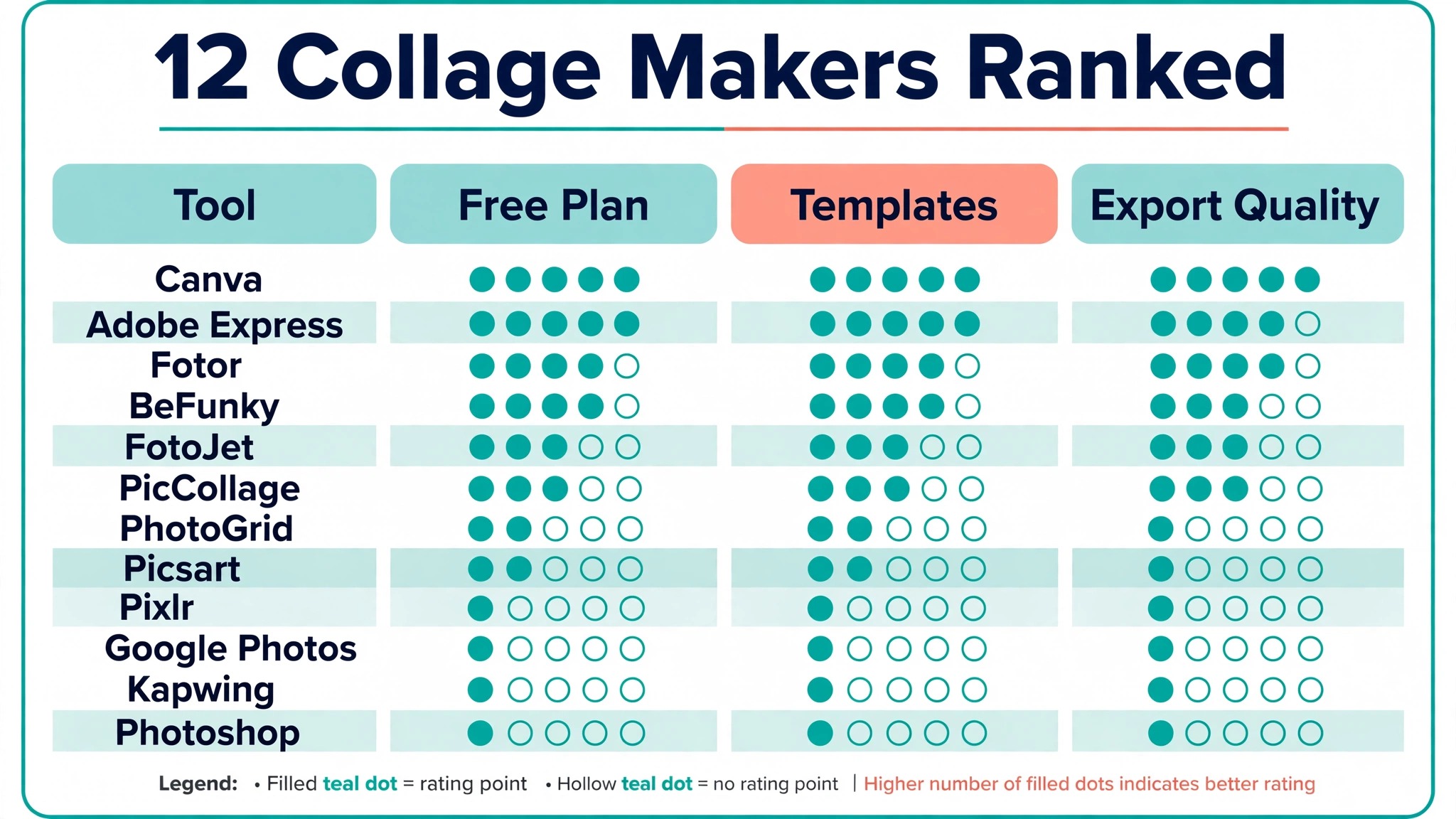
This guide compares 12 real tools that are available right now, on the web and on mobile, with prices checked against vendor pages and recent comparisons. Every tool below was judged on the same five points. How fast you can go from photos to a finished collage. How many layouts and templates you get without paying. Whether the free export carries a watermark. What the export quality is. And what happens when the collage needs to become something else, such as a social post, a card or a print. Pick from the table first, then read the full review of your shortlist.
What the Best Photo Collage Makers Get Right
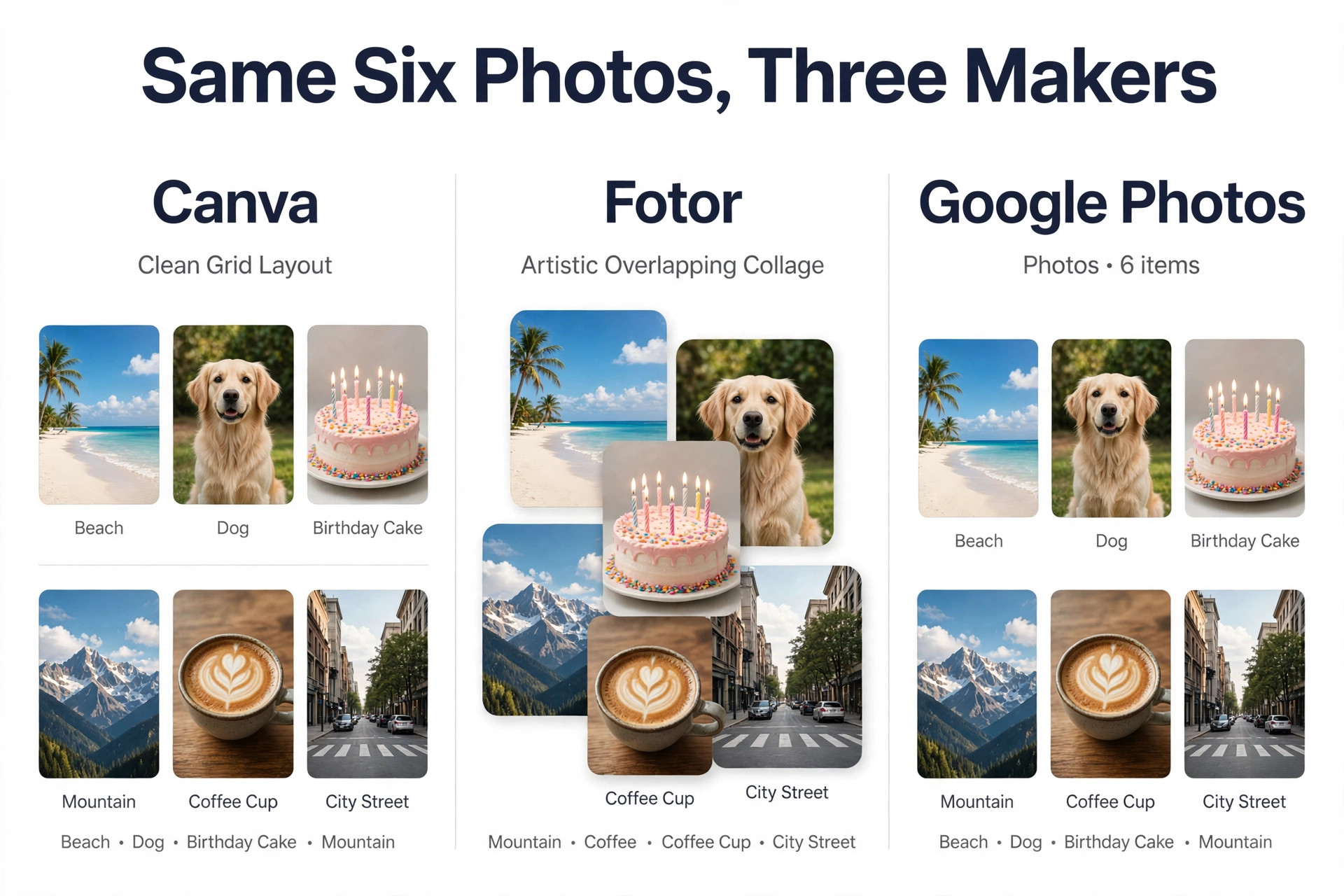
A good collage maker disappears. You drop photos in, the layout adjusts itself, and you spend your time choosing which photos to use instead of fighting the tool. Five things decide whether a tool earns that description. The first is layout choice. A grid tool gives you clean rows and columns, while a freestyle tool lets you rotate, overlap and layer photos. Most people want both, a grid for fast results and a freestyle canvas for the one collage that needs to look different. The second is templates. A deep template library matters because a blank grid is work, while a template is a finished design waiting for your photos.
The third is the free plan. Free exports are not all equal. Some tools watermark free exports, some cap the resolution, and some lock the best templates behind a subscription while leaving the rest genuinely free. A free plan that watermarks every export is not a free plan, it is a trial.
The fourth is export quality. A collage that looks sharp on a phone screen can fall apart in print, so check the export size before you commit to a tool for anything physical. The fifth is what comes next. Canva and Adobe Express turn a collage into a social post, a flyer or a presentation without starting over. A single purpose collage app cannot do that, but it is often faster at the one job it does.
Price matters less than most buyers think. Paid plans mostly buy watermark removal, premium templates and higher resolution. For a birthday post or a family grid, the free tier of a non watermarking tool is enough. Pay when you make collages every week, when you need brand consistency, or when you need print quality. The table below gives you the short version of all 12 tools so you can narrow the field before reading the reviews.
| Tool | Best for | Free plan | Paid plan from |
|---|---|---|---|
| Canva | All round collage design | Yes | Check the pricing page |
| Adobe Express | Branded business collages | Yes | 9.99 dollars a month Premium |
| Fotor | Template heavy quick collages | Yes | 39.99 dollars a year Pro |
| BeFunky | Collages plus photo editing | Yes | Check the pricing page |
| FotoJet | No account browser collages | Yes | Check the pricing page |
| PicCollage | Mobile collages and cards | Yes | VIP subscription |
| PhotoGrid | Fast phone grids and video | Yes | Check the pricing page |
| Picsart | Creative collages with effects | Yes | 10.50 dollars a month billed yearly |
| Pixlr | Quick edits plus collage layouts | Yes | 1.99 dollars a month |
| Google Photos | Fastest free photo grids | Yes | Free |
| Kapwing | Collages inside a video workspace | Yes | 16 dollars a month Pro |
| Photoshop | Maximum control over every pixel | No | Creative Cloud plans |
The 12 Best Photo Collage Makers in 2026 Reviewed
Here are the 12 best photo collage makers in 2026, reviewed in full. Each review covers what the tool does well, where it falls short, what the free plan really gives you, and who should pick it. Prices are snapshots from vendor pages and recent comparisons checked in late 2026, and they change by region, so confirm the price you are actually offered before you subscribe.
1. Canva
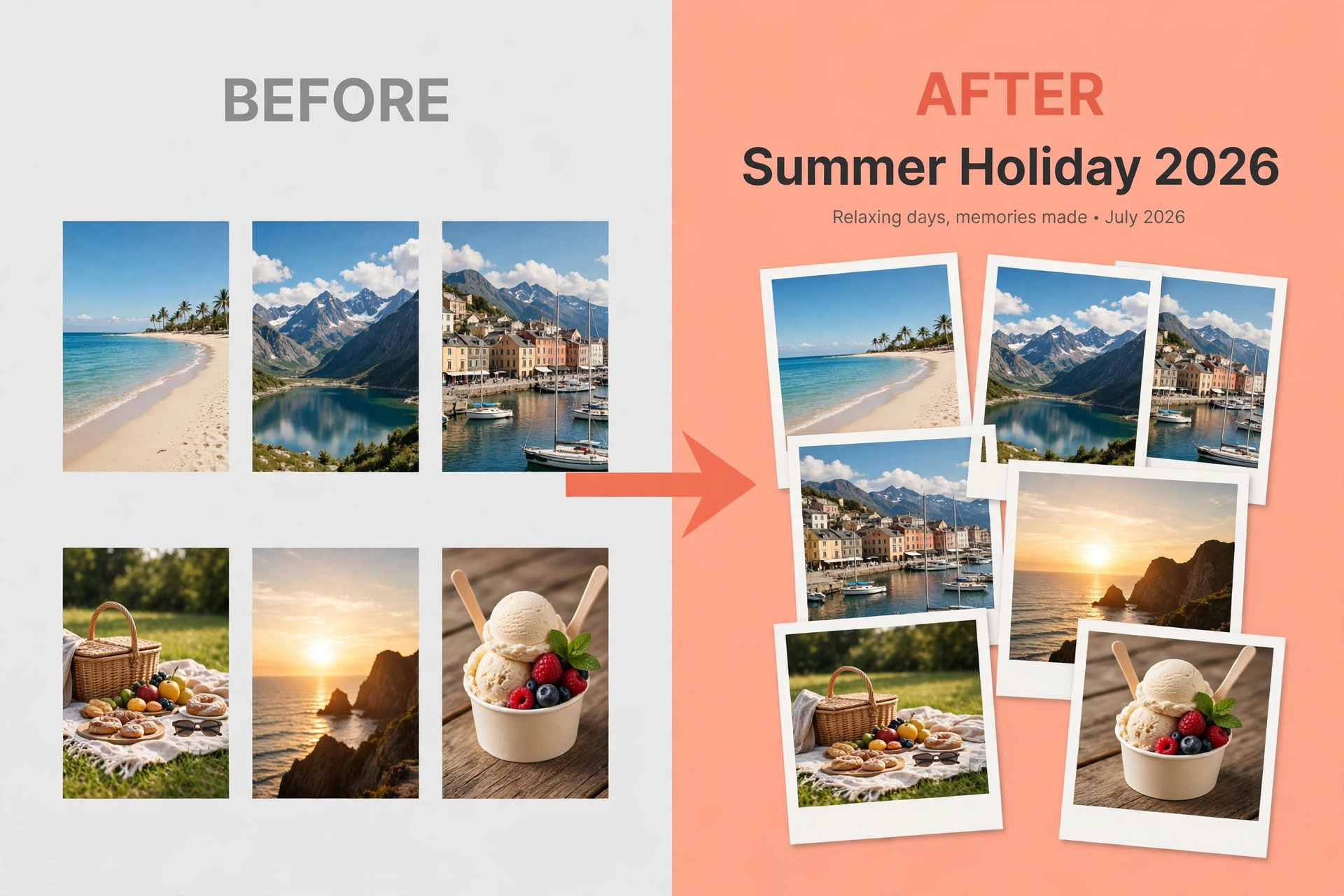
Canva is the default answer for a reason, and its collage maker is the strongest all rounder in this list. The template library covers every format you will ever need, from Instagram grids to Facebook covers to print layouts, and the editor is genuinely easy. Drag photos in, swap layouts, add text, done. You can start from a collage template or build a layout from scratch, then add text, graphics and branding elements without leaving the page. A collage rarely stays a collage, and Canva handles the next step better than any other tool here, because the finished grid can flow straight into a social post, a flyer, a card or a presentation.
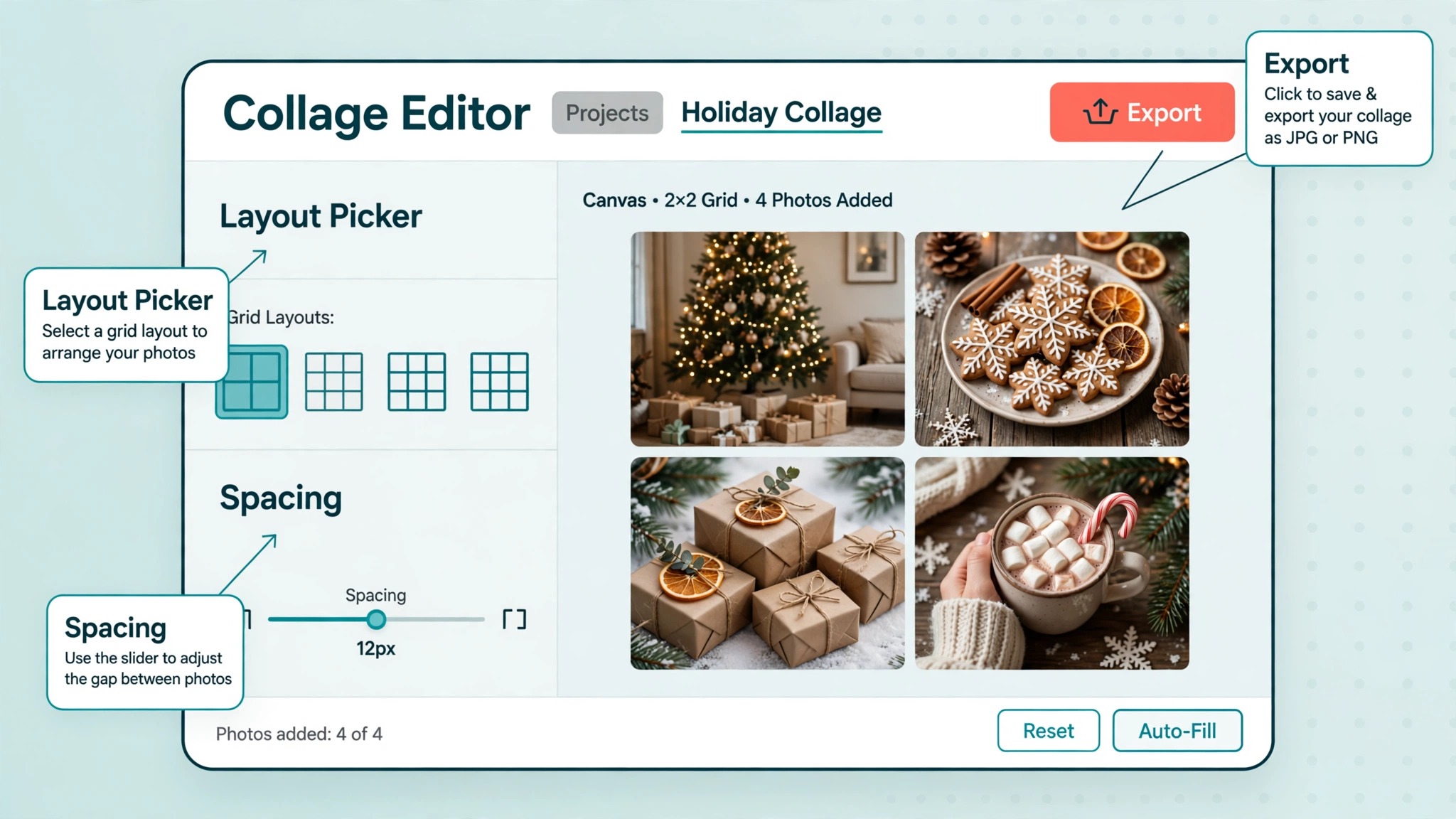
The free plan is the best all round free option in this category. It covers most casual needs with plenty of templates and no watermark on most exports. Some of the best templates and elements sit behind Canva Pro, and third party trackers reported Pro at 144 to 180 dollars a year for individuals during 2026, with the exact figure varying by region. Check the current pricing page before you budget. Canva runs on the web and on mobile, so a collage started on a laptop can be finished on a phone. Pick Canva if you want one tool that does collages and everything around them, and you do not mind paying for the premium templates later.
2. Adobe Express
Adobe Express is the closest rival to Canva, and it is the better pick if you already use other Adobe apps or want Adobe Fonts and Adobe Stock assets in your work. The free plan lists more than 100,000 templates, over 4,000 fonts and 5 GB of storage, which is generous for a free tier. Premium adds 250 generative credits a month, access to more than 200 million Adobe Stock assets, over 30,000 fonts, 100 GB of storage, brand kits and one click resize. Premium is listed at 9.99 dollars a month, and the free plan includes a 30 day Premium trial.
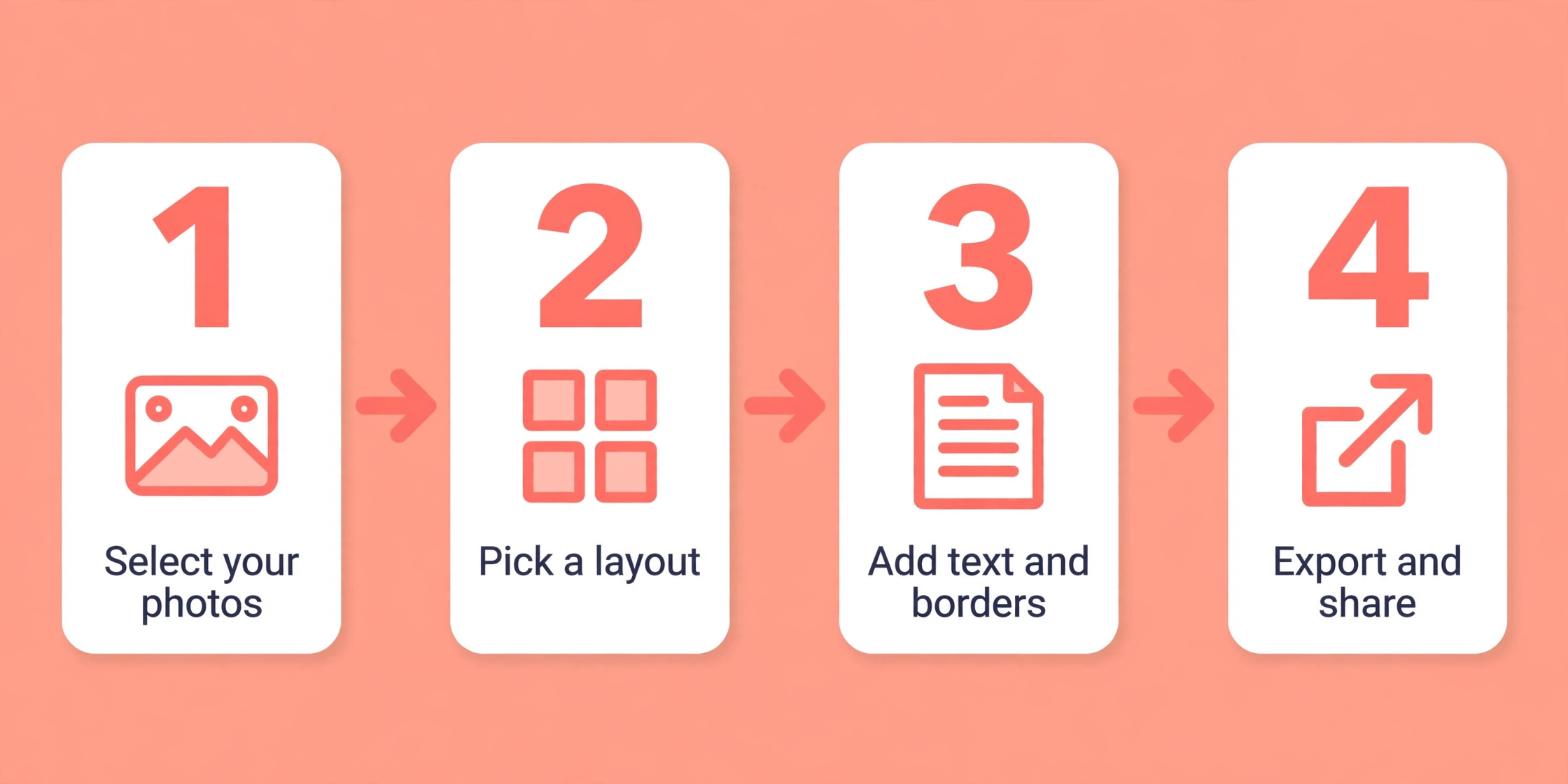
The collage workflow is built for speed. Open the Photo tools, choose Collage maker, upload images, try different layouts and download the result or continue editing it. Where Canva leans playful, Express leans polished, with better default typography, cleaner layouts and brand management that keeps a small business looking consistent. Firefly AI features add generative fill and text to image inside the same editor. Pick Adobe Express if your collages need to look like they came from the same brand every time, or if you already pay for Creative Cloud and want the design tool that fits inside it.
3. Fotor
Fotor has been making collage tools for years, and the template depth shows. Grids, artistic montages and funky shapes are all in the layout picker, which is one of the most varied in this roundup, and the built in editor means you can retouch photos without leaving the site. Pick a layout by photo count or start from an artistic template, drop in images, adjust borders and corner rounding, and save. It is a fast tool for people who want a good result without learning a design app.
The free plan is where the friction lives. Fotor Pro is listed at 39.99 dollars a year when billed annually, and the free tier carries a watermark on exports and caps resolution, with watermark removal and high resolution export listed as Pro features. That makes Fotor a poor pick if you need clean free exports, and a good pick if you are willing to pay a modest yearly price for a tool that does collages and photo editing in one place. Pick Fotor if you want template heavy collages plus retouching, and you are comfortable with a paid plan.
4. BeFunky
BeFunky pairs a collage maker with a full photo editor, which makes it a good pick when your photos need work before they go into a layout. The collage tool offers grid and freestyle layouts, and the editor beside it covers exposure, colour, touch ups and effects, so a dull photo can be fixed in the same session. The interface is friendly and the learning curve is short, which suits people who make collages a few times a month rather than every day.
The free tier exports clean files without a watermark in most cases, which puts BeFunky ahead of several rivals on the free plan alone. Paid plans unlock premium templates, more effects and higher resolution exports, and the price is worth checking on the vendor page because it changes by region and by promotion. BeFunky runs in the browser and on mobile, and it handles the common sizes for social posts without fuss. Pick BeFunky if you want photo editing and collage making in one tab, and you value a clean free export over the deepest template library.
5. FotoJet
FotoJet is the quiet achiever of browser collage makers. Open the site, pick from more than 800 collage layouts, drop in photos and download, all without creating an account. That no sign up flow is its biggest strength, because it removes the one step that stops most people from finishing a quick collage. The layouts cover classic grids, artistic shapes and creative montages, and the editor lets you adjust spacing, backgrounds and text without getting in the way.
The trade off is depth. FotoJet does not have the template library of Canva or the brand tools of Adobe Express, and it will not turn your collage into a presentation or a video. What it does, it does quickly and without friction, and the free tier is genuinely usable for one off collages. A paid Plus plan exists for higher resolution exports and premium templates, so check the pricing page if you need print quality. Pick FotoJet when you need a collage in five minutes and you do not want to create another account to get it.
6. PicCollage
PicCollage is the most phone friendly pick in this list, and it is built for quick collages and greeting cards on the move. The app offers layouts, templates, stickers and fast photo placement, and the whole flow is designed for thumbs rather than a mouse. You can build a birthday collage on the train and share it before you arrive, which is a different job from the desktop tools in this roundup, and PicCollage is better at it than any of them.
The free version works well for casual use, but it sells a VIP subscription that removes watermarks and ads and unlocks premium templates and stickers. Free exports can carry a watermark, so check the result before you share it somewhere it matters. PicCollage also runs on the web, but the mobile app is where it shines. Pick PicCollage if your collages live on your phone, you make cards and social grids for friends and family, and you want stickers and playful templates more than brand controls.
7. PhotoGrid
PhotoGrid is the other mobile first option, and it is the faster choice when a collage needs video as well as photos. The app builds photo grids in seconds, and it also makes video collages, slideshows and short clips with music, which suits creators who post to TikTok, Instagram Reels and YouTube Shorts. The layout picker is simple, the stickers and filters are plentiful, and the whole experience is tuned for speed over fine control.
The catch is the free export, which carries a watermark on free plans. A premium subscription removes it and unlocks more templates and higher resolution, so check the pricing page for the current figure. If you never pay, PhotoGrid is still useful for drafts and for posts where a watermark does not matter, but it is not the right pick for a business page or a printed gift. Pick PhotoGrid if you make video collages on your phone and you are willing to pay to remove the watermark.
8. Picsart
Picsart is the creative option in this list, and it suits people who want a collage with effects, stickers and AI tools rather than a plain grid. The collage maker sits inside a much larger creative app, so you can remove a background, apply a filter, add a sticker and then drop the result into a layout without switching tools. The template range is wide, and the community remix culture means new layouts and styles appear constantly.
The Pro plan is listed at 10.50 dollars a month when billed yearly, or 15 dollars month to month, which is mid range for this category. The free tier is usable, but the best effects and templates sit behind Pro, and free exports can include Picsart branding on some formats. The app runs on the web, iOS and Android, and it is one of the few tools here that handles both still collages and short video edits. Pick Picsart if you want your collages to look creative and current, and you are happy to pay for the effects that make that possible.
9. Pixlr
Pixlr is a browser based photo editor with a collage maker built in, and it is the cheapest paid option in this roundup. Paid plans start at 1.99 dollars a month, which is the lowest published entry price in this list, and the free tier covers basic collage layouts without demanding an account. The editor comes in two modes, a quick mode for fast jobs and a deeper mode for people who want layers and fine control, and the collage tool benefits from both.
The template library is smaller than Canva or Fotor, and the interface can feel busy because the editor does so much. But for the price, Pixlr is hard to beat when you need quick collages plus real photo editing in the browser, with no install and no large subscription. It runs on the web and on mobile, and it exports clean files at useful sizes for social posts. Pick Pixlr if you want the lowest cost route to collages with editing included, and you do not need a huge template library.
10. Google Photos
Google Photos is the fastest free option in this list, and it is already on almost every Android phone. The collage tool builds a grid from photos you select, applies a simple clean layout, and saves the result to your library in seconds. There is no template library to browse, no watermark, and no subscription to think about. It is the tool you reach for when the photos are already in Google Photos and you want a grid now.
The limits are real. You get a handful of layouts, very little control over spacing and borders, and no text tools worth using. A Google Photos collage will never look like a designed poster, because it is not trying to be one. But for a family grid, a holiday roundup or a quick share in a group chat, it is the fastest path from photos to a finished image, and it costs nothing. Pick Google Photos when speed and zero cost matter more than style, and save the design tools for the collages that need to impress.
11. Kapwing
Kapwing is a video first workspace that also makes collages, and it is the right pick when your collage is part of a video project. The editor runs in the browser and covers video editing, subtitles, resizing and collage layouts in one timeline, so a creator can build a thumbnail grid, a reaction video layout or a side by side comparison without switching apps. The collage tool itself is simple, with clean grids and text options that fit the video workflow.
The free plan is usable for trying the tool, but free exports carry a watermark on video and on some image exports, and Pro is listed from 16 dollars a month. That price is high for collages alone, and Kapwing only makes sense if you also use the video tools. If you do, the combination is strong, because few tools handle a collage and a video in the same project. Pick Kapwing if you make video content every week and you want your collages inside the same workspace as your edits.
12. Photoshop
Photoshop is the maximum control option, and it is the only tool in this list that gives you layers, masks and pixel level editing over every part of a collage. You can blend photos, cut out subjects, match colours across images and build a layout that no template could offer. For a professional designer, that control is the whole point. For everyone else, it is more tool than the job needs, and the learning curve is steep.
Photoshop is sold through Creative Cloud plans, with individual All Apps plans starting around 59.99 dollars a month, and there is no free plan, only a trial. That price only makes sense if you already use Photoshop or you need its power for other work. A collage made in Photoshop will look exactly as good as the skill of the person making it, which is both its strength and its warning. Pick Photoshop when a collage needs detailed image work, precise composition or a workflow built around layers and masks.
How to Choose Among the Best Photo Collage Makers
Start with where the collage will live. A social post needs a square or portrait export at a size the platform accepts. A printed gift needs high resolution and a print safe layout. A business page needs consistent fonts and colours. Match the tool to the destination before you match it to your taste, because a tool that exports the wrong size will waste more time than a tool with fewer templates.
Then check the free export. Make one test collage in each tool on your shortlist and download it. Look for a watermark, check the pixel size, and open it on your phone to see how it reads at small size. That ten minute test tells you more than any review, because free tiers change and the only reliable check is your own download. If the free export is clean and the size is right, you may never need to pay.
Finally, think about how often you will make collages. Once a month, a free tool is enough. Every week, a paid plan pays for itself in saved time, because premium templates and the absence of watermarks remove two steps from every job. If collages are part of a bigger design routine, pick a tool that also handles social posts and flyers, so you are not switching apps mid project. If collages are the whole job, pick the fastest single purpose tool and ignore the rest.
Best Pick by Job
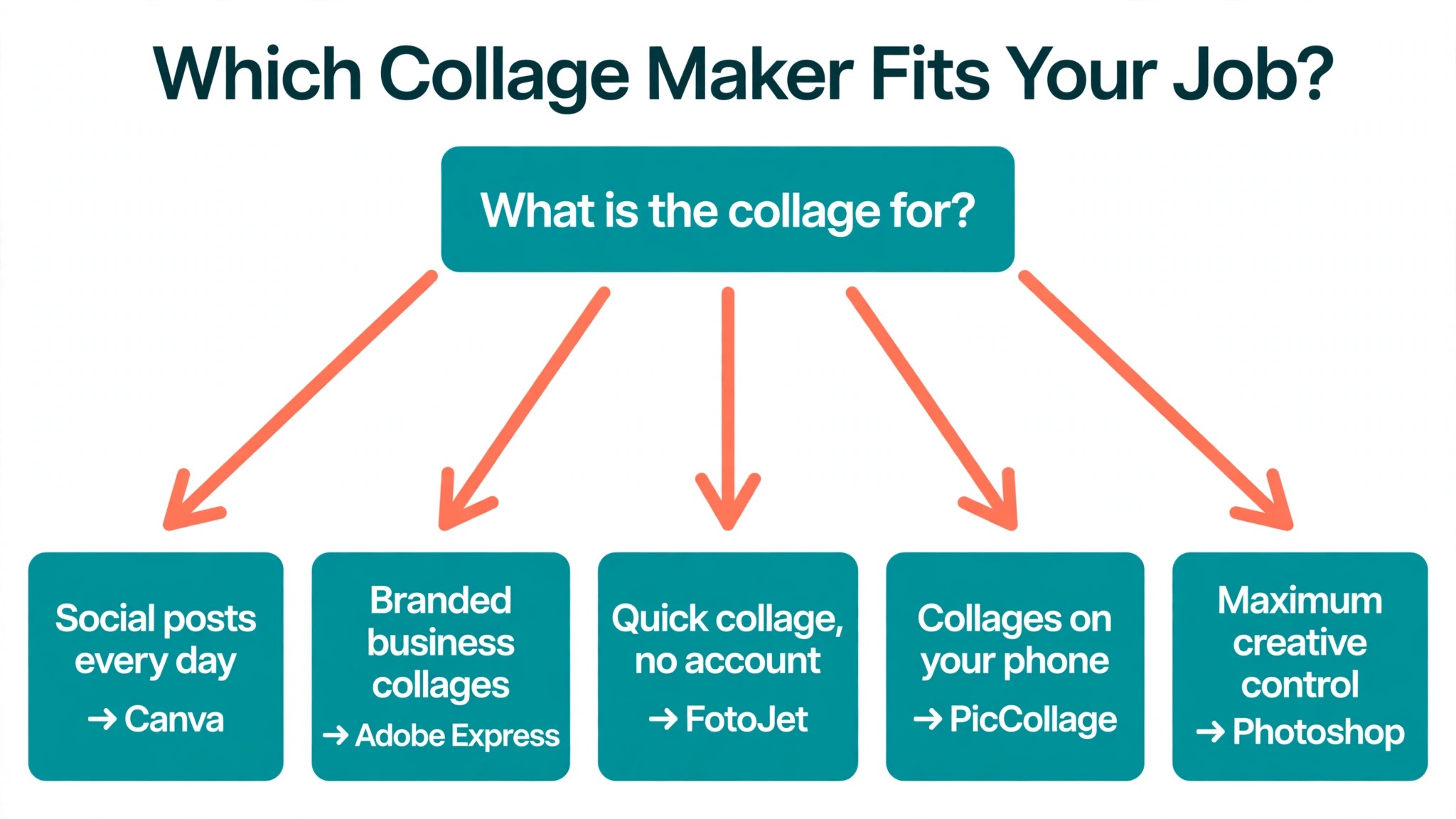
| Job | Best pick | Why it fits |
|---|---|---|
| Everyday collages that become social posts | Canva | Largest template library and a free plan that exports clean |
| Branded collages for a small business | Adobe Express | Brand kits, Adobe Fonts and clean typography |
| Quick collages with photo editing included | Fotor | Template depth plus a built in editor, Pro at 39.99 dollars a year |
| A collage in five minutes with no account | FotoJet | More than 800 layouts and no sign up |
| Collages on your phone | PicCollage | Mobile first layouts, stickers and greeting card templates |
| Video collages for social clips | PhotoGrid or Kapwing | Both handle video grids, Kapwing adds a full video workspace |
| Maximum creative control | Photoshop | Layers, masks and pixel level editing |
Mistakes to Avoid When You Pick a Collage Maker
The most common mistake is choosing a tool for its template count and then finding out the free export is watermarked. The best photo collage makers for casual use are the ones that export clean files without payment, so test the download before you invest time in learning the editor. A tool with a thousand templates is useless if every export carries a logo across the middle.
The second mistake is ignoring export size. A collage that looks sharp on a laptop can print soft, because social sized exports are often too small for a physical print. Check the pixel dimensions before you order a print, and use a tool that offers high resolution export when the collage will leave the screen.
The third mistake is picking a professional tool for a casual job. Photoshop will make a beautiful collage, but it will take ten times longer than Google Photos for a family grid, and the extra control adds nothing to the result.
Match the tool to the job, test the free export first, and keep a second tool ready for the jobs the first one handles badly. That habit saves more time than any template library ever will.
Frequently Asked Questions
What are the best photo collage makers for free?
Canva, Adobe Express, BeFunky and Google Photos offer the most usable free plans. Canva and Adobe Express give you deep template libraries with clean exports, BeFunky adds photo editing, and Google Photos is the fastest free grid if you want no fuss at all. Fotor and PhotoGrid watermark free exports, so test before you rely on them.
Can I make a collage without a watermark?
Yes, with the right tool. Canva, Adobe Express, BeFunky and Google Photos export clean files on their free plans in most cases. Fotor, PhotoGrid and PicCollage watermark some free exports or reserve clean exports for paid plans. Always download a test collage and check it before you commit to a tool.
Which collage maker is best for Instagram?
Canva is the strongest pick for Instagram because its templates cover the square, portrait and story sizes, and a collage can become a full post with text and branding in the same editor. PicCollage is a good mobile alternative for quick grids, and Adobe Express works well when you want consistent branding across posts.
Can I print a collage I made online?
Yes, if the export resolution is high enough. Aim for 300 DPI at the final print size, which means a large pixel export. Canva Pro, Fotor Pro and Photoshop all offer high resolution exports. Free tiers often cap the size, so check the pixel dimensions of your download before you send it to a printer.
What is the easiest collage maker for beginners?
Google Photos is the easiest, because you select photos and it builds the grid for you. FotoJet is the easiest browser option, with no account needed and more than 800 layouts. Canva is the easiest full design tool, because the drag and drop editor and the template library do most of the work for you.
Do collage makers work on phones?
Yes. PicCollage and PhotoGrid are built for phones, and Canva, Adobe Express, Picsart, Pixlr and Google Photos all have mobile apps or mobile web editors. A phone is the fastest place to make a casual collage, while a computer is better for print work and fine control over spacing and text.
How much should I pay for a collage maker?
Nothing, if you make collages occasionally. The free plans of Canva, Adobe Express and Google Photos cover casual use well. If you make collages weekly, expect to pay between 2 and 16 dollars a month depending on the tool, with Pixlr at the low end and Kapwing at the high end. Pay for watermark removal, premium templates and higher resolution, not for features you will never open.
Our Verdict
The best photo collage makers in 2026 are close enough that the right choice depends on your job, not on a ranking. Canva wins for most people because a collage is rarely the end of the job. Adobe Express wins for branded work. FotoJet wins for speed, Google Photos wins for cost, and Photoshop wins when only total control will do. Pick one from the table, make a test collage, check the export, and you will know within ten minutes whether it is the right tool for you.