The verdict is simple. If you already live in Adobe tools, or you want better fonts, stock photos and print control for your posters, a switch from Canva to Adobe Express poster maker work is worth it. If you only make a poster now and then and you love Canva templates, stay where you are. This guide is for the first group.
The move is not a single click. There is no direct transfer that moves a Canva design into Adobe Express as a fully editable file. What exists is a practical route that moves your posters across in three ways, and this guide covers all three, with the brand kit rebuild and the poster settings that make the result look right.
Adobe Express has improved its import tools a lot in the last two years. You can now bring editable files in from other apps, including Canva exports, and the converted file opens as an editable Express design. It is not perfect. Fonts change, some effects flatten, and complex layouts need a rebuild. But for posters, which are usually one page with a headline, an image and a call to action, the move works well. Plan for an afternoon, not a weekend, and start with your most used posters rather than your whole library.
Why the Switch from Canva to Adobe Express Poster Maker Makes Sense
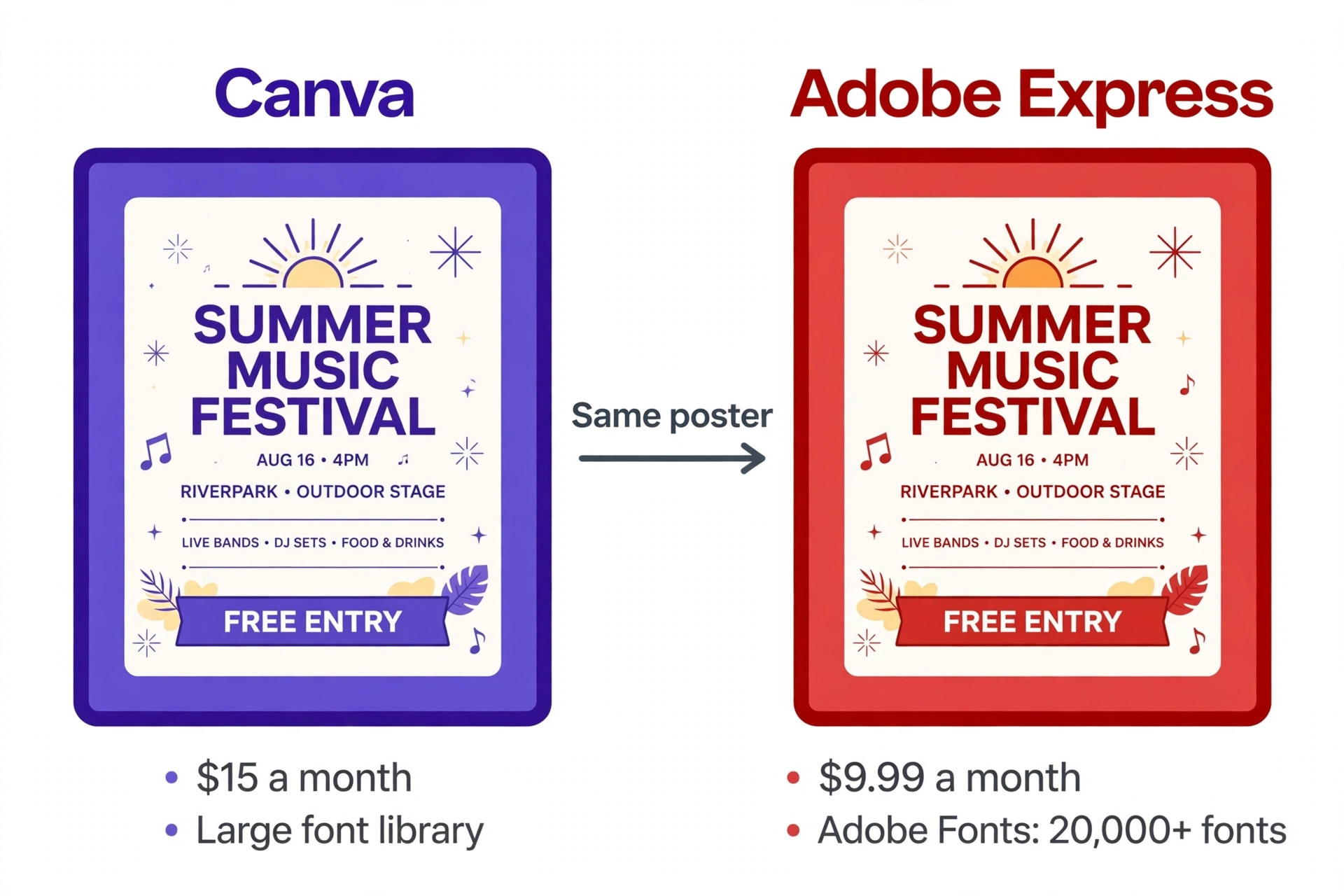
People switch for four reasons, and price is usually the first. Canva Pro runs about 15 dollars a month per person, while Adobe Express Premium is listed at 9.99 dollars a month. That gap is around 60 dollars a year for one person, and it grows across a team. If you already pay for Creative Cloud, Express Premium is included in many plans, which makes the effective cost zero. Price alone is not a reason to switch, but it is a reason to look closely at what the cheaper tool offers.
The second reason is fonts and stock. Adobe Express gives you Adobe Fonts, a library of more than 20,000 licensed fonts, plus Adobe Stock images inside the editor. Canva has a large font library too, but Adobe Fonts is deeper for professional typography, and the licensing is cleaner for commercial work. Firefly, Adobe generative AI, is trained on licensed and public domain content, and Adobe offers IP indemnification for Firefly generated content on paid plans. That matters if your posters go to clients or to print runs where rights need to be clear.
The third reason is file compatibility. Express opens Photoshop PSD and Illustrator AI files directly, and it works with Creative Cloud Libraries, so assets move between Photoshop, Illustrator and Express without exporting and converting. If your team already uses Adobe tools for other work, Express fits into that flow instead of sitting beside it. The fourth reason is the content scheduler and the multiple sizes feature. Express lets you schedule posts for up to three social accounts per network, including TikTok, right from the editor, and it keeps multiple sizes of one design inside a single document, which suits a poster that also needs a social version.
Canva vs Adobe Express for Posters at a Glance
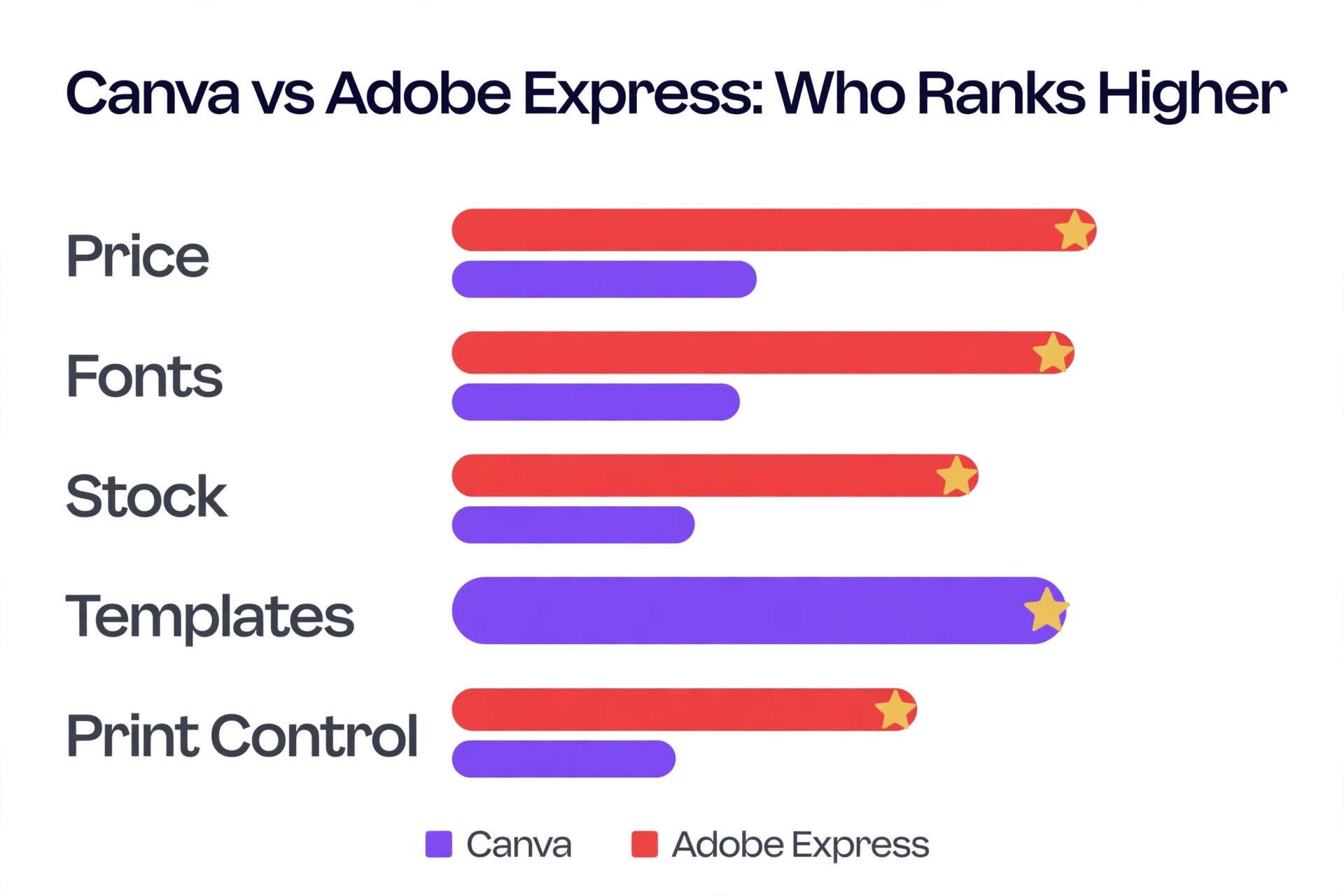
| Point | Canva | Adobe Express |
|---|---|---|
| Monthly price for the paid plan | About 15 dollars per person Pro | 9.99 dollars Premium |
| Free plan | Generous, with many templates | Generous, 100,000 plus templates |
| Fonts | Large library, brand kit on paid plans | Adobe Fonts, more than 20,000 fonts |
| Stock photos | Large library included | Adobe Stock, 200 million plus assets on Premium |
| AI image tools | Magic Studio suite | Firefly, trained on licensed content |
| File import | PDF, PPTX, image uploads | PPTX, PDF, PSD, INDD, AI files |
| Poster templates | Very large library | Large library, cleaner default typography |
| Content scheduling | Available on paid plans | Built in, up to 3 accounts per network |
| Print export | PDF Print with bleed and crop marks | PDF export with print settings |
Neither tool is a replacement for a professional layout app, and both know it. The decision comes down to one question. Does your team already live in Adobe Creative Cloud, or does it not touch Adobe at all. If the answer is Adobe, Express is the natural home for your posters. If the answer is no, Canva ease of use is hard to give up, and you should only switch if the fonts, the stock library or the price gap matters enough to justify the move.
Before You Switch. Audit What You Actually Have
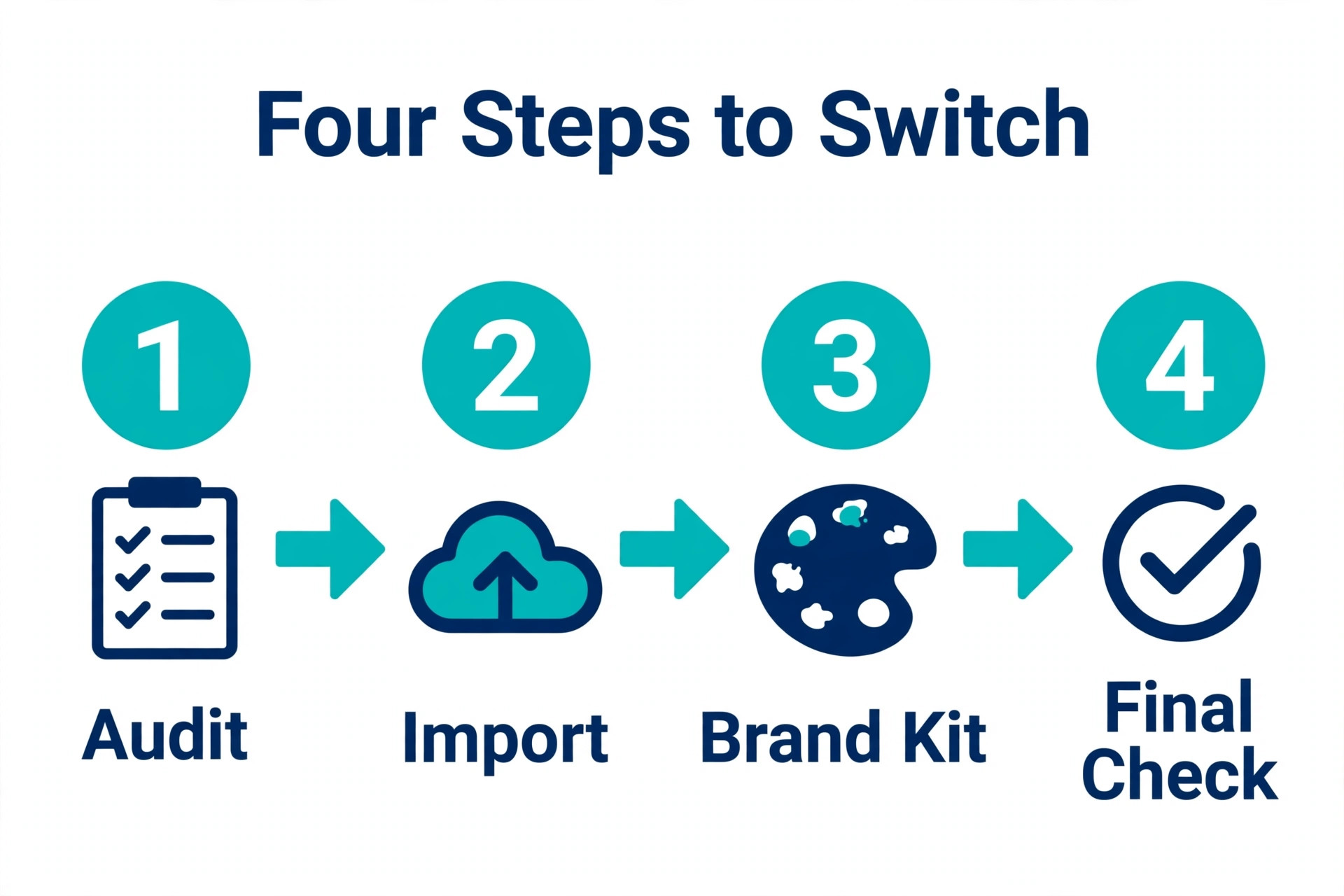
A bad switch starts with moving everything. A good switch starts with knowing what you have. Spend an hour on an audit before you export a single file, because most Canva accounts hold far more designs than anyone uses, and moving dead files wastes the whole afternoon.
- List your poster designs by how often you use them. Keep the top ten that you reuse, update or print regularly. Archive the rest in Canva and leave them there until you need them.
- Note which posters use Canva only features. Magic Studio effects, Canva only fonts and premium stock images will not survive the move unchanged. Mark those posters for a rebuild rather than an import.
- Write down your brand colours as hex codes, your font names and sizes, and your logo files. Export the logo as a PNG with a transparent background and as an SVG if Canva offers it, because you will need both in Express.
- Check who else uses your Canva account. A team switch needs a plan for shared folders, brand kits and approvals, and a solo switch does not. Decide the date you will cancel Canva, and keep one licence running while the team moves, so nobody is locked out mid project.
- Download a backup of your most important posters as PDF Print files before you change anything. A backup is not the same as a migration, but it means a failed import never loses the original.
How to Move Your Poster Designs Across
There are three ways to move a poster from Canva to Adobe Express, and the right one depends on the poster. The import route works for simple posters. The PowerPoint route works for text heavy posters. The rebuild route is the honest answer for complex posters that use Canva only features. Most people end up using all three, with the import route for the bulk of the work and the rebuild route for the five posters that matter most.
Route 1. Export as PDF and Import Into Adobe Express
This is the main route, and it works because Adobe Express has a built in import for files from other apps. Start in Canva. Open the poster, select Share, then Download, and choose PDF Print for the best quality. PDF Print keeps the resolution high and includes bleed and crop marks if your poster needs them. Save the file to your computer with a clear name that matches the poster, because you will import several files and a name like poster final v3 will cause confusion later.
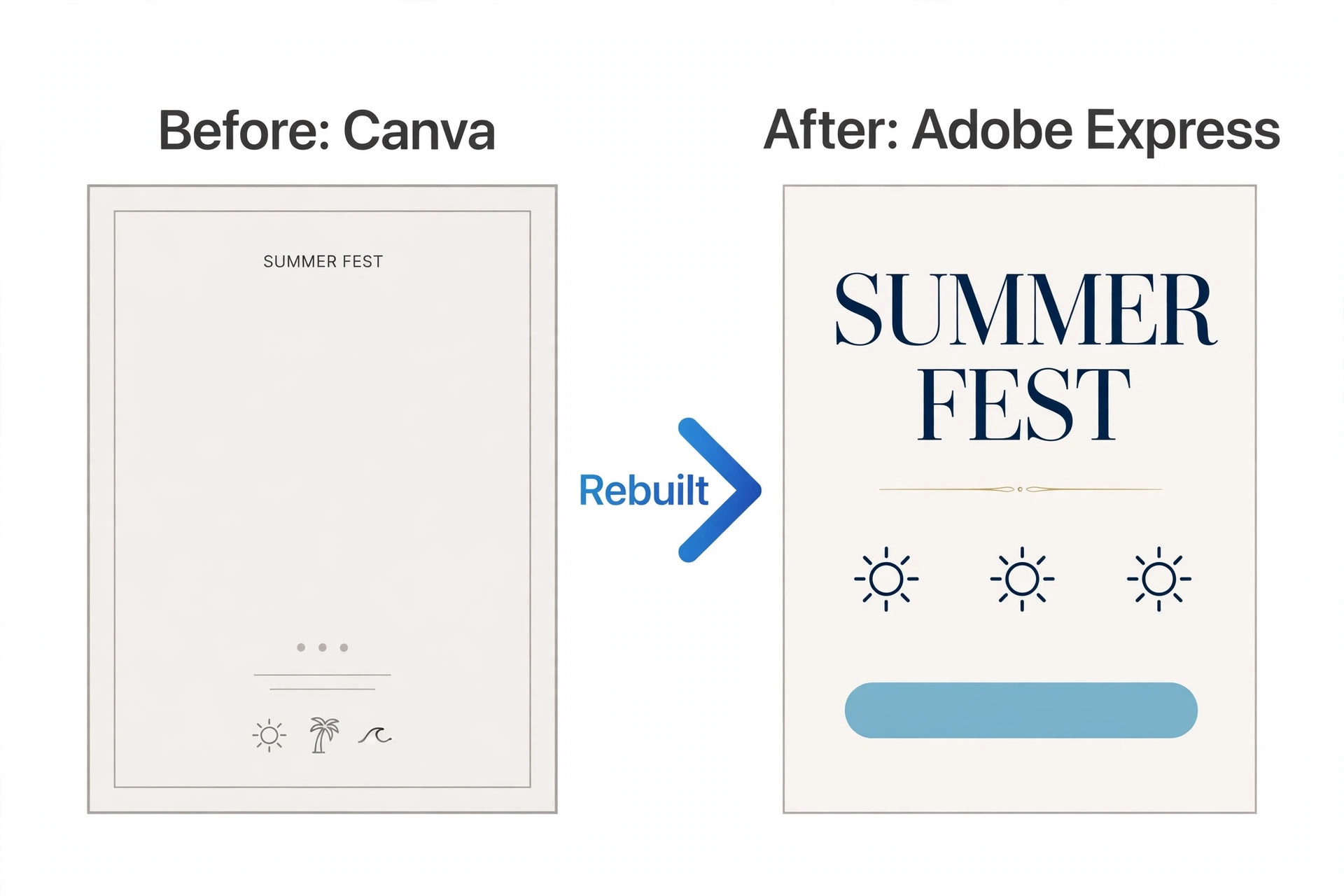
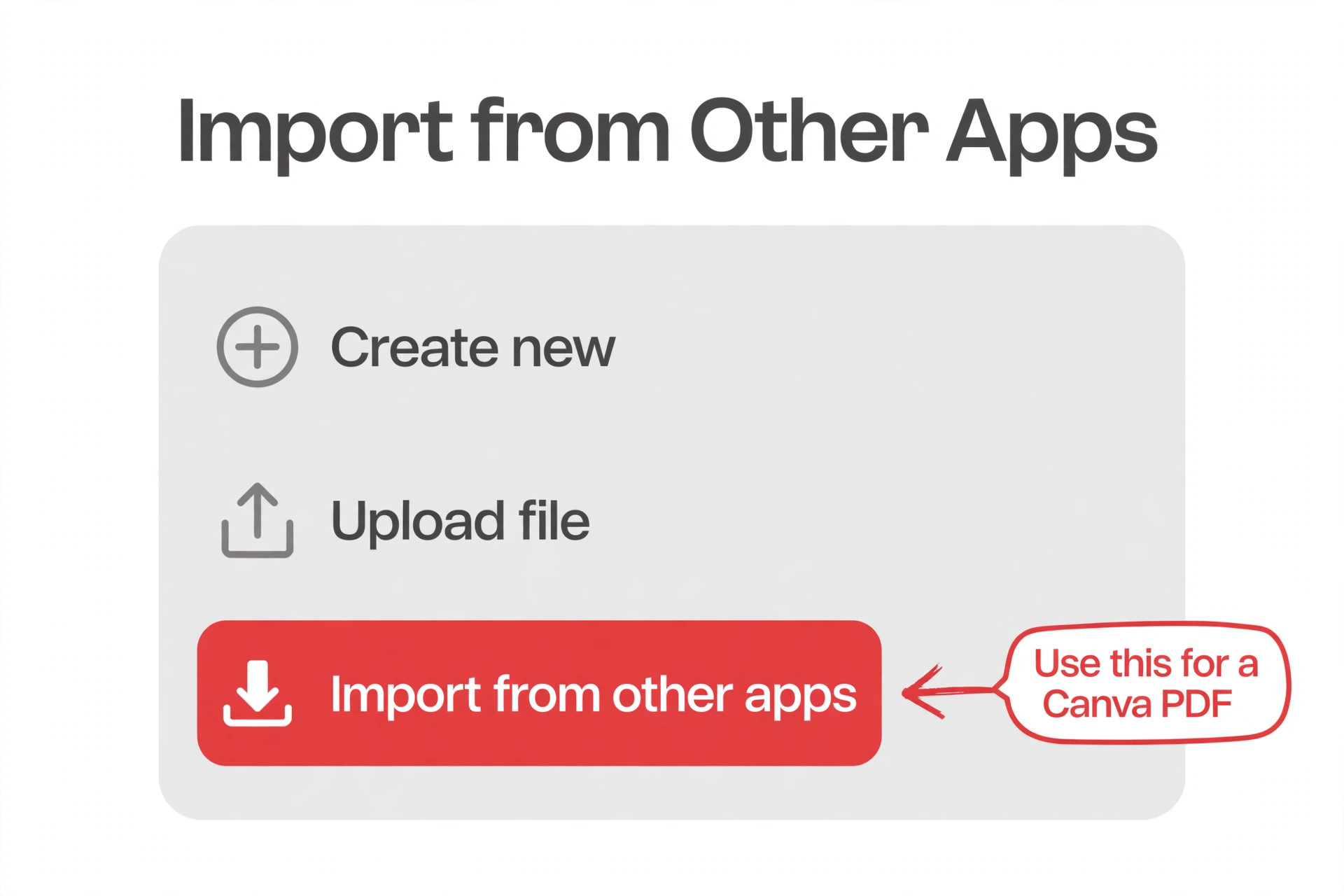
Now open Adobe Express in a browser. From the home screen, select the plus icon on the left panel, then select Import from other apps. You can also find the same option from the Get started panel. Choose the PDF you just exported. Express converts the file into an editable Express design, and you will find it in your Files when the conversion finishes.
Open it and check every element. Text boxes, images and shapes usually survive. Fonts may change to a close match, and effects such as shadows or glows may flatten into the image. Fix the font first, then the spacing, then the colours, in that order, because a wrong font changes line breaks and pushes text out of its box.
Adobe Express accepts up to 30 PDFs at once, each under 500 MB and 250 pages, but do not import 30 posters in one batch. Import three, check them, and fix the pattern before you import the rest. If the first three all lose the same font, you will know to set the replacement font once and apply it everywhere. If you import 30 and then find the problem, you have 30 posters to fix instead of three. Wait for one batch to finish before you start the next, because only one batch of PDFs can upload at a time.
Route 2. Export as PowerPoint for Text Heavy Posters
Posters with a lot of text, such as event schedules, menus and information boards, often survive better as PowerPoint files. In Canva, download the poster as a PPTX file. In Adobe Express, use the same Import from other apps flow and choose the PPTX file. Text comes across as editable text more often through this route, which saves the retyping that a flattened PDF sometimes forces on you.
The trade off is layout. PowerPoint export can shift the position of images and text boxes, and a poster that was pixel perfect in Canva may need its elements nudged back into place in Express. Check the headline first, because a headline that wraps onto a second line will push everything below it down the page. Then check the images, because a stretched or cropped image is easy to miss at a small zoom level. This route is worth it when the poster is mostly text and the text must stay editable. For a poster that is mostly one big image with a short headline, the PDF route is faster.
Route 3. Rebuild Your Best Posters From Scratch
Some posters should not be imported at all. A poster that uses Canva Magic Studio effects, a Canva only font, or a complex layered background will come across flattened or broken, and fixing it takes longer than rebuilding it. Rebuilding also gives you a cleaner file, because an imported poster carries hidden layers and odd text boxes that slow down every future edit.
To rebuild, open the Canva poster on one side of your screen and a blank Express poster on the other. Set the Express canvas to the same size as the original, then place the headline, the image and the call to action in that order. Use your brand kit for colours and fonts as you go, so the rebuilt poster is already on brand.
Copy the text from Canva rather than retyping it, and check the spelling as you paste, because a rebuild is the easiest time to catch an old typo. A simple poster takes 15 to 20 minutes to rebuild. A complex one takes an hour. Budget for your top five posters and import the rest, because rebuilding everything is the mistake that turns a one day switch into a one month project.
Set the Poster Size and Print Settings Right
Poster sizes cause more trouble than any other setting in a switch, because the two tools name sizes differently and a wrong canvas size ruins a print run. Common poster sizes are 18 by 24 inches for a standard poster, 24 by 36 inches for a large poster, and A3 or A2 for metric markets. Check the size of the original Canva poster before you export it, and set the same size in Express before you import or rebuild. If the sizes do not match, Express will scale the design and text may reflow.
For print, export from Express as a PDF and check the bleed and crop marks. A poster that bleeds colour to the edge needs bleed, usually an eighth of an inch on each side, so the trim does not leave a white sliver. Keep important text inside the safe zone, at least an eighth of an inch from the trim edge. Export at the highest quality the tool offers, and open the PDF before you send it to the printer. A two minute check of the exported file catches the font change or the shifted image that you missed in the editor.
Rebuild Your Brand Kit in Adobe Express
The brand kit is the part of the switch that pays off every day afterwards, so build it before you import your posters, not after. A brand kit in Adobe Express holds your logo, your colours and your fonts in one place, and every poster you make afterwards pulls from it. If you import posters first and build the kit later, you will fix the same colours twice. Do the kit first and the posters inherit it.
Start with colours. Open the brand kit settings in Express and add your brand colours using the hex codes from your audit. Add the main colour, the secondary colour and the text colour, and name each one clearly so a teammate can use it without asking. Then add your logo. Upload the PNG with a transparent background for use on coloured posters, and the SVG if you have it, because a vector logo stays sharp at poster size while a small PNG does not. Add a reversed or white version of the logo for dark backgrounds if you have one.
Then set your fonts. This is where a switch from Canva to Adobe Express poster maker work either saves time or costs it. Canva fonts and Adobe Fonts are different libraries, and your Canva font may not exist in Adobe Fonts. Pick the closest Adobe Font for headings and the closest for body text, and write the pair down in a short brand note that your team can see.
Test the pair on one poster before you apply it everywhere, because a heading font that looks good in a font list can look wrong at poster size. Once the pair is set, apply it to your imported posters as you check them, so each poster leaves the review step fully on brand.
Set the brand kit permissions if you work in a team. Express inherits the Adobe Admin Console when your organisation uses it, which gives IT the same user groups, single sign on and licence reporting it already uses for Creative Cloud and Acrobat. That admin control is a real advantage over Canva for larger teams, and it is worth setting up during the switch rather than months later when the team has grown.
Fonts, Stock and Templates After the Move
Your posters will look different in Express, and most of the difference comes from fonts. Adobe Fonts has more than 20,000 fonts on the paid plan, and the free plan includes more than 4,000, which is a deeper library than most people expect. The default typography in Express is cleaner than Canva, with better spacing and fewer decorative options fighting for attention. That suits posters, where one strong headline does more work than five font styles. Spend an hour browsing Adobe Fonts for your heading and body pair instead of accepting the first close match, because the font pair you choose now will appear on every poster you make for the next year.
Stock photos are the second change. Premium includes access to more than 200 million Adobe Stock assets, and the free plan includes a useful range of royalty free images. Search for the same subjects you used in Canva and save the ones you like to a collection, so your next poster starts from images you already trust. Firefly adds generative fill and text to image inside the editor, which is useful when you need a background that does not exist in any stock library. Remember that Firefly is trained on licensed and public domain content, which keeps the rights position clearer than tools trained on unlabelled web images.
Templates are the third change, and this is where Canva still leads. Canva template library is larger, and its poster templates are more varied. Express templates are fewer but cleaner, and the free plan lists more than 100,000 templates across all formats. The practical answer is to save your imported and rebuilt posters as templates inside Express, so your own library grows with every poster you finish. Within a month you will have a set of house templates that match your brand better than any public library, and that set is the real payoff of the switch.
What You Will Miss From Canva
An honest switch guide names what you lose, and Canva has strengths that Express does not match yet. The first is the template library. Canva has more poster templates, more variety, and a larger community sharing new designs. If you start every poster from a template, you will feel the smaller library in Express for the first few weeks, until your own saved templates fill the gap.
The second is ease of use. Canva is simpler to learn, and its editor hides complexity better than Express. A new team member will make a decent poster in Canva on day one, while Express takes a little longer to learn, especially for people who have never used an Adobe tool. The third is the app ecosystem. Canva has a large third party app marketplace with integrations for Slack, HubSpot, Mailchimp, Google Drive and Dropbox. Express integrates deeply with Adobe apps but less broadly with marketing tools outside Adobe.
The fourth is Magic Studio. Canva Magic Write, Magic Design, Magic Eraser and Magic Expand are fast and good enough for first drafts, and Express Firefly tools are more controllable but sometimes slower for a quick idea. None of these gaps is a reason to cancel the switch if your reasons were price, fonts or Adobe integration. They are reasons to keep one Canva licence running during the transition, so the team has a fallback while everyone learns the new tool. Cancel Canva only when the team has made five posters in Express without going back.
A Realistic Switch Plan for a Team of Five
A solo switch is an afternoon. A team switch is a project, and it needs a plan that keeps posters going out while the move happens. A switch from Canva to Adobe Express poster maker work for a team of five fits into one working week if you sequence it right, and the sequence matters more than the speed.
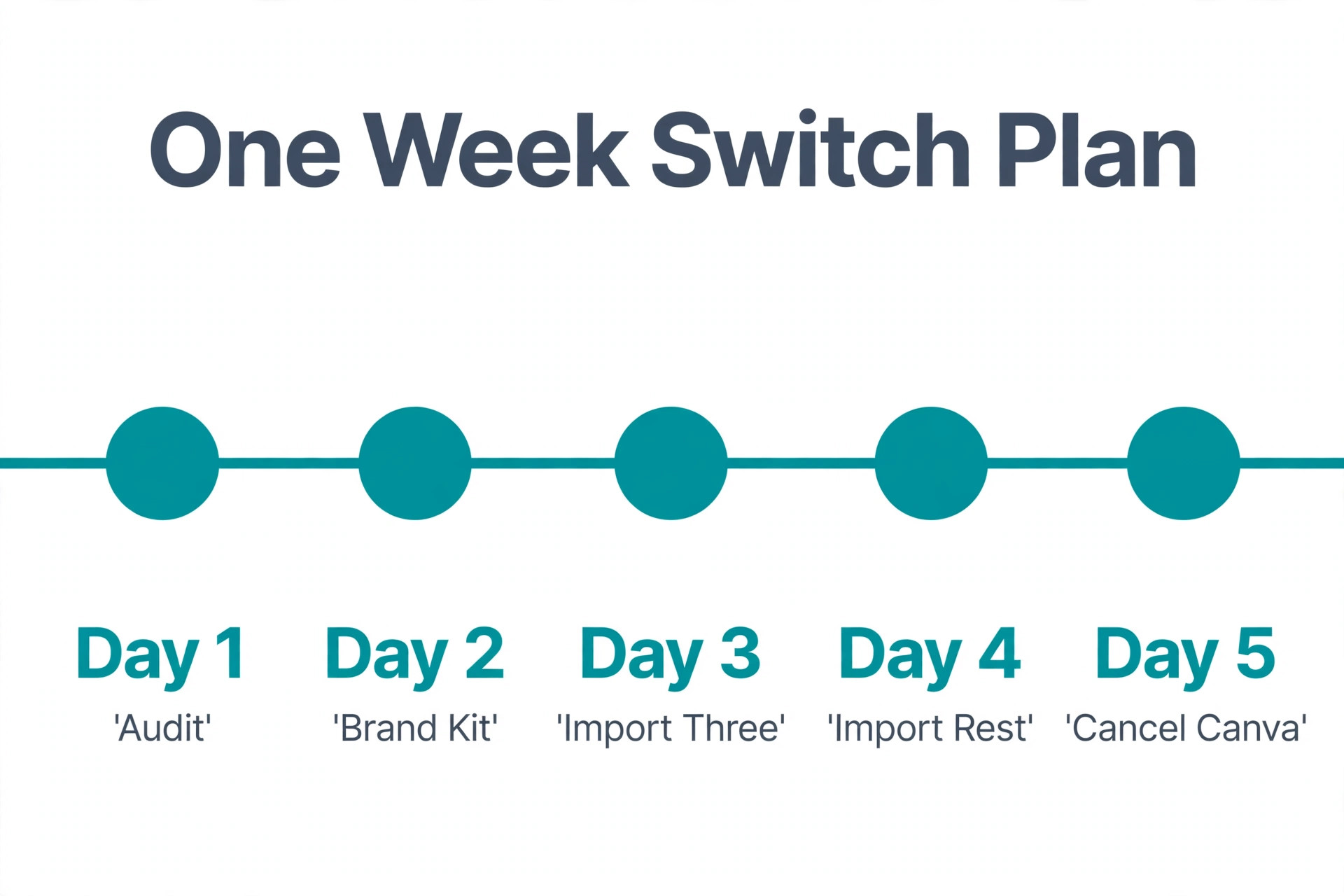
Day one is the audit and the brand kit. One person lists the posters worth moving, exports the logos, and writes down the hex codes and font names. Another person builds the brand kit in Express and picks the Adobe Font pair. Nobody imports anything on day one, because the kit has to exist before the posters arrive. Day two is the test batch. Import three posters, fix the font pattern, and show the results to the team. If the team agrees the rebuilt posters look right, the switch is approved. If they do not, you have lost one day, not one week.
Days three and four are the bulk move. Import the remaining posters in small batches, rebuild the top five, and save each finished poster as a template in Express. Day five is the proof run. The team makes the next real poster in Express from start to finish, exports the print PDF, and checks it at full size. If that poster ships without anyone opening Canva, the switch is done. Keep one Canva licence for another month as a safety net, then cancel it. A team that follows this plan spends about a week on the move and saves the price gap and the font quality on every poster after that.
Best Pick by Job
| Job | Best route | Why it fits |
|---|---|---|
| One poster a month for a small business | Stay on Canva free or import the few posters you need | The switch costs more time than it saves |
| Weekly posters inside Adobe tools | Switch fully to Adobe Express Premium | Fonts, stock and Creative Cloud fit repay the move |
| Event posters with heavy text | PPTX export route | Text stays editable more often than through PDF |
| Simple posters with one image and a headline | PDF import route | Fast, clean, and most elements survive |
| Your five most important posters | Rebuild from scratch | Cleaner file and fully on brand from day one |
| A team moving together | Switch in phases, keep one Canva licence | Nobody is locked out mid project |
Mistakes That Cost Switchers the Most Time
The biggest mistake is importing the whole library at once. Thirty posters imported in one batch with the same font problem means thirty posters to fix. Import three, find the pattern, fix the pattern, then import the rest. The second mistake is skipping the audit. Teams that move everything discover halfway through that half their posters were dead files nobody needed, and they paid for that discovery in hours.
The third mistake is cancelling Canva on day one. Keep one licence running until the team has made five posters in Express without going back, because a fallback is cheaper than a missed deadline.
The fourth mistake is ignoring font changes. A headline that changes font will wrap differently, push text out of its box, and break the layout in ways that are easy to miss at a small zoom level. Check every headline at full size before you call a poster done.
A switch from Canva to Adobe Express poster maker work succeeds when it is treated as a short project with an audit, a test batch and a brand kit, not as a single afternoon of dragging files across.
Frequently Asked Questions
Can I switch from Canva to Adobe Express poster maker without losing my designs?
Yes, but not as fully editable files. There is no direct transfer. Export each poster from Canva as a PDF or PPTX file, then use the Import from other apps option in Adobe Express to convert it into an editable Express design. Simple posters survive well. Complex posters with Canva only effects may need a rebuild.
Will my fonts transfer from Canva to Adobe Express?
Usually not exactly. Canva fonts and Adobe Fonts are different libraries, and your Canva font may not exist in Adobe Fonts. Express will substitute a close match, and you should pick your new heading and body fonts deliberately and save them in your brand kit before you import your posters.
How long does the switch take?
For a solo user with ten posters, plan for an afternoon. Audit your designs, import three as a test, fix the pattern, then import the rest and rebuild your top five. A team with shared folders and brand kits should plan for a week, with one Canva licence kept running during the transition.
Is Adobe Express cheaper than Canva?
Yes, on the published prices. Adobe Express Premium is listed at 9.99 dollars a month, while Canva Pro runs about 15 dollars a month per person. The gap is around 60 dollars a year for one person. If you already pay for Creative Cloud, Express Premium may be included in your plan, which makes the effective cost zero. Check the price you are actually offered, because both vendors vary prices by region.
Can I import all my Canva posters at once?
Adobe Express accepts up to 30 PDFs at once, each under 500 MB and 250 pages. Do not do that on your first try. Import three posters, check them for font and layout problems, fix the pattern, and then import the rest in small batches. Only one batch of PDFs can upload at a time, so wait for each batch to finish.
What happens to my Canva premium stock images after I switch?
Premium stock images licensed through Canva stay under Canva licence terms, and they do not move to Express. Replace them with Adobe Stock images or your own photos during the import review. Do not assume a Canva premium image can be reused freely in another tool.
Should I cancel Canva right after switching?
No. Keep one licence running until your team has made five posters in Adobe Express without going back to Canva. That fallback costs little and protects you from a missed deadline if an import fails or a font problem appears late. Cancel only when the new workflow is proven.
Start With Three Posters, Not Thirty
A switch from Canva to Adobe Express poster maker work is a short project, not a leap. Audit what you have, build the brand kit first, import three posters as a test, and rebuild the five that matter most. Keep one Canva licence until the team has proven the new workflow. Do that, and you get the fonts, the stock library and the lower price without losing a poster or a deadline along the way.