Your signature looks fine in the editor. Then a client replies from Outlook on Windows, and the logo jumps, the banner stacks under the phone number, and the disclaimer runs as one long grey block. That gap between the preview and the inbox is why teams decide to switch email signature tools, and it is also why the move itself feels risky. A signature touches every message your company sends, so a bad migration shows up in front of customers, partners and new hires within a day.
The good news is that a signature migration is a small project, not a rebuild. The formatting lives in HTML, the data lives in your directory, and the deployment lives in your mail platform. If you move those three pieces in the right order and test on real mail clients before you flip the switch, you can change tools with no visible break for anyone outside your team. This guide walks through that order, the costs of the main tools in 2026, the mistakes that break signatures most often, and a week by week plan you can follow.
Why Teams Switch Email Signature Tools
Most teams do not switch because the old tool stopped working. They switch because the job outgrew it. A five person startup that pasted a free HTML signature into Gmail becomes a fifty person company that needs one template, legal disclaimers by country, and a banner that changes for a product launch. The tool that was fine for one person cannot push the same signature to fifty mailboxes, and the manual workaround eats hours every time someone joins or changes a job title.
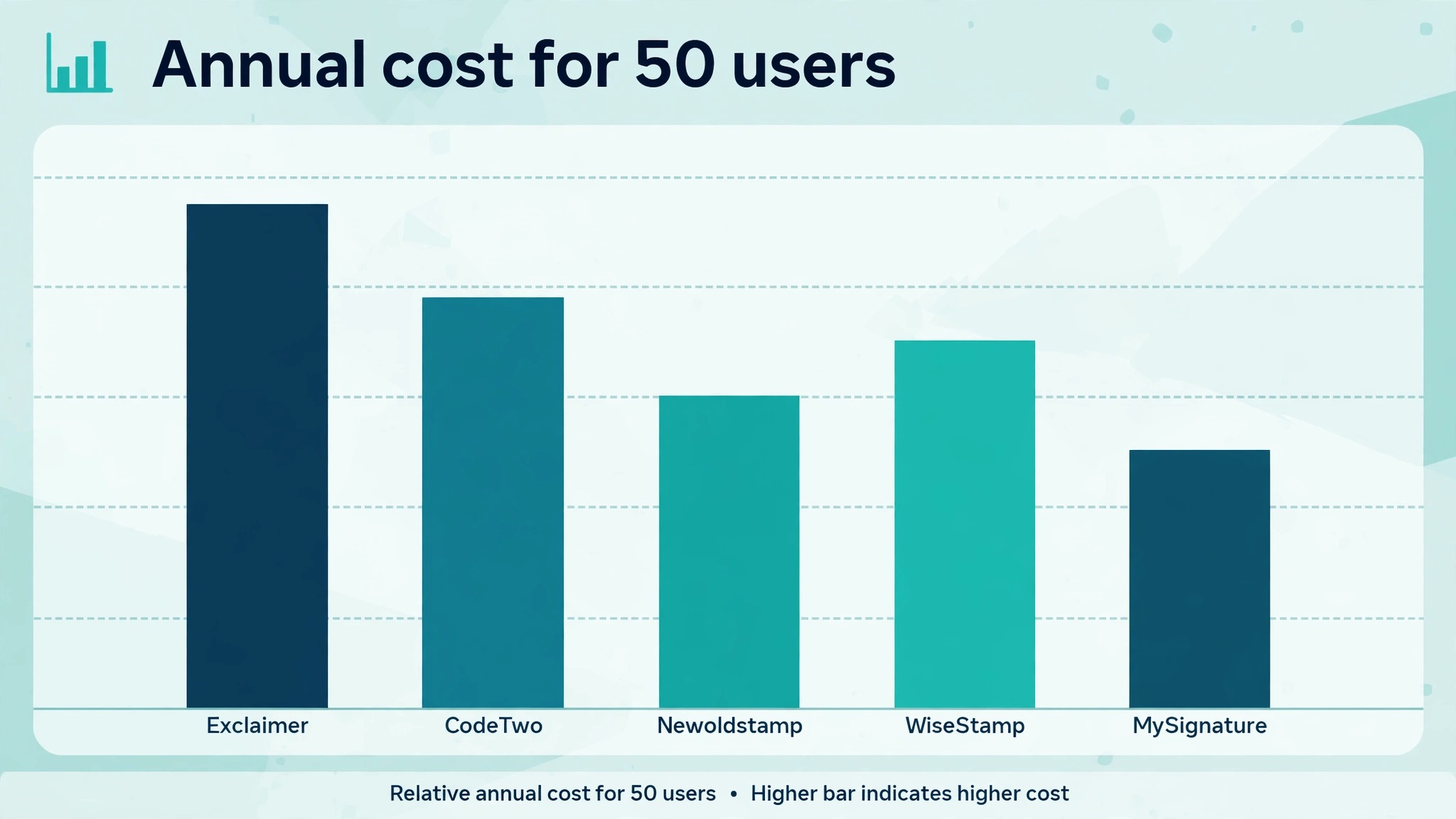
Cost is the second trigger. Per user pricing looks small until you multiply it. A tool that charges six or seven dollars per user per month costs a fifty person team around four thousand dollars a year, while a tool priced near one dollar per user per month costs closer to six hundred. The feature gap between those two prices is often smaller than the price gap, which is why a pricing review alone can justify a move.
The third trigger is rendering. Signatures are HTML email, and HTML email is the least forgiving format on the web. Outlook on Windows still uses Word to render messages, Gmail strips some styles, and Apple Mail handles images its own way. A tool that exports clean, table based HTML with inline styles survives that trip. A tool that exports modern CSS with divs and flexbox does not. When your sales team reports broken signatures every week, the tool is the problem, and a new one is the fix.
Control is the fourth trigger. Marketing wants to run a banner campaign from signatures. Legal wants a disclaimer that appears only on external mail. IT wants signatures applied on the server so they appear on mobile replies too. If your current tool can do only one of those three things, the other two become manual work, and manual work is where formatting dies.
How to Switch Email Signature Tools in Six Phases
A clean migration has six phases, and the order matters. Skip the audit and you carry broken data into the new tool. Skip the test and you find the break in front of a customer. Work the phases in order and each one takes hours, not days.
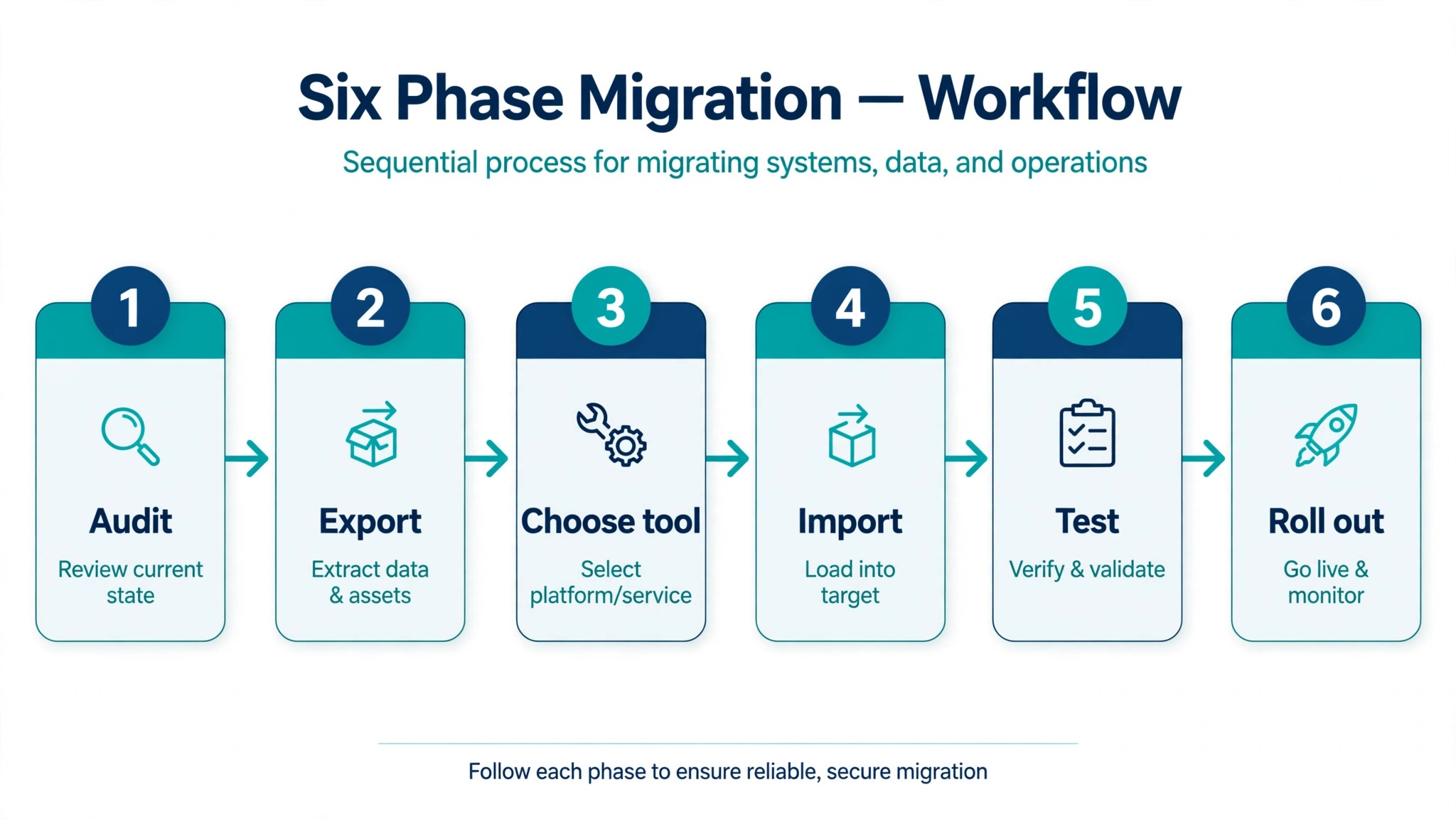
Phase 1. Audit the signatures you have today
Start by collecting every signature in use. Ask a sample of people in each department to send a test message to a shared inbox, then open each one in Gmail, Outlook on the web, and Outlook desktop. Screenshot what you see. You are looking for the real signature, not the template in the admin panel, because the two often differ after months of manual edits.
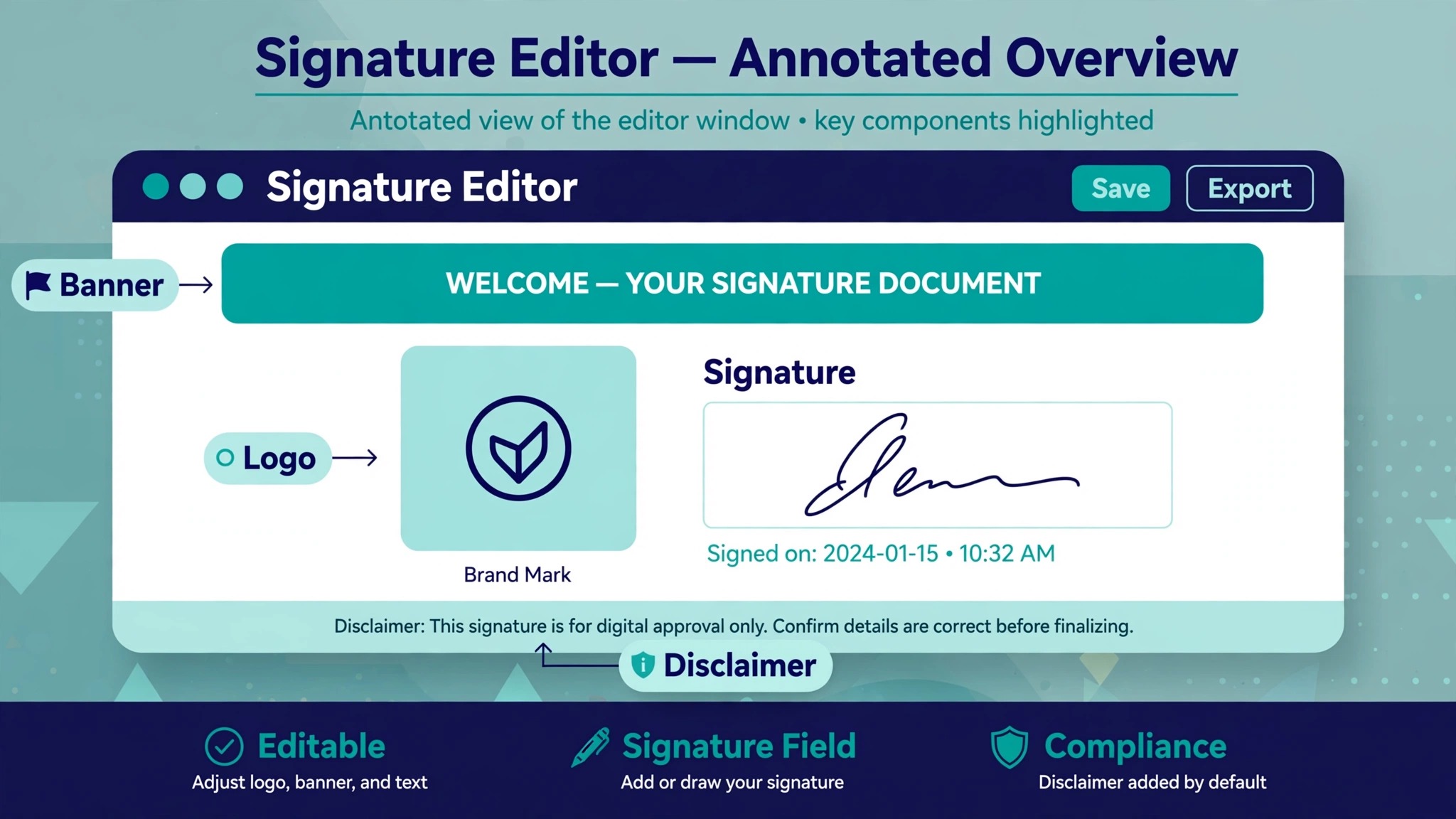
Record the pieces that must survive the move. Names, job titles, phone numbers, and office locations come from your directory, so check them against HR records and fix errors now. Logo files, banner images, social icons, disclaimer text, and tracking links are assets, so save the original files in one folder with names you can find later. Note which departments use a different banner or a different legal line, because those variations become separate templates in the new tool.
Phase 2. Pick the new tool against a written checklist
Do not pick a tool from a feature page alone. Write down your five must haves before you look at pricing. Most teams need central deployment, a visual editor, directory sync, banner campaigns, and analytics at minimum. Then add your own, such as support for Google Workspace, a disclaimer rule for external mail, or a template per brand.
Run a trial with real data, not the demo account. Import ten users from different departments, build one template, and send test mail to Gmail, Outlook, Apple Mail, and a phone. Check the signature at desktop width and at mobile width. If the trial cannot do that in a week, the tool will not do it in production either.
Phase 3. Rebuild the template in the new editor
Rebuild the template from scratch in the new tool instead of pasting the old HTML. Old HTML carries inline styles, empty table cells, and leftover code from three earlier tools, and that baggage is what breaks rendering. A fresh build in the new editor takes an hour and gives you clean code you can trust.
Keep the layout simple. A two column table with the logo on the left and the contact details on the right survives more mail clients than any clever layout. Use system fonts, set image widths in the HTML, and keep the whole signature under about 10 kilobytes of code. Test the rebuilt template with a long name, a long job title, and a missing phone number, because edge cases are where layouts break.
Phase 4. Test on real mail clients before rollout
Send the new signature to a test group and open it everywhere your customers read mail. Gmail on the web, Outlook desktop on Windows, Outlook on the web, Apple Mail on a Mac, and the Gmail and Outlook apps on a phone cover nearly all of it. Check dark mode too, since a dark logo on a dark background disappears, and a white text line on a white background does the same in reverse.
Test replies and forwards as well as new messages. A signature that looks perfect on a new message can stack badly when Outlook quotes the thread above it. If your tool applies signatures on the server, confirm the signature appears on messages sent from a phone, because that is the case client side tools miss entirely.
Phase 5. Migrate users in waves
Roll out by department, not all at once. Start with IT and marketing, since they can spot a problem and describe it precisely. Then move to sales, then to everyone else. A wave of ten to twenty people per day is fast enough to finish a fifty person company in a week and slow enough to fix a problem before it reaches the whole company.
Tell each wave what is changing and when. A short message that says the signature will update on a given morning, with a screenshot of the new look, stops the flood of “did my signature break” messages. Include one contact for problems, and keep the old tool running until the last wave is done.
Phase 6. Cancel the old tool only after a clean week
Keep the old subscription active for at least one full week after the last wave. Watch for stragglers, people on leave, shared mailboxes, and automated senders that still use the old template. Check the analytics in the new tool to confirm banners are tracking, then export a final backup of the old templates and cancel. Cancelling on day one to save a month of overlap is the cheapest way to lose a signature nobody can rebuild.
Audit Checklist Before You Move
A short audit saves more time than any other step. Work through the items below and write the answers in one document your whole team can see. If an item has no owner, assign one before the migration starts.
- List every signature template in use today, including the ones people built themselves in Gmail or Outlook.
- Record every logo, banner, icon and disclaimer, with the original file and the exact text.
- Confirm the contact data for every user against your directory or HR system, and fix titles and phone numbers now.
- Note which departments, brands or countries need a different template, banner or legal line.
- List the mail clients your customers use most, based on your own sent mail if you can see it.
- Check whether signatures must appear on mobile replies, shared mailboxes and automated messages.
- Save a copy of the old HTML for every template, even the ugly ones, so you can rebuild from them if needed.
- Confirm who approves the new signature, usually marketing for the look and legal for the disclaimer.
What the Main Tools Cost in 2026
Prices change, so confirm them on each vendor site before you buy. The figures below come from vendor pricing pages and recent comparisons checked in late 2026, and they show why the same fifty person team can pay very different amounts for the same job.
| Tool | Entry price | Free option | Best known for |
|---|---|---|---|
| Exclaimer | From $0.90 per user per month | 14 day trial | Enterprise control and compliance |
| CodeTwo Email Signatures 365 | From $1.22 per user per month | 14 day trial | Microsoft 365 only teams |
| Newoldstamp | From $1.30 per signature per month | Trial | Banner campaigns for small business |
| WiseStamp | From $19 per month plus $1 per user | Trial | Visual editor and multi brand teams |
| Bybrand | From $8 per month for 10 signatures | Trial | Low entry price for small teams |
| MySignature | From $6 per user per month | Free plan | Simple setup with tracking |
The spread matters. For fifty users, Exclaimer Starter at $0.90 per user per month costs $540 a year, while MySignature at $6 per user per month costs $3,600 a year. Both send a signature. The extra money buys a simpler editor and tracking, not a different result in the inbox, so match the price to the job, not to the brand.
Watch the minimums as well as the rates. Exclaimer and CodeTwo both set a ten user minimum, so a team of six pays for ten. WiseStamp prices a platform fee plus a per employee charge on higher plans, which makes the headline rate misleading for small teams. Bybrand charges per signature block rather than per user, which can be cheaper if several people share one template, and more expensive if everyone needs a personal version.
Free tools still have a place. HubSpot offers a free signature generator with a dozen layouts and HTML export, and it suits a single person who needs one clean signature. It does not manage a team, sync a directory, or run a campaign, so treat it as a personal tool, not a company platform.
How to Pick the Next Tool
Start with your mail platform, because it rules out half the list. CodeTwo works only with Microsoft 365 and Exchange, so a Google Workspace company cannot use it at all. Exclaimer, WiseStamp, Newoldstamp, and Bybrand cover both Microsoft 365 and Google Workspace, which matters if your company runs a mix or might switch one day.
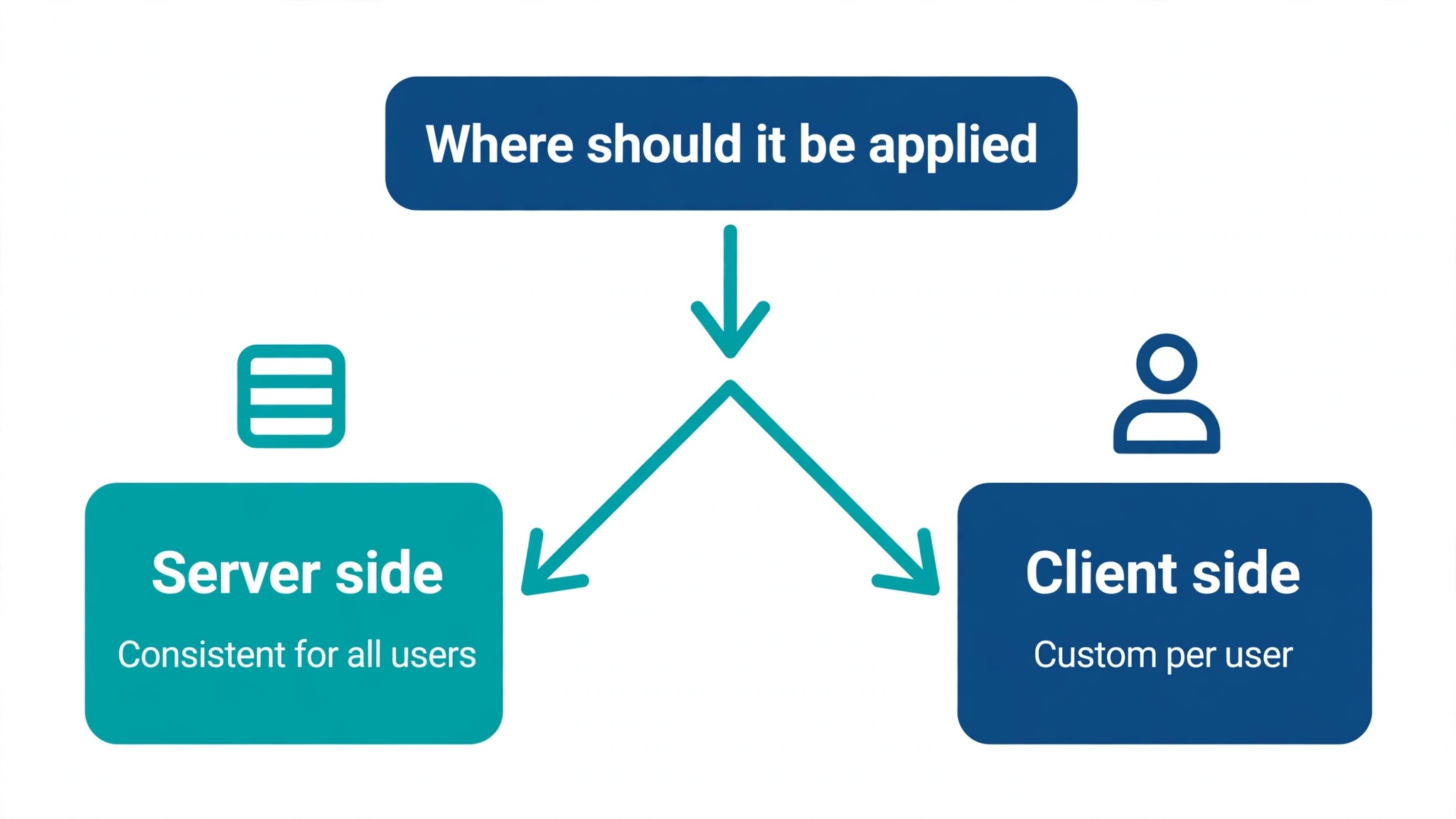
Next, decide how the signature gets applied. Server side tools add the signature as mail passes through the server, so it appears on every message, including replies sent from a phone. Client side tools install the signature into each mailbox, so the user sees it while writing, but mobile replies may skip it. If your team sends a lot of mail from phones, server side deployment is worth paying for.
Then check the editor. A good editor lets marketing change a banner without asking IT, and lets IT lock the parts nobody should edit, such as the legal disclaimer. Ask for a demo with your own logo and your own disclaimer text. A tool that cannot render your real content in the demo will not render it in production.
Analytics are the last filter. If marketing wants to know whether anyone clicks the banner, you need click tracking and a report that shows it by campaign. Some tools track clicks only on paid plans, and some count a click only when the link opens in a browser. Confirm what counts as a click before you promise the numbers to anyone.
The Migration Week Plan
A fifty person migration fits in one working week if the audit is done. Day one is the template rebuild and the first round of client tests. Day two is the test group, ten people from different departments, sending real mail and reporting what they see. Day three and four are the waves, twenty people each day, with a check after each wave. Day five is the stragglers, the shared mailboxes, and the automated senders.
For a larger company, stretch the waves, not the phases. Two hundred people migrate in ten waves of twenty, and the audit and template work stay the same size. The mistake is to compress the testing to fit a deadline. A broken signature sent by two hundred people is two hundred broken impressions, and no deadline is worth that.
Keep a rollback note for each wave. If a wave shows a rendering problem, pause the next wave, fix the template, and retest with the same group. A pause of one day costs nothing. Pushing on with a known fault costs trust, and trust is the one thing a signature is supposed to build.
Mistakes That Break a Signature Migration
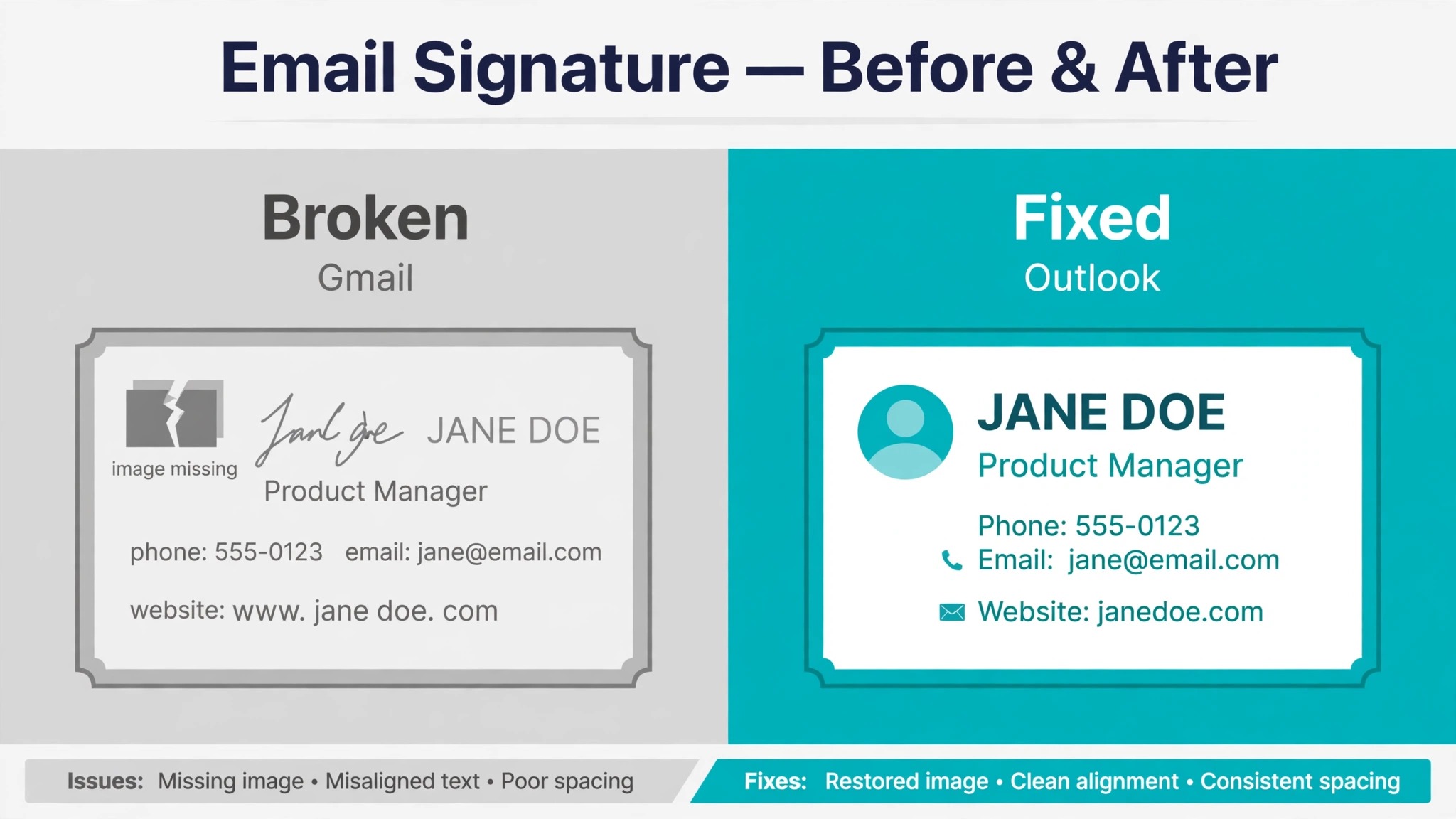
The most common mistake is pasting old HTML into the new editor. It feels faster, and it works in the preview, because the preview is the new tool’s own renderer. The inbox is not. Old code carries empty table cells, nested font tags, and styles the old tool added for its own preview, and Outlook on Windows will punish every one of them. Rebuild the template fresh and the problem never appears.
The second mistake is forgetting mobile. Most business mail is now read on a phone first, and a signature built at desktop width can run wide, stack badly, or push the banner below the fold on a small screen. Test every template at phone width before rollout, and set image widths in the HTML so a logo cannot blow out to full screen width.
The third mistake is the image host. A logo that lives on the old tool’s server stops loading the day you cancel, and every old message in every inbox shows a broken image box. Host logos and banners on your own domain or a stable host you control, and use absolute URLs in the HTML. Never hotlink an image from a tool you plan to leave.
The fourth mistake is the disclaimer. Legal text that reads fine in the editor can become one unreadable paragraph when the mail client strips the line breaks. Keep disclaimers short, use real line breaks, and check the rendered result in Outlook desktop, which is the strictest reader your customers use. If legal needs a long disclaimer, link to the full text on your site and keep the short version in the signature.
The fifth mistake is skipping the shared mailboxes. Support, sales, and info addresses send hundreds of messages a day, and they often run on a template nobody owns. If the migration plan covers only named users, the most visible addresses in the company keep the old signature, or lose it entirely. List every shared mailbox in the audit and assign each one a template.
Formatting Rules That Survive Every Mail Client
HTML email follows rules from twenty years ago, and the tools that respect them produce signatures that look the same everywhere. Tables do the layout, because mail clients ignore modern layout code. Inline styles do the formatting, because mail clients strip style blocks from the head of the message. System fonts such as Arial, Georgia, and Verdana render everywhere, while a brand font from a web service may fall back to something ugly in Outlook.
Images need a width and a height set in the HTML, plus alt text for the readers that block images by default. A logo without alt text shows as an empty box with a broken icon, while a logo with alt text shows your company name, which is a better result than a blank space. Keep each image small, ideally under 50 kilobytes, because a heavy signature slows every message and looks careless on a slow connection.
Colour needs the same care. A dark logo needs a light background behind it, or it vanishes in dark mode. A light grey text line may look refined in the editor and unreadable in Gmail. Aim for a contrast ratio of at least 4.5 to 1 between text and background, which is the same bar accessibility guidelines use, and test the signature in dark mode on at least one phone before rollout.
Best Pick by Job
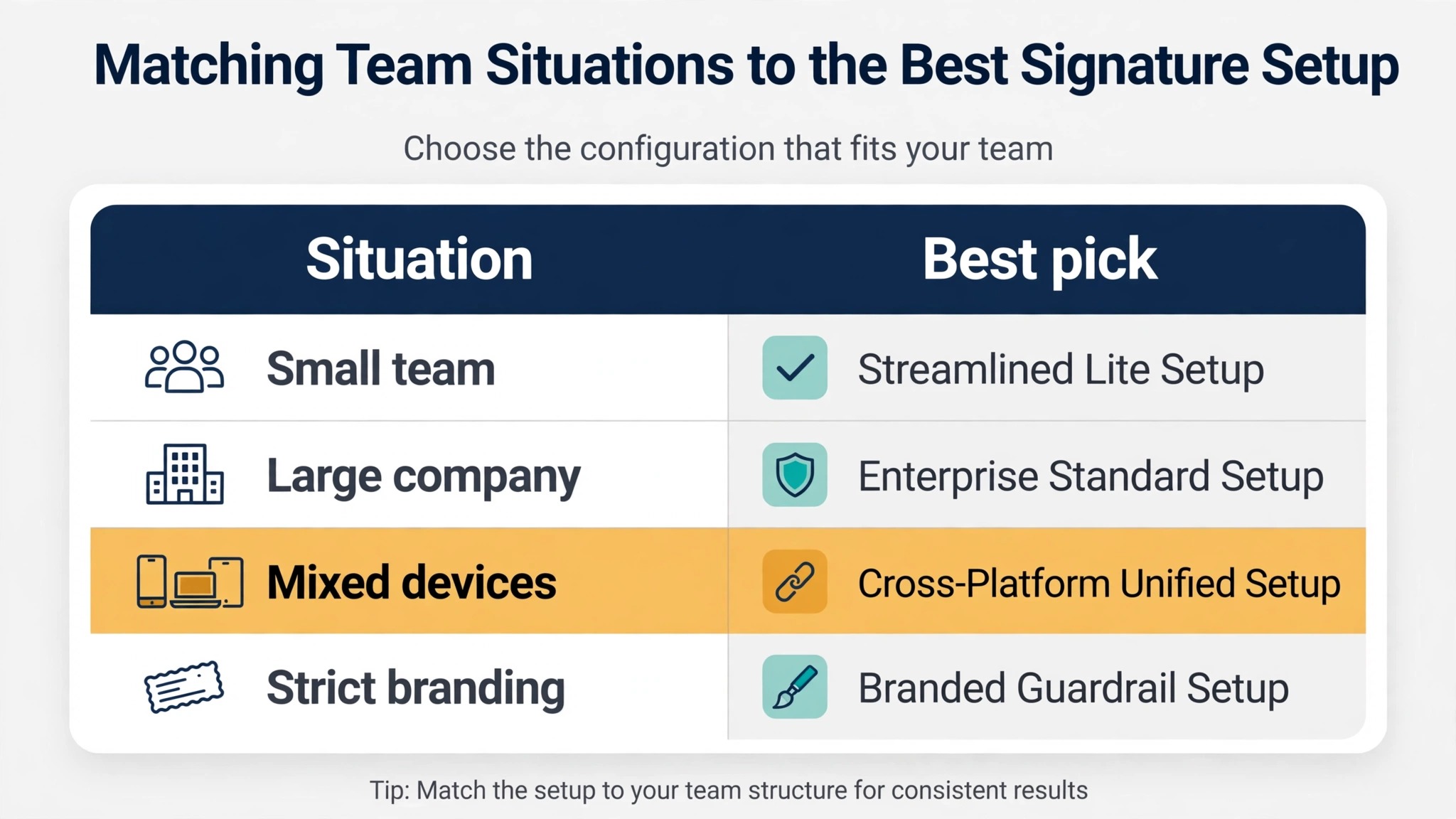
| Situation | Best pick | Why it fits |
|---|---|---|
| Microsoft 365 only, lowest cost | CodeTwo Email Signatures 365 | Server side, from $1.22 per user per month |
| Google Workspace or mixed mail | Exclaimer | Covers both platforms, from $0.90 per user per month |
| Banner campaigns for a small team | Newoldstamp | Campaign tools from $1.30 per signature per month |
| Several brands under one roof | WiseStamp | Multi brand templates and a visual editor |
| Ten people or fewer, tight budget | Bybrand | From $8 per month for 10 signatures |
| One person, one signature | HubSpot free generator | Free, with HTML export |
If your situation does not match a row, pick by platform first and price second. A tool that cannot deploy to your mailboxes is not a bargain at any price, while a tool that costs a dollar more per user but deploys everywhere is cheap insurance against a broken rollout.
What to Do in the First 30 Days After You Switch Email Signature Tools
The rollout is not the end of the job. The first month after you switch email signature tools is when small problems surface, and it is also when you learn whether the new tool earns its price. Treat the first thirty days as a settling in period with a short weekly check, and the migration stays finished instead of drifting back into manual fixes.
Week one is about coverage. Check the analytics or the admin panel every day and confirm the new signature appears on mail from every department. Look for the gaps that audits miss, such as a contractor mailbox, a shared inbox that forwards mail, or a new hire whose account was created after the last wave. Each gap gets a template the day you find it, not at the end of the month, because a gap left for a month becomes the new normal.
Week two is about rendering. Ask five people to forward you a message they received from outside the company, one that quotes your signature in the thread, and open each one in a different mail client. Replies and forwards are where formatting breaks, and a signature that survives a forward in Outlook desktop will survive almost anything. If you find a problem, fix the template once for everyone instead of asking each person to patch their own copy, because a central fix is the whole reason you moved to a managed tool.
Week three is about the banner. Run your first campaign on the new tool, even a small one, such as a link to a new case study or an event registration page. Watch the click report for a few days and compare the numbers with what the old tool reported for a similar campaign. If the new tool reports far fewer clicks, check whether the tracking link is set up correctly before you blame the audience. A broken tracking link is a common first campaign mistake, and it is easy to fix once you spot it.
Week four is about the handover. Write down who owns the template, who approves banner changes, and who updates the directory data when someone joins or leaves. A signature tool with no owner slowly rots, because titles go stale and banners stay up months after the campaign ended. A one page handover note, kept where the team can find it, keeps the signature current long after the migration team has moved on. That note is the real finish line, and it is what separates a switch that sticks from a switch that needs redoing in a year.
Frequently Asked Questions
How long does it take to switch email signature tools?
A small team finishes in a week. The audit takes a day, the template rebuild takes a day, testing takes a day, and the rollout takes two days in waves. A company above two hundred people should allow two to three weeks, mostly because the waves take longer, not because the work is harder.
Will old emails lose their signatures when I cancel the old tool?
No, if the images are hosted somewhere you control. The signature in a sent message is a copy of the HTML at the time it was sent, so it stays as it was. The risk is image hosting. If the logo lives on the old tool’s server, it breaks when you cancel, so move images to your own host before you cancel.
Can I switch email signature tools without telling every user?
Yes, with a server side tool. The signature is applied as mail passes through the server, so users do not install anything and do not change how they write mail. Client side tools need each user to install or paste something, which is why server side deployment is the safer choice for a company rollout.
What happens to signatures on mobile replies?
It depends on how the tool deploys. Server side tools add the signature to every message, including replies sent from a phone. Client side tools rely on the signature stored in the mail app, and many phone apps do not apply it on replies. Check this in your trial with a real phone before you commit.
Do I need to export anything from the old tool?
Export the templates, the disclaimer text, the banner images, and the list of which template belongs to which group. Also export any campaign reports you want to keep, because click data does not move to the new tool. Save the old HTML as a reference, but rebuild the template fresh in the new editor.
Which tool is cheapest for a fifty person team?
On published 2026 pricing, Exclaimer Starter at $0.90 per user per month costs $540 a year for fifty users, and CodeTwo at about $1.22 per user per month costs around $730 a year. Both need a ten user minimum, which a fifty person team clears easily. Confirm the current price on the vendor site, since per user rates fall with volume.
Should I keep the old tool running during the switch?
Yes, for at least a week after the last wave. People on leave, shared mailboxes, and automated senders are easy to miss, and the old tool covers them until you find them. Cancel only after a clean week with no stragglers and a confirmed backup of the old templates.
Verdict
A signature migration succeeds when the audit is honest, the template is rebuilt fresh, and the rollout moves in waves with real client testing. The tool choice matters less than the order of the work, and the cheapest tool that deploys correctly to your mail platform beats the most expensive tool that does not. Pick by platform, test on real mail clients, move the images to a host you control, and keep the old tool alive for one clean week. Do that, and the only people who notice the switch are the ones who sent the test messages.