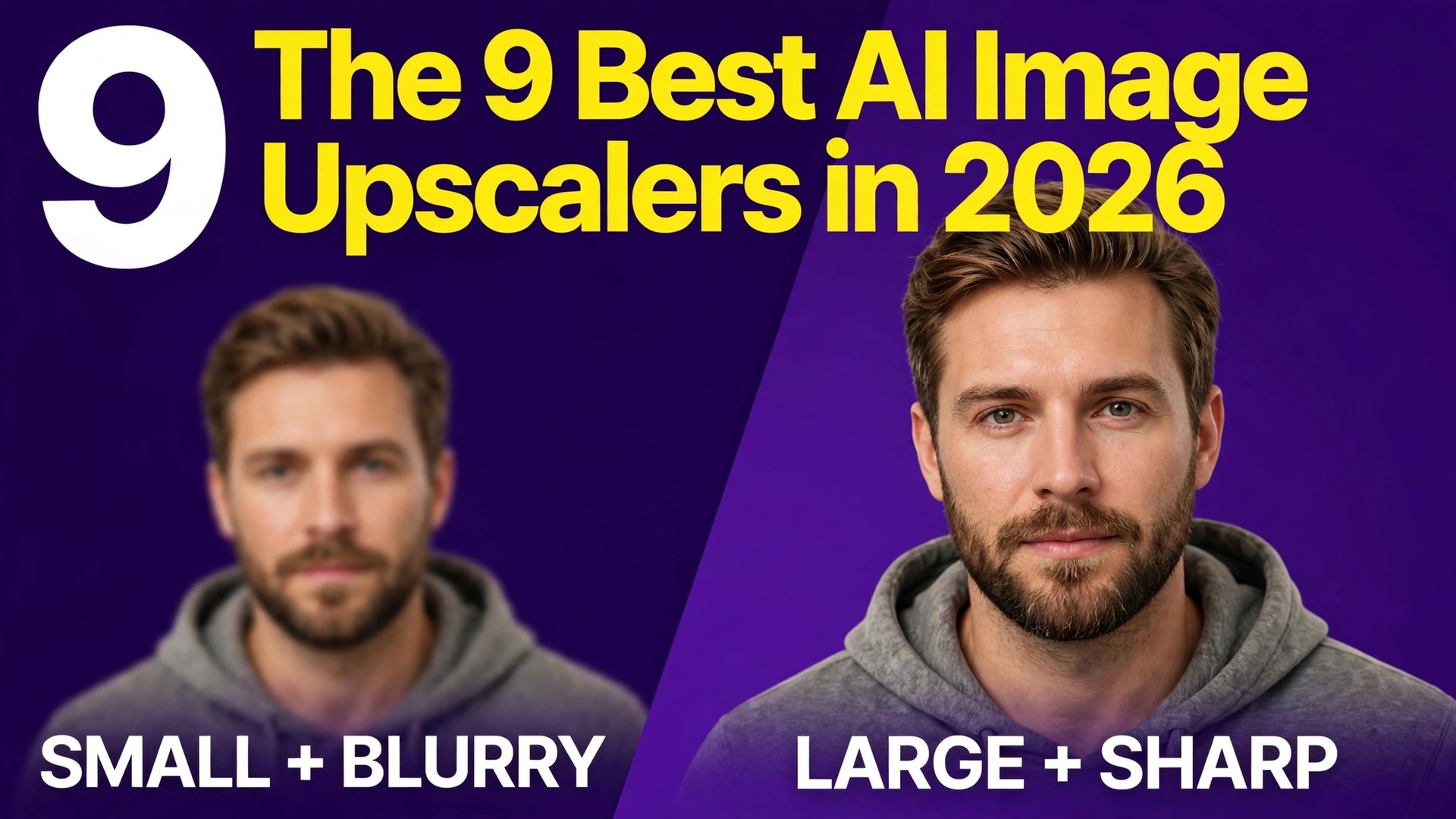
More than 5 billion photos have been enhanced through Remini alone, and that number tells you how common upscaling has become. A phone photo from 2012, a product shot cropped too tight, a poster printed from a small file, all of them now pass through an AI upscaler before anyone sees the result. The best ai image upscalers do more than stretch pixels.
They rebuild edges, recover faces and sharpen text, and the difference between a good upscale and a bad one is visible the moment you print or zoom in. We compared 9 tools on the same set of images, a portrait, a product photo, a landscape, a screenshot with text and a piece of AI art, and ranked them on output quality, maximum scale, price and how honest the free plan really is.
One fact shapes every buying decision in this category. No upscaler recovers detail that was never captured. A blurry photo stays blurry at its core, and a good tool makes the blur look cleaner rather than inventing a sharp version of a face that never existed. The tools that invent detail, like Magnific, can look stunning on art and strange on real faces. The tools that stay faithful, like Topaz Gigapixel, look less dramatic at first glance and hold up better in print. Knowing which kind you need matters more than the scale number on the homepage.
Pricing in this guide was checked against vendor pricing pages and current 2026 roundups in November 2026. Upscaler pricing changes often, and several vendors show different prices by region or by billing period, so confirm the price on the checkout page before you pay. Where two trusted sources disagreed on a price, we say so in the text and give the figure we found most often.
How We Compared 9 Upscalers
We ran the same five images through each tool before ranking anything. The portrait was an old family photo with soft focus and faded colour. The product photo was a small ecommerce shot that needed to fill a 2000 pixel wide listing. The landscape was a phone photo with fine detail in grass and water. The screenshot carried small text that had to stay readable. The AI art piece was a low resolution render that needed a print sized version. Each tool got the same files, and we judged the results at full size and at print size, not at thumbnail size.
We scored each tool on five points. Output quality covered sharpness, natural texture, faces and text, because a tool that sharpens a landscape but melts a face is not a general purpose pick. Maximum scale covered how far the tool can enlarge an image in one pass. Ease of use covered the time from upload to download, including batch handling. Price covered the true cost per image at light, medium and heavy use, including credit packs and subscriptions. Free plan honesty covered what you can actually do without paying, including watermarks, resolution caps and daily limits.
We also checked where each tool runs, because that decides who can use it. Local desktop tools keep your files on your machine and work offline, which matters for client photos. Browser tools need nothing installed and suit a quick job, but they upload your images to a server. Mobile tools suit restoration on the move and suit little else. The sections below name the right home for each tool, so you can pick by workflow as well as by quality.
The Best Pick for Your Photos
| Job | Pick | Why it wins |
|---|---|---|
| The sharpest print quality | Topaz Gigapixel | Local models for faces, text and fine detail |
| Clean web results with batch work | Lets Enhance | Up to 16x with credits that roll over |
| A single free upscale today | Upscale.media | Free use without an account |
| Creative art that needs new detail | Magnific | Generative detail that looks hand finished |
| Free local upscaling with no cap | Upscayl | Open source desktop app with batch support |
Use this table as a shortcut, then read the full section for the tool you are leaning toward. The highest scale number is not the best value when the extra detail is invented, and the cheapest option is not the best choice when it watermarks every download.
The 9 Best AI Image Upscalers in 2026, Ranked
The 9 tools below fall into three groups. The first group is desktop and professional grade, and these are the strongest picks for photographers and print work. The second group is browser based, and these suit quick jobs, ecommerce batches and occasional use. The third group is free or mobile first, and these suit restoration, single images and zero budget work.
1. Topaz Gigapixel
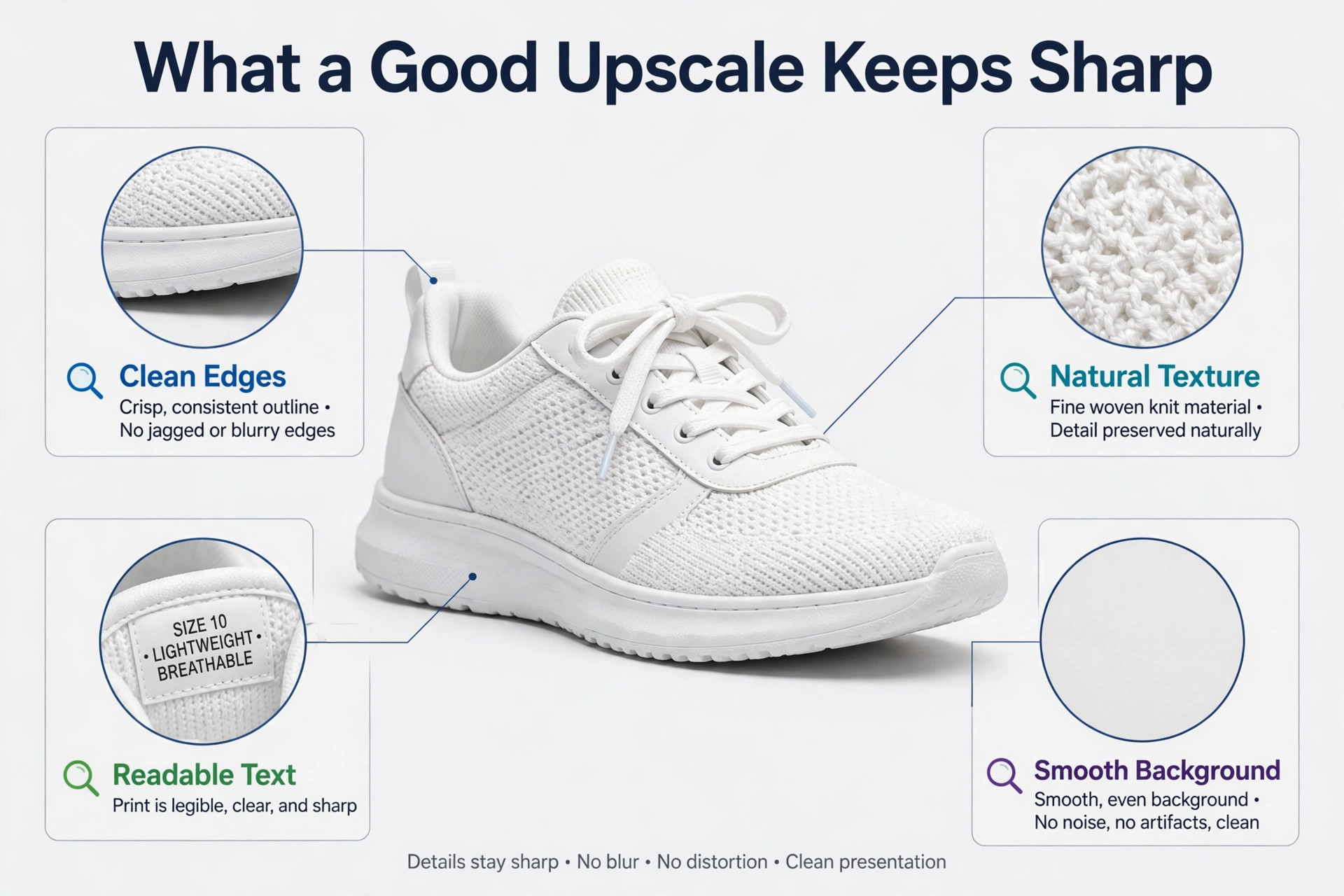
Topaz Gigapixel is the benchmark for pure upscale quality, and it earns that place with separate models for standard photos, low resolution sources, text and shapes, art and face recovery. You match the model to the image instead of using one setting for everything, and the difference shows in the result. A product photo keeps its edges clean, a portrait keeps skin natural, and a document keeps its letters readable. The tool runs locally on Mac or Windows, so your files stay on your machine, and it processes images up to 6x in a single pass with higher scale available through repeated passes.
The big change in this category happened in September 2025, when Topaz ended perpetual licences entirely. Every option in the current lineup, including Gigapixel and Photo AI, is now subscription only, and there is no free tier. That change makes the value calculation harder for occasional users, because a tool you open twice a month now costs a monthly fee. For a photographer who upscales every week, the quality justifies the subscription. For a casual user, a free local tool or a credit based web service makes more sense.
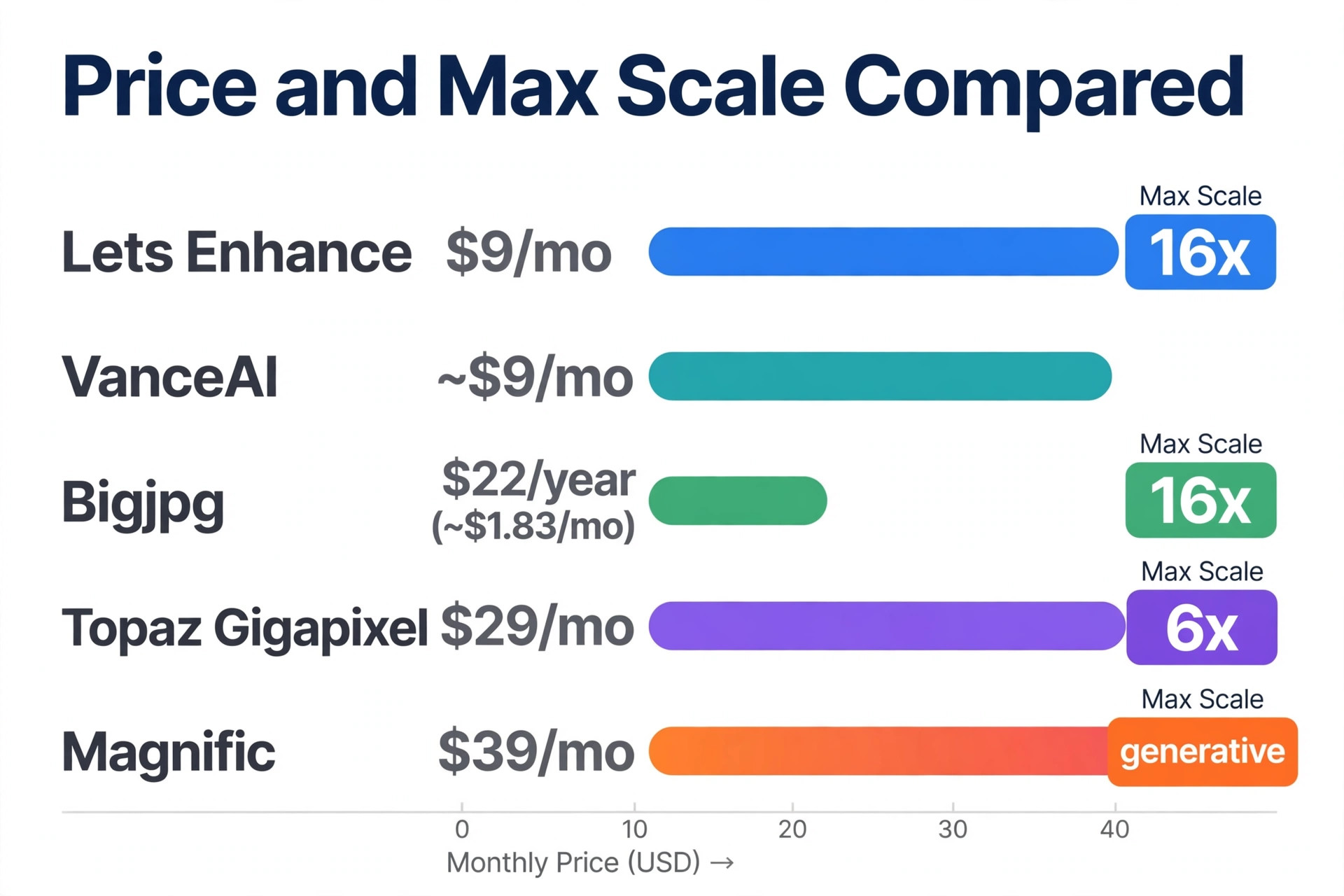
Pricing is the least settled fact in our research, and the sources disagree. One 2026 guide lists Gigapixel Personal at 29 dollars a month or 149 dollars a year, with Pro at 499 dollars a year. Another guide lists the annual plan near 12 dollars a month, and a third lists about 19 dollars a month on annual billing. The monthly figure of 29 dollars is the most often cited, so we use it here, but check the pricing page before you buy, because Topaz has changed its plans more than once since the subscription switch.
2. Lets Enhance
Lets Enhance is the strongest web choice for clean results, and it is built for people who print. It upscales and sharpens up to 16x without inventing distracting fake texture, with output up to 512 megapixels, so a thumbnail can become a poster at 300 DPI. Batch mode processes 20 images at once, which suits a catalog team that needs to lift a whole product range to the same standard in one session.
The credit system is straightforward and fair. You start with 10 free credits to try the tool, then paid plans start at 9 dollars a month for 100 credits, with 24 dollars a month for 300 credits and 34 dollars a month for 500 credits. Unused credits roll over while you stay subscribed, which matters for seasonal work, because a quiet month does not waste the credits you paid for. The tool also offers a documented API, so a store can plug upscaling into its own image pipeline instead of uploading files by hand.
Lets Enhance suits ecommerce teams, print shops and photographers who want a browser tool with honest pricing and clean output. It does not add creative detail the way Magnific does, so AI art that needs new texture will look plainer here. For real photos that need to look like themselves at a larger size, this is the most reliable web option on the list.
3. Upscale.media
Upscale.media is the tool to try first for a single image, because it asks for nothing before it works. You drag in a JPG, PNG or WebP file, pick 2x, 4x, 6x or 8x, and download the result without creating an account. The vendor page presents the free use as watermark free, which is rare among browser upscalers.
The free allowance is small, and that is the limit you need to plan around. Guest use covers one image per day in some reports, with a small monthly credit allowance after signup, and the vendor page contradicts itself on whether free credits renew monthly. Paid routes include credit packs from 5.99 dollars for 60 credits up to 54.99 dollars for 1,200 credits, and subscriptions listed near 9.99 dollars a month for 100 credits. Bulk processing moves to a separate paid product called PixelBin, so Upscale.media is a single image tool, not a catalog tool.
Use Upscale.media when you have one image and no time to install software or learn a new interface. Use a different tool when you need to process dozens of images a week, because the free allowance will run out on the first morning and the paid packs are priced for occasional use rather than for volume.
4. Magnific
Magnific is the tool creatives reach for when they want an upscale to add detail, not just size. Its generative models rebuild texture, sharpen faces and add plausible detail to low resolution art, and the results can look hand finished rather than enlarged. A small AI render becomes a large print ready image with new detail that was never in the original file, and for illustration, concept art and fantasy images that invented detail is the whole point.
The honest caveat is that Magnific invents detail that looks plausible rather than recovering what was there. That is a strength for art and a risk for real photos, because a face can gain features it never had and text can gain letters that were never written. Review faces and text closely before you use a Magnific upscale in client work, and keep the creativity setting low for any image where accuracy matters. The tool now lives inside a larger creative platform after a rebrand, so pricing and plan structure have shifted to the platform model.
Pricing starts at about 39 dollars a month for a standalone plan, with roughly 20 standard upscales at maximum creativity settings on that tier, and a Pro plan near 79 dollars a month for about 75 upscales. Some guides list Magnific from around 5.75 dollars a month inside bundled platform plans, which is a different product shape, so check which plan you are actually buying. Magnific is the pick for high end creative upscaling, and it is the wrong pick for a passport photo.
5. VanceAI
VanceAI bundles dozens of AI tools in one web account, with image upscaling, sharpening, denoising, background removal and portrait retouching side by side. The Image Enlarger advertises up to 40x, the highest scale factor on this list, and that number is honest about size even when the usable detail at 40x is lower than the number suggests. For a user who wants many enhancement tools without installing desktop software, the bundle is convenient and the browser workflow needs no learning curve.
The pricing is unsettled across sources, and we flag that plainly. One vendor checked comparison lists the Starter plan at 9 dollars a month on annual billing with 200 credits a month, while another guide cites 5.94 dollars a month for 100 credits, and a third lists 15 dollars a month billed annually. Credit packs from about 4.95 dollars per 100 credits are also listed in past pricing. The spread is wide enough that you should check the current plan and credit allowance on the VanceAI site before buying, and confirm how many credits your typical image actually costs.
VanceAI suits a casual user who wants one account for many small photo jobs, and it suits a team that needs batch enhancement without a desktop install. It does not match Topaz Gigapixel on raw quality for print, and it does not match Magnific on creative detail. Its strength is breadth at a low price, and that is a fair trade for everyday photos, screenshots and social images.
6. Upscayl
Upscayl is the best free route for regular use, because it is free and open source and runs locally with no monthly credit cap. The desktop app works on Linux, macOS and Windows, and it uses Real-ESRGAN models to enlarge images without uploading them anywhere. Batch processing is built in, so you can queue a folder of images and let the computer work through them while you do something else. For a user who upscales every week and does not want a subscription, this is the most honest deal among the best ai image upscalers.
The trade off is that Upscayl is a tool for people who are comfortable installing desktop software. There is no browser version of the free app, and the interface is simpler than a paid product, with fewer guided presets and less hand holding. A paid Cloud option exists at 24.99 dollars a month for users who want web processing, but the desktop app costs nothing and keeps photos local, which is the reason most people choose it. Privacy is the quiet advantage here, because client photos never leave your machine.
Upscayl suits photographers, archivists and small businesses that upscale often and want no recurring bill. It does not add creative detail the way Magnific does, and it does not offer the face recovery models of Topaz Gigapixel. For clean, faithful enlargement at zero cost, it is hard to beat, and it is the first tool we recommend to anyone who balks at a monthly subscription.
7. Bigjpg
Bigjpg is a simple online upscaler with one of the clearest free plans in this category. The free tier covers 20 pictures a month at up to 4x, and the paid plans are priced by time rather than by credits, at 6 dollars for 2 months, 12 dollars for 6 months and 22 dollars for 12 months. Paid users can upscale up to 16x, which makes Bigjpg one of the cheapest routes to large enlargements for anime, illustration and line art, where the tool has its roots.
The tool is built around a single job, enlarging an image, and it does that job without the extra features that clutter other platforms. There is no batch editing suite, no background removal and no face recovery studio, so Bigjpg suits a user who knows what they need and wants it done fast. The interface is plain, and the output quality on real photos is good rather than outstanding, with the best results on illustrations and images with clean edges.
Bigjpg fits a student, a hobbyist or a creator who upscales illustrations and wants a low yearly cost. A photographer who needs face recovery or print grade quality should look at Topaz Gigapixel or Lets Enhance instead. For 22 dollars a year, Bigjpg is the cheapest paid upscaler on this list, and that price is honest about what the tool does.
8. HitPaw FotorPea
HitPaw FotorPea, formerly known as HitPaw Photo Enhancer, is a desktop application built for users who want a result without sliders. Upscale, sharpen, denoise and face enhancement sit in one package, plus newer vintage restoration and colourisation models for old photos. The one click flow suits a user who does not want to learn model settings, and batch support means a folder of photos can be processed in a single session.
Pricing runs at 22.39 dollars a month, 90.39 dollars a year, or around 130 dollars for a lifetime licence in one comparison, and a free online version handles small jobs in the browser. The monthly price is high next to Lets Enhance at 9 dollars a month, so the yearly or lifetime licence is the better value when you use the tool often. The free online version is useful for a test, but it carries the limits you would expect, including smaller jobs and a slower flow.
HitPaw FotorPea suits a home user who restores old photos and enhances family pictures on a desktop, and it suits a small business that wants batch enhancement without a browser upload. It does not match Topaz Gigapixel on print quality, and its interface asks for an account before it shows a full result, which some users find pushy. For one click desktop enhancement with batch support, it earns its place on this list.
9. Remini
Remini is the phone first choice for portraits and family photos, and nothing else restores faces from old, damaged or tiny images quite as convincingly. Upload a faded portrait, tap enhance, and the AI sharpens eyes, skin texture and hair with quality that still surprises reviewers. Remini claims users have enhanced over 5 billion photos and videos, which shows how mainstream mobile restoration has become, and the app is the tool most people have already tried before they read a guide like this one.
The limits are real and worth knowing before you rely on it. Upscaling tops out around 2x, and the processing is automatic rather than tunable, so you cannot adjust the model for a tricky image. Pricing runs through app subscriptions without a public web pricing page, with weekly subscriptions cited around 6.99 dollars per week for Personal and 9.99 dollars for Business, and monthly and yearly options also offered. Weekly billing adds up fast for hundreds of photos, so check the current plan in the app before subscribing, and work out the monthly cost rather than the weekly figure.
Remini suits old family photos and mobile face restoration, and it suits little else. It is not a general purpose upscaler, it is a face tool that happens to enlarge images, and a landscape or a product photo will get more from Topaz Gigapixel or Lets Enhance. For a phone full of old portraits, it is still the fastest route to a result you will actually want to share.
How to Choose the Right Upscaler
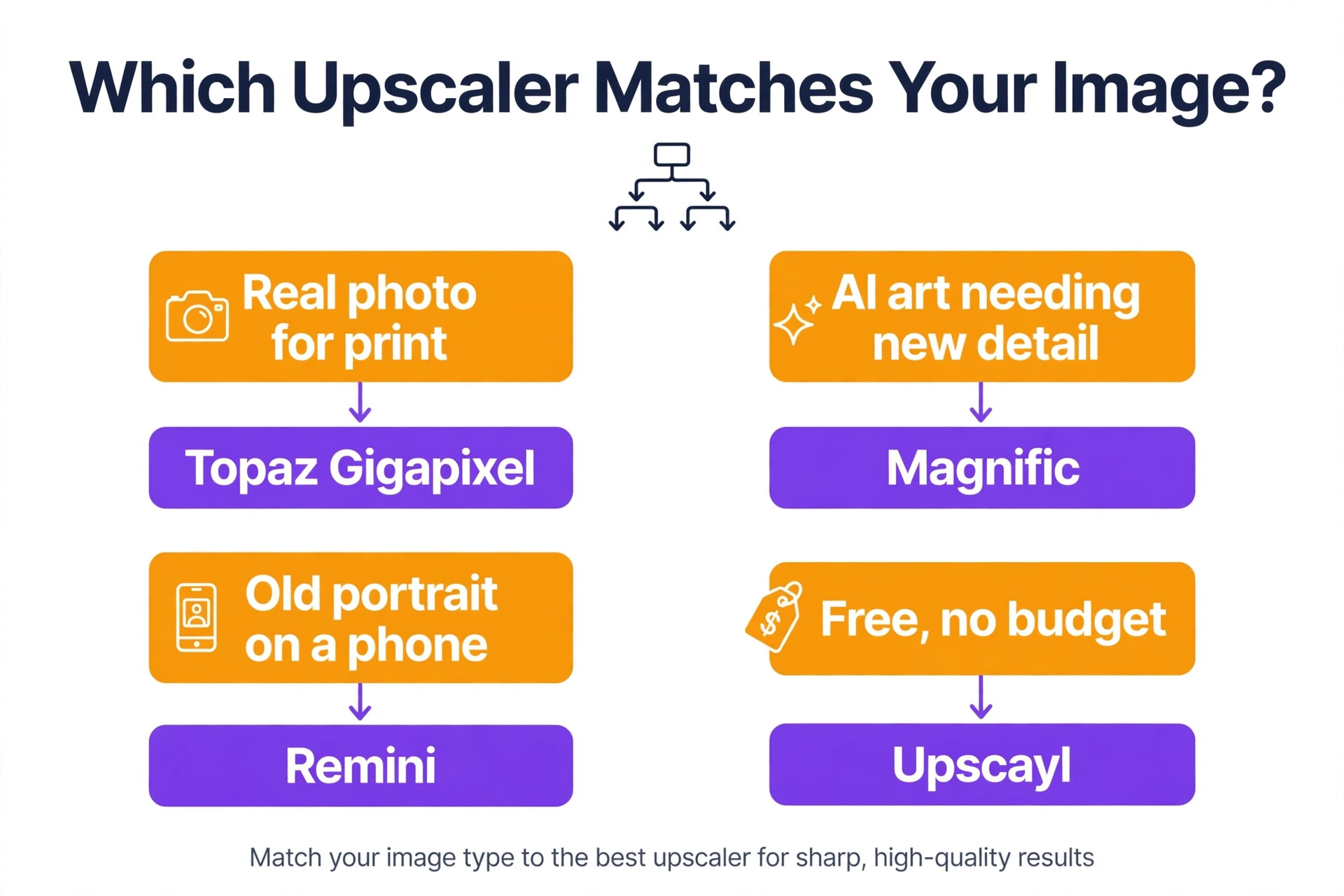
Start with the image, because the image decides the tool. A real photo that needs to look like itself belongs in Topaz Gigapixel, Lets Enhance or Upscayl. A piece of AI art that needs new detail belongs in Magnific. An old portrait with a damaged face belongs in Remini or HitPaw FotorPea. A single image that needs a quick enlargement belongs in Upscale.media. A folder of illustrations belongs in Bigjpg. The best ai image upscalers are not ranked by one quality score, because the right tool changes with the image in front of you.
Next, work out how often you upscale, because frequency decides the pricing model. A user who upscales twice a month should use a free tool or a credit pack, because a 29 dollar monthly subscription costs 348 dollars a year for 24 images. A user who upscales every day should use a subscription or a free local tool, because credit packs run out fast and per image pricing punishes volume. Count your real monthly images before you buy, and price each tool on that number.
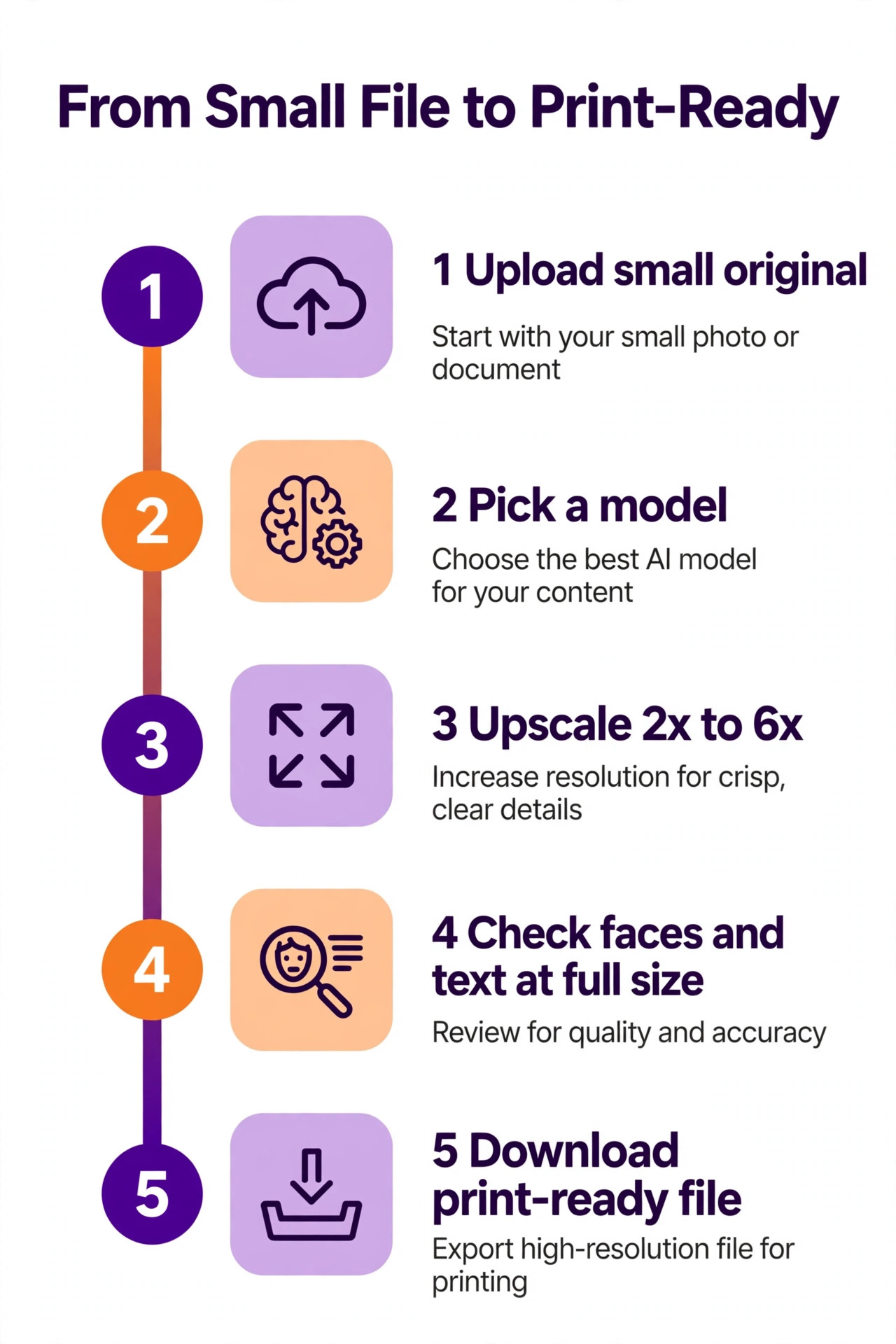
Then check the output at full size, not at thumbnail size. A tool that looks sharp in a preview can fall apart when you zoom to 100 percent, and a tool that looks plain in a preview can hold up beautifully in print. Download the free trial output, open it at full size, and look at faces, text and fine detail. That test takes ten minutes and tells you more than any review score.
Finally, check where your files go. A local tool keeps client photos on your machine. A browser tool uploads them to a server, and you should read the privacy terms before you upload client work. A mobile tool stores them in an app account. For personal photos the difference is small. For client work it can be the deciding factor.
What to Check Before You Pay
A subscription that looks cheap per month can cost hundreds of dollars a year, so add up 12 months before you compare it with a credit pack or a one time licence. Check whether unused credits roll over, because a plan that wastes credits in a quiet month is more expensive than its headline price. Check the maximum output size and the file format, because some tools cap the free tier at a low resolution and only unlock full size on a paid plan.
Check the watermark and the commercial licence at the same time. Free tiers often watermark downloads or limit commercial use, and a watermarked image cannot go into client work. Ask whether the paid plan covers commercial use, and read the terms for the free plan before you use its output anywhere public.
- Confirm the maximum scale and output size on the plan you are buying.
- Confirm whether unused credits roll over or expire each month.
- Confirm the download is watermark free and licensed for commercial use.
- Confirm the tool keeps your files local or uploads them to a server.
- Confirm the refund or cancellation terms before the first charge.
Mistakes That Ruin an Upscale
The most common mistake is trusting the scale number on the homepage. A tool that advertises 40x does not deliver 40 times the usable detail, because the detail was never in the original file. A 2x upscale from a good tool beats a 16x upscale from a weak one, and the scale number tells you about size, not about quality. Judge the output at full size and ignore the marketing number.
The second mistake is using a creative upscaler on a real face. Magnific can add plausible detail to art, but the same invention on a portrait can change the shape of an eye or add texture that was never there. Use a faithful tool for real people, and save the creative tool for art, illustration and renders where invention is welcome. The best ai image upscalers for photos are the ones that stay faithful, not the ones that invent the most.
The third mistake is paying a monthly subscription for a job you do twice a month. A 29 dollar monthly plan costs 348 dollars a year, while a 5.99 dollar credit pack would have covered the same images for a fraction of the price. Count your real monthly images, price the credit pack first, and only buy a subscription when the volume justifies it.
The Final Call on Upscaling
Topaz Gigapixel is the pick for most serious users, because its separate models for faces, text and fine detail deliver the sharpest print quality, and local processing keeps client files private. The subscription only pricing since September 2025 is a real drawback, and occasional users should not pay it. Lets Enhance is the pick for web work, because clean output up to 16x, batch mode and credits that roll over make it the most practical browser tool. Upscayl is the pick when the budget is zero, because free open source local upscaling with batch support has no honest rival.
Magnific is the pick for creative art, Remini is the pick for old portraits on a phone, and Upscale.media is the pick for a single free image right now. Bigjpg, VanceAI and HitPaw FotorPea cover the low cost, broad bundle and one click desktop corners of the market. Start with the free tier of two tools, run the same five images through both, and let the full size output decide.
Frequently Asked Questions
Which of the best ai image upscalers is the best overall?
Topaz Gigapixel is the best overall pick for quality, because its separate models for photos, text, art and faces deliver the sharpest results for print and client work. Lets Enhance is the best overall pick for web use, because it is cheaper, faster to start and handles batches well. Upscayl is the best overall pick when the budget is zero, because it is free, local and has no credit cap.
Is there a free AI image upscaler?
Yes. Upscayl is free and open source on desktop, with no monthly cap and no subscription. Upscale.media offers free use without an account, with one image per day for guests and a small monthly allowance after signup. Bigjpg offers 20 free pictures a month at up to 4x. Free tiers carry limits on volume, resolution or features, so check the allowance before you plan a large job around a free plan.
What is the best ai image upscaler for old photos?
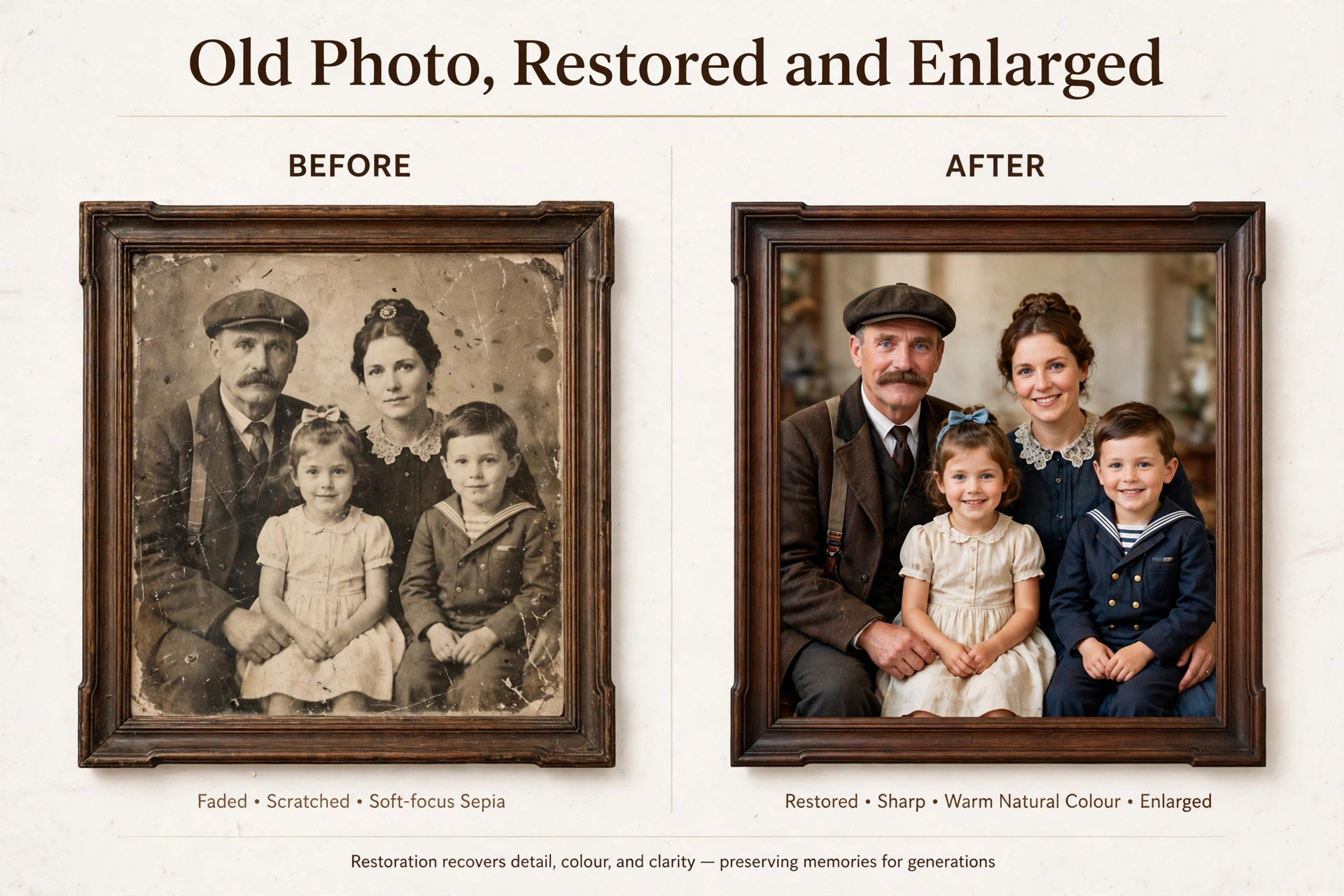
Remini is the best pick for old photos on a phone, because its face restoration sharpens eyes, skin and hair from faded or damaged portraits better than any general upscaler. HitPaw FotorPea is the better pick on desktop, because it adds vintage restoration and colourisation models with batch support. Topaz Gigapixel is the better pick when the old photo needs to print large, because its face recovery model holds up at print size.
How much does an AI image upscaler cost?
Most paid upscalers cost between 9 and 39 dollars a month, with Lets Enhance from 9 dollars a month, VanceAI from about 9 dollars a month and Magnific from about 39 dollars a month. Topaz Gigapixel costs about 29 dollars a month or 149 dollars a year, with Pro at 499 dollars a year. Credit packs offer a cheaper route for occasional use, with Upscale.media packs from 5.99 dollars for 60 credits and Bigjpg at 22 dollars for a full year.
Can an AI upscaler fix a blurry photo?
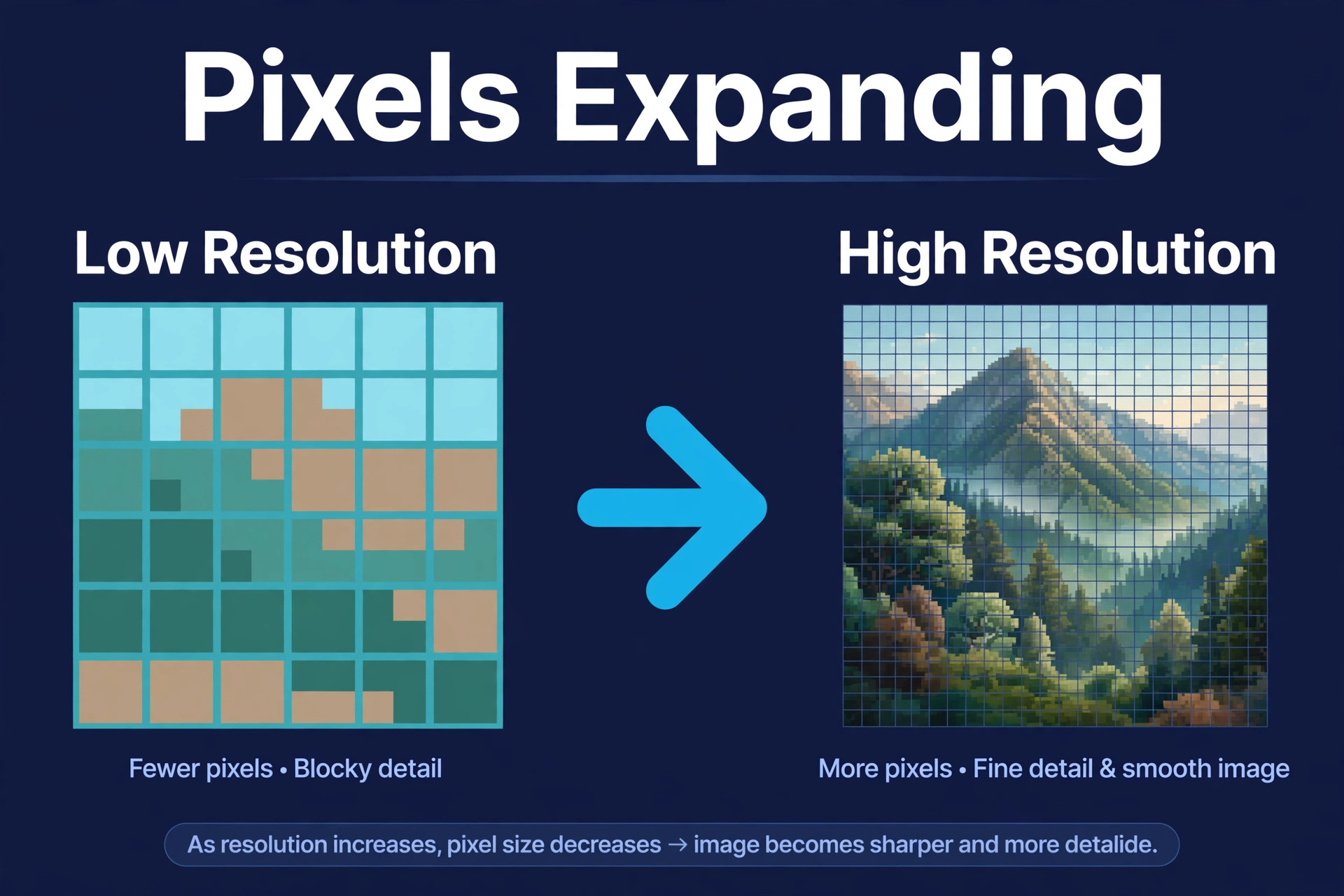
Partly. An upscaler can sharpen edges, reduce noise and rebuild a face, and a mildly blurry photo can look much better after processing. No tool recovers detail that was never captured, so a photo that is badly out of focus stays soft at its core. The best results come from mild to moderate blur, not from a photo that was badly out of focus. Start from the largest, least compressed original you have, because a small compressed file gives the AI less to work with.
Does upscaling work for print?
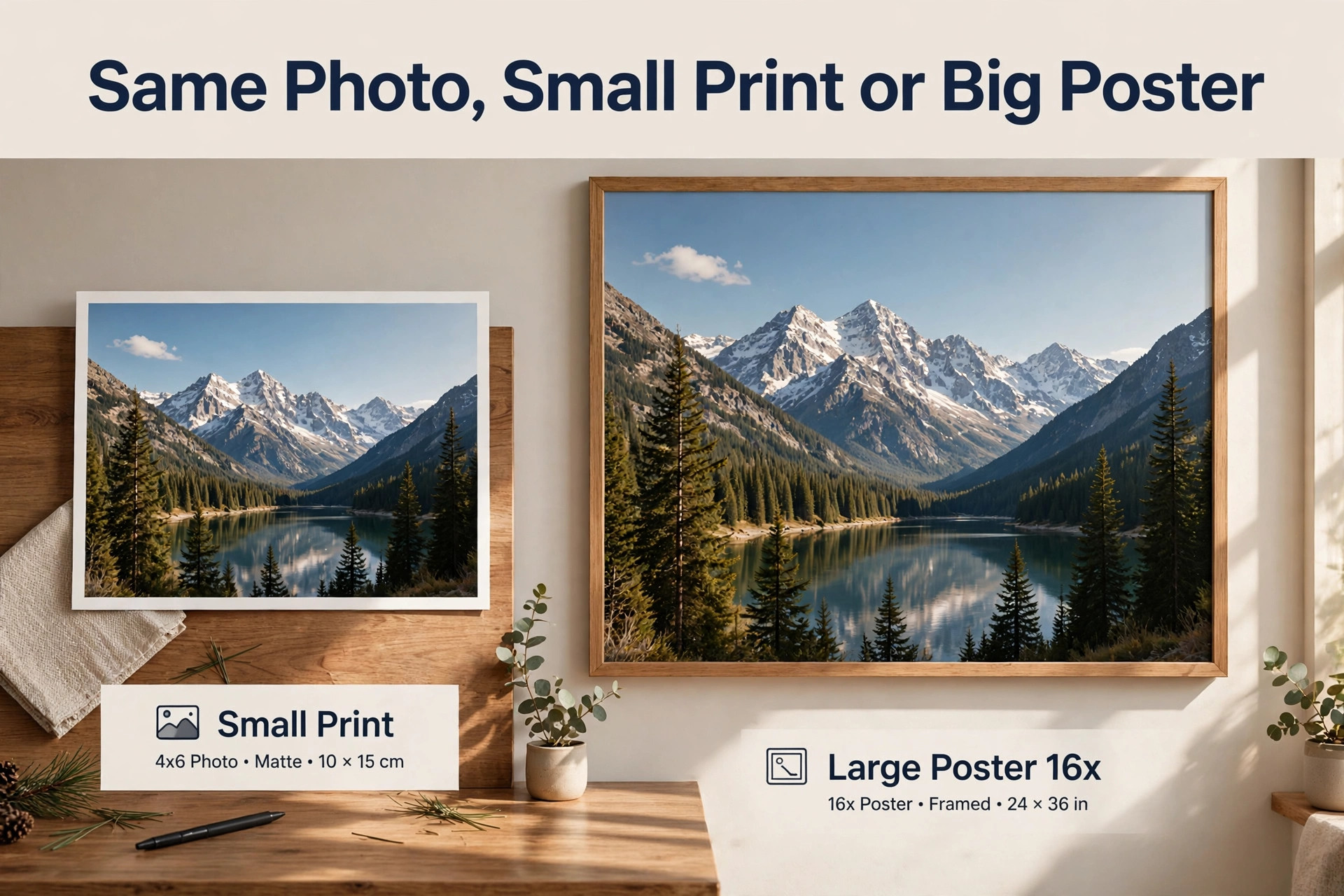
Yes, when the tool and the source are right. Lets Enhance upscales to 16x with output up to 512 megapixels, which covers poster sizes at 300 DPI. Topaz Gigapixel is built for print work, with models that hold detail at large sizes. Check the output at full size before you send it to print, and ask the print shop for the resolution it needs, because a file that looks sharp on screen can still fall short on paper.
Start with the largest original you have, pick the tool that matches the image in front of you, and judge the result at full size before you pay. The best ai image upscalers make a small image usable, and the best choice is the one whose output still looks right when you zoom all the way in.