The prompt is ready, the idea is clear, and the generator does nothing. The button spins, the screen shows an error, or the image comes back blank. Before you rewrite the prompt for the tenth time, stop and diagnose, because most failures have one of four causes. You are out of credits, your browser is the problem, the service itself is having a moment, or a setting is wrong. When you find that an ai image generator not working has one of those four causes, the fix is usually fast, and this guide walks through it in order, from the two minute checks to the per tool fixes.
Work through the fixes in the order given, and test after each one. Do not change the prompt, the browser, and the model all at once, because you will never know which change fixed it. Keep a short note of what you tried and what happened, with the time, the tool, and the exact error message. That note is what support will ask for if you need to contact them, and it is what will save you from repeating the same failed step twice.
AI Image Generator Not Working: Diagnose First
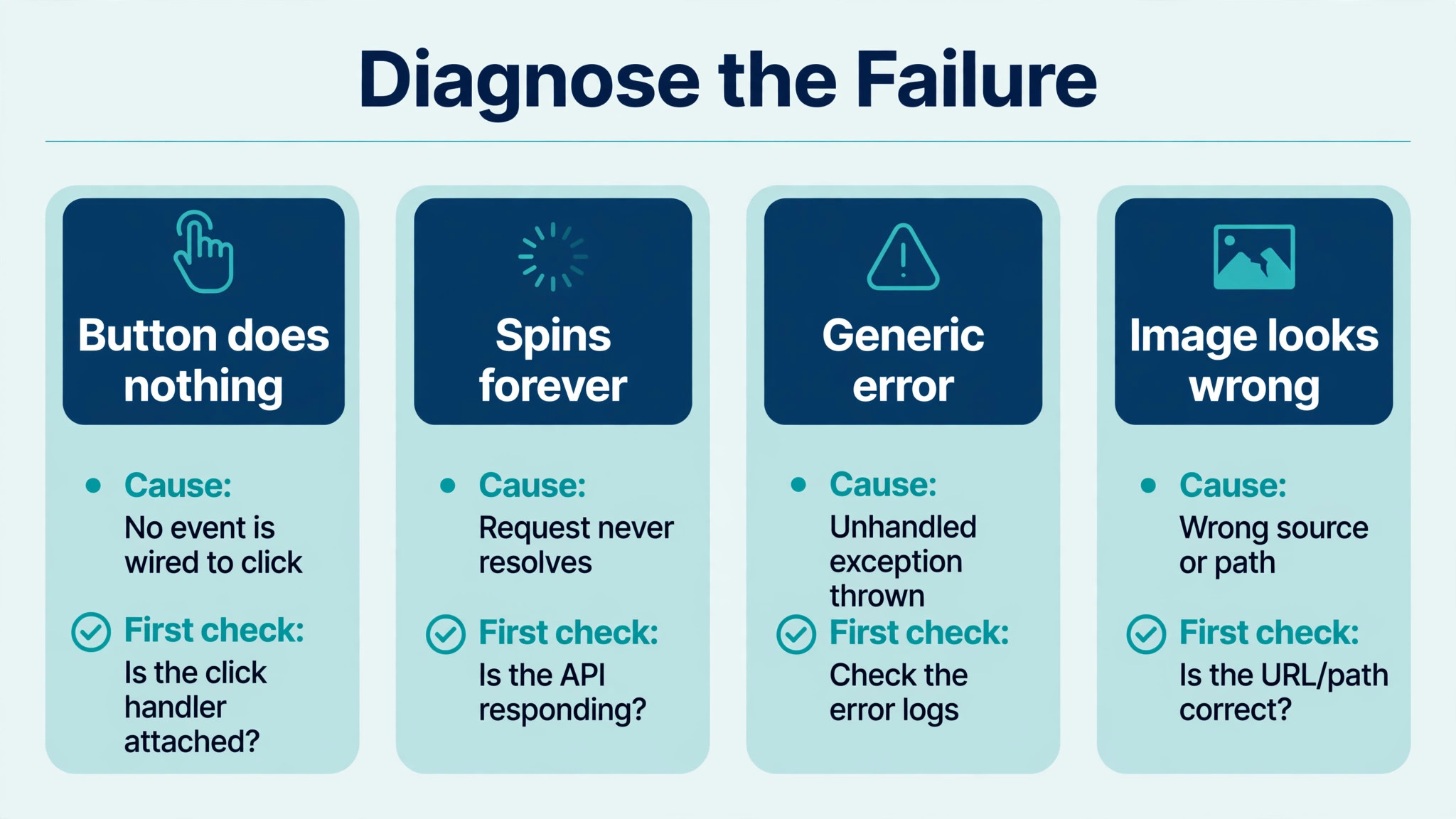
Start by naming the symptom precisely, because the symptom points to the cause. A generation that never starts usually means a credit, limit, or login problem. A generation that starts and then fails usually means a server, prompt, or settings problem. An image that generates but looks wrong usually means a prompt or model problem, not a failure at all. A tool that worked yesterday and fails today usually means a service outage, an expired session, or an app update you missed.
Check the service status before you touch anything else. Midjourney posts status in its Discord server and on its status page. Adobe publishes service status at status.adobe.com, and its Firefly community confirms that server overload is a common cause of the generic Something went wrong error. OpenAI posts status for ChatGPT and DALL-E on its status page. If the status page shows degraded performance or an outage, stop troubleshooting your own setup, because nothing you do locally will fix a backend problem. Wait, try a different model if one is offered, and try again in an hour.
Next, test with the simplest possible prompt. A short prompt such as a red flower on a white background will tell you whether the tool works at all. If the simple prompt works and your real prompt does not, the problem is the prompt, the reference image, or the settings, not the service. If the simple prompt also fails, the problem is the account, the browser, or the service, and you can skip the prompt section entirely. That one test saves more time than any other step in this guide.
| Symptom | Most likely cause | First check | Time to test |
|---|---|---|---|
| Button does nothing | Browser, extension, or login | Incognito window, new browser | 2 minutes |
| Spins forever, then times out | Server overload or slow connection | Status page, simple prompt | 5 minutes |
| Generic error message | Credits, prompt filter, or session | Credit balance, reworded prompt | 5 minutes |
| Image generates but looks wrong | Prompt, model, or settings | Simpler prompt, different model | 5 minutes |
| Works on one device, not another | App version, cache, or network | Update app, clear cache | 10 minutes |
| Fails only on one prompt | Content filter or reference image | Remove brand names, test without image | 5 minutes |
Write down the symptom, the tool, and the error message before you start fixing. A photo of the error screen, taken with your phone, is enough. Support teams ask for the model, the resolution, the aspect ratio, the browser, and the time of failure, and a note with those details will get you a useful answer instead of a request for more information.
Fix 1. Check Your Credits and Plan Limits
Credits are the single most common cause when an ai image generator not working stops a session, and the most frequently missed. Most image generators run on a credit, token, or GPU hour system, and when the balance hits zero, generation stops with a vague error instead of a clear message. Check the balance first, because it takes a minute and it explains more failures than any other single check.
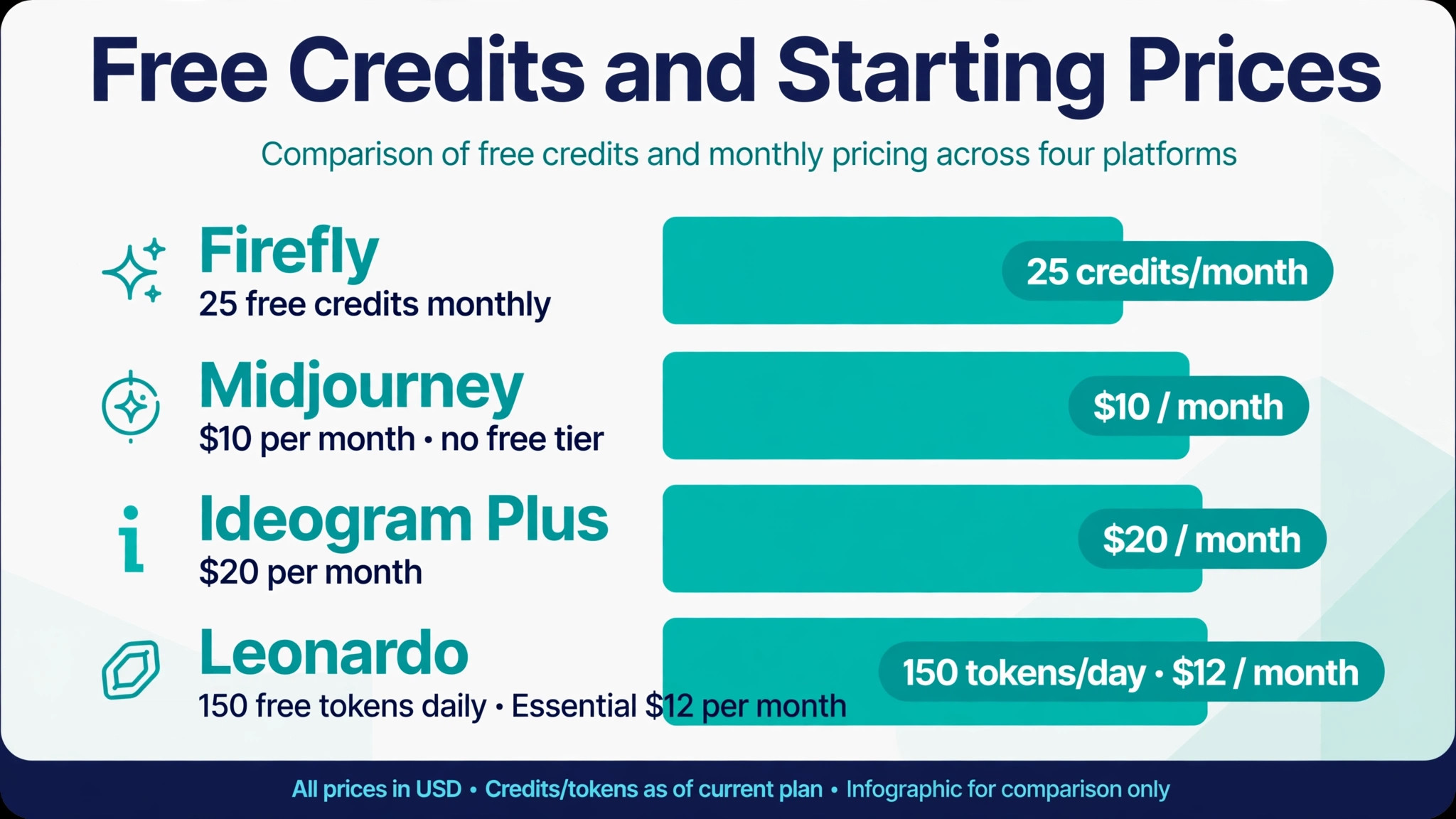
Adobe Firefly runs on generative credits. Free accounts get 25 generative credits a month, and each image generation costs one credit. Paid Creative Cloud plans include more, and the exact number varies by plan. Credits are shared across Firefly powered features, so Generative Fill in Photoshop draws from the same pool as the Firefly website. If you have used Generative Expand heavily in Photoshop all week, you may be closer to zero than you realised. Credits reset each month on your plan billing date, and a failed generation returns its credit to your balance automatically, according to Adobe community guidance.
Midjourney has no free tier. Basic costs 10 dollars a month, Standard costs 30 dollars, Pro costs 60 dollars, and Mega costs 120 dollars, with 20 percent off on yearly billing. Plans bill by fast GPU hours, with about 3.3 hours on Basic, 15 hours on Standard, 30 hours on Pro, and 60 hours on Mega. When the fast hours run out, generation slows or stops, and buying extra fast GPU time costs 4 dollars an hour. A company earning more than 1 million dollars a year in gross revenue must buy the Pro or Mega plan, according to Midjourney plan terms.
Ideogram offers a free plan with weekly slow credits, and paid plans start with Plus at 20 dollars a month, or 15 dollars yearly, and Pro at 60 dollars a month, or 42 dollars yearly. Leonardo offers a free plan with 150 tokens a day, with Essential at 12 dollars a month, Premium at 30 dollars, and Ultimate at 60 dollars. Check the balance in the account page of the tool you are using, and check whether a free plan limit, a daily token cap, or a monthly credit reset explains the failure. If the balance is zero, the fix is to wait for the reset, buy more credits, or switch to a free tool for the day.
Fix 2. Check the Service Status and Wait Out an Outage
Server overload is a real cause of an ai image generator not working, not an excuse. During peak hours, generation servers and partner model servers can get overwhelmed, and requests time out. Adobe community posts confirm that Firefly generation fails during high demand, and Adobe help pages say that capacity limits, including those of some partner model providers, may be exceeded, causing requests to time out. The fix is to try a different model if the tool offers one, because a different model runs on different capacity.
Wait at least 90 seconds before you decide a generation is stuck. Normal generation takes 15 to 30 seconds for a short simple prompt, but it varies with server load and prompt complexity. A generation with no progress after three minutes is genuinely stuck, and refreshing the page is the right move, because most tools save your last prompt. Do not keep clicking generate while the first request is still running, because duplicate requests can queue behind each other and make the wait longer.
Try again at a quieter time if the failure repeats. Early morning or late evening in your region often clears faster than the middle of the working day. If the same prompt fails three times in a row across an hour, stop retrying and move to the next fix, because repeated retries on an overloaded server will not change the result. Patience is a fix, not a delay, when the cause is on the service side.
Fix 3. Fix Browser, Login, and Extension Problems
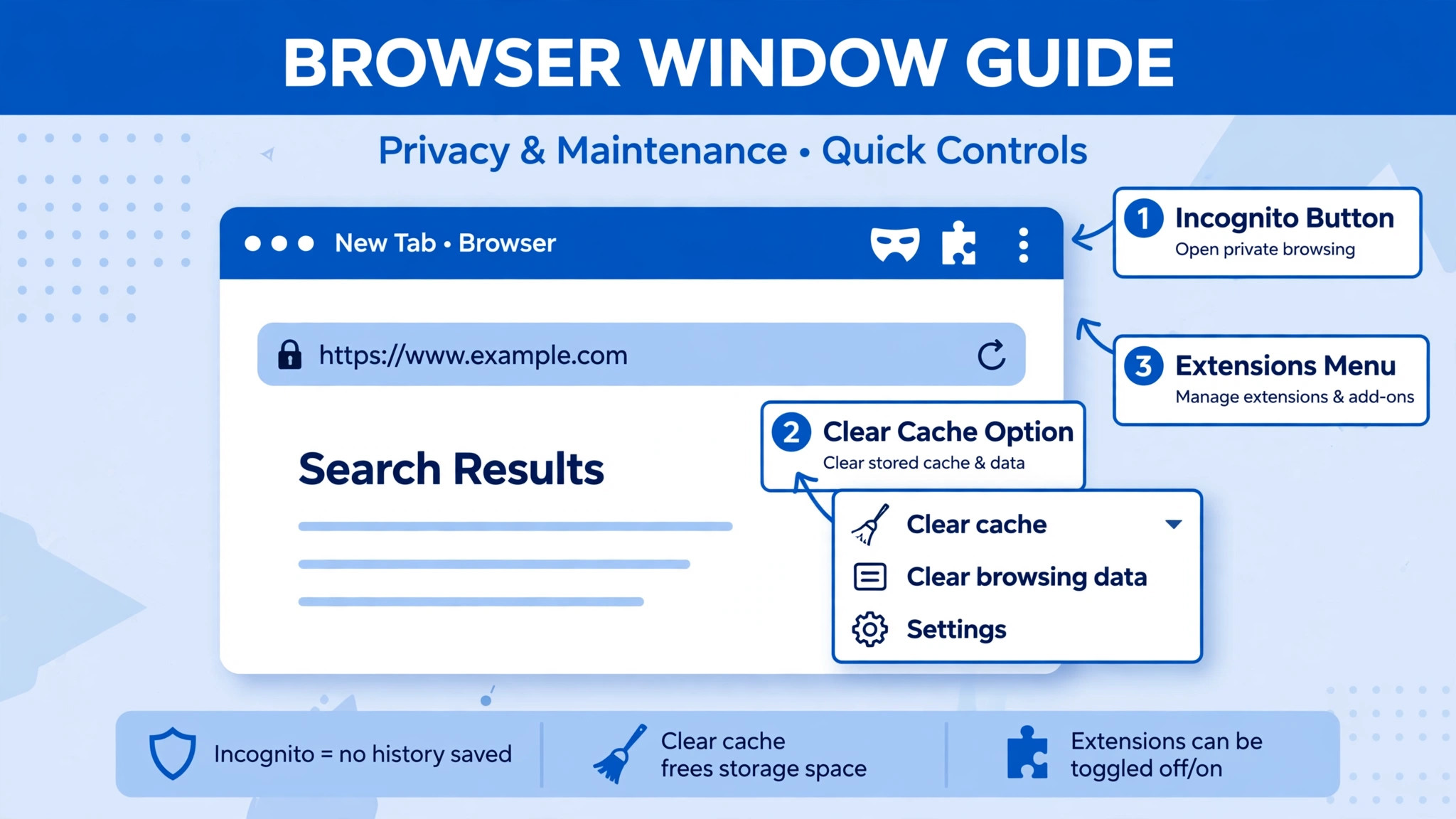
An ai image generator not working on the web is often a browser problem, because web based generators are web apps, and browser problems are a real category of failure. An expired login session can fail silently, a stale cache can trigger an unexpected error, and an extension can block the request entirely. The fastest diagnostic is an incognito or private window. If the generator works in incognito but not in your regular browser, you have confirmed a browser side problem, which is a cached session token, a cookie conflict, or an extension interfering.
Try the steps in order. First, log out of the account and log back in, to refresh the session token. Adobe community guidance lists an expired login session as a common cause of the Firefly Something went wrong error, and a fresh login fixes it. Second, clear the browser cache and cookies for the site, then reload the page. Third, disable extensions one by one, starting with ad blockers and AI related extensions, because those have caused generation failures in the past. Fourth, try a different browser entirely, such as Chrome, Firefox, or Edge, because browser compatibility issues can block a generator that works fine elsewhere.
Check your connection while you are there. A slow or unstable connection can make a generation time out, and a VPN or a corporate network can block the service entirely. Test without the VPN, test on a different network such as a phone hotspot, and reset the router if the connection is unstable. If the generator works on a hotspot but not on office wifi, the network is the cause, and no prompt change will fix it.
Disable hardware acceleration if the browser screen goes black or the page freezes during generation. In Chrome, open Settings, choose System, and turn off the option to use graphics acceleration when available, then restart the browser. That setting is designed to help performance, but it can hinder it on some machines, and turning it off is a quick test that costs nothing.
Fix 4. Rewrite the Prompt and Remove the Block
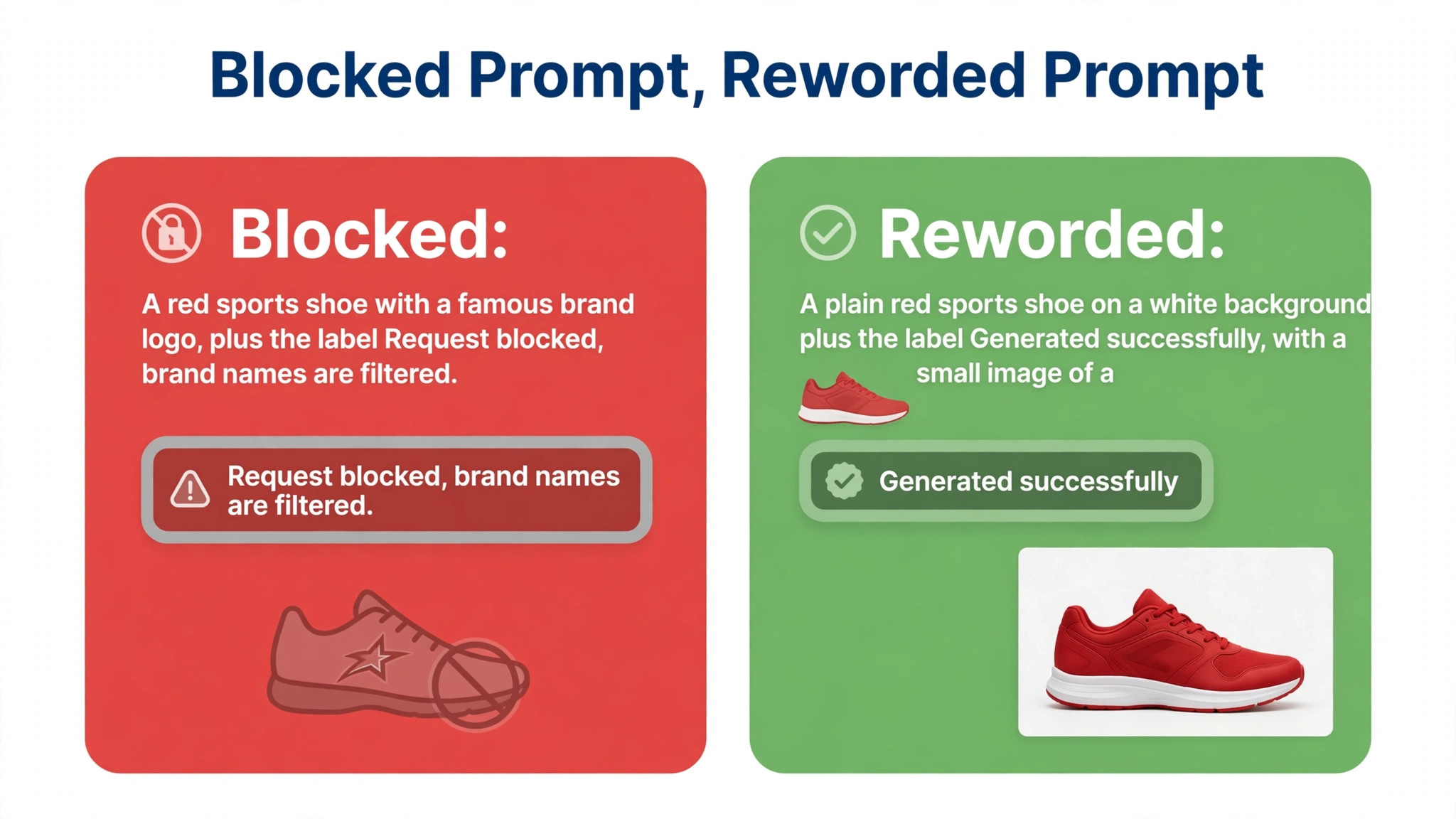
Content filters are a common reason an ai image generator not working appears with a generic error, and they block more prompts than most users realise. Prompts mentioning children, trademarked products, real people such as celebrities and political figures, or graphic and violent content will be blocked by most generators. Firefly community posts confirm that prompts with restricted terms fail with the generic Something went wrong message, and DALL-E has similar guardrails for extreme, sexual, or violent content and for real people.
Reword the prompt in plain, neutral language. Remove brand names, remove the name of any real person, and remove words that suggest violence, harm, or adult content. Replace a brand name with a description of the object, and replace a celebrity name with a description of the style. If the prompt still fails, cut it in half and test the first half alone, because the blocked word is often a single term you did not expect. A prompt that works after removing one word has told you exactly what the filter objected to.
Check the reference image if you are using one. An ambiguous, low quality, or complex reference image can confuse the model and lead to a failed generation, sometimes after a long loading delay. Adobe community guidance lists a problematic reference image as a common cause of failure. Test the same prompt without the reference image, and test the reference image with a simpler prompt. If the prompt works without the image, the image is the problem, so replace it with a clearer, higher quality version, or generate without it and add the reference later.
Keep prompts specific but simple. A prompt with one subject, one setting, and one style will generate more reliably than a prompt with five subjects, three styles, and a paragraph of detail. Add detail after the first successful generation, one element at a time, so you can see which addition breaks it. A prompt is a test, and the fastest way to find the breaking point is to start simple and add slowly.
Fix 5. Change the Model, Resolution, and Aspect Ratio
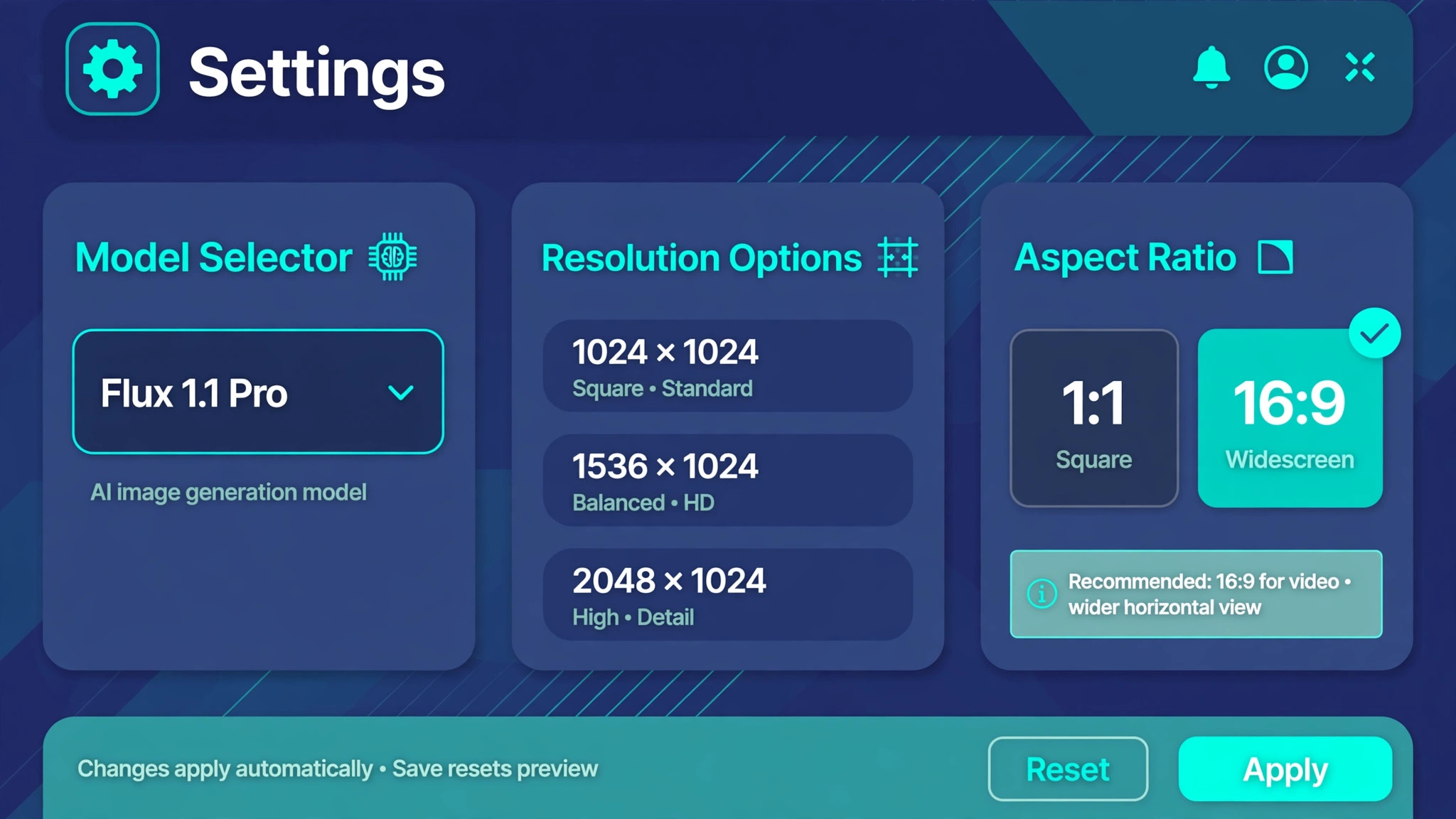
Settings that worked yesterday can fail today, because a model update, a resolution limit, or an aspect ratio can push a generation over a limit. Adobe community guidance recommends switching from 2K to a lower resolution and testing another aspect ratio when even a simple prompt fails, because the failure may be in the settings rather than the prompt. Try a standard resolution first, then a standard 1 to 1 or 16 to 9 ratio, and only then return to the unusual size you wanted.
Switch the model if the tool offers more than one. DALL-E users have reported success by switching between model versions when one is overloaded or misbehaving, and Firefly users can try a different model when the first one times out. A different model runs on different capacity, uses different settings, and may handle your prompt better. Do not treat the model as a fixed choice. Treat it as a variable to test, like the prompt itself.
Check the size of the image you are asking for. A very large image, a very tall image, or a very wide image can fail where a standard size succeeds, especially on a free plan with lower limits. Generate at a standard size first, confirm the tool works, and then upscale the result or regenerate at the larger size. An upscale of a good image is faster than ten failed attempts at a large one, and it will look better than a distorted generation that barely finished.
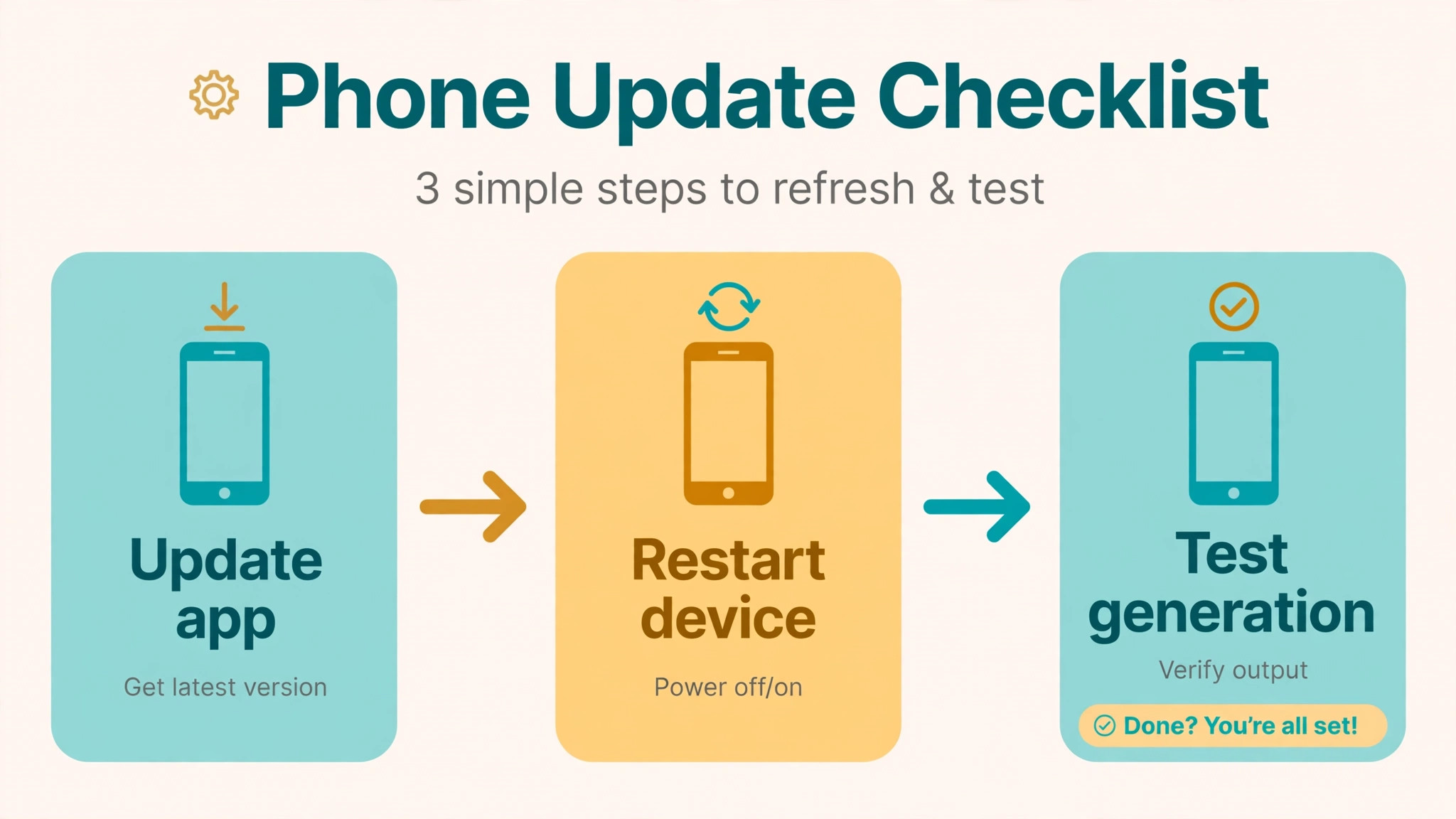
Fix 6. Update the App and Check the Device
Mobile and desktop apps fail when they fall behind the service. Firefly inside the Adobe Express mobile app requires the app to be updated, and a feature that worked last month can stop working when an update is available that restores it. Check the app store for an update, install it, and restart the app before you try again. The same rule applies to Photoshop and Creative Cloud apps, where Firefly features such as Generative Fill and Generative Expand require a supported version and a signed in state.
Check the version number, not just the update badge. Generative Fill launched in Photoshop version 24.5, and Generative Expand came later, so an older Photoshop version may not show the features at all. Sign in inside the app itself, because Photoshop has a separate sign in state from the browser, and a browser login does not sign in the desktop app. If the app says you are signed out, sign in again, restart the app, and test with a simple prompt.
Check the device itself. Free up storage space, close other heavy applications, and restart the device if the app has been running for days. A device low on memory can fail to render a generated image even when the server did its job, and a restart clears the memory pressure in a minute. Test on a second device if you have one, because a generator that works on a phone but not on a laptop has told you the problem is the laptop, not the service.
Fix 7. Try a Second Generator Before You Give Up
A second generator is both a workaround and a diagnostic when an ai image generator not working blocks a deadline. If Midjourney fails and Ideogram works with the same prompt, the problem is Midjourney, not your prompt. If every generator fails with the same prompt, the problem is the prompt or the connection, not any one service. Keep one free backup tool ready, so a failure never blocks a deadline entirely.
Ideogram is the best backup when the image must contain readable text, such as a poster, an advert, or packaging, because it handles typography inside images better than most generators. Leonardo is the best backup for high volume creation, game assets, and concept art, with a free plan of 150 tokens a day. Adobe Firefly is the best backup for commercial work inside Adobe products, because it is built into Photoshop and Express, and its free tier gives 25 credits a month. Google Gemini image generation, known as Nano Banana, is a strong backup for editing photos while keeping faces consistent, and it is free with limits inside the Gemini app.
Do not treat a backup as a permanent switch until you have tested it properly. Generate the same image in the backup, check the quality, check the licence terms, and check whether the output can be used commercially on your plan. A free plan that grants the vendor rights to use and distribute your images, as Leonardo free tier terms have been reported to do, may not suit client work, even if the image looks perfect. Read the commercial terms before you use a backup output in a paid project.
Fix 8. Contact Support With a Useful Report
If seven fixes have not worked, contact support, and give them a report they can act on. A report that says the generator is broken will get a request for more information. A report that says the tool, the model, the resolution, the aspect ratio, the browser, the time of failure, and the exact error message will get a useful answer. Include a screenshot of the error, the prompt you used, and the steps you already tried, in order. Support teams ask for those details because they need them to reproduce the problem, and a complete report saves a round of questions.
Use the official support channel for the tool, not a random forum post, when the problem affects a paid plan. OpenAI support handles DALL-E and ChatGPT image problems through its help centre. Adobe support handles Firefly problems through its community and help pages, and it asks for the prompt, the model, and an error screenshot when credits are not restored after a failed generation. Midjourney support runs through its Discord server and help centre. Keep the ticket number, and follow up once if you hear nothing in two working days.
While you wait, keep the workaround running. Use the backup generator, finish the work, and note the time the original tool starts working again. A failure that resolves itself after a few hours was usually a server problem, and knowing that will save you from repeating the full checklist next time. A failure that never resolves, and that support cannot explain, is a reason to switch tools, not a reason to keep retrying the same broken setup.
Midjourney Not Working
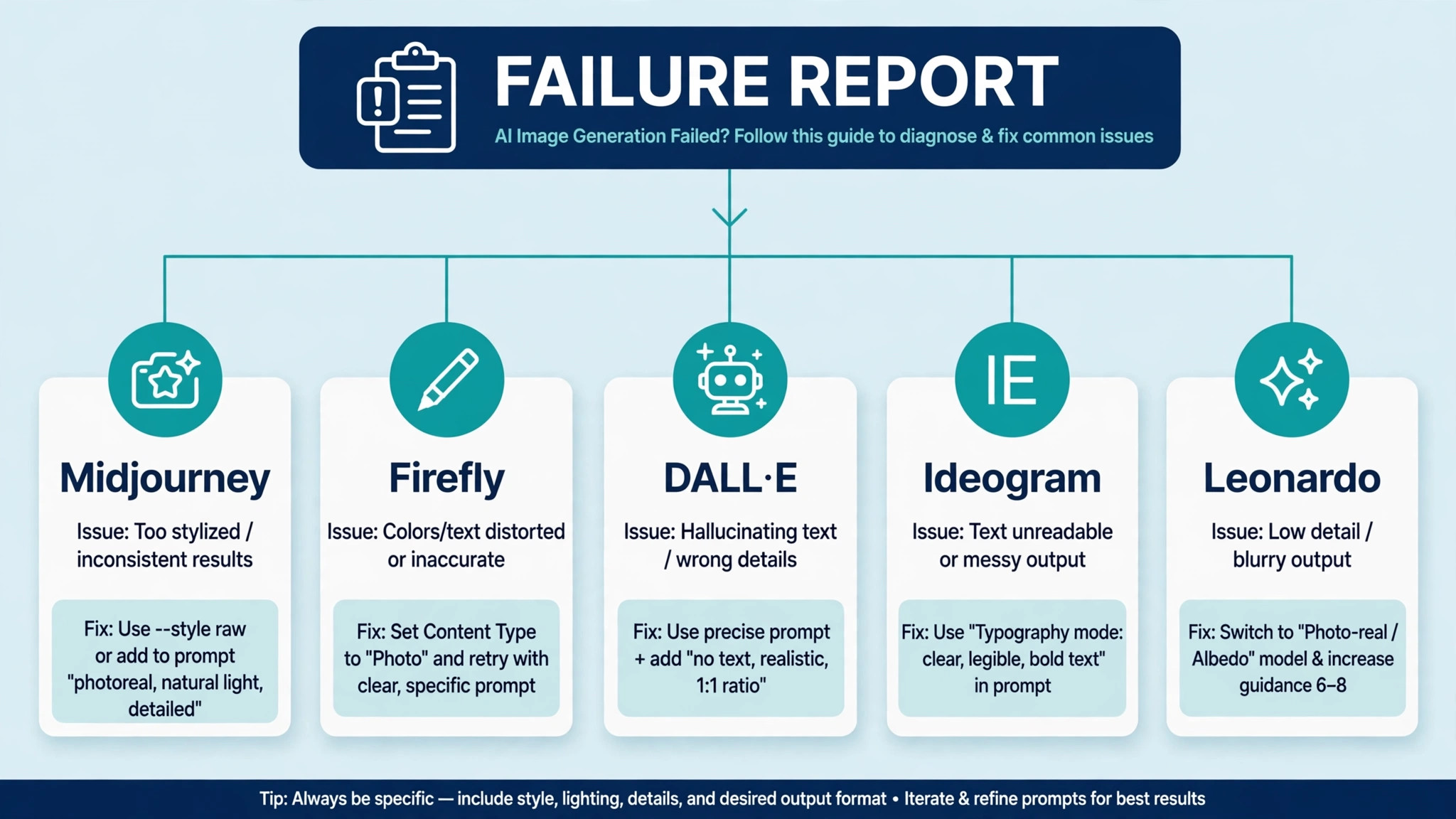
Midjourney runs on the web and in Discord, with no free plan and plans from 10 dollars a month. The most common failures are running out of fast GPU hours, a Discord connection problem, and a prompt that the filter blocks. Check the fast hours in the plan page, buy extra hours at 4 dollars an hour if you need them, and test the same prompt on the web interface if Discord fails, or in Discord if the web interface fails. Stealth mode is available only on Pro at 60 dollars a month and Mega at 120 dollars a month, so a private generation that fails on a lower plan is a plan limit, not a bug.
Adobe Firefly Not Working
Firefly failures most often come from credits, an expired session, or server overload. Check the credit balance in your Adobe account, log out and log back in to refresh the session token, and try a different model or a lower resolution. Free accounts get 25 credits a month, and paid Creative Cloud plans include more. If a generation fails, the credit is returned automatically, and if you believe it was not restored, report the prompt, the model, and a screenshot to Adobe support. Try an incognito window if the regular browser fails, because extensions and cached data have resolved Firefly failures for many users.
DALL-E and ChatGPT Image Generation Not Working
DALL-E image generation inside ChatGPT most often fails because of account limits, server load, or a prompt that crosses a safety policy. Free accounts are limited, and even paid subscriptions cap image generation dynamically, depending on server load and current users. Wait a while and try again if the limit is the cause, switch between model versions if the tool offers the choice, and reword the prompt to remove real people, brand names, and graphic content. Clear the browser cache, try a different browser, and disable hardware acceleration if the page freezes or the screen goes black.
Ideogram and Leonardo Not Working
Ideogram and Leonardo both run on credits or tokens, so check the balance first. Ideogram free accounts get weekly slow credits, with Plus at 20 dollars a month or 15 dollars on yearly billing. Leonardo free accounts get 150 tokens a day, with Essential at 12 dollars a month. If the balance is fine and generation still fails, try a simpler prompt, a different model, and an incognito window, in that order. Both tools have free tiers that suit a backup role, but check the commercial use terms on the free tier before you use the output in client work, because the terms differ from the paid plans.
Best Pick by Job
Different failures need different first steps, so choose by the symptom, not by the tool. The table below matches the common jobs to the fix that fits each one.
| Your job | Best pick | Why it fits | Cost |
|---|---|---|---|
| Image must contain readable text | Ideogram | Best typography inside images | Free, Plus 20 dollars a month |
| High volume creation, game assets | Leonardo | Deep controls, free daily tokens | Free, Essential 12 dollars a month |
| Commercial work inside Adobe apps | Adobe Firefly | Built into Photoshop and Express | Free 25 credits, Standard 9.99 dollars a month |
| Distinctive artistic look | Midjourney | Strong default aesthetic | From 10 dollars a month, no free tier |
| Editing a photo, keeping faces | Google Gemini image generation | Strong photo editing, face consistency | Free with limits |
| Quick backup when one tool fails | Any second generator | Proves whether the fault is the tool | Free tier of the backup |
Check the price at checkout before you buy, because vendors change list prices during the year and regional prices vary. A tool that fits your workflow at a fair price is worth more than a cheaper tool that fights you on every generation. Keep one free backup ready, and a failure will cost you minutes, not a deadline.
Frequently Asked Questions
Why is my AI image generator not working?
When an ai image generator not working stops your work, the most common causes are running out of credits, a browser or login problem, a service outage, or a prompt that the content filter blocks. Check the credit balance, test in an incognito window, check the service status page, and try a simple prompt such as a red flower on a white background. That simple prompt will tell you whether the tool works at all, and which of the four causes to chase next.
How do I check if Midjourney is down?
Check the Midjourney status page and its Discord server for outage reports, and test a simple prompt on the web interface and in Discord. If the status page shows degraded performance, wait and try a different model or try again in an hour. If the simple prompt works in one place and not the other, the problem is the connection to that place, not the service itself.
Why does Firefly say Something went wrong?
That generic error has several causes, including server overload, an expired login session, a stale browser cache, a prompt with restricted content, and a problematic reference image. Adobe community guidance lists all five, and the fixes are to wait a few minutes, log out and log back in, clear the cache, simplify the prompt, and test without the reference image. Check the Adobe status page first, because a server problem needs no local fix.
Do failed generations use up my credits?
It depends on the tool. Adobe says credits are deducted when you hit generate, but if the generation fails, they are automatically returned to your balance. If you believe credits were not restored, report the prompt, the model, and a screenshot to Adobe support. Other tools have different rules, so check the credit balance before and after a failed generation, and keep a note of the numbers.
Why does DALL-E keep blocking my prompt?
DALL-E blocks prompts that cross its safety policies, including extreme, sexual, or violent content, and prompts that name real people such as celebrities and political figures. Reword the prompt in plain neutral language, remove brand names and real names, and test the prompt in half. If the first half works and the second half does not, the blocked term is in the second half, and removing it will fix the generation.
Can I use a free AI image generator instead?
Yes, for many jobs. Ideogram offers a free plan with weekly slow credits, Leonardo offers 150 free tokens a day, and Adobe Firefly offers 25 free credits a month. Google Gemini image generation is free with limits. Free plans suit testing and personal work, but check the commercial use terms before you use a free output in client work, because some free tiers limit commercial use or grant the vendor rights over the images.
When should I contact support about an image generator?
Contact support when the simple prompt fails, the credit balance is fine, the status page shows no outage, and an incognito window and a different browser have both failed. Send the tool, the model, the resolution, the aspect ratio, the browser, the time of failure, the exact error message, and a screenshot. That report will get a useful answer instead of a request for more information.
The Final Word
Most cases of an ai image generator not working are not mysteries. They are a credit balance, a stale login, a busy server, a blocked word, or a setting that went too far. Check the balance, check the status, test a simple prompt, and change one thing at a time. Do that, and the generator will be working again before the deadline arrives, with a backup ready for the next time it is not.