Switch if your meetings hold 101 to 200 people, because Webex Meet costs 12 dollars per user a month and holds 200 participants, while Zoom needs the 18.33 dollar Business plan to pass 100. Stay on Zoom if your meetings hold 201 to 300 people, because Webex stops at 200 even on the 22.50 dollar Suite plan. That participant cap decides the whole question of how to switch from Zoom to Webex, and most teams never check it before they move.
Zoom is the reliability standard. Meetings start fast, the apps work on every device, and the free plan is the one everyone already knows. Webex is the compliance choice. Its security story, its encryption options and its enterprise controls win regulated deals, and its Meet plan undercuts Zoom Pro by 2.16 dollars per user a month while holding twice as many people. A team of ten hosts pays about 141.60 dollars a month on Zoom Pro and about 120 dollars a month on Webex Meet, and the Webex room holds 200 people instead of 100.
The switch is not about which app looks nicer. It is about how many people sit in the room and what the meeting is for. Zoom charges per host, and only the people who schedule and host meetings need a licence, so a team with three hosts and fifty attendees pays for three seats. Webex charges the same way, per user, and the same logic applies. The bill is set by the host count, and the room size is set by the plan, so a team that counts both numbers before moving will not be surprised.
This guide walks through how to switch from Zoom to Webex in seven steps, with a cost comparison, a clear account of what transfers, what must be rebuilt, and what to test before cancelling Zoom. Follow the steps in order, run both tools side by side for two weeks, and the move will be quiet. Skip the steps, cancel early, and recurring meetings, recordings and chat history can vanish without warning.
The Price Gap, Measured by Room Size
Cost is the reason most teams switch, and the numbers explain why. Zoom Basic is free, with 100 participants and a 40 minute limit on group meetings. Pro costs 14.16 dollars per user a month on annual billing, or 16.99 dollars on monthly billing, and holds 100 participants with meetings up to 30 hours, 5 GB of cloud recording per licence, breakout rooms and AI Companion summaries included. Business costs 18.33 dollars per user a month on annual billing, or 21.99 dollars monthly, and holds 300 participants, with a 10 host minimum, a custom subdomain and unlimited cloud recording. Business Plus costs 22.49 dollars a month and adds Zoom Phone.
Webex Free is free, with 100 participants and a 40 minute limit on group meetings. Meet costs 12 dollars per user a month on annual billing, or 144 dollars a year, and holds 200 participants, with meetings up to 24 hours, 10 GB of cloud recording, the AI Assistant for summaries and captions, and Slido polling and questions built in. Suite costs 22.50 dollars per user a month on annual billing and holds the same 200 participants, adding unlimited domestic calling and team messaging. Enterprise is priced by quote and holds 1,000 participants.
A team of ten hosts on Zoom Pro pays about 141.60 dollars a month on annual billing. The same ten hosts on Webex Meet pay about 120 dollars a month, a saving of about 21.60 dollars a month, or about 259 dollars a year, and the Webex room holds twice as many people. A team of ten hosts on Zoom Business pays about 183.30 dollars a month, against 120 dollars on Webex Meet, a saving of about 63 dollars a month, or about 759 dollars a year, as long as no meeting passes 200 people.
The cap table is the part most teams miss. Up to 100 participants, Webex Meet at 12 dollars beats Zoom Pro at 14.16 dollars. From 101 to 200 participants, Webex Meet at 12 dollars beats Zoom Business at 18.33 dollars by 6.33 dollars per user. From 201 to 300 participants, Zoom Business at 18.33 dollars beats Webex Suite at 22.50 dollars, and Webex cannot hold the room at any price below Enterprise. Above 300 participants, neither plan in this comparison fits, and the honest answer is an enterprise quote, not a self-serve plan.
Zoom vs Webex at a Glance
| Feature | Zoom | Webex |
|---|---|---|
| Pricing basis | Per licensed host | Per user |
| Free plan | 100 participants, 40 minute group limit | 100 participants, 40 minute group limit |
| Entry paid plan | Pro 14.16 dollars a user a month annual | Meet 12 dollars a user a month annual |
| Mid plan | Business 18.33 dollars a user a month annual | Suite 22.50 dollars a user a month annual |
| Largest paid meeting | 300 participants on Business | 200 participants on Meet and Suite |
| Cloud recording | 5 GB per licence on Pro | 10 GB on Meet |
| AI summaries | AI Companion included on paid plans | AI Assistant included on Meet |
| Polling | Basic polls, add-ons for more | Slido polling and questions built in |
| Phone | Zoom Phone from 15 dollars a user a month | Unlimited domestic calling on Suite |
| Enterprise cap | 1,000 participants | 1,000 participants |
Webex wins on room size per dollar and on built-in polling. Zoom wins on the large room, because Business holds 300 people where Webex stops at 200, and on familiarity, because every guest already knows how to join a Zoom call. Check the largest meeting the team actually runs before moving, because the cap decides the plan.
The Trade-Offs Nobody Mentions First
A switch guide that only lists the saving is not honest, so this section states the trade plainly. Zoom is the tool guests already know. A client, a candidate or a contractor joins a Zoom link without thinking, and the host never explains where the mute button is. Webex is the tool IT already trusts. Its encryption options, its admin controls and its compliance record are stronger, and a regulated team will pass audits more easily on Webex than on Zoom. The team that switches for price and discovers its guests struggle to join has traded a small saving for a daily friction.
The recording story also changes. Zoom Pro gives 5 GB of cloud recording per licence, and Business gives unlimited cloud recording. Webex Meet gives 10 GB, which is more than Zoom Pro and less than Zoom Business. A team that records every meeting and keeps the files for a year should count its storage before moving, because a 10 GB cap fills fast when ten hosts record daily. Download the recordings that matter and store them elsewhere, on either tool, and the cap stops mattering.
The AI story is close. Zoom includes AI Companion summaries on paid plans, with transcription capped at 1,200 minutes a month on Pro and 6,000 minutes on Business. Webex includes the AI Assistant on Meet, with summaries, message summaries, rewrites, translations and captions in English, French, German and Spanish. Neither tool charges extra for the basic summary, and both sell a fuller AI teammate separately, so the AI bill is a wash for most small teams.
How to Switch from Zoom to Webex in 7 Steps
Step 1. Audit the Zoom account before touching anything
Open Zoom and list every licensed host, every recurring meeting, every webinar licence, every cloud recording, every personal meeting room link and every integration. Export the meeting list and note the renewal date and the contract terms, because cancelling mid contract can carry a fee. Pay special attention to recurring meetings with external guests, webinars with registered attendees, and recordings that only exist in Zoom cloud, because those are the pieces that do not move cleanly. This audit takes an hour and prevents the most common switch failure, which is discovering a weekly client call only after its link stopped working.
Step 2. Set up Webex and map the hosts
Create the Webex organization, choose the plan that matches the largest meeting size, and assign licences to the people who actually host meetings. Remember that only hosts need a paid licence, so count the schedulers, not the attendees. Set the company branding, the personal room names and the admin settings, and decide the naming rule for personal rooms before inviting anyone. Do not import anything yet. A clean host list decided on paper saves a week of fixing later.
Step 3. Download the recordings that matter
Recordings do not transfer between platforms, so download the Zoom cloud recordings the team must keep, as MP4 files, and store them in the shared drive or upload the important ones to Webex. Check the storage used per host against the 10 GB Webex cap, and delete the recordings nobody has opened in six months. Note the recording links that were shared with clients, because those links will break when Zoom is cancelled, and send the new links before the switch date. A recording library that takes an afternoon to move prevents a client asking for a file that no longer exists.
Step 4. Recreate the recurring meetings
Recurring meetings do not transfer, so recreate each one in Webex with the same title, the same time and the same invite list. Send the new links to every guest, and update the calendar invites, the email signatures and the booking pages that carry the old Zoom links. Test one recurring meeting with an external guest before the switch date, and confirm the guest joins without installing anything extra. This is the largest single task in the switch, so budget a full afternoon for a normal team and do not promise a one hour migration.
Step 5. Reconnect the calendar and the integrations
Reconnect the calendar integration in Webex, through Google Calendar or Outlook, and confirm new meetings create Webex links automatically. Reconnect the tools the team uses with Zoom, the CRM, the scheduling tool and the transcription app, and check that each one has a Webex equivalent or a working connector. Chat history does not transfer, so export any Zoom chat threads the team needs and save them as files. Set up the SSO and admin controls if the team uses them, because security settings must be rebuilt by hand.
Step 6. Run both tools side by side for two weeks
Hold meetings on Webex for two weeks while Zoom stays open and the old recurring meetings finish. Watch the join success rate, the audio quality and the recording delivery daily, and compare them with the Zoom experience from the same weeks last month. Confirm the AI summaries arrive, the Slido polls work, and the recordings land in the right folder. Fix the problems while Zoom is still available as a fallback, not after it is cancelled. Two quiet weeks of parallel running cost nothing and catch every problem early.
Step 7. Cancel Zoom and confirm the data is safe
Once two weeks of Webex meetings look clean, export the final meeting reports and any remaining recordings from Zoom, then cancel the subscription before the renewal date. Confirm the cancellation email arrives, and check that no auto renewal is set. Keep the Zoom export files for six months, because the chat history and the meeting reports cannot be recovered later and the old exports are the only record of what the team used to run. The switch is done when Webex has run cleanly for two weeks and Zoom is cancelled without a surprise charge.
What Moves Across and What You Rebuild
Contacts and meeting titles move well, because they live in the calendar and the address book, not in Zoom. Export the meeting list, copy the titles and the invite lists, and recreate them in Webex with the same details. The host list moves as a decision, not as a file, and each host must be assigned a Webex licence by hand. The product data, the attendee counts and the meeting history move as exports, and the team should save them before cancelling.
What does not transfer is specific, and the team should name it before starting. Recurring meetings do not transfer, so every weekly call, every client check-in and every team standup must be recreated with a new link. Cloud recordings do not transfer, so each file the team must keep has to be downloaded and stored elsewhere. Personal meeting room links do not transfer, so every link printed on a website, in an email signature or on a booking page must be updated.
Zoom chat history does not transfer, so any decision recorded in a Zoom chat should be exported and saved. Webinar registrations do not transfer, so a webinar with registered attendees needs a fresh registration page in Webex and a new invitation to every registrant. Integrations do not transfer, so each connected app must be reconnected and tested. The only things lost are the Zoom specific records, which are the links, the recordings, the chats and the registrations. Export them all before cancelling, and the switch loses nothing that matters.
That is the full picture of how to switch from Zoom to Webex without dropping the meetings that matter.
The Go-Live Checklist
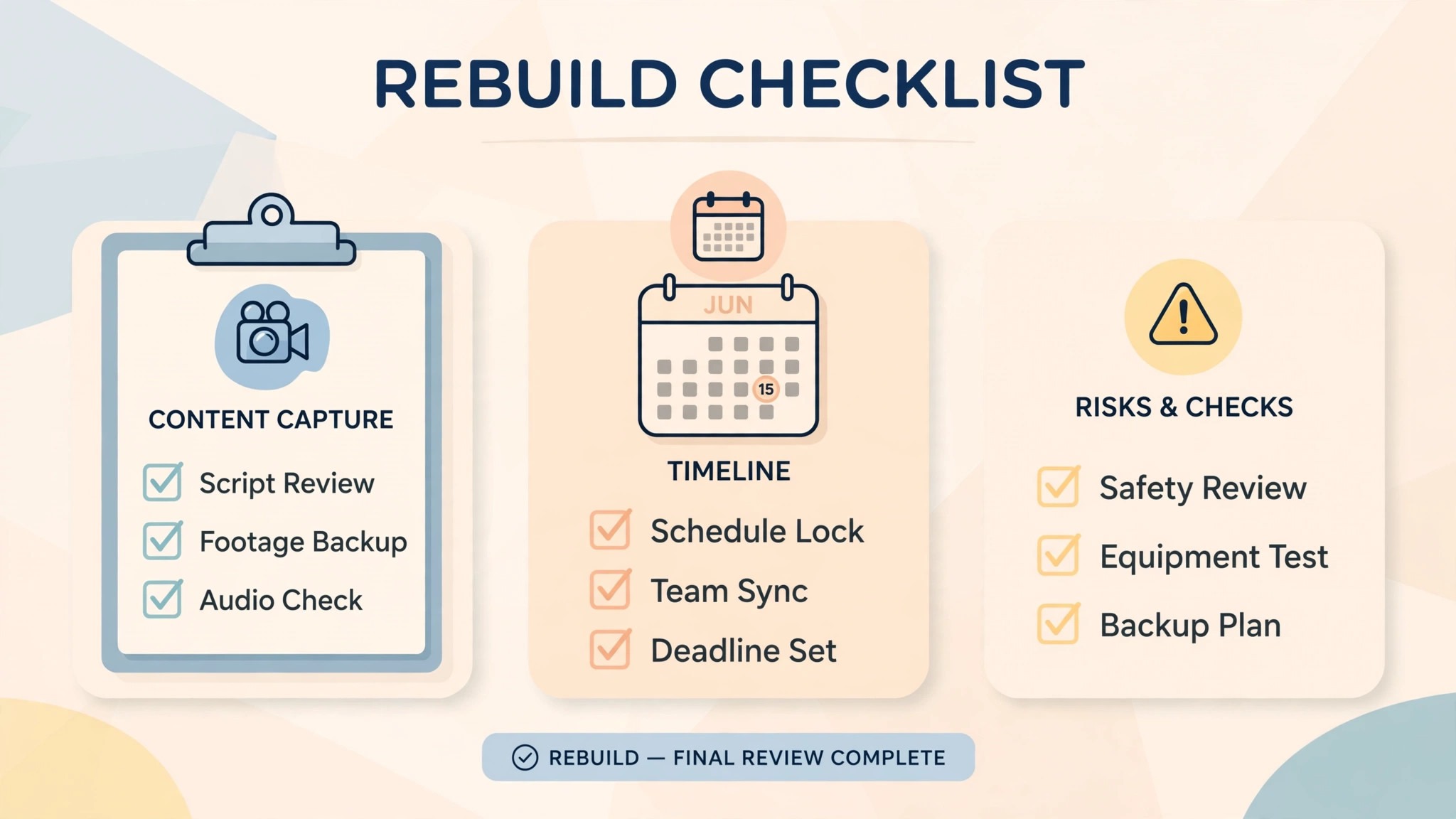
Use this checklist before starting step 1, and do not skip a line.
- List every Zoom host, recurring meeting, webinar and cloud recording. – Export the meeting list and save the files. – Download the recordings the team must keep, as MP4 files. – Note the Zoom renewal date and any contract term. – Flag recurring meetings with external guests and webinars with registrants. – Choose the Webex plan by the largest meeting size, not the average.
- List the Zoom integrations the team actually uses. – Confirm the Webex calendar integration creates links automatically. – Plan a replacement for any Zoom feature Webex lacks. – Set a switch date in a quiet week, not during a launch. – Tell the team the switch date and the new links before step 1.
What the Switch Saves in Real Money
The saving depends on host count and room size, because the two tools charge different rates for different caps. A team of five hosts on Zoom Pro pays about 70.80 dollars a month on annual billing. The same five hosts on Webex Meet pay about 60 dollars a month, a saving of about 10.80 dollars a month or about 130 dollars a year. A team of ten hosts on Zoom Pro pays about 141.60 dollars a month against 120 dollars on Webex Meet, a saving of about 21.60 dollars a month or about 259 dollars a year.
A team of ten hosts that needs 200 person rooms pays about 183.30 dollars a month on Zoom Business against 120 dollars on Webex Meet, a saving of about 63 dollars a month or about 759 dollars a year. A team of ten hosts that needs 300 person rooms pays about 183.30 dollars on Zoom Business, and Webex cannot hold the room below Enterprise, so there is no saving to count and the team should stay. Those figures use annual billing on both tools, and monthly billing widens the gap further, since Zoom Pro costs 16.99 dollars a month on monthly billing against 12 dollars for Webex Meet.
The saving shrinks when the team adds phone or webinars. Webex Suite at 22.50 dollars a user a month adds unlimited domestic calling, and a team that buys Zoom Phone separately at 15 dollars a user a month on top of Pro pays about 29 dollars per host, so Suite wins for a team that wants meetings and phone in one bill. Webinar add-ons sit outside both base plans, so a team that runs webinars should price the webinar tier before comparing the base plans. Count the add-ons and run the two totals, because the base price alone can mislead a team that pays for extras.
Run the same math for your own team before you commit to how to switch from Zoom to Webex, because the totals decide the plan.
Your First Two Weeks on Webex
The parallel run only helps if the team tests the right things, so set the tests before the first Webex meeting is scheduled. Hold one internal meeting, one client meeting and one large meeting near the 200 person cap, and confirm each one starts on time, the audio is clear, and the AI summary arrives after the call. Then compare the Webex join success rate against the Zoom numbers from the same weeks last month, checking totals by meeting type and by host. That test plan is the part of how to switch from Zoom to Webex that most teams skip, and it is the part that catches the problems while Zoom is still available as a fallback.
Test the recordings and the polls next, because those are the pieces that break quietly. Record one meeting and confirm the file lands in the Webex cloud within the hour, run one Slido poll and confirm the results save, and have a second host confirm they see the same meeting list. Also test one meeting from a phone and one from a browser with no app installed, since guests join from both and a failure there costs the team its credibility. A test that covers meetings, recordings, polls and guest joins in the first week leaves the second week for fixing what failed, which is exactly how a quiet switch is supposed to work.
Five Mistakes That Stall the Move
The first mistake is cancelling Zoom before the Webex recurring meetings are checked. A team that cancels on day one loses the meeting links, the webinar registrations and the recording library in one move, and the rebuild takes days instead of hours. Keep Zoom until step 7, and the switch stays boring. The second mistake is forgetting the room cap. A team that runs one 250 person all-hands a month will discover Webex cannot hold it, and the fix is an Enterprise quote, not a settings change.
The third mistake is forgetting the links. A team that prints Zoom links on its website, in email signatures and on booking pages will see guests join dead rooms for weeks after the switch, and every dead join costs the team a little trust. Update every link before the switch date, and send the new links twice. The fourth mistake is skipping the two week parallel run. A team that switches overnight discovers the audio gaps during a live client call, when fixing them costs the most. Two quiet weeks of parallel running cost nothing and catch every problem early.
The fifth mistake is underestimating the recording move. Cloud recordings do not transfer, and a team that budgets an hour for the download will run out of time. Budget an afternoon, download the recordings that matter first, and leave the long tail of old calls behind. The switch is a good time to clean the recording library, not a reason to move every old call into the new tool.
Life After the Switch
The first month after the move is when the saving becomes real, and it is also when the new habits form. Set a weekly review in Webex, one hour where the team checks the meeting reports, clears the old recordings and updates the recurring invites, because a cheaper tool still needs a steady rhythm to earn its keep. Tune the rebuilt meetings after two weeks, not on day one, because the first fortnight shows which rooms get used and which never fill. The work of how to switch from Zoom to Webex does not end on cancel day. It ends when the team stops opening the old tool out of habit, and that usually takes a full month.
Revisit the plan choice after 90 days. A team that started on Meet may find it needs Suite for calling, and a team that started on Suite may find it can drop to Meet once the phone use settles. Count the hosts again too, because Webex bills the licences the team holds, and a contractor who finished their project should come off the plan. The switch saves money once. The habits save it every month after.
Frequently Asked Questions
How long does it take to switch from Zoom to Webex?
Most small teams finish the switch in one to two weeks. The setup takes an afternoon, the recurring meeting rebuild and the recording download take another afternoon, and the two week parallel run catches the problems while Zoom is still available. A team with many recurring meetings or webinars should budget three weeks. Do not promise a one day switch, because the manual rebuild and the parallel run are what make the move safe.
Will I lose my meetings when I switch from Zoom to Webex?
Meeting titles, invite lists and host assignments transfer as exports and decisions, so export the meeting list first and recreate each meeting in Webex. Recurring meetings, personal room links, cloud recordings and chat history do not transfer, so flag them in the audit and rebuild them by hand. Keep Zoom running until the Webex meetings are checked, and no meeting will be lost.
Is Webex really cheaper than Zoom?
For rooms up to 200 people, yes. Webex Meet costs 12 dollars per user a month on annual billing against 14.16 dollars for Zoom Pro, and it holds 200 participants where Pro stops at 100. For rooms of 201 to 300 people, Zoom Business at 18.33 dollars is cheaper than Webex Suite at 22.50 dollars, and Webex cannot hold the room below Enterprise. Count the largest meeting before deciding.
Does Webex have the same features as Zoom?
Webex has the same core features, video, screen share, breakout rooms, recording, AI summaries and polling, with Slido built in where Zoom sells add-ons. Zoom holds larger rooms on Business, and its guests already know the app, so the experience differs more than the feature list suggests. Pick the two or three features the team actually uses and test those first.
Can I keep my Zoom recordings when I switch?
No, recordings do not transfer between platforms. Download the Zoom cloud recordings the team must keep as MP4 files before cancelling, and store them in the shared drive or upload the important ones to Webex. Check the 10 GB Webex cloud cap before uploading, and send new links for any recording that was shared with clients. A recording that only exists in Zoom cloud is gone once the account closes.
The Call
Switch to Webex if the team runs meetings of 101 to 200 people, if the bill is the problem, or if the team needs stronger compliance controls and built-in Slido polling. A team of five to twenty hosts will save hundreds of dollars a year, get a room that holds twice as many people as Zoom Pro, and lose nothing it actually uses, as long as the audit flags the recurring meetings and the recordings first. For those teams, learning how to switch from Zoom to Webex is worth an afternoon, and the saving repeats every month.
Stay on Zoom if the team runs meetings over 200 people, if the guests are clients who already know Zoom, or if the team is mid launch and cannot afford a week of parallel running. A team that values familiarity over price will feel Webex as friction, and a team with one 250 person all-hands a month can find the saving smaller than the headline suggests. Stay also if the contract renewal is close and the team is mid sprint. A switch during a launch costs more in chaos than it saves in subscription fees.
The decision rule is simple. Count the hosts, count the largest meeting, list the features the team actually opens every week, and run the two totals with phone and webinars included. If Webex covers the weekly workflow and costs less, switch in a quiet week and follow the seven steps. If Zoom covers a weekly workflow that Webex cannot match, stay and renegotiate the Zoom plan instead. The right tool is the one that matches the work, not the one with the lower headline price.