A single Microsoft 365 Personal subscription costs $9.99 a month, and a team of ten pays close to $100 a month before anyone opens a deck. That bill is only the start. Files live on individual laptops, two people cannot edit the same deck at the same time, and the version called Final v7 usually turns out not to be final at all, which is the daily friction that pushes teams to switch from PowerPoint to online presentation maker software.
Those small frictions are why so many teams decide to switch from PowerPoint to online presentation maker tools, and why most of them wish they had planned the move instead of dragging files across in a hurry. This guide walks through the whole move, from picking the right destination to fixing the fonts, animations and videos that never survive a straight import.
PowerPoint earned its place. It works offline, it opens on almost every office computer, and its animation and chart tools are deep. The problem is not the software. The problem is the workflow around it. Decks get emailed back and forth, comments live in separate threads, and a sales rep in the field opens a three year old version because that is the copy saved on their laptop. An online tool fixes the workflow, not the slides. Your team gets one live link, one current version, and edits that show up for everyone the moment they are saved. That change alone is worth more than any template library.
Before you move a single file, decide what a good result looks like. A clean switch means every deck your team actually uses is live in the new tool, every link and embedded video works, and nobody needs PowerPoint to present, edit or share. It does not mean every old file is converted. Most teams hold hundreds of decks they will never open again. Converting all of them wastes a week and creates a library nobody trusts. The smarter target is the twenty or thirty decks that get used every month, plus a clear archive plan for the rest.
Why Teams Move Their Decks Online
The first reason is shared editing. In PowerPoint, real time editing exists when files live in OneDrive or SharePoint, but many teams never set that up, and the moment someone saves a local copy the shared version falls behind. Google Slides, Canva, Gamma and Pitch were built around shared editing from the start. Several people can work on one deck at once, comments sit on the slide they refer to, and the version history shows exactly who changed what and when. For a marketing team that builds a deck together the night before a launch, that difference is the whole decision.
The second reason is access. An online deck opens in any browser on any machine, including a borrowed laptop at a client office or a tablet in a meeting room. There is nothing to install and no file to forget. Presenters share a link instead of a 40 MB attachment, and the audience always sees the current version. When a price changes an hour before a pitch, one edit fixes every copy at once, because there is only one copy.
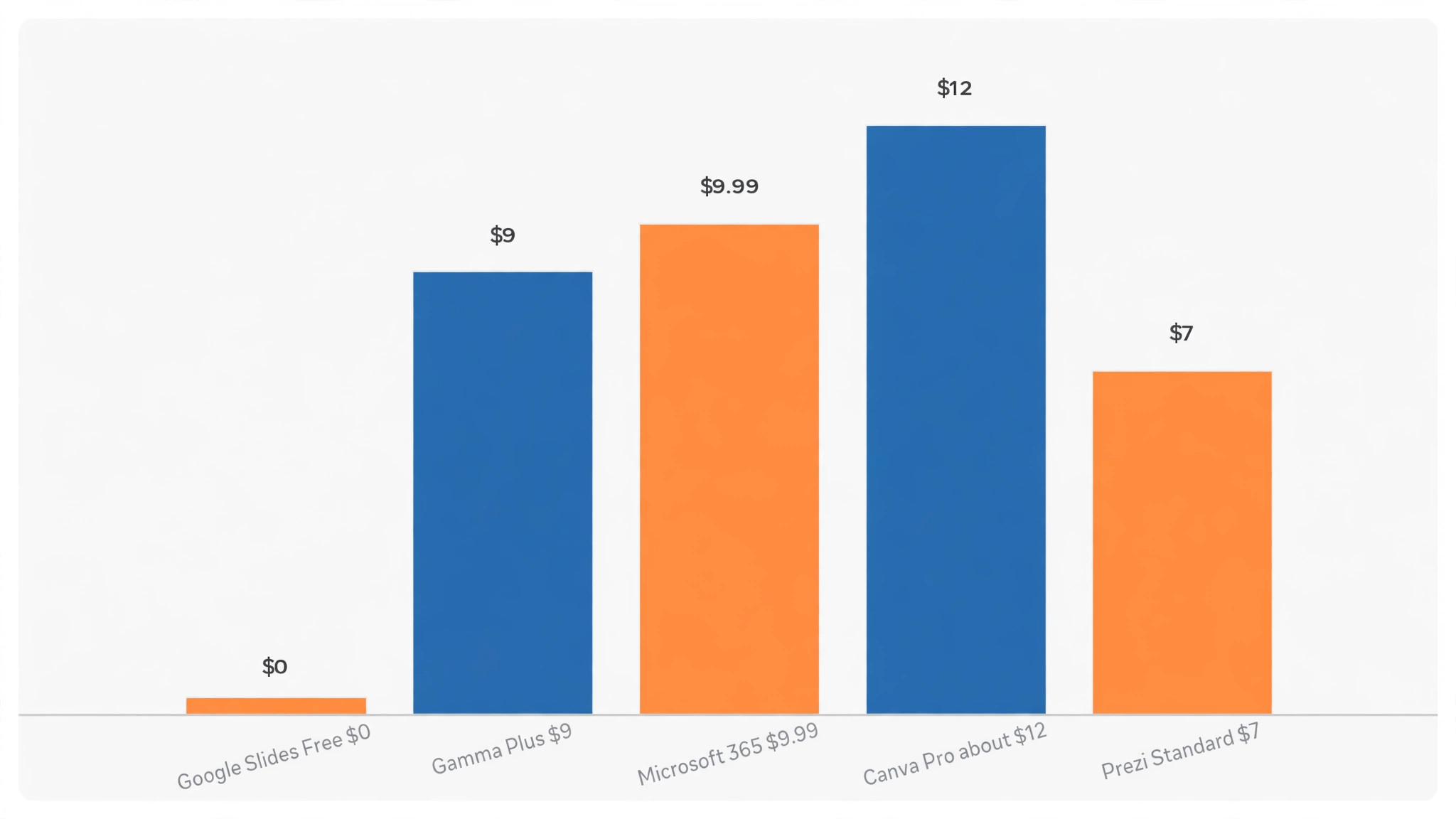
The third reason is cost. PowerPoint on its own is not expensive, but the Microsoft 365 subscription around it adds up across a team, and many small businesses pay for seats that mostly open decks rather than build them. Google Slides is free with a Google account, and paid Google Workspace plans start at about $7 per user per month for Business Starter. Canva Pro lists at about $12 a month on annual billing, Gamma Plus at $9 a month, and Prezi Standard at $7 a month.
Prices move by region and by billing term, so check the vendor page before you budget, but the pattern holds. A team that mainly presents and edits can often cut its slide software bill in half.
The fourth reason is speed of creation. Tools like Gamma and Beautiful.ai build a first draft from a short prompt or an outline, and Canva turns a document into slides in a few clicks. That does not replace a designer, but it does replace the blank first slide, which is where most decks stall. A sales team that needs a tailored deck for each prospect can generate a draft in minutes and spend its time on the message instead of the layout.
None of this means PowerPoint is finished. If your team builds heavily animated product demos, complex financial charts or decks that must work offline in a conference hall with no wifi, PowerPoint is still the safer home. The honest question is not which tool is better in general. It is which tool fits the way your team actually works, and that answer is different for a five person startup and a fifty person sales department.
Pick a Destination Before You Move Anything
Choosing the tool first is the order that works when you switch from PowerPoint to online presentation maker software. Teams that move files first and choose later end up converting everything twice. The table below compares the destinations most teams actually land on, with starting prices checked against vendor pages in late 2026. Treat every price as a starting point and confirm it before you pay, because vendors change plans often.
| Tool | Best for | Starting price | Free plan |
|---|---|---|---|
| Google Slides | Teams that edit together every day | Free, Workspace from about $7 per user per month | Yes |
| Canva | Teams that want strong design without a designer | Free, Pro about $12 a month on annual billing | Yes |
| Gamma | Fast first drafts shared as a web link | Free, Plus $9 a month | Yes |
| Prezi | Live talks and training sessions | Free, Standard $7 a month | Yes |
| Pitch | Startups and sales decks | Free, paid from about $8 a month per user | Yes |
| Beautiful.ai | Brand locked decks for teams | Trial, Pro $14.50 a month on annual billing | Trial only |
| Visme | Reports and data heavy decks | Free, paid from about $12 a month | Yes |
Google Slides is the default choice for most teams, and it is the default for a good reason. It is free, it runs in any browser, and its shared editing is the best in this group. It also imports PowerPoint files directly, which makes the migration itself simple. Its weak spots are design and AI. Templates are plain, and its Gemini features need a paid Workspace plan. If your decks are mostly text, charts and tables, Slides is enough. If your brand needs every deck to look designed, it will feel thin.
Canva is the pick when design matters and nobody on the team is a designer. Its template library is enormous, its brand kit keeps colours and fonts consistent, and one file can become a deck, a social post and a one page handout. Canva imports PowerPoint files and exports back to PowerPoint format, so the door stays open in both directions. The catch is that Canva is a design tool first and a presentation tool second. Long decks with heavy speaker notes and complex charts are harder to manage there than in Slides.
Gamma is the pick when speed matters most. You type a prompt or paste an outline and get a structured deck in a minute, published as a web page you can share by link. That makes it ideal for internal updates, proposals and training material. It is a weaker pick for formal keynote style talks, because its decks are card based web pages rather than classic slides, and its PowerPoint export needs a check before you trust it on stage.
Prezi is the pick for live presenting. Its zooming canvas lets a speaker move through a talk in any order, which suits training sessions and sales conversations that wander. It is a poor pick for decks that get emailed around, because the format only makes sense when someone is presenting it. If your team mostly sends decks rather than presenting them, skip Prezi.
Pitch suits startups that live in their decks. It has strong templates for investor updates and sales, shared editing, and analytics that show who opened a deck and which slides they spent time on. Beautiful.ai suits teams that need every deck to follow strict brand rules, because its smart templates lock layouts in place and stop well meaning edits from breaking the design. Visme suits reports and data heavy presentations, and Presentations.AI suits teams that want a full draft from a prompt and are willing to pay $240 a year per user for it.
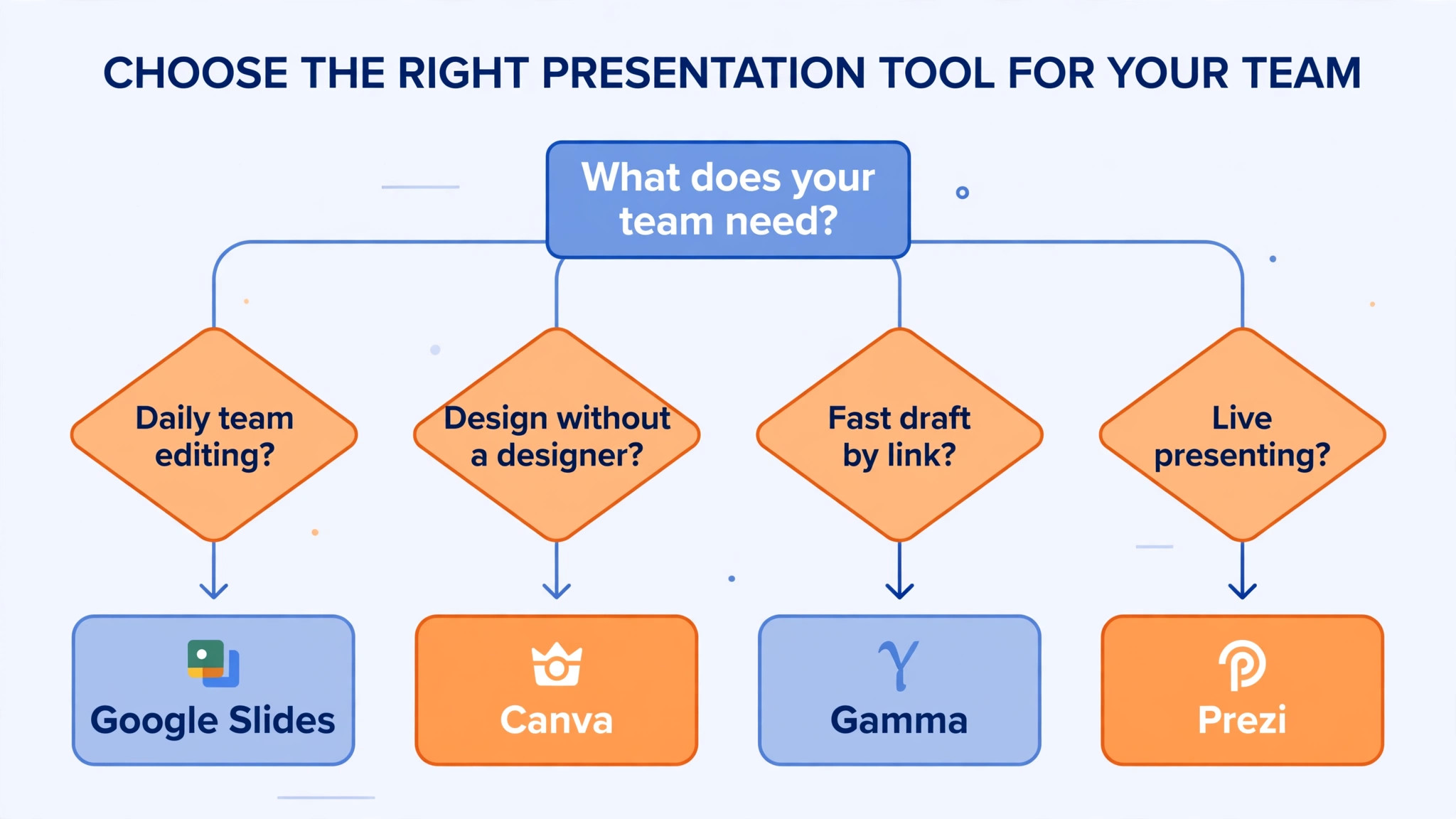
The decision rule is simple. If your team edits together daily, choose Google Slides. If your decks need to look designed and your team has no designer, choose Canva. If you need a draft fast and you share by link, choose Gamma. If you present live and want the room to stay with you, choose Prezi. Write the choice down, with one sentence explaining why, and get the team to agree before migration starts. A move everyone understands survives. A move imposed from above gets quietly undone the first time a deadline is tight.
How to Switch from PowerPoint to Online Presentation Maker in Seven Steps
A migration done in the right order takes a week of steady work, not a weekend of panic. The steps below are the order that works for a team of five to fifty people. Each step has a clear finish line, so you can tell whether you are on track or stuck.
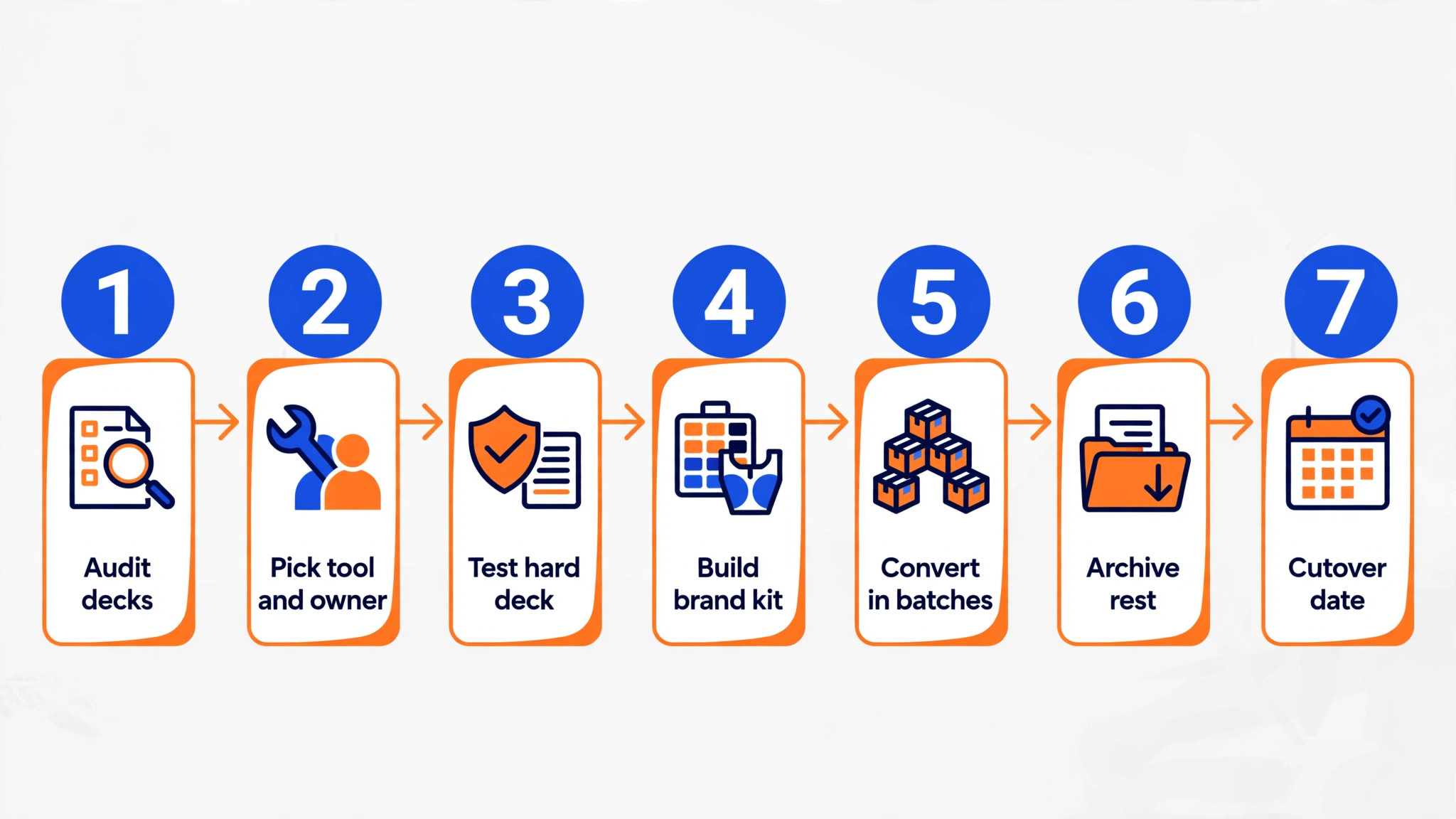
- Audit your deck library and sort every file into three piles. The first pile is decks your team uses every month. The second pile is decks used once or twice a year. The third pile is everything else. Count the first pile. Most teams find it holds twenty to forty decks, even when the shared drive holds hundreds. Those are the only files that need a full conversion.
- Pick one destination tool and one owner for the move. The owner does not have to do all the work, but one person has to own the checklist, the deadlines and the final quality check. Without an owner, migration becomes a job everyone assumes someone else is doing.
- Convert one test deck first, and choose a hard one. Pick a deck with custom fonts, charts, animations and an embedded video. Import it into the new tool and open every slide. Write down everything that breaks. That list becomes your fix guide for the other decks, and it tells you early whether the destination tool can handle your real work.
- Build your brand kit and templates in the new tool before you convert the rest. Set your colours, fonts and logo once, then build one master template for sales decks, one for internal updates and one for training. Every converted deck then gets rebuilt on a proper template instead of arriving as a pile of mismatched slides.
- Convert the first pile in batches of five, and check each batch the day it is converted. Fresh eyes catch font swaps and broken charts that the person who did the import will miss. Keep a simple log with the deck name, who converted it, who checked it, and whether it is live or needs fixes.
- Move the second pile to an archive folder in the new tool, not a full conversion. Upload the original PowerPoint files to a shared drive folder called Archive, and link that folder from the new tool. Anyone who needs an old deck can still open it, and nobody wastes time converting a deck that gets opened once a year.
- Retire PowerPoint as the default for new decks, and say so in writing. Pick a date, tell the team, and change the templates people reach for. A migration without a cutover date drifts forever, because every new deck still starts in the old tool and the library grows in two places at once.
What Survives the Move and What Does Not
Text, images, shapes and basic layouts survive almost every import. A slide with a headline, three bullet points and a photo will look the same in Google Slides, Canva or Gamma after conversion. Tables usually survive, though column widths sometimes shift by a few pixels. Simple charts built in PowerPoint often convert into editable charts, but charts pasted in as images stay images, and you cannot edit their numbers without rebuilding them.
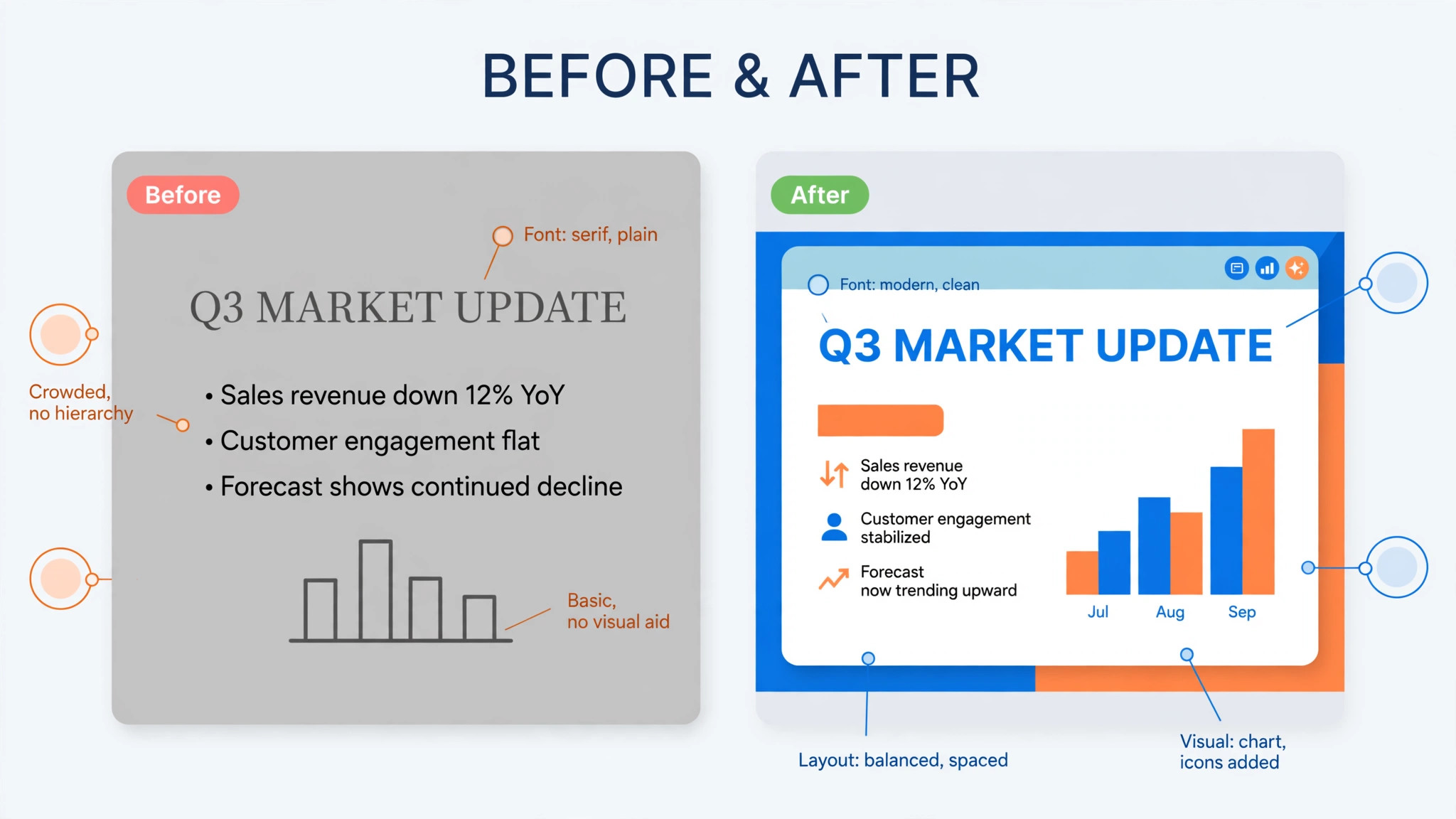
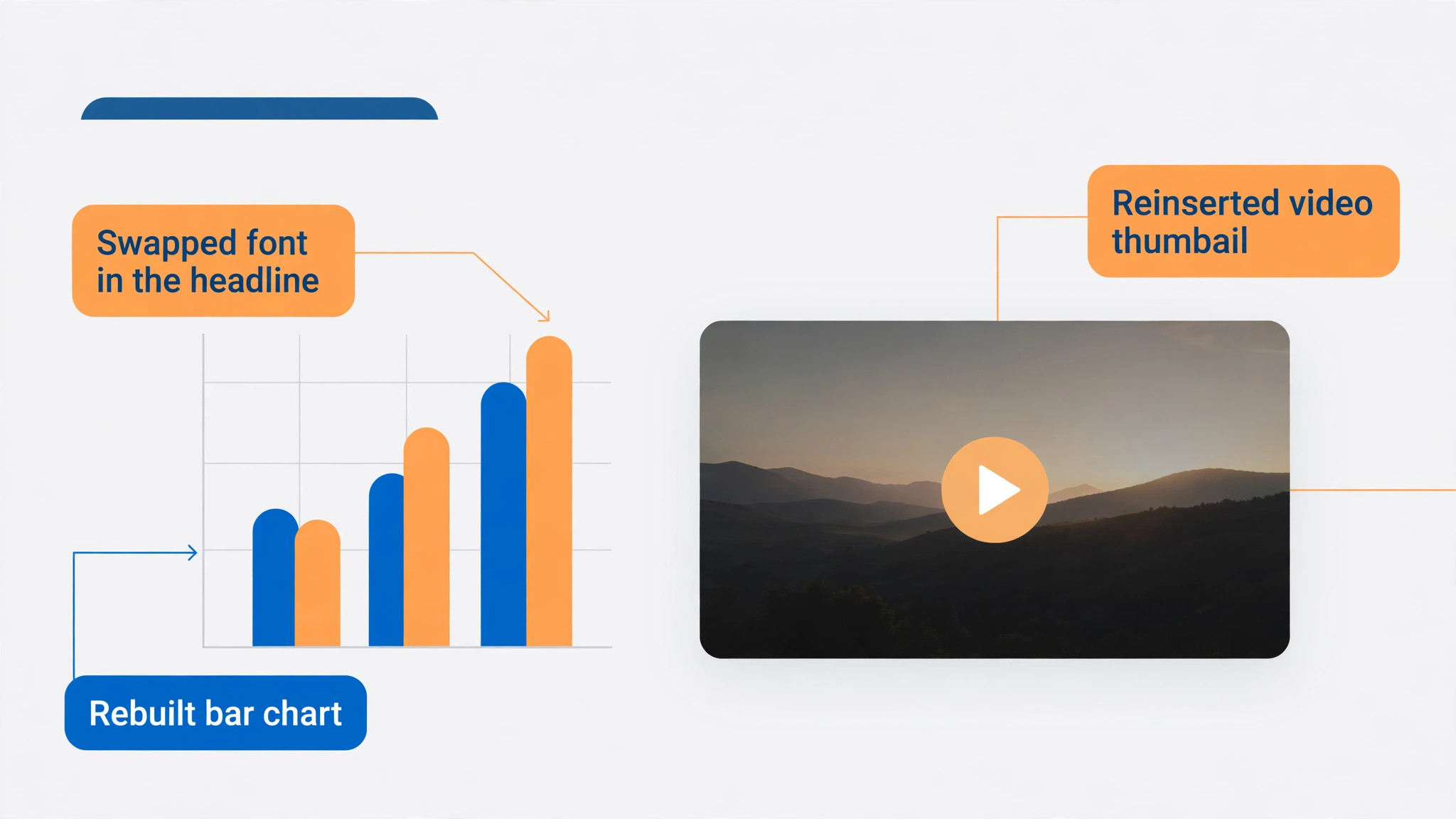
Fonts are the first thing to break. PowerPoint lets you use any font installed on your computer, and online tools can only display fonts in their own libraries. When a font is missing, the new tool swaps in the closest match, and the swap changes line breaks, spacing and sometimes the whole feel of a slide. The fix is to pick your brand fonts from fonts the destination tool actually offers. Google Fonts such as Roboto, Lato and Open Sans exist in both Google Slides and Canva, so decks built on them convert cleanly. If your brand font is a licensed desktop font, budget for a replacement before migration day, not after.
Animations and transitions are the second thing to break. Simple fades often carry over, but multi step motion paths, timed sequences and trigger based animations usually do not. Canva notes on its own help pages that animations and embedded videos may not play as expected after a PowerPoint export, and the same warning applies in reverse. The practical answer is to rebuild animations in the new tool rather than fight the import. Most teams find that half their animations were decoration anyway, and the rebuilt deck is tighter for losing them.
Embedded videos are the third weak spot. A video file embedded in a PowerPoint deck may arrive as a placeholder image, or not arrive at all. Videos linked from YouTube usually need to be added again by hand. The safe method is to keep every video file in a shared folder, note its file name on the slide it belongs to, and reinsert it after conversion. Test the video on the machine you will present from, because a video that plays in the editor can still fail on a conference room laptop.
Master slides and themes do not convert into templates. Your PowerPoint master becomes a set of ordinary slides in the new tool, and the theme settings do not carry over. That is why step four matters. Rebuilding the template properly takes an afternoon, and it saves every deck that follows from starting with broken styling.
Speaker notes usually survive in Google Slides and Canva, but check them. Notes are where presenters hide the facts that matter, and a lost note only shows up on stage. Open the notes panel on five random slides of every converted deck and confirm the text is there. Links inside slides usually survive, but click the three most important links in each deck, because a link that points to a local file path instead of a web address will break the moment the file moves.
Fix the Fonts, Animations and Media After Import
When you switch from PowerPoint to online presentation maker software, start with fonts, because a font fix changes line breaks and can push text off a slide. Open the converted deck and look for any text that looks different from the original. Change the font to your new brand font, then read each slide again. Text that fit before may now overflow, especially in headlines and buttons. Shorten the headline or shrink the font by one point. Do not shrink below 18 points for body text on a slide, because the audience at the back of the room cannot read it anyway.
Next, rebuild the animations that earn their place. Ask one question about each animation. Does it help the audience understand the point, or does it only decorate the slide? A chart that builds bar by bar helps. A headline that spins in does not. Rebuild the useful ones with the new tool’s own animation panel, and delete the rest. A deck with five purposeful animations presents better than a deck with forty random ones.
Then reinsert media. Add videos back from your shared folder, and set them to play on click rather than automatically, so a slow network does not start a video before you are ready. Replace any image that arrived blurry. Imports sometimes downscale images, and a soft logo on a big screen looks careless. Keep a folder of original images at full resolution, and swap in the clean copy wherever the import softened one.
Finally, check slide size. PowerPoint decks built years ago are often 4 by 3, while online tools default to 16 by 9 widescreen. A 4 by 3 deck imported into a 16 by 9 canvas will show empty bands on the sides or stretch the content. Decide the size before you convert, set it in the new tool, and adjust the slides that need it. A deck that was designed for a square screen will never look right stretched to widescreen, so some slides need a real redesign, not a resize.
Roll the New Tool Out to Your Team
A migration that only the marketing team knows about is not a migration. The rollout needs three things. First, a short training session that shows the team how to open, edit, share and present a deck in the new tool. Thirty minutes is enough if the session uses a real team deck instead of a sample. Second, a one page guide with the answers to the five questions people actually ask, which are how to share a deck, how to download a copy, how to present, how to fix a font, and who to ask when something breaks. Third, a named person who answers those questions for the first month.
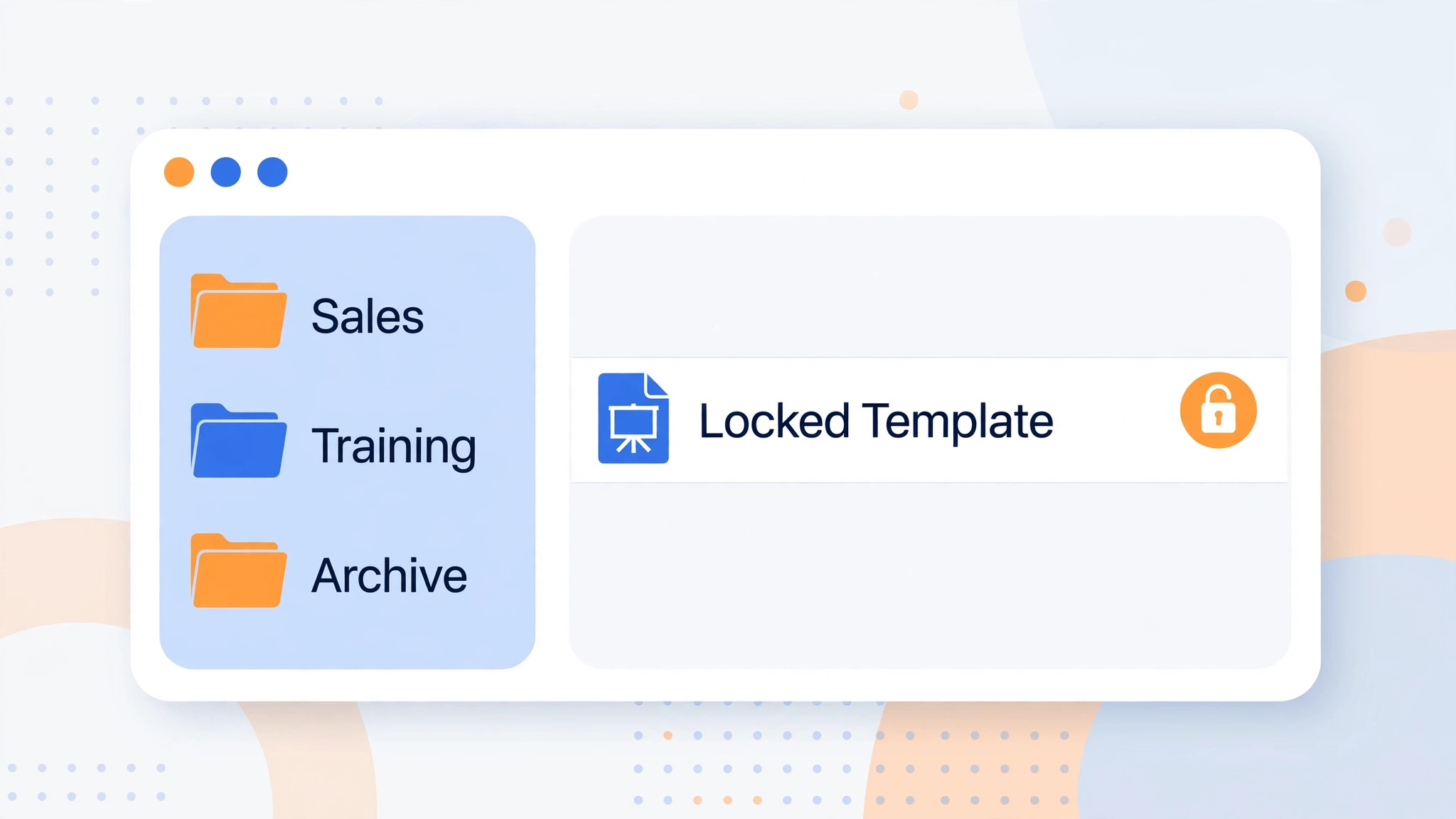
Permissions deserve a decision before launch day. Decide who can edit the master templates and who can only use them. In Google Slides and Canva, anyone with edit access can change a template by accident, and one careless drag can break the layout for the whole team. Lock the templates down to two or three people, and give everyone else edit access to copies. That single rule prevents more damage than any training session.
Set a rule for file names and folders on day one. A shared library without names turns into the same mess as the old shared drive, just in a new tool. Use a pattern the team can remember, such as client name, then deck purpose, then year and month. Put archived decks in a folder called Archive with the year in the name. Review the library once a quarter and archive anything nobody opened in ninety days.
Tell the team what happens to PowerPoint. Most teams keep it installed for the odd file a client sends, and that is fine. What matters is that new decks start in the new tool. If PowerPoint stays the default for new work, the migration never ends, and in six months the team will be maintaining two libraries again.
What the Switch Really Costs
The software price is the smallest part of the bill when you switch from PowerPoint to online presentation maker software. The real cost of a move is the time your team spends converting decks, rebuilding templates and learning the new tool. Budget for it honestly and the move will feel cheap. Hide it and the move will feel like a failure.
| Cost item | Typical range | Notes |
|---|---|---|
| New tool subscription | $0 to $15 per user per month | Free plans cover small teams |
| Template rebuild | One afternoon of design time | Do it once, reuse it everywhere |
| Deck conversion | 30 to 90 minutes per deck | Hard decks take longer |
| Team training | 30 minutes per person | Use a real team deck |
| First month support | A few hours a week | Questions peak in week one |
A team of ten switching to Google Slides pays nothing for the tool itself, and spends roughly a week of part time work converting its core decks. A team switching to Canva Pro pays about $12 per user per month on annual billing, which is about $1,440 a year for ten seats, and saves the design time it used to spend fixing layouts. Compare that with Microsoft 365 Personal at $9.99 a month per person, or about $1,200 a year for ten people, and the difference is smaller than most teams expect. The saving comes from time, not from the subscription. One shared link replaces ten emailed copies, and one edit replaces ten version checks.
Watch for the hidden costs. Some tools charge per seat, so a team that adds freelancers for a launch can see the bill jump. Some tools limit exports, storage or brand kits on free plans, and the feature you need sits on the paid plan. Some tools charge extra for analytics or for removing their branding from shared links. Read the pricing page for the plan you will actually buy, not the free plan you start on, and check the renewal price as well as the first year price.
Mistakes That Undo a Good Migration
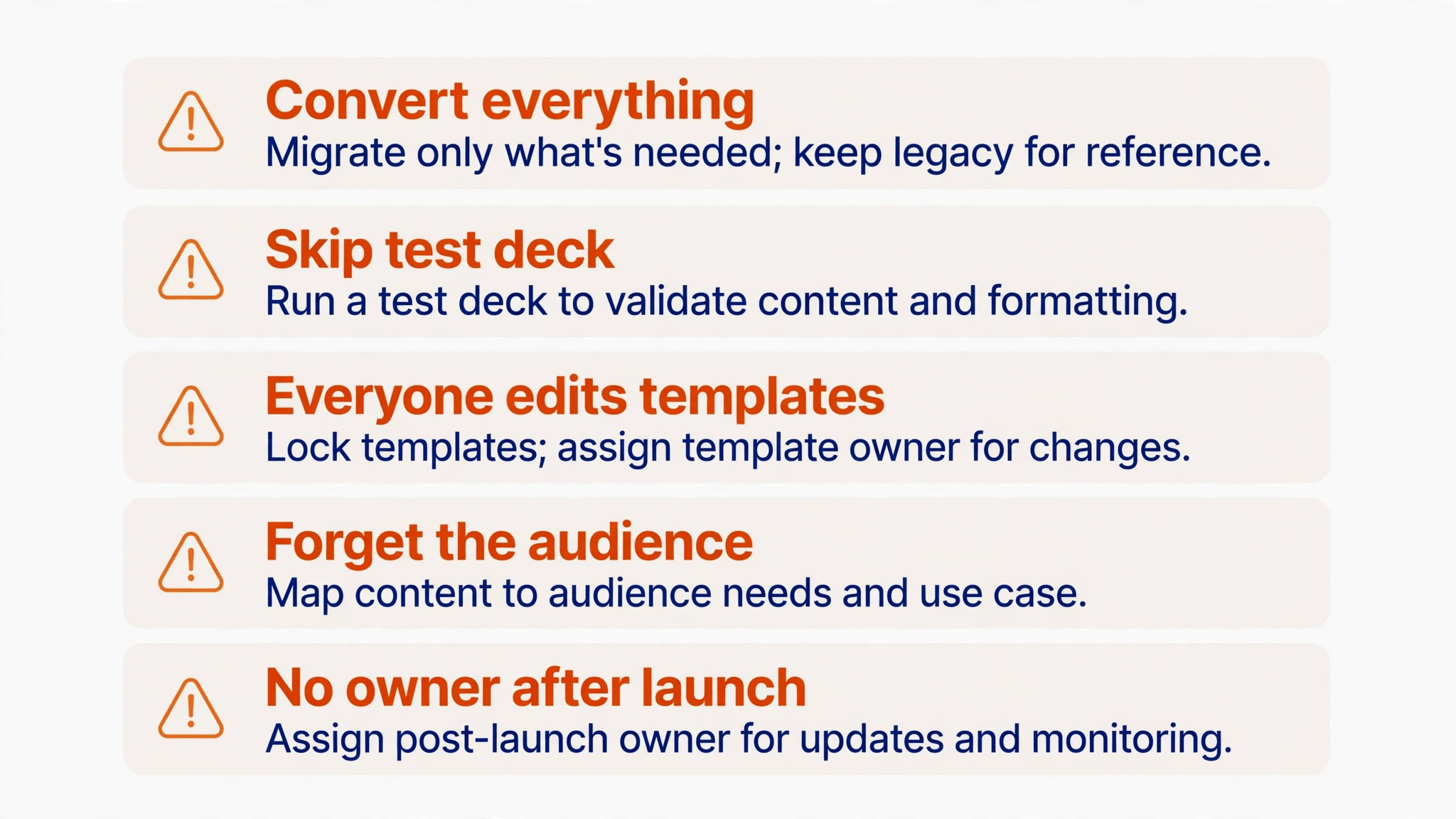
The first mistake is converting everything. A team that imports four hundred decks creates a library nobody trusts, because half the decks are broken and nobody knows which half. Convert the decks people use, archive the rest, and delete nothing until the new library has run for three months. The old files are your safety net, and a safety net you deleted is not a safety net.
The second mistake is skipping the test deck. A team that converts its easiest deck first learns nothing, then discovers on deck number twenty that its charts do not convert at all. Test the hardest deck first. If the destination tool handles that one, it will handle the rest.
The third mistake is letting everyone edit the templates. One person drags a logo, another changes a font, and within a month every deck looks different. Lock the templates. Give the team copies to work from, and keep the masters with two or three people who understand the brand.
The fourth mistake is forgetting the audience. A deck that looked fine on a laptop can fail on a projector, a tablet or a phone. Test the converted deck on the screen you will actually present from, with the fonts, videos and links you will actually use. A rehearsal in the real room catches problems a desk check never will.
The fifth mistake is treating migration as a one off project with no owner after launch. Libraries drift. New decks appear in the old tool, templates age, and brand colours change. Give one person an hour a month to review the library, archive the dead decks and update the templates. That hour is what keeps the switch working a year later.
Frequently Asked Questions About Switching Presentation Tools
Can I switch from PowerPoint to online presentation maker tools without losing my slides?
Yes, for most decks. Text, images, shapes and basic layouts import cleanly into Google Slides, Canva and Gamma. What usually needs work is fonts, animations, embedded videos and master slide themes. Convert one hard deck first to see exactly what breaks for your files, then fix those items in every deck that follows. Keep the original PowerPoint files in an archive folder until the new library has run for three months.
Which online presentation maker is best for a small team?
Google Slides suits most small teams that switch from PowerPoint to online presentation maker software because it is free, its shared editing is strong, and it imports PowerPoint files directly. Canva is the better pick when design quality matters and the team has no designer. Gamma is the better pick when you need a draft fast and you share decks by link. The right answer depends on whether your team edits together daily, presents live, or sends decks to clients. Pick the tool that fits the work, not the tool with the longest feature list.
How long does a full migration take?
A team with twenty to forty active decks can finish in one to two weeks of part time work. The template rebuild takes an afternoon, conversion takes 30 to 90 minutes per deck depending on complexity, and checking takes about half as long again. Add a week for training and for the questions that arrive once people start using the new tool every day. A team that tries to convert everything in a weekend will still be fixing decks a month later.
Do my PowerPoint animations transfer to Google Slides or Canva?
Simple fades sometimes transfer, but multi step motion, timed sequences and trigger based animations usually do not. Embedded videos often need to be added again by hand. Plan to rebuild the animations that help the audience understand the point, and delete the ones that only decorate the slide. Test one hard deck before you commit to a tool, so you know what you are signing up for.
Can I still use PowerPoint after the switch?
Yes. Most teams keep PowerPoint installed for files that clients send and for decks that must work offline. What changes is where new decks start. Once the team agrees that new work begins in the online tool, PowerPoint becomes a reader for old files instead of the place where decks are born. That distinction is what makes the migration stick.
What happens to my old PowerPoint files?
Nothing, if you archive them properly. Upload the originals to a shared drive folder called Archive, keep the folder for at least three months, and link it from the new tool so anyone can find an old deck. Do not delete old files during migration. After three months of smooth running in the new tool, review the archive and keep only the decks with legal, financial or historical value.
The Bottom Line on Moving Your Decks Online
The teams that switch from PowerPoint to online presentation maker tools and never look back are not the teams with the fanciest new software. They are the teams that picked one destination, tested one hard deck, rebuilt their templates properly, and gave the library an owner. The software matters less than the order of work, and the order in this guide is the order that holds up in practice.
Start small. Convert one deck this week, present it from the new tool, and see how it feels in the room. If the fonts hold, the links work and the team can edit together without emailing files, you have your answer. The rest is steady work, one batch of five decks at a time, until the old library is an archive and the new one is where the work happens.