Most people who switch from Wix to Squarespace make the same error. They cancel Wix first, then discover that Squarespace cannot import their design, their blog, or most of their content. The old site is gone, the new site is half built, and the search rankings the old site earned are falling. The switch itself is not hard. The order of the steps is what matters. Build the new site first, move the content second, transfer the domain last, and cancel Wix only when the new site is live and checked. This guide shows how to switch from Wix to Squarespace website builder in that safe order.
Should You Switch at All
A platform switch is a rebuild, not a transfer, so the decision deserves an honest hour before any work starts. Squarespace suits design led brands with a simple catalogue, clean templates, and a preference for fewer settings. Wix suits businesses that want maximum flexibility, a large app market, and a free plan for testing. Neither platform is better in general. The right one depends on what the site must do every week. A business that is happy with Wix except for one missing feature should check whether a Wix app or a plan upgrade solves it. A switch costs days of work, so it should solve a real problem, not a passing frustration.
The strongest reasons to switch are design consistency, simpler selling for a small catalogue, and a preference for Squarespace templates and editor. The strongest reasons to stay are a large Wix store with complex apps, a blog with hundreds of posts, and custom code that Squarespace cannot reproduce. A business with a large blog should think hardest, because the blog is the hardest part to move and the part most likely to lose search traffic. A business with a five page brochure site and a small store will find the switch straightforward. Judge the decision by the site that exists, not by the site the business wishes it had.
Squarespace offers a 14 day free trial with no credit card required, and the trial includes access to nearly all features. That trial is the right place to test the switch. Build the new homepage and one inner page in the trial, and judge whether the editor feels better than Wix. If the trial feels worse, the business has learned the answer for free. If it feels better, the trial site becomes the new site. That test is the cheapest way to decide whether to switch from Wix to Squarespace website builder or stay put.
What Moves and What Does Not Move
The first fact every switcher must accept is that there is no one click export from Wix. Wix does not generate standard exportable code, so automated migration is limited. Squarespace states this plainly in its own support guide. It is not possible to import a previous site layout, design, fonts, or other content. Products can be imported from a CSV file. Everything else is rebuilt by hand. A business that plans around that fact will have a smooth switch. A business that expects a magic import button will be disappointed on day one.
| Item | Moves to Squarespace | How it moves |
|---|---|---|
| Domain | Yes | Transfer with an authorisation code, or connect it |
| Products | Yes, with work | Export Wix products to CSV, reformat, import |
| Text content | Yes, manually | Copy and paste page by page |
| Images | Yes, manually | Download the actual files, re-upload them |
| Blog posts | Partly | Copy and paste, or use an RSS scraper for large blogs |
| Orders and customers | Limited | Export data where possible, expect manual work |
| Design and layout | No | Rebuild with a Squarespace template |
| Fonts and styling | No | Pick the closest Squarespace styles |
| Wix apps and bookings | No | Rebuild with Squarespace tools or extensions |
Images deserve a warning. Do not drag images from the browser, because that can save a low resolution copy. Download the actual file from Wix and re-upload it to Squarespace to keep the quality. Text should be copied from the published Wix pages, not from memory, so nothing is lost. Keep the old Wix site online with Wix until the new site is complete. That way visitors always have a live site, and the builder can refer to the old content while finishing the transition.
Wix Versus Squarespace Cost in 2026
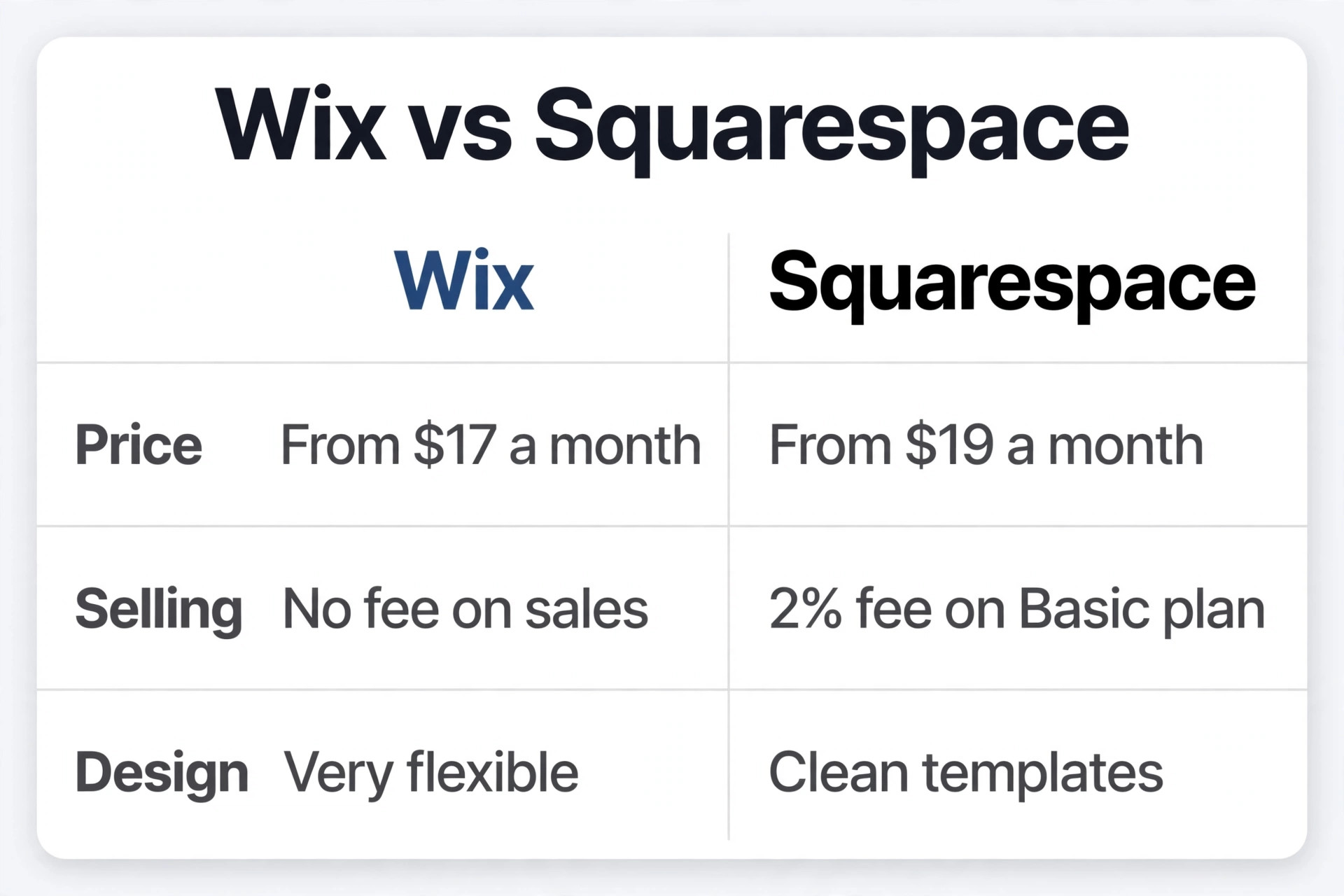
Cost rarely decides a switch, because the two platforms cost almost the same at comparable tiers. The difference is in what each plan includes and what each plan charges on sales. Prices are US list prices on annual billing as of October 2026, and both companies change them often, so confirm the current figures on the official pricing pages before buying.
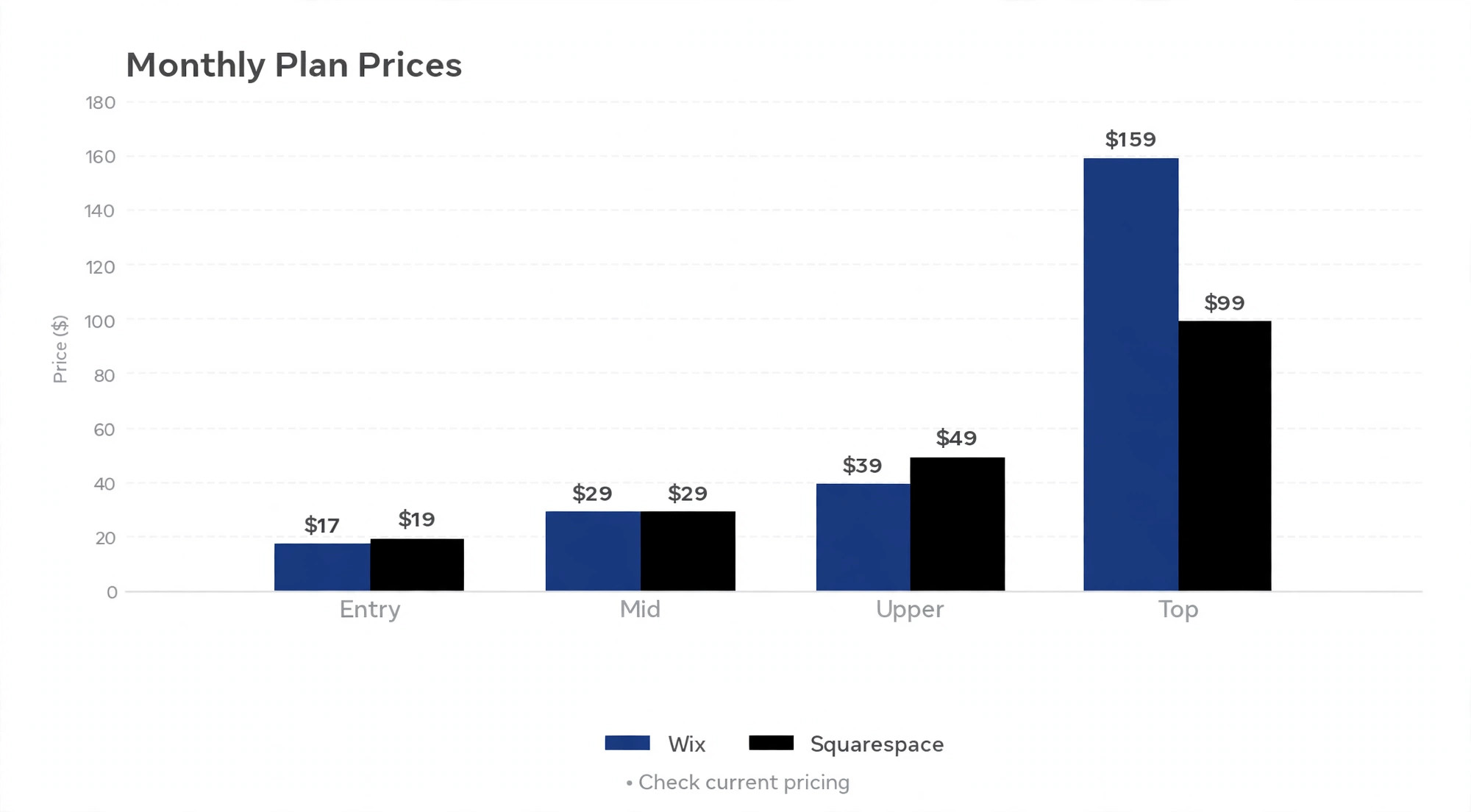
| Plan | Wix, billed annually | Squarespace, billed annually |
|---|---|---|
| Entry plan | Light, 17 dollars per month | Basic, 19 dollars per month |
| Mid plan | Core, 29 dollars per month | Core, 29 dollars per month |
| Upper plan | Business, 39 dollars per month | Plus, 49 dollars per month |
| Top plan | Business Elite, 159 dollars per month | Advanced, 99 dollars per month |
Wix also offers a free plan with Wix ads and a Wix subdomain, which is useful for testing the editor before committing. Squarespace has no permanent free tier, only the 14 day trial. On Wix, selling starts on Core at 29 dollars per month, because Light cannot accept payments. Wix adds no transaction fee of its own on store orders. On Squarespace, every plan can sell, but Basic adds a 2 percent store transaction fee. Core at 29 dollars per month removes that fee, so Core is the cheaper plan once a store sells more than 500 dollars a month.
Older guides use different Squarespace plan names, such as Personal, Business, and Commerce Basic, with lower prices. Squarespace has renamed its tiers over time and raised prices in 2026, so an old guide can mislead a budget by a wide margin. Use the current names from the Squarespace pricing page, Basic, Core, Plus, and Advanced, and treat any older figure as out of date. The practical result is that a small store pays 29 dollars a month on either platform for the first plan with no transaction fee. A switch will not save money. It should be made for design and workflow reasons, not for price.
How to Switch from Wix to Squarespace Website Builder in 8 Steps
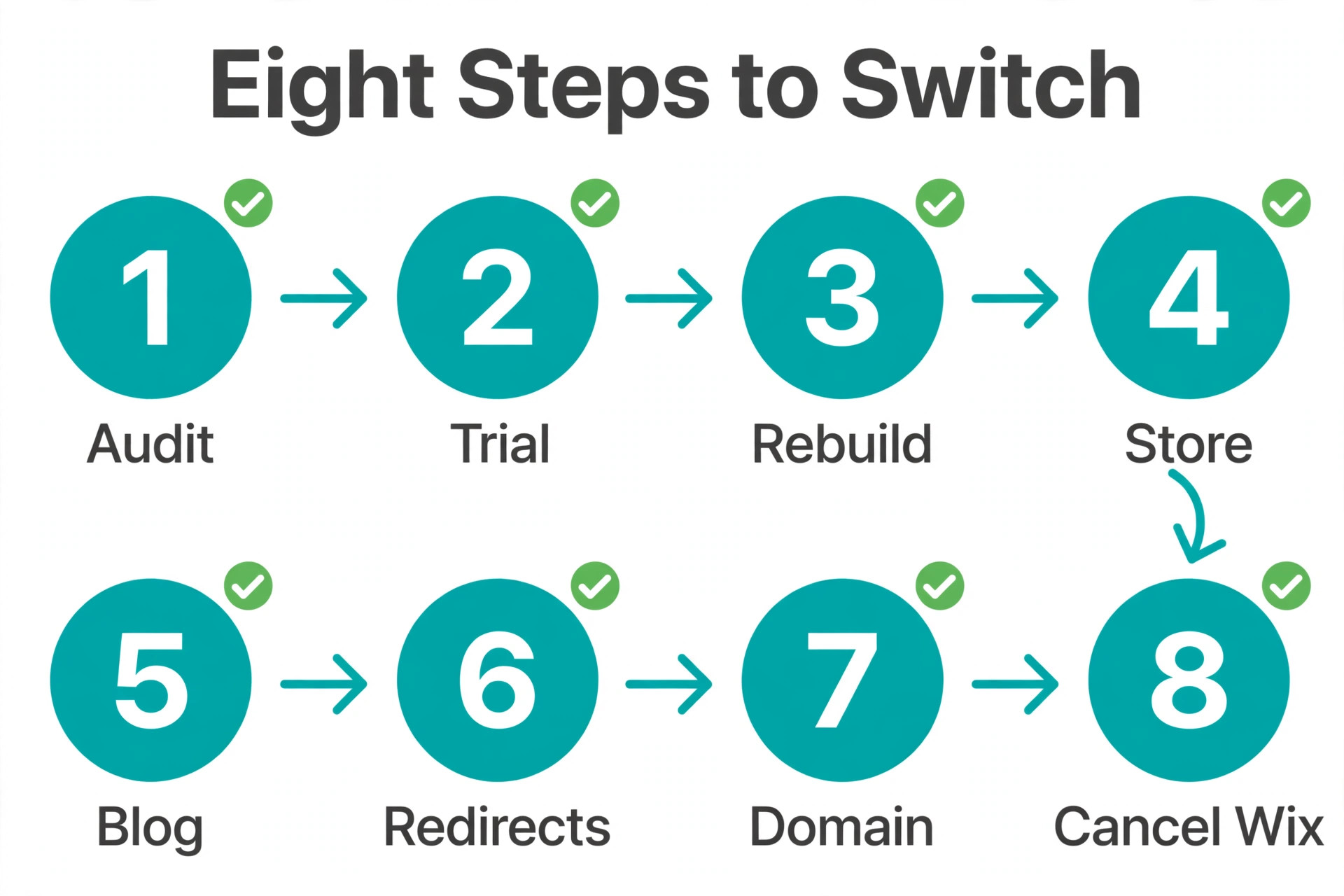
The switch works when it is done in the order below. Each step depends on the one before it, and skipping a step is how sites lose content or traffic. Work through the steps in order, and do not cancel Wix until the final step says so.
- Audit the current Wix site and list every page, its URL, and its search traffic, starting with the pages that earn visits.
- Start the Squarespace 14 day trial, pick a template, and set up the site structure with the same pages as the Wix site.
- Rebuild each page by hand, copying text and re-uploading downloaded images, and match the page URLs where possible.
- Move the store by exporting Wix products to CSV, reformatting the columns to match Squarespace, and importing the file.
- Move the blog by copying posts for a small blog, or by planning an RSS scrape or specialist help for a large blog.
- Set up 301 redirects from old Wix URLs to the matching new Squarespace URLs for every page that changes address.
- Transfer or connect the domain, test the new site on every device, and check forms, checkout, and email notifications.
- Publish the Squarespace site, confirm the domain points to it, and only then cancel the Wix plan.
The audit in step one is the step most people skip and most regret skipping. Export the indexed pages from Google Search Console and the top pages from the performance report for the last three months. That list shows what Google actually cares about, and it becomes the redirect list in step six. A page that earns search traffic and has no redirect will lose that traffic. A page with no traffic can be dropped safely. The audit also shows which pages can be merged or removed, which makes the rebuild faster.
Step 1 and 2. Audit the Site and Start the Trial
Start with the audit. List every page on the Wix site, its full URL, and its purpose. Mark the pages that earn search visits, the pages that earn sales or enquiries, and the pages that are out of date. Export the list from Google Search Console if the site is verified there. If it is not verified, use the Wix site menu and the sitemap as the source. The audit usually takes an hour for a small site and a day for a large one. It saves more time than it costs, because it stops the rebuild from copying pages nobody needs.
Start the Squarespace trial next. Every Squarespace site begins with a 14 day free trial, no credit card required, with access to nearly all features. Pick a template that matches the new site purpose rather than the old Wix design, because the design cannot be imported anyway. Squarespace templates use demo content to show off their features, but the site has access to every feature and style option. Add the pages from the audit to the navigation menu first, so the structure is right before any content is added. A site with the right structure and placeholder content is easier to finish than a site with one perfect page and no structure.
Set the new site to private with a site password while building, so visitors and search engines do not find a half finished site. The password can be removed at launch. Keep the Wix site live throughout the build. The two sites can exist side by side, and the Wix site remains the public site until the domain moves. That separation is what makes the switch safe. At no point is the business without a live website.
Step 3. Rebuild Pages, Text, and Images
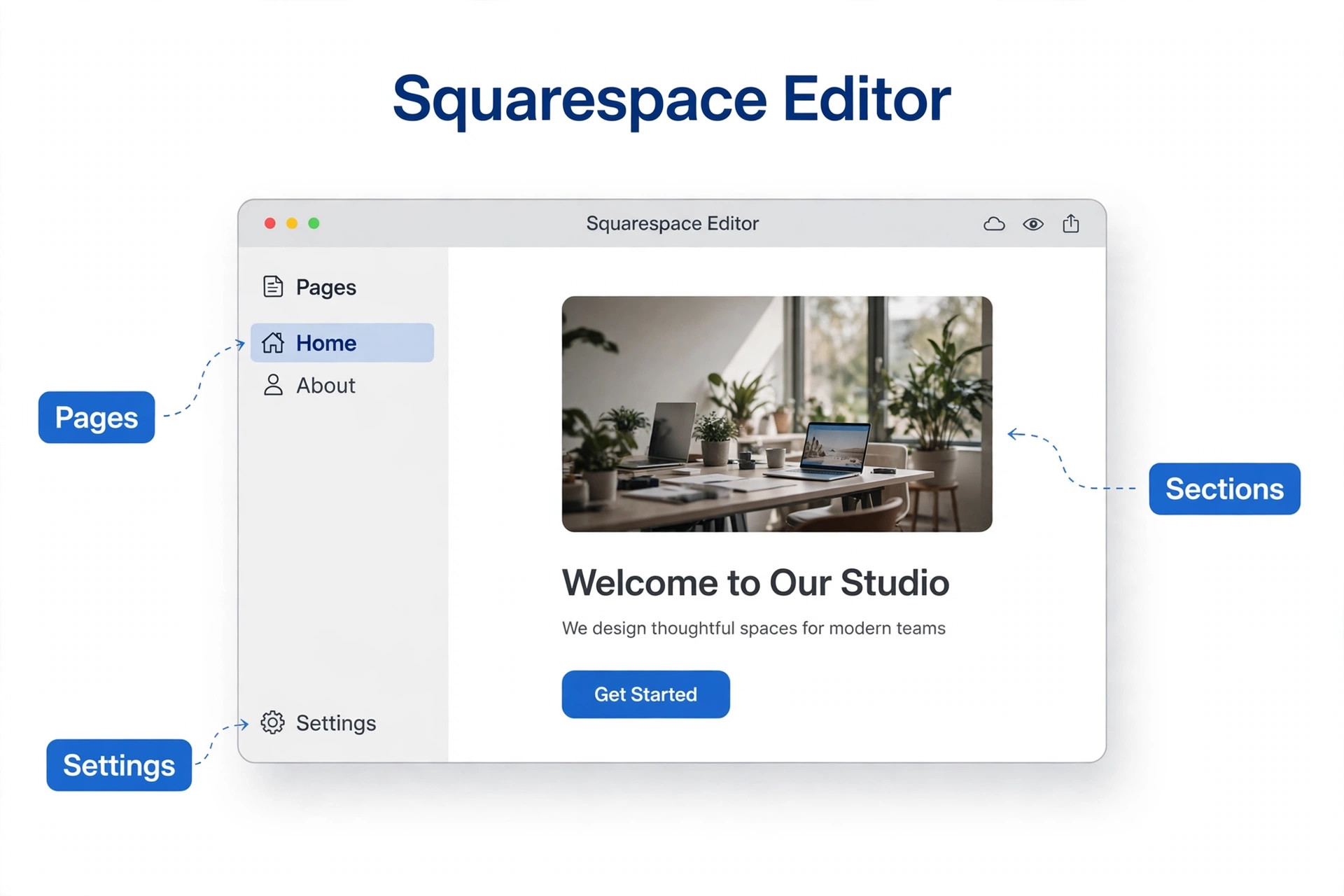
Rebuilding is the longest step, and it rewards a page by page method. Take one Wix page at a time. Copy its text into the matching Squarespace page, then download its images from Wix and re-upload them to Squarespace. Build the page with Squarespace sections, which are the building blocks for layout. Add headings, text blocks, images, buttons, and forms in the order a visitor reads them. Do not try to copy the Wix layout exactly. Squarespace sections work differently, and a page that fights the template will look worse than a page that uses the template well.
Match the page URLs where possible. If a Wix page lives at the address example dot com slash services, the Squarespace page should use the same slash services address. Matching URLs avoids redirects and protects search rankings. Where a URL must change, note the old and new addresses on the redirect list. Keep the page titles and meta descriptions close to the Wix versions for pages that rank, because changing them during a move adds risk. The rebuild is also a chance to improve weak pages. A page with thin content should be expanded or merged, and a page with no purpose should be dropped. The audit list decides which pages deserve that effort.
Check each rebuilt page on a phone before moving to the next one. Squarespace templates are mobile responsive, but a section that looks good on desktop can stack badly on a phone. Images that are too large will slow the page, so compress them before upload. A page that is checked as it is built will not need a week of fixes at the end. A page that is built unchecked will.
Step 4. Move the Store and the Blog
The store moves through a CSV file, and the file needs care. Export the Wix products as a CSV, then reformat the column headers to match what Squarespace expects. Product names, prices, descriptions, variants, and image links all live in that file, and a wrong column will import badly. Import a small test batch first, with five products, and check that prices, variants, and images arrived correctly. Then import the rest. Check the store settings after import, including payment methods, shipping, taxes, and the checkout flow. Place a test order if possible, and refund it, to prove the store works before customers use it.
The blog is the hardest part of the switch. Wix does not export blog posts to a format Squarespace can import, so a small blog is best moved by copy and paste. Open each Wix post, copy the text and images into a new Squarespace blog post, and set the same publish date and URL where possible. A large blog with hundreds of posts will take too long by hand. For a large blog, use an RSS feed scraper or hire a migration specialist. The cost of a specialist is often less than the value of the search traffic a rushed blog move would lose.
Set up the blog categories and tags on Squarespace before importing posts, so the structure matches the old blog. Keep the post URLs as close as possible to the Wix versions, and add any changed URLs to the redirect list. A blog post that earned search traffic for years deserves a redirect. A blog post with no traffic can be dropped. The audit from step one decides which posts matter, and the redirect list protects them.
Step 5 and 6. Domain Transfer and 301 Redirects
The domain moves after the site is built, never before. There are two ways to move it. A transfer moves the domain registration to Squarespace, so billing and management live in one place. A connection keeps the domain registered where it is and points it at Squarespace with DNS settings. A transfer is tidier for most businesses, because Squarespace can help with domain issues directly. A connection suits a business that wants to keep its current registrar or has a domain that cannot transfer yet.
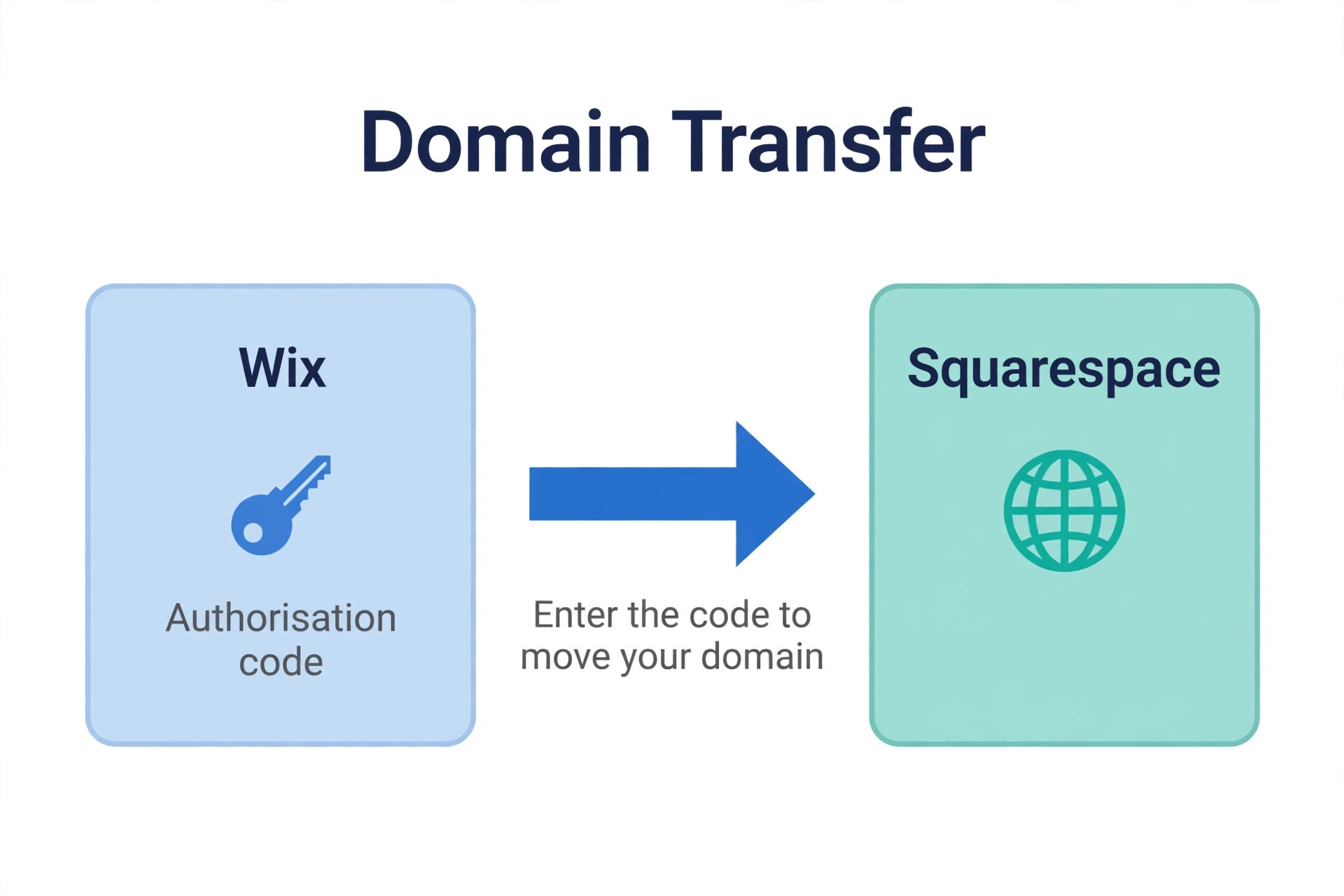
To transfer a domain from Wix, go to the Wix domain settings, select the transfer away option, and get the authorisation code, also called the EPP code. Then go to Squarespace, open Settings, then Domains, then Transfer a domain, enter the domain name, and paste the code. Confirm the transfer through the email that follows, and wait for the transfer to complete. Check eligibility before starting. Wix does not allow a domain transfer within 60 days of purchase, and changing the registrant contact details can lock the domain for another 60 days. Squarespace also expects the domain to have been with its current provider for at least 60 days, and some domain extensions cannot be transferred at all.
Redirects protect the search traffic earned by the old site. A 301 redirect tells Google and visitors that a page has moved permanently to a new address. Set up a redirect for every Wix URL that changes address on Squarespace, starting with the pages from the audit that earn search traffic. A redirect list built from the audit is a simple table with two columns, old URL and new URL. Add the redirects in Squarespace before the domain moves, so they are live the moment traffic arrives. Test each redirect after launch by visiting the old address and confirming it lands on the right new page. A missing redirect is a lost visitor and a lost ranking.
Step 7 and 8. Testing, Launch, and Cancelling Wix
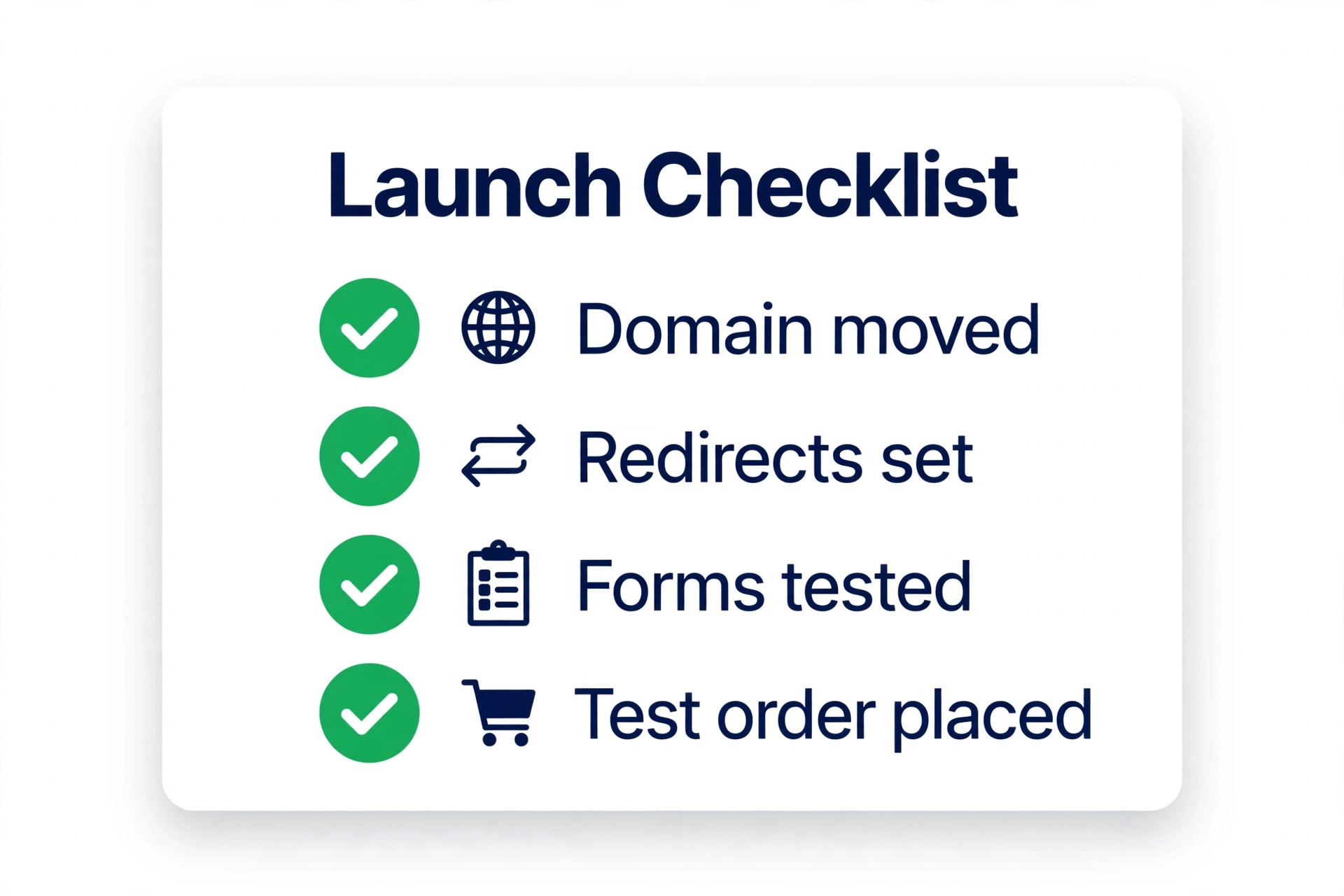
Testing is a full step, not a quick glance. Work through a launch checklist before the domain moves. Open every page on desktop and on a phone. Click every link and button. Submit every form and confirm the notification arrives. Place a test order and check the confirmation email. Check that the site loads quickly and that images are sharp. Check that the contact details, the business hours, and the legal pages are correct. Ask a colleague or a friend to test the site as a stranger would, because the builder stops seeing errors after days of looking at the same pages.
Launch day has a simple order. Remove the site password from Squarespace. Transfer or connect the domain. Publish the Squarespace site. Visit the domain in a fresh browser and confirm the new site loads. Check the redirects from the old URLs.
Submit the new sitemap to Google Search Console so search engines pick up the new URLs quickly instead of continuing to index the old Wix pages. Watch the site for a day, and fix anything that breaks. Only when the new site is live, the domain points to it, and the checks pass should the Wix plan be cancelled. Squarespace itself recommends keeping the old site online until the new site is complete, and the same logic applies until the launch is proven.
Cancelling Wix too early is the most expensive mistake in the whole switch. Once the Wix plan is cancelled, the old content and the old URLs are gone, and a missing page or a broken redirect cannot be recovered from the live Wix site. Wait a week after launch before cancelling, and download a backup of the Wix content first if the platform offers an export. The extra week of Wix billing is cheap insurance against a launch problem discovered on day three.
How Long a Switch Takes
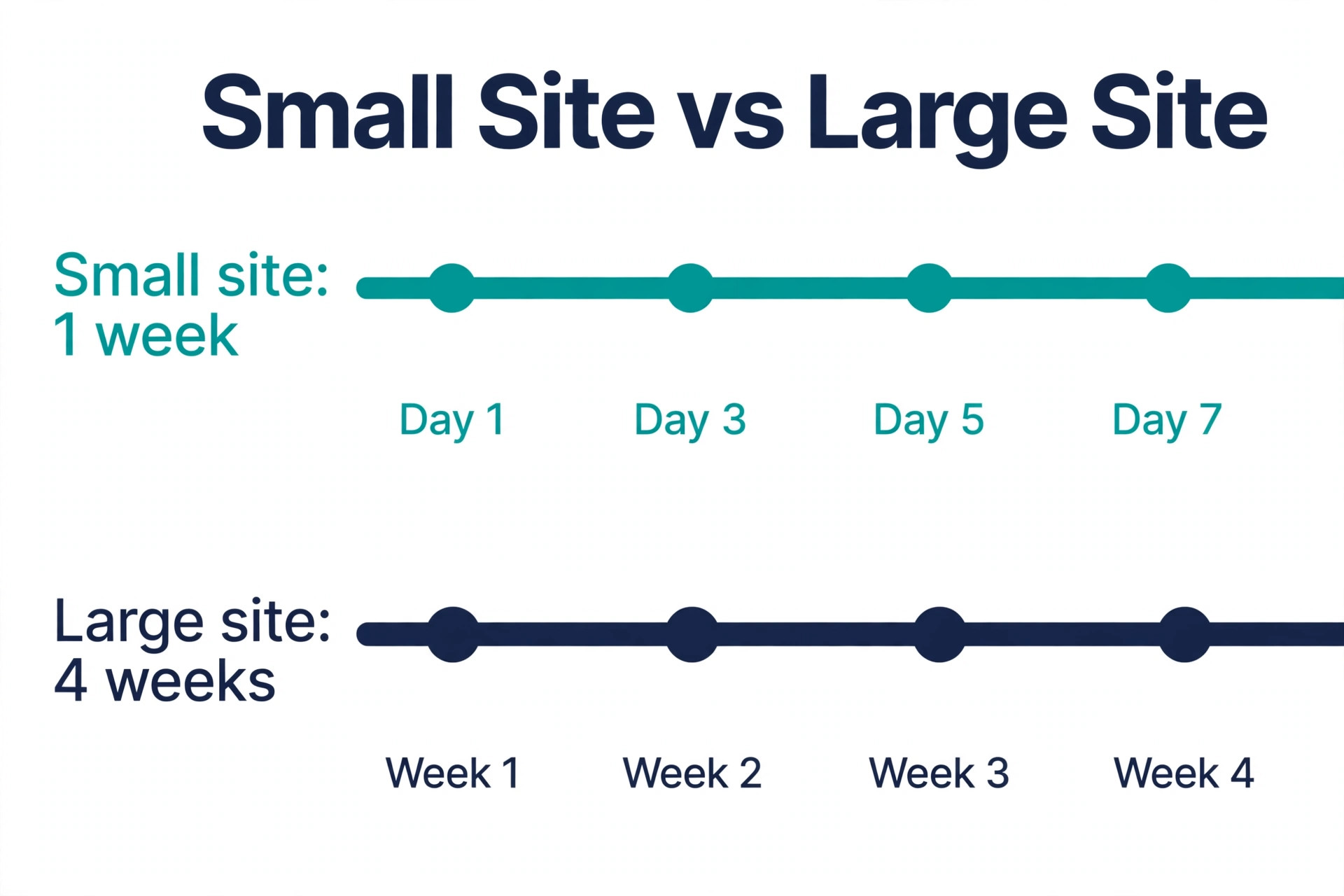
A small site can switch in a week. A large site can take a month. The table below gives realistic times for each stage, so a business can plan the work around its real schedule rather than hoping the switch finishes in a weekend.
| Stage | Small site, under 10 pages | Large site, store plus blog |
|---|---|---|
| Audit and trial | Half a day | 1 to 2 days |
| Rebuild pages | 1 to 2 days | 1 to 2 weeks |
| Store move | Half a day | 2 to 3 days |
| Blog move | Half a day | 1 to 2 weeks |
| Redirects and domain | Half a day | 1 to 2 days |
| Testing and launch | Half a day | 2 to 3 days |
A business that needs the switch done fast should hire a Squarespace Expert for the rebuild, because an expert will finish in days what a first time builder finishes in weeks. A business with time and a small site can do the switch alone with this guide. Either way, the work should be scheduled around the business calendar. Do not launch during a sale, a product launch, or a busy season. Launch in a quiet week, when a problem costs the least and the team has time to fix it.
Best Pick by Job
The right way to switch depends on the site size and the business. The approach you take to switch from Wix to Squarespace website builder should match the job, not the marketing. The table below matches the job to the approach that fits it best.
| Job | Best pick | Why it wins |
|---|---|---|
| Five page brochure site | Do it yourself in the trial | Fast, free to test, low risk |
| Small store, under 50 products | Do it yourself with a CSV test batch | Cheap, full control, easy to check |
| Large store, hundreds of products | Squarespace Expert or migration service | CSV work and testing need experience |
| Large blog, hundreds of posts | Migration specialist with RSS tooling | Protects years of search traffic |
| Design led brand, simple catalogue | Squarespace Core plan | Clean templates, no transaction fee |
| Tight budget, no selling yet | Squarespace Basic plan | Lowest price, can upgrade later |
| Switch during a busy season | Wait for a quiet week | A launch problem costs most when busy |
A business that is unsure should start the trial and rebuild the homepage first. That one page will show whether the editor feels right and whether the design improves on Wix. If the homepage looks better in Squarespace, the rest of the switch is worth doing. If it looks worse, the business has learned the answer before spending money or moving a single product.
Mistakes That Break a Wix to Squarespace Switch
The first mistake is cancelling Wix before the new site is live. The old site is the backup, the reference, and the safety net. Keep it until a week after launch. That order is the core discipline when you switch from Wix to Squarespace website builder.
The second mistake is skipping the audit and the redirects. A site that moves without a redirect list will lose search traffic page by page, and the loss will show in Search Console weeks later when it is harder to fix. The third mistake is expecting the design to transfer. It cannot, and a business that budgets a day for a design transfer will run out of time on day one. Budget the rebuild honestly.
The fourth mistake is moving the domain before the site is ready. A domain that points at a half built site sends visitors to a broken experience, and search engines may index the half built pages. Build first, move the domain last.
The fifth mistake is importing the whole product CSV without a test batch. A bad import can duplicate products, lose variants, or scramble prices. Test five products first, check them, then import the rest. The sixth mistake is forgetting email and forms. A contact form that sends to the wrong address, or a domain email that stops working after the transfer, will lose enquiries silently. Test every form and every mailbox after the domain moves.
Frequently Asked Questions
Can you transfer a Wix website to Squarespace automatically
No. There is no one click transfer from Wix to Squarespace. Squarespace cannot import a Wix layout, design, fonts, or most content. Products can be imported from a CSV file, and text and images move by copy and paste and re-upload. The switch is a manual rebuild, and a business should budget days for a small site and weeks for a large one.
How do I switch from Wix to Squarespace website builder without losing SEO
Build the new Squarespace site first while the Wix site stays live. Audit the Wix pages in Google Search Console, match the page URLs where possible, and set up 301 redirects for every URL that changes. Keep page titles and meta descriptions close to the originals for pages that rank. Submit the new sitemap to Search Console after launch, and do not cancel Wix until the new site is proven live.
How long does it take to switch from Wix to Squarespace
A small site with under ten pages can switch in about a week. A large site with a store and a blog can take three to four weeks, because the blog is the slowest part to move. The rebuild takes most of the time. The domain transfer and the redirects take less than a day once the site is ready. Launch in a quiet week, not during a sale.
Will my domain transfer from Wix to Squarespace
Yes, if the domain is eligible. Get the authorisation code from Wix, enter it in Squarespace under Settings then Domains then Transfer a domain, and confirm through email. Wix blocks transfers within 60 days of purchase, and changing registrant details can add another 60 day lock. Some domain extensions cannot transfer at all, in which case connect the domain instead of transferring it.
Can I move my Wix store products to Squarespace
Yes. Export the Wix products to a CSV file, reformat the column headers to match Squarespace, and import the file. Import five products first as a test batch, check prices, variants, and images, then import the rest. Check payment, shipping, taxes, and checkout after import, and place a test order before customers use the store.
What happens to my Wix blog when I switch from Wix to Squarespace website builder
Wix does not export blog posts in a format Squarespace can import, so a small blog moves by copy and paste. A large blog needs an RSS feed scraper or a migration specialist. Keep the post URLs as close as possible to the originals, set up redirects for changed URLs, and protect the posts that earn search traffic. The audit from the first step decides which posts matter most.
Should I cancel Wix before or after the switch
After. Keep the Wix site live until the Squarespace site is built, the domain points to it, and the launch checks pass. Wait a week after launch before cancelling, and download a backup of the Wix content first if an export is available. Cancelling early removes the backup and the reference for any missing page or broken redirect.