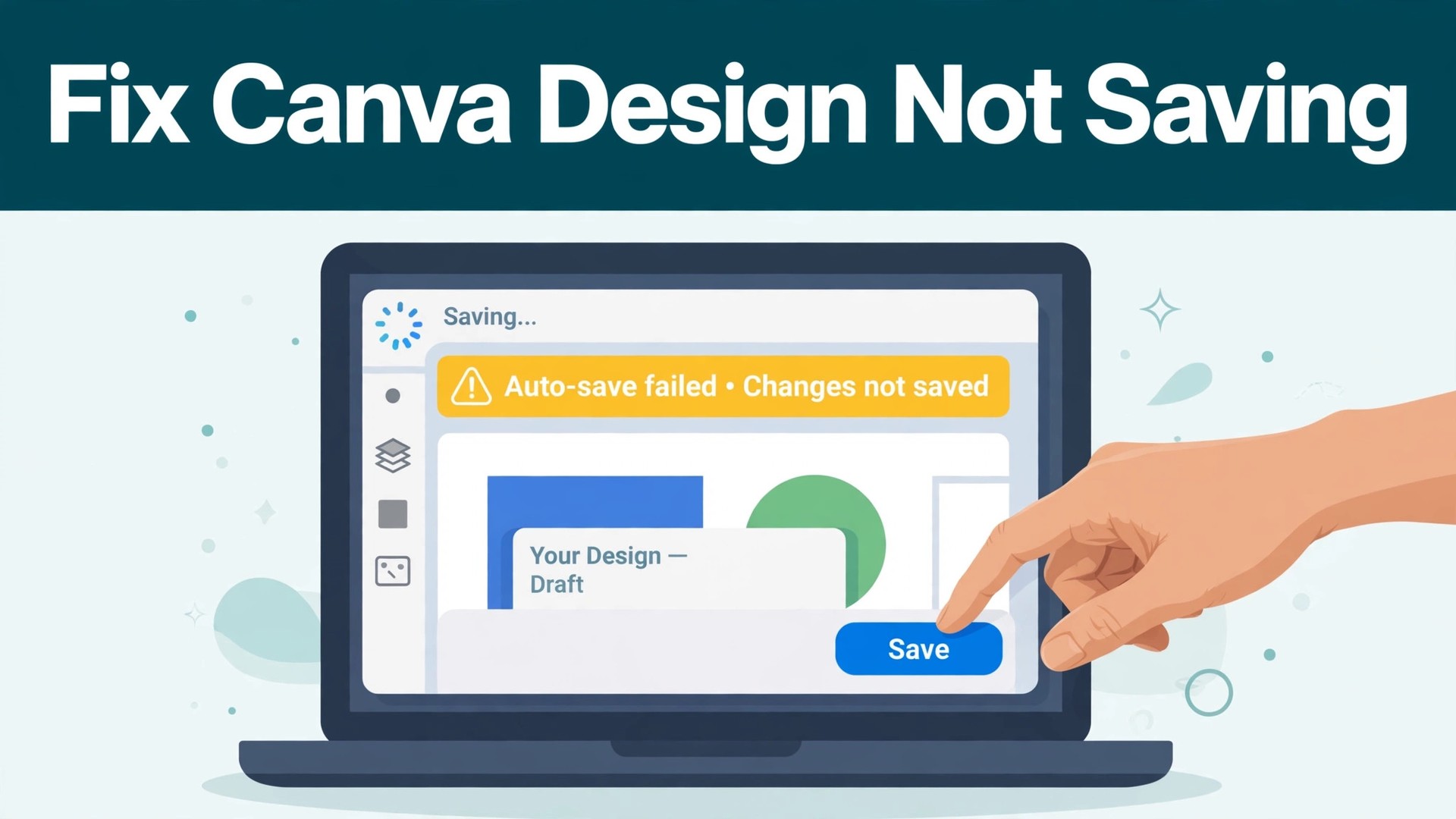
You change a headline, wait for the save tick, and nothing happens. The status bar keeps spinning, or it says the editor is locked, or it claims all changes are saved and then the edits vanish when you reopen the design. Few faults in Canva feel worse than this one, because the work is right there on screen and you cannot be sure it will still be there in an hour. This guide to fix canva design not saving works through all seven causes in order, starting with the checks that take under a minute.
Canva saves automatically every few seconds while you edit, and the proof is the line in the top bar that reads “All changes are saved” beside a tick. When that line never appears, the editor is not talking to the server, and every edit since the last successful save lives only in your browser tab. Close the tab and those edits are gone. The first job is therefore not to keep editing, but to find out whether the save is actually reaching the server, and the second job is to protect the work you already have.
The causes fall into three groups. Connection problems stop the autosave from reaching Canva at all, and they cover most cases. Browser and app problems let the connection through but break the editor session, so the save spins or fails silently. Account and storage problems let everything else work while one limit quietly blocks new saves. This guide gives you the order that finds the group first, then the cause inside it, with a clear fix for each one.
Quick Diagnosis Checklist to Fix Canva Design Not Saving
Work through this checklist in order, and stop as soon as the save tick returns. To fix canva design not saving, start with the visible checks, because they solve most cases, and work through the storage and account checks only if the visible checks fail. Most cases resolve in the first three checks.
| What you see | Try this first | Likely cause |
|---|---|---|
| Save icon spins for minutes | Click File, then Save, and watch the status line | Unstable connection or stalled session |
| Editor locked message | Do not keep editing, refresh the tab | Save sync failure, connection blocked |
| “All changes saved” but edits vanish | Open the design in a second tab | Changes never reached the server |
| “Reconnecting” banner at the top | Check Wi-Fi, turn the VPN off | Network drop or VPN blocking sync |
| Save fails only on one design | Duplicate the design and test the copy | Corrupt design file |
| Save fails on the app, works on desktop | Update the app, check storage on the phone | Outdated app or full device storage |
| Save fails after many uploads | Check account storage in settings | Free plan storage cap reached |
| Save fails only at work or school | Try a home network or mobile hotspot | Firewall or proxy blocking Canva |
If the save works after any check, download a copy of the design as a PDF before you keep editing, because a save that failed once can fail again, and a downloaded copy is the fastest recovery. If none of the checks work, go to the still not working section at the end of this guide, and work through the account and device steps there.
1. The Connection Dropped, So the Autosave Never Reached the Server
Canva is a cloud editor, so nearly every action is a network request, and the autosave is no exception. A connection that drops for ten seconds is enough to stall the save, and a connection that keeps dropping will keep the status bar spinning long after the Wi-Fi icon looks fine. The most likely fix is a stable connection and a manual save, because the editor often recovers on its own once the network steadies, and a manual save is the test that proves it.
How to tell it is this cause. The status bar says “Saving” or “Reconnecting” for minutes, other websites load slowly or not at all, and the problem started when you moved rooms, joined a crowded network, or switched to a hotspot. A design that saved fine at home and fails at a cafe is the most common case, because public Wi-Fi drops packets in a way that a video call tolerates and an autosave does not.
How to fix it.
- Move closer to the router, or switch to a wired connection, and wait thirty seconds for the status line to change.
- Click File, then Save, and watch for the line that reads “All changes are saved” before you close anything.
- Open the design in a second tab and check whether the latest edits appear there, because edits that appear in the second tab have reached the server.
- Restart the router if other devices are slow too, then reload the Canva tab once the network is back.
- Switch to a mobile hotspot for a test, because a save that works on the hotspot proves the home network was the problem.
Do not close the tab while the status still says “Saving”, because the edits in that tab may be the only copy. Wait for the tick, download a PDF copy as insurance, and only then keep editing.
2. A VPN, Firewall, or Extension Is Blocking the Save Requests
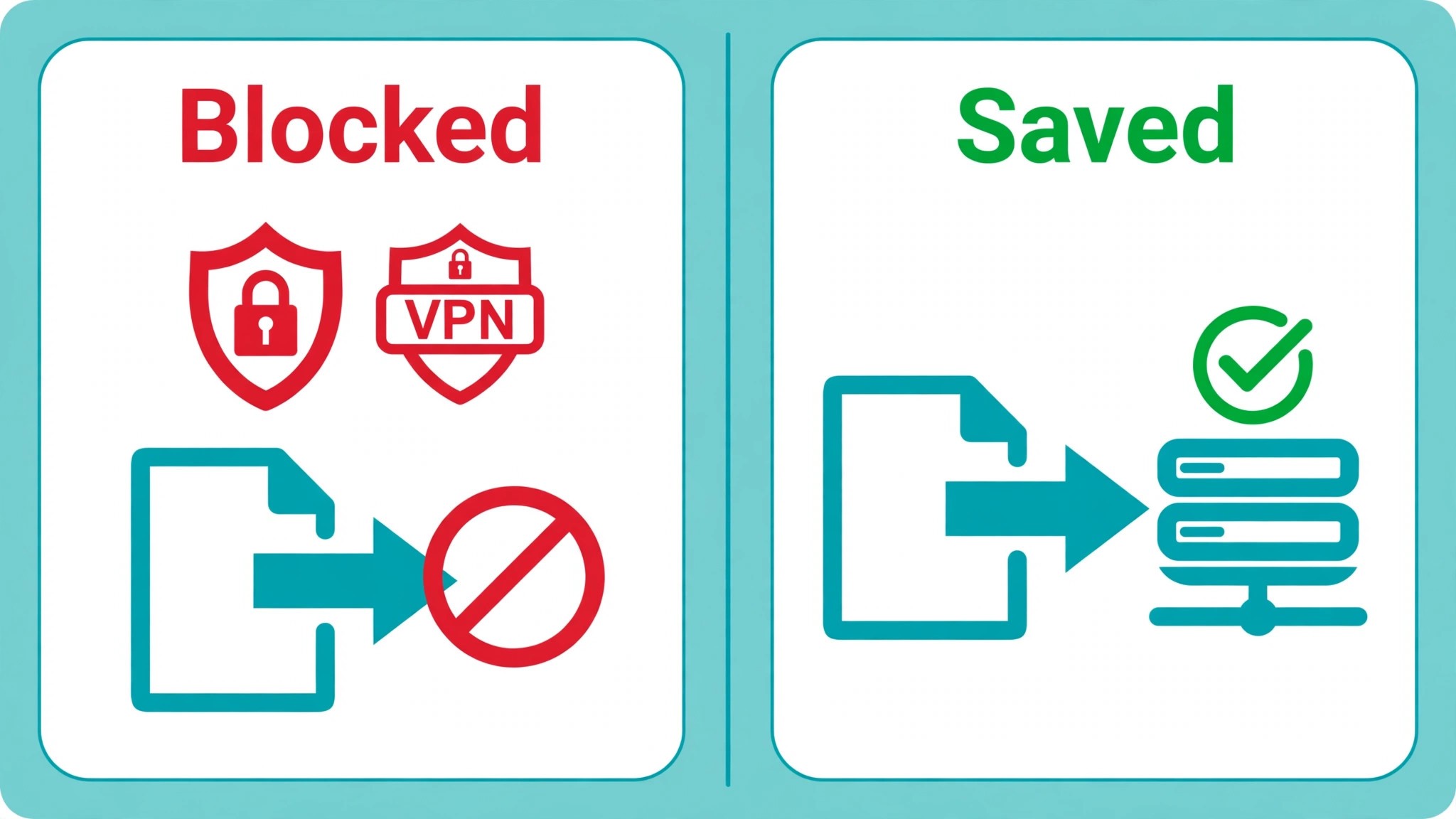
Canva autosaves through a live connection that some VPNs, firewalls, antivirus tools, and browser extensions treat as suspicious and quietly block. The editor loads, the design opens, and everything looks normal, except the save never completes, because the requests that carry your edits are the ones being stopped. The fix is to remove the block, not to keep refreshing, because a blocked request fails the same way every time.
How to tell it is this cause. The save fails on one network but works on another, or it fails in your usual browser but works in a private window, or it started the day you installed a new extension, VPN, or security tool. A work or school network is the most common case, because corporate firewalls and proxies often block the live sync traffic that Canva depends on.
How to fix it.
- Turn the VPN off, reload the tab, and click File, then Save, to test whether the save completes.
- Open a private window, sign in to Canva, and open the design there, because a private window runs with extensions off.
- Disable ad blockers and script blockers for Canva, then reload, because those extensions are the usual suspects.
- Pause the antivirus web shield for a test, and add Canva to its allowed list if the save starts working.
- Ask the network administrator to allow Canva traffic if the problem only happens at work or school.
Keep a note of which change fixed it, because the block will return the next time the VPN or extension updates. A save that works in a private window and fails in the normal window is an extension problem, and that test alone can fix canva design not saving for a reader who has spent an hour refreshing the same tab.
3. The Browser Cache Is Corrupt, So Clear It and Reload Clean
A corrupt cache can leave the editor half loaded, with the design visible and the save broken. The tab may have been open for days, or the browser may have updated underneath it, or a cached script may have failed partway through loading. Clearing the cache for Canva and reloading gives the editor a clean start, and it fixes more save faults than most people expect, because the editor is a large web app and a stale file can break one feature while the rest look fine.
How to tell it is this cause. The save worked yesterday in the same browser, nothing about the network changed, and other Canva designs fail the same way, or the editor feels sluggish and buttons respond slowly. A tab that has been open since last week is the most common case, because the session underneath it has gone stale even though the design still shows.
How to fix it.
- Save a copy first if the editor allows it, by clicking File, then Make a copy, or by downloading the design as a PDF.
- Clear the cache and cookies for Canva only, so you do not lose sign-ins on other sites.
- Close the tab completely, open a fresh tab, and sign in to Canva again.
- Update the browser to the latest version, because Canva works best in current Chrome, Edge, Firefox, or Safari.
- Turn off hardware acceleration in the browser settings if the editor still feels sluggish after the reload.
Do not keep editing in the stale tab while you troubleshoot, because edits made there may never sync. Work in the fresh tab once it loads, and check the save tick before you make the next change.
4. The Design File Itself Is Corrupt, So Move the Work to a Fresh Copy
Sometimes the fault follows one design and no other. The file may have a damaged element, a broken upload, or a page that never finished saving, and the autosave keeps failing on that design while every other design saves cleanly. The fix is to move the content into a new design, because the new file starts with a clean save state, and the old file can be kept as a backup while you confirm the copy works. This is the step that rescues work when nothing else helps, and it is the step people skip because copying feels like giving up.
How to tell it is this cause. Other designs save normally, the same design fails on every browser and every device, and the failure started after a large upload, a crash, or an interrupted save. A design with dozens of pages and heavy images is the most common case, because one damaged page can block the save for the whole file.
How to fix it.
- Open Canva in a new tab, create a design in the same format, and leave it open beside the broken one.
- In the broken design, select all elements on one page, copy them, and paste them into the new design.
- Repeat page by page, and after each page, check that the new design shows “All changes are saved”.
- If one page refuses to copy, rebuild that page by hand in the new design, element by element.
- Rename the new design clearly, and keep the old one untouched until the copy has saved cleanly for a day.
If the copy saves and the original does not, the original file was the problem, and the copy is now the real design. To fix canva design not saving on a single stubborn file, a fresh copy is the fastest reliable repair, and it costs less time than another hour of refreshing the same broken tab.
5. Account Storage Is Full, So Free Space Before the Next Save
Free Canva accounts include 5 GB of storage, and Pro accounts include 100 GB, and when that storage fills up, new uploads and autosaves can quietly stop completing. The editor does not always say the storage is full. It simply spins, or it shows a vague sync error, and the design looks fine until you reopen it and find the last edits missing. Checking storage is a two minute job, and it explains a fault that no amount of refreshing will fix.
How to tell it is this cause. The save fails after a run of large image or video uploads, old designs with heavy media are involved, and the account has been in use for months without a cleanup. A free account that has stored years of designs is the most common case, because 5 GB fills faster than most people expect once videos enter the mix.
How to fix it.
- Open account settings and check the storage meter to see how much space is used.
- Delete old designs you no longer need, starting with the largest ones, and empty the trash.
- Remove unused uploads from the Uploads folder, because uploaded files count even when no design uses them.
- Download important designs as PDFs before you delete them, so nothing is lost in the cleanup.
- Upgrade to Pro if the work genuinely needs more than 5 GB, because the 100 GB allowance removes the cap for most users.
Do not delete the design you are trying to save. Clean the old files first, wait for the storage meter to drop, and then click File, then Save, in the design that was failing.
6. The App Is Outdated or the Device Storage Is Full
On a phone or tablet, the save can fail for reasons that never appear on desktop. An outdated app may carry a bug that the current version fixed months ago, and a phone with almost no free space cannot hold the local copy the app needs before it uploads. The symptoms look like a Canva fault, but the fix sits in the app store and the device settings, and it takes five minutes once you know where to look.
How to tell it is this cause. The design saves on desktop but not on the phone, or the app crashes when you open the design, or the phone warns about low storage. A phone that has not updated the app in months is the most common case, because the app store does not always update automatically on mobile data.
How to fix it.
- Update the Canva app from the App Store or Google Play, then reopen the design.
- Free at least 1 GB on the device by deleting old videos, photos, or apps you no longer use.
- Force close the app, reopen it, and wait for the design to load fully before you edit.
- Sign out of the app and sign back in, because a fresh session reloads the account from the server.
- Test the same design in a desktop browser, because a save that works there proves the design is fine and the app was the problem.
If the app still fails after an update and a cleanup, uninstall it and reinstall it from the store, then sign in again. A reinstall clears the local cache completely, and it is the last app step before the account checks in the next section.
7. The Account Session Expired or Canva Has an Outage
A session that expired silently can leave the editor open and the save dead, because the editor no longer has a valid login to send the edits with. An outage on Canva’s side does the same thing to every user at once, and no browser fix will help until the service recovers. Both causes are quick to check, and both are worth checking before you rebuild a design, because the fix for each one is to wait or to sign in again, not to keep editing.
How to tell it is this cause. Every design fails at the same time, the sign-in page appears when you open a new tab, or friends and colleagues report the same fault, or the Canva status page shows an incident. A session that has been open for days is the most common case, because the login token underneath it can expire without any warning in the editor.
How to fix it.
- Open the Canva status page and check whether saving or editing designs shows an active incident.
- Sign out of Canva completely, then sign back in, and reopen the design.
- Check that the subscription is active if the design uses Pro features, because a lapsed plan can block Pro saves.
- Confirm the account email is verified, because an unverified account can hit limits that look like save faults.
- Contact Canva support through the Help Center if the status page is green and a fresh sign-in still fails, and tell them the design link, the browser, and the exact message.
Do not keep editing while the session is expired, because those edits have nowhere to go. Sign in again, watch for the save tick, and only then continue. If the status page shows an outage, wait, because the save will resume when the service recovers, and your open tab will usually sync on its own.
What a Healthy Save Looks Like
A working Canva save is quiet. You change a word, and within a few seconds the top bar shows a tick and the line “All changes are saved”. There is no spinning icon, no banner, and no warning when you close the tab. That quiet tick is the only proof that matters, and it is worth learning to look for it, because the editor will happily let you keep working long after the save has stopped, and the first sign of trouble is often a design that opens without your last hour of work.
The save has three stages, and each one can fail on its own. First, the browser sends the change to Canva over your connection. Second, the server stores the change against your account. Third, the editor confirms the save and shows the tick. A slow connection stalls the first stage. A full storage allowance stalls the second. A stale session stalls the third, because the server will not accept a save from a login it no longer trusts. Knowing the stages helps you read the symptom, because a spinning icon points at the first stage, a sync error points at the second, and a lock message points at the third.
Timing is a useful clue too. A save that completes in under ten seconds on a normal design is healthy. A save that takes a minute on a design with fifty pages and heavy video is slow but normal, because the file is large. A save that never completes on a one page design with a single headline is broken, and no amount of waiting will fix it. The size of the design sets the expectation, and a small design that will not save is a fault, not a delay.
The habit that protects you is simple. After every important change, glance at the top bar and wait for the tick. Before you close a tab, click File, then Save, and watch the tick appear. Before you share a design, open it in a second tab and confirm the latest edits are there. Those three glances take seconds, and they are the difference between a design that is safe and a design that only looks safe. A reader who builds that habit will rarely need to fix canva design not saving again, because the fault will be caught while the tab is still open and the work is still recoverable.
Still Not Working
If you have worked through all seven causes and the design still will not save, this is the point where a systematic check still pays off. First, try a different device entirely, a phone if you were on a computer, or a computer if you were on a phone, because a device problem will follow the device, and a design problem will follow the design. Second, duplicate the design from the Projects page, and open the copy, because a corrupt design file can sometimes be repaired by duplication, and the copy will tell you whether the original file is the problem.
Third, check the version history if the account is on Pro, because the history holds earlier autosaves, and restoring one may recover edits that the current save lost. Fourth, export the design as a PDF or PNG right now, while it is still open, because an export preserves the visible work even if the save never resumes. Fifth, try a different browser entirely, not just a private window, because a browser-level fault can survive a cache clear.
Sixth, write down the exact message, the time it failed, and the browser and device you used, then contact Canva support with that list, because support will ask for all three. Before you write to support, try the design once more in a private window with extensions off, and note whether the save tick appears. Do not delete the design, and do not start over from scratch, until you have tried the duplicate step and the different device step. A design that loses a save once is usually repairable, and a new design built from memory will not match the original spacing and sizing.
Prevention Checklist
Use this checklist before you share or download any design, and save faults will become rare. Keep the browser updated, and clear the Canva cache once a month. Keep the VPN off while you edit, or add Canva to its allowed list. Watch the save tick after every big change, and do not close the tab until it appears. Download a PDF copy of finished designs, so a failed save never loses the final version.
Check account storage once a month, and delete old uploads before the meter fills. Update the mobile app whenever an update appears, and keep at least 1 GB free on the phone. Keep the design count manageable, and split very large designs into smaller files. Save a copy before a big edit, so a failed save never loses the version that worked.
Frequently Asked Questions
Why is my Canva design not saving?
The most common reason is a dropped connection or a VPN, firewall, or extension blocking the autosave, followed by a corrupt cache or a full storage allowance. Check the save status first by clicking File, then Save, and watching for the line that reads “All changes are saved”. Then turn the VPN off, clear the cache, and check storage. Most cases resolve in those steps, because the editor itself is rarely the problem.
What does “We’ve locked the editor” mean in Canva?
It means Canva could not save your changes and locked the editor to stop you making edits that would be lost. Do not click continue editing, because changes made after the lock may not save at all. Refresh the page, open the design in a new tab, or restart the desktop app, and check the save status before you edit again. If the lock returns, work through the connection and extension checks to fix canva design not saving at the source.
Why does Canva say all changes are saved but my edits disappear?
The status line can report a save that only reached the browser, not the server, when the connection is unstable. Open the design in a second tab and check whether the latest edits appear there. If they do not, the changes never reached the server, and the fix is the connection and VPN checks in this guide. Download a PDF copy of the open design before you close the tab, so the visible work is preserved.
How do I manually save a design in Canva?
Click File in the top menu, then Save, and wait for the line that reads “All changes are saved”. Canva autosaves every few seconds by default, and there is no toggle to turn it on, so a manual save is a test and a confirmation, not a setting. If the manual save spins without completing, the cause is one of the seven in this guide, and the checklist at the top will point to it.
Can I recover a Canva design that never saved?
Often, yes, if the design was open in a tab. First, do not close that tab, and download the design as a PDF or PNG while it is still visible. Then duplicate the design from the Projects page, or copy the elements into a fresh design, and check that the copy saves. On a Pro account, check File, then Version history, because earlier autosaves may hold the lost edits. A design that was never saved even once is the hardest case, because there is no server copy to restore.
Verdict
To rescue a design that will not save, start with the connection and the save status, because an autosave that never reaches the server is the most common cause, and the File, then Save test proves it in seconds. That order is the core of how to fix canva design not saving without wasting an hour on the wrong cause. Then check the VPN, the extensions, and the cache, because those three block more saves than any fault inside Canva itself.
If the save still fails, move the work to a fresh copy, check the storage meter, update the app, and sign in again. Work through the seven causes in order, download a PDF before you close the tab, and use the prevention checklist on every design you share. Most readers will only need the first three causes to fix canva design not saving, and the rest are there for the stubborn cases. The work is almost always still there on screen, and the save is almost always simpler to restore than it looks, so a careful pass through the seven causes will rescue the design.