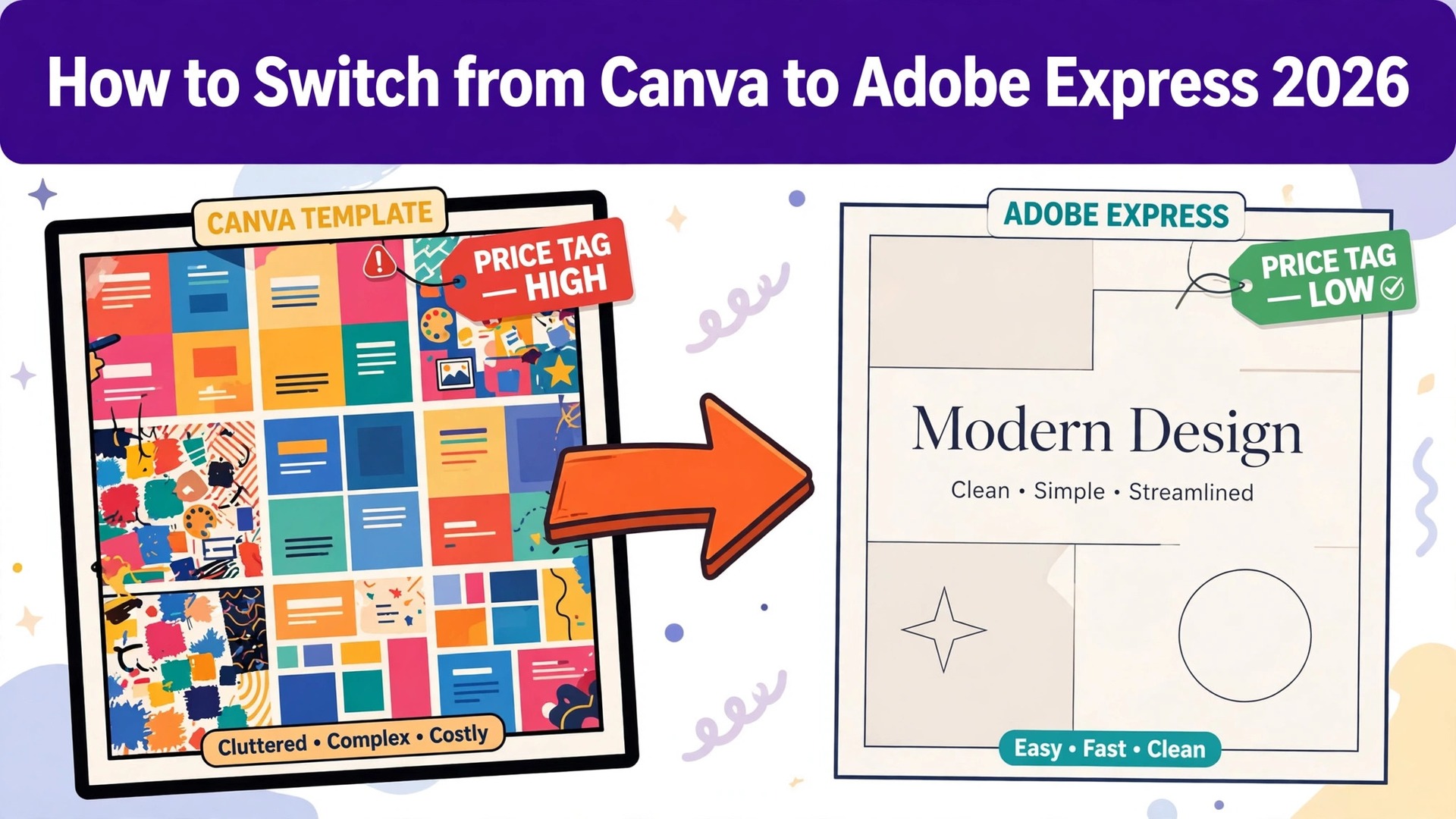
Canva Pro costs 18 dollars a month, or 144 dollars a year. Adobe Express Premium costs 9.99 dollars a month. The gap is 8.01 dollars a month, or about 96 dollars a year for one person, and it is the reason design teams start asking how to switch from Canva to Adobe Express when the renewal lands.
Canva is the bigger tool. Its template library is the largest in this category, its free plan is the most generous, and its Brand Kit, Magic Resize and scheduling cover the whole social workflow in one login. Adobe Express is the cheaper tool with the better fonts. Its Premium plan costs roughly half of Canva Pro, its Adobe Fonts library is deeper than anything Canva sells, and its templates look more refined out of the box. A team that designs social posts all day will notice the smaller library, and a team that cares about typography will notice the better type.
The switch is not about which tool has more templates. It is about which price and which library match the work the team actually does. Canva charges for breadth, and a team that uses ten different design types a week gets its money worth. Adobe Express charges for focus, and a team that makes the same five post types every week gets the same result for half the price. For a team that only needs social posts, flyers and short videos, the saving is real money every month.
This guide walks through how to switch from Canva to Adobe Express in seven steps, with a cost comparison, a clear account of what transfers, what must be rebuilt, and what to test before cancelling Canva. Follow the steps in order, run both tools side by side for two weeks, and the move will be quiet. Skip the steps, cancel early, and brand kits, templates and editable designs can vanish without warning.
The Bill That Makes Teams Look Twice
Cost is the reason most teams switch, and the numbers explain why. Canva Free costs nothing, with thousands of templates, 5 GB of storage, basic Magic Studio features and standard exports to PDF, PPTX and image formats. Canva Pro costs 18 dollars a month on monthly billing, or 144 dollars a year, and adds premium elements, transparent backgrounds, the full Brand Kit, Magic Resize, background remover and 1 TB of storage. Canva Business costs 25 dollars per person a month on monthly billing, or 250 dollars per person a year, and adds team brand controls, approvals and advanced admin.
Adobe Express Free costs nothing, with basic templates, fonts and exports, and 25 generative AI credits a month. Premium costs 9.99 dollars a month, or about 119.88 dollars over twelve months, and adds premium assets, premium fonts, Brand Kits, 100 GB of storage and 250 Firefly generative credits a month. Express for Teams costs 4.99 dollars a month per licence in the first year, then 7.99 dollars, with a two seat minimum. Firefly Pro, a separate tier, costs 19.99 dollars a month and bundles Express Premium with 4,000 generative credits and Photoshop on web and mobile.
A single designer on Canva Pro pays 144 dollars a year against about 119.88 dollars on Adobe Express Premium, a saving of about 24 dollars a year. A single designer paying monthly saves more, because Canva Pro at 18 dollars a month costs 216 dollars a year against 119.88 dollars for Express Premium, a saving of about 96 dollars a year. A team of five on Canva Business pays about 1,250 dollars a year, against about 479.40 dollars a year for Express Teams at the renewal rate of 7.99 dollars per licence, a saving of about 770 dollars a year.
The saving grows with the team, because Canva Business charges per person at the full rate while Express Teams charges per licence at a lower rate. A team of ten on Canva Business pays about 2,500 dollars a year, against about 958.80 dollars on Express Teams at renewal, a saving of about 1,541 dollars a year. Those figures use the published list prices from October 2026 checks, before tax, and the Express Teams first year rate of 4.99 dollars makes the first year cheaper still. Count the seats before deciding, because the team size decides the saving.
Canva vs Adobe Express at a Glance
| Feature | Canva | Adobe Express |
|---|---|---|
| Pricing basis | Per person, Pro or Business | Per person, Premium or Teams |
| Free plan | Templates, 5 GB storage, basic AI | Basic templates, 25 AI credits a month |
| Entry paid plan | Pro 18 dollars a month, or 144 dollars a year | Premium 9.99 dollars a month |
| Team plan | Business 25 dollars a person a month | Teams 4.99 dollars a licence first year, then 7.99 |
| Storage on paid plan | 1 TB on Pro | 100 GB on Premium |
| Brand Kit | Full Brand Kit on Pro | Brand Kits on Premium |
| Fonts | Canva font library | Adobe Fonts, deeper library |
| AI credits | Magic Studio, limits vary by plan | 250 Firefly credits a month on Premium |
| Built-in print ordering | No built-in print ordering | |
| Scheduling | Content scheduling on Pro | No built-in social scheduling |
Canva wins on breadth, storage and scheduling. Adobe Express wins on price and on fonts, and its Premium plan costs roughly half of Canva Pro. Check which side of that trade the team sits on before moving, because the wrong side costs more than the saving.
The Trade-Offs Nobody Mentions First
A switch guide that only lists the saving is not honest, so this section states the trade plainly. Canva is a template editor first and a generator second. Its library covers every post type a team can name, its Magic Resize turns one design into ten sizes in a click, and its scheduling posts the result without opening another app. A team that publishes fifty posts a week across five channels will feel the loss of that workflow every day, and the 8 dollars a month saved will not cover the hours spent resizing by hand.
Adobe Express is a typography tool first and a template tool second. Its Adobe Fonts library and its layouts look more refined than the average Canva output, and a team that cares about how the type sits on the page will see the difference at a glance. The editor is fast for a team that knows what it wants, and the Firefly credits generate images that match the Adobe look. The question is not which tool is better. The question is whether the team needs breadth or polish, and learning how to switch from Canva to Adobe Express starts with answering that question honestly.
The free plan story also changes. Canva free is one of the most generous free plans in this category, with thousands of templates and real exports, while Adobe Express free gives 25 generative credits a month and a thinner template set. A team that runs on the free plan will feel the move as a downgrade, and the switch only makes sense on the paid plans. Price the paid plan the team will actually use, not the free plan it is leaving.
How to Switch from Canva to Adobe Express in 7 Steps
Step 1. Audit the Canva account before touching anything
Open Canva and list every brand kit, every template, every saved design, every folder and every scheduled post. Export the brand kit details, the hex codes, the fonts and the logo files, and note the renewal date and the billing cycle, because cancelling mid cycle does not refund the year. Pay special attention to templates the team reuses every week, designs with client approvals attached, and scheduled posts that run after the switch date, because those are the pieces that do not move cleanly. This audit takes an hour and prevents the most common switch failure, which is discovering a weekly template only after it was deleted.
Step 2. Set up Adobe Express and rebuild the brand kit
Create the Adobe Express account, choose the plan that matches the team size, and rebuild the brand kit first, before moving any design. Add the logo files, the hex codes and the fonts, and check that the Adobe Fonts library has a match for every Canva font the brand uses. Where a font has no match, pick the closest Adobe font and record the change, because a font swap changes every design that uses it. Do not import designs yet. A clean brand kit decided on paper saves a week of fixing later.
Step 3. Export the designs that must survive
Designs do not transfer as editable files between these tools, so export the designs the team must keep as PNG, PDF or SVG files from Canva, with SVG available on Pro. Save the exports in a shared folder with clear names, and keep the original Canva links in a list for reference. Check each export to confirm the text, the images and the colors survived, and fix the export settings before the big export. A pilot export on one template prevents an account wide mess.
Step 4. Rebuild the weekly templates in Express
Rebuild the templates the team uses every week inside Adobe Express, starting with the five most used post types. Copy the layout, the copy and the brand colors from the Canva exports, and set the sizes to match the channels the team publishes to. Test each template with a real post before the switch date, and confirm the export quality matches the Canva original. This is the largest single task in the switch, so budget a full afternoon for a normal team and do not promise a one hour migration.
Step 5. Move the publishing workflow
Canva scheduling does not transfer, so set up the replacement before the switch date, either a scheduling tool or a manual publishing calendar. Move the scheduled posts by recreating them in the new workflow with the new Express exports, and check that nothing is scheduled to post from Canva after the account closes. Tell every client where the new files live, and update the shared folders and the approval process. A team that skips this step will find posts going out from an account it meant to close.
Step 6. Run both tools side by side for two weeks
Design in Adobe Express for two weeks while Canva stays open and the old templates finish. Watch the export quality, the font rendering and the publishing speed daily, and compare them with the Canva output from the same weeks last month. Confirm the brand kit applies correctly, the templates resize cleanly, and the scheduled posts go out on time. Fix the problems while Canva is still available as a fallback, not after it is cancelled. Two quiet weeks of parallel running cost nothing and catch every problem early.
Step 7. Cancel Canva and confirm the data is safe
Once two weeks of Express designs look clean, export the final brand kit details and any remaining designs from Canva, then cancel the subscription before the renewal date. Confirm the cancellation email arrives, and check that no auto renewal is set. Keep the Canva export files for six months, because the editable designs cannot be recovered later and the old exports are the only record of what the team used to publish. The switch is done when Express has run cleanly for two weeks and Canva is cancelled without a surprise charge.
What Moves Across and What You Rebuild
Brand assets move well. Download the logo files, the hex codes and the font names from Canva, and rebuild the brand kit in Adobe Express with the same values. Exported designs move as flat files, and a PNG, PDF or SVG export keeps the finished look, even though it cannot be edited as a design. The team list moves as a decision, not as a file, and each person must be invited to the Express team by hand.
What does not transfer is specific, and the team should name it before starting. Editable designs do not transfer, so every template must be rebuilt in the Express editor. Brand Kits do not transfer, so the colors, fonts and logos must be entered again. Scheduled posts do not transfer, so each one must be recreated in the new publishing workflow. Fonts do not transfer one to one, because Canva fonts and Adobe Fonts are different libraries, and a font with no Adobe match must be replaced.
Magic Resize has no direct match in Express, so a design that needs ten sizes must be resized by hand or rebuilt per size. Content scheduling has no match either, so the team needs a separate scheduler or a manual calendar. The only things lost are the Canva specific records, which are the editable designs, the brand kits, the schedules and the font choices. Export them all before cancelling, and the switch loses nothing that matters.
That is the full picture of how to switch from Canva to Adobe Express without losing the designs that matter.
The Go-Live Checklist
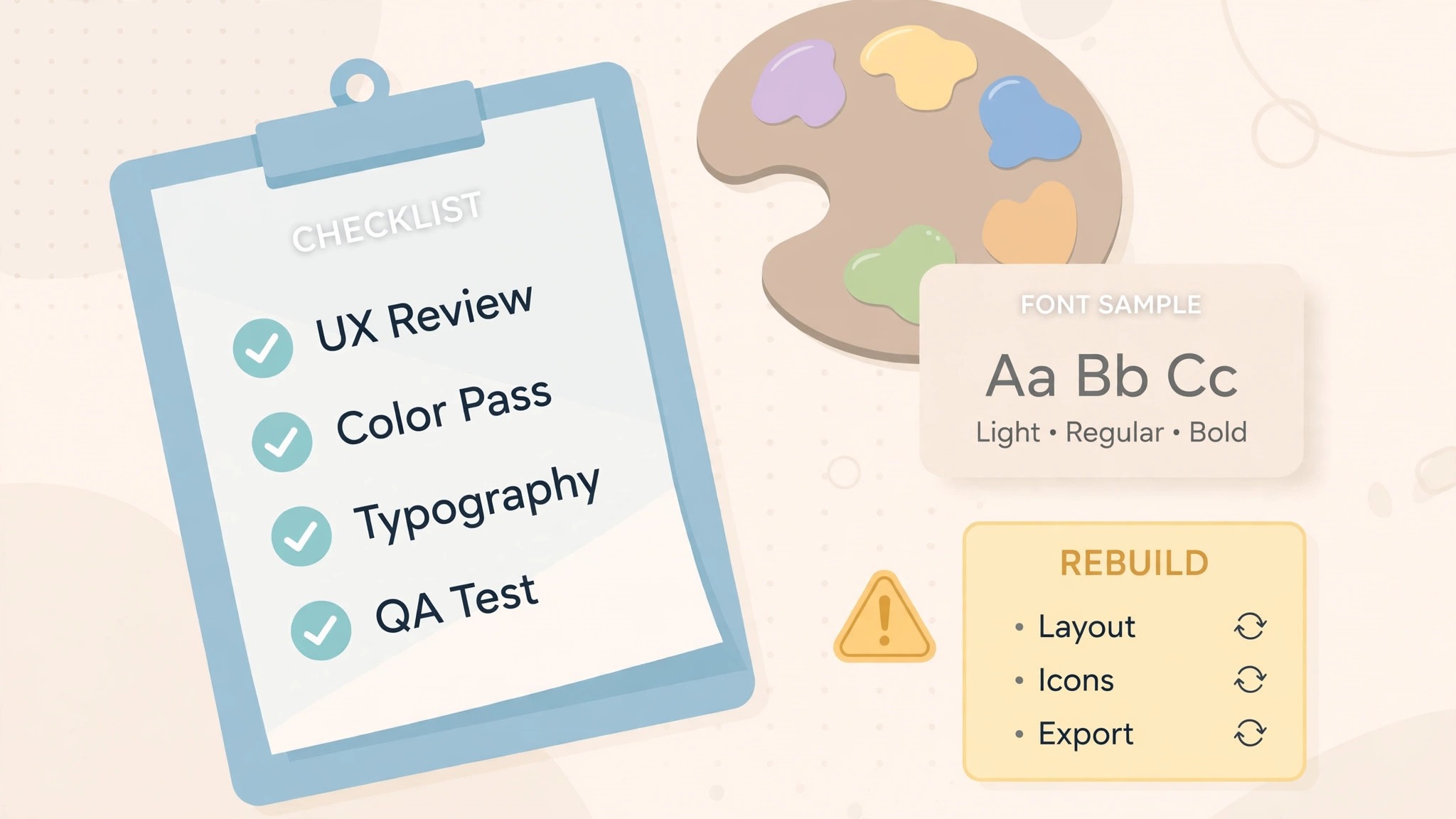
Use this checklist before starting step 1, and do not skip a line.
- List every Canva brand kit, template, saved design and scheduled post. – Export the brand kit details, hex codes, fonts and logo files. – Note the Canva renewal date and any contract term. – Flag templates reused every week and designs with client approvals. – Choose the Adobe Express plan by team size and by AI credit need. – Rebuild the brand kit in Express before moving any design.
- List the Canva templates and schedules the team actually uses. – Confirm the Adobe Fonts library has a match for every brand font. – Plan a replacement for Magic Resize and for scheduling. – Set a switch date in a quiet week, not during a launch. – Tell the team the switch date and the new workflow before step 1.
What the Switch Saves in Real Money
The saving depends on team size and billing cycle, because the two tools charge different rates for different seats. A single designer paying monthly spends 216 dollars a year on Canva Pro against about 119.88 dollars on Adobe Express Premium, a saving of about 96 dollars a year. A single designer paying annually spends 144 dollars a year on Canva Pro against about 119.88 dollars on Express Premium, a saving of about 24 dollars a year. A team of five on Canva Business pays about 1,250 dollars a year against about 479.40 dollars on Express Teams at the renewal rate, a saving of about 770 dollars a year.
A team of ten on Canva Business pays about 2,500 dollars a year against about 958.80 dollars on Express Teams at renewal, a saving of about 1,541 dollars a year. A team of ten in the first year pays even less on Express Teams, because the first year rate is 4.99 dollars a month per licence, or about 598.80 dollars a year, a saving of about 1,901 dollars against Canva Business. Those figures use the published list prices from October 2026 checks, before tax, and the Express Teams renewal at 7.99 dollars is the rate to budget for year two.
The saving shrinks when the team needs the extras. Canva Pro includes 1 TB of storage against 100 GB on Express Premium, so a team that stores large video files may need extra storage elsewhere. Canva Pro includes content scheduling, so a team that replaces it with a paid scheduler should add that subscription to the Express total. Count the add-ons and run the two totals, because the base price alone can mislead a team that pays for extras.
Run the same math for your own team before you commit to how to switch from Canva to Adobe Express, because the totals decide the plan.
Your First Two Weeks on Adobe Express
The parallel run only helps if the team tests the right things, so set the tests before the first Express design is published. Rebuild one social post, one flyer and one short video in Express, and confirm each one exports at the right size with the right fonts and the right colors. Then compare the Express export quality against the Canva originals from the same weeks last month, checking totals by post type and by channel. That test plan is the part of how to switch from Canva to Adobe Express that most teams skip, and it is the part that catches the problems while Canva is still available as a fallback.
Test the brand kit and the publishing workflow next, because those are the pieces that break quietly. Apply the brand kit to a new design and confirm the colors and fonts match the brand guide, run one scheduled post through the new workflow and confirm it goes out on time, and have a second designer confirm they see the same brand kit and the same templates. Also test one Firefly image generation, since the 250 credit monthly cap trips up teams that generate heavily. A test that covers designs, brand kit, publishing and AI credits in the first week leaves the second week for fixing what failed, which is exactly how a quiet switch is supposed to work.
Five Mistakes That Stall the Move
The first mistake is cancelling Canva before the Express templates are checked. A team that cancels on day one loses the editable designs, the brand kits and the scheduled posts in one move, and the rebuild takes days instead of hours. Keep Canva until step 7, and the switch stays boring. The second mistake is assuming designs transfer. A Canva design exported as a PNG is a flat image, not an editable file, and a team that plans to edit it in Express will discover the text cannot be changed.
The third mistake is forgetting the fonts. A brand font with no Adobe Fonts match will change every design that uses it, and a team that discovers the swap after publishing will spend a week fixing posts. Check every font before the switch date, and record the replacements. The fourth mistake is skipping the two week parallel run. A team that switches overnight discovers the scheduling gaps during a live campaign, when fixing them costs the most. Two quiet weeks of parallel running cost nothing and catch every problem early.
The fifth mistake is underestimating the template rebuild. Templates do not transfer as editable designs, and a team that budgets an hour for the rebuild will run out of time. Budget an afternoon, rebuild the top five templates first, and leave the long tail of old designs behind. The switch is a good time to clean the template library, not a reason to move every old design into the new tool.
Life After the Switch
The first month after the move is when the saving becomes real, and it is also when the new habits form. Set a weekly review in Express, one hour where the team checks the template library, clears the old exports and updates the brand kit, because a cheaper tool still needs a steady rhythm to earn its keep. Tune the rebuilt templates after two weeks, not on day one, because the first fortnight shows which templates get used and which never open. The work of how to switch from Canva to Adobe Express does not end on cancel day. It ends when the team stops opening the old tool out of habit, and that usually takes a full month.
Revisit the plan choice after 90 days. A team that started on Premium may find it needs Firefly Pro for more AI credits, and a team that started on Firefly Pro may find it can drop to Premium once the generation volume settles. Count the seats again too, because Express Teams bills the licences the team holds, and a contractor who finished their project should come off the plan. The switch saves money once. The habits save it every month after.
Frequently Asked Questions
How long does it take to switch from Canva to Adobe Express?
Most small teams finish the switch in one to two weeks. The setup takes an afternoon, the brand kit rebuild and the template rebuild take another afternoon, and the two week parallel run catches the problems while Canva is still available. A team with many templates or a large scheduled queue should budget three weeks. Do not promise a one day switch, because the manual rebuild and the parallel run are what make the move safe.
Will I lose my designs when I switch from Canva to Adobe Express?
Finished designs survive as exported PNG, PDF or SVG files, so export the designs the team must keep before cancelling. Editable designs, brand kits and scheduled posts do not transfer, so flag them in the audit and rebuild them by hand. Keep Canva running until the Express templates are checked, and no design will be lost.
Is Adobe Express really cheaper than Canva?
Yes, on every paid plan the October 2026 checks could compare. Express Premium costs 9.99 dollars a month against 18 dollars for Canva Pro on monthly billing, and Express Teams costs 4.99 dollars a licence in the first year and 7.99 dollars after, against 25 dollars a person for Canva Business. The only common case where the saving shrinks is a team that adds a paid scheduler to replace Canva scheduling, or a team that needs more than 100 GB of storage. Count the add-ons before deciding.
Does Adobe Express have the same templates as Canva?
No, Adobe Express has a smaller template library, and its strength is typography and refined layouts rather than breadth. Canva covers more post types, more sizes and more niches, and its Magic Resize turns one design into ten sizes in a click. A team that publishes the same five post types every week will not miss the breadth, and a team that publishes fifty different types will. Pick the five templates the team actually uses and rebuild those first.
Can I keep my Canva brand kit when I switch?
No, brand kits do not transfer between platforms. Download the logo files, the hex codes and the font names from Canva, and rebuild the kit in Adobe Express by hand. Check that Adobe Fonts has a match for every brand font, and record any replacement before the switch date. A brand kit that is rebuilt carefully will look the same on the new tool, and a brand kit that is rushed will change every design that uses it.
The Call
Switch to Adobe Express if the team designs the same five post types every week, if the bill is the problem, or if the team cares about typography and Adobe Fonts more than template breadth. A team of five to ten people will save hundreds to more than a thousand dollars a year, get a cleaner type library and the same social post output, and lose nothing it actually uses, as long as the audit flags the templates and the fonts first. For those teams, learning how to switch from Canva to Adobe Express is worth an afternoon, and the saving repeats every month.
Stay on Canva if the team publishes fifty different post types a week, if Magic Resize and scheduling are the workflow, or if the team is mid campaign and cannot afford a week of parallel running. A team that values breadth over price will feel Express as a step down, and a team with a large template library can find the saving smaller than the headline suggests. Stay also if the renewal is close and the team is mid launch. A switch during a launch costs more in chaos than it saves in subscription fees.
The decision rule is simple. Count the seats, count the templates the team actually reuses, list the features the team opens every week, and run the two totals with scheduling and storage included. If Express covers the weekly workflow and costs less, switch in a quiet week and follow the seven steps. If Canva covers a weekly workflow that Express cannot match, stay and renegotiate the Canva plan instead. The right tool is the one that matches the work, not the one with the lower headline price.