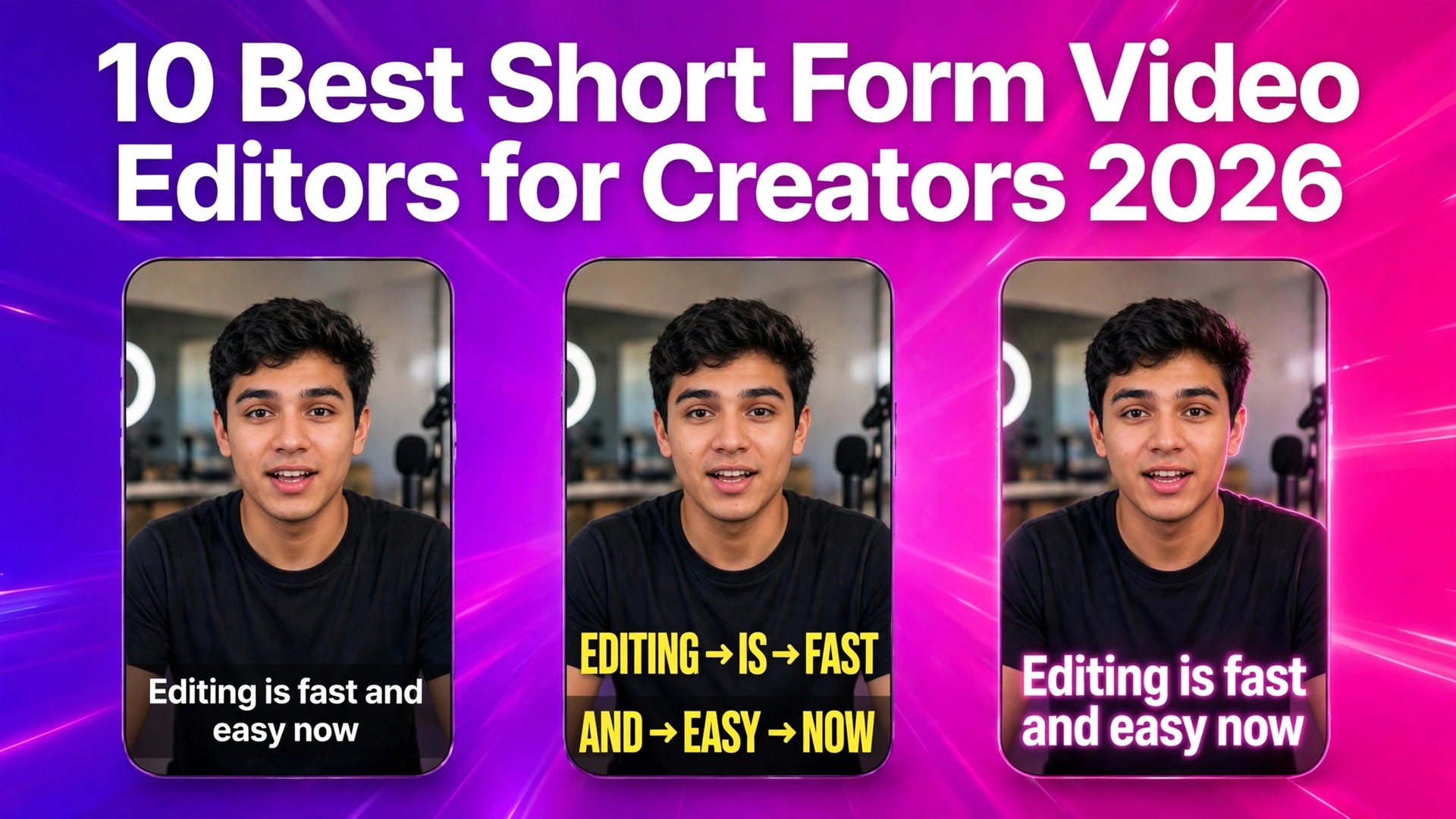
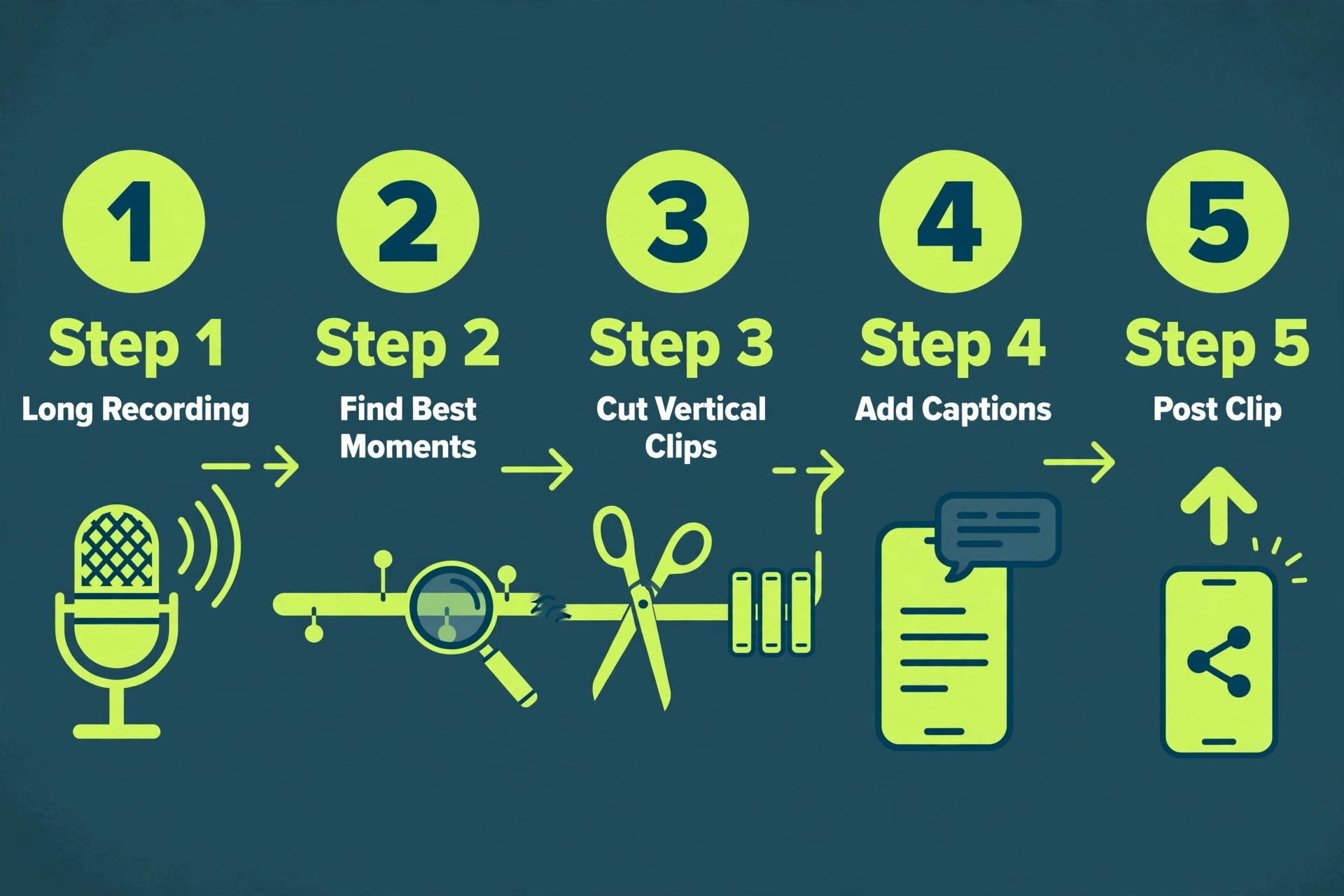
One 60 minute recording can yield a week of short clips, yet most creators still spend more time editing than filming. The best short form video editors for creators close that gap, by turning a long video into captioned vertical clips in minutes, or by cutting a talking head recording with a transcript instead of a timeline. CapCut is the best overall pick for most creators, because the free plan covers captions, templates and 1080p export, and Pro costs 19.99 dollars a month. Descript is the better choice for talking head video, and OpusClip is the better choice for turning long recordings into many clips.
We tested 10 editors on the same material, a podcast recording, a talking head tutorial and a phone filmed product clip, and compared them on caption quality, clipping speed, export quality, price and the limits that catch buyers out.
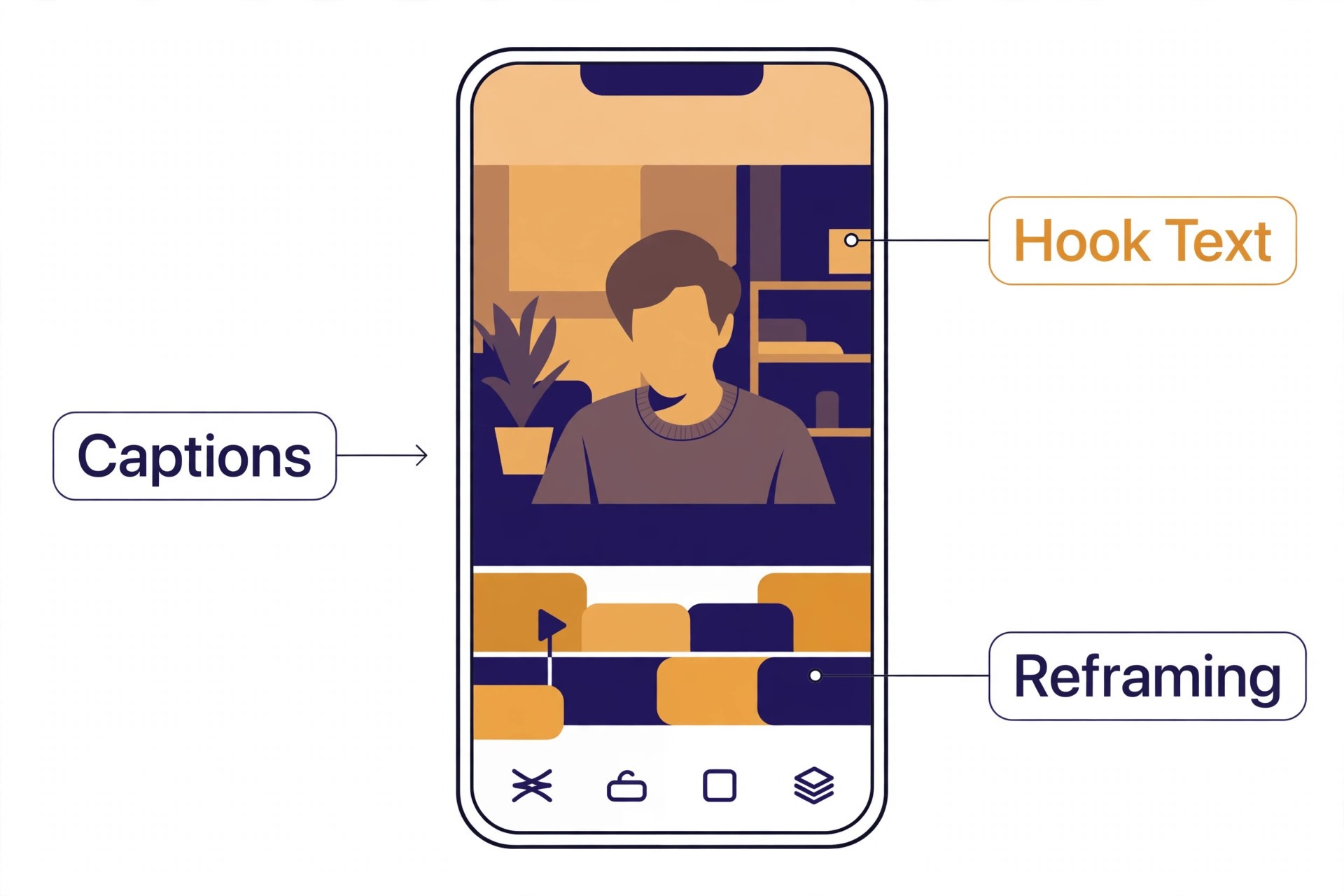
Short video rewards speed and clarity. A viewer decides in the first few seconds whether to keep watching, so the hook, the captions and the framing matter more than the effects library. The editor that wins gets a captioned clip out fast, with readable text and no watermark, and does it again tomorrow without a fight.
Prices in this guide were checked against vendor pricing pages and current 2026 roundups in November 2026. Several editors changed their plans in 2026, and prices vary by region and by whether you pay in an app store or on the web, so confirm the price on the checkout page before you pay.
How We Tested the Best Short Form Video Editors for Creators
We scored each editor on five points, because a good short form editor wins on output speed and caption quality, not on the size of its template library. Caption quality covered accuracy, word level highlighting, style choices and language support. Clipping covered how fast a long recording becomes short clips, and whether the picks are worth posting. Editing speed covered how quickly a creator can cut, reframe and export a 60 second clip. Export quality covered resolution, watermark rules and aspect ratio options. Price covered the free plan, the paid plan and the limits that force an upgrade, such as credits, media hours or response caps.
We also noted what each editor leaves out of the headline price, because the best short form video editors for creators must be judged on the cap, not the headline fee. Credit systems, media hour caps and watermark rules are the usual traps, and an editor that looks cheap at 15 dollars a month can turn expensive once credits run out mid month. Each tool section below names the cap that matters, so the price you see here is closer to the price you will pay.
The Best Pick for Each Job
| Job | Pick | Why it wins |
|---|---|---|
| The best overall editor | CapCut | Free captions and templates, Pro at 19.99 dollars a month |
| Talking head and podcast video | Descript | Edit video by editing the transcript |
| Turning long video into clips | OpusClip | Virality Score and auto posting |
| Styled captions on short clips | Submagic | Big animated captions in many languages |
| Browser editing with subtitles | VEED | Subtitles, translation and team workspace |
| Free editing on Windows | Clipchamp | Watermark free 1080p export |
Use this table as a shortcut, then read the full section for the editor you are leaning toward. The cheapest editor is not the best value when its free exports carry a watermark, and the most powerful editor is not the best choice when you only need captions on a 30 second clip.
The Best Short Form Video Editors for Creators in 2026, Ranked
The 10 tools below fall into three groups. The first group edits by hand and suits creators who want full control over every cut. The second group clips and captions automatically, and suits creators who start from long recordings. The third group covers a specific job, free editing on Windows, pro level finishing, or phone first caption work.
1. CapCut
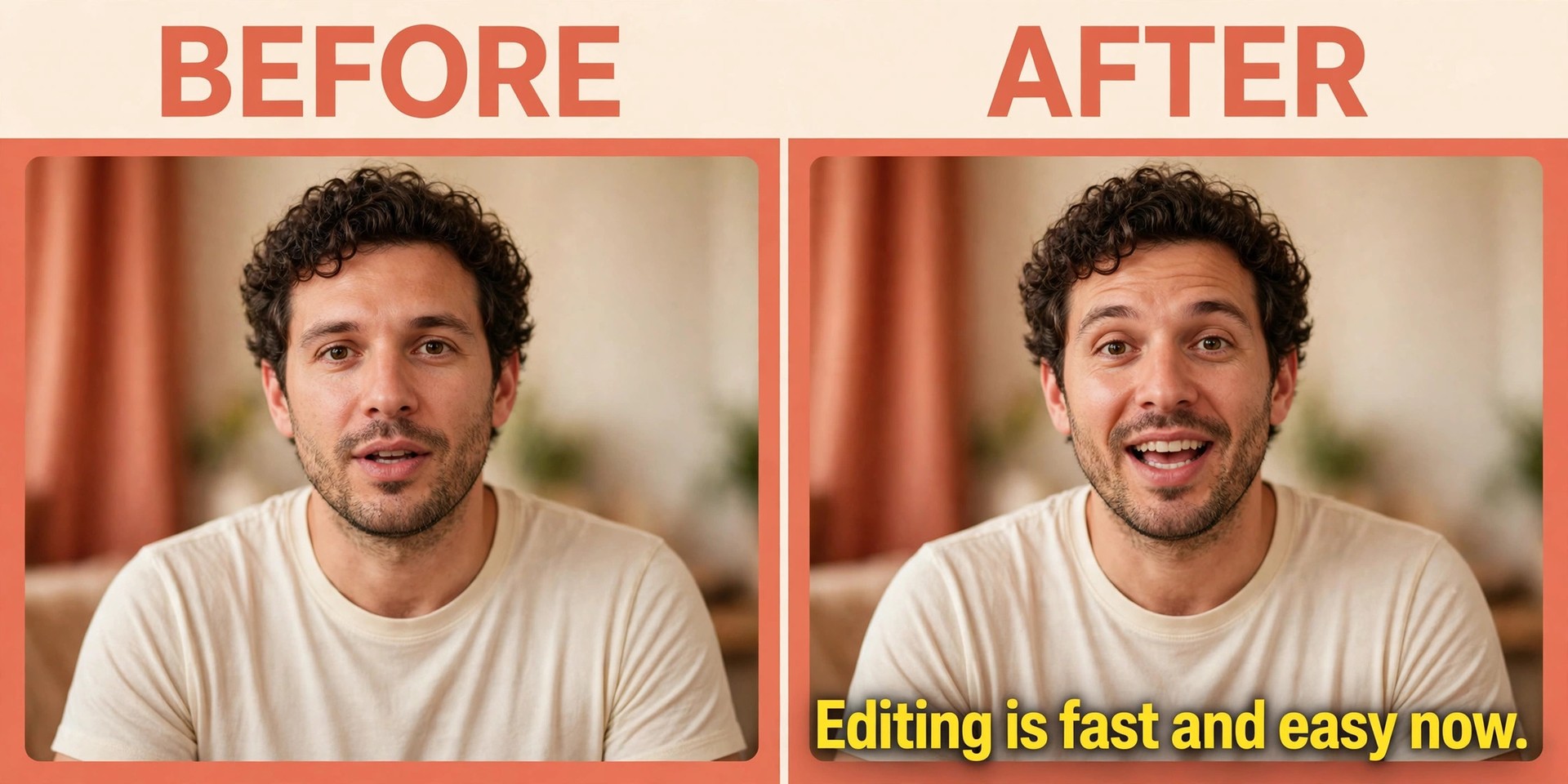
CapCut is the default editor for short form creators, and the free plan is the reason. It runs on phone, desktop and web, and the free tier covers a full timeline, auto captions with word level highlighting, auto reframe to vertical, background removal, templates, transitions and basic AI voiceover, with exports up to 1080p. Most creators never need to pay, because the free tools cover the whole short form job, from a rough phone clip to a captioned Reel.
Paid plans add 4K export, the full AI kit, more cloud storage and premium templates. CapCut restructured its plans in 2026, so the old Pro became Standard at about 9.99 dollars a month, and a new Pro tier launched at 19.99 dollars a month, or 179.99 dollars a year, with 1,200 monthly AI points and 1 terabyte of storage. An Ultra tier at 79 dollars a month suits heavy AI generation only. Prices vary by region and platform, so check the web price rather than the app store price.
The limits are worth knowing. Pro tagged templates and effects burn in a watermark you cannot remove on the free plan, and manual edits export without a watermark only when you delete the ending card. CapCut is owned by ByteDance, so read the content licence clauses when you publish commercial work. Even with those notes, CapCut is the best overall pick, because no other editor gives away this much short form power for free.
2. Descript
Descript is the pick for talking head video, podcasts, courses and tutorials, because it turns editing into document editing. The tool transcribes your recording, and deleting a sentence in the transcript cuts it from the video. Removing filler words, silences and repeated takes takes one click, and Studio Sound cleans up room noise and uneven levels. Pulling a tight 45 second segment out of a longer recording is faster here than in any timeline editor on this list.
Pricing starts free, with 60 media minutes a month, 100 one time AI credits and 720p watermarked exports. Hobbyist costs 16 dollars a month billed annually, or 24 dollars a month paid monthly, with 10 media hours and 1080p export. Creator costs 24 dollars a month billed annually, or 35 dollars a month paid monthly, with 30 media hours, 800 AI credits a month and 4K export. Business costs 50 dollars a month billed annually, with more hours and team features.
The limits follow from the design. Descript is built for dialogue, not for montages, so its effects library and template range are thinner than CapCut, and its animated captions look good but the ergonomics suit spoken video rather than fast cut social clips. Choose Descript when you talk to camera, teach, or record podcasts, and choose CapCut when the video is mostly music, b roll and quick cuts.
3. OpusClip
OpusClip turns a long recording into short captioned clips, and it is the best tool on this list for that single job. Paste a link or upload a file, and OpusClip finds the moments worth posting, cuts them into vertical clips, adds animated captions in more than 20 languages, and gives each clip a Virality Score from 0 to 99 based on hook, flow and trend. AI Reframe converts the clip to 9 by 16, 1 by 1, 4 by 5 and 16 by 9, with 16 by 9 export on Pro.
Pricing is credit based, with one credit equal to one minute of source video. The free plan gives 60 credits a month, up to 1080p clips, a watermark and no editing, and clips stop being exportable after 3 days. Starter costs 15 dollars a month on monthly billing only, with 150 credits and auto posting to Shorts, TikTok and Reels. Pro costs 29 dollars a month, or 14.50 dollars a month billed annually, with 300 credits that roll over for 2 months, a scheduler and 6 social account connections.
The free plan is a trial in practice, because you cannot edit the clips and they expire after 3 days. The credit system also means a long podcast costs real money each month, and a creator who posts daily will need Pro. Even so, for a podcaster, a streamer or a coach with hours of long video and no time to cut it, OpusClip is the fastest route from one recording to a week of posts.
4. Submagic
Submagic is built around one job, styled captions on short video. Upload a clip, and Submagic adds big animated captions, removes bad takes and silences, cleans the audio, writes AI hook titles, translates captions into many languages, and publishes to social channels with analytics. The caption styles match the look viewers expect on TikTok and Reels, with word by word highlighting, emojis and b roll suggestions that make a plain talking head clip feel finished.
Pricing is sold by video, not by minute. Starter costs 12 dollars a member a month billed yearly, or 19 dollars a month paid monthly, with 45 credits, about 15 videos, and a 2 minute limit per video. Pro costs 39 dollars a month with 120 credits, about 40 videos, and a 5 minute limit. Business costs 69 dollars a month with 300 credits, about 100 videos, and a 30 minute limit with 4K export at 60 frames per second. There is no free plan, though a trial covers 3 short videos.
The limits are clear. Submagic is not a full editor, so a creator who needs multi track editing, effects or long form work will need a second tool, and the per video pricing punishes a creator who posts many short clips a day. Pick Submagic when captions are the bottleneck and the edit is already done, and pick CapCut or Descript when you need the edit and the captions in one place.
5. VEED
VEED is a browser editor that suits marketing teams and social teams who need subtitles, translation and a shared workspace without installing software. Upload a clip, add AI subtitles in more than 100 languages, translate the whole video, add a brand kit, and export from the browser. The free plan is watermarked, capped at 720p and 10 minute exports, with 50 AI credits a month, which is enough to test the workflow.
Paid plans start at about 10 dollars per user a month billed yearly on Creator, or about 12 dollars a month on some regional pages, with higher tiers adding more AI credits, 4K export and team features. The exact price varies by region, because VEED prices in local currency in several markets, so check the price shown for your country. The browser design means the team can share projects, comment on edits and keep brand assets in one place, which matters when more than one person touches a video.
The limits are the free plan watermark and the credit system, which charges AI work by credit rather than by minute, so heavy subtitle and translation use can burn credits fast. VEED is also weaker than CapCut for fast phone editing and weaker than Descript for dialogue cutting. Choose VEED when the team works in a browser, needs translation, and shares edits, and choose a desktop editor when you edit alone on a phone.
6. Clipchamp
Clipchamp is Microsoft editor, built into Windows 11 and also running in the browser, and it is the best free option for a creator on Windows. The free plan exports watermark free at 1080p, which no other big editor on this list matches, and the video stays on your computer rather than uploading to a server. Auto captions, templates, stock video and audio, and a simple timeline cover the core short form job without a subscription.
Paid features come with Microsoft 365, which adds premium filters, stock assets and brand kits, though the exact bundle depends on the Microsoft 365 plan you hold. For most creators the free plan is enough, because the paid extras are stock and branding rather than core editing power. Clipchamp also handles screen recording, which suits tutorial creators who film their desktop and then cut the recording into short tips.
The limits are the template and effects range, which is thinner than CapCut, and the AI feature set, which is smaller than Descript or OpusClip. Clipchamp will not clip a long podcast into shorts on its own, and its caption styles are plainer than Submagic. Pick Clipchamp when you edit on Windows, want watermark free 1080p exports for nothing, and prefer your files to stay local, and pick CapCut when you want the deepest template and effects library.
7. Filmora
Filmora suits a creator who wants a desktop editor with a deep effects library and a gentle learning curve. The timeline is familiar, the drag and drop workflow is fast, and the effects packs, transitions, titles and music library cover the current short form visual style without extra plugins. AI features include auto captions, silence detection, auto reframe and AI portrait tools, which speed up the repetitive parts of a short edit.
Pricing is subscription based, with a yearly plan and a perpetual licence offered at different times, so check the current page for the deal on offer. Published roundups place the yearly plan in the same range as CapCut Pro, and the free version exports with a watermark, which is the usual push toward paying. Filmora also sells effects packs separately, so the total cost can rise when you buy the packs that match your style.
The limits are the watermark on free exports and the fact that Filmora does not clip long video automatically, so a podcaster will still need OpusClip or Vizard for that job. The AI captions are good but not as polished as Submagic for styled word by word text. Choose Filmora when you want a proper desktop timeline, a large effects library and a calm learning curve, and choose CapCut when you edit mostly on a phone.
8. Adobe Premiere Pro
Premiere Pro is the professional standard, and it earns its place here for creators who take on client work or who need pro level colour, audio and finishing. The timeline is the deepest on this list, with multi camera editing, Lumetri colour tools, Essential Sound, and a huge plugin ecosystem. Firefly AI adds text based editing, speech enhancement, generative extend and auto reframe, which bring some of the newer AI workflows into a pro timeline.
Pricing is 22.99 dollars a month on an annual plan, with a 7 day trial only and no free plan. Firefly credits are sold separately, with Standard at 9.99 dollars a month, Pro at 19.99 dollars a month and Premium at 199.99 dollars a month, so heavy AI generation adds to the bill. The cost is fair for client work, where one paid project covers months of subscription, and steep for a hobby creator who posts a few clips a week.
The limits are speed and simplicity. Premiere Pro takes longer to learn and longer to export a simple captioned clip than CapCut or Descript. Pick Premiere Pro when clients pay for the finish, when colour and audio matter, or when you already work in Adobe tools.
9. Vizard
Vizard is the budget clipping alternative to OpusClip, and it suits a creator who wants AI clipping with a free starting tier. Upload a long video or paste a link, and Vizard finds the highlights, cuts vertical clips, adds auto subtitles and lets you publish to TikTok, YouTube, Instagram, X, LinkedIn and Facebook. The free plan gives 60 credits a month at 720p with a watermark, which is enough to test the clip quality on real material.
Paid plans start at 29 dollars a month, or 14.50 dollars a month billed annually, with 600 minutes of source video on the Creator plan, which works out to about 0.048 dollars per source minute on monthly billing and 0.024 dollars on annual billing. That is cheaper per minute than OpusClip Starter, which is the main reason to compare the two side by side. Paid plans raise the file size limit to 30 gigabytes and the per video length to 10 hours.
The limits are clip polish and posting depth. Vizard clips are solid but the Virality Score and the brand template system in OpusClip are more developed, and the caption styles are plainer than Submagic. Choose Vizard when budget per minute matters and you clip long video every week, and choose OpusClip when you want the strongest clip ranking and auto posting workflow.
10. Captions
Captions is a phone first editor for talking head creators who film on iOS and want post ready clips fast. The app adds AI captions, corrects eye contact with AI, removes filler words, generates b roll and lets you edit by chat, by describing the change you want in words. The workflow is built for a creator who films a talking head clip, opens the app, and posts within minutes, with no timeline to learn.
Pricing is 24.99 dollars a month on iOS pricing, with a free version that covers basic editing and one caption style. That monthly price is high next to CapCut Pro at 19.99 dollars a month, and the app is phone first, so a creator who edits on desktop will find it limiting. The free version is a real test, though the single caption style will push most creators toward paying once they like the workflow.
The limits are platform and price. Captions is strongest on iPhone, weaker on desktop, and the subscription costs more than a full desktop editor. Pick Captions when you film talking head clips on your phone every day, and pick CapCut when you want the same job done cheaper.
How to Choose the Right Short Form Editor
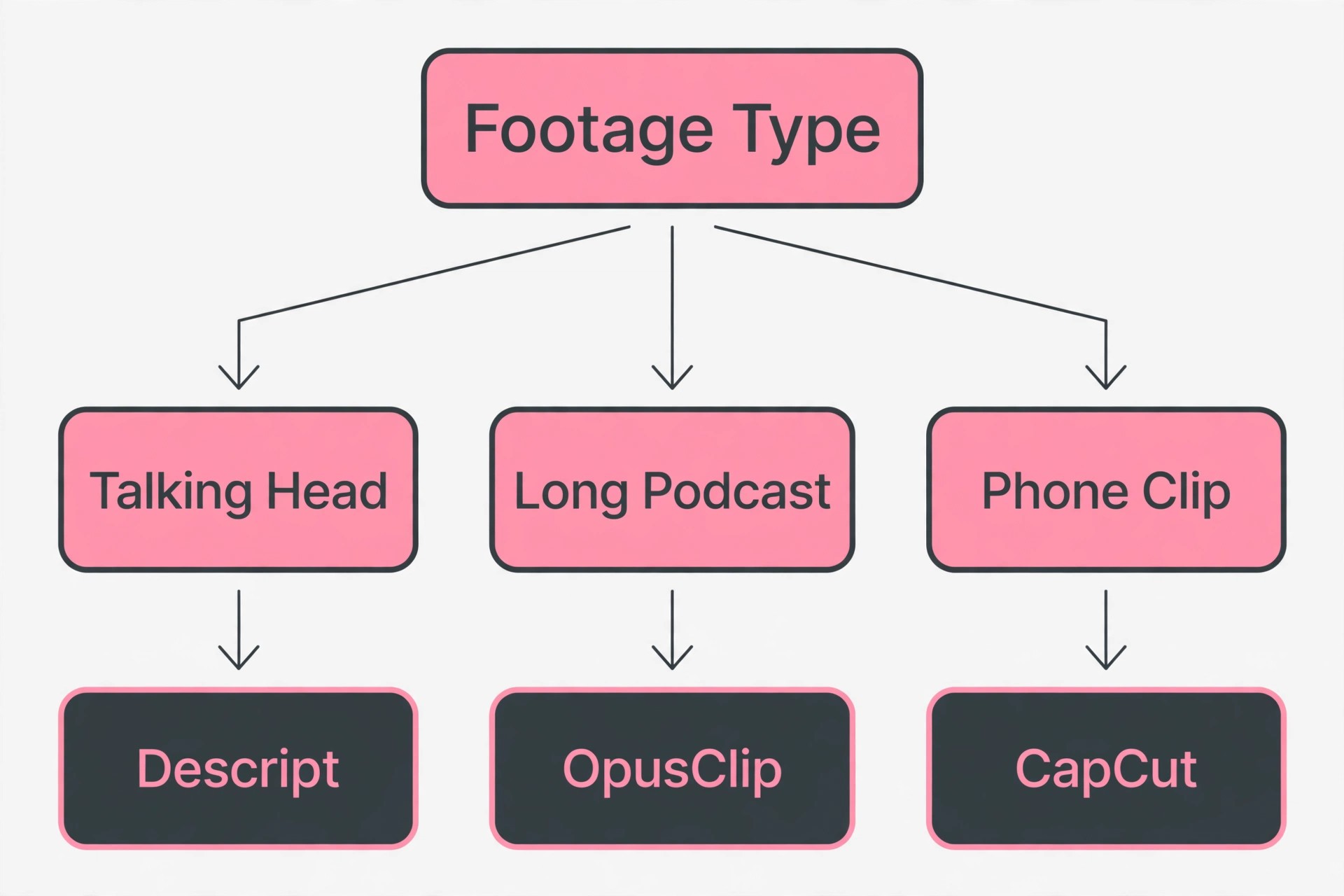
Start with the material you actually film, because the best short form video editors for creators follow the footage, not the other way round. A talking head creator needs transcript editing or strong captions, a podcaster needs automatic clipping, a product creator needs templates and effects, and a team needs a browser workspace with a brand kit. Write down the one job that eats most of your editing time, then pick the editor that removes that job. A tool that is brilliant at a job you never do will not save you an hour a week.
Next, check the free plan with real material. Export a captioned clip, check the watermark, check the resolution, and check how long the export takes. A free plan that watermarks every export is not free, because the watermark forces a paid plan the moment you post. A free plan that exports clean 1080p, as Clipchamp and CapCut do for manual edits, is a real free plan, and you can build a posting habit on it before you pay anything.
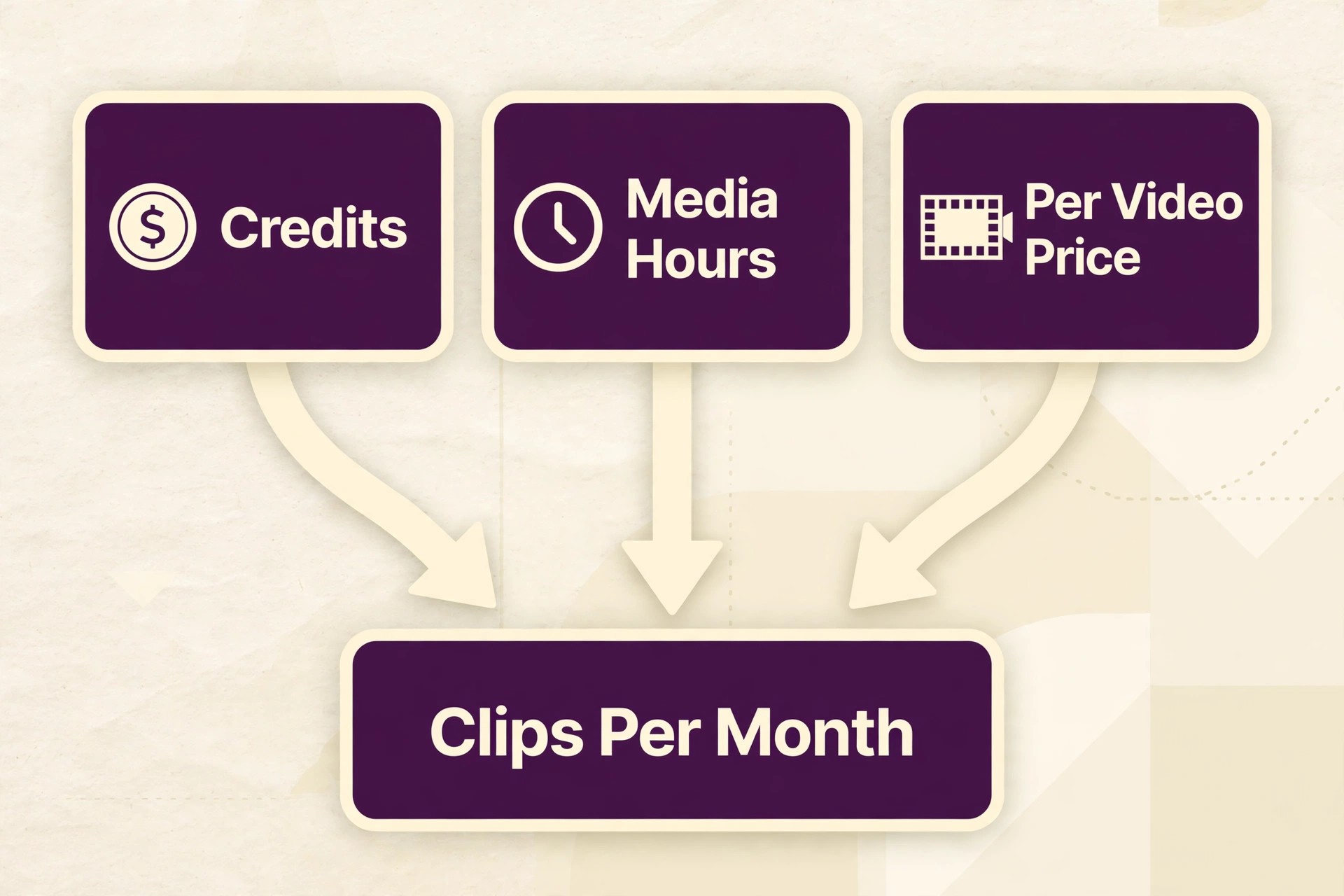
Then work out the monthly cost at your real volume. A credit system charges by source minute, a media hour system charges by recording length, and a per video system charges by clip count, so the cheapest headline price can be the dearest at your volume. Run your volume through the pricing page before you subscribe.
Finally, test two editors on the same clip. Film one 60 second talking head video, edit it in CapCut and in Descript, or clip one podcast in OpusClip and in Vizard, and compare the time taken, the caption accuracy and the look of the export. The editor that gets a good clip out fastest, with the least fixing, is the right one, whatever the feature list says.
What to Check Before You Pay
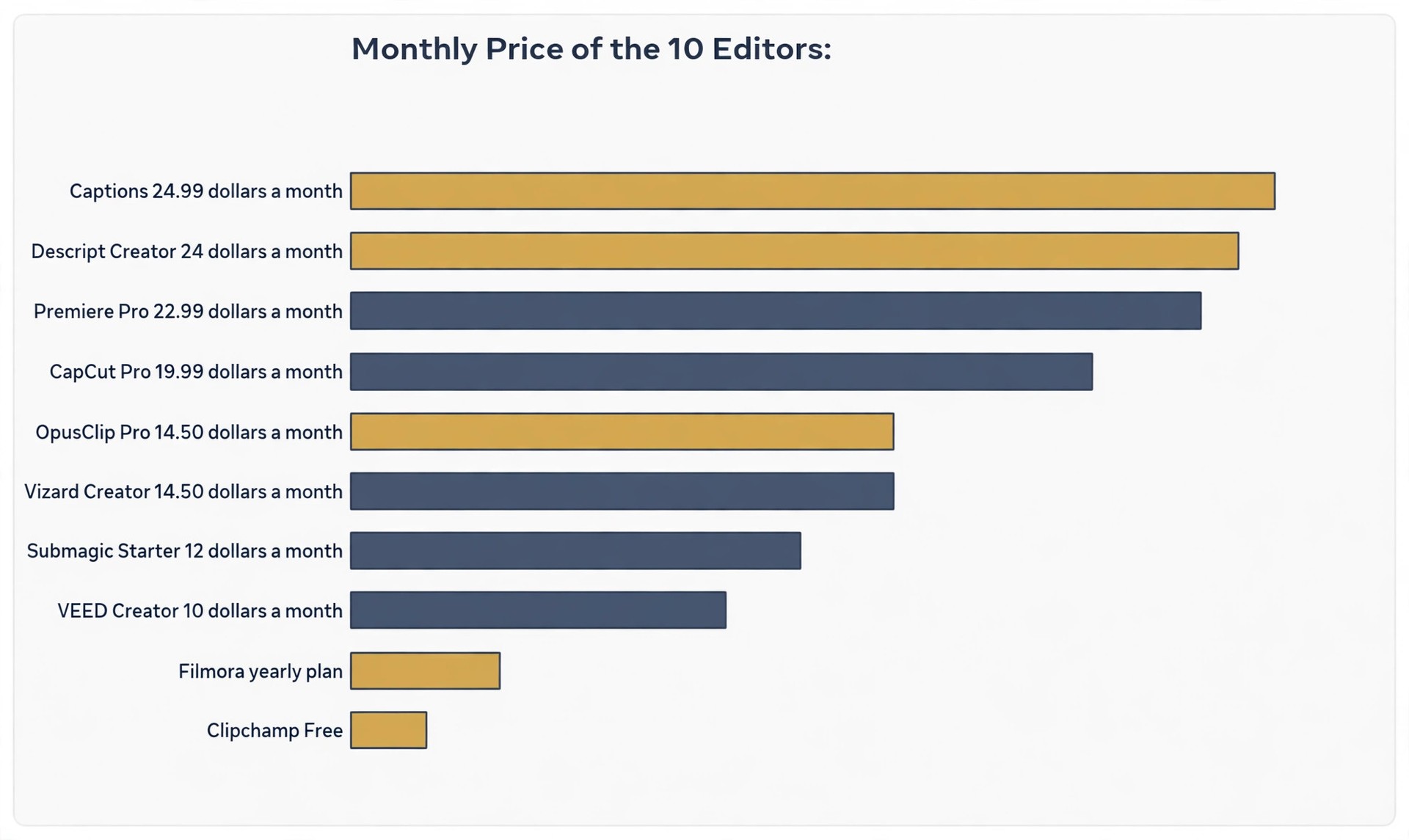
A video editor subscription is a credit and limit contract as much as a software contract, and the best short form video editors for creators still need their limits read in full, because the limits differ more than the prices. Read the free plan, the paid plan and the cap together, and ask how many clips your monthly volume actually needs. When a vendor hides the cap behind a help page, treat that as a warning, because the cap is the line that forces an upgrade.
Check the watermark rules at the same time. Some editors watermark free exports, some watermark only Pro templates, and some export clean at 1080p for free. A watermark on a posted clip looks unprofessional and cannot be removed later, so the watermark rule decides whether the free plan is usable at all. Test an export before you build a workflow around a tool.
Check the export quality too. A 720p export looks soft on a large phone screen, a 1080p export is the minimum for most platforms, and 4K matters only when you film in 4K and your audience watches on large screens. Pay for 4K only when your footage and your audience justify it, because 4K exports take longer and use more storage for little visible gain on a phone.
- Confirm the free plan export is watermark free at 1080p.
- Confirm the credit or media hour cap covers your monthly volume.
- Confirm the caption languages and styles you need are included.
- Confirm the price on the web, not only in the app store.
- Confirm you can cancel month to month without losing your projects.
Mistakes That Waste Money
The most common mistake when picking the best short form video editors for creators is paying for an editor that does a job you do not have. A creator buys a clipping tool, then films only short talking head clips that need no clipping, and pays 29 dollars a month for a feature that never runs. The fix is simple, film first, count the clips you actually make, and buy the tool that matches the footage you already produce, not the footage you hope to produce.
The second mistake is ignoring the credit cap until mid month. A podcaster clips three long episodes, burns the monthly credits, and must either wait, pay for extra credits, or upgrade to a higher tier to finish the week. The fix is to run your real monthly volume through the pricing page before you subscribe, and to pick the plan whose cap covers a busy month, not an average one.
The third mistake is choosing on the effects library alone. A creator picks the editor with the most transitions, then spends an hour per clip choosing effects while the captions stay plain and the hook stays weak. The clips that keep viewers are the ones with a clear hook, accurate captions and a fast cut, and the editor that delivers those three fastest is the one that earns its price.
Our Verdict
CapCut is the pick for most readers among the best short form video editors for creators, because the free plan covers captions, templates and 1080p export, and Pro at 19.99 dollars a month adds 4K, the full AI kit and 1 terabyte of storage. The editor is fast, the mobile app matches the desktop app, and the free tier is generous enough to build a real posting habit before you pay.
Descript is the pick when you talk to camera, because transcript editing is still the biggest time saver for dialogue, and Creator at 24 dollars a month billed annually gives 30 media hours and 4K export. OpusClip is the pick when you start from long recordings, because the Virality Score and auto posting turn one podcast into a week of clips, with Pro at 14.50 dollars a month billed annually.
When captions are the bottleneck, add Submagic to the workflow, and when the budget is zero, start with Clipchamp for watermark free 1080p exports on Windows. When clients pay for the finish, Premiere Pro at 22.99 dollars a month is the pro choice. The best editor is the one that gets a captioned clip out fastest, with the least fixing, on the footage you actually film.
Frequently Asked Questions
Which short form video editor is best for beginners?
CapCut is the best starting point for most beginners, because the free plan covers a full timeline, auto captions, templates and 1080p export, and the mobile app is as capable as the desktop app. Clipchamp is the best free choice on Windows, because it exports watermark free at 1080p. A beginner who talks to camera should also try Descript free, because transcript editing is easier to learn than a timeline.
Is CapCut really free for short form video?
Yes, for most short form work. The free plan covers the timeline, auto captions, background removal, templates and 1080p export, and manual edits export without a watermark when you delete the ending card. Pro tagged templates and effects do add a watermark on the free plan, and Pro at 19.99 dollars a month adds 4K export, the full AI kit and 1 terabyte of storage. Prices vary by region, so check the web price before you pay.
What is the best editor for turning podcasts into short clips?
OpusClip is the best pick for turning a long recording into short clips, because it finds the moments worth posting, scores each clip, adds animated captions and auto posts to Shorts, TikTok and Reels. Vizard is the cheaper alternative per source minute, with Creator at 14.50 dollars a month billed annually for 600 minutes. Both offer a free plan with a watermark, so test the clip quality on the same episode before you subscribe.
Do I need to pay for captions on short video?
No, not at first. CapCut, Clipchamp and Descript free all include auto captions, and CapCut captions are strong enough for most creators. Submagic at 12 dollars a member a month billed yearly is worth paying for when styled word by word captions are the look your audience expects, and when the edit is already done and captions are the only job left. Test the free captions first, then pay only when the style clearly lifts retention.
Can I edit short form video in a browser?
Yes. VEED and Clipchamp both run in a browser, and CapCut also has a web editor. VEED suits teams who need subtitles, translation and a shared workspace, while Clipchamp suits a solo creator on Windows who wants watermark free 1080p exports. Browser editors need a stable connection for uploads, and large files take longer to upload than to edit on desktop, so a desktop editor is faster for heavy footage.
Is Premiere Pro worth it for short form video?
Premiere Pro is worth the 22.99 dollars a month when clients pay for the finish, when colour and audio matter, or when you already work in Adobe tools. For most solo creators posting short clips, CapCut or Descript is faster and cheaper, because a simple captioned clip takes minutes in those editors and longer in Premiere Pro. Use Premiere Pro for client work and pro finishing, and use a lighter editor for daily posting.