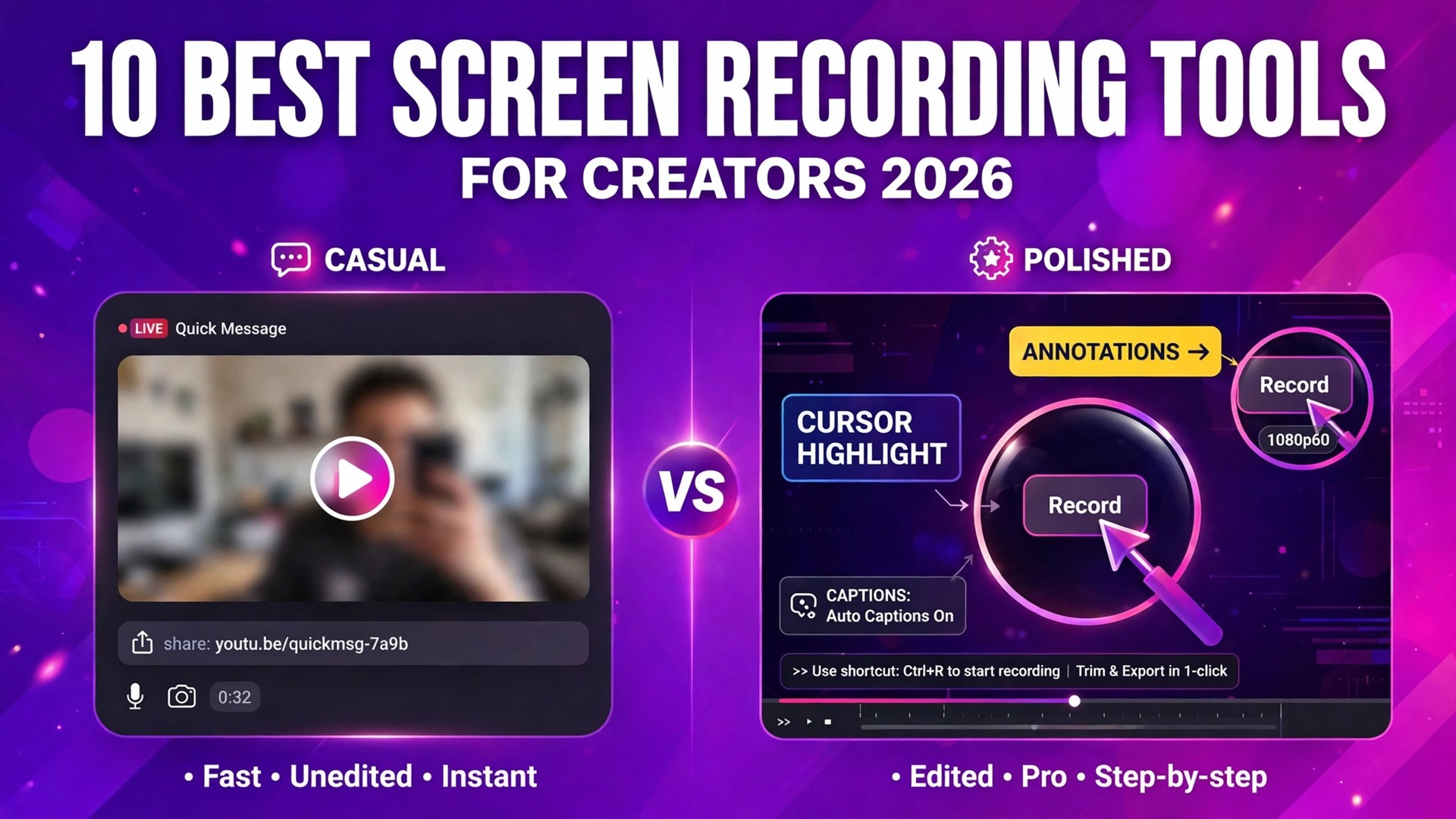
A five minute Loom link that explains a bug fix in one take, or a polished Camtasia course with callouts, zooms, and quizzes that took a week to edit. Both are screen recordings, and both can be the right answer, but they serve different creators and different audiences. The best screen recording tools for creators are the ones that match the video you actually make, not the ones with the longest feature list, and the gap between a quick async message and a finished tutorial is where most buyers choose wrong.
This guide compares 10 screen recorders on the numbers that decide real cost and real output, the entry price, the free plan limits, the editing depth, the export quality, and how fast a recording becomes a shareable link. Prices were checked against vendor pricing pages and current 2026 roundups in November 2026. Screen recorder pricing changes often and several vendors show different prices by region, so confirm the price on the checkout page before you pay.
How We Tested 10 Screen Recorders
We scored each tool on five points, because the best screen recording tools for creators win on workflow and output quality, not on the longest spec sheet. Recording quality covered resolution, frame rate, and whether screen, webcam, and system audio record on separate tracks. Editing depth covered trimming, callouts, zooms, captions, and transcript editing, since a recorder with no editor pushes every video into a second app.
Sharing speed covered how fast a recording becomes a link, a file, or an embed, because a tool that uploads and processes in the background saves hours a week. Free plan limits covered the recording length, the video count, the resolution cap, and the watermark, since a free plan that caps at five minutes is a trial, not a tool. Price covered the true cost of the tier a creator actually needs, including per user charges and annual billing.
We also separated creators by job. A course maker needs a real editor and quizzes. A YouTuber needs clean exports and a fast workflow. A team member needs instant share links and comments. A streamer needs multi source capture and no subscription. The ranking below keeps those differences visible, so a course maker and a support agent do not end up with the same pick.
The Best Pick for Each Job
| Job | Pick | Why it wins |
|---|---|---|
| Fastest async video message | Loom | Record, share a link, done in minutes |
| Polished tutorials and courses | Camtasia | Multi track editor with callouts and quizzes |
| Mac creators who edit deeply | ScreenFlow | One time purchase, deep Mac editor |
| Edit by transcript | Descript | Cut words to cut video, from 16 dollars a month |
| Free and no limits | OBS Studio | Free, open source, multi source capture |
| Browser and classroom recording | Screencastify | Chrome based, free plan, from 7 dollars a user |
| Cheapest all rounder | ScreenPal | Recording, editing, and hosting from 4 dollars a month |
| Polished product demos | Tella | Template driven layouts, Pro from 13 dollars a month |
Use this table as a shortcut, then read the full section for the tool you are leaning toward. The cheapest monthly price is rarely the cheapest recorder once export limits and per user charges are counted, so work out the cost at your real publishing volume before you commit.
The Best Screen Recording Tools for Creators in 2026, Ranked
The 10 tools below fall into three groups. The first group serves creators who publish polished tutorials and courses. The second group serves creators who share quick videos and demos every day. The third group serves specialists, including streamers, classrooms, and creators who want a free or one time price.
1. Loom
Loom is the fastest path from recording to a shareable link, and it earns the top spot for most creators who record every day. Hit record, capture the screen and webcam together, and the video is ready to share by link within seconds, with viewer comments and reactions built in. The workflow is why teams use it for bug reports, feedback, onboarding, and quick explainers, because a two minute video replaces a long typed message and a meeting.
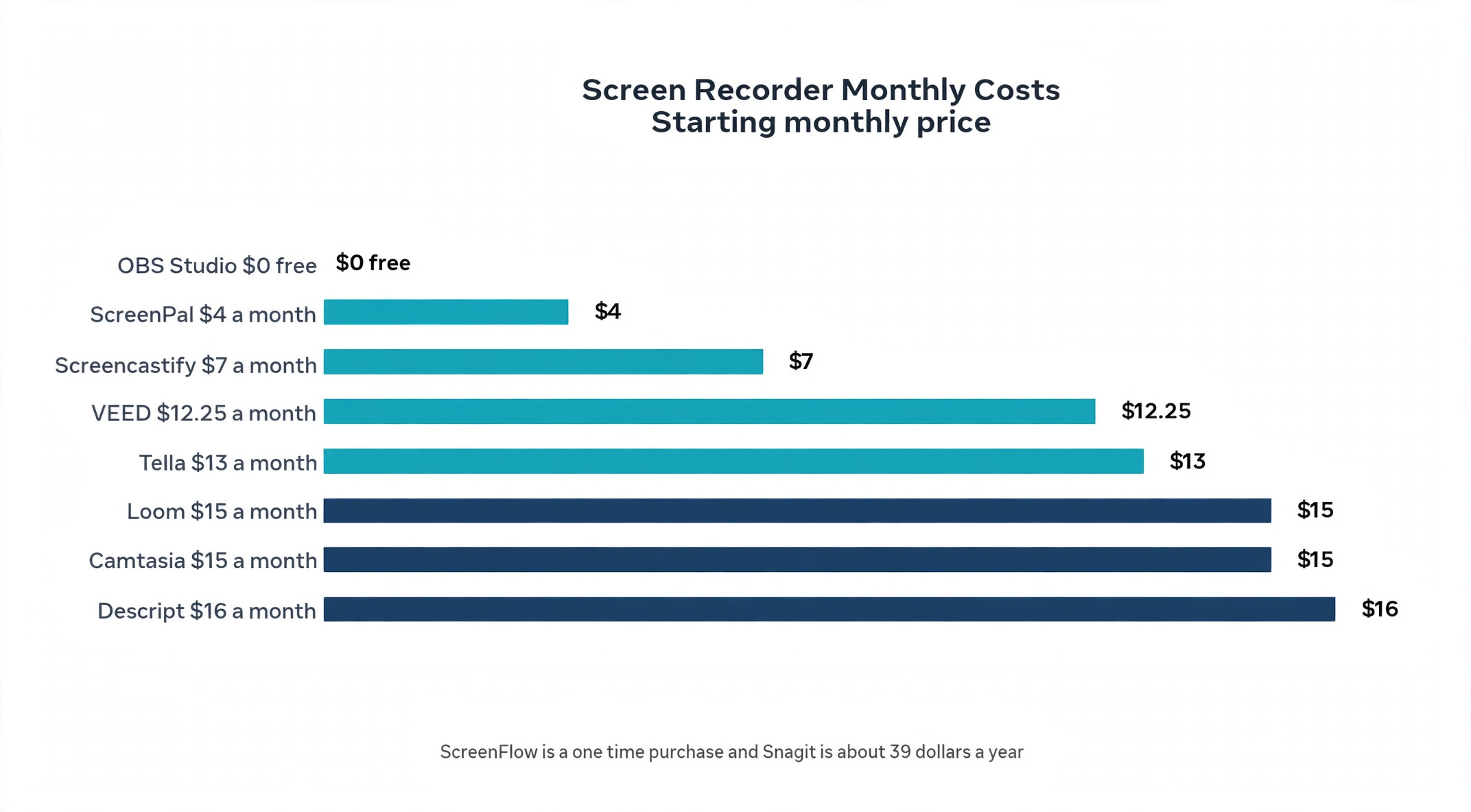
The free Starter plan is genuinely usable, with 25 videos at 720p and a five minute cap on each recording. The Business plan costs 15 dollars per user a month billed annually, or 18 dollars a month paid monthly, and removes the limits with unlimited videos, unlimited length, and 4K recording. Business plus AI costs 24 dollars a user a month and adds transcript based editing, AI summaries, and auto generated chapters. Loom is the wrong pick when a video needs real editing, because the trim tool is basic, but it is the right pick when speed matters more than polish.
2. Camtasia
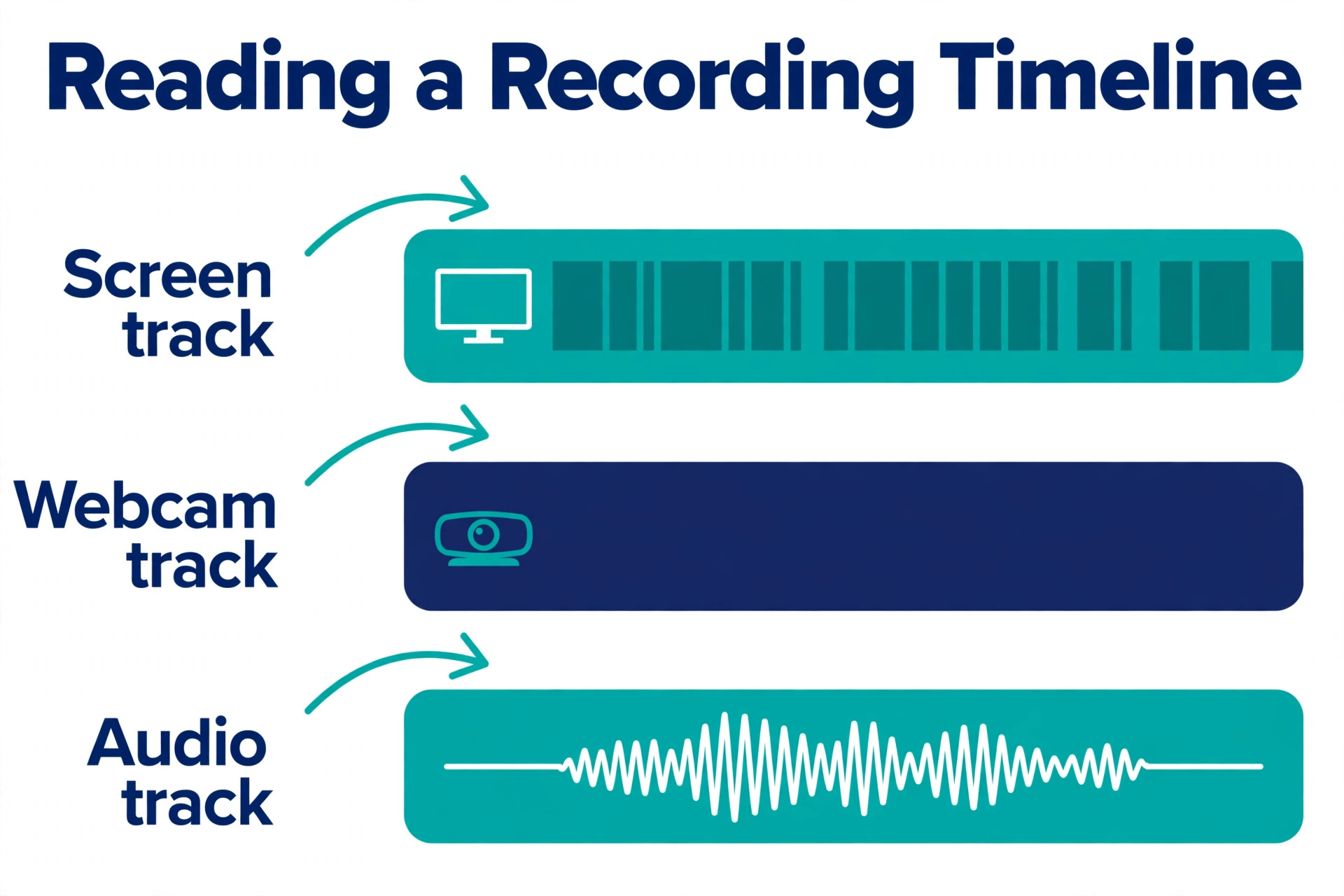
Camtasia is the default desktop recorder and editor for tutorial makers, and it still earns that spot after years at the top. Recording captures screen, camera, system audio, and mic on separate tracks, and the timeline gives frame level control with transitions, animations, green screen, callouts, and audio cleanup. Quizzes and interactive elements turn a recording into a training course, which is why course creators and corporate trainers keep coming back to it.
Pricing moved to subscription with the 2025 release. Starter costs 39 dollars a year and covers advanced screen capture with watermarked editor exports, while Essentials at 179.88 dollars a year is the real standard version with the full editor. Create costs 249 dollars a year and Pro costs 599 dollars a year, adding AI creation tools and production features. Some older guides still list a 299 dollar one time purchase, but the current vendor model is subscription, so treat the one time figure as out of date. Camtasia is the pick when recordings need to look finished.
3. ScreenFlow
ScreenFlow is the Mac only recorder and editor for creators who want depth without a subscription. It records screen, camera, and audio on separate tracks, and the editor covers multi track timelines, animations, callouts, closed captions, and publishing to YouTube, Vimeo, and other platforms in one flow. Mac based educators and YouTubers choose it because the interface feels native to the Mac and the output is clean without extra apps.
Pricing is a one time purchase of 199 dollars, according to the most recent roundups, though some guides list 169 dollars a year, which reflects an older subscription style price that no longer matches the vendor page. Confirm the current price before you buy, because the figure has moved more than once. ScreenFlow is the wrong pick for Windows users, since it is Mac only, but it is the strongest option here for a Mac creator who wants to own the tool outright and edit deeply in one app.
4. Descript
Descript is the best pick when you edit by transcript instead of a timeline. Record the screen and the camera, and the tool turns the audio into a text transcript that you edit like a document, cutting words to cut video, removing filler words, and rearranging sentences by dragging text. That workflow is dramatically faster than scrubbing a timeline for anyone who records talking head videos, podcasts, or narrated tutorials.
The free plan gives one media hour a month with a watermark, and the Hobbyist plan costs 16 dollars per person a month billed annually. Higher tiers add more media hours, AI voices, and collaboration features. Descript is not the best pure screen recorder, because its capture is simpler than Camtasia or ScreenFlow, but it is the best editor on this list for creators who talk a lot and want the edit to take minutes instead of hours.
5. OBS Studio
OBS Studio is completely free and open source, and it is the most capable option here for live streaming and complex multi source recording. It captures the screen, the camera, a browser window, and game footage at the same time, mixes them into scenes, and streams to YouTube, Twitch, and other platforms, or records locally at high quality. No other tool on this list matches its flexibility at any price, and the price is zero.
The trade off is the learning curve and the missing editor. OBS Studio expects you to edit elsewhere, so a creator who records a tutorial in OBS still needs a second app to trim, add callouts, and export. The interface is built for streamers and tinkerers, not for a first time recorder, and the settings take an afternoon to learn. OBS Studio is the right pick for streamers, gamers, and creators who want full control for free, and the wrong pick for someone who wants to record and share in one click.
6. Screencastify
Screencastify is the browser based recorder for classrooms, support teams, and anyone who works in Chrome. It runs as a Chrome extension plus an optional desktop recorder, and it records the tab, the desktop, and the webcam with captions, transcripts, and a teleprompter on paid plans. Teachers and support agents choose it because there is nothing to install on a managed Chromebook and the sharing flow fits Google Workspace.
The free plan covers up to 10 videos of up to 30 minutes each, with a watermark on exports. Starter costs 7 dollars per user a month billed annually, and Pro costs 10 dollars per user a month billed annually, adding captions, transcripts, and more storage. An Enterprise and education plan is available by quote with LMS integrations and central admin. Screencastify is the wrong pick for a creator who needs a deep desktop editor, but it is the best pick for a Chrome based team that records short explainers every day.
7. ScreenPal
ScreenPal, formerly Screencast-O-Matic, is the budget all rounder on this list, with recording, editing, hosting, and AI captions in one affordable package. It runs on web, Mac, Windows, and mobile, records screen and webcam together, and includes a video editor, a hosting library, and quiz and caption tools that usually cost far more. The breadth is the point, because a creator who needs a little of everything gets it for the price of one tool.
The free plan covers 15 minute recordings with basic editing and 10 hosted videos. Solo Deluxe costs 4 dollars a month billed annually and opens up longer recordings, more hosting, and the full editor. Education plans are even cheaper, at 3 dollars a month for Deluxe Edu. ScreenPal is the right pick for a creator on a tight budget who publishes regularly and needs hosting as well as recording, and it is the cheapest serious option on this list by a wide margin.
8. Tella
Tella is built for polished, template driven recordings rather than raw, unedited clips. It is aimed at creators and marketers who want a recording to look finished the moment it is exported, with backgrounds, transitions, presenter layouts, and scenes built in. Record the screen and the camera, pick a layout, and the result looks like a designed video rather than a screen capture, which is why founders and marketers use it for product demos and launch videos.
The free plan covers unlimited recordings with a Tella watermark, and Pro costs 13 dollars a month billed annually, or 26 dollars a month paid monthly. Some guides list Tella at around 19 dollars a month, but the more recent October 2026 sources list Pro at 13 dollars billed annually, so budget on the newer figure. Tella also offers six months of Pro free for students and educators. Tella is the wrong pick for long tutorials that need a deep timeline, but it is the best pick for short, polished demos that need to look good fast.
9. Snagit
Snagit is TechSmith’s screenshot and short recording tool, and it is the fastest option here for support and documentation teams. It captures a screenshot or a short clip, adds arrows, callouts, text, and steps, and shares the result in seconds, which is why help desks and technical writers use it dozens of times a day. The video recording is short form by design, so Snagit is not a course tool, but it is the best tool for a two minute walkthrough of a fix.
Pricing is a subscription of about 39 dollars a year, according to the most recent roundups, though some sources list 62.99 dollars or a 29.95 dollar one time license, and the spread reflects different stores and older pricing. Confirm the current price on the TechSmith store before you buy. Snagit pairs naturally with Camtasia, and many teams run both, with Snagit for quick captures and Camtasia for full tutorials.
10. VEED
VEED is a browser based video editor with a built in screen recorder, and it belongs on this list even though it started as a general purpose editing tool rather than a dedicated recorder. Record the screen and the camera in the browser, then edit in the same window with captions, subtitles, avatars, and social ready templates, and export for YouTube, TikTok, or LinkedIn without installing anything. The browser workflow suits creators who switch machines or work from a Chromebook.
The free tier covers basic recording and editing, though free exports may carry restrictions such as a watermark or a resolution cap. Paid plans start from around 12.25 dollars a month billed annually, though some guides list 18 dollars a month, so confirm the current tier price before you commit. VEED is the wrong pick for a creator who needs deep desktop editing or offline recording, but it is the right pick for a creator who wants recording and social editing in one browser tab.
How to Choose the Right Screen Recorder
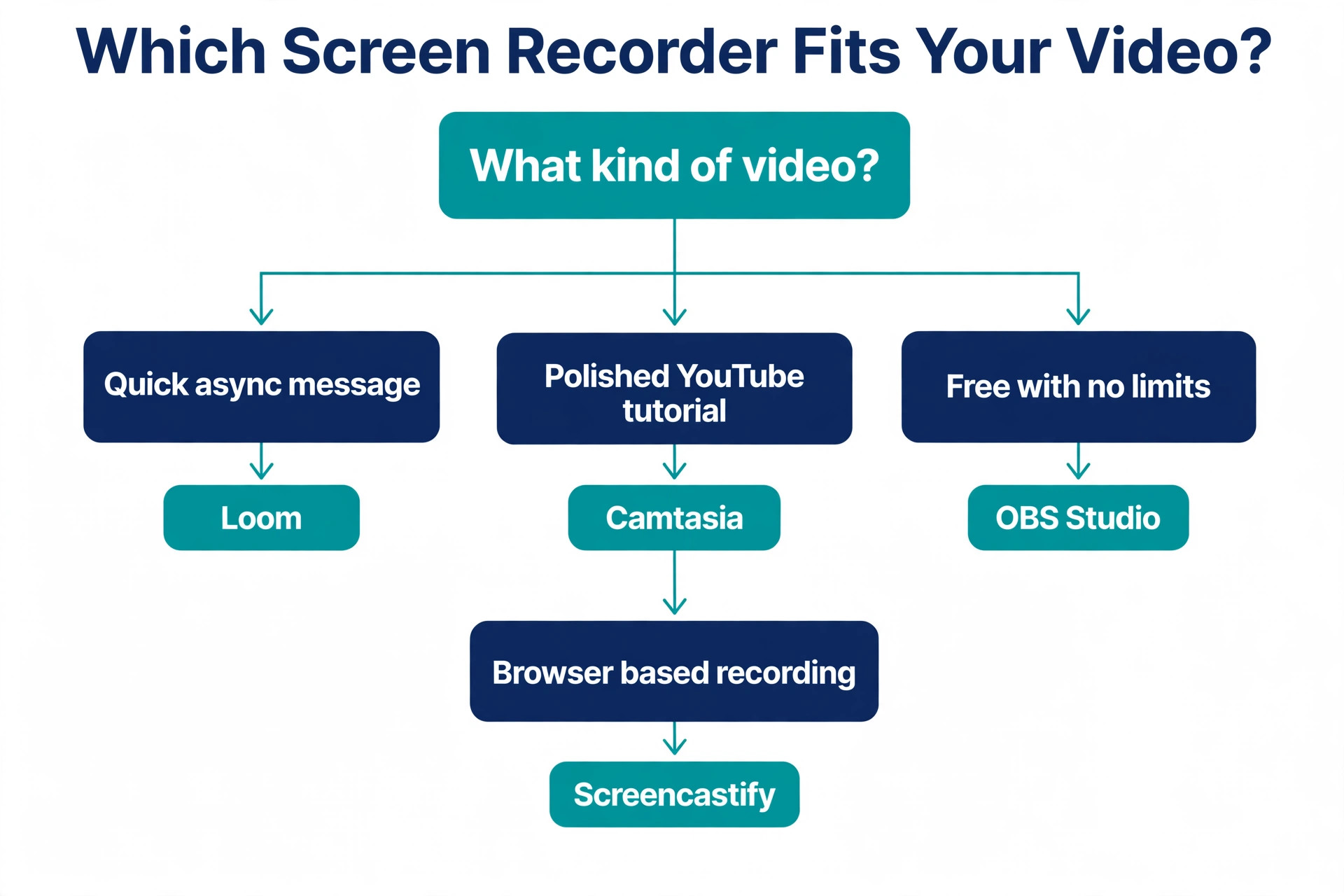
Start with the video you actually make, not the video you imagine making. A creator who records two minute explainers every day needs instant share links, so Loom or Screencastify fits. A creator who publishes a 40 minute course every week needs a real editor and quizzes, so Camtasia or ScreenFlow fits. A creator who talks to camera and edits by cutting words needs Descript. A streamer needs multi source capture and no subscription, so OBS Studio fits. The tool that matches the daily job will be used every day, while the tool that matches an imagined job will gather dust.
Next, check the free plan limits against your real videos. A five minute cap is fine for a bug report and useless for a 20 minute tutorial, while a 25 video limit is fine for a monthly creator and useless for a daily one. Loom caps free recordings at five minutes and 25 videos, Screencastify allows 10 videos of 30 minutes, ScreenPal allows 15 minute recordings, and OBS Studio has no limits at all. Match the limit to the length and the count of the videos you publish in a normal week, not in an ideal week.
Then check the export quality, because a recording that looks sharp on your screen can look soft on YouTube. Confirm the tool exports at 1080p at minimum, and at 4K if your audience watches on large screens, and check whether the free tier caps the resolution. Loom Business records at 4K, Camtasia exports at 4K at 60 frames per second, and several free tiers cap at 720p, which is fine for an internal message and weak for a public tutorial.
Also check the audio, because viewers forgive a soft video faster than they forgive bad sound. A tool that records the microphone and the system audio on separate tracks lets you fix a noisy mic without touching the system sounds, and a tool with noise removal saves a recording made in a loud room. Test the audio on a real recording with your actual microphone, because the built in laptop mic that sounds fine in a meeting sounds thin in a published tutorial, and a 30 dollar USB microphone often improves a video more than any software upgrade.
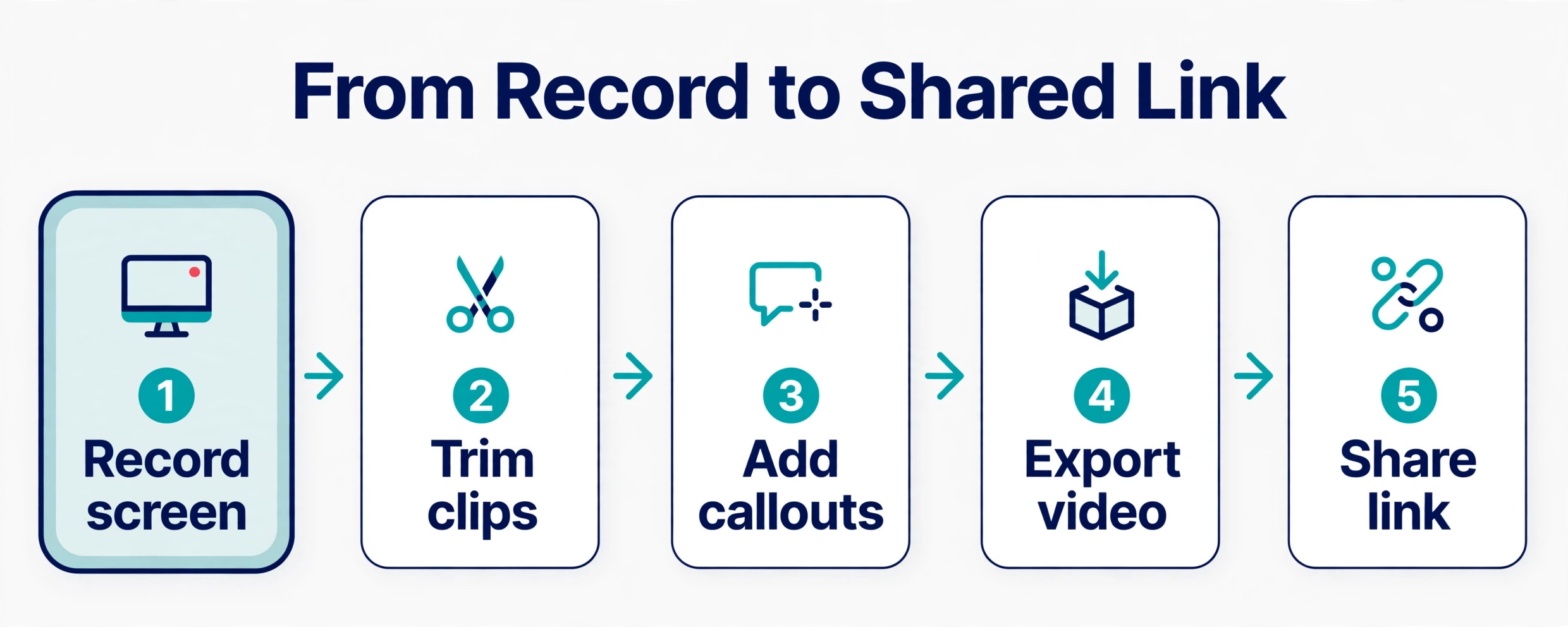
Finally, test the full workflow before you pay. Record a real video, edit it, add a caption or a callout, export it, and share the link, then time how long the whole job took. The best screen recording tools for creators make that loop fast, and a tool that takes 20 minutes to export a two minute video will cost you hours a week. The free trial exists for this test, so run it on a real video, not on a test clip.
What to Check Before You Pay
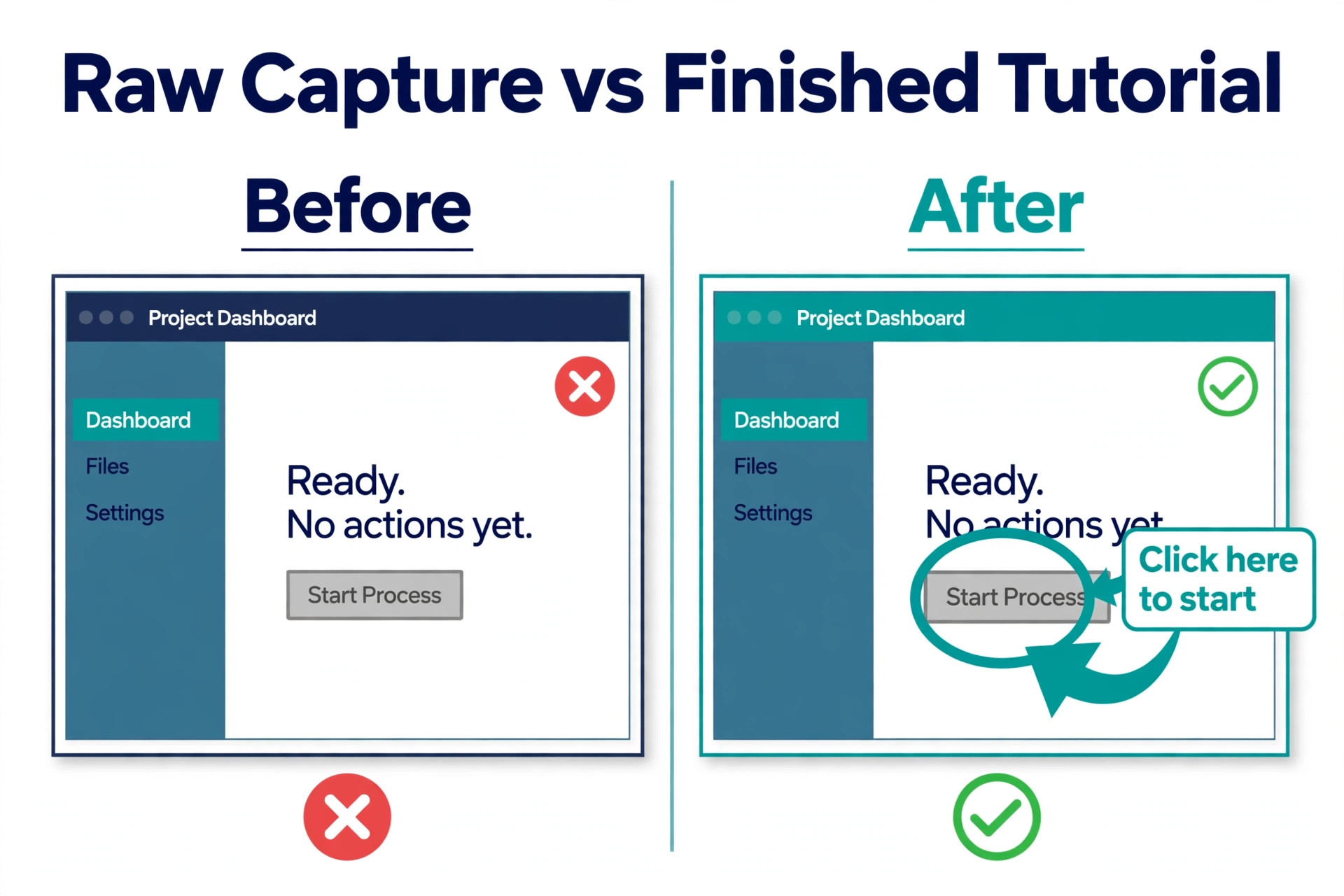
Check the editor first, because it decides whether you need a second app. Camtasia, ScreenFlow, and Descript include a real editor, while Loom and OBS Studio expect you to edit elsewhere. A recorder with no editor is cheaper up front and more expensive in time, because every video passes through two apps instead of one. If your videos need callouts, zooms, or quizzes, buy the tool with the editor built in.
Check the per user pricing next, because a per user price that looks cheap for one creator doubles for a team of two and triples for a team of three. Loom Business costs 15 dollars per user a month, Descript Hobbyist costs 16 dollars per person a month, and Screencastify Starter costs 7 dollars per user a month, so a team of five pays 75, 80, or 35 dollars a month for the same job. A one time purchase such as ScreenFlow at 199 dollars, or a free tool such as OBS Studio, removes that math entirely.
Check the platform and the file format as well. ScreenFlow is Mac only, Screencastify is Chrome based, and VEED runs in the browser, so confirm the tool runs on the machine you actually record on. Confirm the export formats too, because a tool that only exports to its own cloud library is a problem when you need a file for YouTube or a course platform.
- Confirm the editor covers the callouts, captions, and trims your videos need.
- Confirm the free plan limits fit the length and count of your real videos.
- Confirm the export resolution reaches 1080p at minimum, and 4K if you publish publicly.
- Confirm the per user price at your real team size, not for one seat.
- Confirm the tool runs on your machine and exports files you can use anywhere.
Mistakes That Waste Money
The most common mistake is buying a course tool for a quick video job. A creator pays 179.88 dollars a year for Camtasia, records two minute explainers, and never opens the timeline, because Loom would have done the same job for free. Match the tool to the video, not to the ambition, and upgrade only when the videos actually outgrow the tool. The best screen recording tools for creators are the ones that fit the current job, and the upgrade path is always there when the job changes.
The second mistake is ignoring the free plan watermark until publish day. A creator records a whole series on a free tier, exports it, and finds a watermark on every video, or a resolution cap that makes the footage look soft. Check the free tier export limits before you record anything you plan to publish, and move to a paid plan or a free tool such as OBS Studio before the series is recorded, not after.
The third mistake is recording without a script or an outline. A 10 minute video with no plan becomes a 40 minute ramble that takes three hours to edit, while a 10 minute video with a five point outline takes 12 minutes to record and 20 minutes to edit. Write the outline first, record in short takes, and cut the mistakes as you go, because the edit is where the time disappears.
Our Verdict
Loom is the pick for most creators who record every day, because the free Starter plan covers 25 videos at five minutes each, and Business at 15 dollars a user a month billed annually removes the limits with 4K recording and unlimited videos. The speed from record to share link is unmatched, and for async messages, bug reports, and quick explainers, nothing else comes close.
Camtasia is the pick for course makers and tutorial creators who need a real editor, at 179.88 dollars a year for Essentials. ScreenFlow is the pick for Mac creators who want to own the tool outright at 199 dollars one time. OBS Studio is the pick when the budget is zero and the creator is willing to learn it. Descript is the pick for creators who edit by transcript. Start with the tool that matches the video you make this week, test it on a real recording, and let the workflow decide.
Frequently Asked Questions
Which of the best screen recording tools for creators is free?
OBS Studio is the best free option, because it is completely free and open source, with no recording limits, no watermark, and multi source capture for streaming and recording. Loom, Screencastify, ScreenPal, Descript, Tella, and VEED all offer free tiers, but each one caps length, video count, or resolution, and several add a watermark. Among the best screen recording tools for creators, the free tier that fits depends on the video length, so a creator who records five minute messages can live on Loom free, while a creator who records 30 minute tutorials needs OBS Studio or a paid plan.
What is the best screen recorder for YouTube tutorials?
Camtasia is the best pick for YouTube tutorials that need polish, because the multi track editor, callouts, zooms, and audio cleanup produce a finished video in one app, at 179.88 dollars a year for Essentials. ScreenFlow is the best one time purchase for Mac creators at 199 dollars, and Descript is the best pick for creators who edit by transcript at 16 dollars a month. A creator starting out should test OBS Studio for free capture plus a free editor, then move to Camtasia when the channel earns enough to justify the subscription.
Can I record my screen and webcam at the same time?
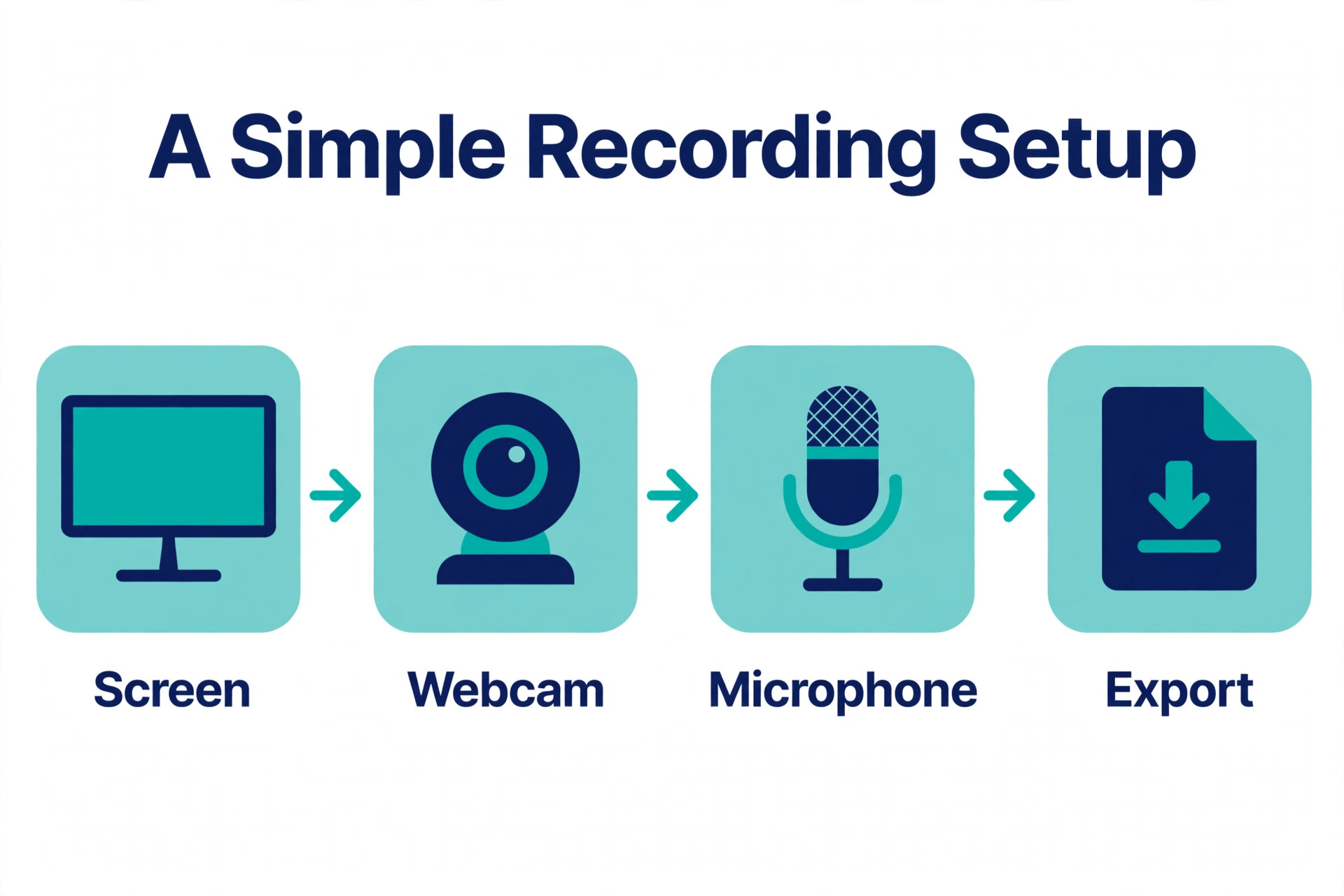
Yes, almost every tool on this list records screen and webcam together, including Loom, Camtasia, ScreenFlow, Descript, Screencastify, ScreenPal, Tella, and VEED. The difference is what happens next, because Loom places the webcam in a bubble over the screen, Camtasia and ScreenFlow put each source on a separate track for full control, and Tella offers presenter layouts with backgrounds and scenes. OBS Studio goes further, with multiple cameras, browser windows, and game footage in one scene. Test the layout on a real recording, because the webcam position that looks fine on your monitor can cover the exact button you are explaining.
How long can I record for free?
It depends on the tool. Loom free caps each recording at five minutes with 25 videos in total, Screencastify free allows 10 videos of up to 30 minutes each, ScreenPal free allows 15 minute recordings, and Descript free gives one media hour a month. OBS Studio has no limits at all, because it is free and open source and records locally. If your videos run longer than the free cap, move to a paid plan or to OBS Studio before you record the series, because re recording a long video costs far more than the subscription.
Do I need a separate video editor with a screen recorder?
It depends on the tool and the video. Camtasia, ScreenFlow, Descript, ScreenPal, Tella, and VEED include an editor, so a creator using one of those needs no second app. Loom and OBS Studio have only basic trimming, so a creator who needs callouts, zooms, or captions will need a separate editor. The simplest test is to record a real video and finish it end to end, because a workflow that needs two apps for every video costs more time than a tool with a built in editor, even when the second app is free.
Is Loom or Camtasia better for creators?
Loom is better for quick async videos, because it records and shares a link in minutes, with a free plan that covers 25 five minute videos and Business at 15 dollars a user a month. Camtasia is better for polished tutorials and courses, because the multi track editor, callouts, quizzes, and 4K export produce a finished video that Loom cannot match. Many creators use both, with Loom for daily messages and Camtasia for published tutorials, and that combination costs less than either tool used for the wrong job.