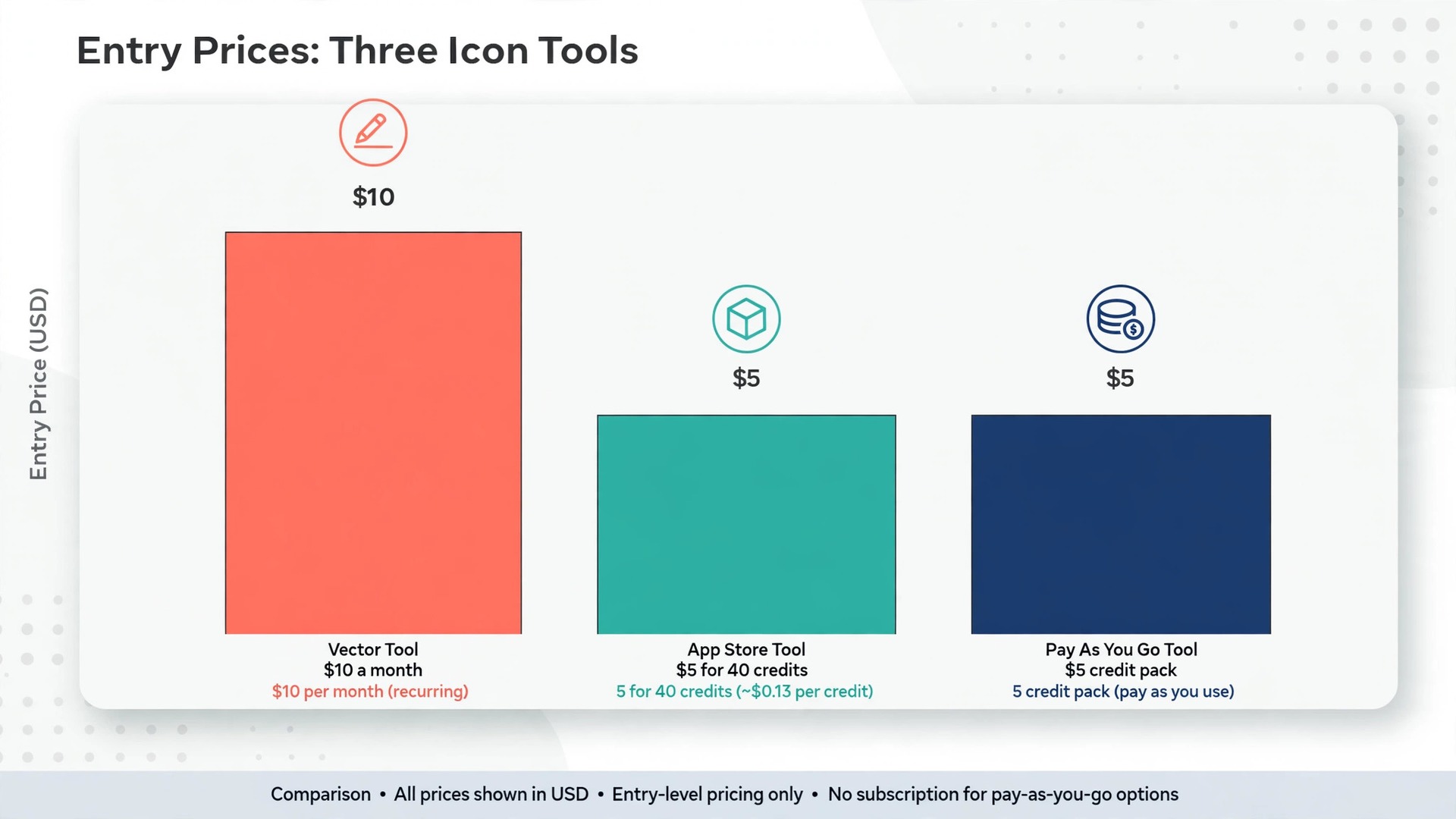
Recraft Basic costs 10 dollars a month on yearly billing. Appicons.ai sells 40 credits for 5 dollars. Iconikai starts free and sells credit packs from 5 dollars. Three prices, three different ways to pay for the same job, and the cheapest one depends on how many icons you need, because the best AI icon generators are not ranked by their monthly price. They are ranked by what you get for it, a clean vector file or a raster image, a full export pack or a single PNG, and an icon that still reads when it shrinks to the size of a fingertip.
This guide compares the three dedicated AI icon generators that combine prompt to icon generation with store ready export packs in 2026. Every price below was checked against vendor pages and October 2026 roundups, and every price is quoted before tax, because vendors change plans without notice. You will find a scored comparison, a pick for each common job, a full review of each tool, a guide to what makes an icon work at small sizes, a buying guide, a one week workflow, and answers to the questions buyers ask most. If you need an app icon this week, start with the verdict. If you need to justify a purchase, start with the comparison table.
How We Tested the Best AI Icon Generators
We judged each tool on the work an icon actually has to do, not on how pretty its largest preview looks. First we asked whether it makes a true vector file, because a vector icon scales from a 16 pixel favicon to a billboard without blurring, while a raster icon softens every time it grows. Recraft makes editable SVG vectors on paid plans, which is a real advantage for brand and interface work, while the other two tools in this set deliver raster packs built for app stores, which is the right format for that job.
Second we tested small size legibility. An icon lives most of its life small, in a phone dock, a browser tab, or a toolbar, so we judged each tool on whether its output stays readable at 48 pixels and at 16 pixels, where fine lines vanish and detailed illustrations turn to mud. The strongest tools generate simple shapes with limited detail and strong contrast, and they let you test the icon small before you download it. A generator that only shows you a large preview is hiding its weakest result.
Third we checked export packs, because an app icon is not one file. An iPhone app needs a 1024 pixel App Store icon plus a full Xcode set, an Android app needs adaptive and themed variants, and a website needs a favicon set. A tool that exports all of those in one ZIP saves an hour of manual resizing per icon, and a tool that exports one PNG leaves that hour to you. We recorded exactly what each tool exports, so you can see the difference before you pay.
Fourth we checked honest cost and rights. Credit packs, subscriptions, and per icon prices all hide the true number, so we recorded free allowances, entry prices, and what the free tier actually licenses. Recraft free plan images are public and belong to Recraft, with no commercial use, which matters more than the price, because a free icon you cannot legally use in your product is not free at all. Check the rights on your plan before you ship anything.
The Verdict at a Glance
For most readers, the best AI icon generators for real work are Recraft for vector icons and matching sets, Appicons.ai for app store icons with dark and tinted variants, and Iconikai for pay as you go app icons with no subscription. If you buy one tool and you need icons for a website, a brand, or an interface, buy Recraft Basic, because its SVG vectors and style controls are the only ones in this set built for that job. If you need an App Store icon this week, buy credits from Appicons.ai or Iconikai instead, because both export the full store pack without a monthly bill.
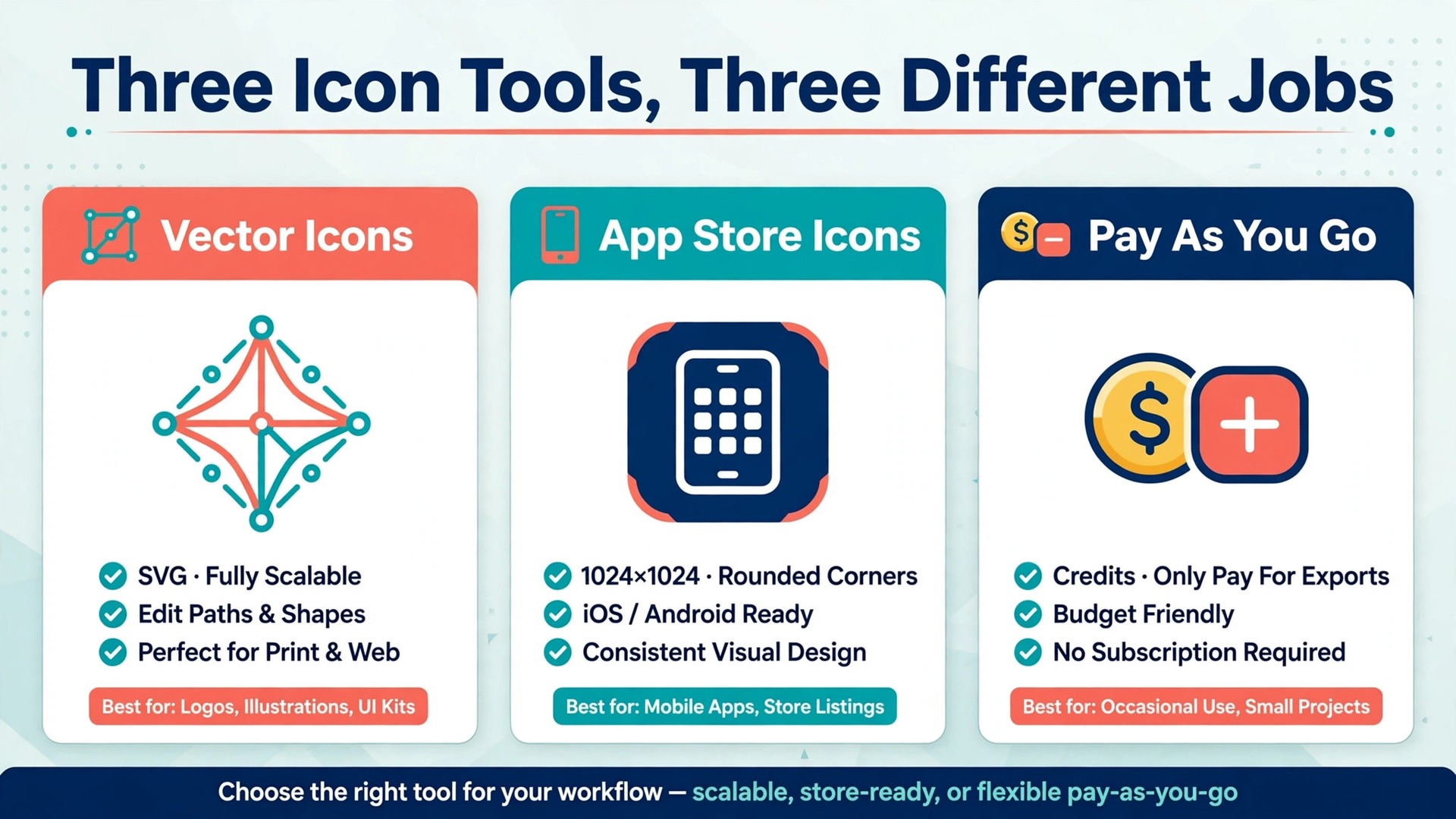
Recraft wins on flexibility, because it generates raster images and editable SVG vectors, holds a set to one style and palette, and covers icons, logos, and illustrations in one subscription. Appicons.ai wins on store readiness, because its Xcode set includes dark and tinted iOS variants plus Android adaptive and themed icons, which are the variants developers forget until submission day. Iconikai wins on price shape, because its credit packs start at 5 dollars with no subscription and nothing expires on a billing cycle.
Do not buy on the size of a free allowance alone. Five free icons a day sounds generous until you learn the free tier licenses nothing for commercial use, and a 5 dollar credit pack sounds cheap until you count the credits per icon. Buy on three questions. Does it export the format you need. Does it license commercial use on your plan. Does the price fit how many icons you make. The three reviews below answer those three questions for each tool, with prices checked on vendor pages in late 2026.
The 3 Tools Compared
The table below compares the three tools on the facts that decide most purchases, what each one is best at, whether you can try it free, and what the entry paid option costs. Prices are published prices before tax, and vendors change them without warning, so check the pricing page before you pay.
| Tool | Best for | Free option | Paid entry |
|---|---|---|---|
| Recraft | Vector icons and matching sets | Free plan, daily credits | $10 a month, yearly |
| Appicons.ai | App Store icons, dark and tinted | First icon free | $5 for 40 credits |
| Iconikai | Pay as you go app icons | Free start, 5 a day | $5 credit pack |
Best Pick by Job
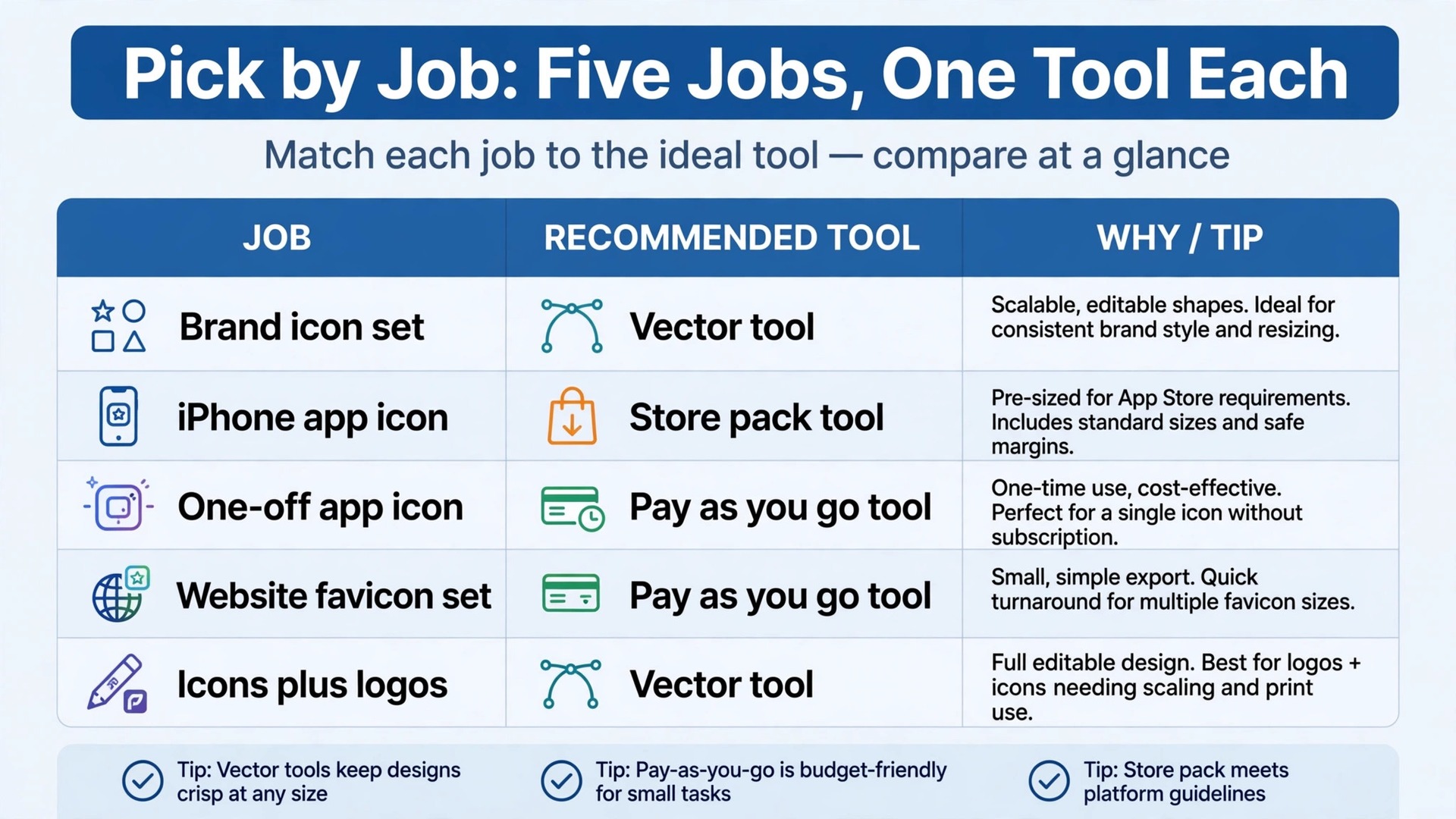
Use this table to match the best AI icon generators to your job before you read the full reviews. A tool that wins for an app icon can lose for a brand icon set, because the two jobs need different formats, and the table below keeps those jobs separate.
| Job | Pick | Why it wins |
|---|---|---|
| Brand and interface icon set | Recraft | SVG vectors, one style, one palette |
| iPhone app icon, all variants | Appicons.ai | Xcode set, dark and tinted included |
| One off app icon, no subscription | Iconikai | Credit packs from $5, no monthly bill |
| Website favicon set | Iconikai | iOS, Android and favicon exports |
| Icons plus logos and art | Recraft | One subscription, many formats |
1. Recraft
Recraft is the most capable icon generator in this set, and it is the only one built for vector work. It generates raster images and editable SVG vectors from a text prompt, and it can hold a whole icon set to one style and palette, so twenty icons look like they belong together instead of looking like twenty separate guesses. That style memory is the feature that matters most for brand and interface work, because a matching set is what separates a professional product from a collection of clip art, and no other tool here offers it at the same depth.
Generation starts with a prompt and a style choice, and Recraft returns several options you can edit in the same canvas. You can change colors, adjust shapes, and regenerate single icons without breaking the set, which matters when one icon in twenty looks wrong and the other nineteen are right. The tool also covers logos, illustrations, and mockups in the same subscription, so a small business can make an icon, a logo, and a social image without learning three tools, though this guide judges it here on icons alone.
Pricing is subscription based, with a free plan for testing. Basic costs 10 dollars a month on yearly billing, or 12 dollars on monthly billing, for 1,000 credits a month, with commercial rights and private images. Pro costs 16 dollars a month on yearly billing, or 20 dollars monthly, for 2,000 credits, and it adds video models. Teams starts from 18 dollars per seat a month on yearly billing. Top ups cost 2 dollars per 200 credits, never expire, and are sold only on paid plans, while monthly credits do not roll over, so a quiet month wastes allowance.
The free plan needs a careful read before you use it for real work. Free accounts receive daily credits for Recraft own models, with vector generation included, but free plan images are public, belong to Recraft, and cannot be used commercially. That means a free icon is fine for testing a style and useless for shipping a product, because the rights stay with Recraft. Pay for Basic before you put any Recraft icon in a product, a website, or an app store listing, and keep the receipt of the plan that licenses your use.
The limits are real but manageable. Credits run out fast on large sets, because each generation costs credits and a twenty icon set needs several rounds, and the editor has a learning curve that a first time user should budget an afternoon for. Recraft also sells partner models alongside its own, and the credit cost differs by model, so check the cost before you generate a large batch. For a small business, Recraft is the strongest of the best AI icon generators when the job is a vector icon set, and it is the only tool here that can carry a brand across icons, logos, and illustrations in one subscription.
2. Appicons.ai
Appicons.ai is a focused app icon generator, and it does one job with unusual care, turning a prompt into an App Store ready icon with every variant a developer needs. Give it your app name, a short description, and a style, and it runs a guided round that returns three icon options, which you can refine, recolor, or regenerate until one feels right. The guided flow matters because most developers are not designers, and a blank canvas with a prompt box is the wrong starting point for someone who needs a store icon by Friday.
Each guided round costs three credits and returns three icons, which makes the cost easy to predict, because you can count rounds instead of guessing credits. The first icon is free, so you can test the full flow, from prompt to export pack, before you pay anything, and the paid model is credit packs rather than a subscription, which suits a developer who needs icons a few times a year rather than every month. Some third party roundups cite a 12 dollar monthly Pro tier, but the vendor page sells one time credit packs, so check the current page before you budget, because the pack price is the figure the vendor itself publishes.
The export pack is the reason Appicons.ai earns its place in this set. It returns an Xcode set with dark and tinted iOS variants, plus Android adaptive and themed icons, in one download, which covers the variants developers forget until submission day. A tool that exports one PNG leaves an hour of manual resizing to you, and an hour spent resizing icons is an hour not spent fixing the app. Appicons.ai removes that hour, and its dark and tinted variants matter more every year, because iOS users increasingly run dark mode and tinted home screens.
The limits follow from its focus. Appicons.ai makes app icons, not brand icon sets, not interface icons, and not logos, so a business that needs twenty matching interface icons should buy Recraft instead. Its style range is narrower than Recraft, because it optimizes for store legibility rather than artistic range, and its free allowance is one icon, not a daily allowance, so you cannot test ten styles for free. Buy Appicons.ai when you need one excellent app icon with every store variant, and skip it when you need a set of icons for a website or an interface.
3. Iconikai
Iconikai is the pay as you go alternative in this set, and it is the tool to buy when you want app icons without a monthly subscription. It generates production ready icons in seconds, with automatic export for iOS, Android, and web, and it charges by credit pack rather than by month, so a developer who needs three icons a year pays for three icons, not for twelve months. That price shape is the main reason it leads many 2026 roundups, because most icon buyers need icons rarely, and a subscription punishes rare use.
The free tier gives five generations a day, which is the most generous free allowance in this set, and each generation costs two credits and returns two variants, so a free day can produce ten icon options. Credit packs start at 5 dollars for 200 credits, plus 100 bonus credits, with no monthly commitment and nothing expiring on a billing cycle. At two credits per generation, a 5 dollar pack covers about one hundred generations, which is far more than most developers need in a year, and the math makes Iconikai the cheapest per icon tool here for occasional use.
Export covers iOS, Android adaptive icons, and favicons, so one generation serves an app and its website, and the icons are built to stay legible at small sizes, which is the test that matters most for an app icon. The tool is fast, with generations finishing in seconds, and its interface is simple enough for a developer with no design skill, because the workflow is prompt, pick, download, with no canvas to learn. That simplicity is a strength for a one off icon and a limit for a brand set, because Iconikai does not hold twenty icons to one style the way Recraft does.
One honest note belongs here. Iconikai own test page ranks Iconikai first with a score of 9.2 out of 10, ahead of Recraft at 8.7 and Appicons.ai at 8.3, based on its own testing of more than 300 icons. A score published by the maker itself deserves more care than an independent test, so treat the ranking as a claim, not as proof, and judge the tool on the facts that can be checked, its free allowance, its credit price, and its export pack. On those facts it still earns its place, because five free generations a day and a 5 dollar pack with no subscription are genuinely the cheapest way into a finished app icon in this set.
Why This Guide Covers Three Tools
The wider field of icon tools is much larger than three, and the count needs an honest explanation, because a reader who searches will find fourteen or more. Most of those tools fall into two groups that this guide does not count as dedicated AI icon generators. The first group is general image generators, such as Midjourney and Canva, which can make a beautiful icon concept but need manual resizing, background removal, and export work before the result can ship, so they are concept tools, not icon tools. The second group is single purpose app icon utilities that resize an image you already own, without generating anything from a prompt.
This guide counts only the tools that do both halves, generate an icon from a prompt and export a store ready pack, and only three tools met that test with current availability and published pricing in late 2026. Recraft meets it for vector sets, Appicons.ai meets it for App Store icons, and Iconikai meets it for pay as you go app icons.
Other dedicated tools exist, such as IconifyAI, IconAI.io, and AI Icon Creator, and a buyer with a specific need should compare them too, but the three here cover the three distinct jobs, vector sets, store icons, and occasional use, without overlap. If a fourth tool appears that covers a job these three miss, this guide should grow, and until then three is the honest count.
What Makes an Icon Work at Small Sizes
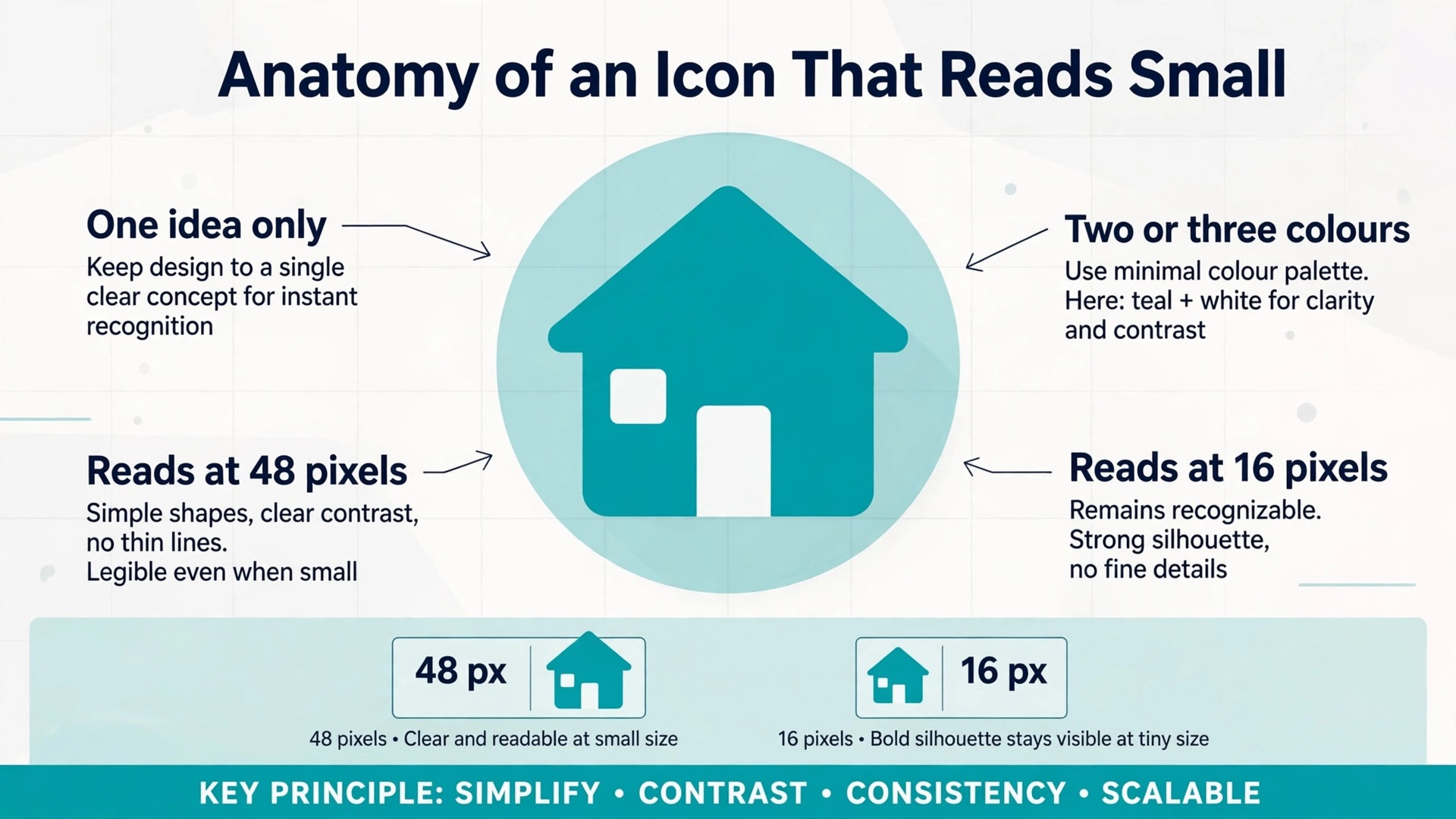
An icon lives most of its life small, so judge every candidate at 48 pixels and at 16 pixels before you download it, because an icon that looks great at 1024 pixels and turns to mud at 48 pixels has failed at its real job. Shrink the preview, hold your phone at arm’s length, and check that the shape is still clear, the contrast is still strong, and the idea is still readable. If you cannot tell what the icon shows at 48 pixels, simplify it, remove a detail, thicken a line, or raise the contrast, and test again.
Use one idea per icon, not three. A successful app icon shows one object, one letter, or one shape, and a successful interface icon shows one action. An icon that tries to show a house, a tree, and a sun in one square will read as a smudge, while an icon that shows one house will read instantly. Limit the palette to two or three colors, keep the background simple, and avoid text inside the icon, because text smaller than a few pixels tall is unreadable and it dates the icon fast.
Test the icon where it will live. An app icon must read on a home screen next to twenty other icons, so check it against your neighbors, not alone on a white page. A favicon must read in a browser tab next to other favicons, so check it in a real tab. An interface icon must read at toolbar size next to other toolbar icons, so check the whole set together. An icon that wins alone and loses next to its neighbors is not a good icon, because icons never live alone.
How to Choose
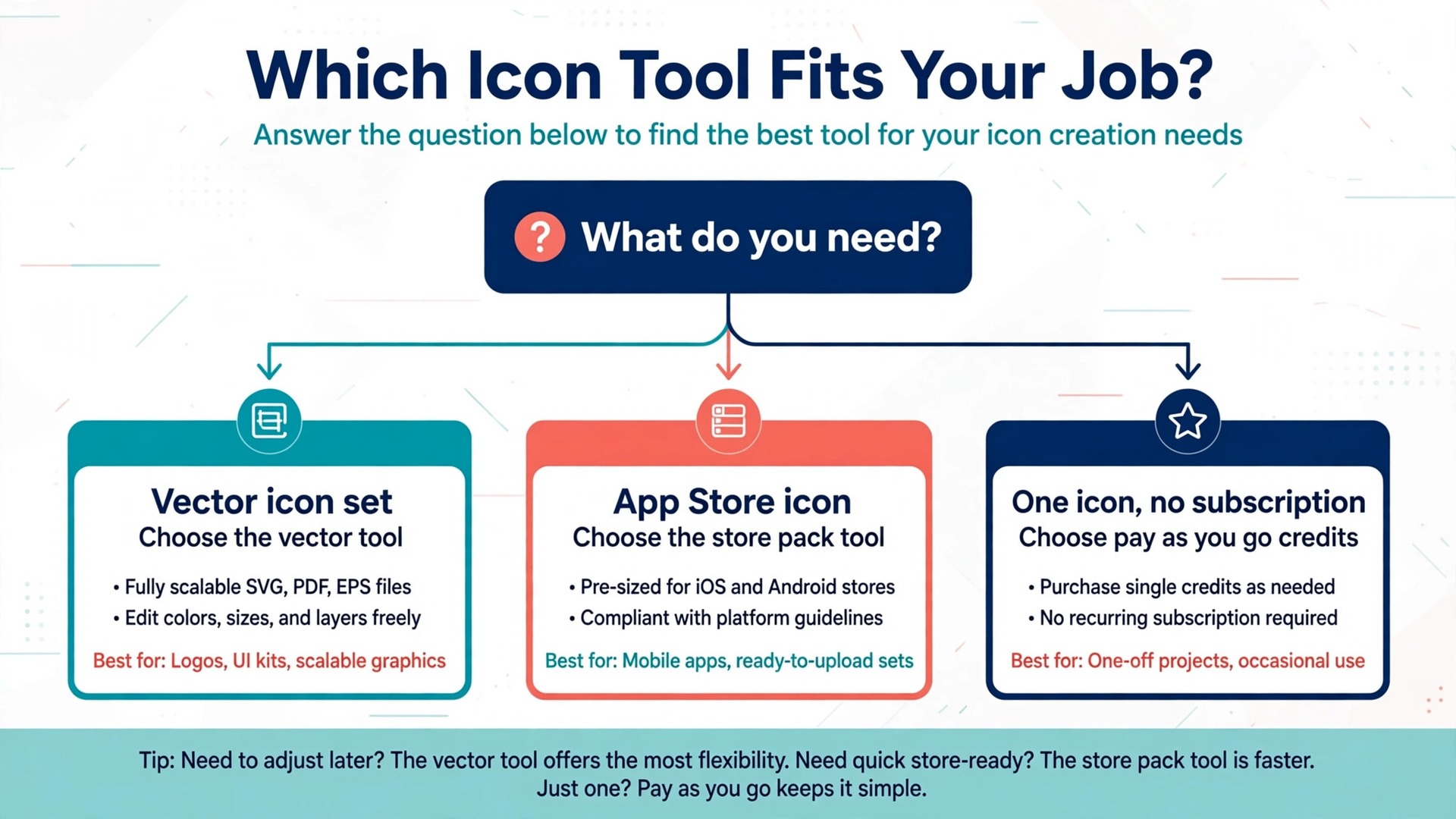
Start with the format you need, because the best AI icon generators for your job are the ones that export the file you actually ship. If you need an App Store icon, buy Appicons.ai or Iconikai, because both export the full store pack. If you need a vector icon set for a website or an interface, buy Recraft, because it is the only tool here that makes editable SVG vectors and holds a set to one style. If you need one icon and you will not need another for a year, buy credits, not a subscription, because a 5 dollar pack beats a 10 dollar monthly bill for rare use.
Next, check the license on your exact plan before you generate anything you will ship. Recraft free plan images are public, belong to Recraft, and cannot be used commercially, so a free icon from Recraft is a test, not a product asset. Read the rights page for the plan you pay for, keep a record of the plan and the date, and never ship an icon whose license you have not read. A 5 dollar saving is not worth a rights dispute over your app icon.
Finally, test three prompts before you pay for a large batch. Generate the same icon from a simple prompt, a detailed prompt, and a prompt with a style reference, and compare the results at 48 pixels. The tool whose simple prompt gives a usable icon is the tool you will enjoy using, because detailed prompts are hard to repeat across a set. Pay for the smallest pack or the monthly plan first, prove the fit on one real icon, and scale up only after that icon ships.
Mistakes to Avoid
The first mistake is judging an icon at full size only. An icon that looks detailed and clever at 1024 pixels will turn to mud at 48 pixels, so always test small before you download. Shrink the preview, check the shape, and simplify until it reads at 48 pixels and at 16 pixels.
The second mistake is shipping a free tier icon commercially. Recraft free plan images belong to Recraft and cannot be used commercially, and other free tiers carry their own limits, so read the rights before you ship. A free icon that you cannot legally use is not a saving, it is a liability, and the fix is a 5 dollar pack or a 10 dollar month.
The third mistake is putting text inside an icon. Text smaller than a few pixels tall is unreadable, and it makes the icon look dated within a year, because the words lock the icon to one message. Use a shape, a letter, or a symbol instead, and put the words in the app name, the page title, or the label next to the icon.
The fourth mistake is generating twenty icons in twenty styles. A set needs one style and one palette, or it reads as a collection of clip art, so pick a style first and hold it across the set. Recraft style controls exist for this exact reason, and a buyer who ignores them wastes the tool best feature.
The fifth mistake is forgetting the variants. An iPhone app needs dark and tinted variants, an Android app needs adaptive and themed icons, and a website needs a favicon set, so check the export pack before you pay. A tool that exports one PNG leaves an hour of manual resizing to you, and that hour is the cost the headline price hides.
A One Week Workflow
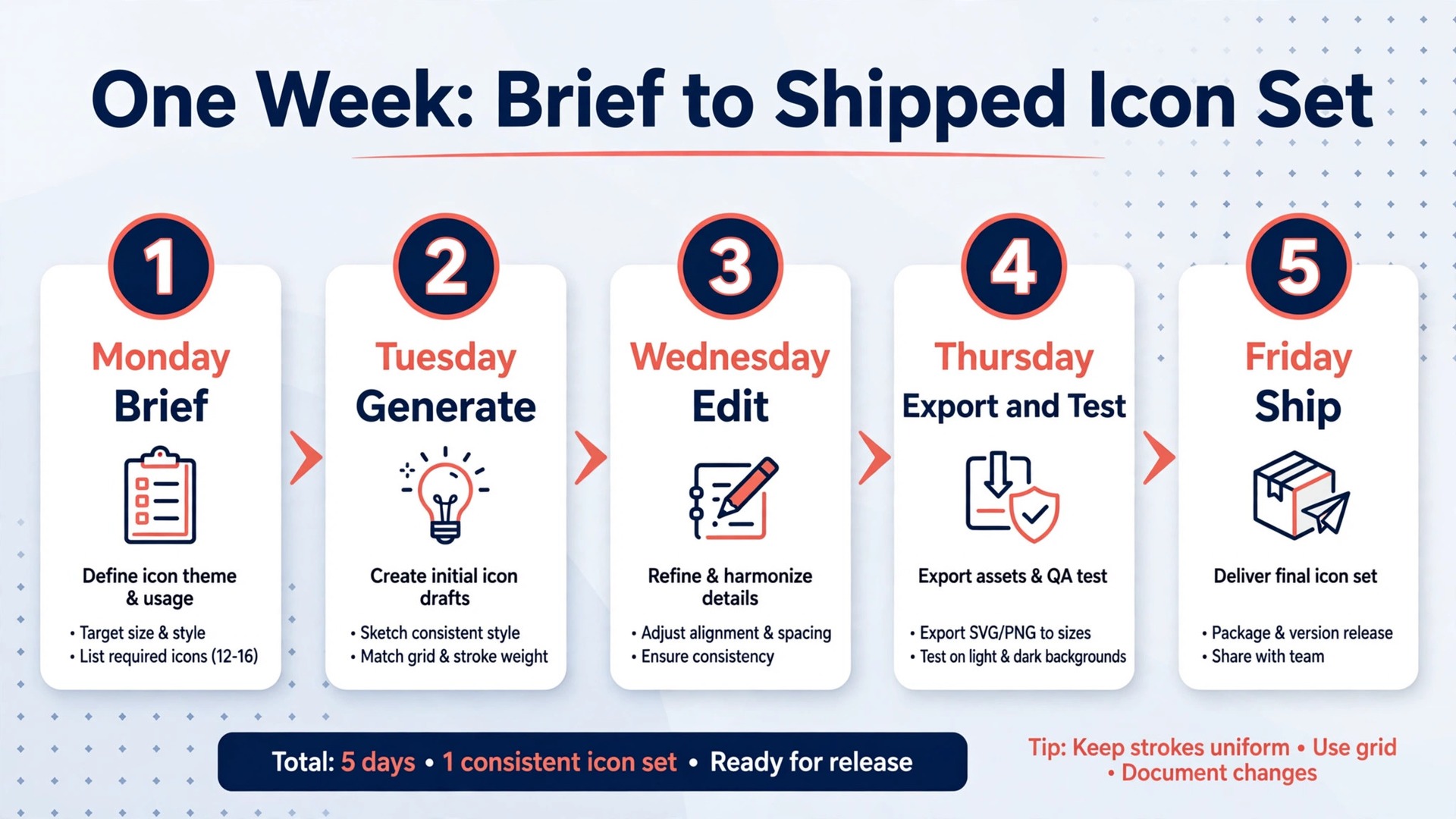
A workable icon week takes about five hours once you know the tools, and it produces a finished icon set with every export you need. The workflow below assumes one brand, one app or website, and one designer or developer.
- Monday, define the brief. List every icon you need, write one sentence for each one that states what it shows, and pick one style and one palette for the whole set. A set defined on Monday never depends on inspiration on Thursday.
- Tuesday, generate in one batch. Run three prompts per icon in your chosen tool, save the best option for each one, and compare the set at 48 pixels before you move on. Batching matters because switching between tools and prompts all week wastes more time than the generation saves.
- Wednesday, edit with fresh eyes. Simplify any icon that fails at small size, fix colors against your brand sheet, and check spelling where a letter appears. Editing a day after generation catches errors that same day editing misses.
- Thursday, export and test. Download the full export pack, install the icons where they will live, and check them on a phone, in a browser tab, and in the toolbar. An icon that looks right in the generator and wrong on a home screen is an icon your users will never tap.
- Friday, ship and record. Publish the icons, save the prompts and the style settings with the project files, and note which prompts worked best. The record takes twenty minutes and it is the step that makes the next icon set take half the time.
Frequently Asked Questions
Which AI icon generator is best for app icons?
Appicons.ai and Iconikai are the best picks for app icons, because both export full store packs without a subscription. Appicons.ai wins when you want a guided flow and dark and tinted iOS variants in one download, while Iconikai wins when you want the cheapest entry, with five free generations a day and credit packs from 5 dollars. The best AI icon generators for app work are the ones that export the pack you submit, so test one icon in each tool before you buy credits.
Can I use free AI icons commercially?
It depends on the plan, and you must read the rights before you ship. Recraft free plan images are public, belong to Recraft, and cannot be used commercially, so a free Recraft icon is a test, not a product asset. Paid plans license commercial use, and credit packs from Appicons.ai and Iconikai are bought for use, but the terms differ by vendor, so read the rights page for the exact plan you pay for and keep a record of it.
Do AI icon generators make vector files?
Recraft makes editable SVG vectors on its paid plans, which scale from a favicon to a billboard without blurring, and it is the only tool in this set that does. Appicons.ai and Iconikai deliver raster packs built for app stores, which is the right format for that job, because app stores want PNG files at set sizes. If you need vectors for a website or an interface, buy Recraft, and if you need store PNG files, buy Appicons.ai or Iconikai.
How much does an AI icon cost?
A single app icon costs about 5 dollars in credits from Appicons.ai or Iconikai, because a 5 dollar pack covers many generations. A vector icon set costs 10 dollars a month on Recraft Basic yearly billing, for 1,000 credits a month, which covers a small set with room to revise. A business that needs icons monthly should budget 10 to 20 dollars a month, while a developer who needs one icon a year should buy a 5 dollar credit pack and pay nothing monthly.
Should I put text in my app icon?
No, in almost every case. Text smaller than a few pixels tall is unreadable on a home screen, and it dates the icon fast, because the words lock the icon to one message. Use one shape, one letter, or one symbol instead, and put the words in the app name under the icon. A single bold letter can work when the letter is the brand, but a word or a sentence never works at icon size.
Can one tool make a whole matching icon set?
Recraft can, because its style controls hold a set to one style and palette, and it is the only tool here built for that job. Appicons.ai and Iconikai make excellent single app icons, but they do not hold twenty icons to one style, so a set built in those tools will drift. If you need a matching set for a website or an interface, buy Recraft, generate the set in one session, and test the whole set at 48 pixels before you download it.
The Bottom Line
Start with the format, not the price, and buy the generator that exports the file you actually ship. If you need a vector icon set, start with Recraft Basic. If you need an App Store icon with every variant, start with Appicons.ai. If you need one icon with no subscription, start with Iconikai.
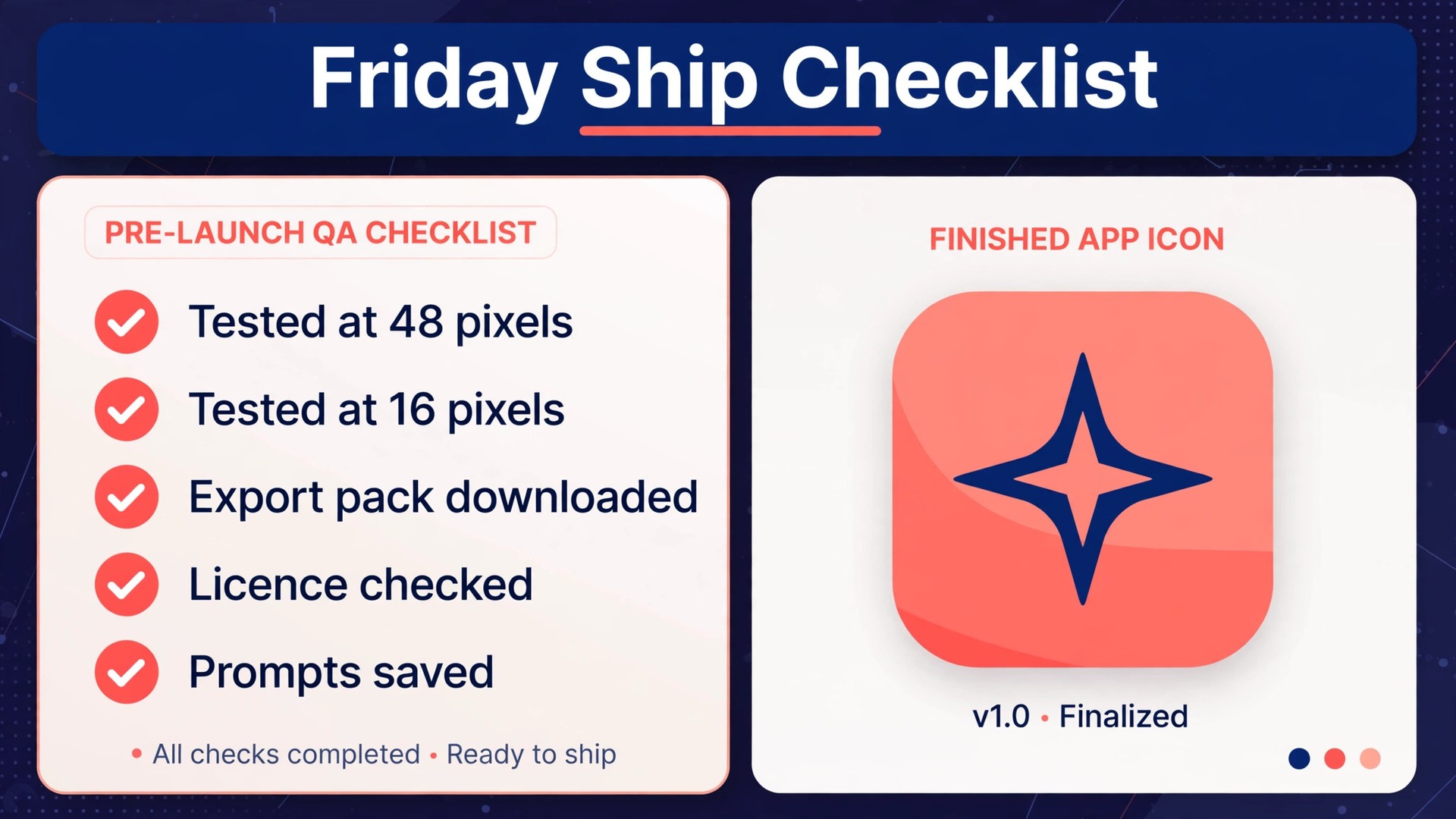
Test every icon at 48 pixels, read the license before you ship, and keep your prompts with the project files. The best AI icon generators are the ones that survive a real submission, and the price that matters is the price of the plan that licenses your use, not the price on the homepage.