The most common fear about switching registrars is downtime, and it is also the easiest fear to dismiss. A registrar transfer moves the billing and the management of a domain, not the website and not the email. Your nameservers stay exactly as they are unless you change them separately, so visitors keep reaching your site and mail keeps arriving throughout the move. This guide shows you how to switch domain registrar without taking your site or your email offline, from the checks that stop a transfer to the steps that keep your DNS safe. The work on your side takes about fifteen minutes, followed by up to a week of waiting.
The Short Answer First
To move a domain, unlock it at the current registrar, copy its transfer code, also called an EPP or auth code, start the transfer at the new registrar, and approve the confirmation email. Most .com transfers finish within five to seven days, and the move adds a year. Your website and email keep working throughout, as long as the nameservers and DNS records stay the same. That last condition is the whole secret. Change nothing about DNS during the transfer, and nothing can go down. That is the whole answer to how to switch domain registrar safely. The sections below walk through each step, the rules that can block a move, the cost, and the fixes for real problems.
What a Registrar Transfer Does and Does Not Do
A registrar transfer changes who bills you for the domain name and where you manage it. It does not move your website files, it does not move your hosting, and it does not move your email. Those live with your host and your DNS provider, which are separate from the registrar unless you chose a registrar that also hosts your site. While the transfer is pending, your DNS keeps working exactly as before, because the nameservers recorded for the domain do not change.
That distinction is what makes a transfer safe, and it is also what makes it dangerous when it is misunderstood. The downtime people blame on a transfer almost always comes from a nameserver change made at the same time, not from the transfer itself. A nameserver change tells the world to ask a different DNS provider for your records, and if the new provider has no records, the site goes dark. Keep the nameservers untouched during the transfer, and the risk disappears.
There are three related moves that people confuse with a registrar transfer, and each one is a separate operation. Moving your DNS to a different provider is a DNS migration. Moving your website files to a different host is a hosting migration. Changing the nameservers is a DNS change. Do them one at a time, with a gap between each, and every step stays reversible. Do them together, and a problem becomes hard to trace.
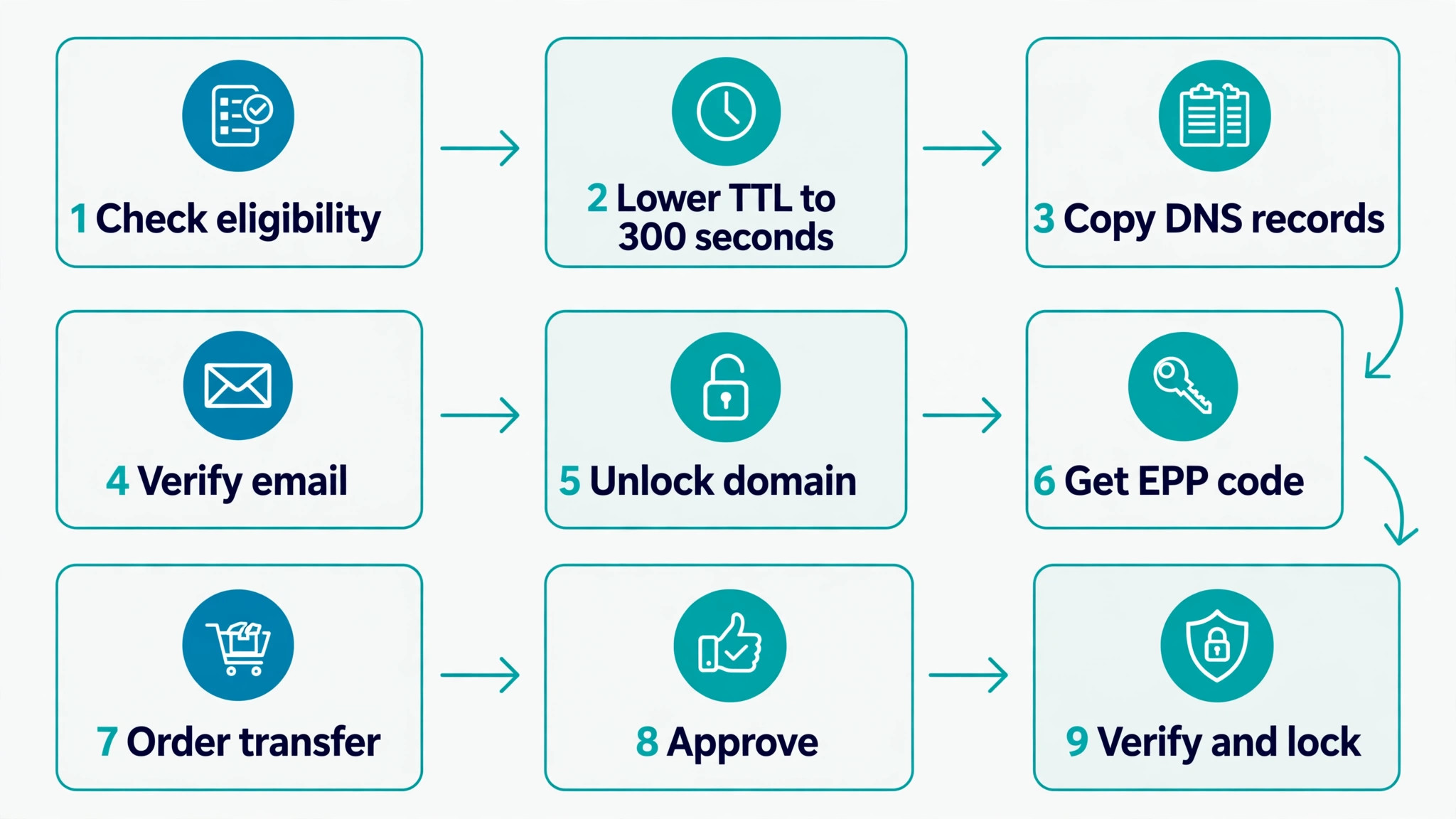
How to Switch Domain Registrar in 9 Steps
The steps below are in order, and the order matters. The preparation takes most of the time, and the transfer itself is mostly waiting.
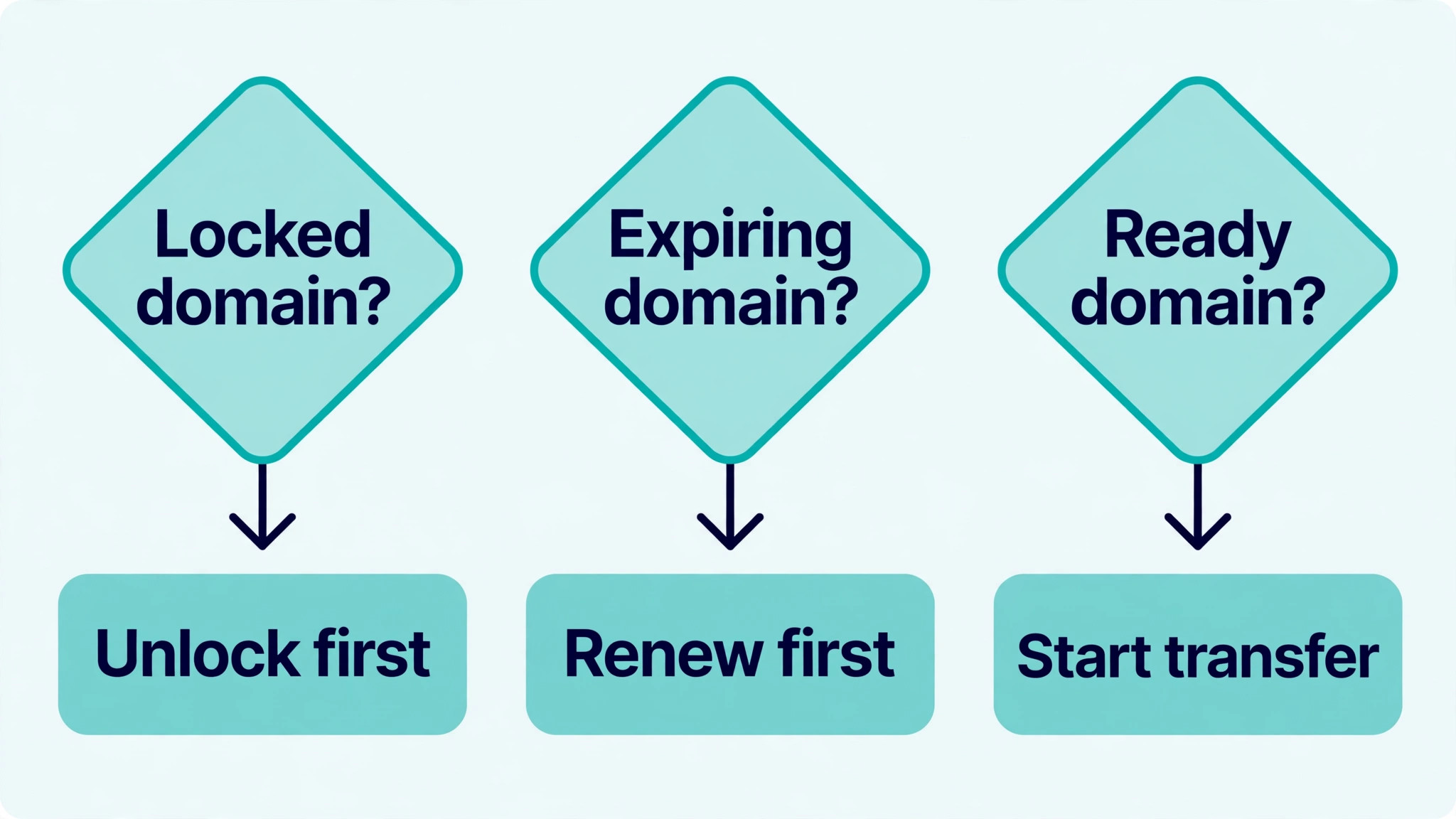
- Check that the domain is eligible. It must be more than 60 days past its registration or its last transfer, and it must not be expired. Check the registration date in your current registrar panel, and if the domain is within about two weeks of expiry, renew it first and transfer later. A failed transfer on an expiring domain is a painful problem, and a renewal first removes it entirely.
- Lower the TTL on your DNS records five to seven days before the transfer. TTL tells caching servers how long to remember your records before checking again, and a standard value of 86,400 seconds means a change can take a full day to spread. Lower the TTL to 300 seconds on the A record, the MX records, and the other critical records, and wait for the old value to expire from caches. If you later need to fix a DNS record, the fix will spread in minutes instead of a day.
- Copy every DNS record and save the list somewhere safe. The MX and TXT records matter most, because they carry your email, and a missing MX record after a move means mail stops arriving. Screenshot the DNS panel, export the zone file if your provider offers one, and keep the copy until the transfer is finished and you have tested email.
- Verify the registrant email address. Transfer approval emails go to the domain registrant and admin contacts, and a transfer stuck waiting on an email nobody reads is the most common failure there is. If the contact address is an old inbox you never check, fix it first and wait for the change to take effect. Changing the registrant details can trigger a 60 day lock unless you opt out first, so check that rule before you change anything.
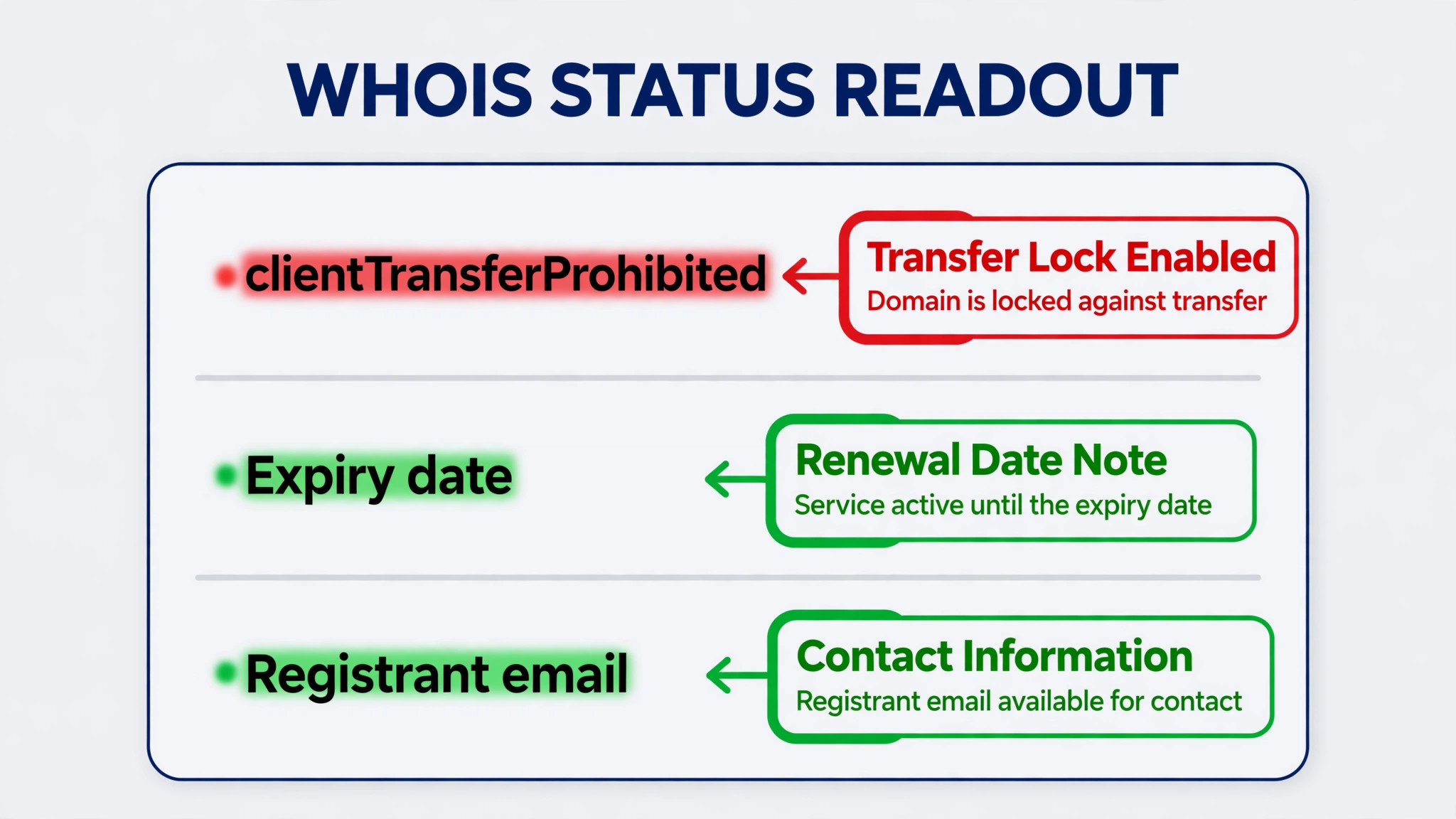
- Unlock the domain at your current registrar. Turn off the transfer lock, which is also called the registrar lock, in the control panel. That removes the clientTransferProhibited status, which is the flag that blocks a move. While you are there, disable WHOIS privacy temporarily if the new registrar needs to verify ownership details. You can turn privacy back on after the transfer.
- Get the authorization code, which is also called the EPP code, the auth code, or AuthInfo. Some registrars show it on screen, and others email it to the registrant contact. Your registrar must provide it within five calendar days of your request. Treat the code like a credential. It is case sensitive, so paste it instead of retyping it, and it often expires or works only once, so request a fresh one if the first attempt fails.
- Order the transfer at the new registrar. Enter the domain name, paste the authorization code at checkout, and pay the transfer fee, which includes a one year renewal for most extensions. The new registrar will send a confirmation to your contact email, and the old registrar will usually send a notice that a transfer is in progress.
- Approve the transfer promptly when the confirmation email arrives. Some registrars let you approve explicitly, which can finish the move in hours instead of waiting out the full five day window. If you ignore the old registrar notice, the transfer is approved automatically after five days, not cancelled. Do not touch your DNS, your email records, or your redirect rules while the transfer is pending. Pending is normal, and most transfers finish within five days.
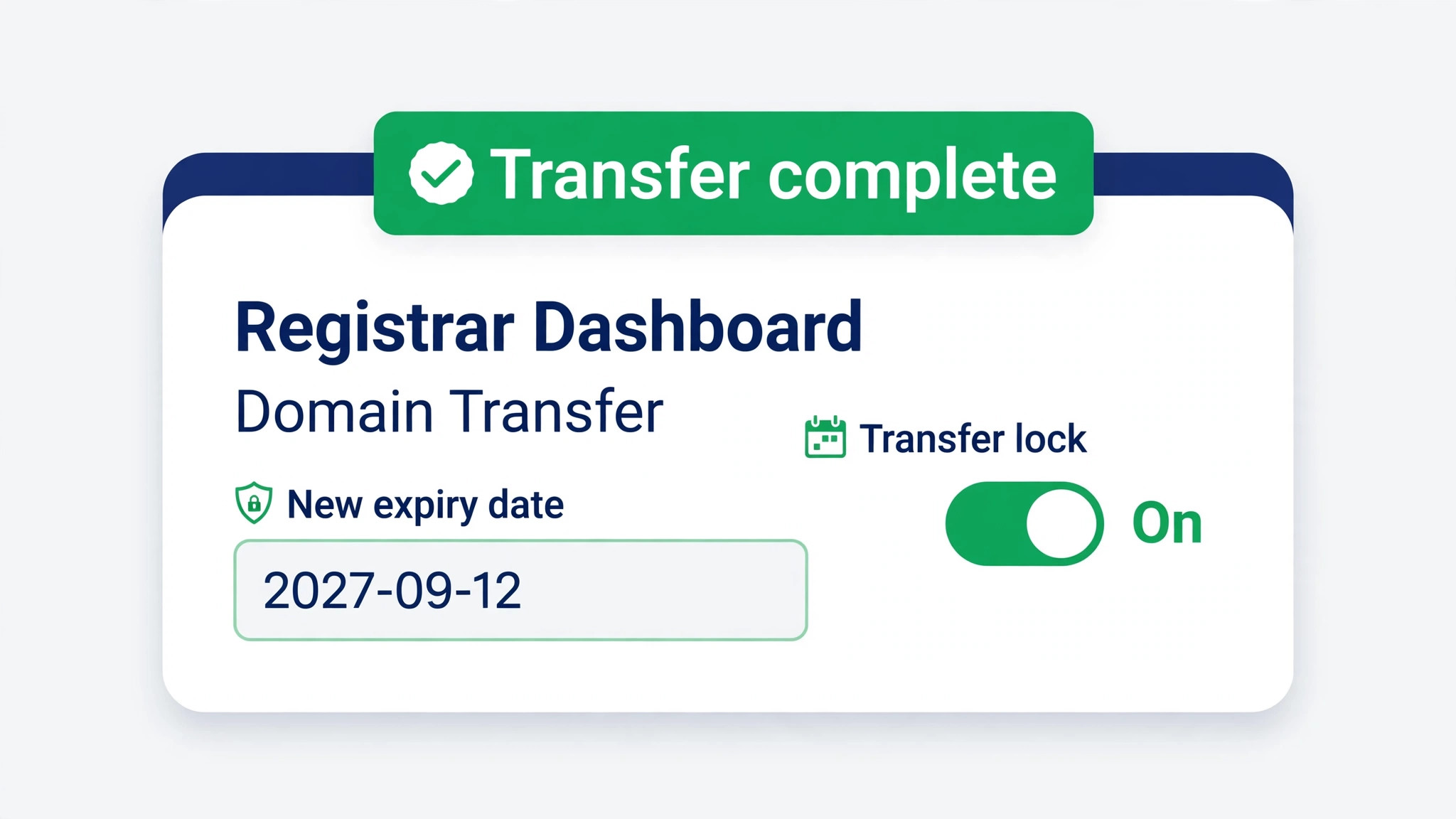
- Verify everything after the transfer completes, then lock the domain down. Check that the website loads, send a test email and reply to it, and confirm the DNS records match the copy you saved. Turn the transfer lock back on, turn WHOIS privacy back on, and enable two factor authentication on the new registrar account if it was not on already. The transfer is done when the site works, the mail works, and the lock is back on.
The 60-Day Lock and Other Rules That Stop a Transfer
Four rules can block a transfer before it starts, and all four are easy to check. The first is the 60 day lock. Under ICANN Transfer Policy, a registrar may refuse a transfer within 60 days of a new registration or a previous transfer. Many registrars also apply a 60 day lock after you change the registrant name, organisation, or email, unless you opted out first. ICANN has adopted Transfer Policy revisions that registrars are rolling out, so confirm the current lock period with your registrar before you plan around it. The dates are the first thing to check when you plan how to switch domain registrar, because the lock is the most common reason a transfer fails.
The second rule is the registrar lock itself. A domain with clientTransferProhibited status cannot move until the lock is off, and the lock is on by default at most registrars. A registry lock, shown as serverTransferProhibited, is different, and it needs your registrar help to remove. Check the domain status with a WHOIS lookup before you start, and the status lines will tell you which lock is in place.
The third rule is expiry. A domain that is expired, or in a grace or redemption period, cannot transfer cleanly. Renew first, wait for the renewal to settle, and then start the transfer. The same logic applies to a domain that is within days of expiry. The transfer adds a year, but a failed transfer on an expiring domain risks losing the name, and the renewal costs the same either way.
The fourth rule is the extension. Most generic extensions such as .com, .net, and .org follow the same transfer process, but some country code domains have special rules. Transfers for .uk, .ca, .eu, .es, .se, and .au follow different procedures at some registrars, and a few extensions do not allow transfers at all, or charge no transfer fee and add no year. Check the new registrar transfer page for your extension before you pay.
How Much Does a Transfer Cost
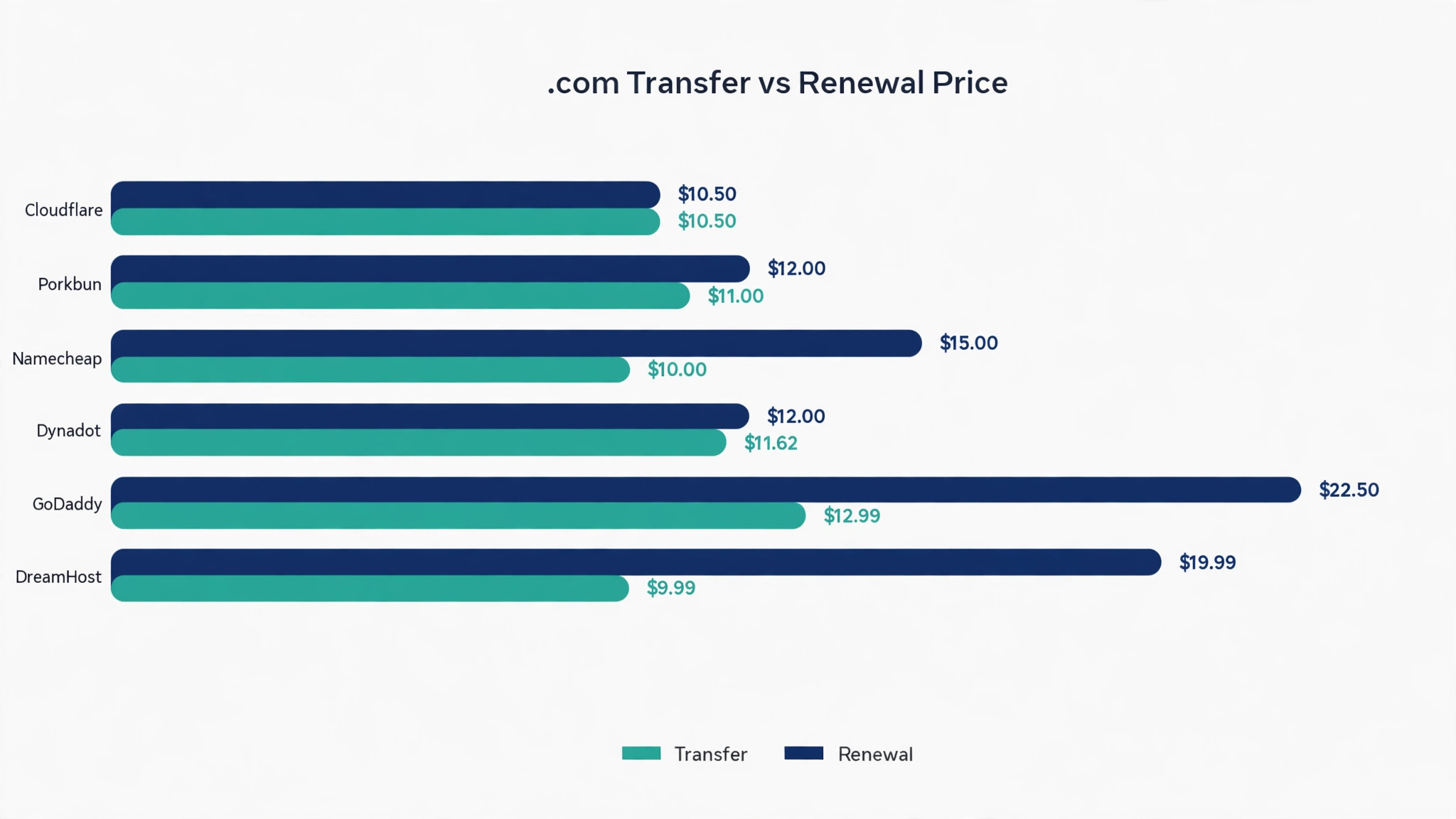
A transfer fee is usually the price of one year of registration at the new registrar, and the transfer adds a year to the domain. That makes a transfer to an honest registrar frequently cheaper than renewing where you are, because the move itself buys the renewal. The table below shows .com transfer prices from 2026 pricing roundups. Prices move, and first year promotions can distort the picture, so check the pricing page before you pay.
| Registrar | .com transfer | .com renewal | Free WHOIS privacy |
|---|---|---|---|
| Cloudflare Registrar | About 10 to 11 dollars, at cost | About 10 to 11 dollars | Yes |
| Porkbun | About 10 to 12 dollars | About 11 to 13 dollars | Yes |
| Namecheap | About 10 dollars | About 14 to 16 dollars | Yes |
| Dynadot | 11.62 dollars | About 12 dollars | Yes |
| GoDaddy | 12.99 dollars, 3 year purchase required | About 22 to 23 dollars | Often 9.99 dollars a year extra |
| DreamHost | 9.99 dollars | 19.99 dollars | Yes |
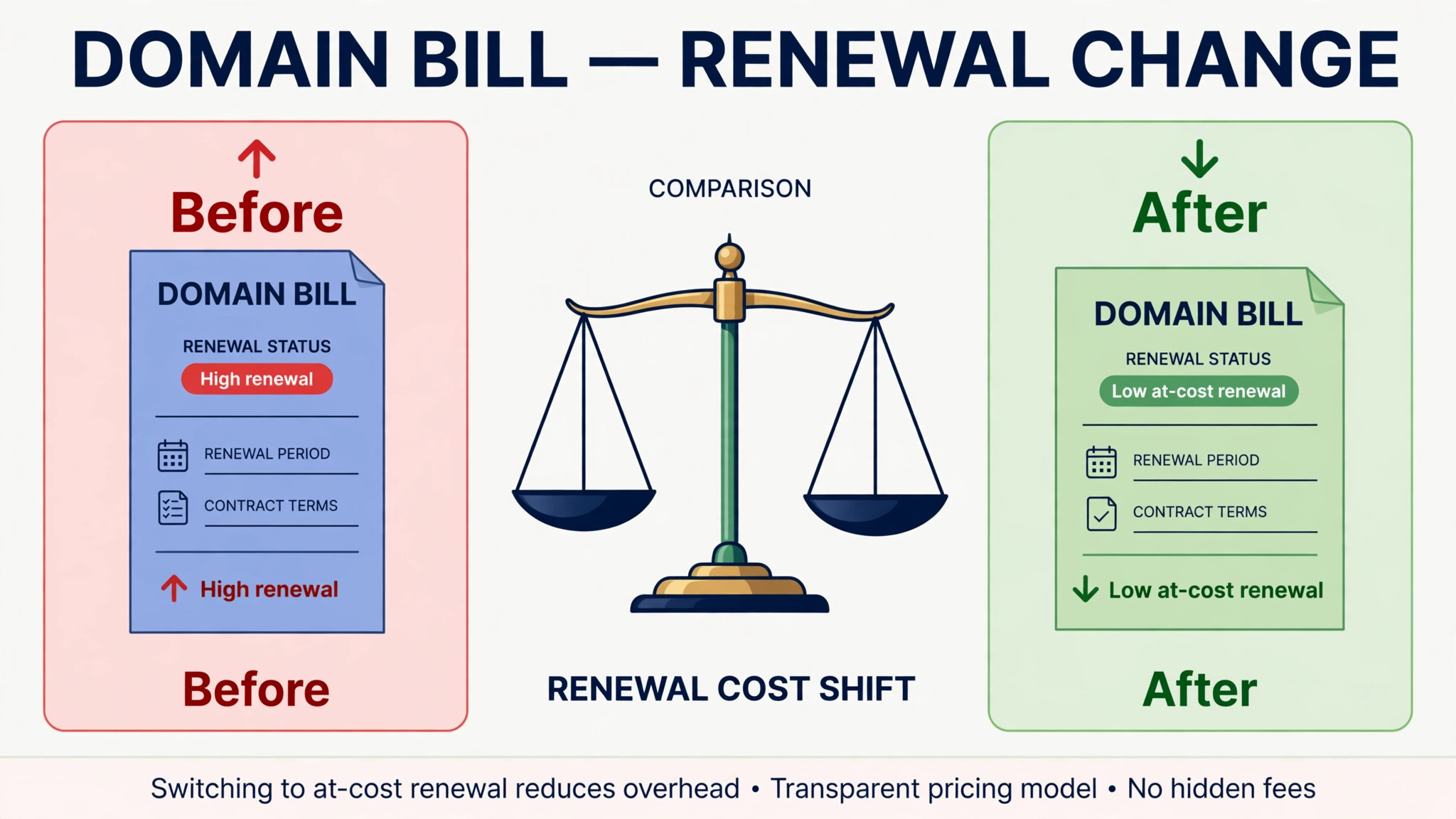
The gap that matters is the renewal gap, not the transfer price. A registrar selling a .com for a few dollars in year one and renewing it above 20 dollars will cost more over five years than one charging about 11 dollars every year. Cloudflare sells at the registry wholesale price with no markup, so renewal matches the first year. Porkbun and Dynadot charge roughly the same every year, with no intro price. Namecheap raised its .com prices three times in 2026 after a 2025 private equity buyout, narrowing the gap with the registrars it used to undercut. GoDaddy remains the most expensive long term option, with first year promotions as low as a cent and renewals above 20 dollars.
No reputable registrar charges a fee to transfer a domain out. If your current registrar asks for a transfer out fee, that is a reason to leave, not a reason to stay. The cost of staying is the renewal price you pay every year, and the cost of leaving is one transfer fee that buys a year. That comparison is the real math behind how to switch domain registrar, because the transfer fee is a single year and the renewal is every year.
Choosing a New Registrar: What to Compare
Price is the first comparison, and the renewal price matters more than the transfer price. A registrar that charges about 10 to 12 dollars every year beats a registrar that charges 5 dollars in year one and 22 dollars in year two. Read the renewal column, not the promotion, and add up five years before you decide.
Free WHOIS privacy is the second comparison. Most modern registrars include it for the life of the domain, and a registrar that charges 9.99 dollars a year for privacy adds 50 dollars to a five year bill. DNSSEC support is the third. One click DNSSEC protects your domain against spoofing, and a registrar without it leaves the option off the table.
Support is the fourth comparison, and it matters most when a transfer stalls. A registrar with live chat and a clear transfer status page will resolve a stuck transfer in hours, while a registrar with ticket only support can leave you waiting for days. Transfer out terms are the fifth. A good registrar lets you unlock a domain and get the auth code in minutes, with no fee and no phone call. A registrar that makes leaving hard will make everything else hard too. That ease of exit is part of how to switch domain registrar well, because the next move should be as easy as this one.
Should You Move Your DNS Too
The safest transfer leaves DNS exactly where it is, and moves only the registration. That is the default, and it is the right choice for most people learning how to switch domain registrar for the first time. There are two situations where moving DNS first makes sense, and both need a gap between the moves.
The first is when your DNS lives with your old registrar and you want it somewhere better. Move the DNS to a dedicated provider such as Cloudflare, Route 53, or Google Cloud DNS, copy every record, and wait 48 hours for the change to settle. Then start the registrar transfer. The DNS migration and the registrar transfer become two separate operations, and each one is reversible on its own.
The second is when you are also changing hosts. Move the DNS first, wait, then transfer the registrar, and change the host last. Each step changes one thing, and if something breaks, you know which step broke it. The order matters more than the speed. A transfer done in one careful week beats a transfer done in one rushed afternoon, because the rushed version is the one that takes a site down.
Google Domains is a special case worth a note. Google sold its registrar business, and domains moved to Squarespace Domains. If your domain still sits with the old Google Domains setup, the migration to Squarespace happened automatically, and your transfer process starts from the Squarespace panel. The steps are the same, and the auth code comes from the current registrar of record.
What Can Go Wrong and How to Fix It
Most transfers finish without a problem, and the problems that do happen fall into five patterns. Each one has a fix, and none of them needs a support ticket to start with.
- The transfer is rejected because the domain is locked. The fix is to turn off the registrar lock at the old registrar and check the WHOIS status again. If the status still shows clientTransferProhibited after a few minutes, the lock change has not propagated yet, and waiting an hour usually clears it.
- The new registrar rejects the auth code. The code expired, or it was regenerated after you requested it. Get a fresh code from the old registrar and paste it in again, without retyping. A code that fails twice usually means the domain is locked or the registrant email does not match.
- The transfer is stuck for days with no progress. The old registrar is holding it, or the approval email went to an inbox nobody checks. Open the approval email and approve explicitly, and if there is no email, check the spam folder and the registrant address. A support ticket to the old registrar is the next step if the approval is confirmed and the transfer still does not move.
- The site went down during the transfer. Someone changed the nameservers during the move, or the DNS records were lost. Revert the nameserver change, restore the records from the copy you saved, and wait for the TTL to expire. The site comes back when the records are correct again, and the transfer itself did not cause the outage.
- Email stopped working after the transfer. The MX records are missing or wrong at the new DNS, or the nameservers changed without the records. Compare the current DNS against the copy you saved, restore the MX and TXT records, and send a test email. Email is the record most often lost in a move, which is why the copy matters.
After the Transfer: Lock It Down
A finished transfer is not finished until the domain is locked down again. Turn the transfer lock back on first, because an unlocked domain can be moved again by anyone who gets the auth code. Turn WHOIS privacy back on if you disabled it for the transfer, because your personal details should not sit in a public database.
Enable two factor authentication on the new registrar account, and use an authenticator app rather than SMS when the registrar offers it. A domain is the front door to a business, and an account without two factor authentication is a front door with a weak lock. Set the account to require approval for any transfer, and set a calendar reminder for the renewal date, even though the transfer added a year. A domain that expires because nobody remembered is the most expensive mistake in this guide.
Finally, update your records. Note the new registrar, the renewal date, and the auth code location in the same place you keep other business credentials. The next transfer, if there is one, will start from those notes, and the person doing it may be you in five years, or someone else entirely.
What Changes at the Big Registrars
The transfer steps are the same everywhere, but the experience differs by registrar, and the differences matter when you choose where to move.
Cloudflare Registrar sells domains at the registry wholesale price with no markup, so a .com costs about 10 to 11 dollars a year, and the renewal matches the first year. The condition is that every domain registered with Cloudflare must use Cloudflare DNS. If your DNS already lives on Cloudflare, the move is simple. If it lives elsewhere, you will move DNS as part of the transfer, which means the two step approach in the section above applies. Cloudflare includes free WHOIS privacy and one click DNSSEC, and it charges no markup on renewals.
Porkbun is the simplest move on this list. The .com transfer costs about 10 to 12 dollars, the renewal is about the same, WHOIS privacy is free for life, and there is no transfer out fee. The panel is plain and the process is short, which suits owners who want the domain managed and nothing else. Porkbun suits a single domain or a small portfolio, and it has no intro pricing to expire.
Namecheap is the familiar middle option, with free WHOIS privacy and a panel most owners already know. The .com transfer costs about 10 dollars, and the renewal runs about 14 to 16 dollars, after three price rises in 2026. The gap with the cheapest registrars has narrowed, and the renewal is the number to watch. Namecheap suits owners who value the familiar panel and the support, and who are willing to pay a few dollars more a year for it.
GoDaddy is the largest registrar and the most expensive long term option. The transfer price is 12.99 dollars for the first year with a three year purchase required, and a one cent promotion appears from time to time, while renewals run about 22 to 23 dollars a year. WHOIS privacy often costs 9.99 dollars a year extra. GoDaddy suits owners who want the brand and the phone support, and it is the registrar most people transfer away from, because the renewal price is the highest on this list.
Squarespace Domains is where Google Domains customers landed after Google sold its registrar business. The migration happened automatically, and the transfer process starts from the Squarespace panel. The steps are the same, and the auth code comes from the current registrar of record. If your domain still shows Google Domains in old paperwork, check the current registrar in a WHOIS lookup before you start, because the panel you need is the one that holds the domain now.
Transferring a Business Domain: Extra Care
A business domain carries more risk than a personal one, because the website and the email are how customers reach you, and an hour of downtime costs real money. The steps are the same, and the preparation is stricter.
Move one domain first, even if you plan to move ten. A single domain proves the process, the auth code flow, and the approval email path, and the lessons apply to the rest of the portfolio. Stagger the remaining transfers by a day or two, so a problem on one does not become a problem on all of them. A bulk transfer saves time, and it concentrates the risk, which is the wrong trade for a business.
Align the renewals if you can. A portfolio with ten domains renewing in ten different months is ten chances to forget one, and a forgotten renewal is the most expensive mistake in this guide. A transfer adds a year, so moving domains in the same month pulls their renewal dates closer together, and a single calendar reminder can cover the whole portfolio.
Check who has access before you start. A business domain is often registered under a former employee, a former agency, or a personal email, and the transfer approval goes to that address. Confirm the registrant email, the account access, and the two factor authentication before you pay for the transfer, because discovering an access problem mid-transfer is the slowest way to learn about it. If the domain is registered to a person who has left, fix the ownership first, and accept that the fix can trigger a 60 day lock.
Transferring a Domain to a New Owner vs a New Registrar
Two different moves share the word transfer, and confusing them causes real problems. A registrar transfer moves the domain between registrars, and the owner stays the same. A registrant change, also called a change of ownership, moves the domain between people or companies, and the registrar can stay the same.
A registrant change usually requires the current owner to approve it, and it can trigger a 60 day lock on further transfers unless you opt out first. The opt out is offered at the moment of the change, and it is easy to miss. If you are buying or selling a business and the domain changes hands, do the ownership change first, wait out any lock, and then transfer registrars if you still want to. Doing both at once is the most common way to get stuck.
A domain push is a third move, and it is simpler than both. A push moves a domain between two accounts at the same registrar, and it usually completes instantly with no lock and no fee. If the buyer already has an account at your registrar, a push is the fastest way to hand over the domain, and the buyer can transfer registrars later on their own schedule.
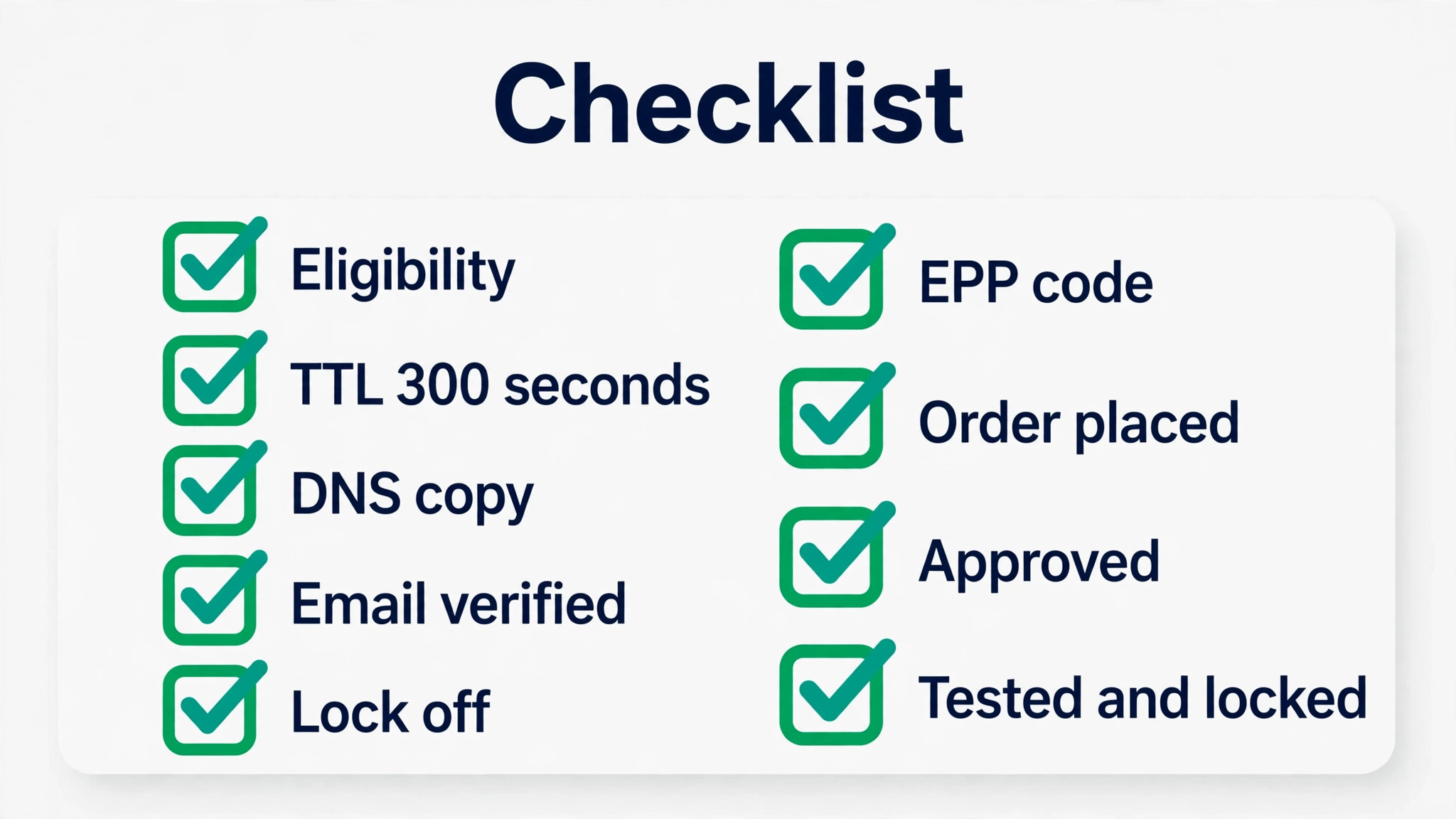
Registrar Transfer Checklist
Run through this list before you pay for the transfer. It is the last preparation step in how to switch domain registrar without a surprise, and each item takes minutes to check.
- Domain is more than 60 days past registration or its last transfer, and not near expiry.
- TTL lowered to 300 seconds five to seven days before the move.
- Every DNS record copied and saved, with MX and TXT records checked.
- Registrant email verified, and the inbox is one you actually read.
- Transfer lock off, and WHOIS status checked.
- Auth code in hand, pasted rather than retyped.
- Transfer ordered at the new registrar, with the one year renewal included.
- Transfer approved promptly when the confirmation email arrives.
- Website and email tested after completion, and the lock turned back on.
Frequently Asked Questions About Switching Domain Registrar
How long does it take to switch domain registrar?
Most .com transfers finish within five to seven days. The work on your side takes about fifteen minutes, and the rest is waiting for the old registrar and the registry to process the move. Some registrars let you approve explicitly, which can finish the transfer in hours instead of days. If you ignore the old registrar notice, the transfer is approved automatically after five days.
Will my website go down when I switch registrar?
No, as long as you do not change your nameservers or your DNS records during the transfer. A registrar transfer moves the billing and the management of the domain, not the website or the email, and your DNS keeps working exactly as before while the transfer is pending. Downtime happens when someone changes nameservers at the same time as the transfer, so keep DNS untouched until the move is done. That rule is the core of how to switch domain registrar without downtime.
How much does it cost to switch domain registrar?
A transfer usually costs the price of one year of registration at the new registrar, and it adds a year to the domain. For a .com, that is about 10 to 12 dollars at Cloudflare, Porkbun, or Dynadot, about 10 dollars at Namecheap, and 12.99 dollars at GoDaddy with a three year purchase required. No reputable registrar charges a fee to transfer a domain out.
What is an EPP code and where do I find it?
An EPP code, also called an auth code or AuthInfo, is the password for your domain transfer. You get it from your current registrar, either on screen in the domain panel or by email to the registrant contact. The registrar must provide it within five calendar days of your request. The code is case sensitive, so paste it instead of retyping it, and request a fresh one if the first attempt fails.
Can I switch registrar if my domain is locked?
No, not until the lock is off. Turn off the transfer lock, also called the registrar lock, in your current registrar control panel, and check the WHOIS status until clientTransferProhibited is gone. A domain within 60 days of registration or its last transfer cannot move at all, and changing the registrant details can trigger a fresh 60 day lock, so check the dates before you start.
What happens to my email when I switch registrar?
Nothing, as long as your DNS records stay the same. Email runs on MX records, and a registrar transfer does not touch them. Copy every DNS record before the move, with MX and TXT records first, and test email after the transfer completes. If email stops working, compare the current DNS against the copy you saved and restore the missing records. That check is the quiet half of how to switch domain registrar safely, and it matters as much as the transfer itself.