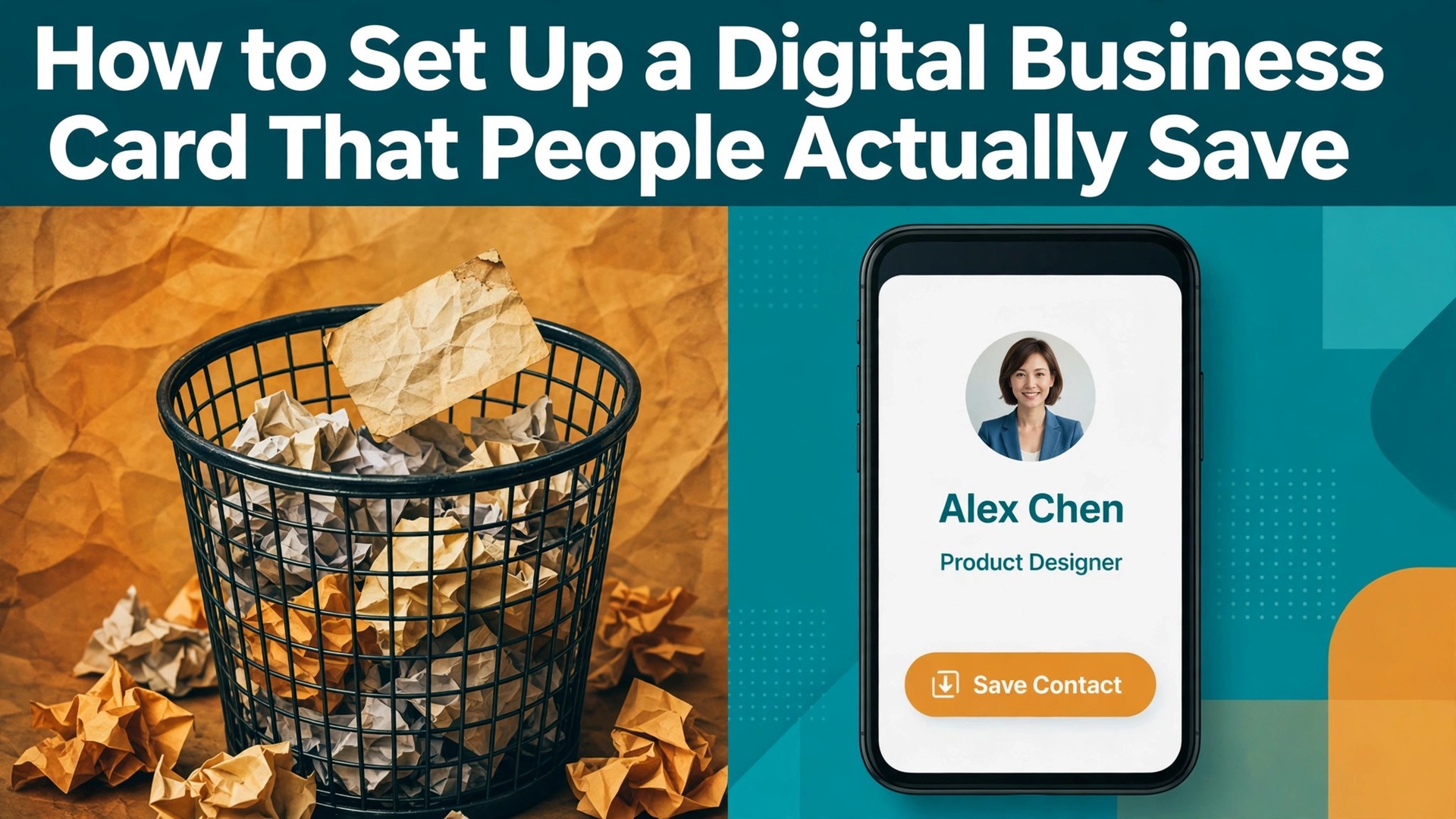
You meet someone useful at a conference, you hand over a paper card, and by the time they reach their hotel the card is at the bottom of a bag, or in a bin, or sitting on a desk next to twenty others they will never sort through. That is the problem a digital card solves, and it is also why so many digital cards fail. Learning how to set up a digital business card the right way takes about thirty minutes, and the difference between a card that gets saved and one that gets ignored comes down to a handful of choices about the app, the photo, the links and the way you share it.
The goal is simple. When someone scans your code or taps your phone, they should land on a page that loads fast, shows your face and your name clearly, and gives them one obvious way to save your details or contact you. Everything else is decoration. This guide walks through the seven steps in order, compares the six apps worth using in 2026, and covers the mistakes that quietly kill save rates.
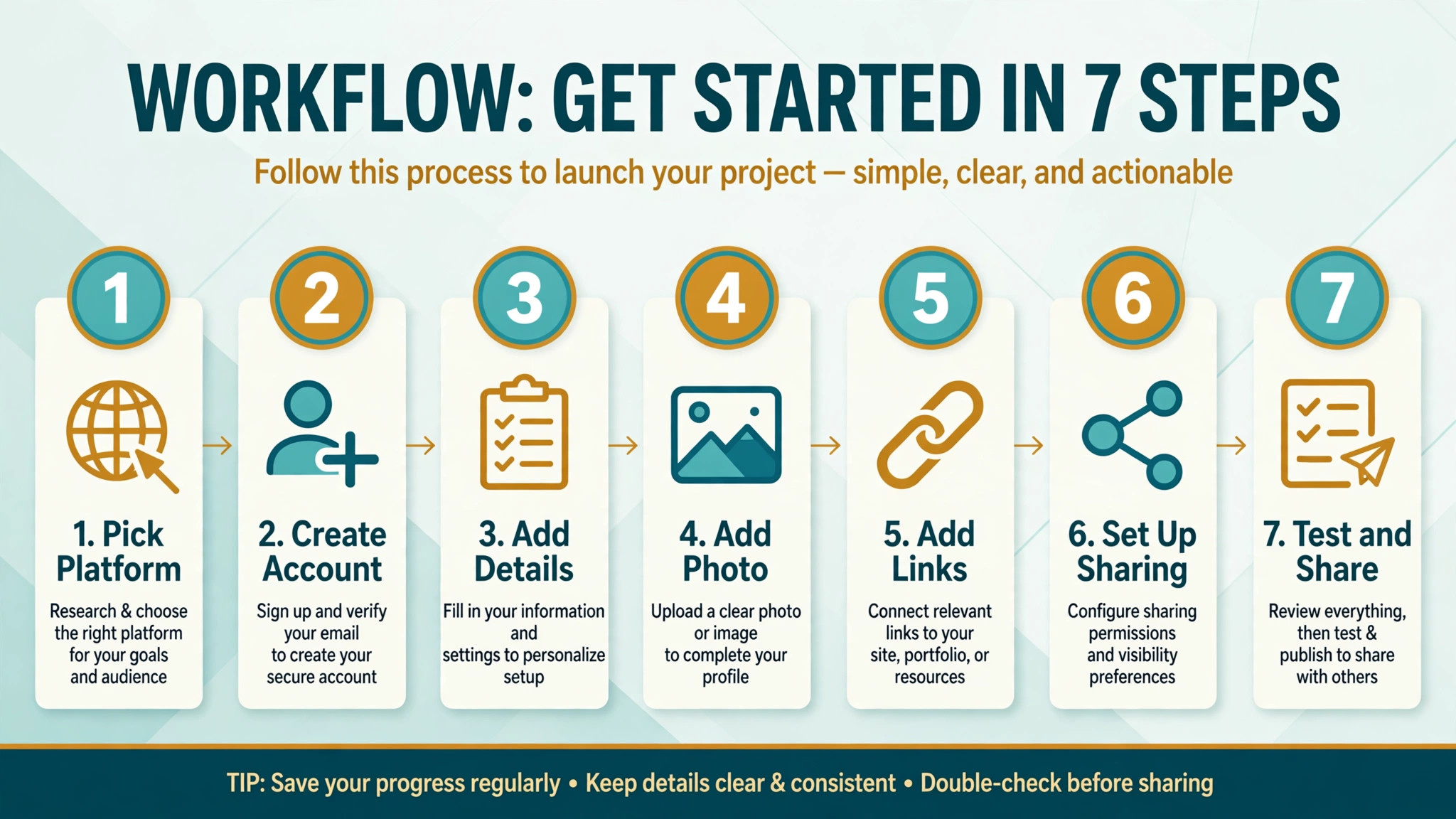
How to Set Up a Digital Business Card in 7 Steps
- Pick one platform and commit to it for at least three months. The apps in this guide all do the same core job, so the choice matters less than the follow through. HiHello and Blinq are the safest picks for most people, because both have a genuinely free plan, a phone app and wallet sharing. Popl suits event teams, Mobilo suits field sales, and Wave Connect suits anyone who wants a free card with no branding. Switching apps later means reprinting codes and re sharing links, so choose once and stay put while you learn what works.
- Create your account with the email address you actually check, not a spare inbox you never open. Most apps send a verification link and then ask you to confirm your name, job title and company, which takes about two minutes. Use the same name spelling that appears on your LinkedIn profile and your email signature, because a mismatch makes people pause and wonder if they have the right person. If your company runs a team plan, join it through the invite your admin sends rather than creating a separate personal account, so your card stays inside the company directory.
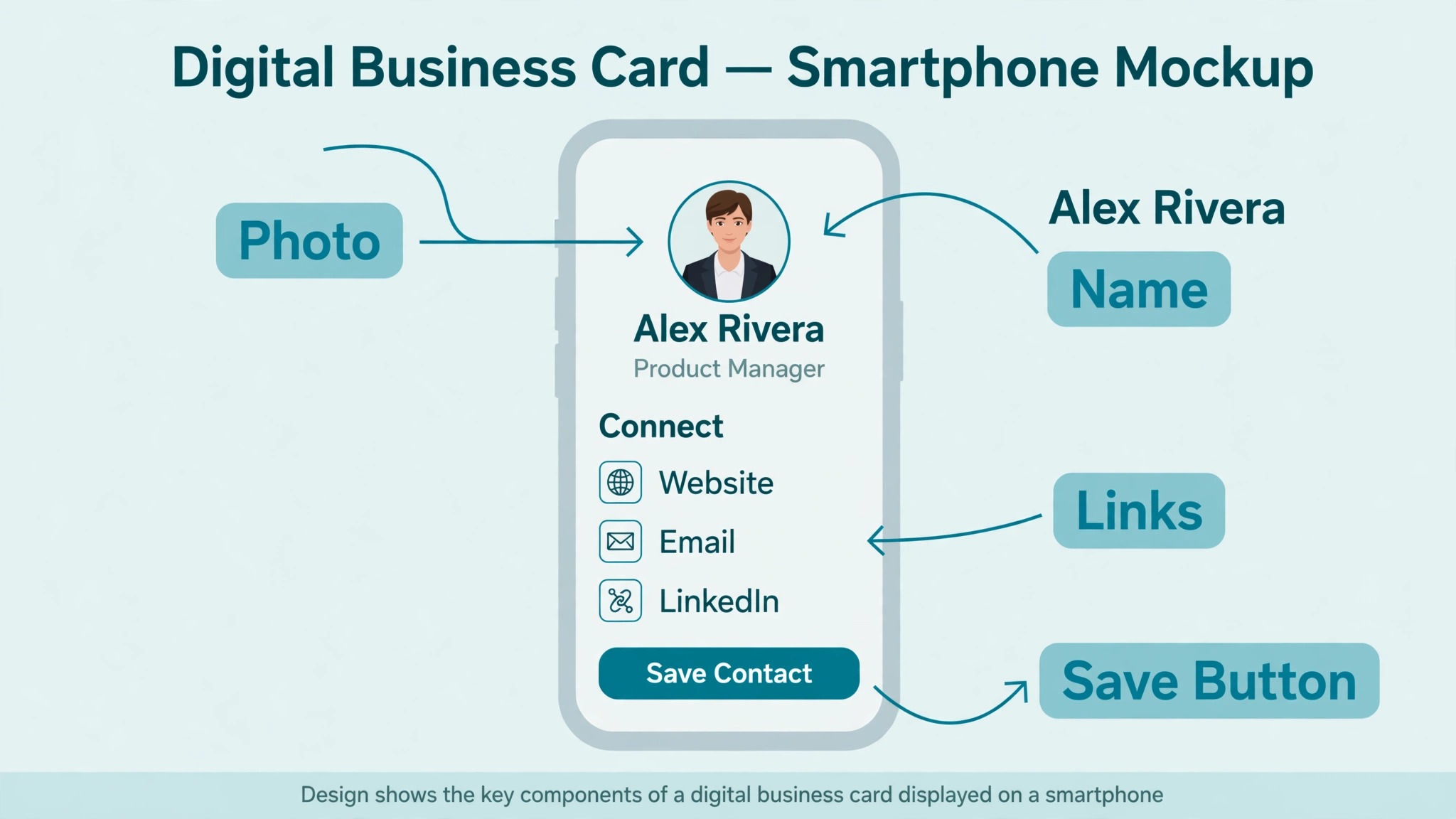
- Fill in the contact details a stranger needs and nothing they do not. Your name, job title, company, phone number, email address and one website link are the core, and most apps let you add far more. Add your work phone if clients call you, add your mobile only if you want new contacts to reach you there, and leave off fax numbers, old office addresses and social profiles you never check. A card with twelve fields looks thorough and gets ignored, while a card with six fields looks confident and gets saved, because every extra field is one more decision for the person holding the phone.
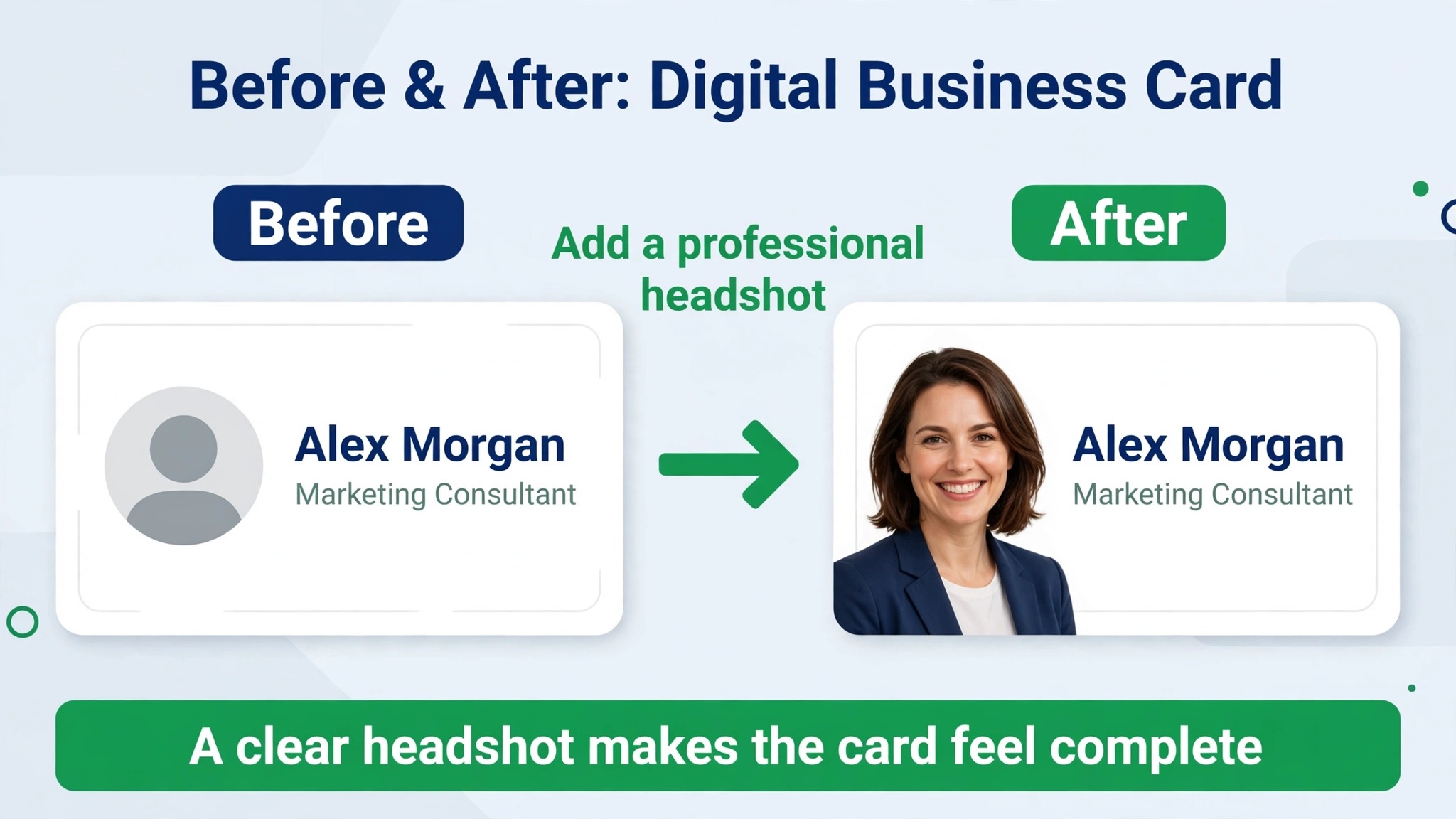
- Add a real photo of your face, taken in good light, cropped tight, and current within the last two years. This is the single highest value step in the whole setup, because people remember faces and forget names, and a photo is what lets them find you in their contacts a month later. Avoid logos as the main image, avoid group photos, and avoid sunglasses or hats that hide your features. A plain background, a straight look at the camera and a smile that matches how you look in person will do more for your save rate than any premium feature.
- Add your logo, your brand colours and the two or three links that matter most to the people you meet. Your company logo goes at the top of the card, your brand colours set the background and the buttons, and your links should be the actions you want, such as booking a call, viewing your portfolio or downloading a brochure.
A link to your LinkedIn profile belongs on nearly every card, because it is where new contacts check your background. Keep the link list short, because a card with two clear actions converts better than a card with ten links that all compete for attention. That discipline is the quiet part of how to set up a digital business card that gets saved rather than swiped away.
- Set up every sharing method the app offers, because you never know which one the next person can use. Turn on the QR code, add the card to Apple Wallet or Google Wallet, enable the link you can text or email, and if you bought an NFC card or tag, program it to open your digital card. Test each method yourself before you use it on anyone else, and test it on both an iPhone and an Android phone if you can borrow one, because a method that works on your phone can fail on theirs. A card that fails to open in front of a new contact is worse than no card at all.
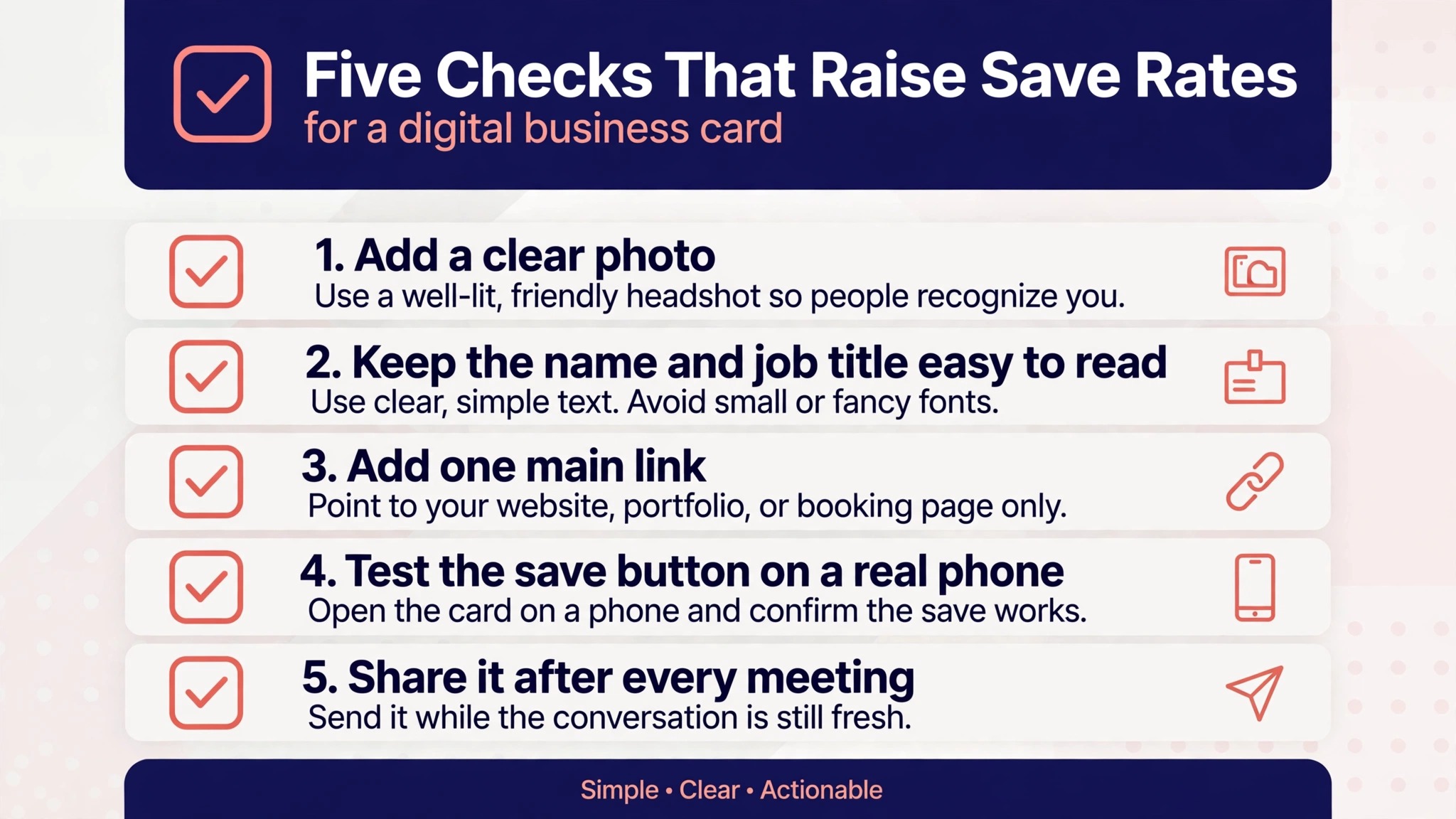
- Test the full save flow end to end, then share the card with five real people and ask what they thought. Scan the code with your own phone, tap the save contact button, and check that your name, number and email land in the contacts app correctly. Then send the card to a colleague or a friend and ask them to save it and tell you what confused them. Fix whatever they flag, then start using the card at every meeting, event and call. A card you never share is a draft, not a tool, and the habit of offering it at the end of every conversation is what turns thirty minutes of setup into new business.
Best Pick by Job
| Job | Best pick | Why it wins |
|---|---|---|
| Free card for one person | HiHello | Four free cards, wallet sharing, no card needed |
| High volume networking | Blinq | Fast sharing, lead capture, 20 plus CRM links |
| Event lead capture | Popl | Badge scanning, team plans, CRM sync |
| Field sales teams | Mobilo | NFC cards, lead routing, admin controls |
| Simplest free card | Wave Connect | Free plan, wallet sharing, contact capture |
| Premium physical card | V1CE | Metal cards, wallet first design, no app needed |
Which Digital Business Card App Should You Use
The six apps below are the ones that hold up in 2026, checked against their own pricing and product pages in November 2026. Prices change often, so confirm the current figure on the vendor page before you pay. Two of them publish no team pricing at all and quote only on a sales call, which is itself useful information, because a vendor that will not print a price is usually selling to larger teams. Every app here offers a free starting point except Mobilo, which sells its physical card first and offers the digital card alongside it.
HiHello
HiHello is the best starting point for most people, because its free plan is the most generous of the large apps and its paid plans are simple. The free Personal plan gives you up to four cards, one card design and a small number of paper card scans each month, plus QR sharing, wallet cards and email signatures. Professional costs 6 dollars a month billed yearly or 8 dollars month to month, and adds more designs, more scans and lead capture forms. Business starts at 5 dollars per user a month billed yearly for teams of five to one hundred users, and adds a company directory, admin controls and CRM links including Salesforce and HubSpot.
HiHello is also the strongest choice on security, which matters if your employer cares about where contact data lives. The platform is SOC 2 Type II certified and is used across a large share of the Fortune 500, so an IT department is more likely to approve it than a smaller app. The trade off is design, because HiHello cards look clean and corporate rather than striking, and the free plan limits you to a single design. If your priority is a card that works, stays free, and passes a security review, HiHello is the pick.
Blinq
Blinq is the fastest card to share in a busy room, and it is built for people who meet dozens of new contacts at events. The free plan includes two cards, a card scanner and QR, email, SMS and widget sharing, plus Apple Wallet and Google Wallet. Premium costs 7.33 dollars a month billed yearly or 9.99 dollars month to month, and adds contact export, custom colours and a branded QR code. Business costs 4.99 dollars per user a month billed yearly, or 6.99 dollars month to month, and adds admin controls, analytics, lead capture and integrations with more than twenty CRM systems.
Blinq has one pricing quirk worth knowing before you buy, because its own pricing page contradicts itself on which plan gets CRM sync and CSV export, and its custom lead forms are charged at 9.99 dollars per lead captured and enriched. That per lead charge can surprise a team that captures hundreds of leads at a trade show, so ask for the lead form pricing in writing before an event. NFC cards are an extra purchase, from 24.99 dollars for a plain card to 79.99 dollars for a custom metal one.
Popl
Popl is the event team specialist, and it is the app to pick when the job is capturing leads at a trade show rather than swapping details one to one. The free individual plan covers a basic card with QR and wallet sharing, while team pricing is not published anywhere and is quoted only on a sales call. That is a real drawback for a small business trying to budget, because you cannot compare Popl to its rivals without booking a meeting. Team plans add badge scanning, paper card scanning, lead capture forms, CRM sync with Salesforce and HubSpot, and admin controls for large groups.
Popl sells NFC hardware separately, with cards and tags from about 44.99 dollars, and its team plans force a choice between an event lead capture plan and a digital business card plan, so a team that wants both may pay for two products. The strength is the event workflow, because badge scanning and instant lead routing into a CRM is genuinely faster than typing details after a show. If your team attends more than a few events a year, Popl earns its price in saved admin time.
Mobilo
Mobilo is the hybrid option, a physical NFC card with a digital card behind it, and it suits field sales teams that want one card per rep and tight admin control. The digital card itself is free alongside a physical card, the Classic smart business card is listed at 29.50 dollars, and NFC cards start from about 19.99 dollars. Team plans start at about 3 dollars per user a month billed yearly, with a Teams plan at 48 dollars per user a year and a Business tier above that, though Mobilo publishes no monthly billing option, so every plan is an annual commitment.
Mobilo supports NFC tap, QR, Apple Wallet cards, widgets, SMS, email and AirDrop, and it publishes CRM and HR directory workflow features for larger teams. Its CRM links run through Zapier rather than native connections, which means the integration works but needs setting up. The card quality is a genuine strength, with metal and wood options that feel like a premium product in the hand. If your team wants a physical card that opens a digital profile, Mobilo is the natural pick. If you only need a digital card, the free apps do the same job for nothing.
Wave Connect
Wave Connect is the best free card in this guide, and it is the app to try first if you do not want to pay anything at all. The free plan includes a card with wallet sharing and contact capture and no branding on the page, which is rare, because most free plans stamp the vendor logo on your card. Pro starts at 7 dollars a month, or about 4.99 dollars a month billed yearly in some checks, and adds more features and team controls. Wave Connect also offers native HubSpot sync on its paid plans, which is useful for a small sales team that lives in HubSpot.
The weakness is scale, because Wave Connect is a smaller company than HiHello or Blinq, with fewer integrations and fewer admin features. A solo consultant or a small team will not notice those gaps. A large company rolling out cards to hundreds of staff should pick a platform with a bigger admin story, such as HiHello or Blinq Business. For everyone else, Wave Connect is the lowest risk way to learn how to set up a digital business card, because the free plan asks for nothing and the card it makes looks professional.
V1CE
V1CE is the design led option, and it is the card to pick when the physical object matters as much as the digital profile. The digital card is free, the physical cards start from 60 pounds for a standard card and rise for metal and custom finishes, and an optional subscription costs about 59.10 euros a month for the higher tier features. There is no app and no credit card required for the free digital card, which is a pleasant surprise, and the card lives in Apple Wallet or Google Wallet with a link and a QR code for sharing.
V1CE suits founders, creatives and executives who want a card that starts a conversation before the scan happens. The trade off is that the software is thinner than HiHello or Blinq, with fewer CRM links, fewer admin controls and no team directory features to speak of. The free digital card is genuinely useful on its own, so try it before buying the physical card, and buy the hardware only if you meet people in person often enough for the object to earn its price.
What to Put on Your Card
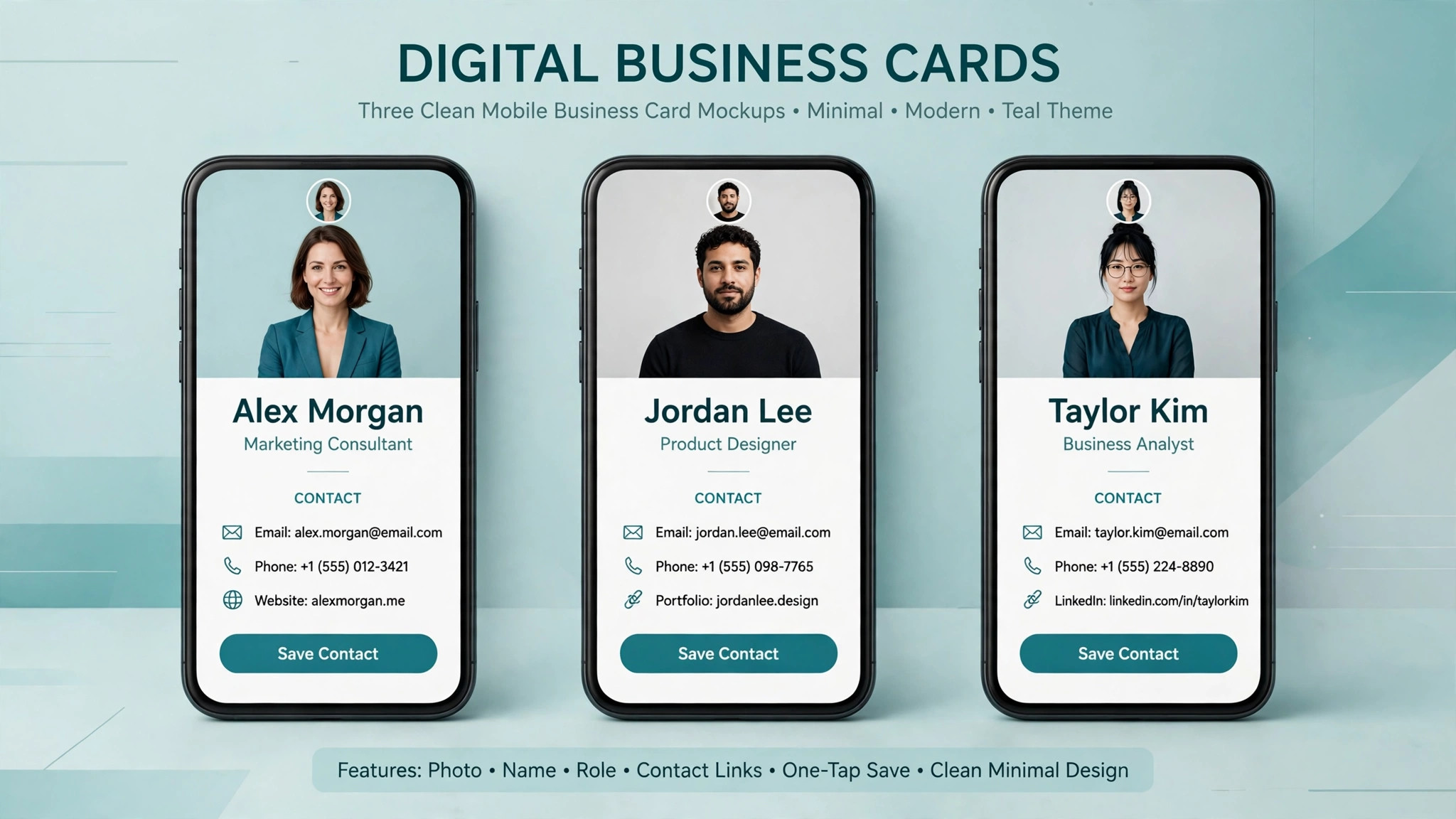
The first screen of your card should answer three questions in under five seconds, and those questions are who you are, what you do and how to reach you. Your photo answers the first, your name and job title answer the second, and your phone number, email and booking link answer the third. Anything that does not help with those three questions belongs further down the page or not on the card at all. A card that tries to show your whole company brochure on the first screen will be closed before the visitor reads any of it, because a new contact is scanning, not studying.
Your links deserve the same discipline, and the rule is two or three actions, not ten. Pick the actions that match the room you are in, so a sales rep links to a booking page and a product brochure, a founder links to a pitch deck and a LinkedIn profile, and a freelancer links to a portfolio and a rate card. Most apps let you reorder links by dragging, so put the most important action at the top and test whether people tap it. If a link gets no taps in a month, remove it, because a dead link on a card is worse than no link, it tells the visitor that the card is not maintained.
Your photo and your logo need to work together rather than compete. Use a square photo of your face as the main image and a small logo at the top or the bottom of the card, not a large logo that pushes your name below the fold. Brand colours should be visible but restrained, with one colour for buttons and one for the background, because a card in five colours looks like a flyer and a card in two colours looks like a business tool. If your company has brand guidelines, follow them, and if it does not, pick the two colours from your website and use those everywhere.
Sharing Methods Compared
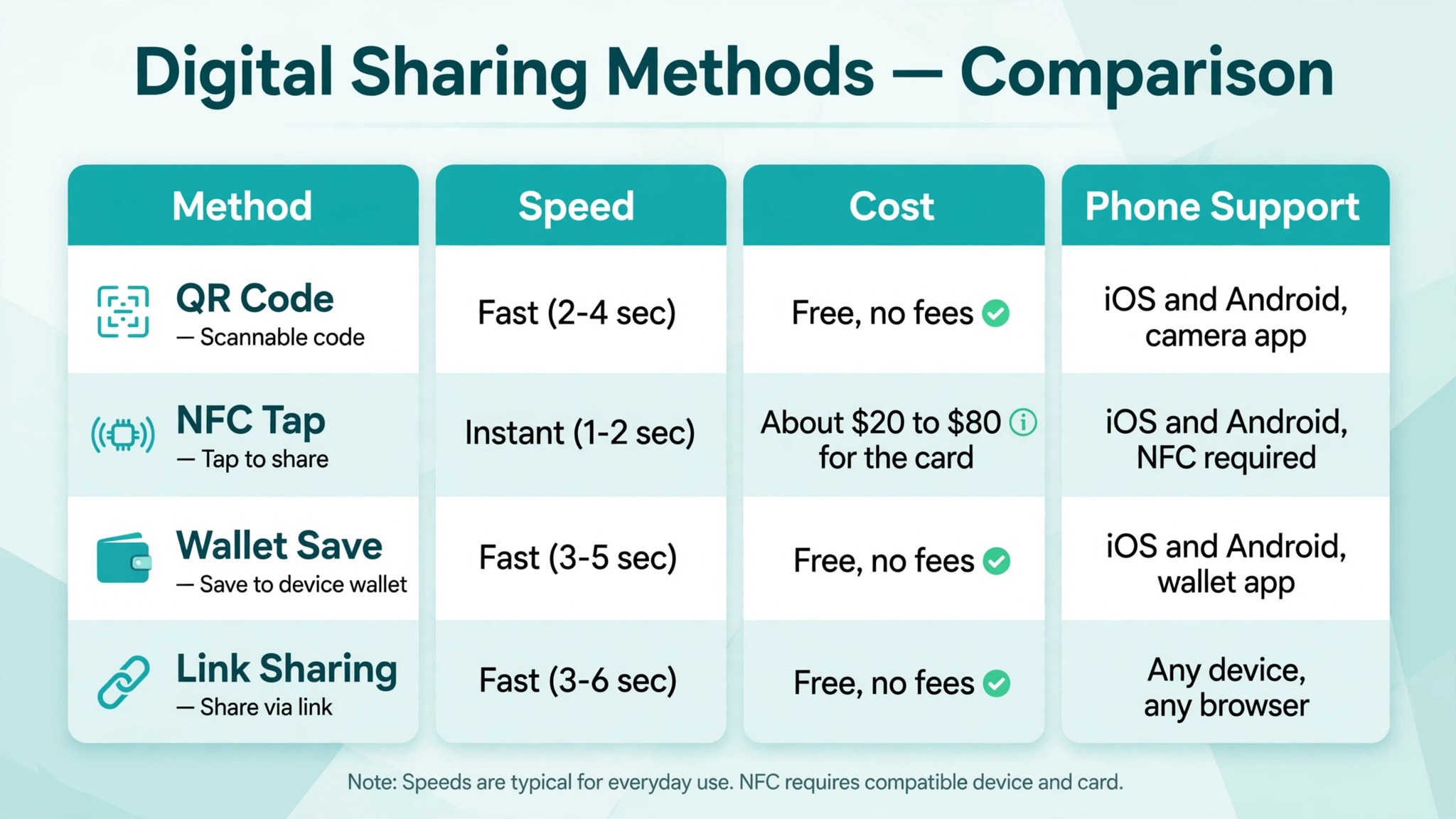
QR codes are the most reliable way to share a digital card, because they work on every phone made in the last five years without any extra hardware. The other person opens their camera, points it at your code, and taps the link that appears.
Print the code on the back of your remaining paper cards, add it to your email signature, and put it on a slide at the end of a talk, because a code that only lives inside an app is a code you cannot share when your phone battery dies. The weakness of QR is social, because holding a phone up to be scanned feels less natural than handing over a card, so practice the motion until it feels smooth.
NFC tap sharing is faster and feels more impressive, because you tap your card or your phone against theirs and your profile opens. It works best on newer phones, and it fails silently on older ones, so always have the QR code ready as a backup. NFC cards cost money, from about 20 dollars for a basic card to 80 dollars for a custom metal one, and the card itself does nothing except open a link, so the value is in the experience, not the technology. Teams that meet people at events love NFC because it is fast and memorable, while individuals who meet people one at a time often find QR is enough.
Wallet sharing is the method people forget and then love, because a card saved in Apple Wallet or Google Wallet is always one tap away and never needs the app to open. When someone saves your card to their wallet, they keep your details in the same place as their boarding passes, which means your name is visible every time they open the wallet.
Encourage new contacts to save the card to their wallet rather than just viewing it once, because a viewed card is forgotten and a saved card is a contact. Most apps add the wallet button automatically, so check that yours does, because wallet saving is the step most people skip when they learn how to set up a digital business card.
Link and text sharing covers everyone else, and it is the method that works when you are not in the same room. Send your card link by text, email or WhatsApp after a call, add it to your email signature, and include it in a follow up message the same day you meet someone. A link sent within hours of a meeting gets saved far more often than a link sent a week later, because the memory of the conversation is still fresh. This is also the method to use for virtual meetings, where a QR code on a screen is awkward and a link in the chat is instant.
Mistakes That Kill Save Rates
The biggest mistake is a card with no photo, because a nameless, faceless profile looks like a spam entry and gets deleted. People save contacts they can picture, and a card without a face is a card they will not recognise a month later. If you are uncomfortable with a photo, use a clean headshot taken by a colleague on a phone, because a simple honest photo beats a polished logo every time.
The second mistake is too many links, and it shows up on nearly every first draft. A card with twelve links is a website, not a business card, and a new contact will tap none of them because choosing takes effort. Cut the list to three actions, put the most important one first, and move the rest to your website, where they belong. If you genuinely need to show more, use one link to a page that holds the rest, so the card stays short and the detail is one tap away for the people who want it.
The third mistake is a card that was never tested on another phone. A button that works on your iPhone can fail on an Android phone, a wallet save can fail on an older device, and a link can open slowly on a weak event wifi connection. Test the card on a borrowed phone, test it on event wifi rather than your office network, and test it with the screen brightness low and the room noisy, because that is the real condition it will be used in. A card that fails in front of a new contact damages trust in a way that takes months to repair.
The fourth mistake is forgetting to follow up, because the card is only the start of the relationship. Send a short message the same day you meet someone, mention one thing from the conversation, and include your card link again so they can save it if they did not at the time. A card with no follow up is a digital version of a paper card left in a bag, and the follow up is what turns a scan into a conversation. The best time to send it is within two hours of the meeting, while the conversation is still fresh in both minds.
Final Word Before Your Next Meeting
A digital business card is a small tool with an outsized effect, because it turns a brief meeting into a saved contact and a saved contact into a conversation. The setup takes thirty minutes, the cost is zero on the free plans, and the habit of offering the card at the end of every meeting is what makes it pay.
Start with the free plan of HiHello or Blinq, add a real photo and three links, test the save flow on a borrowed phone, and use the card at your next event. That is the whole of how to set up a digital business card, and the only part that cannot be done in advance is the sharing itself, which starts the next time you meet someone worth remembering.
Keep the card current and keep the habit going, because a card that is updated quarterly and shared daily will bring in more useful contacts than a perfect card that is never offered. Review the analytics once a month, remove the links nobody taps, and ask the people who saved your card what they thought of it. The card is a living tool, not a finished document, and the people who get the most from it are the ones who treat it that way. If you follow the steps in this guide, your next meeting will end with a saved contact instead of a lost paper card, and that is the entire point.
Frequently Asked Questions
How much does a digital business card cost?
A digital business card costs nothing on the free plans of HiHello, Blinq, Popl, Wave Connect and V1CE, and the free plans cover a working card with QR sharing and wallet support. Paid individual plans run from about 6 dollars a month for HiHello Professional to 7.33 dollars a month for Blinq Premium billed yearly. Physical NFC cards cost extra, from about 20 dollars for a basic card to 80 dollars for a custom metal one. Most people should start free and pay only when they need team features, lead capture or CRM sync.
Do I need an NFC card to use a digital business card?
No, an NFC card is optional in how to set up a digital business card, and every app in this guide works without one. A QR code, a wallet card and a shareable link all open the same digital card, and they work on every modern phone with no extra hardware. NFC is faster and feels more impressive in person, which is why event teams buy the cards, but a creator who meets people one at a time will find QR sharing is enough. If you do buy an NFC card, keep the QR code ready as a backup, because NFC fails silently on older phones.
Can I share a digital business card with someone who does not have the app?
Yes, and this is one of the main advantages of the format. The person who receives your card does not need to install anything, because the card opens as a web page in their browser when they scan your QR code, tap your NFC card or open your link. They can then save your details to their contacts, add the card to their wallet, or tap your booking link without creating an account. That is why the first step in how to set up a digital business card is choosing an app that shares by link and QR code, not one that locks the card inside its own app.
What is the best free digital business card app?
HiHello has the most generous free plan among the large apps, with up to four cards, wallet sharing and email signatures, while Wave Connect has the best completely free card, with no branding on the page and wallet sharing included. Blinq is the best free option for people who network at high volume, because its free plan includes a card scanner and fast sharing. All three are free to try, so test two of them for a week and keep the one you reach for.
How do I add my digital business card to Apple Wallet or Google Wallet?
Open your card in the app, look for the wallet button or the add to wallet option, and tap it, then confirm the add in the wallet app that opens. HiHello, Blinq, Wave Connect and V1CE all include wallet sharing on their free plans, and Mobilo supports wallet cards alongside its physical NFC cards. Once the card is in your wallet, you can open it with one tap and share it from there, and the person who receives it can save it to their own wallet the same way. Test the wallet save on your own phone before you use it in front of a contact.
Can my whole team use the same digital business card platform?
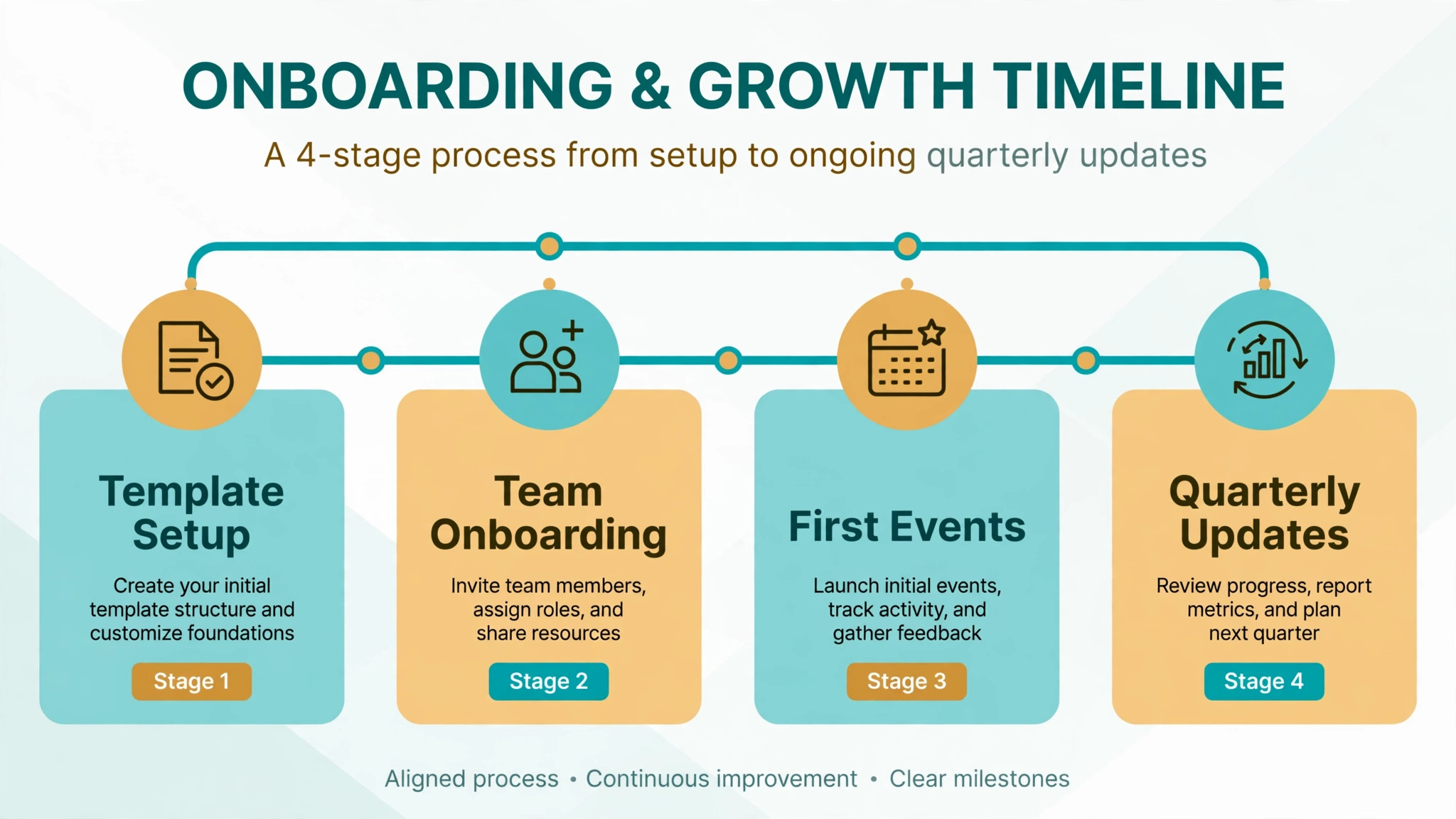
Yes, and a shared platform is the right choice for a team, because it keeps the branding consistent and puts every card in one directory. HiHello Business starts at 5 dollars per user a month billed yearly, Blinq Business at 4.99 dollars, and Mobilo Teams at about 3 dollars. Popl quotes team pricing on a sales call. When you plan how to set up a digital business card for a team, lock the logo, colours and company links in a shared template, let each person add their own photo and links, and run a short onboarding session so everyone knows how to share the card.