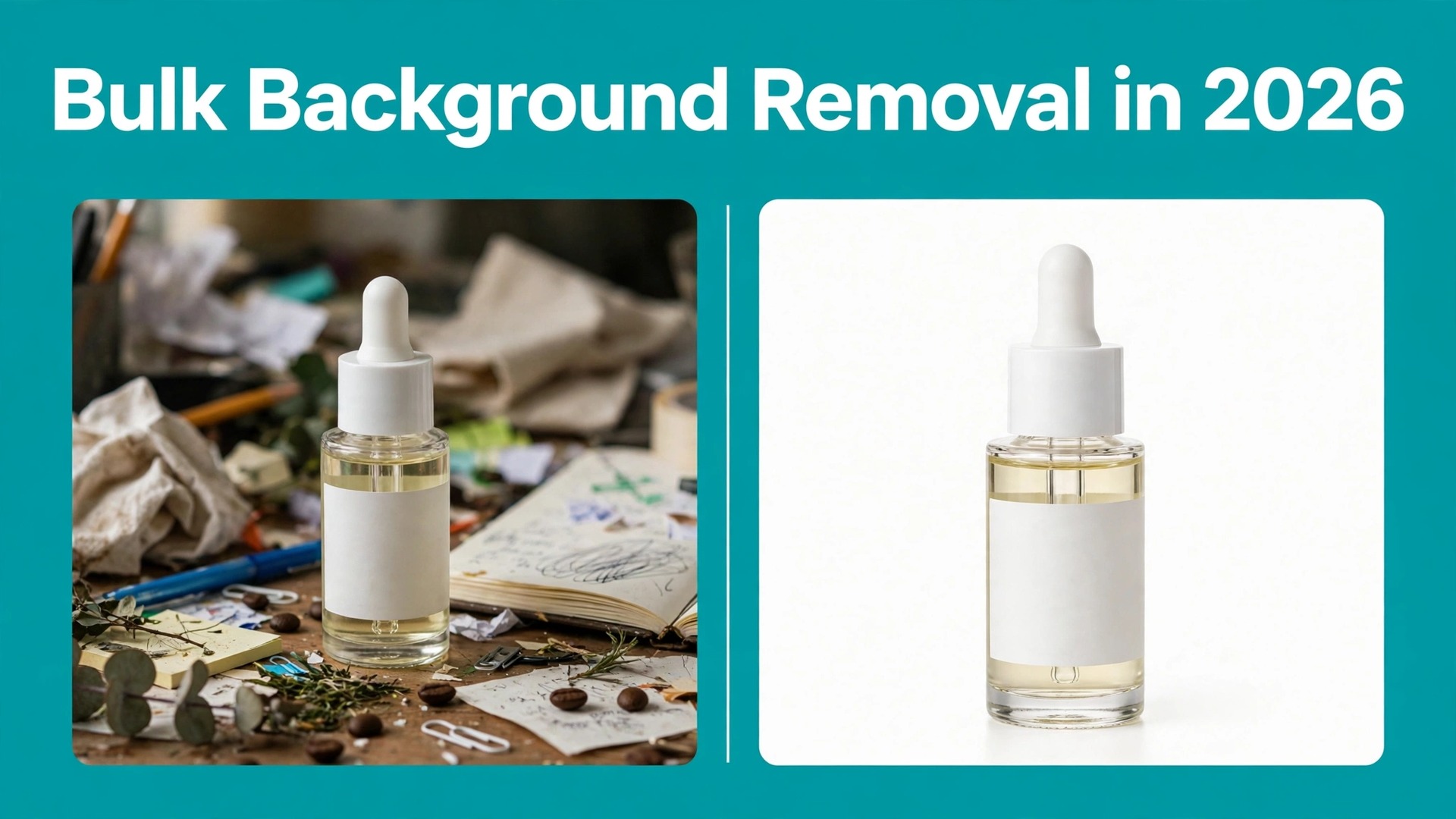
Amazon rejects a main image when the background is not pure white, and one failed listing can hold up a whole launch week. That rule is why sellers now treat background removal as a production line instead of a one off edit. Learning how to remove backgrounds in bulk for product photos is less about finding a magic button and more about building a repeatable path from camera file to marketplace ready image, with checks that catch the small share of cutouts that need a human eye. This guide walks through that path, with real prices, real limits, and a clear view of the tool closing down on 1 December 2026.
Why Bulk Removal Breaks Down at Scale
A single product photo is easy. Ten photos are a chore. Five hundred photos across forty products, each with three angles, is a different job entirely, and it is the job that breaks most sellers. The failure rarely looks dramatic. It looks like a white background that is actually light grey on one marketplace and pure white on another, or a chair leg that vanishes into the background on every third image, or a batch that ran overnight and produced two hundred files with the wrong file names.
The root cause is usually the same. Sellers pick a tool for one image, then push a catalog through it without changing how they shoot, name, or check files. A background remover is only the middle of the workflow. The shoot decides how clean the edges can be, the naming decides whether the batch matches back to the catalog, and the quality check decides whether a customer sees a crisp product or a halo of grey pixels around a watch strap.
Volume also changes the economics completely. At ten images a month, almost any tool is cheap enough to ignore. At two thousand images a month, the gap between a two cent image and a twenty cent image is three hundred and sixty dollars every month. That is why this guide treats cost per image as a first class decision, and why the cheapest route is sometimes a free open source tool running on a spare computer rather than the best known brand.
There is one more reason to plan the workflow now. Remove.bg, the tool that defined one click background removal for most sellers, has announced that its standalone site stops accepting requests on 1 December 2026. Web users are being directed to Canva and API users to Leonardo.Ai, and unused pay as you go credits expire on that date with no refund. Anyone building a new pipeline on remove.bg today is building on a closing door.
What a Good Result Looks Like on Every Marketplace
Before choosing a tool, fix the target in writing. A cutout that looks fine on a laptop screen can still fail a marketplace check, and the checks differ from one channel to the next. Amazon is the strictest of the large marketplaces. Its main image must sit on a pure white background, defined as RGB 255, 255, 255, with the product filling at least 85 percent of the frame and no text, logos, watermarks, or extra props. The file must be at least 1,000 pixels on the longest side for zoom to work, and most studios deliver 2,000 by 2,000 pixels in JPEG format, with a 10 MB file limit.

Shopify is more forgiving on background, since it sets no mandatory rule, but it rewards consistency. Its recommended product image is 2,048 by 2,048 pixels, and it accepts files up to 20 MB and 20 megapixels. A store where half the products sit on white and half sit on pale grey looks unfinished, even though no rule is broken. Etsy asks for at least 2,000 pixels on the shortest side, and Walmart asks for an even white background with 1,500 pixels on the longest side for zoom. One master file at 2,000 by 2,000 pixels or larger covers all four, provided the background is truly white and the product fills the frame.
| Marketplace | Main image size | Background rule | File limit |
|---|---|---|---|
| Amazon | 2,000 by 2,000 pixels recommended | Pure white RGB 255, 255, 255 | 10 MB |
| Shopify | 2,048 by 2,048 pixels recommended | No mandatory rule | 20 MB |
| Etsy | 2,000 pixels on the shortest side | Clean and uncluttered | 20 MB |
| Walmart | 1,500 pixels on the longest side for zoom | Even white | 10 MB |
| eBay | 1,600 pixels on the longest side recommended | White or neutral | 12 MB |
That table is the acceptance test for the whole workflow. Every batch should pass it without a second pass. If a tool exports at low resolution, adds a watermark on its free plan, or tints the white background, it fails the test no matter how fast it runs.
Shoot for the Cutout, Not Just the Photo
Most bad cutouts start before the tool ever opens. A product shot against a wrinkled bed sheet, under warm yellow room light, with a shadow pooling behind the base, asks the software to guess where the product ends and the room begins. Watch straps, jewellery chains, glass bottles, and white products on white backgrounds all punish a careless shoot.
The fix is a plain white sweep, two soft lights placed to the sides rather than straight on, and a tripod set at the same height for every shot. Keep the product a hand span away from the background so its shadow falls soft and small, and match the camera white balance to the bulbs, because a yellow cast forces the tool to choose between a clean edge and a clean white.
File discipline matters just as much. Shoot every product in the same orientation, keep the same margin on all sides, and save the camera files with the product code in the name before anything is uploaded. A batch tool that returns files named output 1 through output 200 is useless if the originals were named IMG 4521 through IMG 4720. Rename first, then remove. The five minutes this takes per shoot saves hours of matching later.
How to Remove Backgrounds in Bulk for Product Photos Without Losing Edge Detail
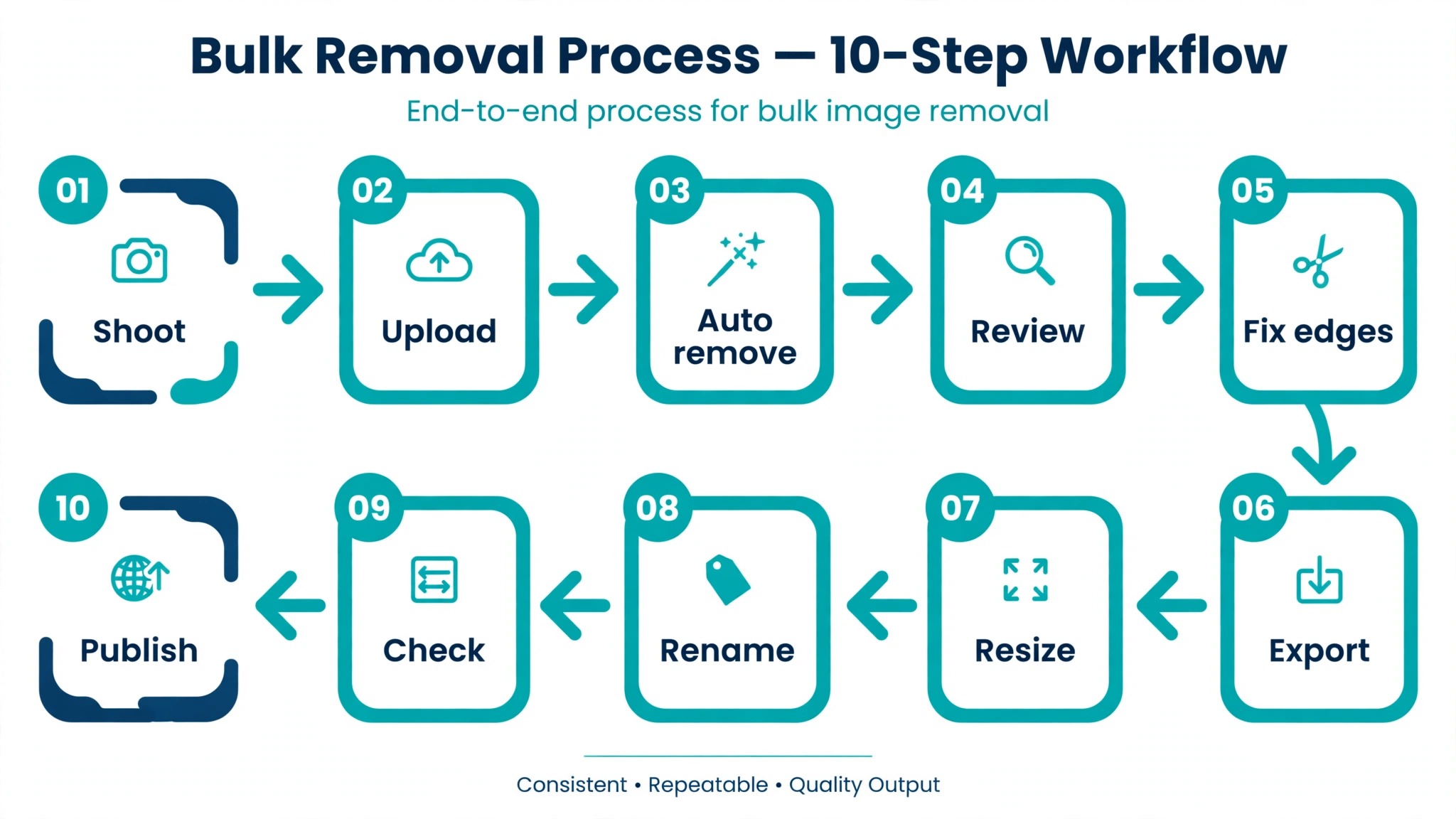
The workflow below is the core of this guide. It works with any tool covered later, and a single person can run two hundred images through it in an afternoon once the setup is done. Read it once end to end, then run a test batch of twenty images before committing a full catalog to it.
- Gather one product family at a time and confirm every original is at least 2,000 pixels on the longest side. Upscaling a small file adds no real detail and makes edge errors larger, so reject anything below the threshold and reshoot it now.
- Rename the originals with a strict pattern that survives the round trip. A pattern like product code, angle, and colour lets you match any output file back to its listing in seconds. Keep a copy of the originals in a folder that the batch tool never touches.
- Pick the batch route that matches the volume. Under fifty images, a web batch upload is fine. Over fifty, a desktop app or an API job with a queue is faster and far less likely to time out halfway through. Never run a first ever batch at full catalog size.
- Run a pilot of twenty images covering the hardest products in the set. Include one white product, one glass product, one item with fine detail like a chain or a strap, and one dark product. If the pilot passes, the rest probably will. If it fails, you found the problem on twenty images instead of two hundred.
- Set the export rules before the run starts. Choose PNG with transparency for the master cutout, then export the marketplace version as JPEG on pure white at 2,000 by 2,000 pixels. Decide the background colour value in numbers, not by eye, because screens lie about white.
- Process the batch, then sort the results into three folders. Clean files go straight to export. Borderline files go to a review folder for a quick manual pass. Failed files go back to the shoot list with a note about what went wrong.
- Check the borderline folder at full zoom, not in thumbnail view. Look at the edges where the product meets the background, especially around straps, handles, and transparent parts. A halo of grey pixels is invisible at small size and obvious to a customer who zooms.
- Apply the same background to the whole set in one step, after removal, instead of letting each image keep whatever white the tool produced. A single shared background value is what makes a catalog look like one store.
- Export, then verify a random sample of ten finished files against the marketplace table above. Check the pixel size, the file size, the background value, and the product fill. If the sample passes, ship the batch. If it does not, fix the export rule before the next run.
- Archive the masters. Keep the transparent PNG for every product, because the next marketplace, the next sale banner, and the next mockup will all need it. Rebuilding a cutout from a flattened JPEG is slow work that nobody budgets for.
That ten step loop is the whole system. Tools change, prices change, and one well known tool is closing, but the loop stays the same. The sellers who struggle with bulk removal are almost never struggling with the removal itself. They are struggling with the steps around it.
Pick Your Route Before You Pick Your Tool
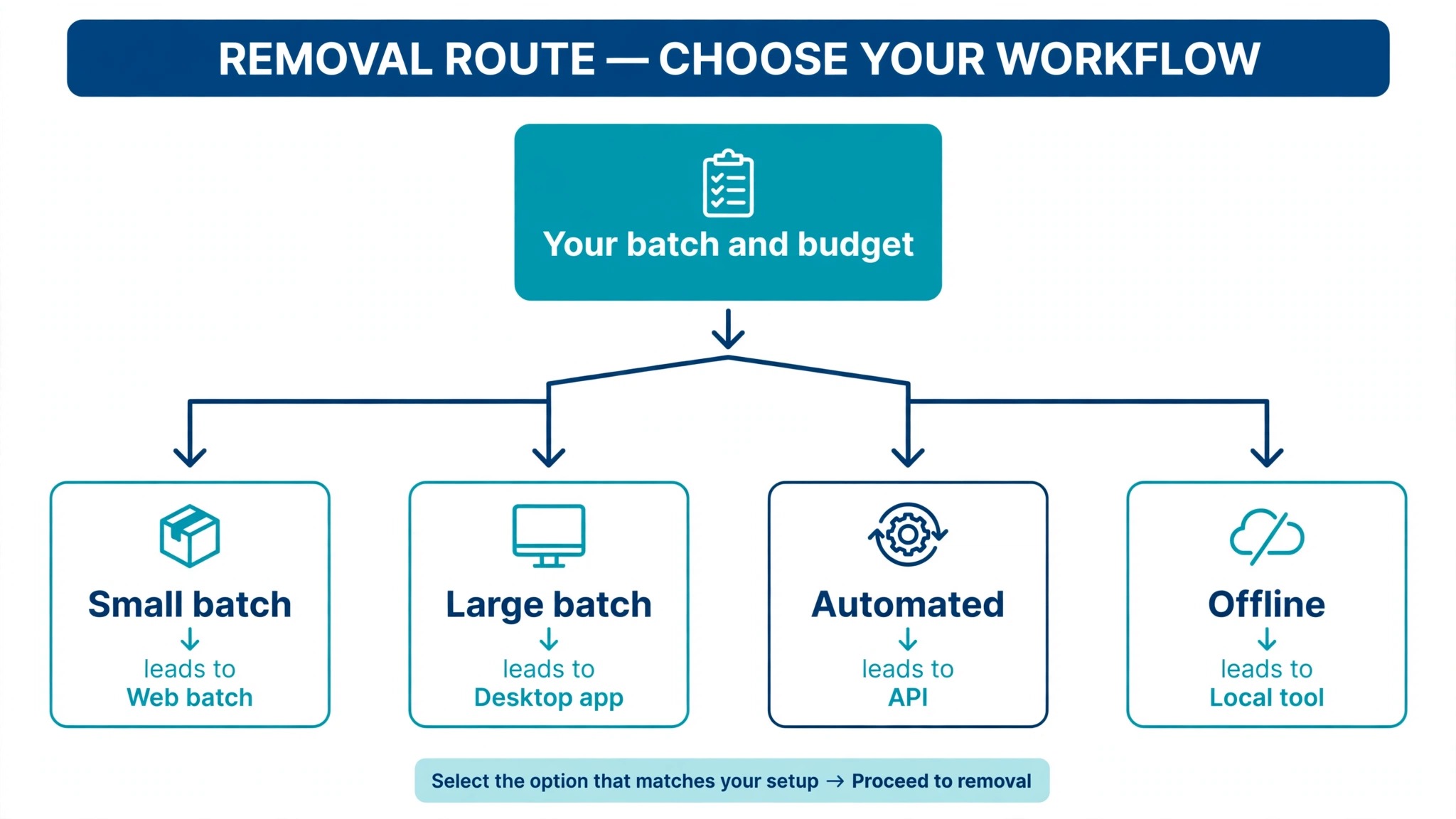
There are four ways to remove backgrounds at volume. Web batch upload suits a seller processing a few dozen images at a time with no setup. A desktop app suits a studio processing hundreds of images a week from one computer. An API suits a store adding new products daily, where removal should run automatically when a photo lands in a folder. A local open source tool suits a technical seller who wants zero per image cost and will spend an hour on setup. Most sellers only need the first two. The expensive mistake is paying API prices for a job a web batch would have done, or hand uploading five hundred images because nobody checked for batch mode.
Learning how to remove backgrounds in bulk for product photos means matching the route to the volume first and the brand second. A two cent API image is cheap until you realise the same job needed a human review step that the API cannot do. A free web tool is free until its export cap forces a second tool into the workflow. Write down the monthly image count, the people who touch the files, and the marketplaces the images must pass, then choose.
Photoroom
Photoroom is the strongest all round pick for product sellers in 2026, and it earns that spot on batch depth rather than brand fame. Its web app processes up to 250 images in a single batch on the entry paid tier. The free plan covers watermarked exports, while Pro starts at 12.99 dollars a month billed monthly or about 7.50 dollars a month billed annually, and adds batch processing, templates, and high definition exports. Its background removal API is priced at 2 cents per image on the Basic plan, the cheapest mainstream API in this guide and the natural choice for stores that automate.
Quality is where Photoroom justifies the price. In its own published benchmark of 45 real ecommerce images, it produced 42 clean cutouts, ahead of remove.bg at 24, and it pairs removal with generated studio backdrops, resizing for marketplaces, and batch editing that keeps a catalog consistent. Watermarked exports cannot be used on a live listing, so budget for Pro from the first month.
Pixelcut
Pixelcut is the best pick for mobile first sellers who want watermark free exports without paying first. Its free plan offers limited background removal with exports that carry no watermark, the most generous free tier in this comparison, and its bulk tool handles up to 10,000 images in one batch. Pro costs 10 dollars a month, or 8 dollars a month billed annually, and includes unlimited removal, 600 AI credits a month, a three person team, and 1,000 batch exports a month. Business starts at 30 dollars a month with 3,600 credits and 2,000 batch exports.
The strength of Pixelcut is how it combines removal with product presentation. Virtual try on, ghost mannequin formatting, and short video sit next to the remover, so a clothing seller can move from cutout to listing image without opening a second app. Removal is unlimited on paid plans, but AI features consume credits, and the pricing page does not publish how many credits some features take, so track the first month closely.
PicWish
PicWish is the budget pick for high volume catalog work, and its price is the headline. Pro starts at 4.99 dollars a month billed annually, or 9.99 dollars month to month, which undercuts Photoroom and Pixelcut for sellers processing hundreds of images. Pay as you go credit packs start at 12.99 dollars, and the desktop app adds a batch mode that covers up to 300 images, while the web bulk editor handles 30 to 100 images per run. Extras like unblur and upscaling round out a toolkit built for catalog operations rather than single hero shots.
PicWish is a practical tool, not a pretty one, and its interface asks more of the user than Photoroom does. Free use is credit based, so heavy users will run out quickly, and the free tier does not include batch processing or high definition downloads. For a marketplace seller where per image cost decides the purchase, PicWish keeps the monthly bill low. Test it on your hardest products first, because its edge quality on fine detail is where the savings either hold or disappear.
rembg
rembg is the free open source option, and it is the only tool in this guide with a true zero per image cost. It runs locally on your own machine under an MIT licence, so there is no upload, no subscription, and no per image meter at all. The only expense is the hour of setup and the computer it runs on. For a technical seller processing thousands of images a month, that trade is unbeatable on price, and product photos never leave the building.
The cost is expertise. rembg is a command line tool built on open models, and it asks the user to install Python, choose a model, and write a small script to process a folder. Edge quality is strong for standard products and weaker than the paid tools on the hardest cases, like fine jewellery or glass, so expect a larger review folder. If you have someone technical on the team, rembg is worth an afternoon of testing.
Remove.bg and the December 2026 Closure
Remove.bg deserves a section of its own, because it is the tool most sellers already know and the one they most need to leave. It defined one click removal after launching in 2018, and it was acquired along with its parent Kaleido AI by Canva in 2021. Lite cost 9 dollars a month for 40 full resolution credits, Pro cost 39 dollars for 200, and pay as you go packs started at 3 dollars for 3 credits. Bulk ran through the desktop app or the API.
That history ends on 1 December 2026 at 9 in the morning Central European Time, when the standalone site stops accepting requests. Web users are being directed to Canva, and API users to Leonardo.Ai, which prices background removal at a flat rate of about 10.47 cents per image. Unused pay as you go credits expire on that date with no refund, and plugins and integrations end on the same day. If you still have remove.bg credits, spend them before the deadline and move the workflow now, while there is time to test the replacement on a pilot batch.
What 1,000 Cutouts Actually Cost
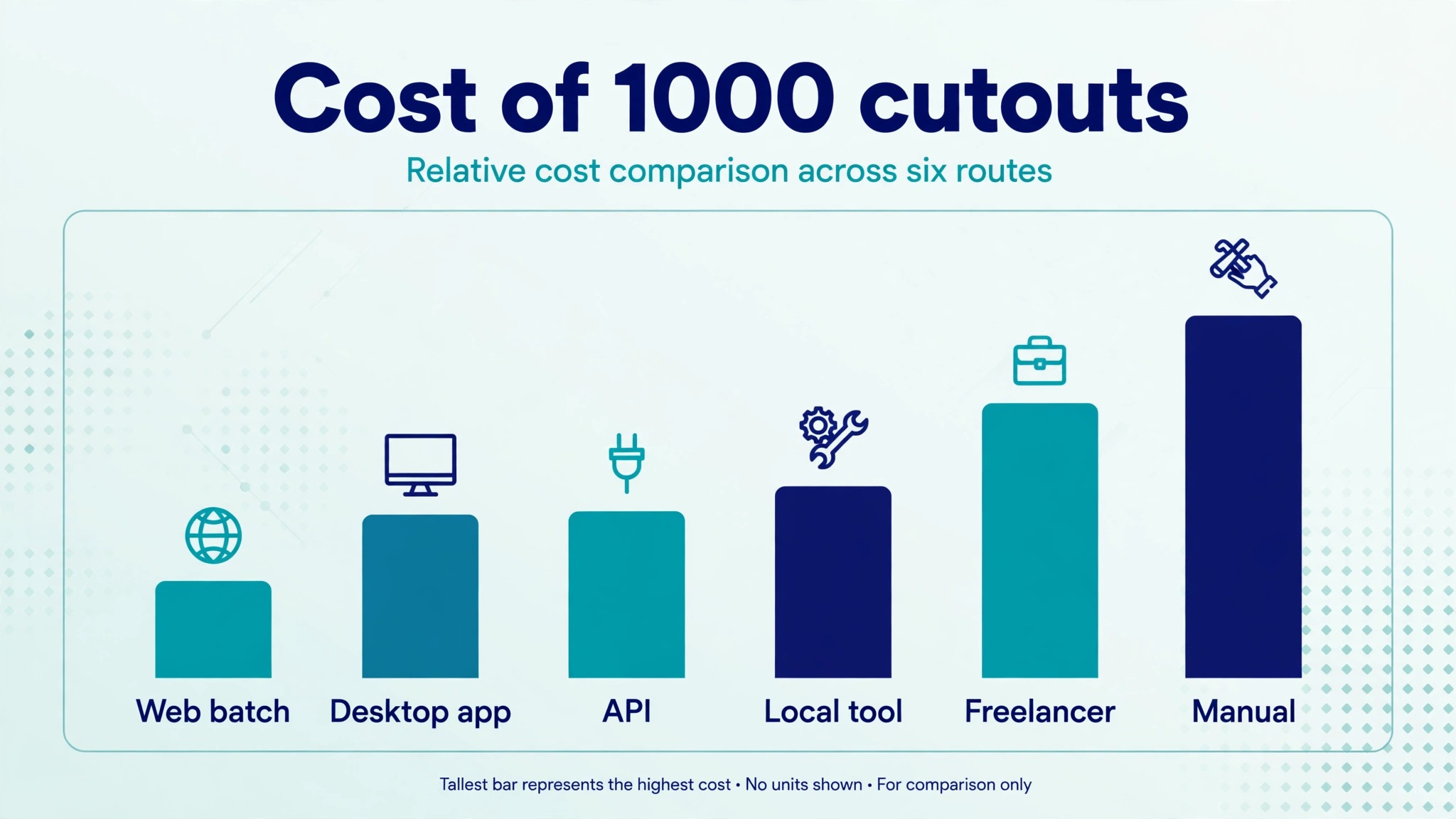
Price pages hide the real cost behind credits, tiers, and annual billing, so convert everything to one number before you compare. The table below shows what 1,000 cutouts cost on the main paid routes, using figures published on vendor pricing pages in 2026. The same thousand images cost nothing on one tool and about two hundred dollars on another.
| Route | Price basis | Cost for 1,000 cutouts |
|---|---|---|
| rembg local | Free open source | 0 dollars |
| BRIA API | 1.8 cents per image | 18 dollars |
| Photoroom API | 2 cents per image | 20 dollars |
| PicWish credit pack | About 4.3 cents per image | About 43 dollars |
| Leonardo.Ai API | About 10.5 cents per image | About 105 dollars |
| Remove.bg credits | About 16 to 27 cents per image | About 160 to 270 dollars |
Learning how to remove backgrounds in bulk for product photos pays off fastest at this table, because the choice of route matters more than the choice of plan inside any one tool. A seller processing 1,000 images a month saves about 140 dollars a month by moving from remove.bg credits to the Photoroom API, and saves the whole 160 dollars by moving to rembg, provided someone on the team can run it. Per image price is only half the bill, though. A cheap API with a large review folder costs more in staff time than a dearer tool with clean edges, so run the pilot and count the failures before you declare a winner.
Subscription plans change the maths again for sellers who process in bursts. A monthly plan that costs 12.99 dollars and covers a batch of 250 images is cheap in a launch month and wasteful in a quiet month, while a credit pack that never expires fits irregular volume better. The right question is not which tool is cheapest in general, but which tool is cheapest at your volume, in your busiest month and your quietest month.
Automating the Pipeline So Removal Happens by Itself
A manual batch workflow works until the catalog grows past the point where one person can keep up. That point usually arrives without warning, often when a supplier sends four hundred new products in one spreadsheet. An API workflow removes the person from the middle. A new photo lands in a watched folder, the API returns a cutout, the cutout lands in the review folder, and the finished file is exported to the store. The human work moves to the edges, shooting and checking, while the middle runs on its own.
The cheapest credible APIs in this guide are BRIA at 1.8 cents per image and Photoroom at 2 cents per image, and both offer free test credits to start with. Photoroom gives 10 free images a month on its Remove Background API, and the Basic plan covers 1,000 calls a month for 20 dollars. Leonardo.Ai, the destination for remove.bg API users, charges a flat 10.47 cents per image, more than five times the Photoroom rate at low volume. At 75,000 images a month, Leonardo.Ai costs about 2,400 dollars more per month than remove.bg did, so high volume users should compare Photoroom and BRIA before accepting the migration default.
Automation needs guardrails, or it will happily process the wrong files at scale. Set a maximum input size and a minimum resolution, so a thumbnail uploaded by mistake does not consume credits. Log every job with the product code, the time, and the result, so a failed batch can be rerun without guessing which files were affected. Keep the originals for at least ninety days. Keep a human in the review loop for the first month, since an API that runs unchecked will produce a thousand clean images and fifty bad ones, and the fifty will be the ones customers notice.
The Quality Check That Catches the Five Percent
No automated tool is perfect, and the honest failure rate on a mixed catalog is around five percent of images needing a manual pass. The check below finds those images before a customer does. Run it on every borderline file and on a random sample of the clean folder, because a tool can fail quietly on a whole product family, like white ceramics, while passing everything else.
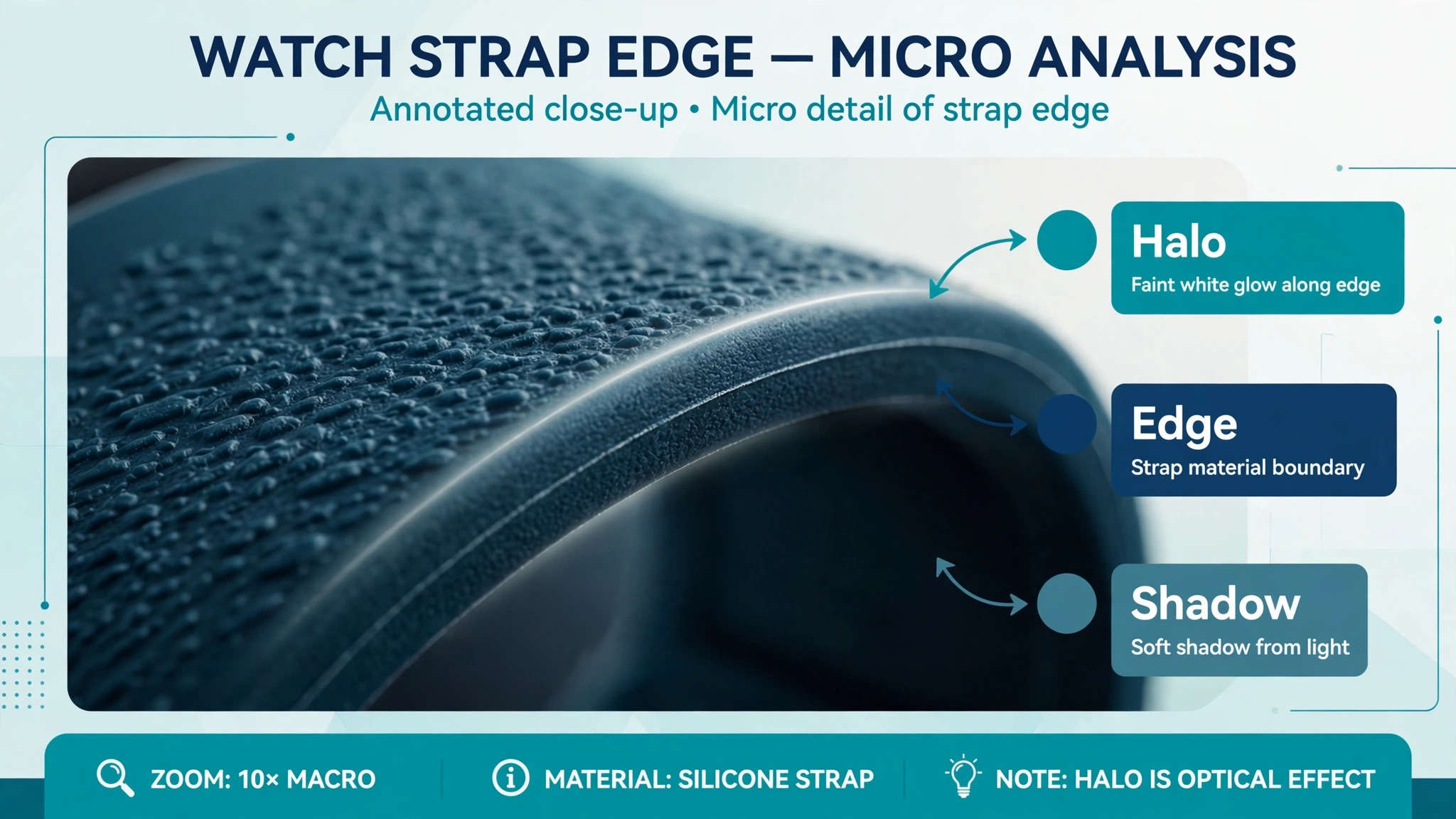
- Open the image at full zoom and trace the edge of the product slowly. Look for a halo of grey or coloured pixels, a missing strap, or a soft edge where the tool guessed. Halos are the most common fault, and they are invisible in thumbnail view.
- Check the background value with the colour picker, not your eyes. The reading must be 255, 255, 255 for an Amazon main image. A reading of 254 is a failed image that looks perfect on screen.
- Look at transparent and reflective parts separately. Glass, clear plastic, and chrome reflect the old background, and a tool that removes the background often leaves a ghost of it inside the product. These images need a manual pass most often.
- Check the product fill. The product must cover at least 85 percent of the frame on Amazon, and a cutout that shrank the product during export will fail even though the edges are clean. Measure it, do not estimate it.
- Compare the finished image with the original for colour. Removal should not change the product colour, but aggressive tools can shift whites and desaturate reds. If the product looks different, the export settings are wrong, not the cutout.
- Confirm the file name matches the listing. A perfect image with the wrong name will go live on the wrong product, and that error is worse than a bad edge, because it takes longer to notice and longer to fix.
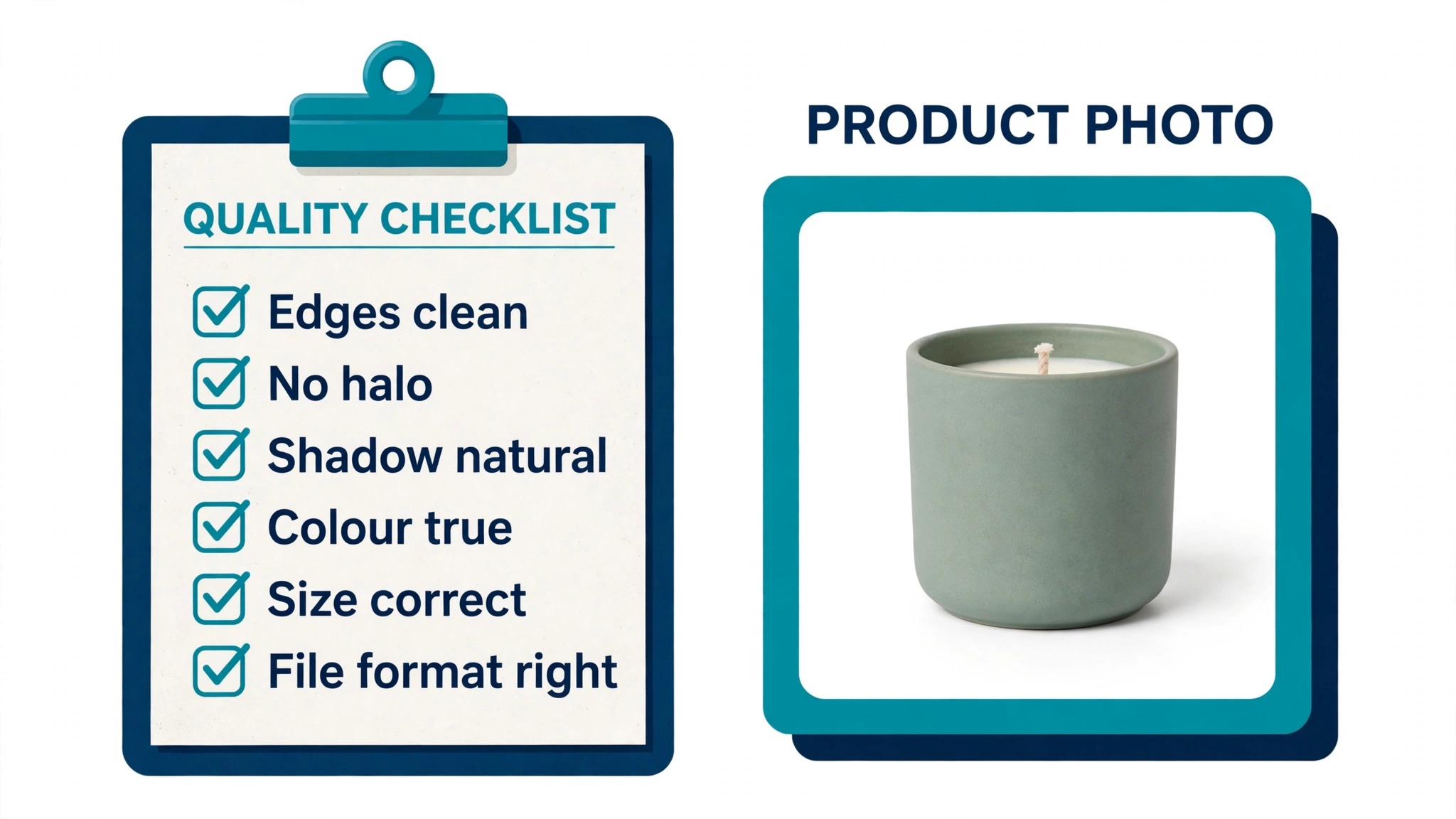
That check takes about thirty seconds per image once it becomes habit, and it is the difference between a catalog that looks professional and one that looks assembled in a hurry. Budget the time into the workflow, and track the failure rate by product type.
Frequently Asked Questions
How much does bulk background removal cost per image?
It depends on the route, and the spread is wide. A local open source tool costs nothing per image. The cheapest paid APIs cost about 2 cents per image. Credit based tools cost about 4 to 27 cents per image depending on the pack. Learning how to remove backgrounds in bulk for product photos starts with converting every option to a per image price at your volume, because a tool that looks cheap on its pricing page can be the most expensive one at a thousand images a month.
Can I remove backgrounds in bulk for free?
Yes, within limits. rembg is free and runs on your own computer with no per image cost, though it needs technical setup. Clipdrop removes 20 images a day free. Pixelcut offers limited free removal with watermark free exports. Adobe Express removes backgrounds free at full resolution with no watermark for single images. Every free route has a cap, so test it on your hardest products before building a store workflow on it.
Why does remove.bg stop working in December 2026?
Remove.bg announced that its standalone site stops accepting requests on 1 December 2026. Web users are being directed to Canva and API users to Leonardo.Ai, and unused pay as you go credits expire on that date with no refund. The service still works until the deadline, but nobody should build a new pipeline on it. Move your workflow now and spend any remaining credits before they expire.
What size should product photos be after removal?
Export a master cutout as a transparent PNG at the original resolution, then export the marketplace version as a JPEG on pure white at 2,000 by 2,000 pixels. That size covers Amazon, Shopify, Etsy, and Walmart, and it keeps zoom sharp. The product must fill at least 85 percent of the frame on Amazon, and the background must read exactly 255, 255, 255. When you plan how to remove backgrounds in bulk for product photos, fix these export numbers before the first batch runs.
How do I fix halos around the edges?
A halo is usually a lighting problem, not a software problem. Reshoot with the product further from the background, soften the lights, and keep the background evenly lit. For an image that already has a halo, open it at full zoom and clean the edge by hand, or run it through a second tool and compare the results. If halos appear on a whole product family, fix the shoot for that family before the next batch.
Which tool is best for Amazon sellers?
Photoroom is the best all round pick for Amazon sellers who process more than a hundred images a month, because it combines batch processing up to 250 images per run with marketplace resizing and a 2 cent API. Pixelcut is the best pick for mobile first sellers who want watermark free exports without paying first. PicWish is the best pick when per image cost matters more than polish. The pilot batch is what proves it. Anyone learning how to remove backgrounds in bulk for product photos should run the same twenty hard images through two tools and compare the failure rates before paying.
Do I need an API, or is a web batch enough?
A web batch is enough up to a few hundred images a month, especially when one person runs the workflow. An API becomes worth it when new products arrive daily, when the catalog passes a thousand images a month, or when removal must happen automatically the moment a photo is uploaded. The API is cheap at 2 cents per image, but it needs guardrails, logging, and a human review step, so do not automate until the manual workflow is already reliable.
The Bottom Line
Bulk background removal is a production system, not a button. Shoot clean, name files properly, run a pilot of twenty hard images, pick the route that fits your volume, and check every borderline cutout at full zoom before it goes live. Photoroom is the strongest all round tool, Pixelcut is the most generous free start, PicWish is the cheapest at volume, and rembg is free for teams with technical skill. Migrate off remove.bg before 1 December 2026, keep your transparent masters, and measure the failure rate by product type. That is how to remove backgrounds in bulk for product photos in a way that survives the next thousand listings, not just the next ten.