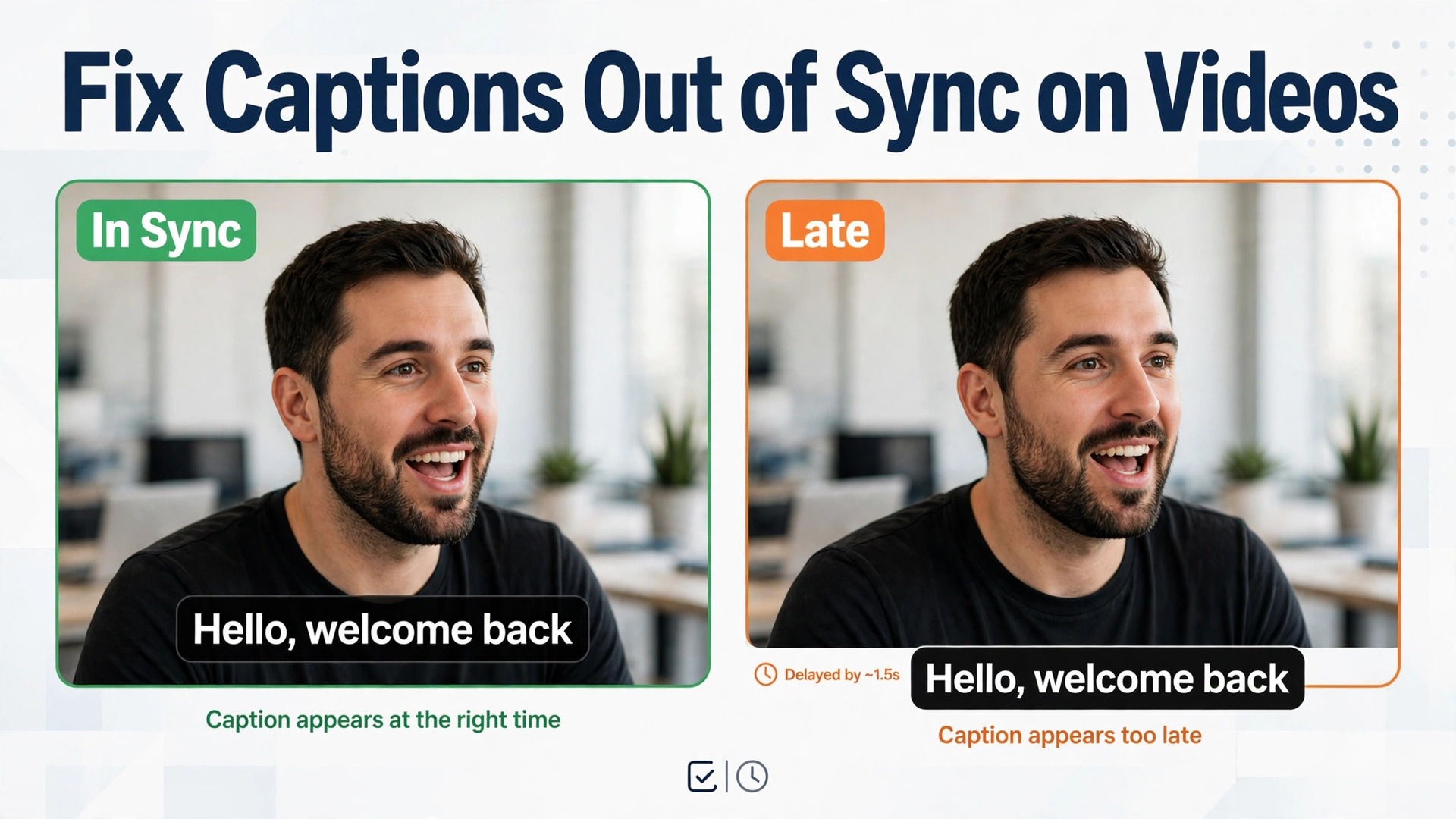
When you need to fix captions out of sync on videos, the symptom is easy to spot. You press play, the speaker says hello, and the caption for hello appears two seconds later. By the middle of the video the gap has grown to five seconds, and by the end the captions belong to a different scene entirely. Viewers notice within seconds, and many of them leave, because reading words that do not match the voice is harder than watching with no captions at all. The good news is that almost every sync problem comes from one of seven causes, and each cause has a fix that takes minutes once you know which one you are looking at.
The first step to fix captions out of sync on videos is diagnosis, not editing. A single time shift fixes a track that is late by the same amount all the way through, but it will not fix a track that drifts, and it will not fix a file made for a different edit of the video. This guide starts with a two minute diagnosis, then works through the seven causes in order of how often they occur, with the exact fix for each one in Subtitle Edit, Premiere Pro, CapCut, YouTube Studio and the free tools that handle the job well.
Diagnose First, Offset or Drift
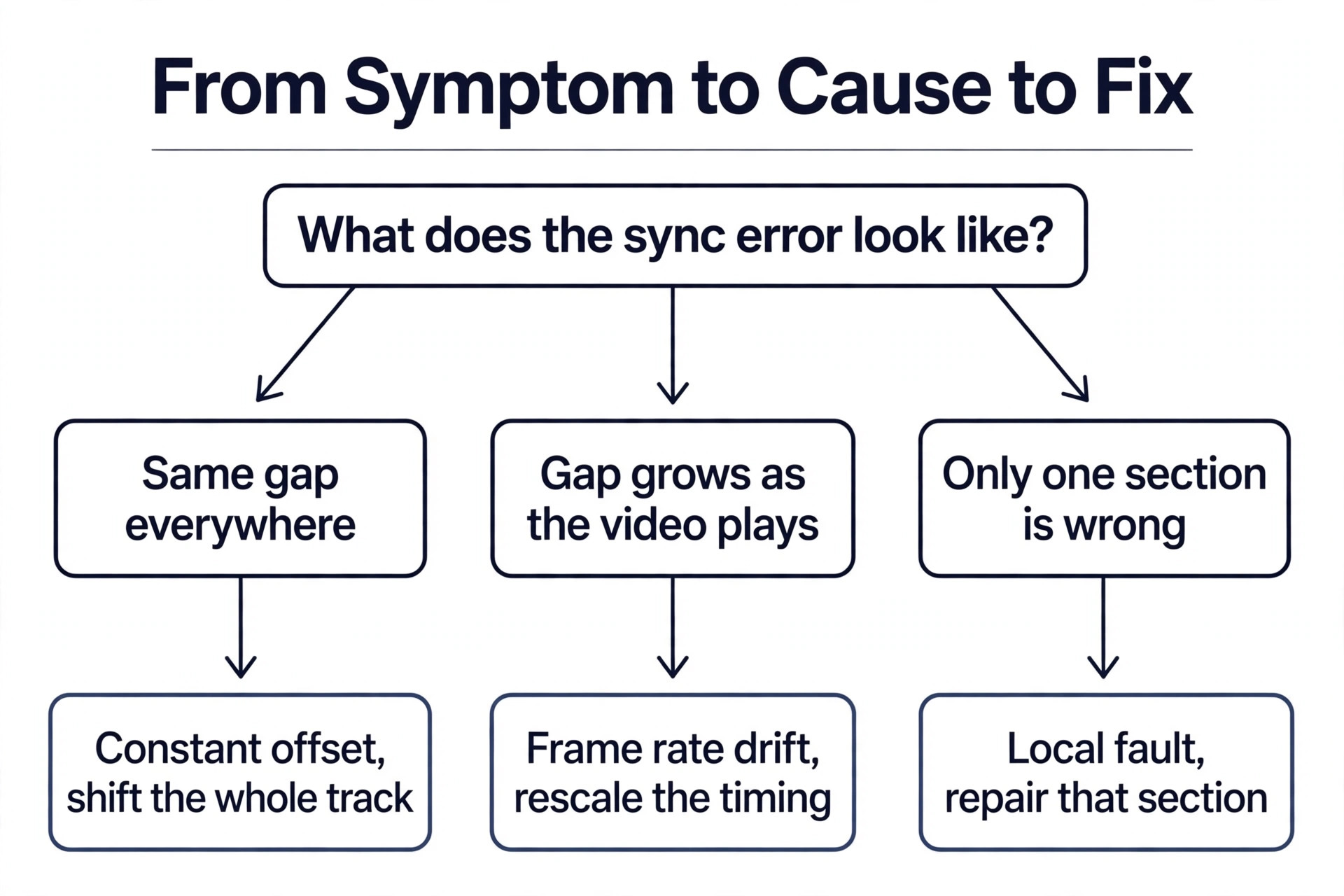
To fix captions out of sync on videos, watch the first 30 seconds and note the gap between a spoken word and its caption. Then jump to the middle of the video and check the same word against its caption, and do it again near the end. If the gap is the same at all three points, you have a constant offset, and the fix is a single shift of the whole track. If the gap grows as the video plays, you have drift, and the fix is to stretch or compress the timing. If only one section is wrong, the problem is local, and the fix is to repair that section alone.
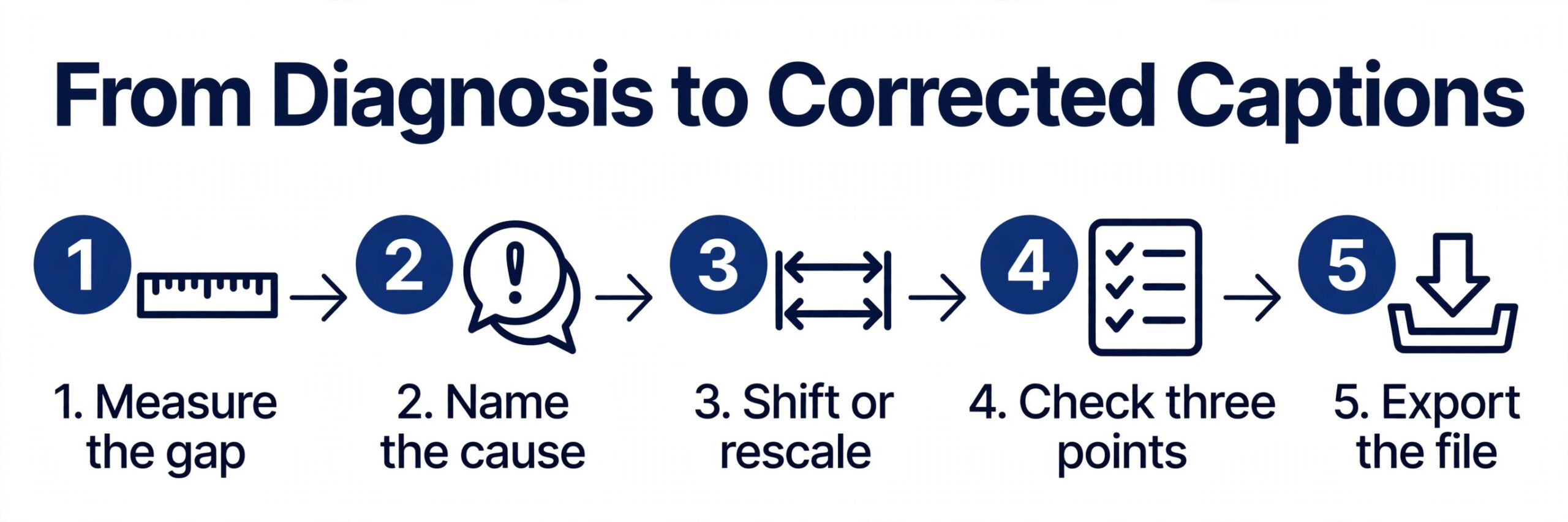
A second check saves more time than any tool. Confirm the caption file belongs to the video you are watching. Open the file name and the video file name side by side, and check the running time of each. A caption file made for a 12 minute cut will never fit a 10 minute cut, however much you shift it, and a file timed for a 25 frames per second version will drift on a 24 frames per second version. When the running times differ by more than a few seconds, stop shifting and find the right file or retime from the final export.
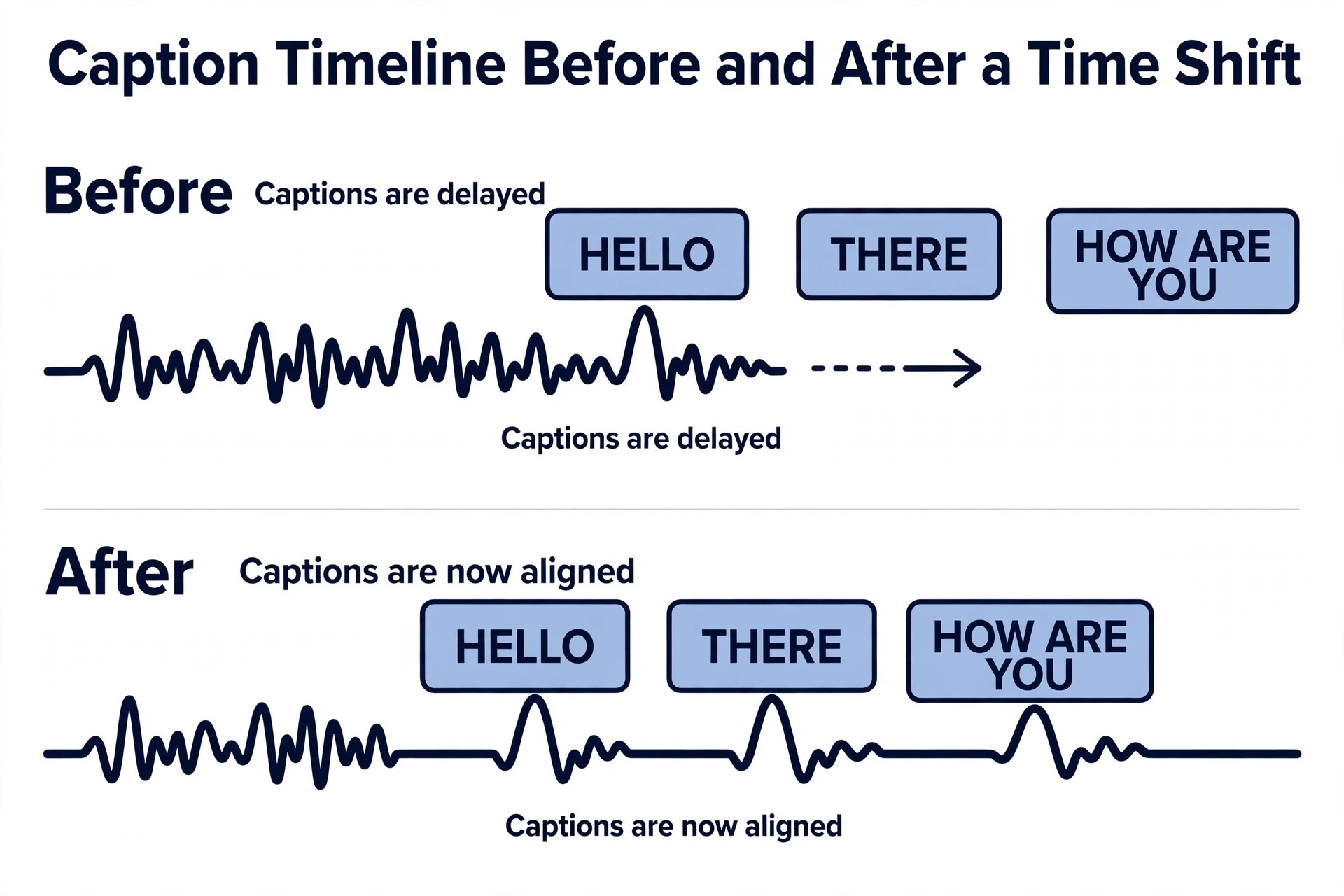
Measure the error before you fix it. Pause on a sharp sound, a clap, a door slam, or the first word of a sentence, and note the time on the video clock and the time on the caption. The difference is the offset you need. In VLC you can test a shift during playback by pressing G to delay subtitles or H to advance them in 50 millisecond steps, which is useful for finding the right number, though it does not change the file. Once you know the number, apply it once in your editor and check the beginning, middle and end again.
How to Fix Captions Out of Sync on Videos, Step by Step
The seven sections below follow the diagnosis you just did. Read the symptom at the start of each section and jump to the one that matches your video. Each section names the cause, explains why it happens in plain terms, and gives the fix as numbered steps you can follow in the tool named. Work through one cause at a time, and recheck the beginning, middle and end after each fix, because a video can carry two causes at once, and the second one only shows after the first is gone.
1. The Whole Track Is Late or Early by the Same Amount
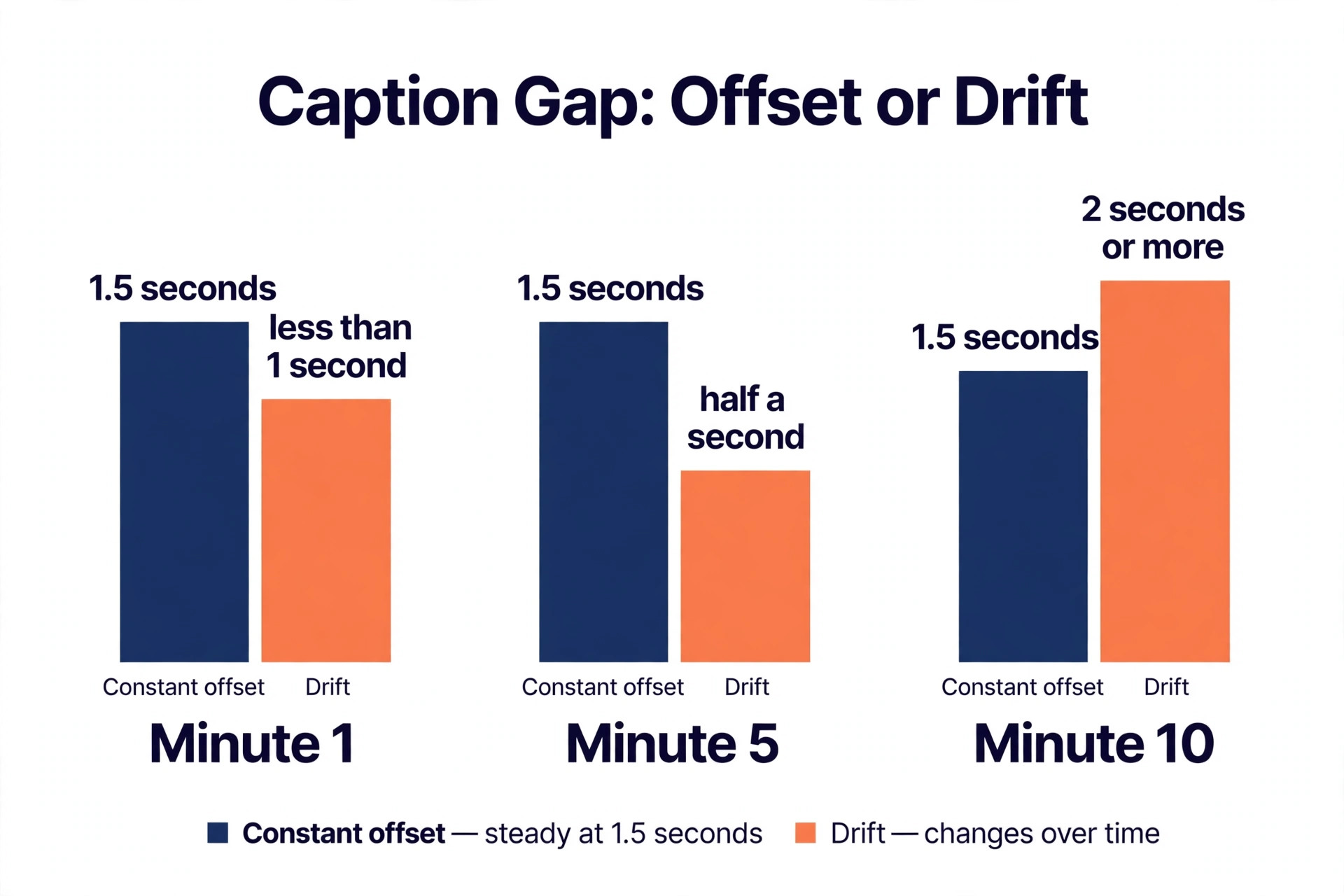
The symptom is simple. Every caption is late by the same amount, say one and a half seconds, from the first line to the last, and the gap never grows. This is the most common sync problem, and it is also the easiest to repair. It usually happens when a caption file was timed against a version of the video that started slightly earlier or later, or when a platform added a short delay during upload and processing. The words are right and the order is right, and only the clock is wrong.
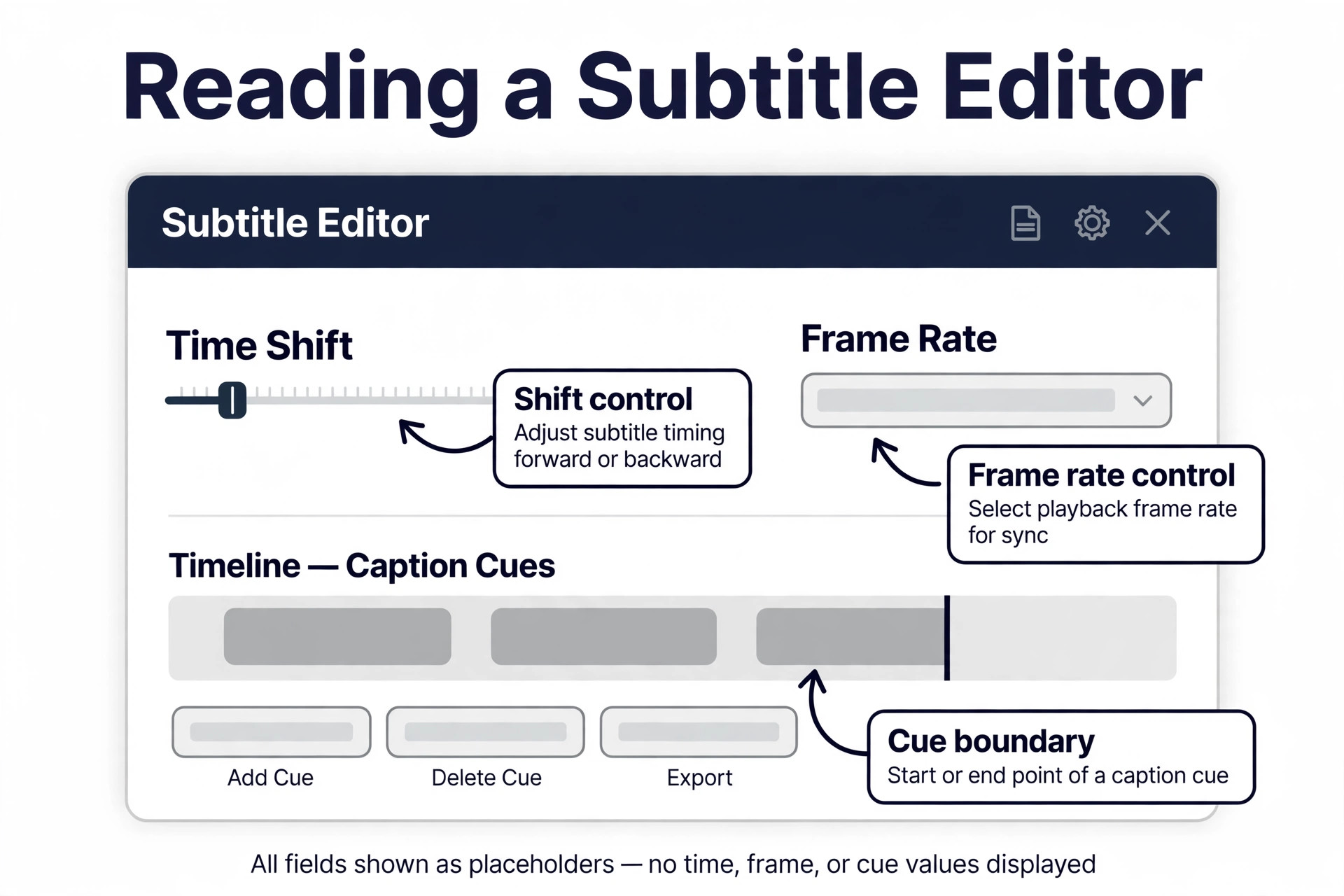
The fix is a single shift of the whole track by the amount you measured. In Subtitle Edit, open the file and use Synchronization, then Adjust all times, and enter the offset as a positive value when captions need to appear later or a negative value when they need to appear earlier. In Aegisub, use Timing, then Shift Times, and apply the same offset to all lines. In Premiere Pro, select all captions on the caption track and drag the whole block earlier or later on the timeline until the first line lands on the first word.
- Pause on the first clear word and note the gap between speech and caption.
- Open the caption file in Subtitle Edit or your editor of choice.
- Shift all times by the measured amount, positive to delay and negative to advance.
- Preview the beginning, the middle and the end before you export.
- Export a clean SRT file and upload it with the final video, not a rough cut.
Check the result at three points, because a shift that looks right at the start can hide a drift that only appears later. If the gap is the same at all three points after the shift, the job is done, and this cause is closed. If the gap grows, move on to the next section, because the problem is drift, not offset.
2. Captions Drift Further Out of Sync as the Video Plays
Drift is the problem that fools people, because the captions look fine at the start. At minute one the gap is a fraction of a second, at minute five it is half a second, and at minute ten it is two seconds or more. The cause is almost always a frame rate mismatch. The captions were timed for one frame rate and the video plays at another, so the tiny difference per frame adds up over minutes into seconds. A subtitle track timed at 25 frames per second and played at 24 frames per second will drift by about four percent, which is more than two seconds in a minute of video.
The fix is to rescale the timing, not to shift it. Shifting moves every caption by the same amount, which cannot correct an error that grows. Rescaling stretches or compresses all timestamps by the same ratio, which is exactly what drift needs. In Subtitle Edit, use Synchronization, then Change frame rate, and enter the frame rate the captions were made for and the frame rate the video actually uses. In Aegisub, use the frame rate transform under Timing and enter the same two numbers.
- Find the real frame rate of the video in VLC under Tools, then Codec, or in your editor sequence settings.
- Find the frame rate the caption file assumed, from the tool that made it or the export settings.
- Open the file in Subtitle Edit and use Change frame rate with the two rates.
- Check a caption near the start, the middle and the end, and adjust if a small offset remains.
- Export the corrected file and test it on the final published video.
A two point sync is the alternative when you do not know the frame rates. Pick a caption near the start and one near the end, set both to their correct times, and let the editor stretch everything between them. This works well for long videos where the frame rate history is unclear, and it is the method to use when the file came from a third party with no notes.
3. Phone Footage Was Recorded at a Variable Frame Rate
Phones record video at a variable frame rate to save battery, which means the number of frames per second changes as the scene changes. Editors and caption tools expect a constant frame rate, and when they read a variable frame rate file they reinterpret the timeline, which pulls captions out of sync in uneven ways. The captions may be right for a while, then jump, then drift, then come back, which is the signature of this cause. Screen recordings do the same thing, and they are the second most common source of variable frame rate trouble.
The fix happens before you generate or sync any captions. Convert the video to a constant frame rate first, then generate the captions from the converted file. HandBrake does this free, and it is the tool most editors reach for. Open the video in HandBrake, set the frame rate to constant and pick the rate the project uses, usually 30 or 25 frames per second, and export a new file. Use that file as the source for captions, and use it as the source for the edit, so the captions and the video share one timeline from the start.
- Check the footage for variable frame rate in VLC or in your editor media info.
- Convert the file to constant frame rate in HandBrake before any caption work.
- Generate captions from the converted file, not from the original phone file.
- If captions already exist, retime them against the converted file rather than shifting the old ones.
- Keep the converted file as the master for the final export.
This cause is easy to prevent and hard to repair after the fact, because a caption file timed against variable frame rate footage has no single offset or ratio that fixes it. Converting first costs a few minutes and removes the problem entirely, which is why it belongs at the start of any workflow that uses phone or screen recorded footage.
4. The Captions Were Made for a Different Edit
A caption file belongs to one edit of a video, and no other. When an intro, an advert, a cold open or a deleted scene is added or removed, every caption after that point moves, and the file no longer fits. The symptom is a clean break. Captions are in sync up to a point, then they are wrong by a fixed amount from that point on, or they are wrong in a way that changes at each edit point. A file that is three seconds late at the start and twenty seconds late near the end is not just delayed. It is mismatched, and shifting it will fix one section while breaking another.
The fix is to repair the file section by section, or to regenerate it from the final video. First, find the edit points by watching for the places where sync breaks. In Subtitle Edit, split the file at those points and shift each section by the amount that section needs. That is slow work for a long video with many edits, and for most creators the faster path is to generate fresh captions from the exact export that will be published, using CapCut, Descript, or the caption tool in your editor, and then review the result.
- Compare the caption file running time with the final video running time.
- Mark each point where sync breaks, which is usually an added or removed scene.
- Split the caption file at those points in Subtitle Edit and shift each section alone.
- For many edits, regenerate captions from the final export instead of repairing the old file.
- Name the new file to match the final video, so the wrong file cannot be reused by mistake.
The rule that prevents this cause is simple, and it is worth writing on the wall. Generate captions from the final video file, the exact export you will publish, not from a rough cut and not from an earlier version. Every edit after captioning creates this problem, so captioning belongs at the end of the workflow, after the last cut is locked.
5. The Audio Was Trimmed Without Moving the Captions
Audio editing is a quiet source of sync trouble, because it changes the timeline without changing the picture. Removing silence, cutting filler words, or moving a voice track without moving the caption track creates local timing errors that look random. One caption is early, the next is late, and the pattern changes after every cut. Podcast style edits, where long pauses are removed to tighten the pace, are the worst for this, because each removed pause shifts everything after it.
The fix is to keep audio and captions on the same timeline in the same editor. In Premiere Pro or CapCut, captions live on a track above the video, and an edit that cuts the audio and the video together also cuts the captions, so the sync survives. The problem appears when audio is edited in a separate tool, or when silence removal runs as a separate step after captions are made. If that has already happened, the repair is to regenerate captions from the edited audio, or to move the affected captions by hand to their new positions.
- Edit audio and captions in the same project, on the same timeline.
- Run silence removal before captioning, never after.
- If audio was edited separately, regenerate captions from the edited audio.
- Check the captions around every cut, because that is where the errors cluster.
- Export the caption file only after the audio edit is locked.
A useful habit is to lock the caption track before any audio pass, so an accidental drag cannot move it, and to keep a copy of the caption file before each major edit. The copy costs nothing and it turns a bad edit into a ten minute restore instead of a full regeneration.
6. Auto Captions Have the Right Words and the Wrong Boundaries
Automatic caption tools are good at words and weak at timing. Speech recognition can produce an accurate transcript while choosing cue boundaries that start late, end early, or hold a caption on screen long after the speaker has moved on. The words feel late even when they are technically correct, because the caption appears after the word is spoken, or because one caption covers two sentences and the second sentence arrives before the reader has finished the first. This is the cause to suspect when the words are right, the file matches the video, and the sync still feels wrong.
The fix is to tighten the cues, not to shift the file. In your caption editor, shorten each cue so it starts close to the spoken word and ends soon after the word finishes, and split long cues into two shorter ones at natural pauses. CapCut and Descript both let you adjust cue boundaries by dragging, and Subtitle Edit lets you set a maximum cue length and a minimum gap between cues, which cleans up a whole file at once. Aim for cues that last one to three seconds and carry one idea, because that is the length readers follow without effort.
- Read the captions with the sound off and mark every cue that feels late.
- Shorten each cue so it starts on the word and ends soon after it.
- Split any cue longer than three seconds at a natural pause.
- Set a maximum cue length in Subtitle Edit to clean up the rest of the file.
- Watch the result with sound on, and check the beginning, middle and end.
Auto captions are a starting point, not a finished product, and the review pass is part of the job. A ten minute video with auto captions usually needs ten to fifteen minutes of boundary work, and that time is what turns a usable transcript into captions a viewer can actually follow.
7. The File Is Wrong, Damaged, or Burned Into the Video
The last cause covers the files that cannot be fixed by shifting or rescaling, because the file itself is the problem. The subtitle file may belong to a different release of the video, with scenes in a different order. It may be damaged, with cue numbers out of order, timestamps in the wrong format, or line breaks that break the parser. Or the captions may be hardcoded, which means they are burned into the picture itself and cannot be edited at all, because they are part of the video frames.
The fix depends on which of these you have. For a wrong release, find a caption file made for your exact version, or regenerate from your video, because no amount of shifting will reorder scenes. For a damaged file, open it in a text editor and check the cue numbers run in order and the timestamps follow the hours, minutes, seconds format with a comma before the milliseconds, then run it through a subtitle cleaner or re export it from Subtitle Edit. For hardcoded captions, the only options are to cover them or crop them out, then add fresh captions on top.
- Check the file name and running time against the video to rule out a wrong release.
- Open a damaged SRT file in a text editor and check cue numbers and timestamp format.
- Re export the file from Subtitle Edit to clean up hidden formatting errors.
- For hardcoded captions, cover them with a solid bar or crop the bottom of the frame.
- Add a new caption track on top of the covered or cropped video and export.
Hardcoded captions deserve a warning. Covering them with a bar changes the picture, and cropping removes part of the frame, so both fixes cost image quality. The real fix is prevention, which is to keep captions as a separate softcoded track from the start, so they can be edited, translated and turned off without touching the video.
Tools That Fix Caption Sync
Subtitle Edit is the free tool to start with when you fix captions out of sync on videos, and it handles most of the fixes in this guide. It shifts all times, changes frame rates, splits files at edit points, cleans damaged files, and exports SRT and VTT. It runs on Windows and it costs nothing, which makes it the default recommendation for creators who work with caption files directly. Aegisub is the alternative for creators who want finer control over timing and styling, and it is also free, though its interface takes longer to learn.
Premiere Pro and CapCut handle sync inside the edit, which suits creators who caption as part of editing rather than as a separate step. In Premiere Pro you drag captions on the timeline and the sync follows the picture. In CapCut the auto caption tool generates and times captions in one pass, and you adjust boundaries by dragging. Descript is the pick for creators who edit video by editing the transcript, because a cut in the text cuts the video and the captions together, which prevents the audio trim problem in cause five.
YouTube Studio deserves a place here for creators who publish on YouTube. It lets you edit caption timing in the browser, download the caption file, fix it in Subtitle Edit, and upload the corrected version. Filmora and FlexClip both offer auto sync and subtitle shifting inside the editor, and FlexClip can shift a whole track or regenerate captions in more than 130 languages. VLC is not a fix tool, but it is the best test tool, because the G and H keys let you try a shift during playback before you commit to it.
A Prevention Workflow That Keeps Captions in Sync
When you fix captions out of sync on videos, prevention is cheaper than repair, and it comes down to order. Convert variable frame rate footage to constant frame rate before you start. Edit the video and the audio to a locked final cut. Generate captions from that final export, never from a rough cut. Review the cues for boundaries, not just for words. Export the caption file with the same name as the final video, and keep a copy with the project files so the right file is always easy to find.
- Convert phone and screen footage to constant frame rate before editing.
- Lock the final cut, including audio edits and silence removal, before captioning.
- Generate captions from the final export only.
- Review cue boundaries at the start, the middle and the end.
- Export the SRT file with the video file name and store it with the project.
- Test the published video on two devices, because players handle caption timing differently.
That last step matters more than it sounds. Some media players interpret subtitle timing differently, especially with variable frame rate video, so a file that is perfect in your editor can look late in one player and right in another. Testing on the platform where viewers will watch, on a phone and on a desktop, catches the player problems before your audience does.

Our Verdict
Most caption sync problems are a constant offset or a frame rate drift, and those two fixes cover the majority of videos. Shift the whole track when the gap is the same everywhere, and rescale the timing when the gap grows. Convert variable frame rate footage before you start, generate captions from the final export, and review the cue boundaries instead of trusting auto captions blindly. The seven causes in this guide cover the rest, from a trimmed audio track to a damaged file, and each one has a fix that takes minutes once the cause is named.
The habit that matters most is the diagnosis. Spend two minutes checking whether the gap is constant, growing, or local, and whether the file matches the video, before you change anything. That check points at the right fix the first time, and it saves the wasted hour of shifting a file that needed rescaling, or rescaling a file that belonged to a different edit. Fix captions out of sync on videos by naming the cause first, and the fix follows.
Frequently Asked Questions
How do I fix captions out of sync on videos when every caption is late by the same amount?
Shift the whole caption track by the measured gap. In Subtitle Edit use Synchronization and Adjust all times, in Aegisub use Timing and Shift Times, and in Premiere Pro drag all captions on the track together. Measure the gap on a sharp sound first, apply the shift once, and check the beginning, middle and end. A constant offset needs one number, and guessing it twice is slower than measuring it once.
Why do captions start in sync and drift further out over time?
Drift comes from a frame rate mismatch, where the captions were timed for one frame rate and the video plays at another. The tiny per frame difference adds up over minutes into seconds. Fix it by rescaling the timing in Subtitle Edit with Change frame rate, entering the rate the captions assumed and the rate the video uses. Shifting will not fix drift, because the error grows and a single shift cannot match it.
Can I fix out of sync captions in YouTube Studio?
Yes. YouTube Studio lets you edit caption timing in the browser, and you can download the caption file, correct it in Subtitle Edit, and upload the fixed version. For a simple offset, the editor in Studio is enough. For drift or a file made for a different edit, downloading and fixing the file in Subtitle Edit gives you more control, and the corrected file uploads cleanly.
What is the fastest free tool to fix caption timing?
Subtitle Edit is the fastest free tool for most fixes, because it shifts all times, changes frame rates, splits files and cleans damaged files in one place, and it exports SRT and VTT. Aegisub is the free alternative when you want finer timing control. HandBrake is the free tool for the variable frame rate cause, and VLC is the free tool for testing a shift during playback with the G and H keys.
Why are my phone video captions out of sync?
Phone footage is usually recorded at a variable frame rate, which editors and caption tools misread, pulling captions out of sync in uneven ways. Convert the video to a constant frame rate in HandBrake before you generate or sync captions, and generate the captions from the converted file. That single step prevents most phone video caption problems before they start.
Can hardcoded captions be fixed or removed?
Hardcoded captions are burned into the video frames, so they cannot be edited or removed cleanly. You can cover them with a solid bar or crop the bottom of the frame, then add a fresh softcoded caption track on top. Both options cost image quality, so the better approach is to keep captions as a separate track from the start, which lets you edit, translate and turn them off without touching the video.
A caption file is a clock, and every sync problem is a clock that disagrees with the video. Find the disagreement first, whether it is a fixed offset, a growing drift, a variable frame rate, a different edit, a trimmed audio track, a lazy cue boundary, or a damaged file, and the fix is usually a few minutes of work. Name the cause, apply its fix, and check the beginning, the middle and the end before you publish.