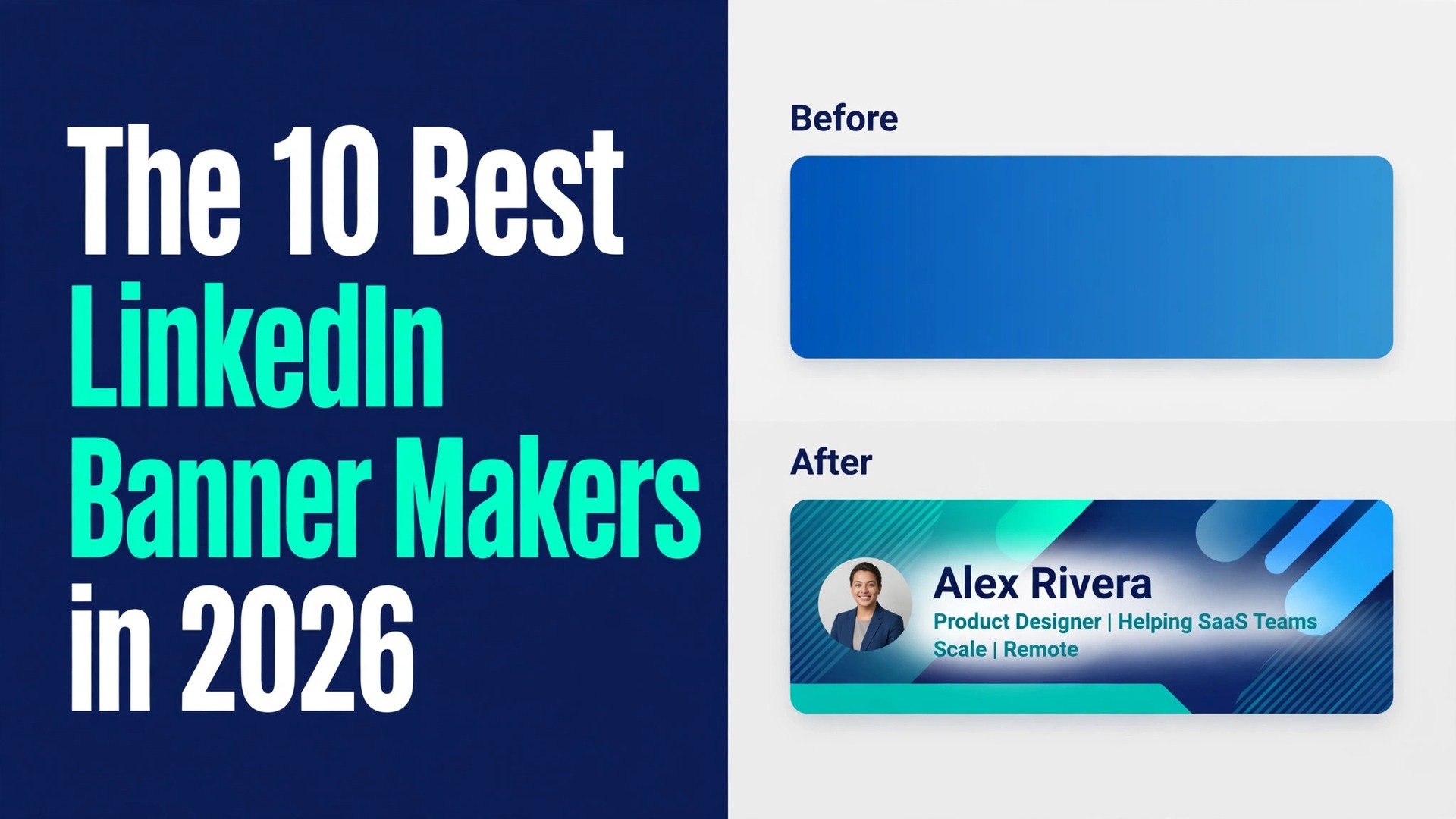
Open two LinkedIn profiles side by side. One has the default blue gradient, the same banner every new account gets. The other has a clean photo, a clear headline and a call to action that tells you what the person does in five seconds. You already know which one you would hire, message or follow, and you decided in less time than it takes to read a headline. The best LinkedIn banner makers exist because that first impression is worth more than most people admit, and the tools below make it without design skill, without a budget, and in most cases without paying anything at all.
This guide compares 10 real tools that are available right now, judged on the same five points. How many LinkedIn banner templates you get without paying. Whether the free export is clean or watermarked. Whether the tool uses the right size, 1584 by 396 pixels, and warns you about the profile photo overlap. How easy the editor is for a non designer. And whether the banner stays on brand when you make the next one. Prices come from vendor pages and recent comparisons checked in late 2026, and they change by region, so confirm the price you are actually offered before you subscribe.
What the Best LinkedIn Banner Makers Get Right
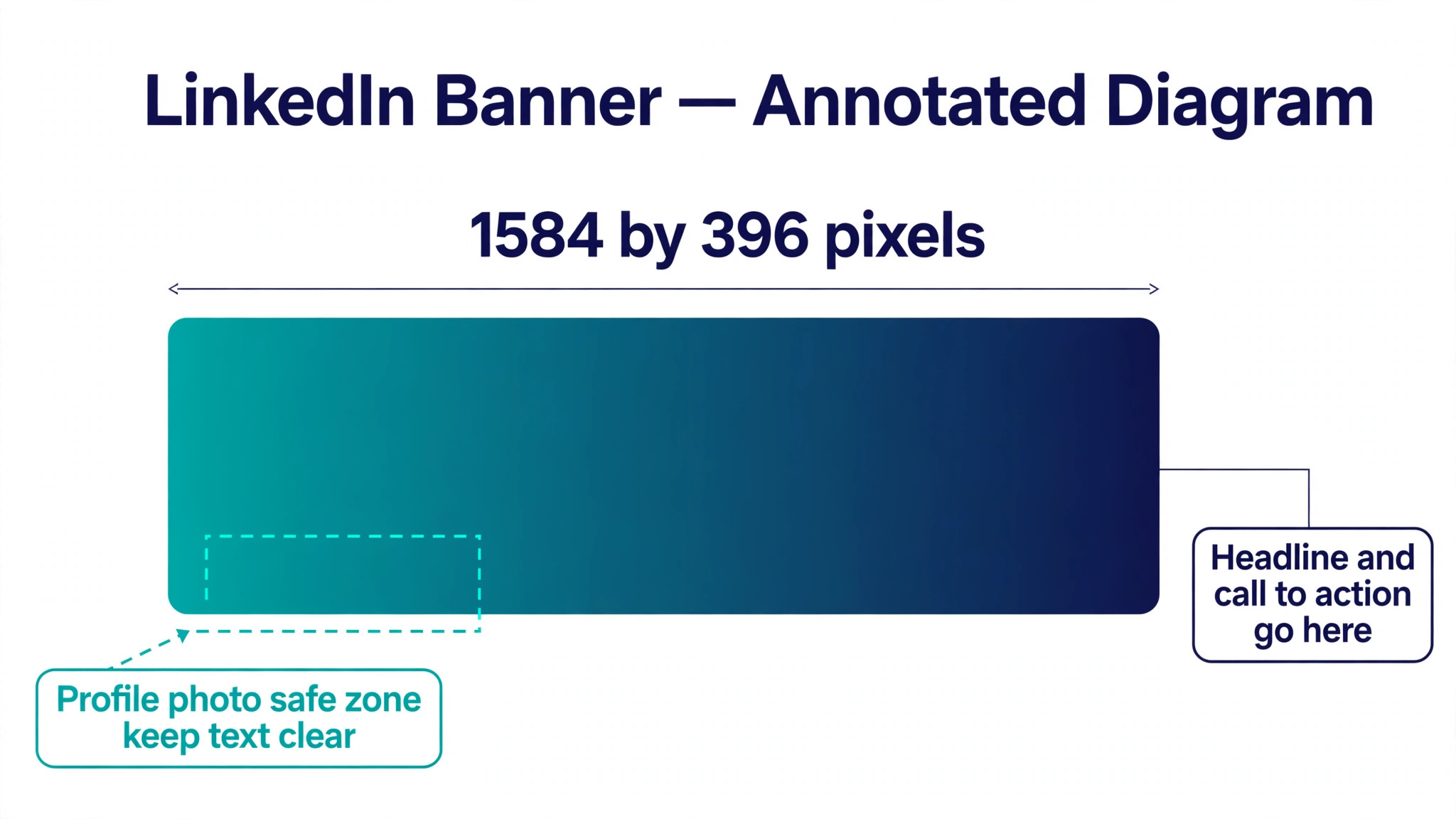
A good banner maker starts with the right canvas. LinkedIn profile banners are 1584 pixels wide by 396 pixels high, a wide and short shape that punishes designs made for other sizes. A tool that offers a dedicated LinkedIn banner size saves you from the most common beginner error, which is uploading a square image and watching LinkedIn crop it into something unrecognisable. The best tools in this list all offer the correct size as a starting point, and several warn you about the safe zone, the area on the left where your profile photo sits on top of the banner.
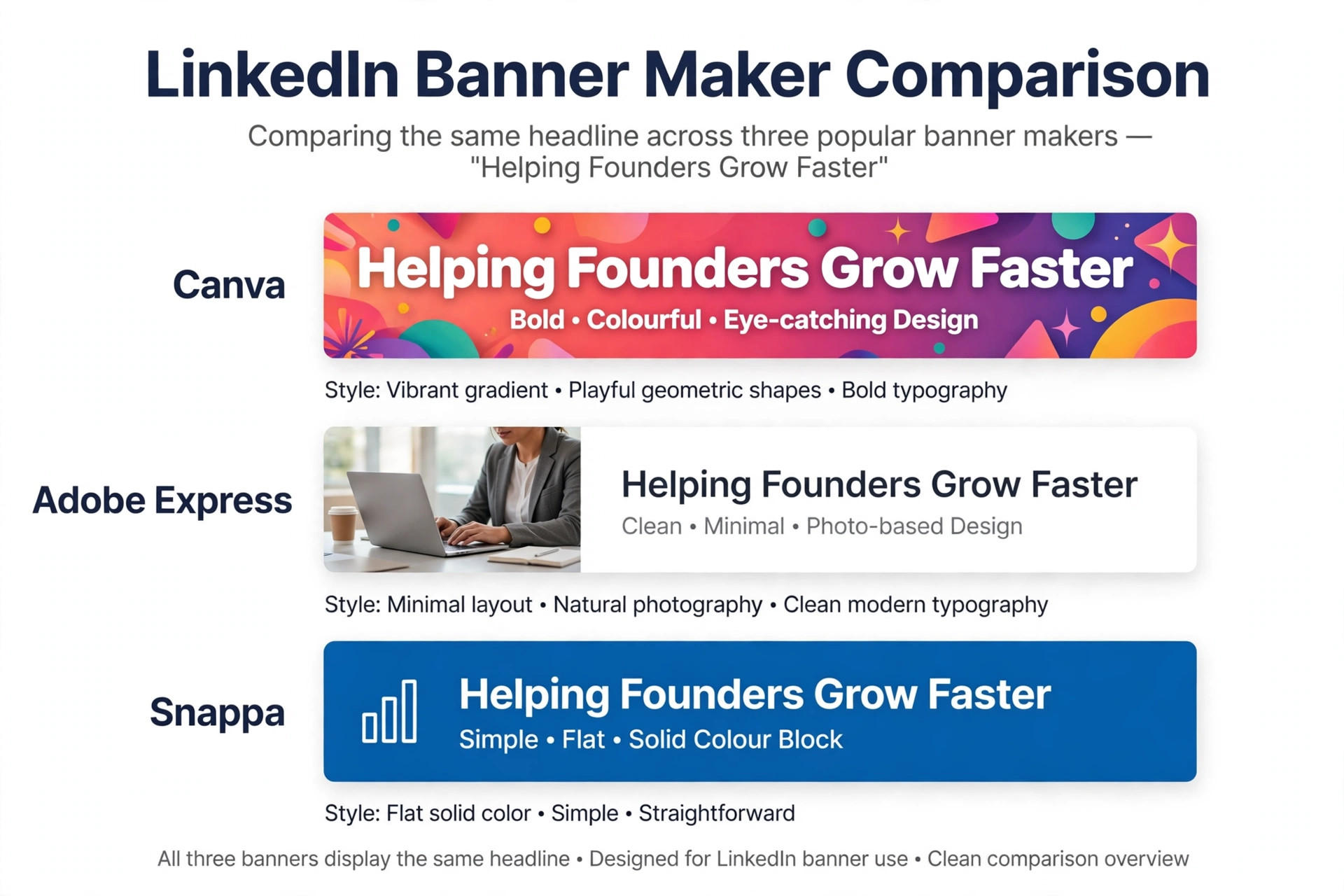
The second thing that matters is templates built for professional profiles. A banner template designed for a birthday post will not help a consultant, a recruiter or a founder. The tools below offer templates sorted by job and industry, from finance and consulting to creative agencies, so the starting point already looks like your work. The third is the free plan. A free banner that exports with a watermark across the middle is not a free banner, and several tools in this list watermark free exports while others do not. Test the download before you invest time in a design.
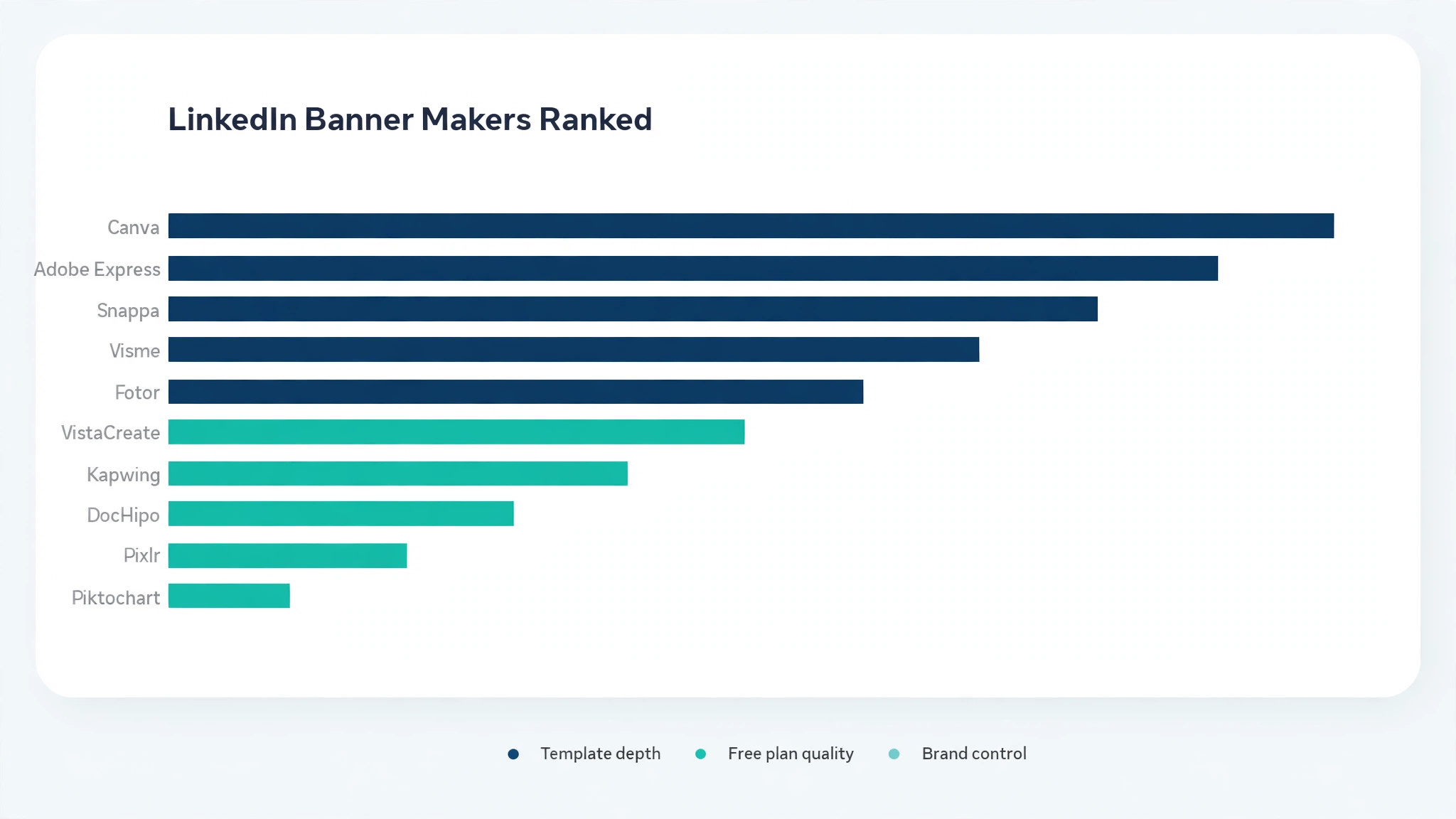
The fourth is stock photos and fonts that look professional rather than playful. A banner is a business card at the top of your profile, and the images and type should match that job. The fifth is brand control. If you run a company page as well as a personal profile, the tool should keep both banners consistent, with the same colours, fonts and logo. The table below gives you the short version of all 10 tools so you can narrow the field before reading the reviews.
| Tool | Best for | Free plan | Paid plan from |
|---|---|---|---|
| Canva | Largest template library | Yes | About 15 dollars a month Pro |
| Adobe Express | Adobe quality assets free | Yes | 9.99 dollars a month Premium |
| Snappa | Fastest banner in five minutes | Yes, 3 downloads a month | 10 dollars a month Pro |
| Visme | Brand kits for teams | Yes | 12.25 dollars a month |
| Fotor | Budget AI banners plus editing | Yes | 3.99 dollars a month Pro |
| VistaCreate | Colourful expressive templates | Yes | 10 dollars a month Pro |
| Kapwing | Video creators who need banners | Yes | 16 dollars a month Pro |
| DocHipo | Business focused templates | Yes | Check the pricing page |
| Pixlr | Quick browser edits plus banners | Yes | 1.99 dollars a month |
| Piktochart | Data led banners with charts | Yes | Check the pricing page |
The 10 Best LinkedIn Banner Makers in 2026 Reviewed
Here are the 10 best LinkedIn banner makers in 2026, reviewed in full. Each review covers what the tool does well, where it falls short, what the free plan really gives you, and who should pick it. Read the shortlist first, then read the full review of the two or three tools that fit your job.
1. Canva
Canva is the best overall LinkedIn banner maker, and the reason is the template library. No other tool in this list offers as many LinkedIn banner templates, sorted by industry and style, with a drag and drop editor that a non designer can learn in minutes. Search for LinkedIn banner, pick a template, swap in your photo and your headline, and download. The free plan covers everything most users need, with thousands of templates and no watermark on most exports, while premium templates and brand kit features sit behind Canva Pro at about 15 dollars a month per person.
Canva also handles the size correctly. The LinkedIn banner template opens at 1584 by 396 pixels, and the editor shows you where the profile photo will sit, so you can keep text clear of the overlap. The brand kit on paid plans keeps your colours and fonts consistent across your banner, your posts and your company page. Canva runs on the web and on mobile, so a banner started on a laptop can be finished on a phone. Pick Canva if you want the fastest path to a polished banner and the deepest template choice, and you do not mind paying later for premium templates.
2. Adobe Express
Adobe Express is the best free LinkedIn banner maker for people who want Adobe quality assets without a steep price. The free plan is one of the most generous in this category, with a dedicated LinkedIn banner creator, thousands of free templates, royalty free Adobe Stock images and AI features, all in the browser. Premium is listed at 9.99 dollars a month and adds 250 generative credits a month, more than 200 million Adobe Stock assets, over 30,000 fonts, 100 GB of storage and brand kits.
Where Express beats Canva is polish. The default typography is cleaner, the templates look more refined, and Firefly AI features generate images and fill backgrounds inside the same editor. The free plan lists more than 100,000 templates, over 4,000 fonts and 5 GB of storage, which is enough for most personal banners. Pick Adobe Express if you want a professional banner for free, you already use Adobe tools, or you want Adobe Stock photos and Adobe Fonts in your profile without paying for a full Creative Cloud plan.
3. Snappa
Snappa is the fastest banner maker in this list, and it is built for people who want a banner done in five minutes with zero learning curve. The editor is deliberately simple. Pick a LinkedIn banner size, choose a template or a stock photo, add your headline, and download. There are no layers to manage, no complex menus, and nothing to learn. That simplicity is the whole product, and for a busy founder or recruiter it is worth more than a thousand templates.
The pricing is flat and honest. The free plan allows 3 downloads a month, which is enough for one banner and two revisions, and Pro is listed at 10 dollars a month with unlimited downloads. Snappa includes a large stock photo library, and the templates are clean and business like rather than playful. Pick Snappa if you want a banner today, you do not enjoy design tools, and you would rather pay a flat 10 dollars than learn a bigger app.
4. Visme
Visme is the pick for teams that need every profile banner on brand. The tool is built around brand kits and template control, so a manager can set the colours, fonts and logo once and the team can make banners that all look like they came from the same company. That control matters when ten employees all need a banner and the company wants a consistent look across every profile.
The free plan covers the basics, with templates and the editor included, and paid plans start from 12.25 dollars a month. Visme also handles data led banners well, with charts and infographic elements that suit consultants, analysts and anyone whose banner should show a number rather than a slogan. The editor is deeper than Snappa and takes a little longer to learn, but it rewards the effort with more control over layout and typography. Pick Visme if you manage a team, you care about brand consistency, or your banner needs to carry a chart or a data point.
5. Fotor
Fotor is the budget AI banner maker in this list, and it suits solo creators who want photo editing and AI generation in one place. The tool offers LinkedIn banner templates with a photo led style, plus a built in editor for retouching, filters and AI features that generate backgrounds and enhance images. The free plan is usable, and Pro starts from 3.99 dollars a month, which is the cheapest paid plan in this roundup.
The low price is the story here. For the cost of a coffee each month, Fotor unlocks the full template range, removes the free tier limits and adds high resolution export. The template library is smaller than Canva and the typography is less refined than Adobe Express, but the combination of price, photo editing and AI tools is strong for a solo creator on a tight budget. Pick Fotor if you edit photos as well as make banners, and you want the cheapest paid plan that still feels like a real design tool.
6. VistaCreate
VistaCreate is the expressive option, and it suits creators who want colourful, playful banners with a genuinely generous free plan. The templates lean bold, with bright colours, strong shapes and modern typography, which stands out in a feed full of blue gradients and grey headshots. The free Starter plan covers a lot, and Pro is listed at 10 dollars a month for the full library and extra features.
VistaCreate started life as Crello, and it keeps that creative energy in its template range. The editor is easy to learn, the sticker and animation options are plentiful, and the tool handles social sizes beyond LinkedIn, so a banner can become a post or a story without starting over. The trade off is that the style does not suit every industry. A lawyer or a finance director may find the templates too playful, while a creator, a coach or a marketer will find them exactly right. Pick VistaCreate if you want your banner to stand out visually and you like bold colour and modern type.
7. Kapwing
Kapwing is the banner maker for video creators. It sits inside a video first workspace, so a YouTuber or a course creator can design a LinkedIn banner in the same tool that edits their videos, adds subtitles and resizes clips. The banner templates are clean and simple, and the editor covers the basics without fuss. The value is not the banner tool alone, it is the fact that the banner lives next to the video work.
The free plan is usable for trying the tool, but free exports carry a watermark on video and on some image exports, and Pro is listed from 16 dollars a month. That price is high for banners alone, and Kapwing only makes sense if you also use the video tools every week. If you do, the combination is strong, because few tools handle a banner and a video in the same project. Pick Kapwing if you make video content regularly and you want one workspace for your banner, your thumbnails and your edits.
8. DocHipo
DocHipo is a business focused design tool with LinkedIn banners built for professional sectors, from finance and consulting to creative agencies. The templates are polished and on brand for business use, and the editor is clean and fast, with pro graphics and AI capabilities and no fuss. Free templates sit in a neatly separated category from premium ones, so you can see what is free before you start, and the download is available in JPEG and PNG without a watermark on the free side of things in most cases.
DocHipo offers a free plan and paid Pro plans, and you should check the pricing page for the current figure before you subscribe. The tool also covers LinkedIn posts, documents and videos, so a banner can sit beside the rest of your LinkedIn content in one place. Pick DocHipo if you want business focused templates, a clean editor, and free downloads without a watermark, and you do not need the huge template library of Canva.
9. Pixlr
Pixlr is a browser based photo editor with a LinkedIn banner workflow built in, and it is the cheapest paid route in this list. Paid plans start at 1.99 dollars a month, and the free tier covers basic banner layouts without demanding an account. The editor comes in two modes, a quick mode for fast jobs and a deeper mode for people who want layers and fine control, and the banner tool benefits from both.
The template range for LinkedIn is smaller than the big design tools, and the interface can feel busy because the editor does so much. But for the price, Pixlr is hard to beat when you need a banner plus real photo editing in the browser, with no install and no large subscription. It runs on the web and on mobile, and it exports clean files at the right size for LinkedIn. Pick Pixlr if you want the lowest cost route to a professional banner with editing included, and you do not need a huge template library.
10. Piktochart
Piktochart is the data led option, and it suits people whose banner should tell a story with numbers. The tool is known for infographics, and its LinkedIn banner templates carry that strength, with charts, icons and clean layouts that present a result, a stat or a process at a glance. A consultant who wants a banner that says what they deliver, with a number to prove it, will find Piktochart more useful than a template full of stock photos.
The free plan covers the basics, and paid plans unlock more templates and higher resolution exports, so check the pricing page for the current figure. The editor is approachable for non designers, and the chart tools are genuinely easy to use. The template library for banners is smaller than Canva, and the style is more corporate than creative, which suits business profiles and suits creators less. Pick Piktochart if your banner needs to show data, results or a process, and you want the chart tools that other banner makers lack.
How to Design a LinkedIn Banner That Gets Noticed
The tool matters less than the design, and the best LinkedIn banner makers all reward the same five habits. The first is to say one thing. A banner has about five seconds of attention, so it should carry one message, not four. Your name is already on the profile, so the banner should say what you do and who you do it for. A recruiter who places engineers, a founder who builds finance software, a coach who helps managers lead better. One line, large enough to read on a phone, with no jargon.
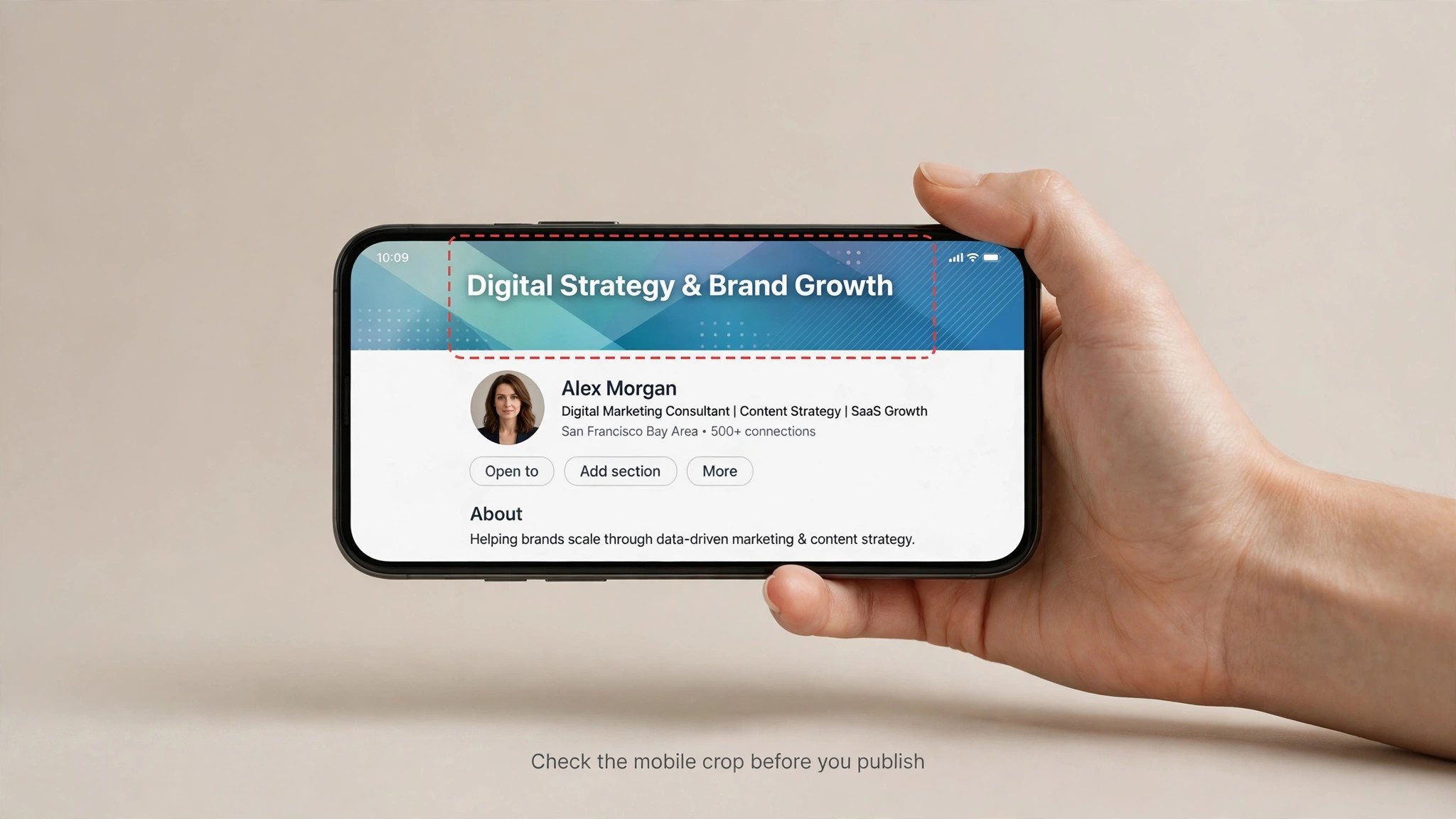
The second habit is to respect the safe zone. Your profile photo covers the lower left of the banner, and on mobile the crop is tighter. Keep your headline and your call to action on the right two thirds of the banner, and keep important text away from the edges. Test the banner on your phone after you upload it, because the desktop preview hides the mobile crop. The third habit is contrast. Light text on a light photo disappears, and dark text on a dark photo does the same. Put a solid colour panel behind the text, or darken the photo slightly, so the words stay readable at a small size.
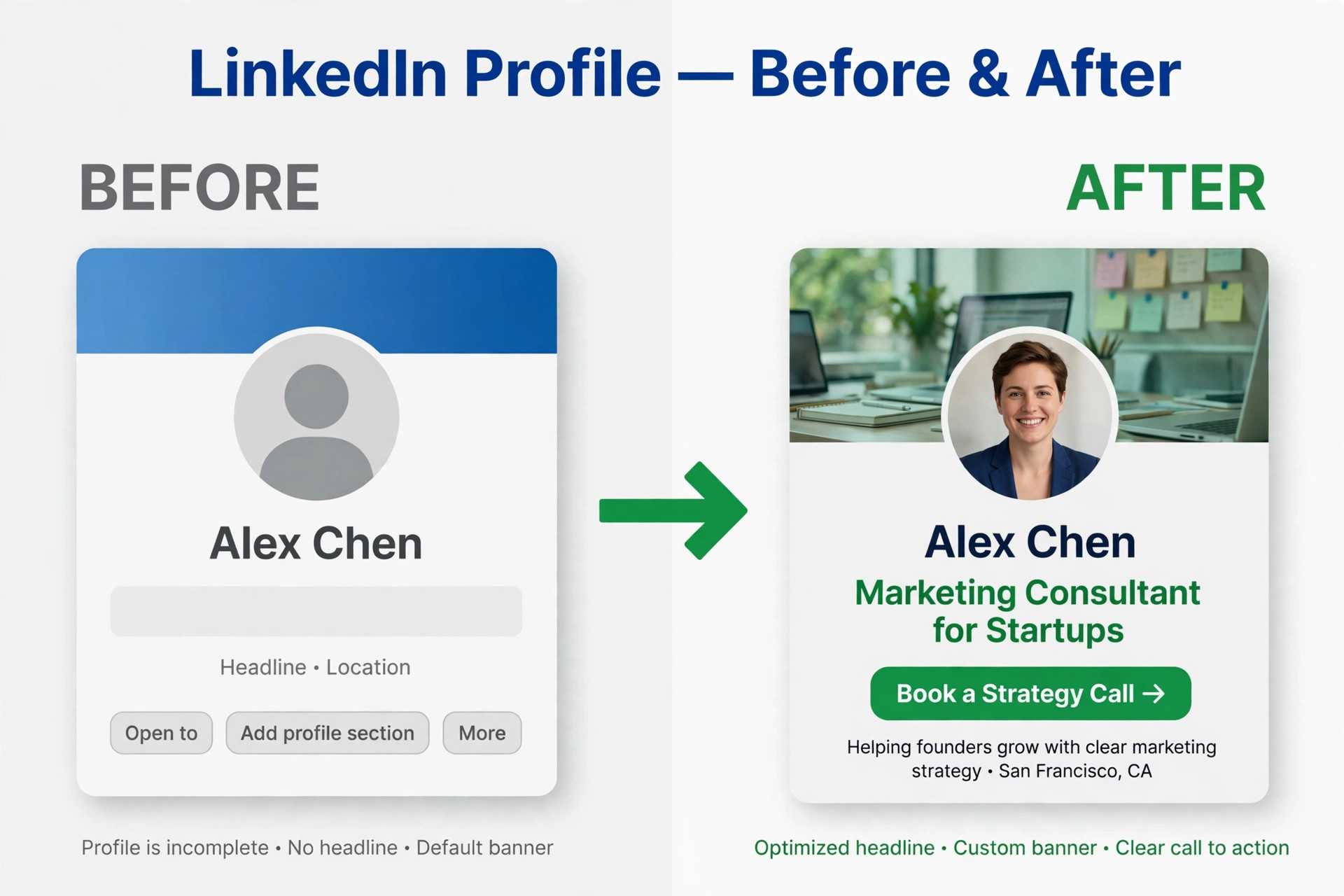
The fourth habit is to use a real photo of your work, not a generic stock image. A photo of you speaking, your product in use, or your team at work tells a visitor more than a skyline or a handshake ever will. If you use stock, pick one image that fits your industry and crop it tightly, so it looks chosen rather than default. The fifth habit is a call to action. A short line such as a website address, a booking link or a simple invitation to message you turns a pretty banner into a working one. Keep it short, keep it on the right side, and keep it in the same colour as your brand.
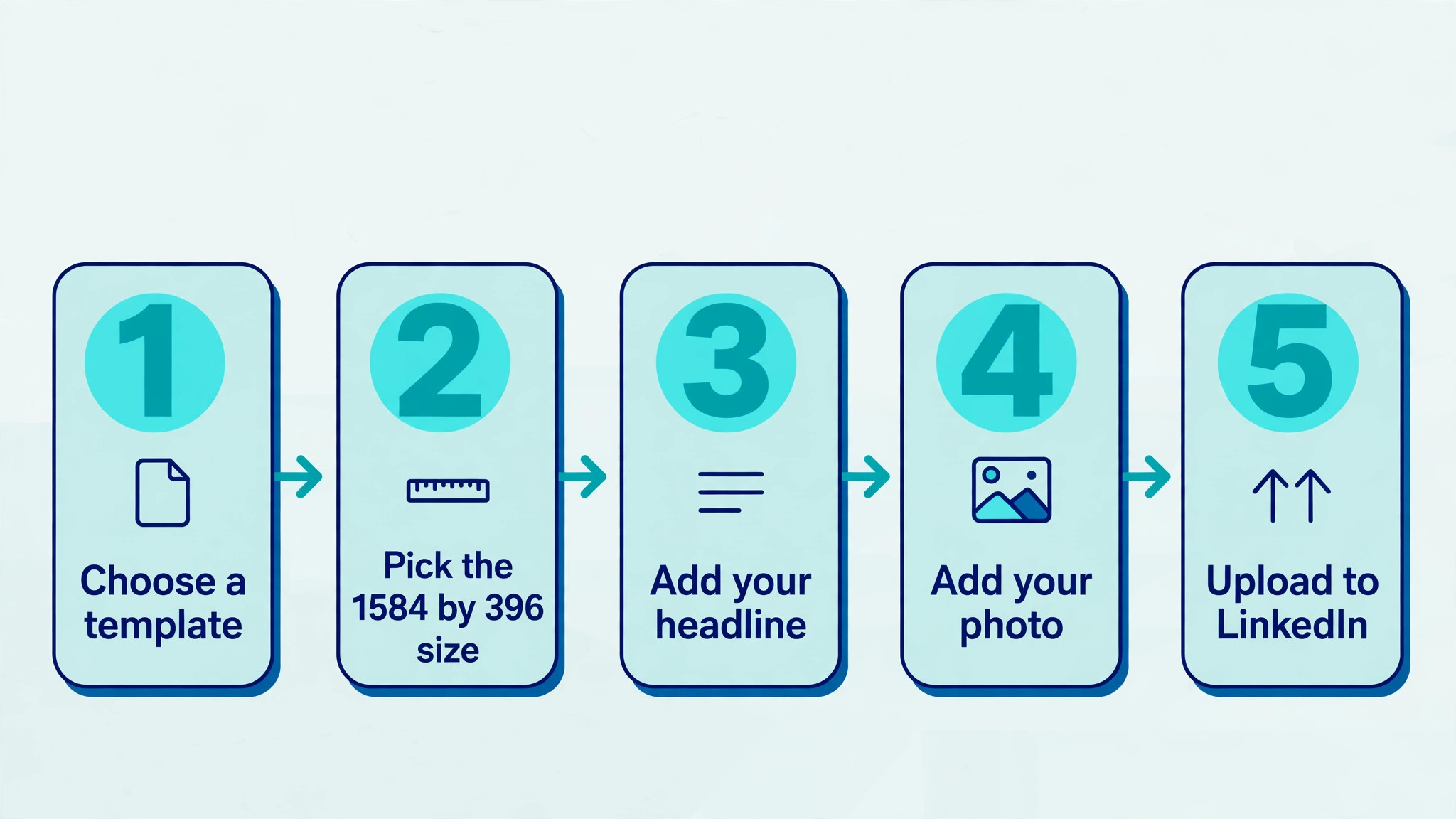
Size and format are the technical half of the job. Upload at 1584 by 396 pixels, save as a PNG for crisp text or a JPG for a photo led banner, and check the file size before you upload, because LinkedIn compresses large files and compression softens text. Company pages use a different banner size, 1128 by 191 pixels, so do not reuse a personal banner on a company page without resizing it. A banner that follows these five habits will outperform a fancier design that breaks them.
How to Choose Among the Best LinkedIn Banner Makers
Start with your budget. If you will not pay anything, the best LinkedIn banner makers for you are Adobe Express, VistaCreate and Canva, because their free plans are genuinely usable and their free exports are clean. If you will pay a little, Fotor at 3.99 dollars a month and Pixlr at 1.99 dollars a month are the cheapest paid routes. If you will pay for speed, Snappa at 10 dollars a month is the fastest tool in this list.
Then think about who the banner is for. A personal profile needs one strong banner. A team needs brand control, which points to Visme or Canva brand kits. A video creator needs a tool that also edits video, which points to Kapwing. A data led consultant needs charts, which points to Piktochart.
Match the tool to the job before you match it to the template count, because a thousand templates in the wrong style are worth less than ten in the right one.
Finally, test the export. Make one banner in each tool on your shortlist, download it, and open it on your phone. The tool whose export looks sharp on a small screen is the right tool, whatever the reviews say.
When to Pay for a Banner Maker
Most people never need to pay for a LinkedIn banner. The free plans of Canva, Adobe Express and VistaCreate cover a personal banner well, and a banner is a one off job rather than a weekly task. Pay when the free plan blocks something you actually need. That usually means one of three things. You need a premium template that fits your industry and the free range does not have it. You need brand kit features so a team of profiles stays consistent. Or you need high resolution export for a banner that will also appear in print or on a large screen.
For a team, the maths is simple. A single paid seat that keeps ten profiles on brand costs less than one hour of a designer fixing mismatched banners. For a solo creator, the cheapest paid plans in this list start under 4 dollars a month, and they buy watermark removal, premium templates and higher resolution in one step. Pay for the plan that removes the specific limit you hit, and skip the higher tiers until your work grows into them.
Best Pick by Job
| Job | Best pick | Why it fits |
|---|---|---|
| A polished banner with no design skill | Canva | Deepest template library and a clean free export |
| A professional banner for free | Adobe Express | Adobe Stock and Adobe Fonts on a generous free plan |
| A banner done in five minutes | Snappa | Zero learning curve and flat 10 dollar Pro pricing |
| Banners for a whole team | Visme | Brand kits and template control for consistency |
| A banner on the smallest budget | Fotor | Pro from 3.99 dollars a month with AI and editing |
| A bold banner that stands out | VistaCreate | Colourful expressive templates with a strong free plan |
| A banner beside video work | Kapwing | Banner design inside a video first workspace |
| A data led banner with numbers | Piktochart | Charts and infographic elements built in |

Mistakes That Ruin a LinkedIn Banner
The most common mistake is putting text where the profile photo sits. The best LinkedIn banner makers show the safe zone in the editor, but a banner made in another tool can hide the headline behind the photo on every profile view. Keep text on the right two thirds and check the result on a phone. The second mistake is using the wrong size. A square image uploaded as a banner gets cropped into a thin strip, and the result looks broken. Always start from the 1584 by 396 template.
The third mistake is cramming too much text onto the banner. A banner is not a resume. One headline and one call to action is enough, and everything else belongs in the About section. The fourth mistake is a watermarked free export. A watermark across a professional profile tells every visitor that the banner was made for free, and it undermines the impression you are trying to create. Test the download before you publish it. The fifth mistake is never updating the banner. A banner from three jobs ago tells visitors about a person you no longer are. Review it every six months and update it when your role, your offer or your focus changes.
Frequently Asked Questions
What are the best LinkedIn banner makers for free?
Adobe Express, VistaCreate and Canva offer the most usable free plans, with deep template libraries and clean exports. Snappa gives 3 free downloads a month, which is enough for one banner and two revisions. Fotor is a cheaper paid option, but its free export can carry limits, so test before you rely on it.
What size is a LinkedIn banner?
A personal profile banner is 1584 pixels wide by 396 pixels high. A company page banner is 1128 pixels wide by 191 pixels high. Use the right size for the right page, keep text away from the left where the profile photo sits, and upload a PNG for crisp text or a JPG for a photo led banner.
Can I make a LinkedIn banner without paying?
Yes. Canva, Adobe Express, VistaCreate, DocHipo and Pixlr all offer free plans that export a usable banner. Make the banner, download it, and check it for a watermark before you upload it to LinkedIn. If the free export is clean and the size is right, you do not need to pay anything.
Which banner maker is best for a job seeker?
Canva is the strongest pick for a job seeker because its templates cover most industries, the free plan is generous, and the editor is fast to learn. Adobe Express is a close second for its free Adobe Stock photos and cleaner typography. Either tool will produce a banner that looks professional to a recruiter within half an hour.
Should my banner match my company branding?
Yes, if you work for a company and your profile represents it. Use the company colours, fonts and logo, and keep the message consistent with the company page banner. Tools with brand kits, such as Canva and Visme, make this easy. If you are building a personal brand separate from your employer, use your own colours and message instead.
How often should I update my LinkedIn banner?
Review it every six months, and update it whenever your role, your offer or your focus changes. A banner that mentions a past job, an old product or a finished event tells visitors about work you no longer do. A fresh banner takes half an hour and keeps your profile current.
Can I use the same banner on my personal profile and company page?
No, not without resizing. Personal banners are 1584 by 396 pixels and company page banners are 1128 by 191 pixels, which are different shapes. Use the same colours, fonts and message on both, but build each one at its own size so nothing gets cropped.
Our Verdict
A LinkedIn banner is a small canvas with a large job, and the right tool makes it in half an hour. Canva wins for most people because of the template depth. Adobe Express wins for a free professional result. Snappa wins for speed, Visme wins for teams, and Piktochart wins when the banner needs to show a number. Pick one, keep the text on the right, test the export on your phone, and your profile will do more work for you from the day you upload it.