You click remove background, wait a few seconds, and nothing happens. Or the button is greyed out. Or the result comes back with half the subject missing and a grey box where the background used to be. A background remover not working is one of the most annoying failures in design work because the tool gives you almost no useful error message, and the same symptom can come from five different causes. This guide works through the problem in the order that fixes it fastest. Start with the first three fixes, because they solve most cases in under five minutes, then move down the list only if the problem is still there.
Background Remover Not Working on Canva, Adobe Express and remove.bg
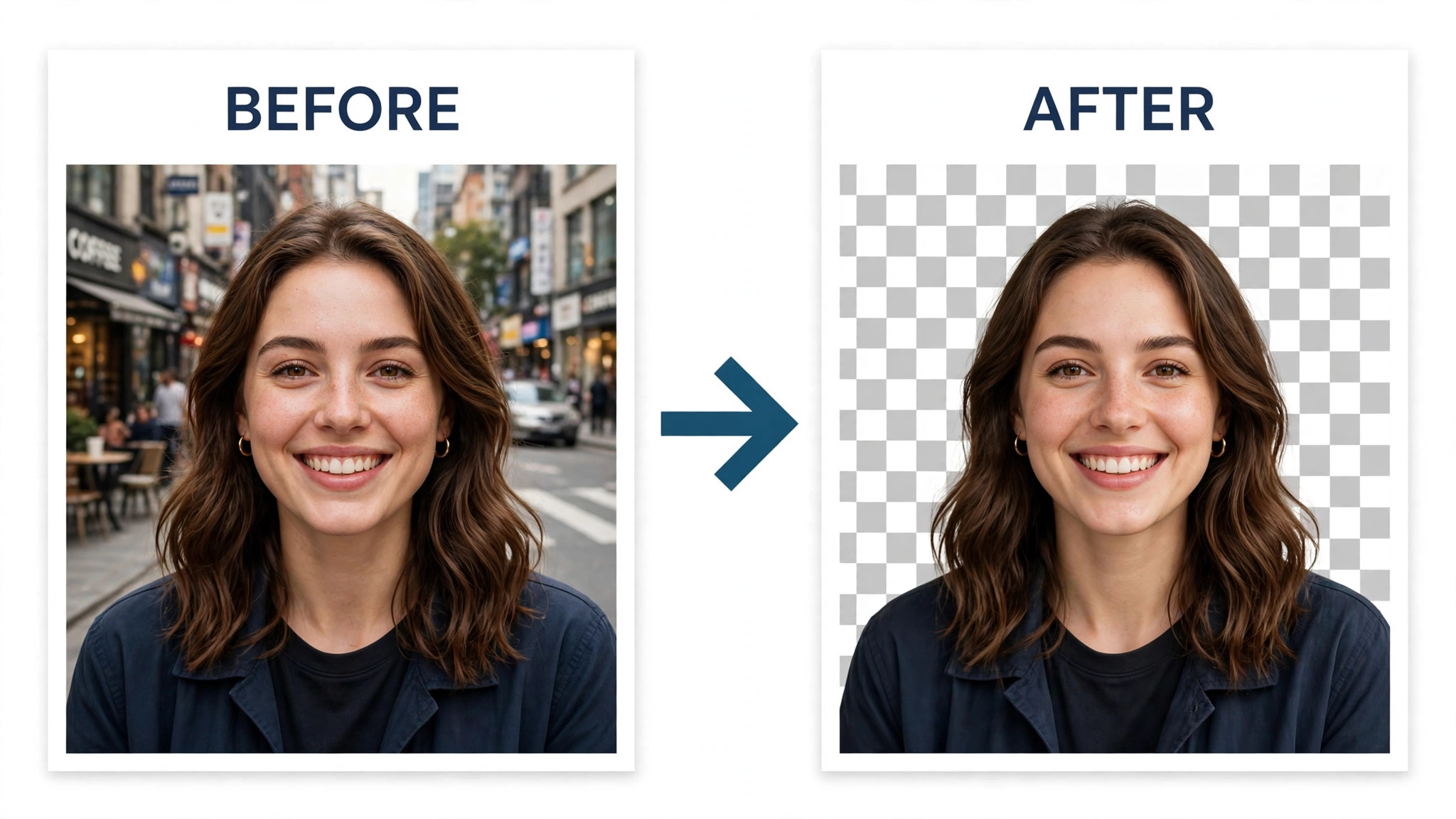
A background remover is a small piece of software that guesses which pixels belong to your subject and which belong to everything else, then turns the rest transparent. When it works, the whole job takes seconds. When it fails, it usually fails in one of four ways. The button does nothing at all. The tool starts and then stops with an error. The tool finishes but the cutout is wrong, with missing hair, vanished glasses or a chunk of the subject gone. Or the cutout looks fine on screen but the downloaded file has a white or black background instead of transparency. Each of these points at a different cause, and treating the wrong one wastes time.
The tool you are using matters more than most guides admit. In Canva, background removal inside the editor needs an eligible paid plan, while the standalone background remover on the Canva site offers limited free access with different rules. In Adobe Express, the feature has moved around between the web app and the standalone remover, and recent app updates have broken it for some users until the cache is cleared. Free browser tools such as remove.bg work without an account but cap free downloads at low resolution.
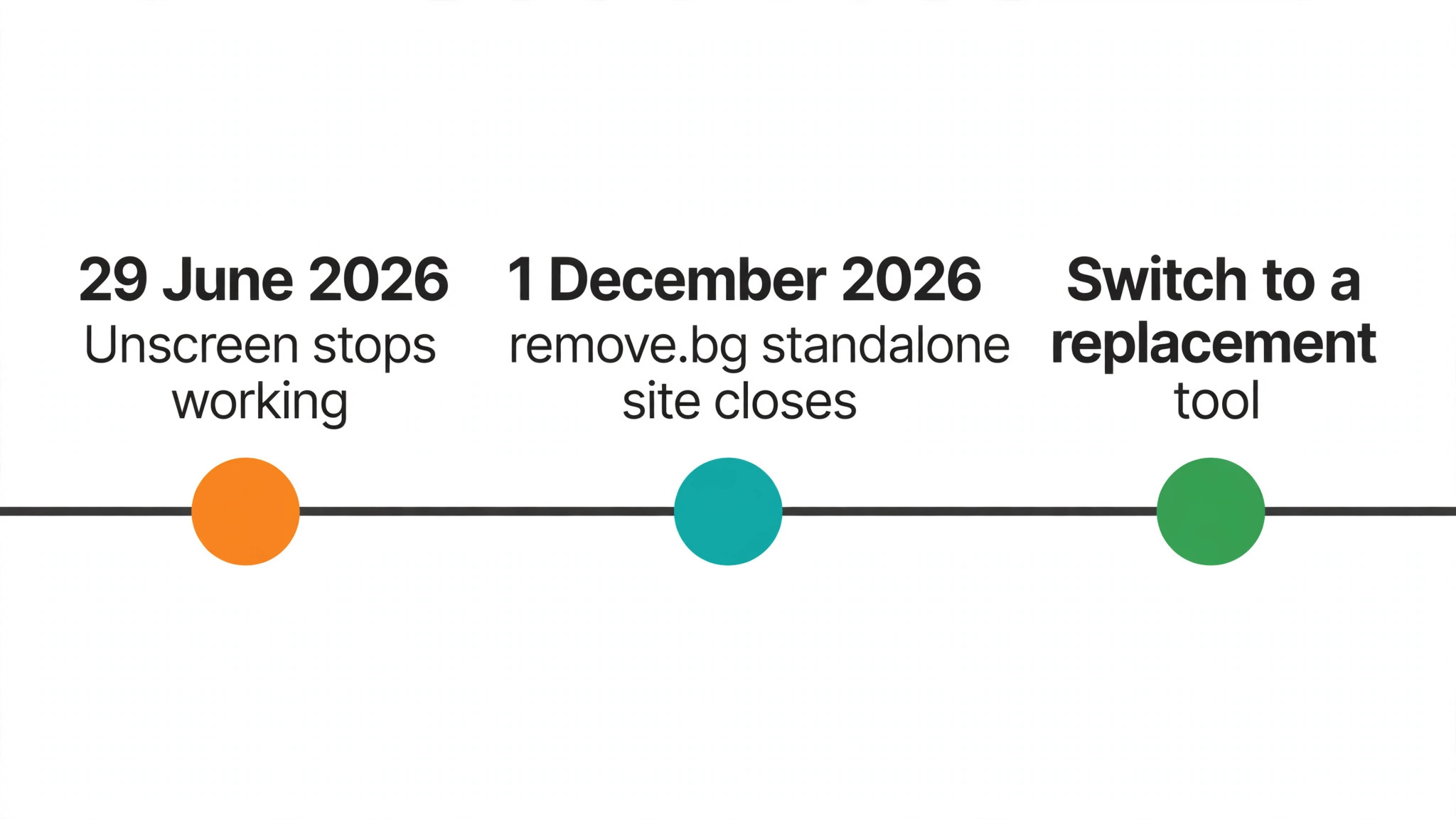
Remove.bg has announced that its standalone site closes on 1 December 2026, so a workflow built on it needs a replacement soon. Unscreen, another long standing free option, stopped working on 29 June 2026 and its feature moved into Canva paid plans. If your remover worked last month and stopped this month, a plan change, an app update or a shutdown is a more likely cause than anything wrong with your photo.
Before you change anything, save a copy of the original photo. Every fix below is safe, but re-uploading a compressed or edited version of an already damaged file only makes the diagnosis harder. Keep the original file untouched and work on copies.
Find Out Which Kind of Failure You Have
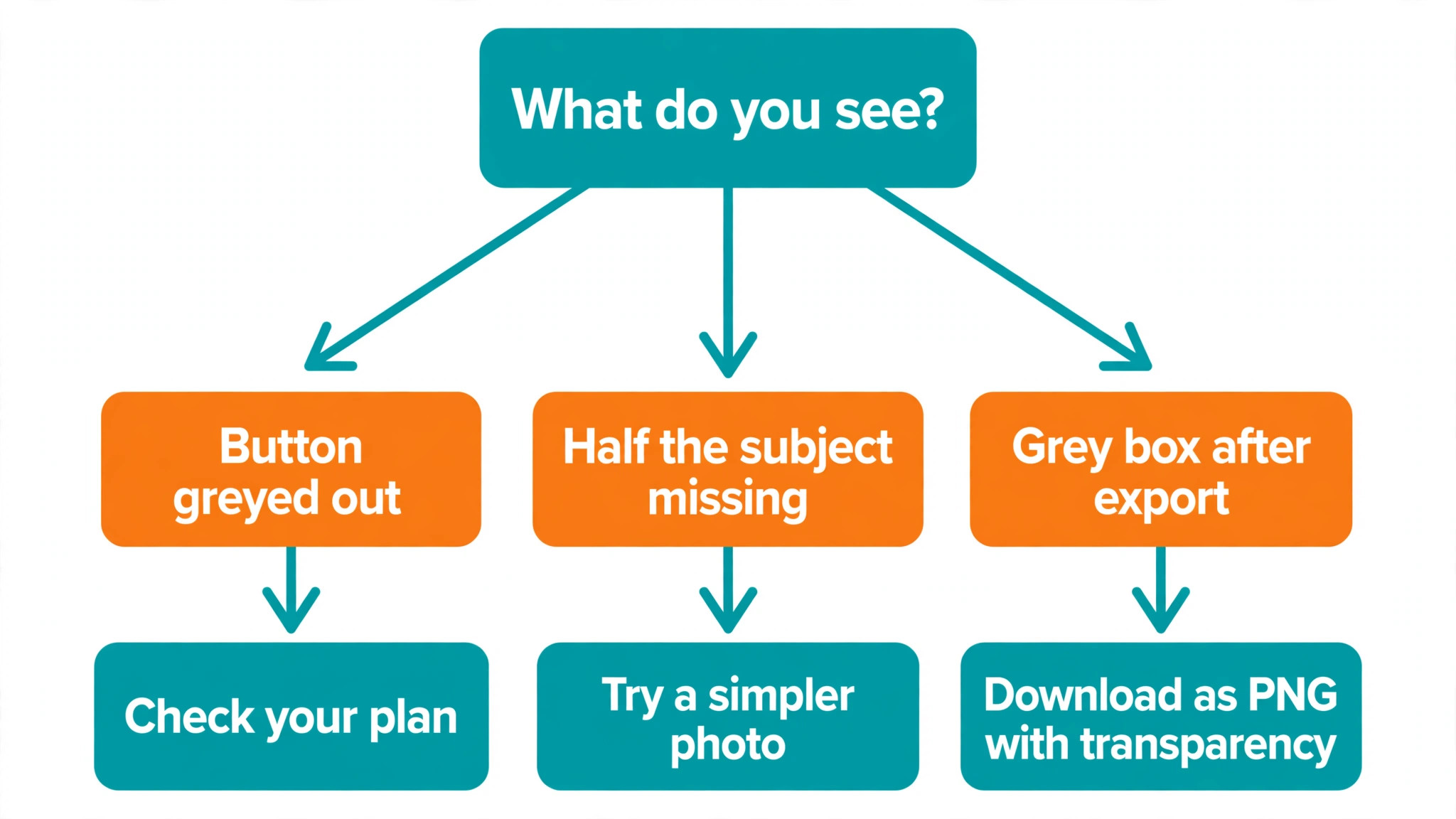
Spend two minutes on diagnosis before you start fixing. The table below maps what you see to the fix that solves it. Read across from your symptom, then jump straight to that fix. If your symptom is not listed, start at Fix 1 and work down in order, because the list is ordered from most common cause to least common.
| What you see | Most likely cause | Go to |
|---|---|---|
| The button is greyed out or missing | Your plan does not include the feature | Fix 1 |
| An error appears part way through | The file is too large or in an odd format | Fix 2 |
| The tool spins and never finishes | Your connection dropped or the service is down | Fix 3 |
| The same photo fails everywhere | The photo itself is the problem | Fix 5 |
| The cutout is missing hair or edges | The automatic mask needs manual repair | Fix 6 |
| The download has a white background | The export settings are wrong | Fix 7 |
| It fails in one app but works in another | A broken app install or cache | Fix 4 or Fix 9 |
Three quick checks narrow the problem down further, and each one takes less than a minute.
- Try the same photo in a different remover, such as the free Adobe Express remover or the subject lift feature on an iPhone. If it works there, your photo is fine and the problem sits in the first tool.
- Try a different photo in the tool that failed. Pick a simple one, a single person against a plain wall in good light. If that works, the first photo is the problem, not the tool.
- Try the same tool on a different network or device. If it works on mobile data but not on office wifi, the network or the browser is the cause.
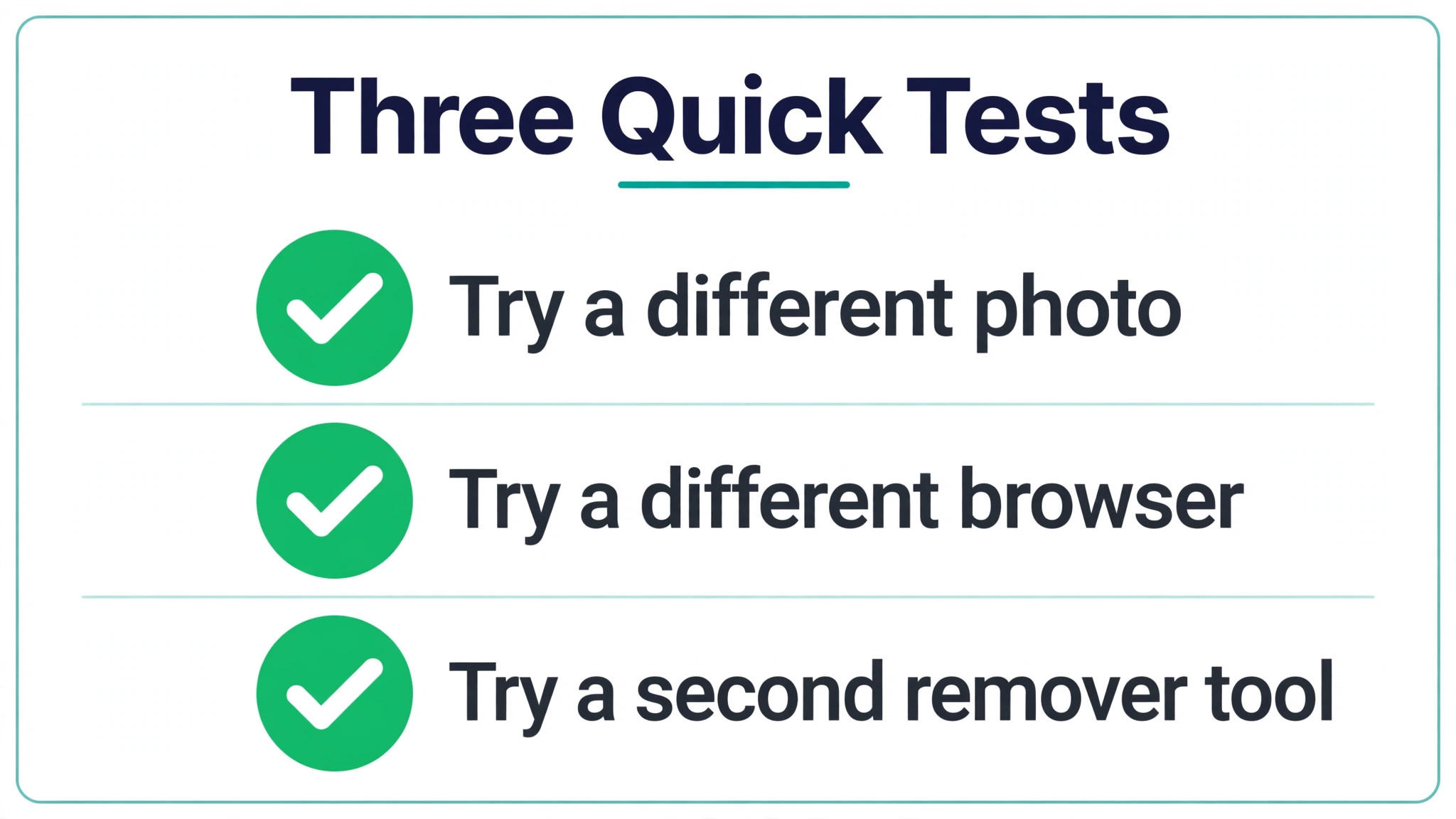
Write down what each test does. Guessing from memory after four tests is how people end up fixing the same thing twice. These three tests tell you whether the fault is in the plan, the file, the photo, the app or the network, and the nine fixes below are grouped the same way.
The 9 Fixes in Order
Work through these in order. The first three solve most cases. Fixes 4 to 7 handle the stubborn ones. Fix 8 is the fallback when the tool itself is the problem, and Fix 9 is the last resort before contacting support. Each fix explains what to do, how to tell if it worked, and what to try next if it did not.
Fix 1. Check Whether Your Plan Still Includes Background Removal
The most common reason a background remover stops working is that the feature is no longer on your plan. This catches people after a trial ends, after a team admin changes seats, or after a vendor moves a feature between tiers. In Canva, background removal in the editor needs an eligible plan, and the list of eligible plans has changed over time. If you are on a free plan, the button may be visible but greyed out, or it may be missing entirely. The standalone Canva background remover offers limited free downloads, but it is a separate tool with separate limits, and it does not unlock the editor feature.
Open your account settings and confirm three things. First, the plan name on your account right now, not the plan you remember buying. Second, whether the plan is active or has lapsed, expired or failed to renew because a card expired. Third, whether you are signed in to the right workspace, because a team workspace and a personal workspace can sit on different plans under the same email address. Canva users should also check whether they are in a Canva Docs file, because transparent downloads are not available there even on paid plans.

If the plan is the problem, upgrade to a plan that includes the feature, or use a free remover for this job and keep your current plan. A paywalled feature does not fail at random. It fails every time, for everyone on that plan, so keep clicking the button will not change anything.
Fix 2. Shrink the Photo and Change the File Type
File size and format cause more failures than any other technical reason. Canva asks for photos smaller than 9 MB, and it downscales images above 10 megapixels after removal, so a huge file can fail outright or come back soft. Many free tools have lower limits that they do not show until the upload fails. A photo straight from a modern phone can be 12 MB or more, and a TIFF or HEIC file from a camera or an iPhone may not be accepted at all, even when the file opens fine in other apps.
Start by checking the file. On a computer, right click the file and look at its size and type. If it is over 9 MB, export a smaller copy. If it is a HEIC, TIFF or WebP file, convert it to JPG or PNG first. JPG is the safer choice for photos, because every remover accepts it. PNG is the better choice if the image has text or sharp lines, because JPG compression can blur edges that the tool needs to read. Avoid uploading a screenshot of a photo, because screenshots carry compression marks and odd edges that confuse the model.
When you shrink the file, keep the longest side above 1,000 pixels if you can. A tiny thumbnail gives the tool too little detail to find hair and edges. A good target is a JPG around 2 to 4 MB, which passes most size limits and still holds enough detail for a clean edge. If the same photo now works, the file was the problem all along.
Fix 3. Fix the Connection and Check the Service Status
Background removal runs on a remote server for almost every web tool, which means a weak connection can break it in ways that look like a tool failure. The upload stalls, the progress bar freezes, or the tool returns a vague error after a long wait. Offline editing does not include background removal in Canva, so a laptop that lost wifi will show the feature as unavailable rather than giving a clear message about the network.
First, confirm the connection is actually working by loading a fresh page in the same browser. If pages load slowly, switch networks. Move from office wifi to mobile data, or move closer to the router, and close other apps that are uploading or streaming. Browser tabs with large uploads running in the background are a common hidden cause. Then check the vendor status page for an outage. Search for the vendor name plus the words status page, and look for an incident on the day you are working. If the service is down, no fix on your side will help, and the only sensible move is to wait or use a different tool from Fix 8.
If the connection is fine and the service is up, try again with a fresh tab and a smaller file. A retry after a failed upload sometimes works because the first attempt timed out halfway, not because the tool was broken. Give it one retry, not ten. If two attempts fail in the same way, the cause is somewhere else.
Fix 4. Clear the Cache, Update the App and Try Another Browser
A stale cache or an old app version is the classic cause of a feature that worked yesterday and broke today. Adobe Express users have reported exactly this pattern after app updates, with the remove background button throwing an error until the cache is cleared. The same failure shows up in browsers, where an old cached copy of the editor loads alongside new code and the two disagree. Clearing the cache is safe and quick, and it is the first thing support will ask you to do, so doing it now saves a round of messages later.
In a browser, clear the cache and cookies for the tool site, choosing all time rather than the last hour, because the bad file may be older than you think. Then close the browser completely and reopen it, and sign in again. If the problem stays, try a different browser. Chrome, Edge and Firefox all handle the same editor slightly differently, and a failure that appears in one often disappears in another. Also try an incognito or private window, which loads with no extensions. Ad blockers and privacy extensions have been known to block the upload request that background removal depends on, and an incognito test will show that in seconds.
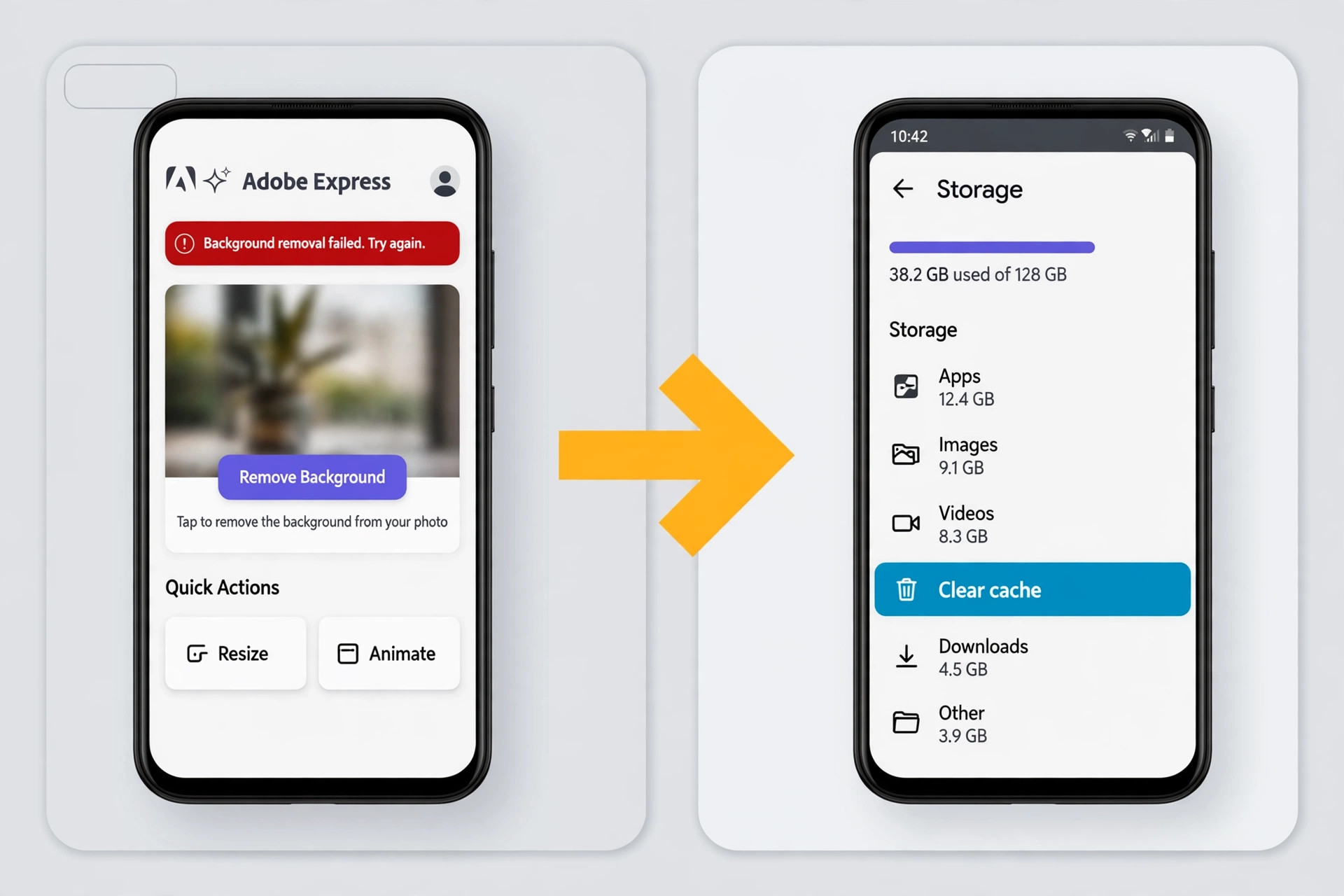
On a phone or tablet, the steps are similar but the menu names differ. On Android, open Settings, then Apps, then Adobe Express or Canva, then Storage, and tap Clear Cache. Do not tap Clear Data at this stage, because that signs you out and wipes saved settings. Force stop the app, reopen it and try again. On iPhone, there is no per app cache button, so the equivalent step is to delete the app and reinstall it from the App Store, which is covered in Fix 9. Check for an app update first, because vendors often ship a fix within days of a bad release, and an update sitting uninstalled is the simplest explanation of all.
Fix 5. Give the Tool a Photo It Can Read
Some photos are simply hard for a background remover to read, and no amount of retrying will change that. The model looks for contrast between the subject and the background, clear edges, and good light. A photo of a person in a white shirt against a white wall, a pet with dark fur in a dark room, or a product shot with a busy patterned background gives it very little to work with. Low light adds noise, and heavy filters add colour shifts that blur the line between subject and background.
Look at your photo with fresh eyes before you blame the tool. Is the subject clearly separated from the background by light or colour. Is the edge of the subject sharp, or is it blurred by motion or a shallow depth of field. If any answer is no, brighten the photo slightly, raise the contrast a touch, and crop out distracting objects at the edges. Do not overdo it. Heavy editing creates new artefacts, and the goal is a clean, natural photo.
If you cannot reshoot, try a different crop. A tighter crop that removes a confusing background area often succeeds where the full photo failed, because the model has less to guess about. For product photos, a plain white or light grey background behind the product makes the next attempt far easier, and it is worth the two minutes to reshoot on a sheet of paper if the listing matters. For portraits, ask the subject to step away from the wall so the background falls slightly out of focus. That small gap is often the difference between a clean cutout and a mess.
Fix 6. Repair the Cutout With the Restore and Erase Brushes
A cutout that is mostly right but missing a few details does not mean the tool failed. It means the automatic mask needs a minute of manual repair, and every serious remover ships brushes for exactly this job. The two brushes work in opposite directions. The restore brush paints missing parts of the subject back in, and the erase brush removes background that the tool left behind. Hair, fur, glasses, veils and anything semi transparent such as a glass bottle are the usual casualties, because the model struggles to tell fine strands and clear objects apart from the background.
Zoom in to 100 percent before you start, because repairs made at a small zoom level look fine on screen and terrible in print. Work along the edge of the subject in short strokes, and check your work against a dark background and then a light one, because a white fringe that is invisible on white will jump out on black. If the edge has a light halo, shrink the mask by one or two pixels if the tool offers that control, or pick a background of similar brightness so the fringe blends in.
For hair, use a soft brush at low strength and build the repair up slowly. One hard stroke creates a solid block that looks worse than the gap.
When the background remover is not working well on hair or fur in one tool, a different tool may handle that photo better, because each vendor trains its model on different data. That is a real difference, not a sales claim, and it is worth one test in a second tool before you spend twenty minutes brushing.
Fix 7. Check the Export Settings Before You Blame the Tool
The most misunderstood failure in this whole category is not a removal failure at all. The cutout is perfect on screen, and then the downloaded file has a white background. The cause is the export settings, and it catches experienced users because the default download format hides the problem. A JPG file cannot hold transparency. The empty area around the subject becomes white, or whatever colour the tool picks, the moment you save as JPG. Only PNG and WebP preserve a transparent background.
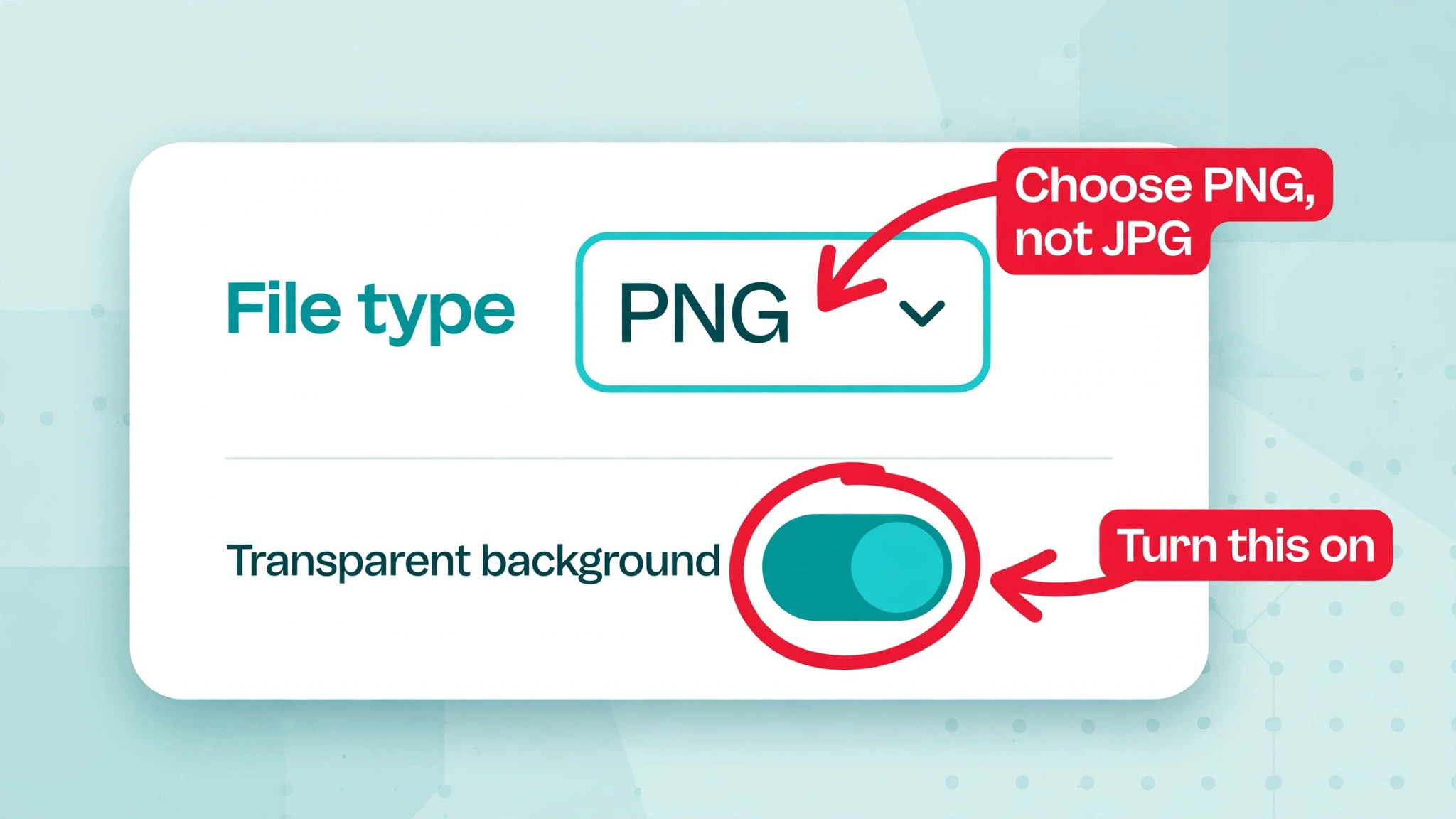
In Canva, the fix is in the download panel. Select Share, then Download, choose PNG or WebP, and turn on the Transparent background option. That option appears on eligible paid plans, and it is not available for Canva Docs files. If you do not see it, your plan is the limit, and no other setting will work around it. In Adobe Express and most free tools, look for a transparency toggle or a PNG download option on the export screen, and check the file after downloading by opening it in an app that shows transparency as a checkerboard pattern. A file that looks right in the browser preview can still be wrong on disk.
Also check the download size and quality settings. Some tools default to a small preview size on the free tier, and a 600 by 400 pixel image will look blurry in a presentation even when the cutout is perfect. That is the remove.bg free tier limit in practice, roughly a quarter of a megapixel, and it is fine for a profile picture but too small for print or a large slide.
If the file you downloaded is far smaller than the file you uploaded, you are looking at a free tier limit, not a bug. Download the PNG at the highest size your plan allows, and confirm the transparency in a fresh app before you send the file to a client or a printer.
Fix 8. Try a Different Remover Before You Pay for Anything
When one tool keeps failing on a photo that other tools handle easily, the tool is the problem, and switching is faster than troubleshooting. A background remover not working in one app is often a sign of a bad update, a server problem on that vendor side, or a model that handles your kind of photo poorly. Testing a second tool takes two minutes and settles the question. If the second tool works, use it for this job and come back to the first one later.
Good fallbacks exist on every device. Adobe Express offers a free remover that now points toward Adobe Firefly, and it works with a free Adobe account without a watermark on the cutout in most cases. Pixian and EXPERTE run in the browser without an account and return a clean PNG for a one off job.
On an iPhone, open the photo, press and hold the subject until a glowing outline appears, then tap Copy or Share to lift the subject out without any app at all. On Windows 11, open the image in Paint and click Remove background, which runs on the device and uploads nothing, a useful option for private photos. Photoshop users can also try Select Subject followed by Select and Mask, which gives more control than any one click tool.
Be careful about building a new workflow on a tool that is about to disappear. Remove.bg has announced that its standalone site closes on 1 December 2026, so anyone who relies on it should move their routine to another tool before that date. Unscreen already closed on 29 June 2026. Pick a fallback that has a clear owner and a paid plan behind it, even if you stay on the free tier.
Fix 9. Reinstall the App and Ask Support With the Right Details
If every fix above has failed, the install itself may be damaged. This is most common on mobile, where an interrupted update can leave background services in a broken state. On Android, force stop the app, clear the cache as described in Fix 4, and if that does not work, uninstall and reinstall from the Play Store. On iPhone, delete the app and reinstall it from the App Store. On a computer, uninstall the desktop app and download a fresh copy from the vendor site rather than restoring from a backup. After reinstalling, sign in and try the same photo once before you change any settings, so you know whether the reinstall fixed it.
If the problem survives a reinstall, it is time to contact support, and the quality of your message decides how fast you get an answer. Include the tool name and version, the device and operating system, the exact error message word for word, and the size and format of the photo that fails. Attach the photo if the support form allows it, because the vendor can test the exact file.
Mention which fixes you already tried, in order, so support does not waste a day asking you to clear the cache again. A message that says the tool fails on every photo after a reinstall, with the error text included, gets a useful reply far faster than a message that says it does not work.
Support can also confirm whether your account has a restriction you cannot see, such as a usage limit, a regional rollout, or a feature that has not reached your account yet. Vendors roll features out in waves, and an account that is missing a feature is not broken, it is waiting. If support confirms the feature has not reached your region or plan, the honest answer is to use Fix 8 until the rollout arrives.
Best Pick by Job
A background remover not working feels the same whatever you are making, but the right fallback depends on the job. Use the table below to pick the fastest route once the first tool has failed.
| Job | Best fallback | Why it fits |
|---|---|---|
| A product listing that needs a clean PNG today | Adobe Express free remover | Free account, no watermark on the cutout in most cases, and a transparent PNG download |
| One quick cutout with no sign up | Pixian or EXPERTE in the browser | No account needed and a clean PNG for a one off job |
| A private photo you do not want uploaded | Windows 11 Paint or iPhone subject lift | Both run on the device, so the photo never leaves your hands |
| A portrait with tricky hair | Photoshop Select Subject plus Select and Mask | Manual edge control that one click tools cannot match |
| A full design that needs the cutout inside it | Canva or Adobe Express editor | The cutout stays editable inside the design instead of living as a separate file |
Mistakes That Make the Problem Worse
Three mistakes turn a small failure into a long afternoon. The first is retrying the same upload ten times in a row. A failed upload that fails twice in the same way will fail a third time, and the only thing repeated retries change is your patience. Run the three diagnosis tests instead, because they tell you where the fault sits. The second mistake is editing the damaged output instead of the original photo. Each save of a JPG adds compression marks, and a cutout repaired from a compressed copy will always look worse than one made from the original. Keep the original file safe and work on copies.
The third mistake is the most expensive, and it is building a business workflow on a free tool without a backup. A background remover not working on the morning of a product launch is a minor problem if you have a second tool ready, and a lost day if you do not. Free tools close, move features behind paywalls, and change limits without notice. Keep two removers in your toolkit and keep the originals of every photo you process.
Frequently Asked Questions
Why is my background remover not working in Canva?
The most common cause is the plan. Background removal in the Canva editor needs an eligible paid plan, and the feature is not on the free plan. Check that your plan is active, that you are signed in to the right workspace, and that the photo is smaller than 9 MB. If the plan is fine, clear the browser cache and try a different browser.
Why does the tool finish but the cutout looks wrong?
The automatic mask guessed wrong about an edge, usually around hair, fur, glasses or a semi transparent object. Use the restore brush to paint missing parts back in and the erase brush to remove leftover background. Zoom to 100 percent first, and check the edge against both a dark and a light background, because a white fringe hides on white.
Why does my downloaded image have a white background?
You probably downloaded a JPG, which cannot hold transparency. Download a PNG or WebP instead, and turn on the Transparent background option in the download panel. In Canva that option sits on eligible paid plans and is not available for Canva Docs files. Open the downloaded file in an app that shows transparency as a checkerboard to confirm it worked.
Can I remove a background for free without signing up?
Yes. Pixian and EXPERTE run in the browser without an account, and both return a PNG. On an iPhone, press and hold the subject in the Photos app to lift it out. On Windows 11, Paint has a built in remove background button that runs on the device. Free tiers often cap the download size, so check the resolution before you use the file for print.
Why does background removal fail on one photo but work on another?
The failing photo is harder for the model to read. Low contrast between the subject and the background, poor light, motion blur and busy patterns all cause failures. Brighten the photo slightly, raise the contrast a touch, crop out distracting objects at the edges, and try again. A tighter crop often succeeds where the full photo failed.
Is remove.bg shutting down?
Remove.bg has announced that its standalone site closes on 1 December 2026. The company behind it continues to offer background removal through other products and integrations, but anyone who uses the standalone site should move their routine to another tool before that date. Keep a second remover ready so the change does not block your work.
What should I tell support if nothing works?
Send the tool name and version, the device and operating system, the exact error message, and the size and format of the photo that fails. Attach the photo if the form allows it, and list the fixes you already tried in order. That detail lets support test the exact file instead of asking you to clear the cache again.
The Fix That Works Most Often
A background remover not working is rarely a mystery once you test properly. Check the plan, shrink the file, and check the connection, in that order, and most cases are solved inside five minutes. The rest are usually a photo the model cannot read, an export setting that hides the transparency, or an app that needs a reinstall. Keep a second remover ready, keep your originals safe, and you will never lose a deadline to this problem again.