The app the store needs does not exist on BigCommerce, and the theme the owner wants is a Shopify theme. The store sells well, the products are listed, and the platform is not the problem, but the ecosystem is. That is the moment most store owners start asking how to switch from BigCommerce to Shopify, and it is a fair question.
BigCommerce is a strong ecommerce platform with no transaction fees on its own gateway, built-in features that Shopify sells as apps, and a price that matches Shopify tier for tier. Shopify is a broader ecosystem with a larger app store, more themes, and a checkout that customers already know. A store on BigCommerce Standard pays 29 dollars a month. The same store on Shopify Basic pays 29 dollars a month, and gets the app store, the theme store, and the checkout that converts best for most small stores.
The switch is not about which tool is better in general. It is about which price and which ecosystem match the way the store actually sells. BigCommerce charges per tier and includes more features out of the box. Shopify charges per tier too, but at 29 dollars a month for Basic, and puts the app store, the theme store, and the point of sale on that plan. For a store that needs a specific app or a specific theme, the gap is real. For a store that sells well on BigCommerce and uses its built-in features, Shopify can feel like paying for apps that used to be free, and this guide says so plainly.
This guide walks through how to switch from BigCommerce to Shopify in seven steps, with a checklist, a cost comparison, and a clear account of what transfers, what does not, and what to test before cancelling BigCommerce. Follow the steps in order, run both tools side by side for two weeks, and the move will be boring in the best way. Skip the steps, cancel early, and products, orders, redirects, and customer passwords can vanish without a trace.
The Price Gap That Starts the Conversation
Cost is the reason most stores look, even though the gap is not a simple saving, because the two platforms charge the same headline prices. BigCommerce Standard costs 29 dollars a month, with no transaction fees on its own gateway and a 50,000 dollar annual sales limit. Plus costs 79 dollars a month, with a 180,000 dollar annual sales limit and customer groups. Pro costs 299 dollars a month, with a 400,000 dollar annual sales limit and Google customer reviews. Enterprise is quoted by sales.
Shopify Basic costs 29 dollars a month, with a 2.9 percent plus 30 cents card rate on Shopify Payments, and 2 percent on third-party gateways. Grow costs 79 dollars a month, with a 2.7 percent plus 30 cents card rate, and 1 percent on third-party gateways. Advanced costs 299 dollars a month, with a 2.5 percent plus 30 cents card rate, and 0.6 percent on third-party gateways. The card rate is the real difference, because BigCommerce charges no extra transaction fee on its own gateway, while Shopify charges a percentage on third-party gateways.
A store on BigCommerce Standard at 29 dollars a month pays the same subscription as a store on Shopify Basic at 29 dollars a month, so the saving does not appear at the entry tier. It appears when the store needs an app, because BigCommerce includes features that Shopify sells as apps, and the app bill can add 50 to 200 dollars a month to the Shopify total. A store that needs three paid apps will find BigCommerce cheaper, and a store that needs one specific app that only exists on Shopify will find Shopify cheaper, because the app is the reason for the move.
A store with 100,000 dollars in annual sales sits inside the BigCommerce Standard limit of 50,000 dollars only if it is under the limit, and a store that passes 50,000 dollars must move to Plus at 79 dollars a month, while the same store on Shopify Basic pays 29 dollars with no sales limit. The sales limit is the hidden price gap, and a growing store will hit it. Count the annual sales before deciding, and the math will make the choice.
BigCommerce vs Shopify at a Glance
| Feature | BigCommerce | Shopify |
|---|---|---|
| Pricing model | Per tier, with annual sales limits | Per tier, no sales limit |
| Entry plan | Standard 29 dollars a month | Basic 29 dollars a month |
| Mid plan | Plus 79 dollars a month | Grow 79 dollars a month |
| Full plan | Pro 299 dollars a month | Advanced 299 dollars a month |
| Transaction fees | None on own gateway | 2 percent Basic, 1 percent Grow, 0.6 percent Advanced on third-party gateways |
| Card rate | Varies by gateway | 2.9 percent plus 30 cents Basic on Shopify Payments |
| App store | Smaller, hundreds of apps | Larger, thousands of apps |
| Themes | Fewer, clean designs | More, with a large theme store |
| Built-in features | More included, fewer apps needed | Fewer included, more apps needed |
| Checkout | Customizable, solid conversion | Familiar, high conversion |
| Point of sale | Available, add-on | Included, with hardware |
| Support | 24 hour chat, phone, email | 24 hour chat, email, help centre |
Shopify bundles more ecosystem into each tier, and that bundling is the point of the switch. Thousands of apps, hundreds of themes, and a checkout that customers already trust all live in the same login, so a store stops hunting for a feature that does not exist. BigCommerce stays stronger on built-in features, with more included and fewer apps needed, and that depth is worth real money to a store that uses those features every day. Check which side of that trade your store sits on before you move.
The Trade-Offs Nobody Mentions First
A switch guide that only lists the savings is not honest, so this section states the trade plainly. BigCommerce is a platform that includes more. Shopify is an ecosystem that sells more, and the difference shows in the daily work. A store that uses BigCommerce’s built-in customer groups, faceted search, and abandoned cart features will find Shopify thinner, with those features sold as apps that cost money every month. The first month on Shopify feels busier, even when the subscription is the same, and a store that hates app bills will feel that friction monthly.
A store that needs a specific app, a specific theme, or a specific integration that only exists on Shopify will not miss the built-in features, because the app store replaces them and adds more. The question is not which tool is better. The question is whether the store needs the ecosystem or the built-in features, and learning how to switch from BigCommerce to Shopify starts with answering that question honestly.
The app bill deserves a second look, because it decides the saving for stores that need many apps. A Shopify store with five paid apps at 20 dollars each pays 100 dollars a month on top of the 29 dollar subscription, which is more than the BigCommerce Plus plan that includes those features. A store with one paid app pays 20 dollars on top, which is still cheaper than moving up a tier. Count the apps before deciding, and the math will make the choice.
The sales limit also changes the bill. BigCommerce Standard caps at 50,000 dollars in annual sales, and a store that passes it must move to Plus at 79 dollars a month, even if it needs nothing else on Plus. Shopify has no sales limit on any plan, so a store that grows past 50,000 dollars pays nothing extra. A store that is growing fast will hit the BigCommerce limit within a year, and the move to Plus is a forced upgrade, not a choice. Check the annual sales before you move, because the limit is the real price gap.
How to Switch from BigCommerce to Shopify in 7 Steps
Step 1. Audit the BigCommerce store before touching anything
Open BigCommerce and list every product, every variant, every customer count, every order, every discount, every page, and every app. Export the product catalog as a CSV file, export the customers, and export the order history, and note the renewal date and the plan, because cancelling mid term can carry a fee. Pay special attention to customer passwords, gift cards, and store credit, because the importer does not move those cleanly. This audit takes an hour and prevents the most common switch failure, which is discovering a workflow only after it was deleted.
Step 2. Set up Shopify and map the structure
Create the Shopify store, choose the plan that matches the sales volume, and decide the structure before importing anything. BigCommerce categories become Shopify collections, and BigCommerce products become Shopify products, with variants carried over as options. Choose a theme now, because the theme decides the layout, and a theme chosen after the import means rebuilding the homepage twice. Do not import yet. A clean structure decided on paper saves a week of reorganizing later.
Step 3. Run the importer on one category first
Open Shopify, install the Store Importer app, choose BigCommerce, and connect the account. Import a single small category first, not the whole catalog. The importer brings across products, variants, images, descriptions, prices, and inventory, and asks you to map each BigCommerce field to a Shopify field. Check the imported category carefully, count the products against the BigCommerce original, open a few products to confirm images and prices survived, and fix the mapping before the big import. A pilot import that takes an afternoon prevents a catalog wide mess.
Step 4. Import the rest and rebuild what does not transfer
Once the pilot looks clean, import the remaining products, customers, and orders in batches, checking each one as it lands. Then rebuild what the importer leaves behind. Themes do not transfer, so rebuild the storefront on the new theme. Apps do not transfer, so install the Shopify equivalents and configure them. Customer passwords do not transfer, so invite customers to set a new password. Gift cards and store credit need a manual move, so list them and transfer the balances by hand. This is the largest single task in the switch, so budget a full afternoon for a normal store and do not promise a one hour migration.
Step 5. Move the team and set permissions
Invite the team to Shopify and set access levels. Remember that Shopify charges per plan, not per seat, so the team size does not change the bill, but the permissions still matter. Assign each person to the products and orders they manage, and run a short training session on the admin the team will actually use, because Shopify’s admin is cleaner than BigCommerce’s and a new user can miss features that sit in a different place. A teammate who cannot find their orders will fall back to BigCommerce, and the switch will stall.
Step 6. Run both tools side by side for two weeks
Work from Shopify for two weeks while BigCommerce stays open and the old orders finish. Watch the product counts daily, check that prices and inventory match, and confirm the checkout you rebuilt actually takes payment. Place a test order with a real card, check the confirmation email, and confirm the order appears in the admin. Set up the URL redirects now, because every old product link must point to the new product page, and a missing redirect loses the search ranking the old page earned. Fix the problems while BigCommerce is still available as a fallback, not after it is cancelled. Two quiet weeks of parallel running cost nothing and catch every problem early.
Step 7. Cancel BigCommerce and confirm the data is safe
Once two weeks of Shopify work look clean, export the final product, customer, and order data from BigCommerce, then cancel the subscription before the renewal date. Confirm the cancellation email arrives, and check that no auto renewal is set. Keep the BigCommerce export files for six months, because the importer does not move everything and the old exports are the only record of gift cards, store credit, and customer passwords. The switch is done when Shopify has run cleanly for two weeks and BigCommerce is cancelled without a surprise charge.
What Comes Across and What Stays Behind
The Shopify Store Importer moves the core catalog well. Products, variants, images, descriptions, prices, and inventory come across, and customers and orders come across too, with the order history attached to the right customer. For a normal catalog, that covers most of what a store needs to keep selling on day one.
What does not transfer is specific, and the team should name it before starting. Themes do not transfer, so rebuild the storefront on a Shopify theme. Apps do not transfer, so install the Shopify equivalents. Customer passwords do not transfer, so invite customers to set a new password on the first login. Gift cards and store credit do not transfer cleanly, so list the balances and move them by hand. URL redirects do not transfer, so build them in Shopify before the old store closes, or the search ranking will be lost.
It is a one time copy, not a live sync. BigCommerce stays as it was, and later changes in either tool do not sync back. Check the import report afterwards, because Shopify notes that some products can fail or duplicate. That is the full picture of how to switch from BigCommerce to Shopify without losing the products that matter.
The Go-Live Checklist
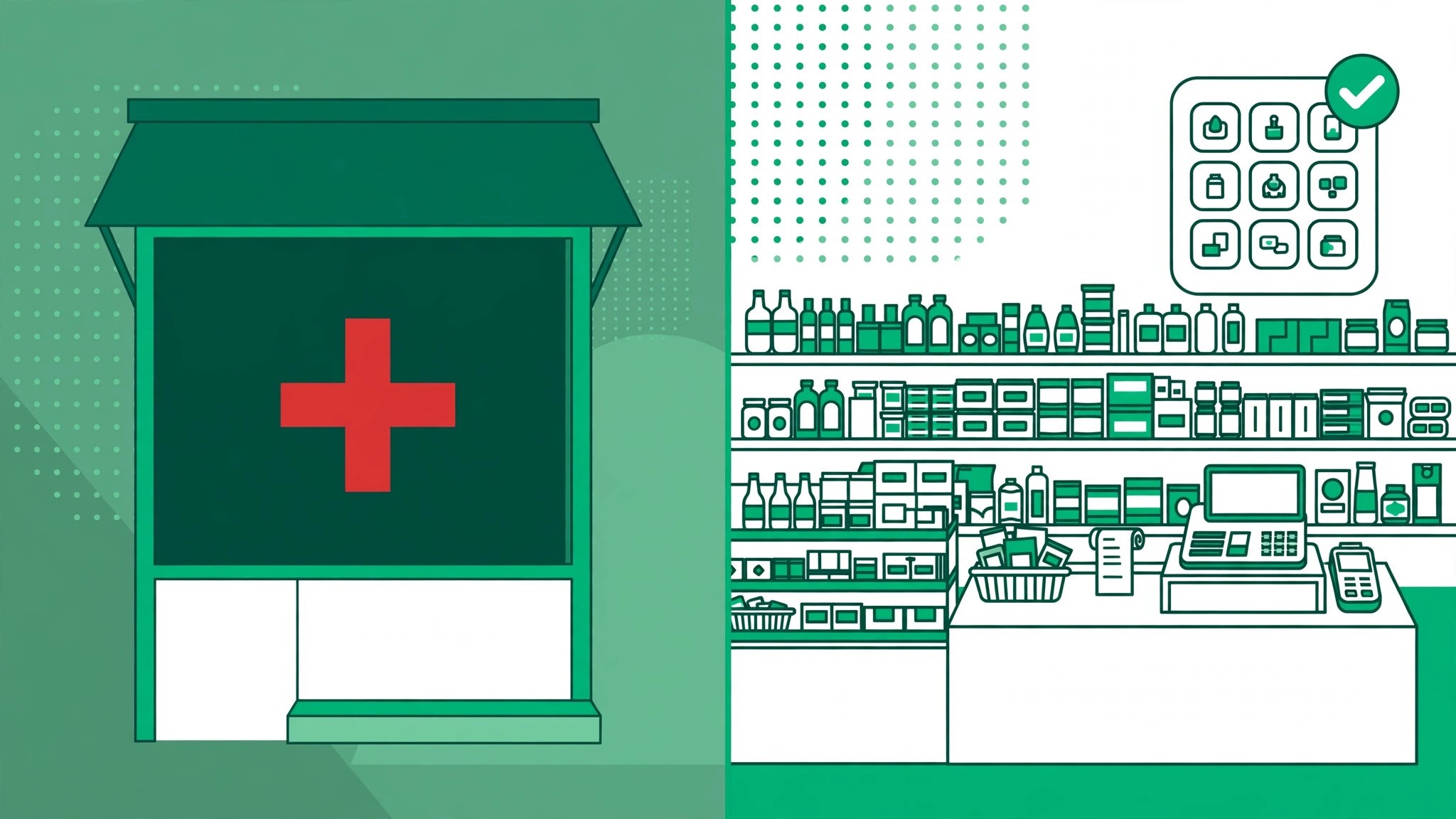
Use this checklist before starting step 1, and do not skip a line.
- List every BigCommerce product, variant, customer, order, and app. – Export products, customers, and orders as CSV files and save the files. – Note the BigCommerce renewal date and any contract term. – Flag themes, apps, customer passwords, gift cards, and store credit. – Choose the Shopify plan by sales volume and app needs. – Decide how BigCommerce categories map, to collections or tags.
- List the BigCommerce apps the team actually uses. – Count the annual sales, because BigCommerce caps Standard at 50,000 dollars. – Plan a replacement for any BigCommerce feature Shopify lacks. – Set a switch date in a quiet week, not during a launch. – Tell the team the switch date and the new workflow before step 1.
What the Switch Saves in Real Money
The saving depends on sales volume and app needs, because the two platforms charge the same subscription but different app and fee totals. A store on BigCommerce Standard at 29 dollars a month pays the same subscription as a store on Shopify Basic at 29 dollars a month, so at the entry tier the saving is zero. The saving appears when the store passes 50,000 dollars in annual sales, because BigCommerce forces a move to Plus at 79 dollars a month, while Shopify Basic stays at 29 dollars, a saving of about 50 dollars a month or 600 dollars a year.
A store on BigCommerce Plus at 79 dollars a month pays the same subscription as a store on Shopify Grow at 79 dollars a month, so the saving there is zero too, until the app bill is counted. A Shopify store with three paid apps at 20 dollars each pays 60 dollars a month on top of the subscription, while a BigCommerce store with the same features built in pays nothing extra. A store that needs many apps will find BigCommerce cheaper, and a store that needs one specific Shopify app will find Shopify cheaper, because the app is the reason for the move.
The card rate also changes the bill. A store on Shopify Payments pays 2.9 percent plus 30 cents on Basic, and a store on a third-party gateway pays 2 percent on top of the gateway fee. A store on BigCommerce pays no extra transaction fee on its own gateway. On 10,000 dollars of monthly sales, the Shopify third-party fee alone is 200 dollars a month, which wipes out any subscription saving. Use Shopify Payments if the store moves, because the gateway fee is the cost that decides the bill. For most small stores that use Shopify Payments and need the app store, the switch costs the same and buys a larger ecosystem.
Run the same math for your own store before you commit to how to switch from BigCommerce to Shopify, because the totals decide the plan.
Your First Two Weeks in Shopify
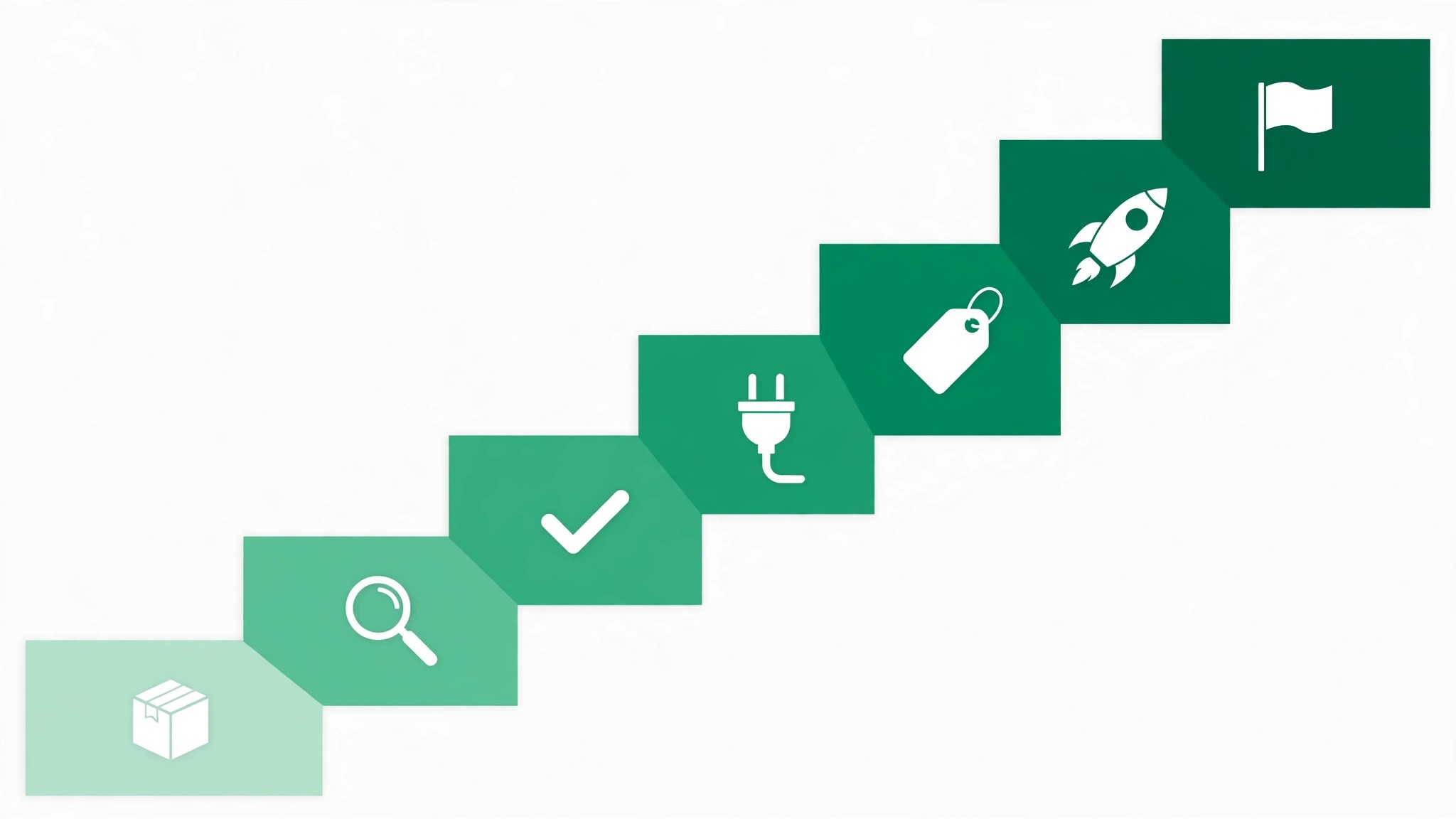
The parallel run only helps if the team tests the right things, so set the tests before the first Shopify order is taken. Create orders across every collection the team uses, including one with a discount, one with a gift card, and one with a refund, and confirm each one shows the right price and the right inventory. Then compare the Shopify product counts against the BigCommerce export from step 1, checking totals by category and by vendor. That test plan is the part of the switch that most teams skip, and it is the part that catches the problems while BigCommerce is still available as a fallback.
Test the checkout and the redirects next, because those are the workflows that break quietly. Place a test order and confirm it completes, open the old product links and confirm they redirect to the new pages, and have a second teammate confirm they see the same products. Also test a customer login, since passwords do not transfer and customers must set a new one. A test that covers orders, checkout, redirects, and logins in the first week leaves the second week for fixing what failed, which is exactly how a quiet switch is supposed to work.
Five Mistakes That Stall the Move
The first mistake is cancelling BigCommerce before the Shopify import is checked. A store that cancels on day one loses the themes, the apps, and the gift card balances in one move, and the rebuild takes days instead of hours. Keep BigCommerce until step 7, and the switch stays boring. The second mistake is importing the whole catalog at once without a pilot. A mapping error on variants repeats across every product, and fixing it after the fact costs more than the pilot ever did.
The third mistake is forgetting the URL redirects. A store that closes BigCommerce without redirects loses the search ranking every old product page earned, and the traffic drops overnight. Build the redirects before the old store closes, and test them. The fourth mistake is skipping the two week parallel run. A store that switches overnight discovers the checkout gaps during a live sale, when fixing them costs the most. Two quiet weeks of parallel running cost nothing and catch every problem early.
The fifth mistake is underestimating the manual rebuild. Themes, apps, and gift cards do not transfer, and a store that budgets an hour for the rebuild will run out of time. Budget an afternoon, rebuild the homepage first, and leave the long tail of old apps behind. The switch is a good time to clean the store, not a reason to move every old app into the new tool.
Life After the Switch
The first month after the move is when the saving becomes real, and it is also when the new habits form. Set a weekly review in Shopify, one hour where the team checks orders, clears the inbox, and updates the collections, because a store with more apps needs a steadier rhythm than BigCommerce did. Tune the rebuilt theme after two weeks, not on day one, because the first fortnight shows which pages customers actually open and which never load. The work of learning how to switch from BigCommerce to Shopify does not end on cancel day. It ends when the team stops opening the old tool out of habit, and that usually takes a full month.
Revisit the plan choice after 90 days. A store that started on Basic may find it needs Grow for the lower card rate, and a store that started on Grow may find it can drop back to Basic if the extra features were never used. Count the apps again too, because Shopify bills per app, and an app that was never opened should come off the plan. The switch saves money once. The habits save it every month after.
Frequently Asked Questions
How long does it take to switch from BigCommerce to Shopify?
Most small stores finish the switch in one to two weeks. The setup takes an afternoon, the pilot import and the manual rebuild take another afternoon, and the two week parallel run catches the problems while BigCommerce is still available. A store with many products or heavy customization should budget three weeks. Do not promise a one day switch, because the manual rebuild and the parallel run are what make the move safe.
Will I lose my products when I switch from BigCommerce to Shopify?
Products, variants, images, descriptions, prices, and inventory transfer through the Store Importer, so export the catalog first and run a pilot import on one category to confirm the mapping. Themes, apps, and customer passwords do not transfer, so flag them in the audit and rebuild them by hand. Keep BigCommerce running until the Shopify import is checked, and no product will be lost.
Is Shopify really cheaper than BigCommerce?
For most small stores, the subscription is the same, 29 dollars a month on the entry tier of both platforms, so the saving is not in the subscription. The saving appears when the store passes 50,000 dollars in annual sales, because BigCommerce forces a move to Plus at 79 dollars a month while Shopify Basic stays at 29 dollars. The cost appears when the store needs many paid apps, because BigCommerce includes features that Shopify sells as apps. Count the apps and the annual sales before deciding.
Does Shopify have the same features as BigCommerce?
Shopify has fewer built-in features and more apps, while BigCommerce has more built-in features and fewer apps. A store that uses customer groups, faceted search, and abandoned cart recovery will find those features on BigCommerce included, and on Shopify sold as apps. A store that needs a specific app that only exists on Shopify will find the ecosystem worth the trade. Pick the two or three features the store actually uses and compare those first.
Can I keep my BigCommerce customers when I switch?
Customers transfer through the importer, with names, emails, and order history attached, but passwords do not transfer. Invite customers to set a new password on their first login to the new store, and tell them in an email before the switch, so the password reset does not look like a phishing attempt. A customer who cannot log in will email support, and a short email before the move prevents most of those messages.
The Call
Switch to Shopify if the store needs an app or a theme that only exists on Shopify, if the store is passing 50,000 dollars in annual sales and facing a forced move to Plus, or if the store wants the larger app store and the familiar checkout in the same login. A store with growing sales will save about 50 dollars each month on the subscription, get the ecosystem that BigCommerce does not offer, and lose nothing it actually uses, as long as the audit flags the themes, the apps, and the gift cards first. For those stores, learning how to switch from BigCommerce to Shopify is worth an afternoon, and the saving repeats every month.
Stay on BigCommerce if the store uses its built-in features every day, if the store is under the 50,000 dollar sales limit and the subscription is the same, or if the store is mid sale and cannot afford a week of parallel running. A store that values included features over apps will feel Shopify as dearer, and a store with few app needs can find BigCommerce cheaper than Shopify once the app bill is counted. Stay also if the contract renewal is close and the store is mid launch. A switch during a launch costs more in chaos than it saves in subscription fees.
The decision rule is simple. Count the products, count the apps, list the features the store actually opens every week, and run the two totals with apps and card fees included. If Shopify covers the weekly workflow and costs less, switch in a quiet week and follow the seven steps. If BigCommerce covers a weekly workflow that Shopify cannot match, stay and renegotiate the BigCommerce plan instead. The right tool is the one that matches the work, not the one with the lower headline price.