The Notion workspace started as a docs hub, then the team added a task database, then a project tracker, then a CRM, and somewhere along the way the tool that was meant for notes became the tool that runs the work. That is when most small teams start asking how to switch from Notion to ClickUp, and the question is really about whether a docs tool should carry project work at all. Notion is a superb place to write, plan, and store knowledge, and its databases are flexible enough to pretend to be a project manager. ClickUp is built to manage projects, with assignees, dependencies, time tracking, and automations that Notion does not offer in the same depth.
The price comparison is closer than in most switches, which makes the decision about the work rather than the bill. Notion Plus costs 10 dollars per member per month on annual billing, or 12 dollars monthly, and Business costs 20 dollars per member per month annual, or 24 dollars monthly.
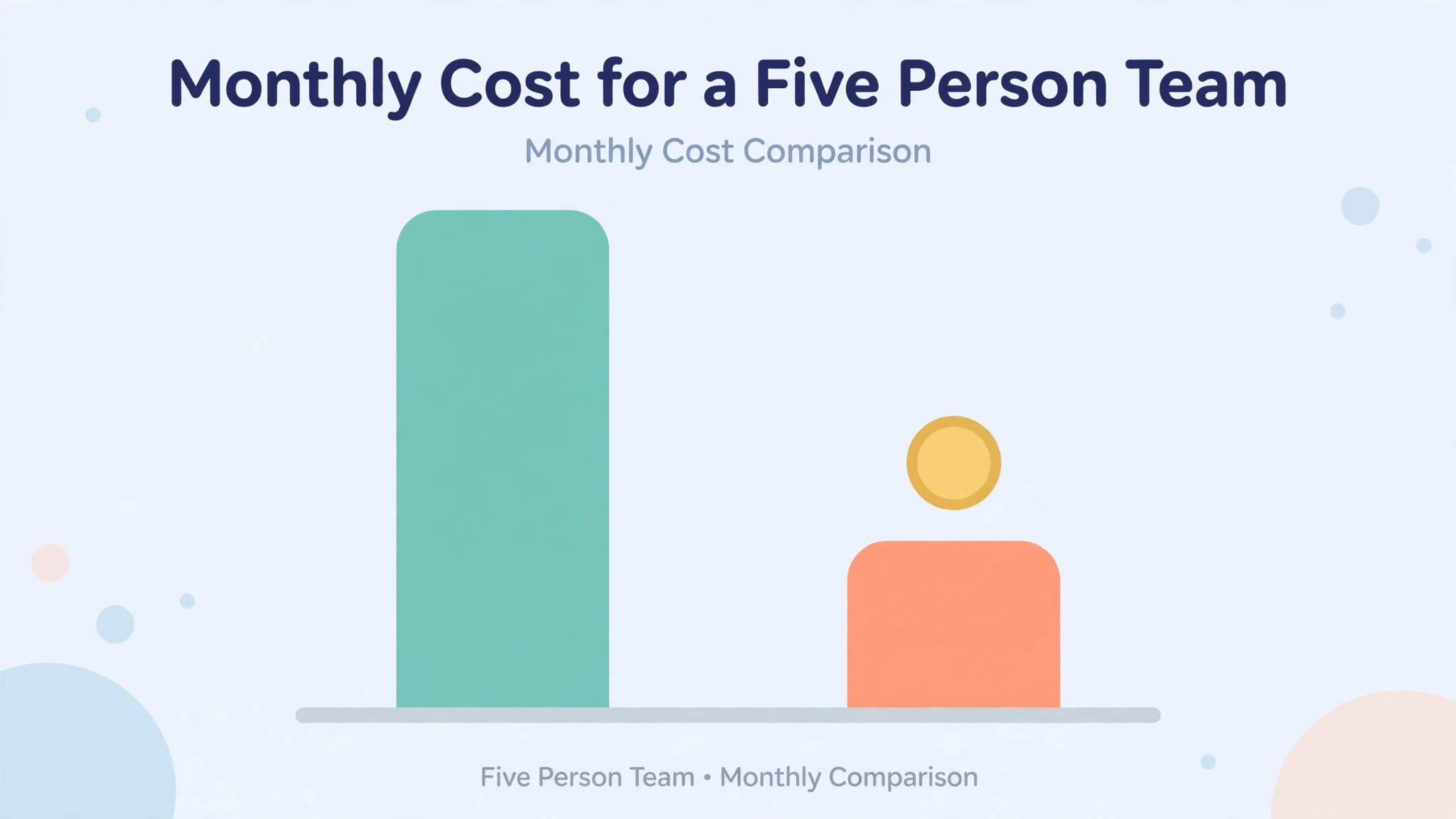
ClickUp Unlimited costs 7 dollars per user per month on annual billing, or 10 dollars monthly, and Business costs 12 dollars per user per month annual, or 19 dollars monthly. A five person team pays 50 dollars a month on Notion Plus against 35 dollars on ClickUp Unlimited, and 100 dollars on Notion Business against 60 dollars on ClickUp Business. The saving is real but modest, so the switch has to earn its keep on features, not on price alone.
This guide explains how to switch from Notion to ClickUp in seven steps, with the real prices on both sides, a mapping of Notion pages and databases to ClickUp structure, and a plain account of what transfers and what must be rebuilt.
ClickUp has a native Notion importer that moves pages as Docs and tasks, and databases move through CSV export, but relations, formulas, and rollups do not transfer, and the rebuild of those is the real work of the switch. Follow the steps in order, run both tools side by side for two weeks, and the move stays calm. Skip the steps, cancel early, and the team can lose its task history, its database logic, and its project structure in one move.
Why Teams Switch from Notion to ClickUp
Task management is the first reason, and the gap shows in daily work. Notion databases can track tasks, but they have no native dependencies, no workload view, no sprint planning, and no time tracking without workarounds. A team that manages projects in Notion ends up building those features by hand, with formulas, linked views, and manual updates that take time every week. ClickUp includes dependencies, workload management, sprint reporting, and time tracking on its Business plan at 12 dollars per user, and Gantt charts on Unlimited at 7 dollars. A team that spends an hour a week maintaining its Notion task system will save that hour on ClickUp, and the saving compounds across the team.
Automation is the second reason. Notion has basic automations, but they are limited compared with ClickUp, which offers more than 100 triggers and actions, 1,000 automation actions a month on Unlimited, and 5,000 on Business. A team that wants a task to move status, notify the owner, and set a due date when a condition changes will build that in minutes on ClickUp, while the same flow in Notion needs a workaround or a third party tool. The automation gap is the reason most teams finally move, because it is the feature they feel every day rather than once a quarter.
The third reason is the AI price. Notion retired its standalone AI add on in May 2025, and full Notion AI now lives on the Business plan at 20 dollars per member per month, which doubles the cost for a team that only wants AI.
ClickUp Brain AI is a separate add on at 9 dollars per user per month, on top of whichever plan the team holds, so a team on ClickUp Unlimited with Brain pays 16 dollars per user, against 20 dollars on Notion Business. Neither tool gives full AI away for free, and the comparison depends on whether the team actually uses AI every week, but a team that wants AI without doubling its seat price will find ClickUp the cheaper route.
The fourth reason is the free plan, which changes the risk of trying. Notion Free is unlimited for one person, but it caps at 1,000 blocks the moment a second member joins, which makes it a solo tool in practice. ClickUp Free Forever has no seat limit at all, with 100 MB of storage and unlimited tasks, so a whole team can try ClickUp together without paying.
A team that wants to test the switch can run ClickUp Free for two weeks with real work, and the test costs nothing. That low risk start is hard to match, and it is a good reason to try before committing to the move. A free trial that covers the whole team is the cheapest way to test how to switch from Notion to ClickUp before spending anything.
Notion vs ClickUp Side by Side
| Feature | Notion | ClickUp |
|---|---|---|
| Free plan | 1 person unlimited, 1,000 blocks with a second member | Free Forever, no seat limit, 100 MB storage |
| Entry paid plan | Plus 10 dollars per member a month annual | Unlimited 7 dollars per user a month annual |
| Mid plan | Business 20 dollars per member a month annual | Business 12 dollars per user a month annual |
| High plan | Enterprise custom priced | Enterprise custom priced |
| Task dependencies | No native dependencies | Yes, on all paid plans |
| Time tracking | No native time tracking | Yes, on Unlimited and above |
| Gantt charts | Timeline view in databases | Yes, on Unlimited and above |
| Automations | Basic, limited | 1,000 actions a month on Unlimited, 5,000 on Business |
| Full AI | Business only, 20 dollars per member | Brain AI add on, 9 dollars per user a month |
| Docs | Native, the core strength | ClickUp Docs included |
Notion is a docs and knowledge tool that can manage tasks, while ClickUp is a project tool that includes docs, and that difference runs through every row of the table. A team that writes more than it tracks should stay on Notion, and a team that tracks more than it writes should switch. The prices favor ClickUp at every tier, but the saving is modest, so the decision should rest on the daily work rather than the monthly bill.
Before You Switch. The Honest Comparison
A switch guide that only lists the savings is not honest, so this section states the trade plainly. Notion is the better writing tool, and its pages, databases, and linked views make it the best place on the market to store team knowledge. A team that keeps its handbook, its meeting notes, its research, and its long form docs in Notion will miss that depth on ClickUp, whose Docs are capable but not the reason anyone buys the tool. The honest move for many teams is to keep Notion for docs and use ClickUp for projects, rather than forcing one tool to do both jobs badly. Decide whether the team needs one tool or two before migrating everything.
Database logic is the second trade, and it is the most expensive part of this migration. Notion relations, formulas, and rollups do not transfer to ClickUp, and rebuilding them is the real work of the switch. A database with ten linked views and five formulas needs each one recreated as a ClickUp List, a custom field, or an automation, and some of the logic has no direct equivalent at all. A team with simple databases will barely notice the gap, while a team with a deeply linked Notion system should budget several days for the rebuild, and should consider keeping the complex databases in Notion while moving only the task work to ClickUp.
The third trade is the learning curve. Notion feels calm and simple, with pages that open like documents and databases that look like tables. ClickUp feels busy, with more settings, more views, and more ways to configure the same list. A team that values a quiet interface over a powerful one may prefer Notion even when ClickUp does more, and the first two weeks on ClickUp will feel slower than the last two weeks on Notion.
The team should expect that, and should not judge the new tool on its first day. Give it two weeks of real work before deciding whether the switch was worth it. That two week test is the honest way to judge how to switch from Notion to ClickUp, and it costs nothing but time.
How to Switch from Notion to ClickUp in 7 Steps
Step 1. Audit the Notion workspace and split docs from tasks
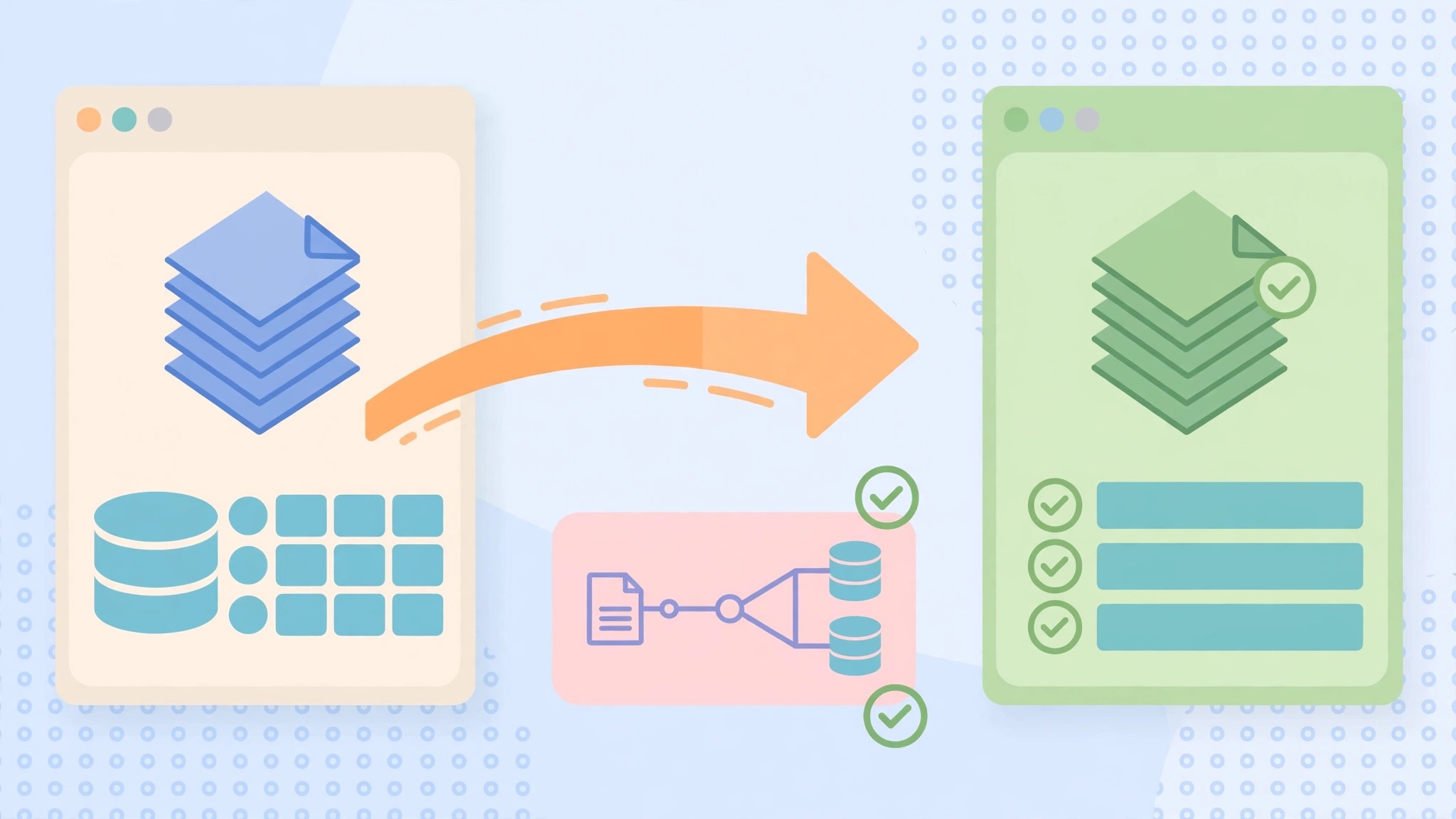
Open Notion and list every page, every database, every template, and every integration. Then split the workspace into two groups, which is the docs that should stay in Notion, and the task work that should move to ClickUp. The handbook, the meeting notes, the research, and the long form docs usually stay, while the project trackers, the task lists, and the sprint boards move. Export the pages that matter as Markdown or PDF as a backup, and export each database as a CSV. Note the renewal date and whether the account is on an annual plan, because cancelling early can forfeit prepaid months.
Step 2. Set up ClickUp and design the hierarchy first
Create the ClickUp workspace and design the hierarchy before importing anything, because a messy import is harder to fix than a planned one. Notion databases become ClickUp Lists, Notion pages become Docs or tasks depending on their purpose, and Notion properties become ClickUp custom fields. Choose the plan from the features the team needs. Unlimited at 7 dollars per user covers Gantt charts and 1,000 automation actions a month, while Business at 12 dollars adds workload management, goal folders, and 5,000 automation actions. Set up the Spaces, the Lists, and the custom statuses now, so the importer has somewhere clean to land.
Step 3. Run the native Notion importer on one database
Use the ClickUp native Notion importer, which moves pages as Docs and tasks, and aims at documents and knowledge bases. Import one database first as a pilot, and check the result carefully. Database rows arrive as tasks, properties arrive as custom fields where the types match, and page content arrives as a Doc or a task description. Check a sample of tasks for assignees, due dates, statuses, and custom fields, and confirm the hierarchy looks right. The pilot board is the cheapest place to discover a mapping problem, and a bad import caught on one database is far easier to fix than a bad import across ten.
Step 4. Import the remaining databases through CSV where needed
Import the remaining databases, using the native importer where it works and the CSV export where it does not. Notion databases export as CSV files, which feed the ClickUp spreadsheet importer, and that route is the fallback for databases the native importer handles badly. Map each column to its ClickUp custom field by hand, and check the types carefully, because a date column that lands as text will break every filter that uses it. Import in small batches, and validate each one against the Notion original before starting the next. A team that imports everything at once discovers the mapping problems after all ten databases are in, when fixing them means starting over.
Step 5. Rebuild the database logic, automations, and views
Rebuild every relation, formula, and rollup that mattered, using ClickUp custom fields, automations, and Dashboard cards. Some logic has no direct equivalent, and the team should decide whether to rebuild it, simplify it, or leave it in Notion. Rebuild the five automations the team actually relies on first, using ClickUp Automations, and let the rest wait until someone misses them. Recreate the views the team uses every week, including the board view, the calendar view, and the workload view, and drop the views nobody opens. This step is the largest single task in the switch, and it deserves several days, not an afternoon.
Step 6. Move the team and set permissions
Invite the team to ClickUp and set access levels, mapping each Notion member to their ClickUp user so assignees and history stay linked. Assign each person the Spaces and Lists they manage, and test the notification flow with a real task before the team relies on it. A teammate who cannot find their List or cannot update a task will fall back to Notion, and the switch will stall. Run a short training session on the first day, because ClickUp has more settings than Notion, and a team that guesses at the interface will blame the tool for a setup problem. Keep Notion open for docs during the transition, so the team never loses access to its knowledge base.
Step 7. Run both tools side by side for two weeks, then decide what stays
Work from ClickUp for two weeks while Notion stays open for docs and as a reference for the old databases. Watch the task updates daily, check that automations fire, and confirm the views show the right numbers. Compare a ClickUp List against its Notion database each week to spot any gap in statuses or dates. Once two weeks of clean work are in the books, decide what stays in Notion and what is archived, and cancel or downgrade the Notion plan before the renewal date if the team no longer needs it. Many teams keep Notion Free or Plus for docs and run projects in ClickUp, which is a better outcome than forcing one tool to do both jobs.
Pre Switch Checklist
Use this checklist before starting step 1, and do not skip a line.
– List every Notion page, database, template, and integration. – Split the workspace into docs that stay and task work that moves. – Export the pages as Markdown or PDF and each database as CSV. – Count the relations, formulas, and rollups in each database. – Note the Notion renewal date and any annual commitment. – Design the ClickUp hierarchy before importing anything. – Choose the ClickUp plan by automation volume, not by team size alone. – Confirm every Notion member is mapped to a ClickUp user. – Plan which databases stay in Notion and which move to ClickUp. – Tell the team the switch date and the new workflow before step 1.
Data Migration. What Transfers and What Does Not
Pages, database rows, properties, assignees, dates, and statuses transfer through the native Notion importer and the CSV route. Pages arrive as Docs or tasks, database rows arrive as tasks, and properties map to ClickUp custom fields where the types match. Notion databases export as CSV files, which feed the ClickUp spreadsheet importer as a fallback for databases the native importer handles badly. The content itself moves cleanly, and the team keeps its words, its dates, and its assignments.
Relations, formulas, rollups, and linked database views do not transfer, and rebuilding them is the real work of the switch. A relation between two databases has no direct equivalent in ClickUp, and a formula that calculates a value from other fields must be recreated as a custom field, an automation, or a manual process.
Notion AI does not transfer, and the team that relied on it will need ClickUp Brain or a Notion Business plan to keep it. Templates, database views, and page permissions do not transfer either, and each needs recreating by hand. The words move cleanly. The logic around them is rebuilt. That split is the heart of how to switch from Notion to ClickUp without losing the knowledge the team built.
Cost Comparison. What the Switch Actually Saves
The saving depends on team size and which Notion tier the team sits on, because the two tools price in the same range. A five person team on Notion Plus pays 50 dollars a month, against 35 dollars on ClickUp Unlimited, a saving of 15 dollars a month, or 180 dollars a year. A five person team on Notion Business pays 100 dollars a month, against 60 dollars on ClickUp Business, a saving of 40 dollars a month, or 480 dollars a year.
A ten person team on Notion Business pays 200 dollars a month, against 120 dollars on ClickUp Business, a saving of 80 dollars a month, or 960 dollars a year. Those figures use annual billing on both tools, and monthly billing widens the gap slightly, since Notion Plus costs 12 dollars monthly against 10 dollars for ClickUp Unlimited.
The AI price changes the picture for teams that use it every week. A five person team on Notion Business pays 100 dollars a month for full AI included, while the same team on ClickUp Business with Brain AI pays 60 dollars plus 45 dollars for the add on, which is 105 dollars a month, slightly more than Notion. A team that does not use AI pays 60 dollars on ClickUp Business and saves 40 dollars a month, while a team that uses AI heavily may pay the same or more.
Count the people, check whether the team actually uses AI every week, and run the two totals before deciding. For most small teams, the saving is modest, and the switch should be decided on features rather than price. Run the feature comparison first, and the decision on how to switch from Notion to ClickUp will make itself.
What to Test in the First Two Weeks on ClickUp
The parallel run only helps if the team tests the right things, so set the tests before the first ClickUp task is assigned. Create tasks across every List the team uses, including one with a dependency, one with a subtask, and one with a custom field, and confirm each one shows the right assignee, due date, and status. Then compare a ClickUp List against its Notion database, checking the task count, the status distribution, and the due dates line by line. That test plan is the part of how to switch from Notion to ClickUp that most teams skip, and it is the part that catches the problems while Notion is still available as a reference.
Test the automations and the views next, because those are the workflows that break quietly. Trigger an automation with a test task, confirm the right person gets the notification, and check that the task moves to the right status. Open the rebuilt board view and the calendar view, and compare them against the Notion views for the same week, checking the task counts and the dates. A test that covers tasks, automations, and views in the first week leaves the second week for fixing what failed, which is exactly how a quiet switch is supposed to work.
Common Switch Mistakes and How to Avoid Them
The first mistake is migrating everything instead of splitting docs from tasks. A team that moves its handbook, its meeting notes, and its research into ClickUp will find a project tool full of documents it was never built to hold, and the team will miss Notion within a week. Keep the docs in Notion, move the task work to ClickUp, and the two tools will each do the job they are built for. The second mistake is skipping the pilot import. A team that imports ten databases at once discovers the mapping problems after all of them are in, when fixing them means starting over. Import one database, check it, then import the rest.
The third mistake is forgetting the database logic. A team that launches without rebuilding its relations and formulas will find its trackers wrong on the first Monday morning, and the project manager will spend the week answering questions about numbers that no longer calculate. Count the relations and formulas in the audit, and budget the rebuild time honestly. The fourth mistake is forgetting the AI price. A team that switches to save money and then adds Brain AI for everyone can end up paying more than Notion Business, so price the AI before deciding, and buy it only for the people who use it.
The fifth mistake is underestimating the learning curve. ClickUp has more settings than Notion, and a team that guesses at the interface will blame the tool for a setup problem. Run a short training session on day one, and assign one person as the ClickUp owner for the first month. The sixth mistake is cancelling Notion before the parallel run ends. A team that cancels on day one loses its docs and its reference, and a missing page discovered a week later has no source left to rebuild from. Keep Notion until step 7, and the switch stays boring.
Frequently Asked Questions
How long does it take to switch from Notion to ClickUp?
Most small teams finish the switch in one to two weeks. The import takes a day, the database logic rebuild takes two to four days, and the two week parallel run catches the problems while Notion is still available. A team with many linked databases or complex formulas should budget three weeks. Do not promise a one day switch, because the rebuild and the parallel run are what make the move safe.
Will I lose my Notion pages when I switch to ClickUp?
No, pages transfer through the native Notion importer as Docs or tasks, and databases move through CSV export where the importer does not cover them. Export the pages as Markdown or PDF as a backup before starting, and keep Notion open for docs during the transition. Many teams keep Notion for docs permanently and run projects in ClickUp, which is a better outcome than forcing one tool to do both jobs.
Do Notion relations and formulas transfer to ClickUp?
No, relations, formulas, and rollups do not transfer. They are rebuilt as ClickUp custom fields, automations, or Dashboard cards, and some logic has no direct equivalent at all. Count the relations and formulas in the audit, and budget several days for the rebuild. A team with deeply linked databases should consider keeping those databases in Notion while moving only the task work to ClickUp.
Is ClickUp really cheaper than Notion?
For most small teams, yes, though the gap is modest. A five person team saves 15 dollars a month on Plus against Unlimited, and 40 dollars a month on Business against Business. A team that adds Brain AI for everyone can pay slightly more than Notion Business, so price the AI before deciding. The switch should be decided on features, especially dependencies and automations, rather than price alone.
Can I keep using Notion for docs after switching to ClickUp?
Yes, and many teams do. Notion Free covers one person, and Plus at 10 dollars per member covers a small team for docs, while ClickUp runs the projects. The two tools connect through integrations, and the split lets each tool do the job it is built for. Decide the split in step 1, before migrating anything, so the team never loses access to its knowledge base.
Verdict. Who Should Switch and Who Should Stay
Switch to ClickUp if the team is small, the work is mostly project tracking, the Notion task system needs constant manual upkeep, and the automation gap costs time every week. A team of five to ten people will save 15 to 80 dollars a month, get dependencies, workload views, and automations that Notion does not offer, and lose nothing it actually uses, as long as the docs stay in Notion. For those teams, learning how to switch from Notion to ClickUp is worth a week, and the time saving repeats every week.
Stay on Notion if the team writes more than it tracks, relies on linked databases and formulas daily, or uses Notion AI heavily on the Business plan. A team that lives in its knowledge base will miss Notion depth on ClickUp, and the rebuild of a deeply linked system can cost more in time than the subscription saves. Stay also if the team is happy with Notion databases and only wants better task views, since a few new views in Notion may fix the problem without a migration at all.
The decision rule is simple. Count the hours spent maintaining the Notion task system, list the automations the team wishes it had, and check whether the docs or the tasks matter more. If ClickUp covers the weekly project work and costs less, switch in a quiet week and follow the seven steps, keeping Notion for docs. If Notion covers the weekly work and the task system only needs tidying, stay and rebuild the databases instead. The right tool is the one that matches the work, not the one with the lower headline price.