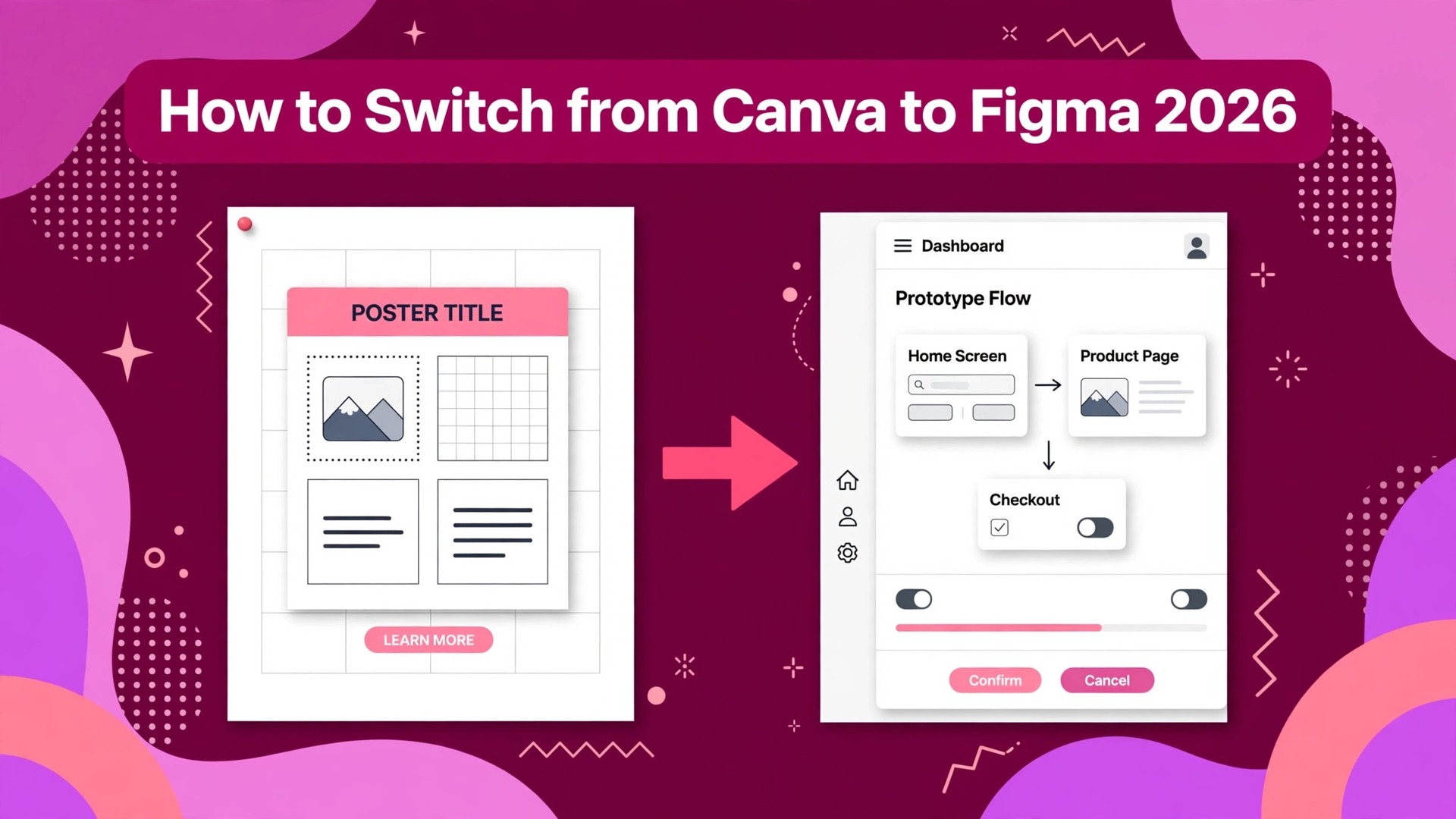
The design team started in Canva, built a hundred social posts and a dozen decks, and then the product team asked for a clickable prototype, a design system, and developer handoff specs. That is when most design teams start asking how to switch from Canva to Figma, and the honest answer is that the two tools do different jobs. Canva is built for marketing visuals, social posts, decks, and print, with templates that let anyone produce a decent graphic in minutes. Figma is built for product and interface design, with components, auto layout, prototyping, and developer handoff that Canva does not offer at all.
The switch is not a like for like replacement, and any guide that pretends otherwise is misleading the reader. A team that moves to Figma gains a real design system and a prototype the developers can build from, but it loses the template library, the stock assets, and the one click ease that made Canva fast for marketing work. Many teams end up running both tools, with Figma for product and Canva for marketing, and that is often the right answer. This guide covers the full switch for teams that are ready to move their design work to Figma, and it states plainly which work should stay in Canva.
The price comparison favors Figma for mixed teams and Canva for solo marketers. Canva Pro costs 144 dollars a year, or 18 dollars a month billed monthly, for one person, and Canva Business costs 250 dollars per person a year, or 25 dollars per person a month. Figma Professional charges by seat type on annual billing, with a Full seat at 16 dollars a month, a Dev seat at 12 dollars, and a Collab seat at 3 dollars.
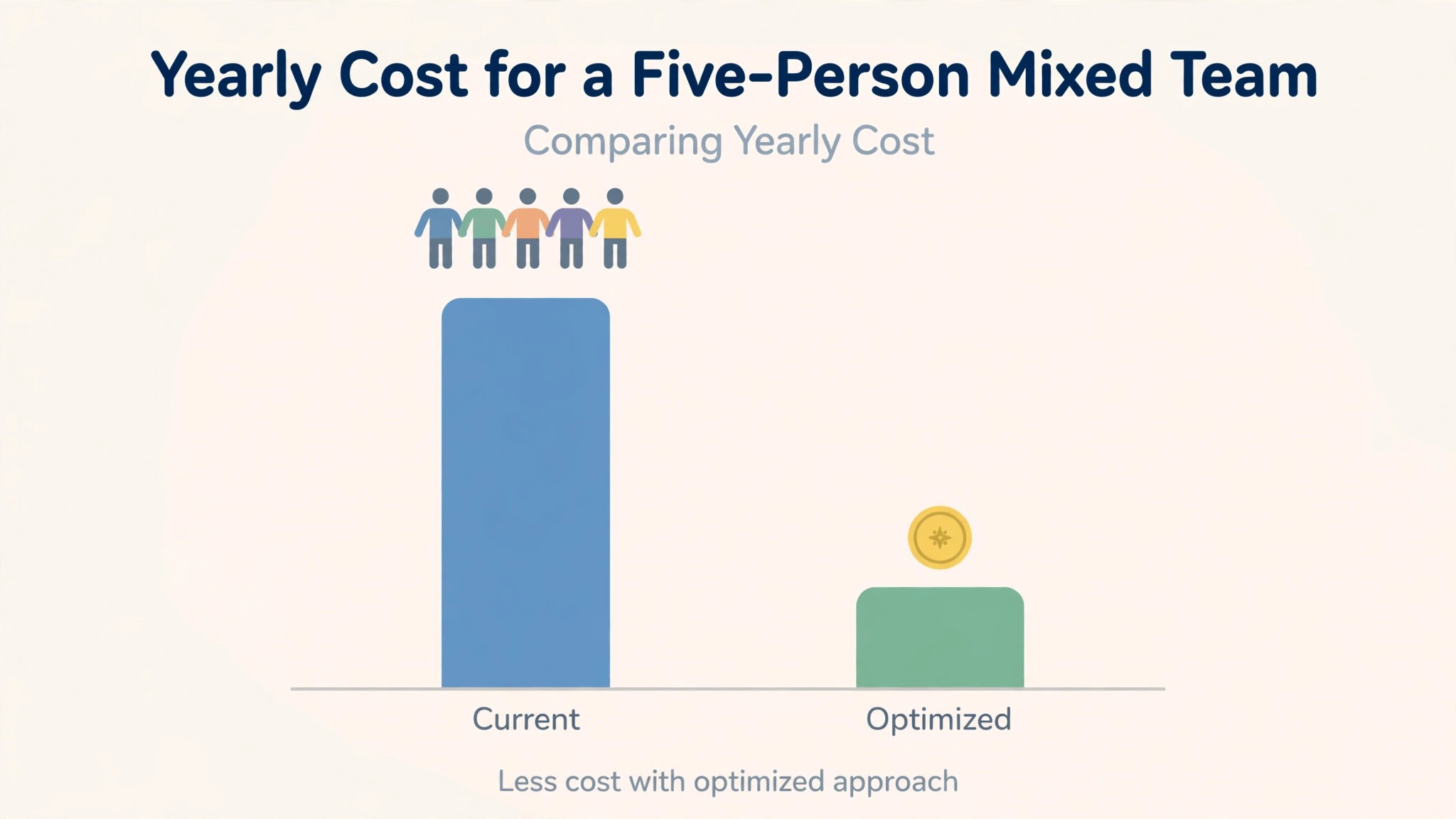
A five person team with one designer and four people who only edit decks and whiteboards pays 336 dollars a year on Figma Professional, against 1,250 dollars a year on Canva Business. The seat types are where the money is, and the table below works through them.
This guide explains how to switch from Canva to Figma in seven steps, with the real prices on both sides, the export routes that actually work, and a plain account of what transfers and what must be rebuilt. There is no native Canva to Figma import, so the move is a rebuild guided by exported files, not a one click migration. Follow the steps in order, rebuild the twenty designs that matter most first, and the move stays calm. Rush it, and the team can lose its brand files, its templates, and a month of design work in one move.
Why Design Teams Switch from Canva to Figma
Prototyping is the first reason, and it is the gap that forces the switch. Canva has no interactive prototyping, no clickable flows, and no way to test a user journey before it is built. Figma prototypes link screens together, animate transitions, and let a team test a flow with real users before a developer writes a line of code. A product team that needs to validate a checkout flow, an onboarding sequence, or a settings page cannot do that work in Canva at all. The moment the team needs a prototype, Figma becomes the only option, and the switch starts from there.
Design systems are the second reason. Canva has a Brand Kit that stores colors, fonts, and logos, which is enough for marketing consistency, but it has no components, no variants, and no design tokens. Figma components let a team build a button once and reuse it across fifty screens, with variants for every state, and a change to the master updates every instance. A team that maintains a growing product will save hours every week on Figma, because the design system does the repetitive work. A team that only makes social posts will never feel this gap, and that team should stay on Canva.
Developer handoff is the third reason, and it is the one that saves the most time across a whole company. Figma Dev Mode gives developers code snippets, asset exports, and design specs directly from the canvas, with measurements, colors, and spacing that match the design exactly. Canva has no developer handoff, no specs, and no code export, so a developer working from a Canva file must guess at the measurements or ask the designer for every value.
A team that ships product every week will feel this gap daily, and the handoff alone can justify the switch. Figma also offers branching and merging on the Organization plan, so designers can work on parallel proposals against a main file and merge the winner, which is a workflow Canva cannot match.
The fourth reason is the seat pricing, which favors Figma for mixed teams. Canva charges every person the same, whether they design daily or open the tool twice a month. Figma charges by seat type, so a designer pays 16 dollars a month for a Full seat, a developer pays 12 dollars for a Dev seat, and a marketer who only edits decks and whiteboards pays 3 dollars for a Collab seat.
A five person team with one designer and four collaborators pays 336 dollars a year on Figma Professional, against 1,250 dollars a year on Canva Business for the same five people. That gap is the whole business case for many teams, and it holds at almost every team size where only one or two people design full time. Seat types are the first thing to price when planning how to switch from Canva to Figma, and they change the answer completely.
Canva vs Figma Side by Side
| Feature | Canva | Figma |
|---|---|---|
| Free plan | Free, templates plus limited AI uses | Starter, 3 design files, 3 FigJam files |
| Individual plan | Pro 144 dollars a year, or 18 dollars a month | Professional Full seat 16 dollars a month annual |
| Team plan | Business 250 dollars per person a year | Professional Dev seat 12 dollars, Collab seat 3 dollars a month |
| Company plan | Enterprise custom priced | Organization Full seat 55 dollars a month annual |
| Large org plan | Enterprise custom priced | Enterprise Full seat 90 dollars a month annual |
| Templates | More than 1 million templates | Community files, varies in quality |
| Stock library | More than 100 million photos and videos on Pro | None built in |
| Components and variants | No | Yes, the core of the tool |
| Prototyping | No | Yes, interactive flows |
| Developer handoff | No | Yes, Dev Mode included in Professional |
| Brand controls | Brand Kit on Pro | Design system, libraries, tokens |
Canva is for marketing visuals, social posts, decks, and print, while Figma is for product interfaces, design systems, and developer handoff, and the table makes that split clear. A team that needs templates and stock photos should stay on Canva, and a team that needs components and prototypes should move to Figma. The prices favor Figma for mixed teams, because the Collab seat at 3 dollars a month is cheaper than any Canva paid tier, but the decision should rest on the work, not the bill.
Before You Switch. The Honest Comparison
A switch guide that only lists the savings is not honest, so this section states the trade plainly. Canva is faster for marketing work, and a non designer can produce a social post, a flyer, or a deck in minutes from a template, without knowing anything about design. Figma assumes a designer, with a steeper learning curve, more settings, and no template library to fall back on.
A marketing team that moves to Figma will produce its first social posts more slowly than it did on Canva, and the team should expect that. Figma Buzz, launched for on brand marketing assets from templates, narrows the gap, but it does not close it, and a team that lives on quick marketing graphics should keep Canva for that work.
The template library is the second trade. Canva offers more than a million templates covering social media, presentations, print, and video, plus a stock library of more than 100 million photos and videos on Pro. Figma has no stock library and no template library of the same scale, so a team that moves to Figma must source its own photos, build its own templates, and pay for stock elsewhere. A team that relies on Canva templates daily will feel this loss immediately, and the switch should include a plan for stock photos and a budget for them. The cost of a stock subscription can erase the Figma saving entirely if the team uses a lot of photography.
The third trade is the file format, and it is the hardest part of this migration. Canva exports PNG, PDF, MP4, and SVG, while Figma imports SVG and image files, and complex Canva designs with multiple layers will not import cleanly. There is no native Canva to Figma import, no one click conversion, and no tool from either company that moves a design across with its layers intact.
The team should plan to rebuild its important designs in Figma, using the Canva exports as reference, rather than expecting a clean transfer. A team with a hundred Canva designs should rebuild the twenty that matter most and archive the rest, because rebuilding everything is a month of work for no return. That triage is the most important decision in how to switch from Canva to Figma, and it should happen before a single file moves.
How to Switch from Canva to Figma in 7 Steps
Step 1. Audit the Canva account and split the work
Open Canva and list every design, every template, every Brand Kit, every folder, and every team member. Then split the work into three groups, which is the product and interface work that moves to Figma, the marketing work that stays in Canva, and the old designs that can be archived. Most teams find that only a fifth of their Canva designs are worth rebuilding, while the rest are one off posts and old decks that nobody will open again. Record the Canva renewal date and whether the account is on an annual plan, because cancelling early can forfeit prepaid months, and many teams keep Canva Pro for marketing even after the switch.
Step 2. Set up Figma and choose the seats by role
Create the Figma account and choose the plan from the roles on the team, not from the headcount alone. Professional charges by seat type, with a Full seat at 16 dollars a month for designers, a Dev seat at 12 dollars for developers, and a Collab seat at 3 dollars for people who only edit FigJam and Slides. A team with one designer, two developers, and four marketers pays 16 plus 24 plus 12 dollars a month, which is 52 dollars, against 125 dollars a month on Canva Business for the same seven people. Set up the teams, the projects, and the libraries now, so the rebuilt designs have somewhere clean to land.
Step 3. Rebuild the brand system in Figma first
Rebuild the brand before any design, because every design that follows will use it. Create the color styles, the text styles, and the component library from the Canva Brand Kit, copying the hex values, the font names, and the logo files exactly. Upload the logo as an SVG where possible, since SVG scales cleanly, and set the font mapping for any Canva font that Figma does not carry, because Canva has its own font library that does not always match what Figma offers. A brand system built first saves hours later, since every rebuilt design pulls from the same styles instead of guessing at colors one by one.
Step 4. Move the priority designs with PDF and SVG exports
Export the twenty priority designs from Canva as PDF Standard files, which preserve layout, typography, and visual fidelity far better than PNG or JPEG. Open Figma, install the pdf.to.design plugin, drag the PDF into the plugin, and let it convert the file into editable Figma layers, including vector shapes, text elements, and image assets.
Map any missing fonts to the closest available alternative when the plugin asks, and check each imported frame for broken text, flattened effects, and misplaced layers. For isolated vector graphics, export as SVG and drag the file directly onto the Figma canvas, which preserves shapes well, though text may need retyping. Treat the import as a starting point, not a finished design, and clean each frame by hand before calling it done.
Step 5. Rebuild the templates as Figma components
Rebuild the templates the team reuses every week as Figma components, with variants for each state and size. A social post template becomes a component with variants for each platform, a deck template becomes a Slides file with master frames, and a landing page template becomes a set of components the team can assemble in minutes. This step is the largest single task in the switch, and it deserves a full week, because a good component library pays for itself every time the team uses it. Drop the templates nobody has used in six months, and rebuild only the ones the team actually opens, since a tidy library saves more time than a complete one.
Step 6. Move the team and set permissions
Invite the team to Figma and assign the right seat type to each person, so designers get Full seats, developers get Dev seats, and marketers get Collab seats. Set the permissions on each team and project, and run a short training session on the first day, because Figma has a steeper learning curve than Canva, and a team that guesses at the interface will blame the tool for a setup problem.
Show the team how to use the component library, how to comment on a frame, and how to hand off a design to a developer, since those three flows carry most of the daily work. Keep Canva open for marketing during the transition, so the team never loses the ability to make a quick social post.
Step 7. Run both tools side by side for a month, then decide what stays
Work from Figma for product and interface design for a month while Canva stays open for marketing and as a reference for the old designs. Watch the first prototypes end to end, check that developers can pull specs from Dev Mode, and confirm the component library covers the screens the team actually builds. Once a month of clean work is in the books, decide what stays in Canva and what is archived, and cancel or downgrade the Canva plan before the renewal date if the team no longer needs it. Many teams keep Canva Pro for marketing and run product design in Figma, which is a better outcome than forcing one tool to do both jobs.
Pre Switch Checklist
Use this checklist before starting step 1, and do not skip a line.
- List every Canva design, template, Brand Kit, folder, and team member. – Split the work into product designs that move, marketing that stays, and old work to archive. – Record the Canva renewal date and any annual commitment. – Rebuild the brand system in Figma before any design. – Choose the Figma seats by role, not by headcount alone. – List the twenty priority designs to rebuild first.
- Plan a stock photo replacement if the team uses Canva stock heavily. – Confirm the font mapping for every Canva font the brand uses. – Set a switch date in a quiet week, not during a product launch. – Tell the team the switch date and the new workflow before step 1.
Data Migration. What Transfers and What Does Not
Brand colors, fonts, logos, and individual graphics transfer, because they are files that can be exported and reimported. Canva exports PNG, PDF, MP4, and SVG, and Figma imports SVG and image files, so a logo exported as SVG lands cleanly on the Figma canvas. PDF Standard exports preserve layout and typography better than any other format, and the pdf.to.design plugin converts them into editable Figma layers, including vector shapes, text elements, and image assets. The plugin has a free tier for a limited number of pages, with a paid plan for larger projects, and it works on designs from the free tier or Pro alike, as long as the design can be exported as a PDF.
Canva designs do not transfer as editable designs, and this is the single fact most teams forget. There is no native export to Figma, and no direct conversion tool from either company, so a Canva design placed into Figma as a PNG is a flat image that cannot be edited. Text may become outlines, certain effects flatten into images, and fonts that exist in Canva but not in Figma need remapping to an available alternative.
The Brand Kit does not transfer, the templates do not transfer, and the stock library does not transfer, so each of those is rebuilt by hand. The assets move cleanly. The designs around them are rebuilt. That split is the heart of how to switch from Canva to Figma without losing the brand.
Cost Comparison. What the Switch Actually Saves
The saving depends on the team shape, because Canva charges every person the same and Figma charges by seat type. A five person team with one designer and four marketers pays 1,250 dollars a year on Canva Business at 250 dollars per person, against 336 dollars a year on Figma Professional for one Full seat and four Collab seats, a saving of 914 dollars a year.
A five person team with five designers pays 800 dollars a year on Figma Professional for five Full seats, against 1,250 dollars on Canva Business, a saving of 450 dollars a year. A solo designer pays 144 dollars a year on Canva Pro against 192 dollars a year on Figma Professional for one Full seat, so Canva is cheaper for a single person, and the switch only pays when the team has collaborators who need cheaper seats.
The stock library can erase the saving entirely, and it deserves its own line. Canva Pro includes more than 100 million stock photos and videos, while Figma includes none, so a team that uses a lot of photography must buy a stock subscription separately. A stock plan at 30 dollars a month adds 360 dollars a year, which still leaves a saving for the mixed team above, but a team that uses stock heavily should price that subscription before deciding.
Monthly billing widens the gap on the Canva side, since Pro costs 18 dollars a month billed monthly against 144 dollars a year, and Figma Full seats cost 20 dollars a month billed monthly against 16 dollars annual. Count the designers, count the collaborators, price the stock, and the answer will be a number, not a guess.
What to Test in the First Month on Figma
The parallel run only helps if the team tests the right things, so set the tests before the first Figma design ships. Build a prototype with three linked screens, including one interaction and one animation, and test it with a real user, confirming the flow works end to end. Then hand the design to a developer through Dev Mode, and confirm the developer can pull the code snippets, the asset exports, and the specs without asking the designer for a single measurement. That test plan is the part of how to switch from Canva to Figma that most teams skip, and it is the part that catches the problems while Canva is still available as a fallback.
Test the component library and the brand styles next, because those are the workflows that break quietly. Build a new screen from the component library, confirm the colors and text styles match the brand, and check that a change to a master component updates every instance. Also test a marketing request through the new workflow, since a social post that took ten minutes in Canva may take an hour in Figma, and the team should know that before the first urgent request arrives. A test that covers prototyping, handoff, components, and marketing in the first two weeks leaves the rest of the month for fixing what failed, which is exactly how a quiet switch is supposed to work.
Common Switch Mistakes and How to Avoid Them
The first mistake is expecting a clean import. A team that assumes its Canva designs will land in Figma as editable files will discover on launch week that it has flat images, and the rebuild then happens under pressure, which is the worst time to design anything. Plan the rebuild from the start, and budget a week for the twenty priority designs. The second mistake is rebuilding everything. A team that tries to move a hundred Canva designs will spend a month on work nobody will open again, when rebuilding the twenty that matter would have taken a week. Rebuild the twenty, archive the rest.
The third mistake is forgetting the stock library. A team that relies on Canva stock photos will find Figma empty of photography, and the first design that needs a photo will stall while someone sources one. Plan the stock replacement before the switch, and budget for it. The fourth mistake is forgetting the fonts. Canva has its own font library that does not always match what Figma offers, and a design that lands with the wrong font will look wrong in ways the team cannot name. Map every brand font before importing anything, and confirm the replacements look right on a real design.
The fifth mistake is giving everyone a Full seat. A team that buys Full seats for marketers who only edit decks and whiteboards will pay 16 dollars a month for work a 3 dollar Collab seat covers, and the saving that justified the switch will vanish. Assign seats by role, and check the seat list every quarter. The sixth mistake is cancelling Canva before the parallel run ends. A team that cancels on day one loses its marketing tool and its reference, and a social post needed urgently in week two has no tool left to make it in. Keep Canva until step 7, and the switch stays boring.
Frequently Asked Questions
How long does it take to switch from Canva to Figma?
Most small teams finish the switch in three to four weeks. The brand rebuild takes a few days, the twenty priority designs take one to two weeks, and the month long parallel run catches the problems while Canva is still available. A team with many templates or a large design system should budget six weeks. Do not promise a one week switch, because the rebuild is the work, and a rebuild done in a hurry produces a library nobody trusts.
Will I lose my Canva designs when I switch to Figma?
No, the designs stay in Canva, and the files can be exported as PDF, SVG, or PNG at any time. The designs do not transfer as editable Figma files, so the team rebuilds the twenty that matter most, using PDF exports and the pdf.to.design plugin as a starting point. Export the priority designs before cancelling Canva, and keep the old account open until the rebuild is done.
Can I import a Canva design directly into Figma?
No, there is no native import and no direct conversion tool from either company. The best route is to export the Canva design as a PDF Standard file and convert it with the pdf.to.design plugin, which produces editable Figma layers, or to export vector graphics as SVG and drag them onto the canvas. Text may need retyping, fonts may need remapping, and effects may flatten, so treat the import as a starting point and clean each frame by hand.
Is Figma really cheaper than Canva?
For mixed teams, yes, by a wide margin. A five person team with one designer and four collaborators pays 336 dollars a year on Figma Professional, against 1,250 dollars a year on Canva Business. For a solo designer, Canva Pro at 144 dollars a year is cheaper than a Figma Full seat at 192 dollars a year. Count the designers, count the collaborators, and price the stock photos before deciding, since a stock subscription can narrow the gap. Price the stock before starting how to switch from Canva to Figma, and the saving will be a number the team can trust.
Should I keep Canva after switching to Figma?
Many teams do, and it is often the right answer. Canva stays the better tool for quick marketing graphics, social posts, and decks, while Figma runs product design, prototypes, and developer handoff. Keeping Canva Pro at 144 dollars a year for marketing, alongside Figma for product, costs less than forcing one tool to do both jobs badly. Decide the split in step 1, before migrating anything.
Verdict. Who Should Switch and Who Should Stay
Switch to Figma if the team builds product interfaces, needs clickable prototypes, maintains a design system, or hands designs to developers every week. A team with one designer and several collaborators will save hundreds of dollars a year on seat pricing, gain components and Dev Mode, and lose nothing it actually uses, as long as the marketing work stays in Canva. For those teams, learning how to switch from Canva to Figma is worth a month, and the time saving repeats on every sprint.
Stay on Canva if the team makes marketing visuals, social posts, and decks, relies on templates and stock photos daily, or has no product work at all. A marketing team that moves to Figma will produce its first posts more slowly, lose its template library, and pay for stock photos it used to get included. Stay also if the team has no designer, since Figma assumes design skill that Canva does not require. A switch during a product launch costs more in chaos than it saves in subscription fees, so pick a quiet month.
The decision rule is simple. Count the product screens, count the marketing graphics, list the workflows the team actually runs every week, and run the two totals. If Figma covers the product work and Canva covers the marketing, run both and follow the seven steps for the product side. If Canva covers everything the team makes, stay and use the time on better templates instead. The right tool is the one that matches the work, not the one with the lower headline price.