
When you need to fix email going to spam for small business, the cause is almost never the wording of one message. In most cases the receiving server cannot prove the mail really came from you, or your domain has built up a bad sending history, and both can be checked in about ten minutes and fixed the same day. Gmail, Yahoo and Outlook now require authentication from every sender, so a domain with missing records looks unproven before the content is even read.
This guide gives you seven causes and seven fixes, in the order that solves the most cases first. Work through them from the top, and stop as soon as your test messages land in the inbox, because the later fixes are for reputation and content, not for the authentication records that cause most spam folder problems. Every step comes from Google sender guidelines, Microsoft sender guidance, and the deliverability checks that mail providers publish.
Before you start, note whether the problem affects one recipient or everyone. If only Gmail sends you to spam, check your Gmail Postmaster Tools spam rate and your authentication for Gmail. If every provider sends you to spam, the problem is your domain records or your sending history, and the fixes at the top of this list will find it.
Diagnose It in Two Minutes
Do not start with the long fixes. Run this quick diagnosis first, because it tells you which cause to fix and it takes about two minutes. The diagnosis below is the one the official support pages point to first, and it separates a device problem from a settings problem, a file problem from a connection problem, and an authentication problem from a content problem.
| What you see | Likely cause | Check first |
|---|---|---|
| SPF, DKIM or DMARC says FAIL | Missing or wrong DNS record | Gmail Show original, then DNS records |
| Mail to spam at every provider | Authentication or sending history | SPF, DKIM, DMARC and spam rate |
| Mail to spam at Gmail only | Spam rate above 0.3 percent | Google Postmaster Tools |
| Forms and order mail to spam | Website sends with PHP mail | SMTP plugin connected to your real provider |
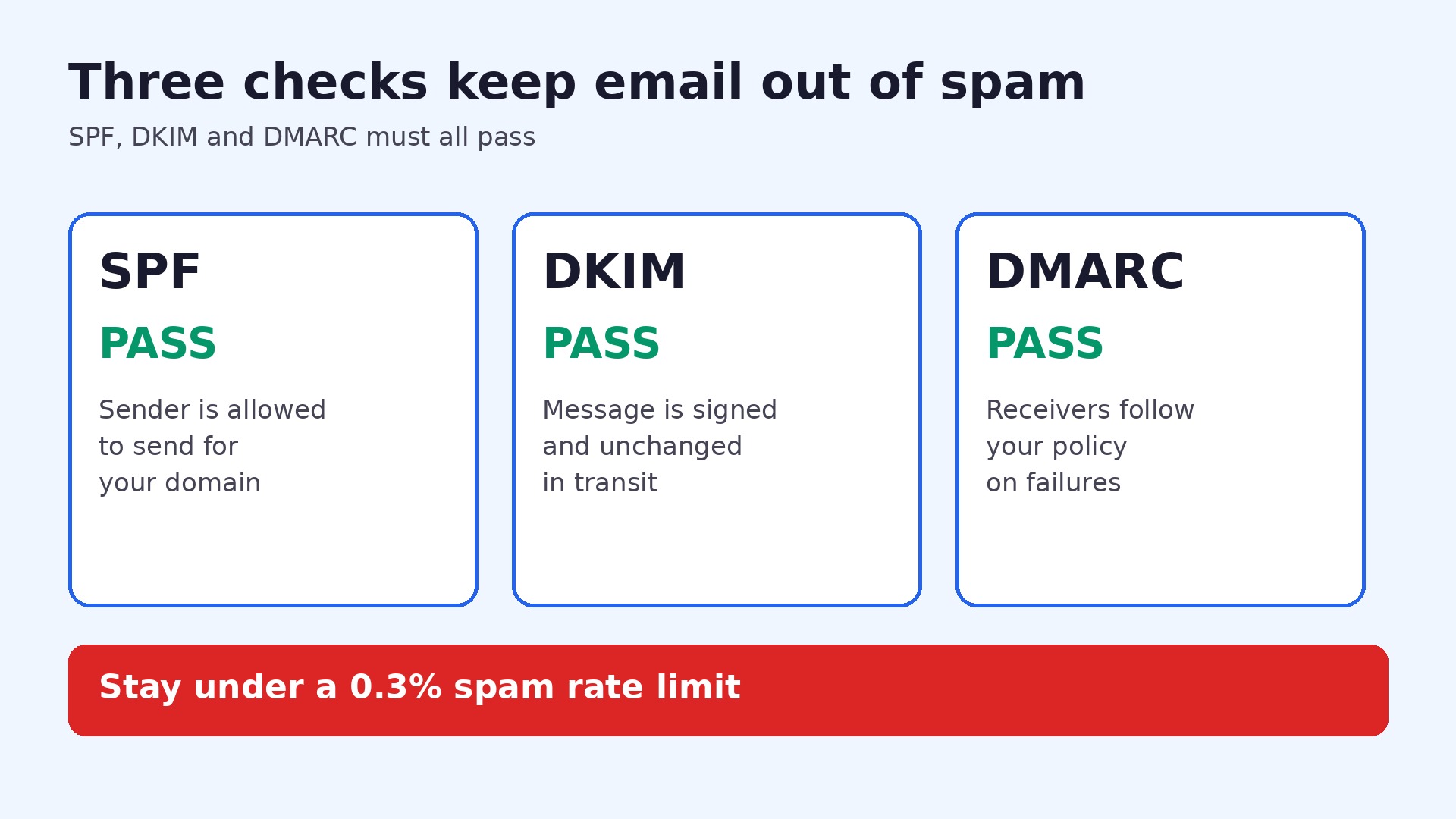
Open the message in Gmail, click More, then Show original, and read the three lines for SPF, DKIM and DMARC. Each one should say PASS. If any one says FAIL or is missing, that record is the cause, and the fix for that record is the one to do first. Mail Tester gives a second opinion with a score out of 10 and a list of each problem.
The quick check above is the fastest way to narrow the list, because it uses the symptom to point at the cause. If the quick check passes and the problem stays, move to the seven causes below in order. Do not skip ahead to a long fix when a two minute check can rule out three causes at once, because the long fixes only help when the short ones have been ruled out.
In fix email going to spam for small business, the diagnosis comes first, because the symptom points at the cause before any setting is changed.
The 7 causes and the 7 fixes for fix email going to spam for small business
Each cause below has its own fix, with numbered steps you can follow in order. Do the steps for one cause, test again, and only then move to the next cause. Testing after each cause is what stops you changing five settings at once and never learning which one fixed it, which matters when the problem comes back next month.
Cause 1. SPF, DKIM or DMARC is missing from your domain
This is still the most common reason for mail going to spam. SPF lists the servers allowed to send for your domain, DKIM signs each message to prove it was not changed after it left you, and DMARC tells receivers what to do when the first two fail. Gmail now requires every sender to have at least SPF or DKIM, and bulk senders need all three, so a domain with none of them looks unproven to every receiving server.
- Open your domain DNS settings and check for SPF, DKIM and DMARC records.
- Add the SPF record from your mail provider, publish the DKIM key, and add a DMARC record at _dmarc.
- Wait 48 hours for DNS to spread, then send a test and check Show original for PASS on all three.
Test again after these steps. If the test passes, stop here. If it fails, move to the next cause, because the next fix targets a different part of the chain and the problem is rarely in two places at once.
Cause 2. You have two SPF records, or your SPF record is too long
A domain may have only one SPF record, and a second one breaks the check. The other trap is the 10 lookup limit, because each include in the record can trigger further DNS lookups, and once the total goes above 10, SPF returns a permanent error. The fix is to merge the records into one line and to flatten or remove includes you no longer use, then wait for DNS to spread before you test again.
- List every SPF record on your domain and merge them into one line.
- Count the includes and remove any service you no longer use.
- Keep the total lookups at or below 10, then publish the single record and test again.
Test again after these steps. If the test passes, stop here. If it fails, move to the next cause, because the next fix targets a different part of the chain and the problem is rarely in two places at once.
Cause 3. DKIM was set up in DNS but never switched on
With Google Workspace, Microsoft 365 and Zoho Mail you publish the DKIM record in DNS, then you must go back into the admin console and click Start authentication or Enable. Many businesses publish the record and stop there, so the signature is never turned on and mail keeps failing the check. Open the admin console, confirm the DKIM status shows active, and send a test message to confirm the signature passes.
- Open your mail admin console and find the DKIM or authentication page.
- Click Start authentication or Enable, and confirm the status shows active.
- Send a test message and check Show original for a DKIM PASS.
Test again after these steps. If the test passes, stop here. If it fails, move to the next cause, because the next fix targets a different part of the chain and the problem is rarely in two places at once.
Cause 4. Your website sends mail with PHP instead of real SMTP
Websites that send mail with plain PHP mail look like a shared server, not like your domain, and receiving servers treat that mail with suspicion. Contact forms and order emails sent this way land in spam even when your main mailbox is set up correctly. The fix is an SMTP plugin such as WP Mail SMTP or FluentSMTP, connected to your real mail provider or to a transactional service such as Brevo, Postmark or Amazon SES.
- Install an SMTP plugin such as WP Mail SMTP or FluentSMTP on your website.
- Connect it to your real mail provider or to a transactional service such as Brevo, Postmark or Amazon SES.
- Send a test form message and confirm it arrives in the inbox, not in spam.
Test again after these steps. If the test passes, stop here. If it fails, move to the next cause, because the next fix targets a different part of the chain and the problem is rarely in two places at once.
Cause 5. Too many recipients report your mail as spam
Gmail asks senders to keep the reported spam rate below 0.3 percent, and recommends staying under 0.1 percent. When the rate rises above that line, Gmail starts sending more of your mail to spam, even mail to people who wanted it. The cause is usually a stale list, mail sent to people who never asked for it, or content that reads like a bulk offer. Clean the list, mail only people who opted in, and make the unsubscribe link easy to find.
- Open Google Postmaster Tools and read your reported spam rate.
- Remove addresses that never open, never click, or never asked to hear from you.
- Send only to people who opted in, and make the unsubscribe link easy to find in every message.
Test again after these steps. If the test passes, stop here. If it fails, move to the next cause, because the next fix targets a different part of the chain and the problem is rarely in two places at once.
Cause 6. Your domain is new, or you started sending too fast
A brand new domain has no sending history, so receiving servers treat its first mail with caution. A sudden jump from a few messages a day to thousands in one day looks like a compromised account or a spam run, and the mail gets filtered while the reputation builds. Warm the domain up slowly, start with your most engaged contacts, and increase volume over several weeks rather than in one day.
- Start with your most engaged contacts and a low daily volume.
- Increase the volume slowly over several weeks, not in one day.
- Watch the spam rate and the inbox placement as you increase, and pause if either gets worse.
Test again after these steps. If the test passes, stop here. If it fails, move to the next cause, because the next fix targets a different part of the chain and the problem is rarely in two places at once.
Cause 7. Your content, links or From address trigger the filters
A contact form that puts the customer Gmail address in the From line fails the authentication checks, because your server is not allowed to send for gmail.com. Risky links, large attachments, image only mail and spam trigger words add to the score. Send form mail from your own domain and put the visitor address in Reply To, keep links to your own domain where you can, and send real text with the images, not images alone.
- Change the From address on forms to your own domain and put the visitor address in Reply To.
- Keep links to your own domain where you can and avoid large attachments.
- Send real text with your images, not images alone, and test the message again.
Test again after these steps. If the test passes, stop here. If it fails, move to the next cause, because the next fix targets a different part of the chain and the problem is rarely in two places at once.
The seven causes in fix email going to spam for small business cover the faults that official support pages list most often.
What to Do If It Still Does Not Work
If all seven causes have been checked and the problem stays, the fault is likely outside the steps above, in a device fault, an account restriction, or a service problem that only the vendor can see. Try the same task on a different device and a different network, because that test separates a device fault from an account fault in one move. If it works on the second device, the first device needs a repair or a clean install. If it fails on both, the account or the service is the problem.
Contact support with the evidence you have gathered, not with a general report. Note the exact error message, the time it happened, the device and app version, and which of the seven causes you already ruled out. Support can check server logs and account flags that you cannot see, and a clear report gets a faster answer than a long description of everything you tried in no order.
Keep a copy of anything important before you reinstall or reset. Export your designs, save your videos, and back up your customer list and your mail settings. A reinstall fixes many stubborn faults, but it also removes local drafts and cached files, so a backup made before the reinstall is the difference between a fixed problem and a lost project.
Work through fix email going to spam for small business in order, and test after each cause, so you learn which fix actually worked.
Keeping This Fixed for Good
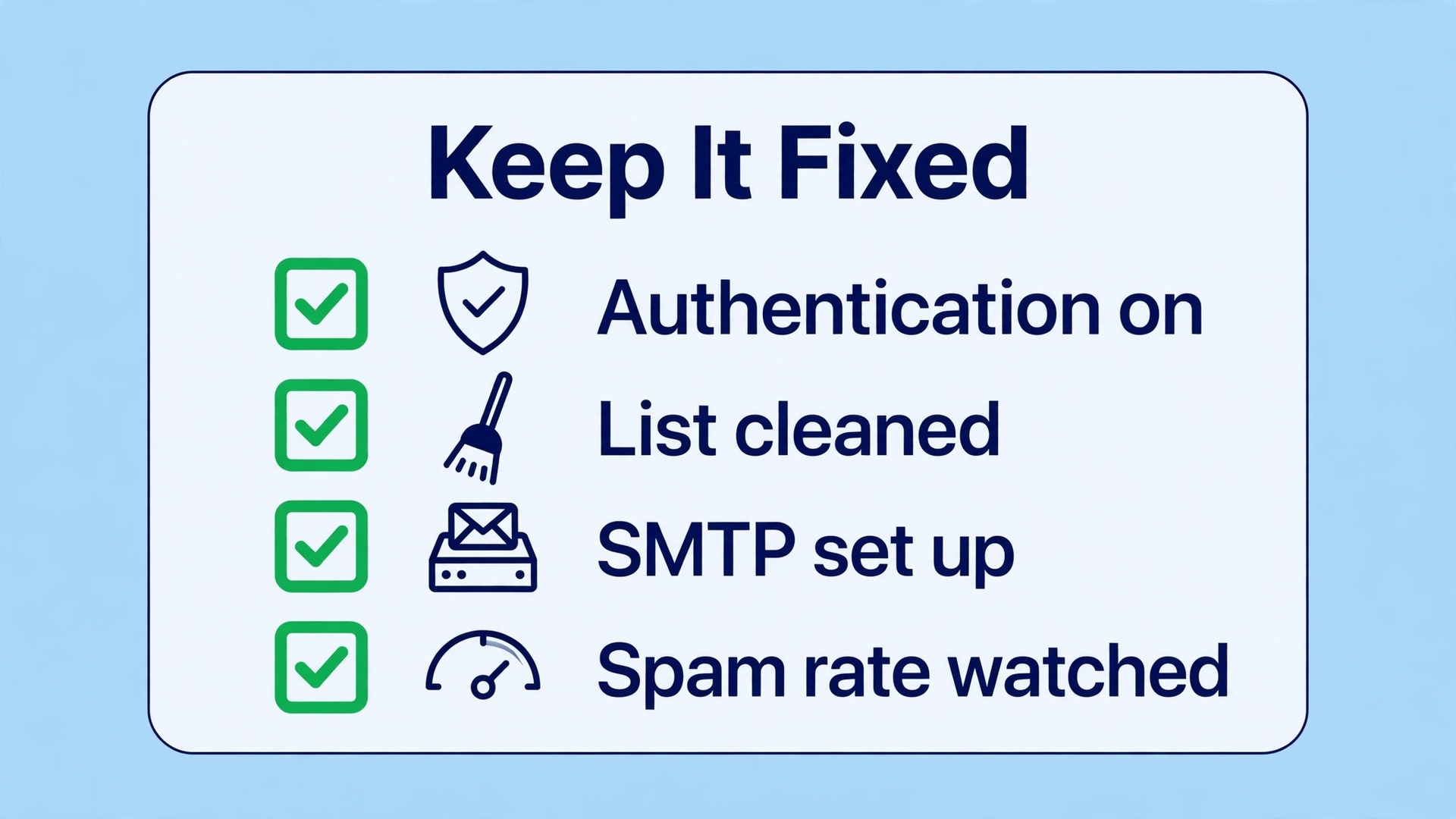
Prevention is mostly habit, not extra software. Keep the app updated, keep the operating system updated, and restart the device at least once a week, because updates fix the bugs that cause most of these failures and a restart clears the stuck processes that build up over time. Check the quick diagnosis in this guide once a month, even when nothing is broken, so you learn what normal looks like before a deadline.
Keep your files in the right format from the start, keep your storage above 10 percent free, and keep a backup of anything you cannot recreate. Test a download, an upload, or a test message before the day you need it, not on the day itself. Those four habits prevent most of the failures in this guide, and they cost a few minutes a month.
A note taken during fix email going to spam for small business will save time the next time the same symptom appears.
On a Deadline: What to Try First
On a deadline, time matters more than completeness, so use this order. The mute check, the volume check and the quick diagnosis take about two minutes together, and they solve the most common cases. The device choice and the permission check take about five minutes, and they solve the next most common cases. The driver update, the cache clear and the reinstall take fifteen to thirty minutes, so save them for the cases where the quick checks have already failed.
If you have a meeting in five minutes, do only the quick checks and join by phone as a backup. Call into the meeting from your mobile device while you troubleshoot the computer, because a phone connection keeps you in the meeting while the computer problem is fixed after the call. That workaround is the one Zoom support pages and university help desks recommend most often, and it is better than missing the meeting while you chase a driver update.
Keep a note of which fix worked, because the same cause usually returns. A Bluetooth headset that fails once will fail again when it pairs to the wrong device, a browser that blocks downloads once will block them again after an update, and a domain that fails authentication once will fail again when a new sending tool is added. Write the cause and the fix in a note, and check that note first the next time the symptom appears.
The prevention checklist in fix email going to spam for small business is the part most people skip, and the part that saves the most time later.
Do Not Make It Worse
The most common mistake is changing five settings at once. When you change the device, the volume, the permission and the driver in one go, you never learn which change fixed it, and the next time the problem appears you have to change all five again. Change one thing, test it, and only then move on. That habit is slower in the moment and far faster over a year.
The second mistake is reinstalling first. A reinstall fixes many faults, but it also removes local drafts, cached files and saved settings, and it takes far longer than the quick checks. Try the two minute diagnosis, the device choice and the permission check before you reinstall, because most cases never need a reinstall at all.
The third mistake is ignoring the test step. A fix that is not tested is not a fix, it is a guess. Test after each cause with the same test you used at the start, whether that is a test meeting, a test download, a test upload or a test message. If the test passes, stop. If it fails, the next cause is the one to try, and the test result is the evidence that tells you so.
The fourth mistake is blaming the service when the device is at fault, or blaming the device when the service is down. Check the status page for the service before you spend an hour on your own settings, and test on a second device before you conclude the service is broken. Those two checks take five minutes and they prevent the most wasted troubleshooting time.
If you follow fix email going to spam for small business from the top, most cases are solved before the fifth cause is reached.
An Example from Start to Finish
Take a real case. A plumber sends quotes by email and notices that half his customers never reply, even though the quotes are competitive. He sends a test to Gmail, opens Show original, and finds SPF passes, DKIM fails, and DMARC is missing, so his mail looks unproven to every receiving server. He publishes the DKIM record, switches it on in the admin console, adds a DMARC record at p=none, and waits 48 hours for DNS to spread.
He sends the test again and all three checks say PASS, yet a few messages still land in spam, so he opens Google Postmaster Tools and finds his spam rate is 0.4 percent, above the 0.3 percent Gmail asks for. He removes the addresses that never opened a message in a year, mails only customers who asked to hear from him, and within three weeks the spam rate falls below 0.1 percent and the replies come back. The whole fix takes about a month of light work, and it uses three of the seven causes in this guide, the missing records, the DKIM switch, and the spam rate.
The lesson from that case is the order, not the fix. Fix the authentication first, because no content change can pass a check that fails, then fix the list, because a clean list keeps the spam rate down. Write down which cause it was, because a new sending tool that is not added to SPF will break the same check again, and the note saves a month next time. Test every new tool with a Gmail Show original check before you send to customers.
Monthly Checks That Prevent a Repeat
Set a monthly reminder to run the quick diagnosis in this guide, even when nothing is broken. Check the app version, check the storage, check the permission, and send a test message, download or upload to confirm the whole chain still works. A monthly check that takes ten minutes will catch a permission switched off by an update, a storage limit that crept up, or a record that broke when a tool changed, weeks before it costs you a deadline.
Keep a short log of what you checked and what you found, because the log is what turns a one off fix into a habit. Note the date, the test result, and any change you made, and keep it in the same place every month. After three months the log will show the pattern, whether the same cause returns, whether the app updates on a schedule, or whether the storage fills at a steady rate, and that pattern is what lets you prevent the next failure instead of fixing it.
Keep This in Mind
Keep a simple log of what you decided and what happened next, because the log is what turns a one off purchase or fix into a habit you can repeat. Note the date, the price you paid or the fix you tried, and the result you measured a month later. After three months the log will show whether the choice saved money, whether the problem returned, and whether the next decision should be the same or different. That evidence is worth more than any review you read before you started, because it is about your business and your customers, not about an average user.
Test one change at a time, and give each change enough time to show a real result. A price test, a subject line test, a format test and a keyword test each need at least two weeks of data, because a single week can be skewed by a holiday, a quiet day, or a single large order. Changing three things at once makes the result unreadable, and you will end up keeping a change that hurt and dropping a change that helped, simply because you could not tell them apart.
Review the numbers on a fixed day each week, at the same time, and write the three numbers that matter in the same place every week. A review that takes ten minutes will catch a rising bill, a falling engagement rate, or a fix that stopped working, weeks before a monthly review would. The fixed time matters more than the tool, because a review without a time will be pushed aside by the urgent work of the day, and the problem will grow while nobody is watching it.
Keep your own copy of anything important, outside the tool that created it. Export your customer list, your course files, your designs and your campaign settings, and store them in a place you control. A tool can change its price, close your account, or lose your data, and the export you made last month is the difference between a bad week and a lost business. Set a monthly reminder to export, and test the export by opening it, because a backup you cannot open is not a backup.
Ask your customers what worked, because they will tell you in plain words what the numbers only hint at. A short question at the end of a purchase, a reply to a message, or a comment on a post will reveal which offer mattered, which page confused them, and which feature they actually used. That feedback is free, it arrives every week, and it is more useful than a survey sent once a year, because it comes from people who have just bought from you.
Plan for the busy month, not the quiet month, because the plan that only works when you have spare time will fail exactly when you need it most. Set a minimum version of the routine, one post, one campaign, one check, that you can keep even in your busiest week, and do the full version when time allows. The minimum keeps the rhythm alive, and the rhythm is what earns, while a plan that stops for a month takes a month to restart.
Compare your results with your own last month, not with a national brand, because the benchmarks in this guide come from accounts and lists far larger than yours. A small business with 800 subscribers, 500 followers, or a $1,500 budget will never match the averages of a company with a team of ten, and it does not need to. What matters is whether your numbers improve month by month, whether the cost per result falls, and whether the customers keep coming back.
Give every new tool, fix, or plan a clear end date for the test, and decide in advance what result will make you keep it, fix it, or stop it. A test without an end date drifts on forever, and a test without a decision rule ends with you keeping a tool you do not need because you never decided to stop. Write the date and the rule down when you start, and honour it when the date arrives, even when the result is disappointing.
Frequently Asked Questions
Why are my business emails going to spam?
Your domain has not proven the mail really came from you, or your sending history is poor. Check SPF, DKIM and DMARC in Gmail Show original first, because a missing or failing record is the most common cause, and fix that record before you change your content.
What are SPF, DKIM and DMARC?
SPF lists the servers allowed to send for your domain, DKIM signs each message to prove it was not changed, and DMARC tells receivers what to do when the first two fail. All three are TXT records in your domain DNS, and Gmail requires at least SPF or DKIM from every sender.
How do I check if my email passes authentication?
Send a test to Gmail, open the message, click More, then Show original, and read the three lines for SPF, DKIM and DMARC. Each one should say PASS. Mail Tester gives a second opinion with a score out of 10 and a list of each problem.
What spam rate is too high?
Gmail asks senders to keep the reported spam rate below 0.3 percent, and recommends staying under 0.1 percent. Check the rate in Google Postmaster Tools, clean your list, and mail only people who opted in.
Why does my contact form mail go to spam?
Many forms put the customer Gmail address in the From line, which fails authentication because your server is not allowed to send for gmail.com. Send form mail from your own domain and put the visitor address in Reply To, and send it through real SMTP, not plain PHP mail.
How long does it take to fix email deliverability?
Authentication fixes take effect within 48 hours once DNS spreads, but reputation takes weeks to rebuild. Warm a new domain up slowly, start with your most engaged contacts, and increase volume over several weeks while you watch the spam rate.