A paper file system works until the day it does not. The record you need is in the wrong cabinet, the handwriting on a vaccine certificate is unreadable, and the receptionist spends ten minutes on the phone while the client waits. For a small clinic, paper feels free, because the cabinets are already paid for, but the cost shows up in missed reminders, lost lab results and appointments that run late because the history was not in the room. The question is not whether to move, but how to switch from paper records to vet software without losing the history that keeps patients safe.
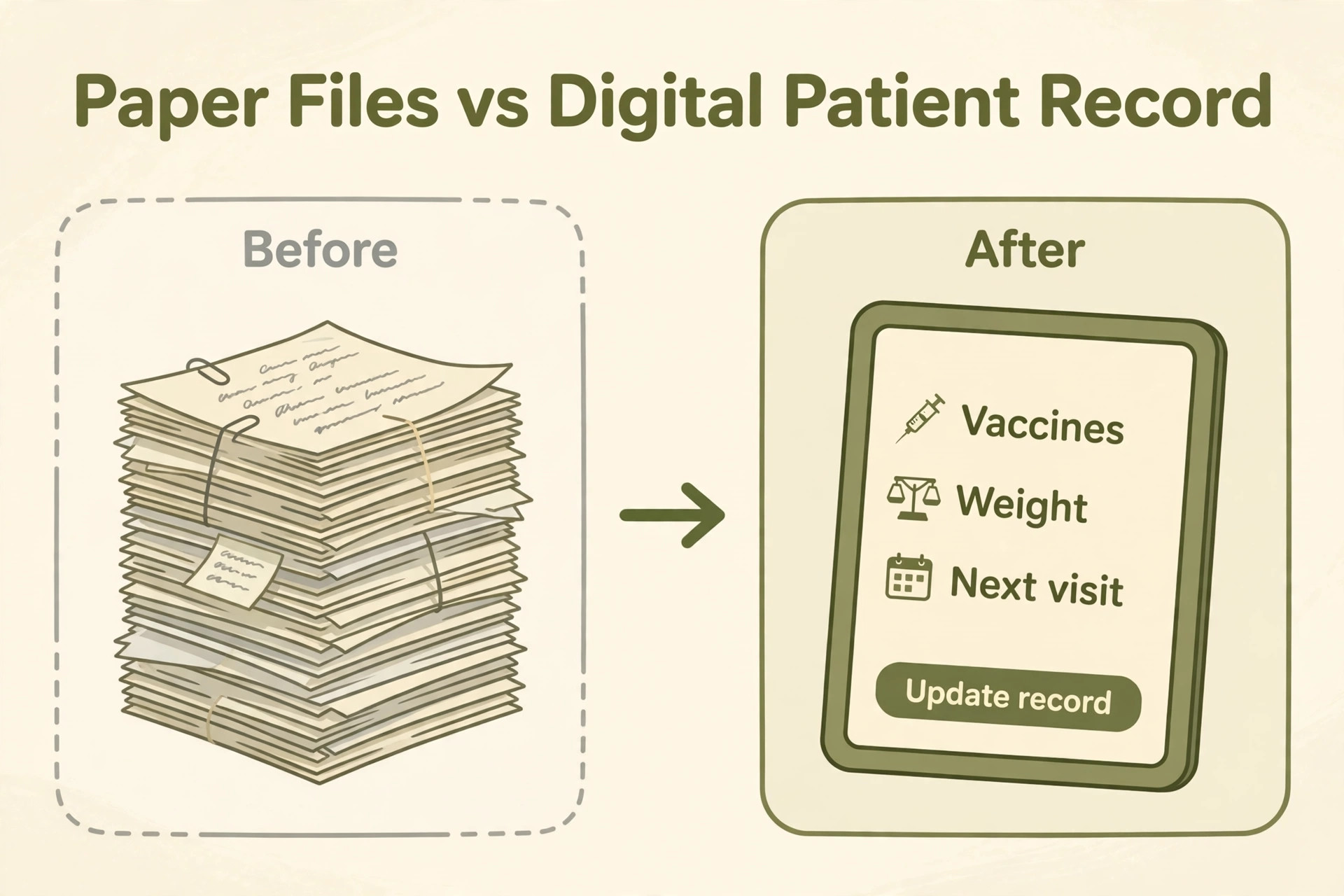
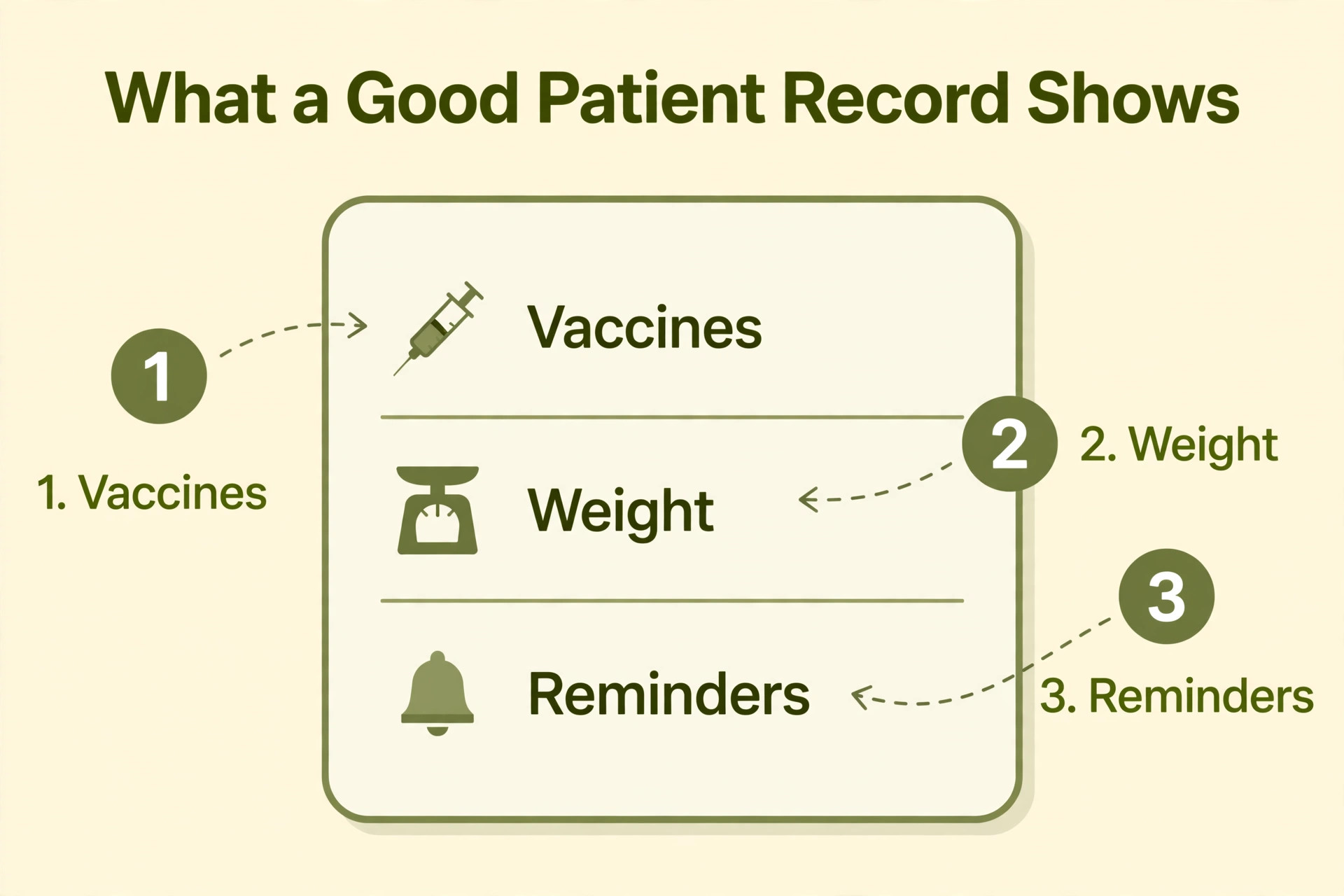
Patient history is the asset at stake, and it is worth more than the software. A vaccine given twice because the record was lost is a safety problem, not an admin problem. An allergy missed because the note was in a different folder is the same. A weight trend that would have flagged a problem early is invisible when the numbers sit in five separate paper files. The software is only a container. A container is only useful when what goes inside it is complete, and a half moved record is worse than a paper record, because it looks complete and is not. The history inside it is what protects the patient, and the migration has to protect it first.
This guide walks through how to switch from paper records to vet software, from the audit of the cabinets to the day the paper goes into storage. It covers how to choose the software, how to scan and digitise the records that matter, how to map the fields so nothing is lost in the import, and how to run a pilot that proves the history survived. The timeline is eight weeks for a clinic with one or two vets, and the same steps scale up for a larger team. Follow them in order, and the clinic keeps every record it needs.
Before You Touch a Single File, Audit What You Have
Start with a count, not a purchase. Walk the cabinets and count the active patients, meaning animals seen in the last eighteen months, then count the inactive files separately. A clinic with 2,000 active patients and 6,000 inactive files has a very different migration from a clinic with 800 active patients and no archive. The active files are the ones that must move cleanly. The inactive files can be scanned later, summarised, or stored, and deciding that now saves weeks of scanning later.
Next, list the record types inside each file. Most paper files hold a mix of SOAP notes, vaccine certificates, lab reports, radiographs, consent forms, invoices and handwritten reminders. Some of those transfer cleanly, and some do not. Vaccine dates, allergies and current medication move as structured fields. Free text notes move as attached documents or as a summary. Radiographs move as images. The audit is a simple table with one row per record type, one column for how many files hold it, and one column for how it will move.
Finally, decide who owns the migration. One person needs to own the audit, the scanning and the import, even if the whole team helps. The owner checks the work every week, signs off each batch of imported records, and is the person the team asks when a field does not match. Clinics that spread the job across everyone end up with nobody checking the work, and that is how history gets lost. Pick the owner before you pick the software.
One more audit item is the paper the clinic still has to produce. Vaccine certificates, consent forms and referral letters are still printed on paper in most clinics, even after the switch, so check whether the software can print them with the clinic logo and the right fields. A software that cannot print a vaccine certificate forces the team back to a paper form for every vaccine, which defeats the point of the switch. The audit should list every paper form the clinic prints in a week, and the trial should prove the software can produce each one.
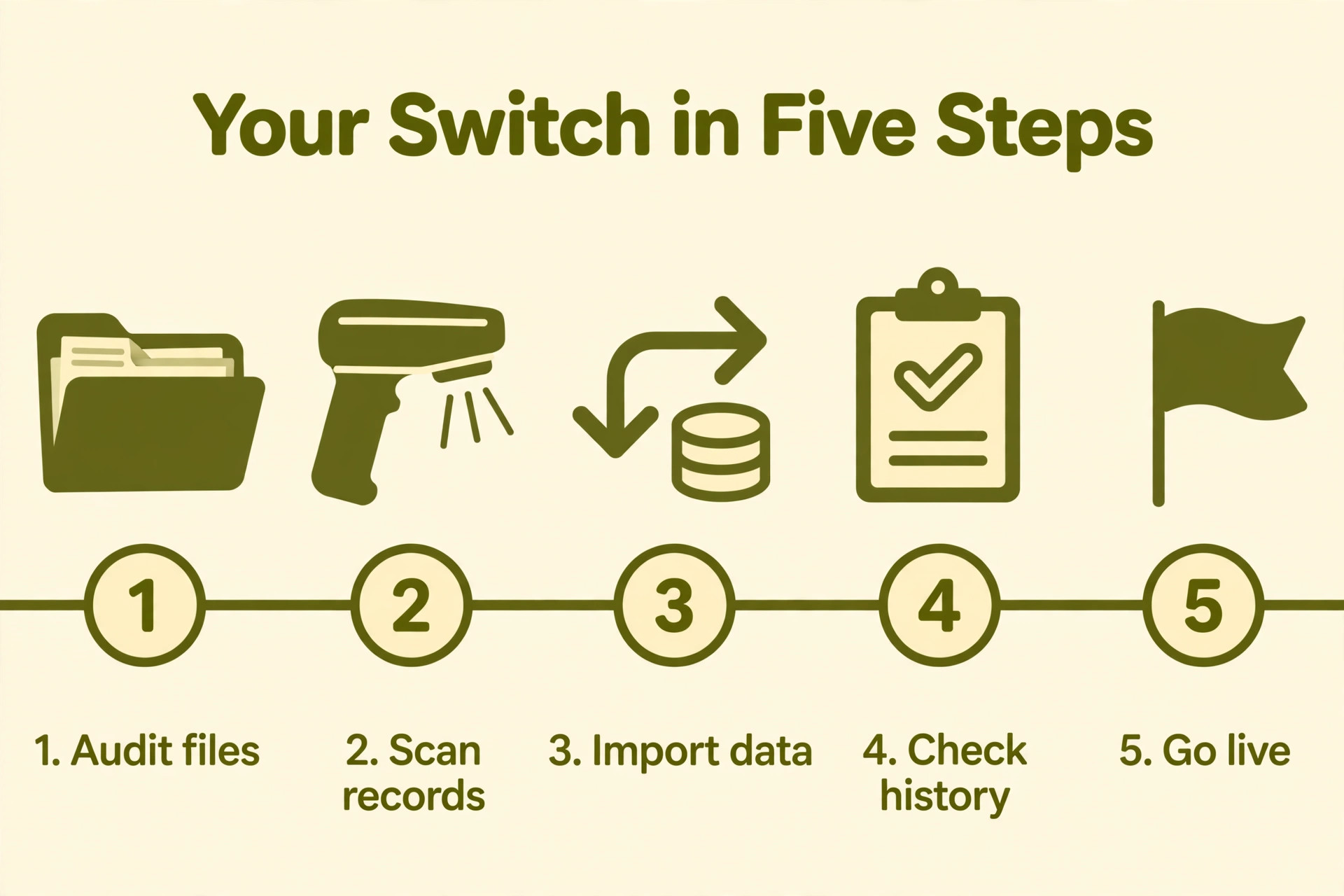
How to Switch from Paper Records to Vet Software, Step by Step
1. Audit the Paper Files and Set the Scope
Open fifty files at random and write down what is inside each one. Note the species, the age, the last visit date, the vaccine history, the allergies, the current medication and the lab results. The sample tells you what the real files look like, which is usually messier than anyone remembers. One clinic found that a third of its files had no allergy field at all, which meant the migration had to create one and the team had to fill it from memory and from the notes.
Use the sample to set the scope in writing. Active patients move in full, with every record scanned or summarised. Inactive patients move as a summary line, with the paper kept in storage for a year. Deceased patients and patients who moved away stay in storage and never enter the software. The scope document is one page, and the owner signs it. Without it, the team scans everything, the job takes three months, and the budget is gone before the first patient is imported.
2. Choose the Software Before You Scan Anything
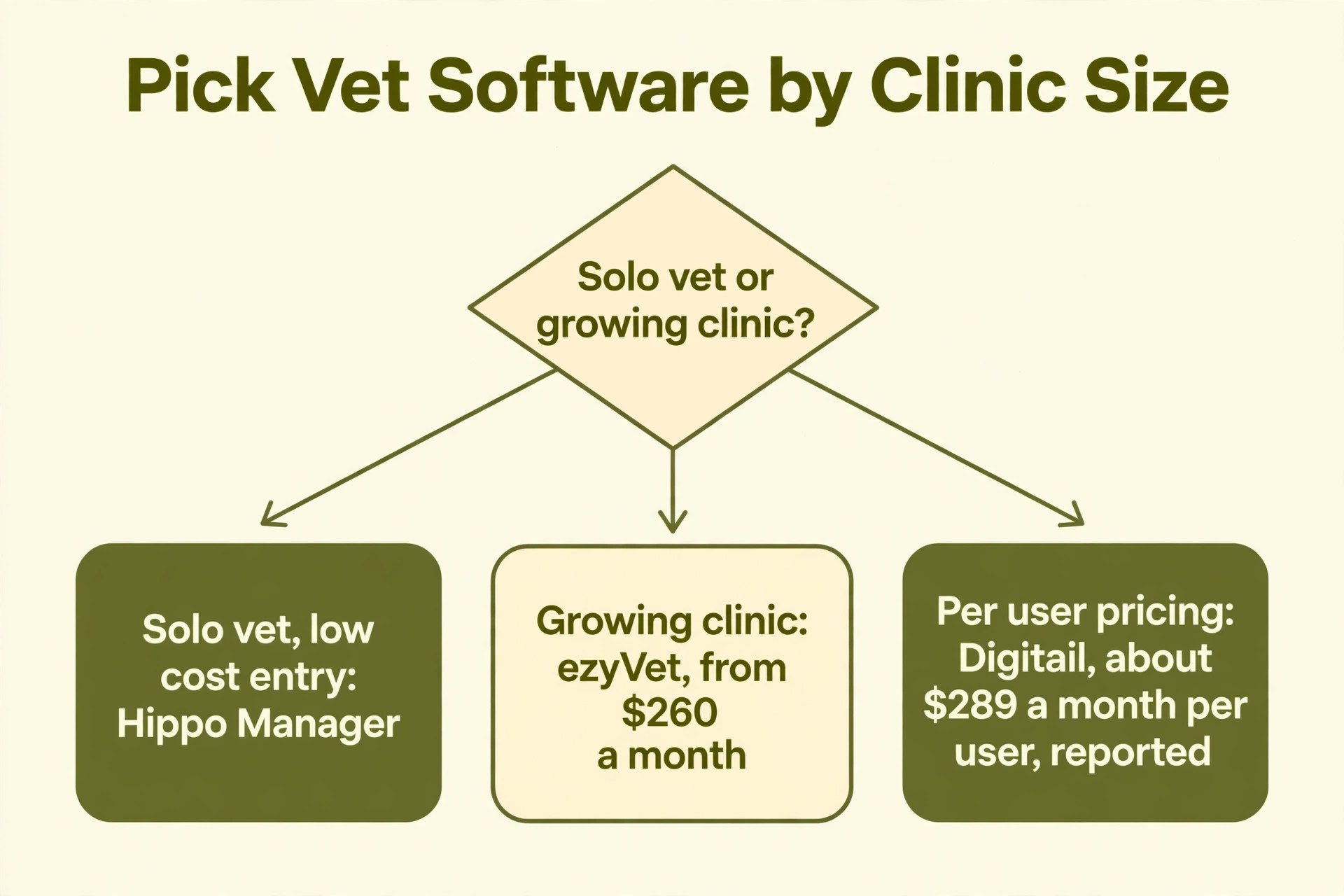
Pick the software before a single page is scanned, because the software decides what the scanned records look like. Shepherd is built for small clinics and charges per vet, ezyVet suits a clinic that wants depth and integrations, Digitail is built around the workflow of the consult, and Hippo Manager is the low cost entry for a single vet practice. The right pick is the one whose fields match the audit, not the one with the longest feature list.
Run the trial with real files, not with the demo data. Take ten real patient files, enter them by hand in the trial, and see how long it takes and what does not fit. If the vaccine history takes three screens to enter, the team will hate it. If the allergy field is hard to find, it will stay empty. The trial is the cheapest test in this whole project, and it answers the only question that matters, which is whether the team can do the daily work in this software.
Test the three jobs the clinic does every day, not the features on the sales page. Book an appointment, write a note, order a lab, issue a vaccine certificate and take a payment, all in the trial, and time each one. Then send a reminder, print a certificate, and run the end of day report. If any of those five jobs is slow or awkward, the software is wrong for this clinic, no matter how good the demo looked. The trial takes an afternoon, and it saves the clinic from a year on the wrong tool.
3. Scan and Digitise the Active Records First
Scan the active files first, and scan in the order the clinic will need them. Start with the patients booked in the next two weeks, then work backwards through the active list. A sheet fed scanner that handles fifty pages a minute will clear a cabinet of 2,000 files in a few days, while a flatbed scanner will take weeks. Hire a scanning service if the volume is large, because their machines are faster and their operators are quicker, and the cost is usually less than the staff time it replaces.
Name every file the same way, so the import can find it. The pattern is simple, patient surname, patient first name, species, and the date of the document, in that order. A file called Smith_Bella_dog_2026_03_14_vaccine.pdf is findable in seconds. A file called scan_0047.pdf is not. The naming rule is written on the wall above the scanner, and every person who scans follows it, because a badly named file is as lost as a paper file in the wrong cabinet.
4. Map Every Field Before You Import
Field mapping is the step that decides whether the history survives. For every field in the paper file, write down where it goes in the software. The owner name, the patient name, the species, the breed, the date of birth, the sex and the weight go into structured fields. The vaccine history goes into the vaccine table, with the date, the product and the batch number. Allergies go into the allergy field, not into a free text note, because a field can trigger a warning and a note cannot.
Some fields do not have a home, and that is normal. A handwritten note about a nervous cat goes into the patient notes field. A lab report that arrived by fax goes in as an attached document. A radiograph goes in as an image. The rule is that nothing is typed into a field that does not exist, and nothing is left out because it was hard to place. The mapping document lists every paper field, its destination, and the person who checked it, and it is the document the clinic reads when a record looks wrong later.
Watch for duplicates, because paper files breed them. The same dog appears twice, once under the owner surname and once under the dog name, or the same cat appears with two different spellings of the owner name. The mapping step must include a duplicate check, where the owner merges the two files into one record and keeps the newer vaccine history. A clinic that skips this step imports 2,000 patients and finds 200 of them twice, which confuses the reminders and doubles the appointment book.
5. Run a Pilot With One Vet and Fifty Patients
Pick one vet, fifty active patients, and one week. Import those fifty patients, run every appointment for that vet through the software for the week, and keep the paper files on the desk as a backup. The pilot is small enough to fix quickly and big enough to show the real problems. If the vaccine history is wrong on three of the fifty, the mapping has a problem. If the team keeps reaching for the paper, the workflow has a problem.
Measure the pilot in numbers, not in feelings. Time how long it takes to open a record, to write a note, to issue a vaccine certificate and to take payment. Compare those times with the paper workflow. If the software is slower in week one, that is normal, because the team is learning. If it is still slower in week three, the setup is wrong, and the owner fixes the templates before the go live. The pilot report is one page, and it decides whether the clinic goes live or fixes first.
6. Train the Team on the New Workflow
Train on the real workflow, not on the feature list. The receptionist needs to book, check in, take payment and send a reminder. The vet needs to open the record, write the note, order the lab and issue the certificate. The nurse needs to record the weight, the temperature and the vaccine. Each person gets a one page guide for their own job, with the five tasks they do every day, and nothing else. A two hour session per role is enough when the guide is that focused.
Train in the week before go live, not a month before. Skills fade, and a team trained in March will have forgotten the workflow by April. The pilot vet trains the other vets, because a colleague who has done the work is more convincing than a vendor trainer. Run a practice day where every appointment is entered in the software alongside the paper, so the team builds confidence before the paper disappears. Confidence is the difference between a smooth go live and a team that quietly goes back to paper.
Expect resistance, and plan for it. One person on every team will say the paper was faster, and on day one they are right, because the new workflow is unfamiliar. Give that person a quick win, such as the reminder list that used to take an hour and now takes five minutes, or the vaccine certificate that prints in seconds instead of being handwritten. A team that sees one clear win in the first week stops resisting, and a team that sees none goes back to the cabinet.
7. Go Live, Then Archive the Paper
Pick a Monday, and go live on that day. The weekend before, import the last of the active records, print the day list from the software, and put the paper files for that day in a box by the desk. On Monday, the team works from the software, and the paper box is the backup, not the source. By Wednesday, the box should be untouched. By Friday, it goes back to the cabinet, and the team knows the software is the record now.
Archive the paper properly, because the clinic still needs it. Keep the active files in storage for at least a year, in the same order as before, with a label that says which patients were migrated and when. Keep the inactive files for the period the local rules require, which is usually several years. After the retention period, shred them. The archive is not a failure, it is a safety net, and a clinic that keeps it sleeps better than one that shredded everything on day one.
8. Check the History After Go Live
Check the history in the first week after go live, while the paper is still in the cabinet. Pick twenty patients at random, open their digital record, and compare it with the paper file. Check the vaccine dates, the allergies, the current medication and the last lab result. If all twenty match, the migration worked. If three are wrong, stop and fix the mapping, because the same error is hiding in the other records.
Fix the errors in the software, not in the paper. The paper is the backup, and the software is the record from now on. Log every fix in a simple list, with the patient name, the field that was wrong, and the correct value. The list is the proof that the history was checked, and it is the document the clinic shows when anyone asks whether the migration was safe. A checked migration is a finished migration.
Migration Timeline for a Small Clinic
The timeline below is the heart of how to switch from paper records to vet software for a small clinic, and it assumes one person owns the migration and the team gives it two hours a day. A clinic with one or two vets and about 2,000 active patients can finish the move in eight weeks, working around the normal appointment book. A larger clinic adds a week per extra vet, and a clinic with more than 5,000 active patients should hire a scanning service for the first three weeks.
| Week | Work | Owner |
|---|---|---|
| 1 | Audit the cabinets and set the scope | Migration owner |
| 2 | Choose the software and run the trial | Migration owner |
| 3 | Scan the active files in booking order | Reception team |
| 4 | Map the fields and import the pilot | Migration owner |
| 5 | Pilot week with one vet | Pilot vet |
| 6 | Train the team on their daily tasks | Pilot vet |
| 7 | Go live on Monday | Whole team |
| 8 | Check the history and archive the paper | Migration owner |
What Transfers and What Gets Summarised
Not every page needs to move in full. The table below shows how each record type travels, and the rule is simple. Anything that changes a clinical decision moves in full, and anything that is background moves as a summary. A vaccine date changes a decision, so it moves in full. A five year old note about a mild cough does not, so it becomes one line in the summary.
| Record type | How it moves | Where it lands |
|---|---|---|
| Vaccine history | In full, every dose | Vaccine table |
| Allergies | In full, every allergy | Allergy field |
| Current medication | In full, every drug | Medication list |
| Lab results | Last 12 months in full, older as files | Lab section and attachments |
| SOAP notes | Last 2 visits in full, older summarised | Notes and summary |
| Radiographs | As images | Attached to the patient |
| Consent forms | Scanned | Attached to the patient |
| Invoices | Last year only | Billing, older stay in storage |
The One Page Migration Checklist
Print this checklist and pin it above the scanner. Every item has a finish line, and the owner ticks it off when the finish line is met. The checklist is the whole migration on one page, and a clinic that works through it in order will not lose a record. Skip an item, and the step after it will fail, because each item depends on the one before it.
| Item | Done when |
|---|---|
| Active patient count finished | Owner signs the scope |
| Record types listed | Audit table is complete |
| Software chosen | Trial done with ten real files |
| Scanning booked | Scanner arrives or service starts |
| Naming rule posted | First file is scanned |
| Field map written | Every paper field has a destination |
| Pilot patients imported | Fifty patients are in the software |
| Pilot week run | Pilot report is signed off |
| Team trained | Every role has a one page guide |
| Go live date set | Monday is chosen and told to the team |
| History checked | Twenty records match the paper |
| Paper archived | Files are labelled and stored |
What the Switch Costs
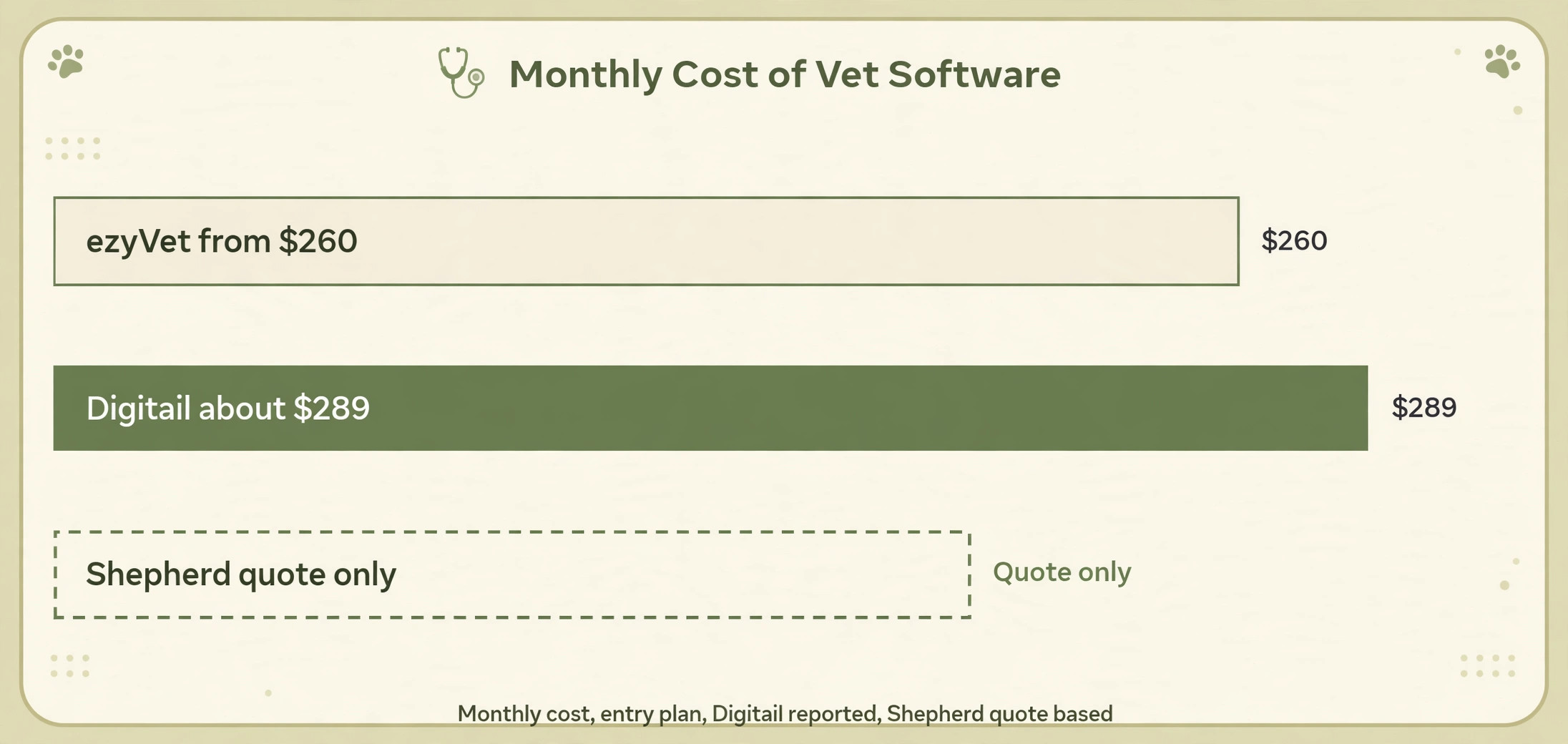
The software subscription is the smallest part of the bill. ezyVet starts around 260 dollars a month, Digitail is reported at 289 dollars per user per month, and Shepherd is quote based since it pulled its public pricing page in 2026, so the clinic should get a written quote before budgeting. Hippo Manager is the low cost entry for a single vet practice. A scanning service costs a few hundred dollars for a cabinet of 2,000 files, and a sheet fed scanner costs a few hundred dollars to buy.
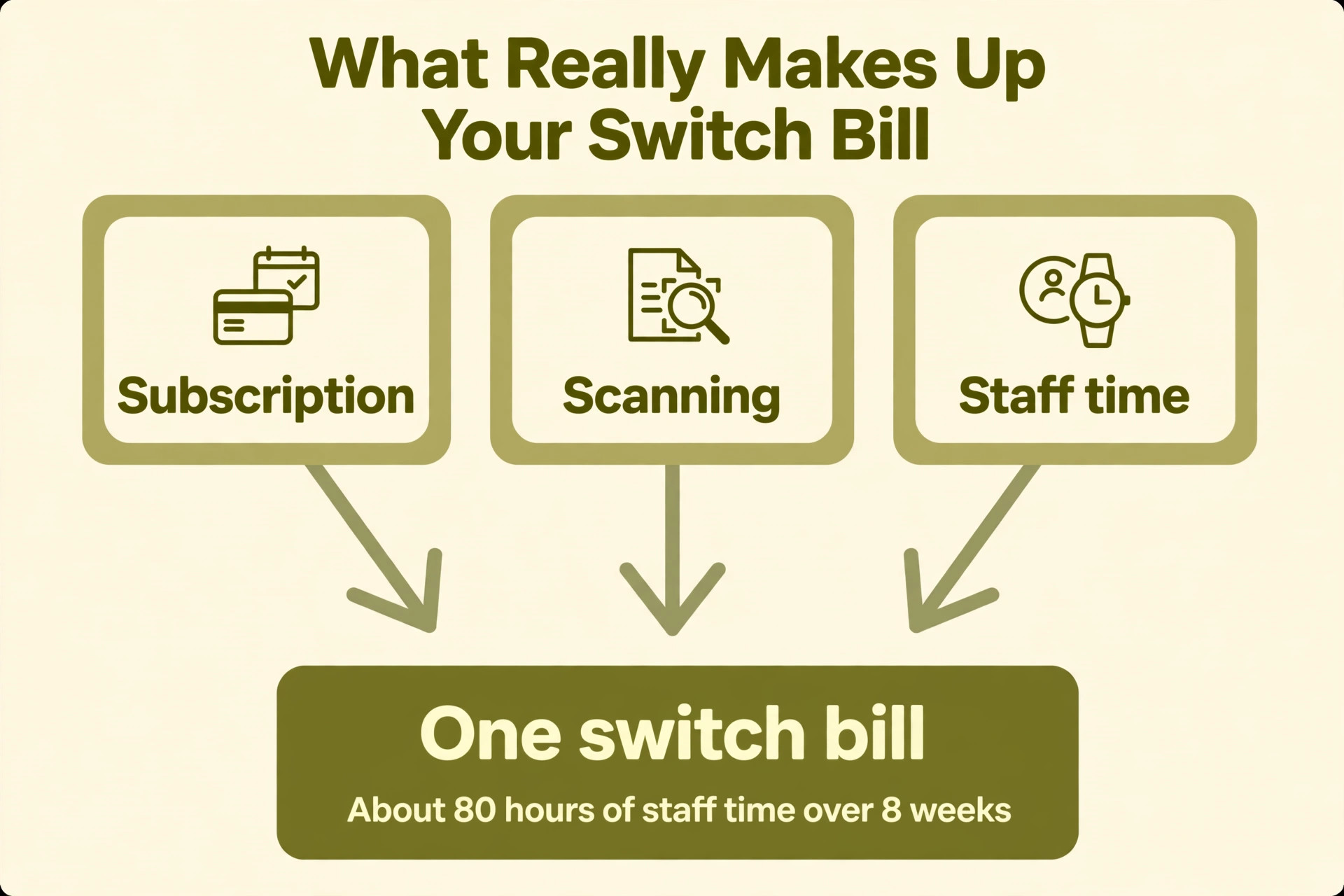
The biggest cost is staff time, about two hours a day for eight weeks, which is roughly eighty hours. Price the time honestly, because a migration that is budgeted only for the subscription will run out of patience in week three. The total for a small clinic is usually a few thousand dollars all in, and the return is the time the team stops spending on lost files, missed reminders and unreadable notes.
Mistakes That Lose Patient History
The first mistake in how to switch from paper records to vet software is scanning without a naming rule. A folder of 2,000 files called scan_0001 to scan_2000 is unusable, because nobody can find the file for the patient in the room. The naming rule is written before the first page is scanned, and every file follows it. A clinic that scans first and names later spends more time renaming than it saved by scanning.
The second mistake is importing without a pilot. A clinic that imports 2,000 patients in one go discovers the mapping error on patient 1,900, when the vaccine dates are in the wrong field and the allergies are in the notes. The pilot of fifty patients finds the same error on day one, when it takes an hour to fix. The pilot is the cheapest insurance in this project, and skipping it is the most expensive decision a clinic can make.
The third mistake is training too early or not at all. A team trained a month before go live forgets the workflow, and a team never trained invents its own workflow, which is usually wrong. Train in the week before go live, train on the five daily tasks per role, and let the pilot vet train the rest of the team. The software is only as good as the team that uses it, and a trained team is the difference between a migration that sticks and one that quietly fails.
Our Verdict
How to switch from paper records to vet software is a data project, not a software purchase, and the clinics that succeed treat it that way. They audit first, they choose the software second, they scan in the order they need the records, they map every field before they import, and they pilot with fifty patients before they commit. The eight week timeline is realistic for a small clinic, and the history survives when every step is checked.
Start this week with the audit, because the audit is free and it tells the clinic what the real job is. Count the active patients, list the record types, and pick the owner. The software choice comes after that, and the scanning comes after that. The audit takes one afternoon, and it is the only step that costs nothing, yet it decides the scope, the software choice and the timeline. A clinic that follows this order keeps every record it needs, and the first Monday on the software feels like a relief rather than a risk.
Frequently Asked Questions
How long does it take to switch from paper records to vet software?
A clinic with one or two vets and about 2,000 active patients needs about eight weeks, working two hours a day around the normal appointment book. The audit takes a week, the software choice and trial take a week, scanning takes one to two weeks, and the pilot and training take two weeks. A larger clinic adds about a week per extra vet.
What happens to the paper files after the switch?
Keep them in storage for at least a year, in the same order as before, with a label that says which patients were migrated and when. Keep inactive files for the period the local rules require, which is usually several years. Shred them only after the retention period, never on the day of go live.
Do I need to scan every page?
No. Scan the active records in full, scan the last twelve months of lab results, and summarise older notes into one line per patient. Inactive patients move as a summary line, and deceased patients stay in storage. Scanning everything takes three months and the clinic does not need most of it.
What if the vaccine history is incomplete?
Fill the gaps from the notes, from the owner, and from the previous vet if the patient came from another clinic. Enter what is certain, flag what is estimated, and never guess a date. A vaccine recorded as estimated is safer than a date that looks certain but is wrong.
Which software is best for a small clinic?
Shepherd suits a small clinic that wants a simple workflow, ezyVet suits a clinic that wants depth and integrations, Digitail suits a clinic that works around the consult, and Hippo Manager suits a single vet practice on a tight budget. Trial each one with ten real files before deciding.
How much does the switch cost?
The subscription starts around 260 dollars a month for ezyVet, Digitail is reported at 289 dollars per user per month, and Shepherd is quote based. Add a few hundred dollars for scanning and about eighty hours of staff time over eight weeks. The subscription is the smallest part of the bill.
Can the clinic keep seeing patients during the migration?
Yes. The migration runs alongside the normal appointment book, two hours a day, and the paper files stay on the desk until go live. The pilot week proves the software works with real appointments before the paper disappears, so there is no day when the clinic cannot see a patient.
Audit the cabinets this week, pick the owner, and the switch will take eight weeks instead of eight months for a small clinic.
That is the short answer on how to switch from paper records to vet software for most small businesses.